Drivers.com

follow us:

facebook twitter
  • Home
  • Download Drivers
  • Drivers Help
  • PC/Mac Resources
  • Software Drivers
  • Mac Fixes and Tips
  • PC Fix Tips
  • Security/ Backup
  • Tablets & Smartphones
  • Tech News
  • Software Drivers
  • Mac Fixes and Tips
  • PC Fix Tips
  • Security/ Backup
  • Tablets & Smartphones
  • Tech News

Want to Control Your Android Phone from Your Computer? Learn How

By Susan C on February 19, 2025

Want to Control Your Android Phone from Your Computer? Learn How

You know how Apple lets control an iPhone from a Mac? Well, a free application called Scrcpy (it’s screen copy, minus the vowels) lets you do the same thing for your Android phone on your computer, whether it’s Windows, Mac, or Linux.

While Scrcpy is not the easiest application to install — for instance, you’ll need to use the command line and have the developer mode turned on your phone — but once you get it running, you’ll be surprised how nifty the app is. It not only allows you to control your phone’s screen from your laptop or desktop, but also lets you set up a virtual screen so that you can launch apps on your Android even when it is off. Pretty cool, eh?

Of course, to enjoy these goodies you’ll first need to install Scrcpy. The most painless way to do this is by using a package manager. They are available dime a dozen on the internet, so do check the reviews to ensure you have picked a good one.

But why is a package manager needed in the first place? Well, because they install each and every driver and tool which the app requires to work smoothly.

Hmm, I get that, but what if I still don’t want to use a package manager?

In that case, download the latest release from Github and follow the instructions to complete installation. Keep in mind that going solo on this one, while perfectly possible, is the harder option. If you still insist, make sure you have all dependencies installed; otherwise, the app may not work properly.

As always, avoid third-party websites for downloading apps. Either use a package manager or download the app the official Github website.

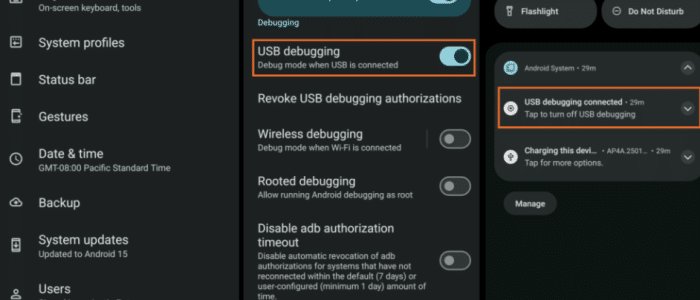
Once installation is complete, enable USB debugging on the Android phone. To do this, the developer mode should be enabled.

  • Go to Settings
  • Tap About phone
  • Tap Build Number till you get a message stating “You are now a developer”
  • Under System, you’ll now see a new sub-menu: Developer options
  • Open this sub-menu and toggle USB debugging on

All that’s left now is for you to plug the Android phone into the computer and viola, you can control it remotely. To get started, just type ‘scrcp’ in the command prompt and hit Enter.

Leave us a comment below if you have any question and don’t forget to share the post so that others can benefit from it.

Before signing off for the day, a pro tip: If your Windows computer is throwing tantrums, like system crashes, poor performance, or random errors, chances are outdated device drivers are the culprit. The best and easiest way to update device drivers is by using a third-party tool such as Driver Updater.

Automatic driver update tools offer many benefits, the most important ones being:

  • You can update device drivers automatically
  • The software scans and updates all outdated or missing drivers at one go
  • The tool picks the right drivers for your device and operating system, so you won’t have to worry about installing an incorrect driver by mistake
  • Automatic driver updates are 100% safe

Driver Updater is one of the best driver update tools out there. Outbyte Driver Updater will give you access to a database of over 1 million drivers. It will regularly scan your PC, suggesting new driver versions to install. Driver Updater contains drivers for a variety of Windows devices. With just one click, you can update drivers in your system.

Step 1
Click here to Install and launch the app

Step 2
Scan all devices

Step 3
Install or update drivers automatically
 

Start Download


Filed Under: Tablets & Smartphones

How to Troubleshoot AMD Error 182 on Windows

By Susan C on February 18, 2025

How to Troubleshoot AMD Error 182 on Windows

If you are receiving AMD driver 182 when you try to update or install graphics drivers, continue reading to find out how to fix the issue.

What is AMD Driver Error 182?

During the AMD graphics driver update process, AMD Radeon Software Installer may terminate the installation and return the following error: “Oops something went wrong – AMD software installation error 182.”

AMD Software Installer is a tool for Windows computers that check a system for compatible AMD products and downloads and install drivers. The application includes generic drivers as well. These drivers are compatible with many graphics products, but not all. Graphics products such as Custom AMD graphics, Legacy AMD graphics, and Embedded AMD graphics aren’t supported by AMD software.

How to troubleshoot Driver Error 182?

Download right drivers

First identify your graphics card and then download appropriate drivers. To see the type of graphics card you have, perform these steps:

  • Type device manager in the search bar in the taskbar
  • In the Device Manager window, locate and expand Display adapters
  • Next-right click AMD Radeon Graphics and select Properties

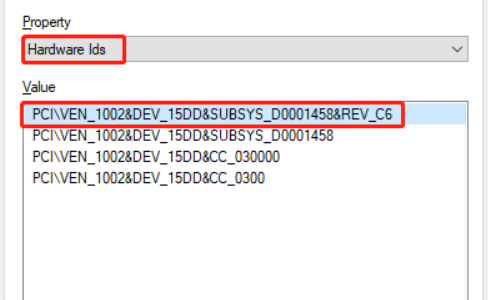
  • Click the Details tab and then select Hardware IDs in the Property drop-down menu

  • Pay attention to the first line in the Value field. So, in screenshot below, Value – PCI\VEN_1002&DEV_15DD&SUBSYS_D0001458&REV_C6 is the AMD Radeon device ID string. And the Subsystem ID is 1458. Note down the Subsystem ID

Now follow these steps to manually download and install AMD graphics driver.

  • Open your web browser
  • Go to AMD drivers and support web page
  • Search for the latest driver for your device using the Subsystem ID
  • Download the driver installation file and save it on the desktop or some other location
  • Double-click the installation file (.exe) and wait for installation to complete

Update your Windows system

If the error persists, try updating the Windows system. Here’s what you need to do:

  • Press the Win + I keys
  • Click Update & Security and then click Check for updates
  • If you see an update, download and install it by clicking the Download & Install button
  • You may have to restart Windows after the installation is complete

If the error still persists, it might be best to contact AMD support.

Just a final tip: Always keep your device drivers up-to-date as outdated drivers frequently cause performance-related issues and errors. Because manually updating drivers can be cumbersome, we recommend you use a third-party tool such as Driver Updater.

Automatic driver update tools offer many benefits, the most important ones being:

  • You can update device drivers automatically
  • The software scans and updates all outdated or missing drivers at one go
  • The tool picks the right drivers for your device and operating system, so you won’t have to worry about installing an incorrect driver by mistake
  • Automatic driver updates are 100% safe

Driver Updater is one of the best driver update tools out there. Outbyte Driver Updater will give you access to a database of over 1 million drivers. It will regularly scan your PC, suggesting new driver versions to install. Driver Updater contains drivers for a variety of Windows devices. With just one click, you can update drivers in your system.

Step 1
Click here to Install and launch the app

Step 2
Scan all devices

Step 3
Install or update drivers automatically


Start Download


Filed Under: PC Fix Tips

How to fix IRQL_NOT_LESS_OR_EQUAL Errors in Windows 11

By Susan C on February 17, 2025

How to fix IRQL_NOT_LESS_OR_EQUAL Errors in Windows 11

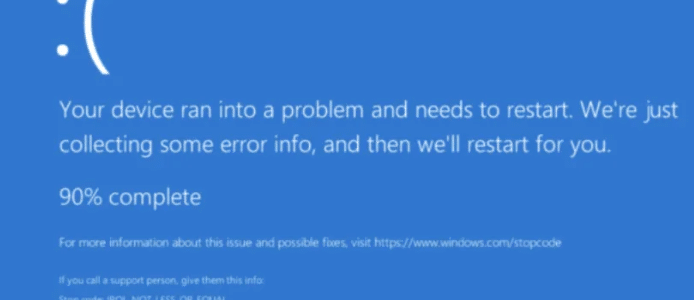
Windows does a pretty good job of giving error codes cryptic names, which to an average user appear no less undecipherable than Morse code. One such error code is IRQL_NOT_LESS_OR_EQUAL. Its one of those errors that causes the dreaded blue screen of death (BSOD) (Yeah, I know it’s enough to trigger a full-blown panic attack if you have unsaved work). Fortunately, some of its solutions are less puzzling than the name.

In this post, we’ll walk you through some of the common solutions — all of them DIY — for IRQL_NOT_LESS_OR_EQUAL errors in Windows 11.

What is an IRQL_NOT_LESS_OR_EQUAL error in Windows 11?

This is usually a memory-related error. It occurs when a device or system process tires to access a memory address to which it doesn’t not have access rights. Think of it as an alarm that will go off if you attempt to enter the part of your office building you’re not supposed to go.

This error triggers what is officially known as a stop error, though most Windows users know it as blue screen of death (BSOD). Call it a stop error or BSOD or by any other name, such as bugcheck or fatal error, there’s no escaping the fact that your computer will jerk to standstill.

What causes the IRQL_NOT_LESS_OR_EQUAL error?

Like is the case with most system errors, there are more than causes for this Stop error. Some common causes and how to address them are listed below:

Corrupt system files

To run a scan of system files and repair corrupt files, perform these steps:

  • Type command prompt in the search bar in the taskbar and then right-click Command Prompt in the search results and select Run as administrator

  • Type DISM /Online /Cleanup-Image /CheckHealth in the Command Prompt and hit Enter
  • In case this commands reports anything, type DISM /Online /Cleanup-Image /RestoreHealth and hit Enter
  • Next, type SFC /SCANNOW in the Command Prompt and hit Enter. If the DISM Restore or SFC command works, the chances are IRQL will disappear. Please note that these scans, especially the SFC scan will take some time; how much time the SFC scan takes will depend on the size and health of your hard drive

  • Close the Command Prompt window after the scans are complete

Incompatible device drivers

Have you recently installed a device driver? It’s possible that this driver is causing the error. To check whether this is the case or not (and to fix the issue), roll back to the previous driver version. Here’s how:

  • Type device manager in the search bar and hit Enter
  • In the Device Manager window, right-click the device whose driver you have updated and select Properties

  • Click the Driver tab in the properties window and then click the Roll Back Driver button

More than a few users have reported that a buggy NVIDIA GeForce graphics driver triggered the IRQL error and they were able to fix it by rolling back to the previous version. If you have NVIDIA GeForce graphics driver, consider going back to its last version to see if that does the job, even if you didn’t update the driver recently.

Faulty hardware

In case a hardware device is failing or malfunctioning, Reliability Monitor will show error reports. Reliability Monitor is a built-in Windows utility that allows you to assess computer health.

  • Type reliability Monitor in the search bar in the taskbar and hit Enter. Wait for it to generate a report
  • Errors will be shown as a red X (also labelled as Hardware error in the Summary section)

Depending on the device that’s failing, you may need to disconnect it from the computer or replace it.

Incomplete or damaged software installation

If an application was recently installed, check for installation failure messages in Reliability Monitor. In case of recent updates or upgrades, check the Update History. If you find a software-related issue, uninstall it and check if the problem is resolved.

Opt for a clean boot

In case none of these solutions have worked for you, perform a clean boot. It loads Windows with only most essential startup programs and drivers. This, in turn, makes it easier to identify and eliminate the possible causes of trouble.

Here’s what you need to do:

  • Type msconfig in the search bar in the taskbar and press Enter
  • In the General tab, select Selective startup and then uncheck Load startup items

  • Click the Services tab
  • Click the checkbox before Hide all Microsoft Services and then click Disable all

  • Click the Startup tab and then click Open Task Manager

  • Right-click all Enabled services and apps one by one and then select Disable

  • Close the Task Manager
  • Click OK in the System Configuration Window
  • Restart the PC

If the IRQL error doesn’t appear after restart, enable all the services that you had disabled one by one and restart the PC after enabling each service. This will help you pinpoint which service or program is causing the issue.

I hope one of these solutions work for you. Leave us a comment if you have a question or want to share some input and don’t forget to share the post so others can benefit from it.

Just a final advice…

Always keep your device drivers up-to-date as outdated drivers can trigger various errors, including blue screen of death. The easiest way to update drivers is by using an advanced third-party tool such as Driver Updater.

Automatic driver update tools offer many benefits, the most important ones being:

  • You can update device drivers automatically
  • The software scans and updates all outdated or missing drivers at one go
  • The tool picks the right drivers for your device and operating system, so you won’t have to worry about installing an incorrect driver by mistake
  • Automatic driver updates are 100% safe

Driver Updater is one of the best driver update tools out there. Outbyte Driver Updater will give you access to a database of over 1 million drivers. It will regularly scan your PC, suggesting new driver versions to install. Driver Updater contains drivers for a variety of Windows devices. With just one click, you can update drivers in your system.

Step 1
Click here to Install and launch the app

Step 2
Scan all devices

Step 3
Install or update drivers automatically


Start Download


Filed Under: PC Fix Tips Tagged With: IRQL

  • « Previous Page
  • 1
  • …
  • 20
  • 21
  • 22
  • 23
  • 24
  • …
  • 189
  • Next Page »


  • Recent Posts
  • Popular Posts
        

Read More Posts


Read More Posts

Drivers.com Sites

  • Software Drivers
  • Drivers Ed

About Us

  • Advertise
  • About Drivers
  • Drivers Support
  • Drivers.com Privacy Policy
  • Disclaimer
  • Software Drivers
  • Mac Fixes and Tips
  • PC Fix Tips
  • Security/ Backup
  • Tablets & Smartphones
  • Tech News

© Copyright 2026 PDE Publications Ltd. End User License Agreement (EULA)