Drivers.com

follow us:

facebook twitter
  • Home
  • Download Drivers
  • Drivers Help
  • PC/Mac Resources
  • Software Drivers
  • Mac Fixes and Tips
  • PC Fix Tips
  • Security/ Backup
  • Tablets & Smartphones
  • Tech News
  • Software Drivers
  • Mac Fixes and Tips
  • PC Fix Tips
  • Security/ Backup
  • Tablets & Smartphones
  • Tech News

How to fix PS4 Error Code SU-30746-0?

By Susan C on February 14, 2025

How to fix PS4 Error Code SU-30746-0?

If you get the PS4 error SU-30746-0, try not to panic. While this error code is not as common as some other PS4 errors, you can fix it on your own — and we’ll show you how.

What is PS4 Error Code SU-30746-O?

The error occurs when the system fails to locate the appropriate update file it needs to update the PS4 software. Now, let’s look at the two popular solutions to this error.

How to troubleshoot Error Code SU-30746-0?

Solution 1 – Update PS4 Software in Safe Mode

Just like a Windows computer, PS4 can be launched in Safe Mode, in which only essential files and processes are loaded at startup.

  • Power off the PS4 console
  • Download the latest firmware version available
  • Save this file in a USB storage device
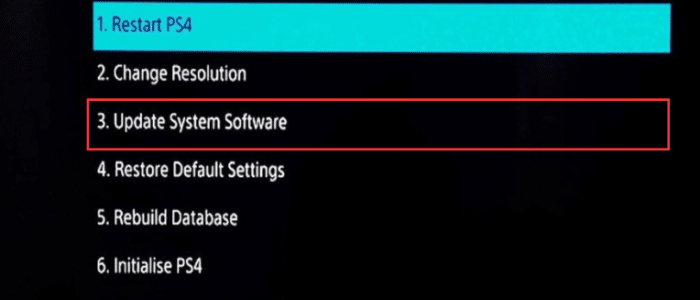
  • Press and hold down the PS4 power button till two beeps are heard. Release the power button immediately following the second beep. Now, your PS4 console should launch into Safe Mode
  • Connect the DUALSHOCK4 controller with a USB cable and then press the PS button
  • Choose Update System Storage (3rd option in the menu) and press X
  • Choose Update Using Internet in case you’re using Ethernet cable. If not, insert the external USB storage device that has the latest firmware file and select Update from USB Storage Device
  • Reboot PS4 after PS4 has been updated
  • Check whether the issue is solved

If you’re unable to update PS4 in Safe Mode or if this solution didn’t work, try the second solution.

Solution 2 – Reset PS4 to its default settings

Reverting to factory settings worked for a good percentage of users who received this error, so this solution is worth trying. Here’s what you need to do:

  • Power off your PS4
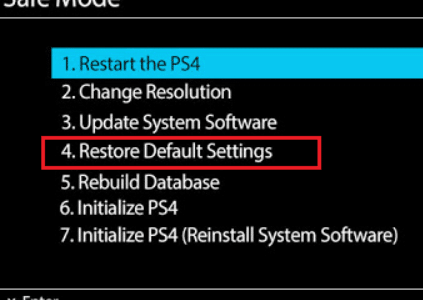
  • Press down and hold the Power button till two beeps are heard. After the second beep, release the PS4 power button. You should be able to access Safe Mode now
  • Connect the PS4 DUALSHOCK4 controller to the PS4 via a USB cable and press the PS button
  • Choose Restore Default Settings (4th option) and press X

  • Select Yes and press X again
  • PS4 settings will now be restored to their default settings
  • Restart the console

The PS4 Error Code SU-30746-0 error should be fixed now.

While PS4 errors usually don’t occur due to graphics driver-related issue (that’s because PS4 has its graphics process unit built directly into the console’s chip), many computer errors do. Keep your computer in top shape by regularly updating device drivers. The easiest way to do that is by using a reliable third-party tool like Driver Updater.

Automatic driver update tools offer many benefits, the most important ones being:

  • You can update device drivers automatically
  • The software scans and updates all outdated or missing drivers at one go
  • The tool picks the right drivers for your device and operating system, so you won’t have to worry about installing an incorrect driver by mistake
  • Automatic driver updates are 100% safe

Driver Updater is one of the best driver update tools out there. Outbyte Driver Updater will give you access to a database of over 1 million drivers. It will regularly scan your PC, suggesting new driver versions to install. Driver Updater contains drivers for a variety of Windows devices. With just one click, you can update drivers in your system.

Step 1
Click here to Install and launch the app

Step 2
Scan all devices

Step 3
Install or update drivers automatically
 

Start Download


Filed Under: PC Fix Tips Tagged With: ps4

How to Fix Internet Connection Issues in Windows 11?

By Susan C on February 14, 2025

How to Fix Internet Connection Issues in Windows 11?

Windows 11 comes with many offline features, but the most important ones usually need an internet connection that’s stable. A glitch in the internet connectivity can be disruptive and annoying.

If you’re facing internet connection problems in Windows 11, first check if other devices, like a smartphone or tablet, have internet connectivity. If they don’t, chances are that current outage in your locality or your router is to blame.

But if other devices have stable internet connectivity, you are likely to be facing a software-related issue. There are plenty of ways to fix internet connection problems arising from software-related issue. However, a trial-and-error approach may be needed to find the right fit. Here are 9 solutions you can try.

Solution 1 – Restart the computer (making sure the Wi-Fi is switched on)

When a computer error occurs, the first thing experts recommend is to restart the device. We advise you start here as well.

The reason is pretty simple: many issues, including internet-connectivity problems can be triggered by software processes that conflict with each other, get stuck or use more system resources than they normally do. Rebooting the computer clears these processes and starts them afresh.

However, before you restart, check whether the Wi-Fi is switched on or not. It is possible that you (or someone else using your computer) might have turned it off accidentally. Here’s how to check if the Wi-Fi is switched on:

  • Type settings in the search bar in the taskbar and hit Enter

  • Click Network & Internet in the left-side pane and make sure the Wi-Fi toggle in the right-side pane is turned on

Solution 2 – Disable and re-enable Wi-Fi adapter

Your internet connectivity problem could also be related to Wi-Fi adapter’s settings. Sometimes, Windows updates change settings as well, including those of your Wi-Fi adapter. Therefore, it’s worth trying disabling and re-enabling the Wi-Fi adapter.

  • Type settings the Search bar and press Enter
  • Click Network & Internet in the left-side pane
  • Click Advanced network settings in the right-side pane

  • Under Network adapters section, click Disable next to W-Fi and then click it Enable

Solution 3 – Reset known networks

If the issue still persists, we recommend you try resetting known networks. Here’s what you need to do:

  • Type settings in the Search bar and hit Enter
  • Click Network & Internet
  • Click Wi-Fi in the right-side pane
  • Click Manage known networks

  • Click the Forget button next to your network

  • Click the back button
  • Click Show available networks in the right-side pane

  • Select your usual network and then click the Connect button

  • Enter the network security key

Solution 4 – Run a connection test

The internet connection problem could also be due to issues between the system and router. Checking whether the problem is linked to the internet provider is rather easy.

  • Type cmd in the search bar in the taskbar and hit Enter
  • In the Command Prompt window, type ipconfig and hit Enter

  • Find the Default Gateway
  • Now type ping followed by the Default Gateway

  • If there’s no issue with the internet provider, you’ll see that 4 packets were sent and received. If this information is not there, you can safely conclude that the problem is probably linked to the provider
  • Close Command Prompt

Solution 5 – Reset networking stack

The next solution in the list requires you to reset the networking reset. To do so, you must launch an elevated command prompt.

  • Type command prompt in the search bar and then right-click Command Prompt in the search results and select Run as administrator

    • Click Yes in the User Account Control Window
  • In the Command Prompt window, type the following commands one-by-one and hit Enter after each command
  • netsh winsock reset
  • netsh int ip reset
  • ipconfig /release
  • ipconfig /flushdns

Solution 6 – Run Windows 11 troubleshooter

Windows 11 come with a pre-built troubleshooter that can is good enough to handle many common issues. If the previous solution have not worked for you, we recommend you run the Windows troubleshooter.

  • Type settings in the search bar in the taskbar and then hit Enter
  • Click System in the left-side pane
  • Scroll down and click Troubleshoot in the right-side pane

  • Click other troubleshooters under the Options section

  • Click the Run button next to Network and Internet under the Most frequent section

Solution 7 – Update network adapters driver

With Device Manager — a built-in utility in Windows — you can update device drivers even when you’re offline, provided the latest driver version is present on your system.

  • Type device manager in the search bar in the taskbar and hit Enter
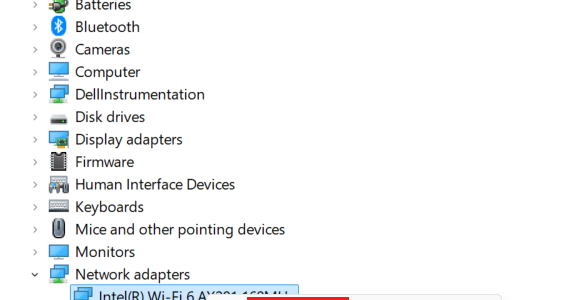
  • In the Device Manager window, locate and expand Network adapters
  • Right-click each device listed in this section and select Update driver

  • Click the first option: Search automatically for drivers

  • Windows will automatically install the latest version of the driver if it is able to find one on your system
  • You’ll need to update the driver for each device listed in the Network Adapters section this way

If you feel that manually updating device drivers via Device Manager is cumbersome, you’re not alone. It indeed is time-consuming, especially if you have to update more than one device drivers. For this reason, we recommend you use a third-party tool to keep your drivers up-to-date. While there are many such tools on the market, we like Driver Updater the best. More information on this software and the download link is shared at the end of the post.

Solution 8 – Roll back to previous driver version

Sometimes a new driver version — not the old one — is the problem. So, if the problem has occurred after a recent driver update, check whether reverting to previous version does the trick.

  • Type device manager in the search bar in the taskbar and hit Enter
  • Expand Network adapters
  • Right-click the device whose driver you have recently updated, and click Properties

  • In the properties dialog box, click the Driver tab and then click Roll Back Driver and OK

Solution 9 – Uninstall the network adapter and then reinstall it

To do this, perform the following steps:

  • Type device manager in the search bar in the taskbar and hit Enter
  • Expand Network adapters
  • Right-click your network adapter and select Uninstall device

  • Close the Device Manager and restart your computer
  • Upon restart, Windows will automatically detect and install the correct driver

Solution 9 – Temporary disable the antivirus program

Antivirus programs can interfere with other programs and processes, causing various issues, including disruption of internet connectivity. Therefore, it’s worth disabling the antivirus program temporarily to check whether this is the case or not. The process varies depending on the antivirus program you’re using, but for pre-installed Microsoft Defender it is pretty simple.

  • Type settings in search bar in the taskbar and hit Enter
  • Click Privacy & Security and then Windows Security
  • Click Virus & threat protection
  • Click Manage Settings
  • Toggle the Real-time protection switch to the “off” position

Now, check if this fixes the problem. Keep in mind that you need the real-time protection. Otherwise, you’ll be at a much greater risk to cyber attacks. If the problem disappears after you’ve disabled Microsoft Defender (or any other antivirus software that you’re using), consider switching to a different antivirus tool.

Well, that’s about it. We hope one of these solutions work for you. Leave us a comment below if you need additional help and share this post so others can benefit.

Before we wind up the today’s article, here’s more information about Driver Updater and why using it is a smart move.

Automatic driver update tools offer many benefits, the most important ones being:

  • You can update device drivers automatically
  • The software scans and updates all outdated or missing drivers at one go
  • The tool picks the right drivers for your device and operating system, so you won’t have to worry about installing an incorrect driver by mistake
  • Automatic driver updates are 100% safe

Driver Updater is one of the best driver update tools out there. Outbyte Driver Updater will give you access to a database of over 1 million drivers. It will regularly scan your PC, suggesting new driver versions to install. Driver Updater contains drivers for a variety of Windows devices. With just one click, you can update drivers in your system.

Step 1
Click here to Install and launch the app

Step 2
Scan all devices

Step 3
Install or update drivers automatically


Start Download


Filed Under: PC Fix Tips Tagged With: internet connectivity

How to Resolve PS4 Error CE-30002-5?

By Susan C on February 11, 2025

How to Resolve PS4 Error CE-30002-5?

Are you getting Error CE-30002-5 when you try to launch your favorite game via an external drive?

If so, this post is all you need. We’ll walk you through various solutions that have worked for other PS4 gamers. We’re sure one of these will work for you as well.

The Error Message

Typically, users receive the following error message when this error occurs:

an error has occurred CE-30002-5

Troubleshooting CE-30002-5 Error

Below, we have listed the four most effective solutions. You need not try all of them. Start with the first one and work your way down until the error is fixed.

Solution 1 – Update system software in Safe Mode

This solution has the best success rate among all others, so we’ll start with it. Updating the PS4 system software enhances security, gives access to new features, improves performance, and may help fix issues and errors such as this one.

Step 1 – Boot PS4 in Safe Mode

Here’s how:

  • First, connect the USB drive on which the PS4 system update files are saved to your PS4
  • Now press and hold the console’s Power button for 7-10 seconds to ensure PS4 is turned off completely
  • Next, connect DS4 to your PS4 using the USB cable and then press the PS button on your controller to enter Safe Mode

Step 2 – Update system software

Once you’ve booted PS4 in Safe Mode, select the Update System Software option (3rd option in the list) to update PS4.

Step 3 – Update from USB device

From the three options that are on your screen, select the first one: Update from USB Storage Device. Now click OK.

Keep in mind the right option for you depends on your situation. We are opting for the first option simply because we are updating from USB drive. In other situations, Update from Disc or Update using Internet could be the way to go.

PS4 will download the update file and then restart automatically. Check if the error is fixed. If not, give the next solution a try.

Solution 2 – Format PS4 External Drive

The next solution requires you to check whether the file system of the external hard drive is free from errors. Typically, you can format the external drive as extended storage. However, if you want, you can use a third-part hard drive formatting tool instead.

Before you formate the external hard drive, back up your data. Otherwise, you’ll lose all your data.

To format the external drive manually, perform these steps:

  • Click the Settings icon
  • Click Devices and then select USB Storage Devices
  • Select the drive you want to format
  • Select Format as Extended Storage

Solution 4 – Reinstall the affected game

Damaged or corrupt game files can also trigger the PS4 error CE 30002-5. Therefore, try to reinstall the game and see how that goes.

Here’s what you need to do:

  • Click the Settings icon on PS4 home screen
  • Press the X button on PS4 console
  • Select Applications Save Data Management and then click Saved Data in System Storage
  • Go back to Setting window and click Storage and then click Applications
  • Select the affected game
  • Press Options
  • Click Delete
  • Reinstall the affected game from its disc. Alternately, you can go to the game’s official website, download and install it

Solution 4 – Rebuild PS4 Database

Some users were able to fix CE-30002-5 error by rebuilding PS4 database. If the previous solutions haven’t worked for you, give this last solution a try.

  • Start the PS4 in Safe Mode
  • Select Rebuild Database (5th option)
  • Follow the on-screen instructions to rebuild database

Once you’re complete, reconnect your external hard drive to the system and check if the error is fixed.

A final tip…

While PS4 error CE-30002-5 doesn’t occur due to outdated graphics card drivers, some PS4 errors and issues arise when graphics drivers are old, incompatible, or corrupt. Therefore, regularly update the graphics drivers (and other device drivers). The easiest way to do this is by using a reliable and advanced third-party tool such as Driver Updater.

Automatic driver update tools offer many benefits, the most important ones being:

  • You can update device drivers automatically
  • The software scans and updates all outdated or missing drivers at one go
  • The tool picks the right drivers for your device and operating system, so you won’t have to worry about installing an incorrect driver by mistake
  • Automatic driver updates are 100% safe

Driver Updater is one of the best driver update tools out there. Outbyte Driver Updater will give you access to a database of over 1 million drivers. It will regularly scan your PC, suggesting new driver versions to install. Driver Updater contains drivers for a variety of Windows devices. With just one click, you can update drivers in your system.

Step 1
Click here to Install and launch the app

Step 2
Scan all devices

Step 3
Install or update drivers automatically


Start Download


Filed Under: PC Fix Tips Tagged With: PS4 error

  • « Previous Page
  • 1
  • …
  • 21
  • 22
  • 23
  • 24
  • 25
  • …
  • 189
  • Next Page »


  • Recent Posts
  • Popular Posts
        

Read More Posts


Read More Posts

Drivers.com Sites

  • Software Drivers
  • Drivers Ed

About Us

  • Advertise
  • About Drivers
  • Drivers Support
  • Drivers.com Privacy Policy
  • Disclaimer
  • Software Drivers
  • Mac Fixes and Tips
  • PC Fix Tips
  • Security/ Backup
  • Tablets & Smartphones
  • Tech News

© Copyright 2026 PDE Publications Ltd. End User License Agreement (EULA)