Drivers.com

follow us:

facebook twitter
  • Home
  • Download Drivers
  • Drivers Help
  • PC/Mac Resources
  • Software Drivers
  • Mac Fixes and Tips
  • PC Fix Tips
  • Security/ Backup
  • Tablets & Smartphones
  • Tech News
  • Software Drivers
  • Mac Fixes and Tips
  • PC Fix Tips
  • Security/ Backup
  • Tablets & Smartphones
  • Tech News

How to Start Windows 11 in Safe Mode (And When You May Need It)?

By Susan C on February 9, 2025

How to Start Windows 11 in Safe Mode (And When You May Need It)?

Ever wondered what is Safe Mode that experts often talk about when they give tips to troubleshoot computer errors? Or perhaps you know what Safe Mode is, but aren’t sure why and when to use it?

Worry not. In this post, we’ll tell you everything you need to know about Windows Safe Mode.

What is Safe Mode?

Think of Safe Mode as a bare-bone version of Windows or a diagnostic mode in which only essential files and drivers are loaded.

You might be wondering: That’s all great, but why would I ever need it?

You may need to boot Windows in Safe Mode in a number of situations. For example, let’s say you are getting a computer error. If your computer behaves fine when launched in Safe Mode, you can safely assume that the error is occurring not because of core Windows system files but is rather due to a non-essential file or driver. In other words, Safe Mode makes it easier to diagnose and troubleshoot issues.

In addition, because only essential files and drivers are loaded in Safe Mode, launching it makes it easier to find computer viruses and remove them without activating them.

Last but not the least, starting Windows in Safe Mode can help fix issues related to your hard drive, such as an overheating system.

What are the Different Types of Safe Mode?

There are three types of Safe Mode, and which one you should use depends on your needs.

  • Safe Mode: This is the standard version in which Windows launches itself without non-essential files
  • Safe Mode with Networking: This version of Safe Mode allows you to access the internet and network devices.
  • Safe Mode with Command Prompt: In this version, the Windows Graphic User Interface (GUI) is not launched with Windows. Instead you get direct access to an open Command Prompt window. System administrators often use Safe Mode with Command Prompt to fix errors and issues.

What are the different ways to start Windows 11 or 10 in Safe Mode?

When it comes to booting Windows in Safe Mode, the entire process is pretty straightforward. Plus, you can enter Safe Mode in different ways, making it possible to access it even when you cannot log in into your computer or encounter a black screen when you turn on your PC.

Method 1 – Startup Settings

This is perhaps the easiest way to boot into Safe Mode. On the flip side, this option is only available if you can log in into your computer.

  • Type settings in the Search bar in the taskbar and hit Enter
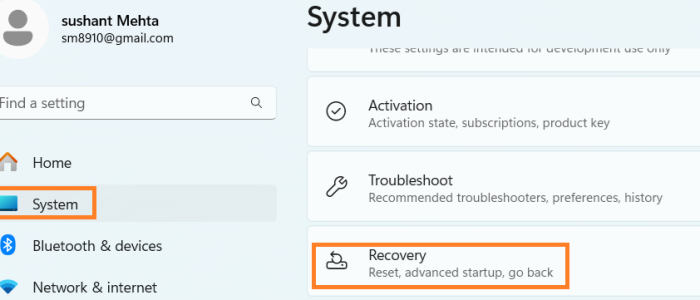
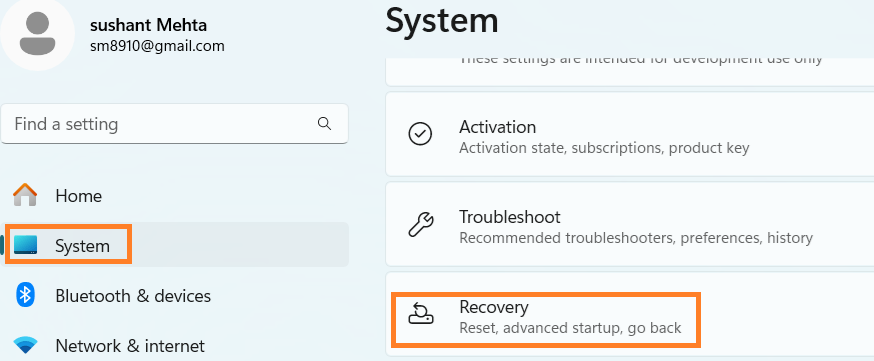
  • Click System in the left pane (Windows 10 users need to click Update and Security) and then select Recovery in the right pane
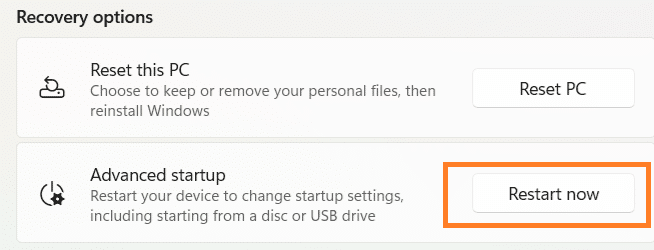
  • Click Restart now in the startup field
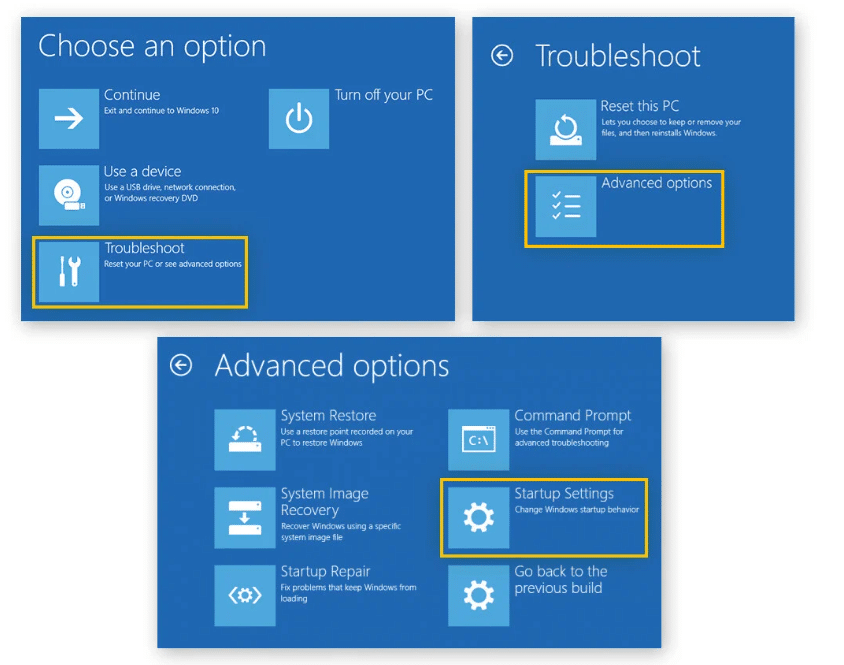
  • Once Windows restarts, select Troubleshoot | Advanced Options | Startup Settings | Restart
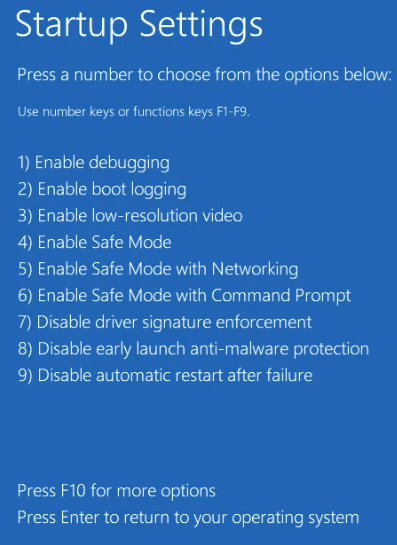
  • To enable Safe Mode, press F4 or 4. To enable Safe Mode with Networking, press F5 or 5. To enable Safe Mode with Command Prompt, press F6 or 6
Method 2 – Sign-in Screen

Can I log in into Safe Mode if I can’t log in into my computer or access Settings?

Several users have asked us this question. The answer is YES.

Here’s what you need to do:

  • Start your computer and when you reach the Windows sign-in screen, then press down and hold the Shift key while pressing Power and Restart
  • Once the PC boots, click Troubleshoot | Advanced Options | Startup Settings | Restart

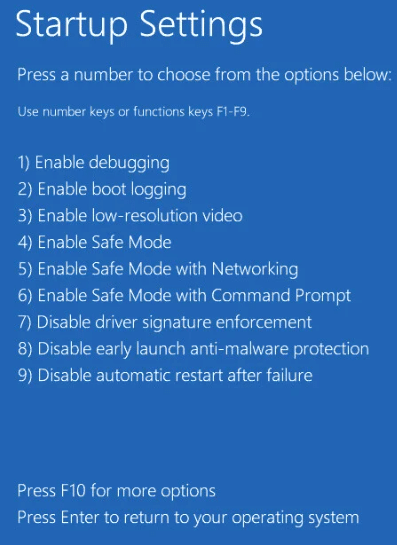
  • To enable Safe Mode, press F4 or 4. To enable Safe Mode with Networking, press F5 or 5. To enable Safe Mode with Command Prompt, press F6 or 6
Method 3 – Blank Screen

You can even enter Safe Mode if all you see is a black screen when you boot Windows. Here’s how:

  • Hold down the power button for roughly 10 seconds to switch off the computer
  • Press the power button to turn the computer on
  • Once the computer restarts, switch it off once more
  • Turn on the PC again
  • As soon as your computer restarts, switch it off again
  • Power on the computer once more. You may need to choose Advanced Options. Your computer should be in Windows Recovery Environment now
  • Select Troubleshoot | Advanced Options | Startup Settings and then click Restart

  • To enable Safe Mode, press F4 or 4. To enable Safe Mode with Networking, press F5 or 5. To enable Safe Mode with Command Prompt, press F6 or 6

What you need to do to turn Safe Mode off?

Turning off Safe Mode is easy. Simply click Start | Power | Restart. Now your computer should load normally. If it doesn’t, then perform the following additional steps:

  • Right-click the Start button and select Task Manager
  • Select File | Run New Task
  • Type msconfig and then click OK
  • Click the Boot tab in the System Configuration window and uncheck Safe boot
  • Click the Apply button and then click OK and Restart

That’s about it. Your computer should now boot normally.

What can I do to prevent my computer from crashing abruptly or avoid performance-related issues?

To ensure your computer runs smoothly, regularly update the operating system and install an advanced antivirus program. In addition, don’t forget to keep your device drivers up to date. The easiest (and the fastest) way to update device drivers is by using a reliable driver update tool, such as Driver Updater.

Automatic driver update tools offer many benefits, the most important ones being:

  • You can update device drivers automatically
  • The software scans and updates all outdated or missing drivers at one go
  • The tool picks the right drivers for your device and operating system, so you won’t have to worry about installing an incorrect driver by mistake
  • Automatic driver updates are 100% safe

Driver Updater is one of the best driver update tools out there. Outbyte Driver Updater will give you access to a database of over 1 million drivers. It will regularly scan your PC, suggesting new driver versions to install. Driver Updater contains drivers for a variety of Windows devices. With just one click, you can update drivers in your system.

Step 1
Click here to Install and launch the app

Step 2
Scan all devices

Step 3
Install or update drivers automatically

 

Start Download


Filed Under: PC Fix Tips Tagged With: safe mode

How to Troubleshoot Minecraft Launcher Error 0x803f8001 in Windows 11 or 10

By Susan C on February 8, 2025

How to Troubleshoot Minecraft Launcher Error 0x803f8001 in Windows 11 or 10

Getting the Minecraft Launcher error 0x803f8001 when you try to open the launcher or install it?

Don’t worry. You’re not alone.

Many users have complained of receiving this error either when they try to open the Minecraft launcher or when they try to install it. This error can occur due to a number of reasons, but in most cases it is fairly easy to fix.

In this post, we’ll discuss 10 DIY fixes for Minecraft Launcher error. It would be best if you try theses fixes in the order they appear below.

Solution 1 – Ensure you’re logged into the appropriate Microsoft account

To begin, confirm that the Microsoft account you’re signed into is the same account used to purchase the Minecraft license. To check this, perform these steps:

  • Type Microsoft Store in the Search bar in the taskbar
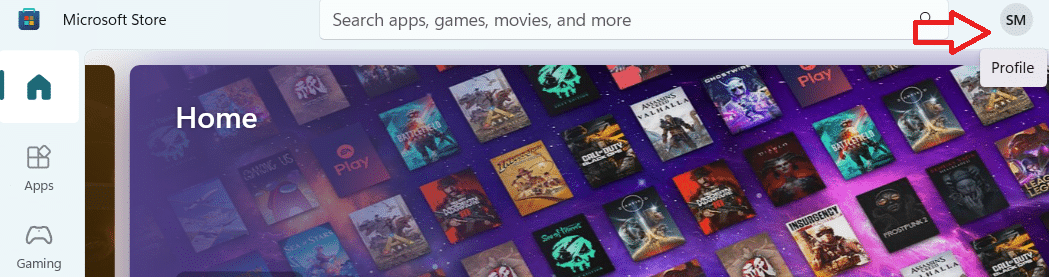
  • Click the profile icon (next to the search bar) and check the account details

  • In case you are logged into a different account, click Sign out and then sign in with the right Microsoft account

Solution 2 – Launch the Windows store apps troubleshooter

Some users said that the issue was resolved when they ran the Windows store apps troubleshooter, so it’s worth giving it a try. Here’s what you have to do:

  • Type settings in the search bar in the taskbar
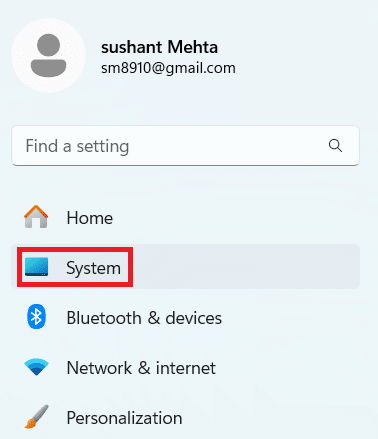
  • Click System (in the left pane)

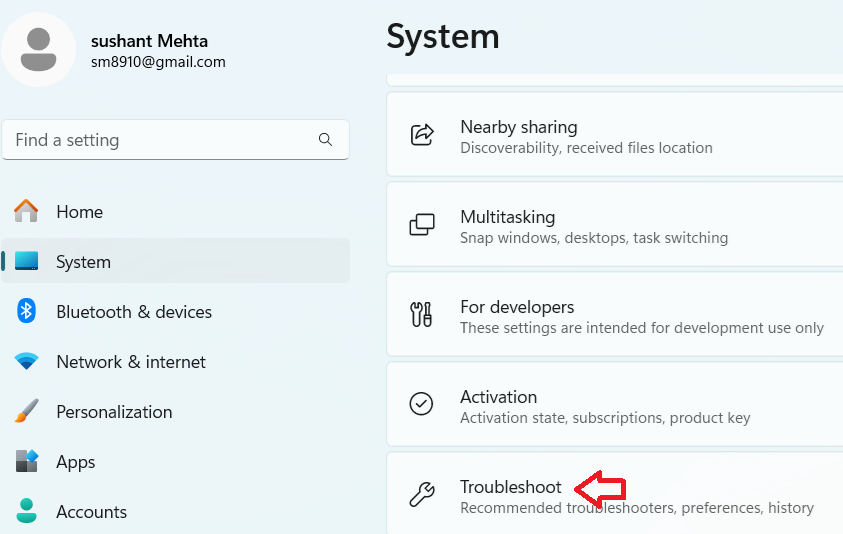
  • Scroll down and click Troubleshoot

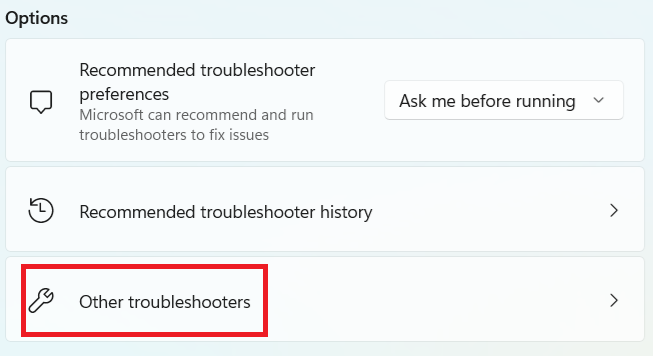
  • In the next window, click Other troubleshooters in the Options field

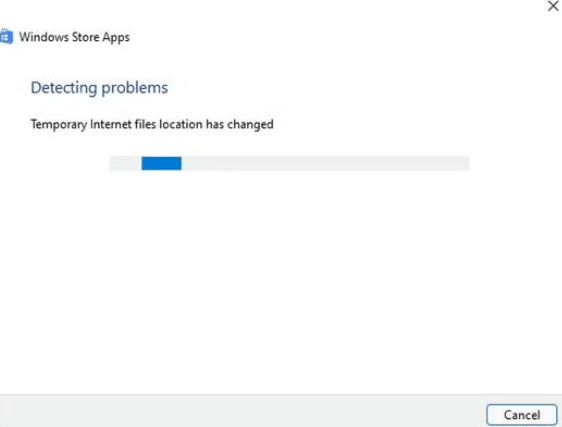
  • Scroll down until you see Windows Store Apps and click the Run button next to it
  • The troubleshooter will run a scan and suggest resolutions if it finds any app issues. Apply those resolutions

Solution 3 – Reset Minecraft launcher and Microsoft store settings

There’s a Reset option in the Settings app. When you select this option for an app, that app’s data is erased. Since the Reset option can resolve issues with malfunctioning apps, resetting data for both the Minecraft launcher and Microsoft store is worth a try.

To reset the Microsoft app, perform these steps:

  • Type settings in the Search bar in the taskbar
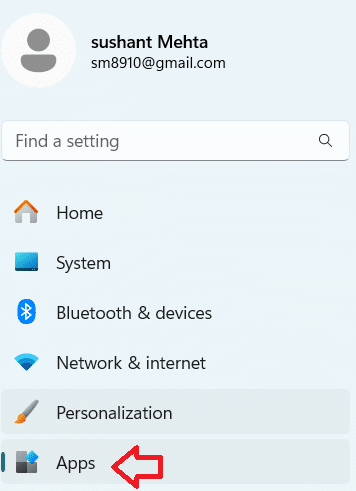
  • In the Settings window, click Apps (in the left pane)

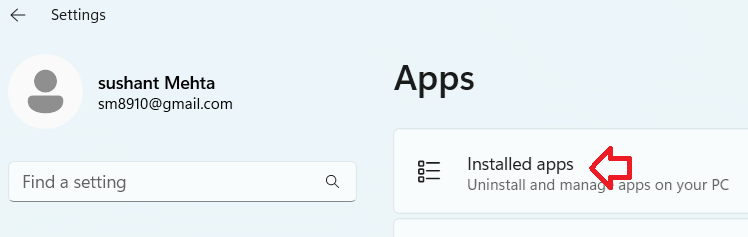
  • Click Installed Apps

  • Click the ellipsis icon (…) next to Microsoft Store and select Advanced options
  • Click Reset. Click it again when Windows prompts you to confirm your action
Pro Tip: You’ll also notice Repair option when you click the ellipsis icon next to Microsoft Store app. If resetting the app doesn’t work, try the Repair option.

Now, repeat the steps given above for the Microsoft Launcher app as well and check if the error is fixed. If not, try the next solution.

Solution 4 – Make sure the Windows Date & Time is correct

Errors related to Microsoft Store often occurs when the Windows date and time settings are incorrect. This happens because once a game is launched, it remotely connects to the game servers. Incorrect date & time settings on your computer can cause miscommunication between the server and the host system, leading to the Error 0x803f8001.

The system date and time is usually displayed in the system tray in the taskbar.

If for some reason, system date and time are not displayed in the system tray, you can tweak the taskbar settings so that date and time are displayed. Here’s how you can do that:

  • Press Windows + I keys
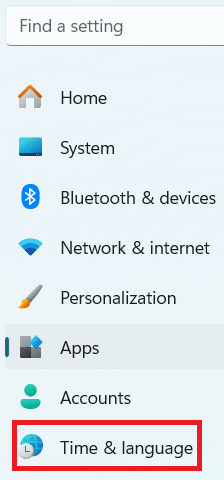
  • Click Time & language in the left pane

  • Click Date & time in the right pane

  • Toggle Show time and date in the System Tray on

Now that you know the system date and time, make sure it is correct. If it is not, correct it by performing these steps:

  • Repeat the first three steps listed above
  • Toggle Set time automatically off
  • Adjust the system date and time
  • Once you’ve done that, toggle Set time automatically on
  • Restart your computer

Solution 5 – Reset Microsoft Store Cache

If the Microsoft Store cache is corrupt, you can encounter Error 0x8038f8001. The solution in this situation is pretty straightforward: reset the corrupted Microsoft Store cache. You can do that by performing these steps:

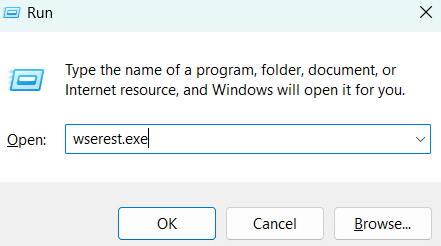
  • Press Win + R keys
  • Type wsreset.exe in the Run dialog box

  • Click the OK button

Solution 6 – Re-register Microsoft Store

Some users were able to resolve the Minecraft Launcher Error 0x8038f001 by re-registering Microsoft Store via an elevated Powershell. You can also do that by performing the steps listed below.

  • Type powershell in the Search box in the taskbar
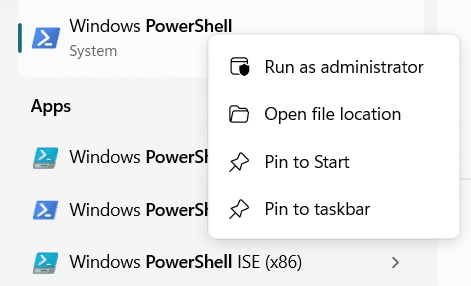
  • Right-click Windows PowerShell in the search results and select Run as administrator

  • Now, paste the following command into PowerShell and press Enter

Get-AppXPackage *WindowsStore* -AllUsers | Foreach {Add-AppxPackage -DisableDevelopmentMode -Register “$($_.InstallLocation)\AppXManifest.xml”} Get-AppXPackage -AllUsers -Name Microsoft.WindowsStore | Foreach {Add-AppxPackage -DisableDevelopmentMode -Register “$($_.InstallLocation)\AppXManifest.xml” -Verbose}

  • Next, paste this command and press Enter

Get-AppXPackage -AllUsers -Name Microsoft.WindowsStore | Foreach {Add-AppxPackage -DisableDevelopmentMode -Register “$($_.InstallLocation)\AppXManifest.xml” -Verbose}

Wait for the command to run and then restart Windows. Now, check if the error is fixed. If not, try the next solution in the list.

Solution 8 – Reinstall Microsoft Store

If the Microsoft Store installation is corrupt, you can get the said error. To troubleshoot the issue, a reinstallation is required. Unlike most other apps, the Microsoft app cannot be uninstalled using the Settings menu.

In order to reinstall the app, run the following two commands into PowerShell. Here’s how to do that.

  • Type powershell in the Search box in the taskbar
  • Right-click Windows PowerShell in the search results and select Run as administrator
  • Paste this command and press Enter

Get-AppxPackage -allusers *WindowsStore* | Remove-AppxPackage

  • Restart Windows
  • Open PowerShell and paste the following command into it and then hit Enter

Get-AppxPackage -allusers *WindowsStore* | Foreach {Add-AppxPackage -DisableDevelopmentMode -Register “$($_.InstallLocation)\AppXManifest.xml”}

  • Restart Windows

Solution 9 – Reinstall Minecraft Launcher app

If the error still persists, try reinstalling the Minecraft Launcher app.

  • Type settings in the Search bar in the taskbar and press Enter
  • Click Apps in the left pane
  • Click Installed Apps and locate Minecraft Launcher in the list of installed apps.
  • Next, click the ellipsis icon (…) next to Minecraft Launcher and select Uninstall
  • Wait for Windows to uninstall the app
  • Restart Windows
  • Open your web browser and go to this Microsoft Store webpage
  • Click the Get button
  • Next, click the Play option for this app in Microsoft Store

Solution 10 – Run SFC scan

The Minecraft Launcher Error 0x803f8001 can also arise due to corrupted system files. If nothing else has worked for you, we recommend you try running the System File Checker (SFC) scan, which scans system files for errors and repair them.

  • Type command prompt in Search bar in the taskbar
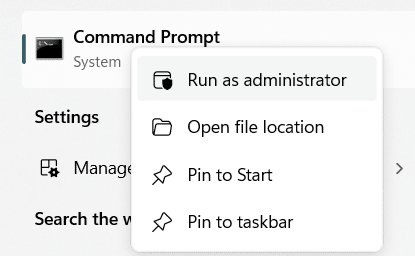
  • Right-click Command Prompt in the search results and select Run as administrator

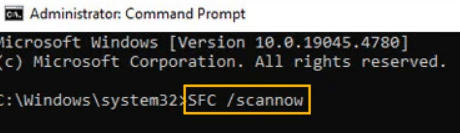
  • Type “sfc/scannow” in the Elevated Command Prompt and hit Enter

  • Wait for the scan to complete and restart Windows

That’s it. Which of these methods worked for you?

Let us know if this guide has helped you by leaving a comment below and don’t forget to share it so others can benefit.

Before you wind up for the day, a final tip: Make sure your device drivers are up to date. That’s because outdated device drivers can not only slow down your computer but also cause frequent system crashes and errors.

If you’re wondering what’s the best way to update device drivers, our recommendation is to give Driver Updater a try. It is one of the most advanced driver update tool on the market.

Automatic driver update tools offer many benefits, the most important ones being:

  • You can update device drivers automatically
  • The software scans and updates all outdated or missing drivers at one go
  • The tool picks the right drivers for your device and operating system, so you won’t have to worry about installing an incorrect driver by mistake
  • Automatic driver updates are 100% safe

Driver Updater is one of the best driver update tools out there. Outbyte Driver Updater will give you access to a database of over 1 million drivers. It will regularly scan your PC, suggesting new driver versions to install. Driver Updater contains drivers for a variety of Windows devices. With just one click, you can update drivers in your system.

Step 1
Click here to Install and launch the app

Step 2
Scan all devices

Step 3
Install or update drivers automatically
 

Start Download


Filed Under: PC Fix Tips Tagged With: Minecraft Error

How to Fix System Service Exception Nvlddmkm.sys Error in Windows 11?

By Susan C on February 6, 2025

How to Fix System Service Exception Nvlddmkm.sys Error in Windows 11?

If you receive System Service Exception Nvlddmkm.sys error, try not to panic. Many computer users grapple with this issue. More importantly, you can fix this error on your own — and we’ll show you how.

What causes Nvlddmkm.sys error in Windows 11?

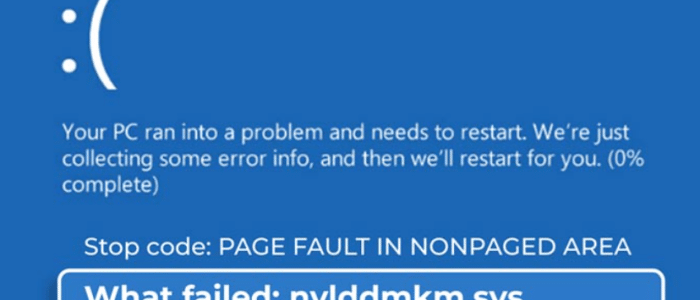
The Nvlddmkm.sys error usually triggers a blue screen of death (BSOD). Otherwise, you’re likely to find yourself being interrupted by a black screen or a frozen screen.

As to why this error occurs, there are a number of reasons, the most common being an outdated graphics driver. Other reasons include:

  • Corrupted System Files
  • Incomplete Windows Update
  • Hardware Overheating
  • Faulty RAM Modules
  • Outdated BIOS Firmware
  • External Driver Conflict

How to Troubleshoot System Service Exception Nvlddmkm.sys Error?

We recommend you try the solutions listed below in the order they are given.

Solution 1 – Update Graphics Card Drivers

More often than not, the Nvlddmkm.sys error occurs due to an outdated graphics card driver. Naturally then, starting with graphics drivers is a good idea. You can update NVIDIA graphics drivers in multiple ways: using Device Manager, via NVIDIA website, and using a driver update tool. The first two methods are manual, and thus a bit cumbersome. They also require you to have some degree of technical knowledge.

We’ve listed all the three methods, making easier to pick the one you’re most comfortable with.

Manually Updating Graphics Drivers Using Device Manager

Device Manager is a built-in utility in Windows that allows you to see and manage the hardware devices installed on your computer.

To manually update a driver through Device Manager, perform the following steps:

  • Press Windows + R keys to open the Run dialog box
  • Type devmgmt.msc and press Enter

  • In the Device Manager window, locate and expand the Display adapters category
  • Right-click your NVIDIA graphics card and select Update driver

  • In the next window, select the first option: Search automatically for drivers option

  • Windows will scan your computer for the best available driver and install it

If you don’t have the latest driver on your computer, this method won’t work. In that case, you can try downloading the latest driver directly from the NVIDIA website.

Manually Downloading the Latest Graphics Driver from NVIDIA Website

Before searching for the latest graphics driver on the NVIDIA website, you should know the driver version you have. To get this information, perform the following steps:

  • Press Windows + R keys
  • Type devmgmt.msc in the Run dialog box and press Enter
  • Expand the Display adapters category
  • Right-click the NVIDIA graphics card and select Properties

  • Click the Driver tab
  • The driver version and other details will be listed in this window. Note down the driver version and close the Device Manager window

  • Now open a web browser and navigate to NVIDIA drivers web page
  • Select the appropriate product and operating system and click the Find button
  • You’ll now see a list of drivers based on the selected search criteria selected. Check whether a new driver version is available for your NVIDIA graphics card model. If so, download it and save the file on the desktop
  • Next, click the .exe file to launch installation
  • Wait for installation to complete and then restart Windows

If you find that you already have the latest driver, move on to the next solution.

Updating Graphics Card Driver Automatically

If updating a driver manually sounds like a lot of work, which it is in many cases, consider using a driver update tool. We recommend you give Driver Updater a try. It is super-fast and reliable and updates your drivers with just a few clicks.

The download link and additional information on Driver Updater is provided at the end of this post.

Solution 2 – Disable Windows Update Hardware Driver

In some situations, the nvlddmkm.sys error occurs when Windows tries to install the incompatible drivers or latest device updates. Turning the Windows Update Hardware Driver off can fix the issue.

  • Type settings in the Start Search bar and press Enter

  • In the Settings window, scroll down and click About in the right pane

  • Click Advanced system settings

  • In the System Properties window, click the Hardware tab and then click Device Installation Settings

  • In the next window, select the No (your device might not work as expected) option
  • Click the Save Changes button

Solution 3 – Grant Nvlddmkm.sys File Full Permissions

If the Nvlddmkm.sys file doesn’t have full permissions, there’s a good chance it won’t work properly. This, in turn, can trigger system crashes and errors.

To grant this file full permissions, perform these steps:

  • Type file explorer in the Start Search box and press Enter

  • Click This PC (towards the bottom of left pane)
  • Click the drive on which Windows is installed (for most people, it is C: drive)

  • Click the Windows folder in the right pane
  • Scroll down and click the System 32 folder
  • Scroll down until you locate the nvlddmkm.sys file
  • Right-click the file and click Properties

  • Click the Security tab
  • Select the user to whom you want to give full control
  • Click Edit

  • Tick the Full control box
  • Click Apply and then OK

Solution 4 – Run Windows Update

Bringing your Windows version up to date may help fix the error. Here’s what you need to do:

  • Press Windows + I keys to open the Settings window
  • Click Windows update in the left pane
  • Click the Check for updates button in the right pane

  • If you find new updates, download and install them
  • Restart the PC, if prompted

Solution 5 – Run System File Checker

System File Checker (SFC) is a built-in utility in Windows that scans the computer for missing or corrupted system files and tries to repair them.

To run SFC, perform the following steps:

  • Press the Windows key
  • Type Command Prompt in the Search bar
  • Right-click the top entry and select Run as administrator

  • In the Command Prompt window, type SFC /Scannow and press Enter

  • Wait for the scan to complete and the restart your PC

Check if the issue is fixed. If not, move on to the next solution.

Solution 6 – Scan the Hard Drive

If the file system on the hard driver is corrupt, it could lead to various issues, including the Nvlddmkm.sys error. Running a CHKDSK scan lets you check the hard drive for errors and fix them.

Follow these steps to run the CHKDSK command:

  • Press the Windows key
  • In the Search bar, type Command Prompt, right-click the top entry and select Run as administrator
  • In the Command Prompt window, type chkdsk /f /r and then press Enter
  • Wait for the scan to complete. Depending on the size of the hard drive and the errors on it, the scan can take anywhere between a few minutes to an hour or so. If any errors are found, Windows will fix them automatically
  • Restart the PC

Check if the issue is fixed. If not, try the next solution.

Solution 7 – Perform a Clean Boot

  • Press the Windows + R keys
  • Type msconfig in the Run dialog box and press Enter
  • Click the Services tab in the System Configuration window
  • Check the Hide all Microsoft services box (located on the left-hand bottom corner)

  • Now click the Startup tab
  • Click Open Task Manager

  • Right-click each item in the list and select Disable
  • Close the Task Manager window
  • Return to the System Configuration window, click OK
  • Restart your PC

Solution 8 – Uninstall Any Recently Installed Software

If you’ve recently installed a software and started receiving the Nvlddmkm.sys error after the installation of this program, uninstall it and check if that fixes the error.

If you’ve not installed any software recently, skip this solution and move on to the next one.

You can uninstall a program or app on Windows 11 by following these steps:

  • Type settings in the Start Search box and press Enter
  • Click Apps > Installed Apps

  • All the apps installed on your PC will be listed in the right pane
  • Right click the ellipsis icon (…) next to the app or program that you want to uninstall and then click Uninstall
  • Wait for Windows to uninstall the program
  • Restart the computer, if prompted

Solution 9 – Undo Overclocking

It’s common for avid gamers to overclock high-end hardware components, such as CPU, RAM, and GPU. This allows them do resource-intensive tasks, such as gaming, faster and more smoothly.

However, overclocking hardware components comes with its own set of problems, such as overheating, hardware wear, crashes and system instability. These issues could cause your computer to crash and trigger BSODs like Nvlddmkm.sys. Reverting to factory settings if you have any overclocked component may help fix this error.

To undo overclocking, perform these steps:

  • Start your PC
  • As soon as the manufacturer logo appears, press the Del, F1, or F2 key. The key varies depending on the manufacturer, but it’s usually one of these three keys
  • Once you’re in the BIOS settings, click the Advanced tab and then click Performance
  • Look for the overheating section. Depending on your motherboard, it might be named as “OC Tweaker”, “Advanced Frequency Settings”, “Turbo boost”, or something similar
  • There will be an option to reset everything to their default settings. Sometimes, this is labeled as “Load Default Settings” or “Load Optimized Defaults”. Select that, save your preferences, and exit BIOS

Solution 10 – Perform a System Restore

If none of the above solutions have worked for you, restoring Windows to an earlier state when there was no nvlddmkm.sys error might help.

  • Type restore point in the Start Search bar and select Create a restore point in the search results

  • Click System Restore
  • Click the Next button to view all available restore points
  • Select the most recent restore point and click Next
  • Confirm your choice
  • Click Finish
  • Windows will now restart and your system will be restored to an earlier state

Additional Information on Driver Updater…

As said earlier in the post, the easiest way to update device drivers is by using using a reliable driver update tool like Driver Updater.

Driver Updater is one of the best driver update tool on the market, and hence we recommend you give it a try.

Automatic driver update tools offer many benefits, the most important ones being:

  • You can update device drivers automatically
  • The software scans and updates all outdated or missing drivers at one go
  • The tool picks the right drivers for your device and operating system, so you won’t have to worry about installing an incorrect driver by mistake
  • Automatic driver updates are 100% safe

Driver Updater is one of the best driver update tools out there. Outbyte Driver Updater will give you access to a database of over 1 million drivers. It will regularly scan your PC, suggesting new driver versions to install. Driver Updater contains drivers for a variety of Windows devices. With just one click, you can update drivers in your system.

Step 1
Click here to Install and launch the app

Step 2
Scan all devices

Step 3
Install or update drivers automatically
 

Start Download


Filed Under: PC Fix Tips Tagged With: nvlddmkm.sys error

  • « Previous Page
  • 1
  • …
  • 23
  • 24
  • 25
  • 26
  • 27
  • …
  • 189
  • Next Page »


  • Recent Posts
  • Popular Posts
        

Read More Posts


Read More Posts

Drivers.com Sites

  • Software Drivers
  • Drivers Ed

About Us

  • Advertise
  • About Drivers
  • Drivers Support
  • Drivers.com Privacy Policy
  • Disclaimer
  • Software Drivers
  • Mac Fixes and Tips
  • PC Fix Tips
  • Security/ Backup
  • Tablets & Smartphones
  • Tech News

© Copyright 2026 PDE Publications Ltd. End User License Agreement (EULA)