Drivers.com

follow us:

facebook twitter
  • Home
  • Download Drivers
  • Drivers Help
  • PC/Mac Resources
  • Software Drivers
  • Mac Fixes and Tips
  • PC Fix Tips
  • Security/ Backup
  • Tablets & Smartphones
  • Tech News
  • Software Drivers
  • Mac Fixes and Tips
  • PC Fix Tips
  • Security/ Backup
  • Tablets & Smartphones
  • Tech News

How to Fix “Cannot Install Intel Graphics Drivers in Windows”?

By Susan C on January 28, 2025

How to Fix “Cannot Install Intel Graphics Drivers in Windows”?

You might have heard how important it is to keep your device drivers up to date. But what happens if you cannot install Intel graphics driver?

Don’t worry if you are receiving an error message when you try to install Intel graphics driver. The issue can be fixed by completely uninstalling and reinstalling the driver.

How to Fix the “Cannot Install Intel Graphics Drivers” Issue?

If you’re unable to install the Intel graphics driver, follow these steps.

Step 1 – Identify and Download the Intel Graphics Driver

Windows come with a built-in utility called Device Manager that allows you to view, configure, and manage hardware devices, as well as their drivers.

  • Type devmgmt.msc in the Start Search bar and press Enter

  • In the Device Manager window, locate and expand the Display adapters entry

  • Note down the Intel graphics device model that you’re using
  • Go to Intel Support Website and search for the latest driver for your Intel Graphics model using the Search bar at top-right corner
  • Select the latest driver for your version of Windows (For instance Windows 11 users should select the driver designed for Windows 11, not one of the older versions)
  • Download the .exe file
  • Save the downloaded file in a suitable location on your PC, like the desktop

Step 2 – Clean Install the Graphics Driver

  • Double-click the .exe file to start the installation process
  • Click the Agree button on the License Agreement window
  • Look for Execute a clean installation option and click its checkbox (When you perform a clean installation, then all old drivers are removed and Intel settings are restored to their default value)
  • Click Start
  • Restart Windows, if asked

In case you don’t find the Execute a clean installation option when the installation process starts, you’ll need to perform a manual clean installation.

Perform the following steps:

  • Disconnect the computer from the Internet (This is to ensure Windows doesn’t automatically update the graphics card driver)
  • Type devmgmt.msc in the Start Search box
  • Expand the Display adapters entry
  • Right-click your Intel graphics card and select Uninstall device

  • Select the checkbox before Attempt to remove the driver for this device and then click Uninstall

  • Wait for uninstallation process to complete and then restart Windows
  • Once Windows reboots, go to Device Manager
  • Expand Display adapters
  • If there are no old drivers stored, you’ll see that graphics controller is listed as Microsoft Basic Display Adapter, Standard VGA Graphics Adapter (or something similar to this description)
  • Restart windows and then install the latest driver

Pro Tip: Update Device Drivers Using a Driver Update Tool

Driver update tool automatically update device drivers; all you have to do is click the mouse a few times. We recommend you give Driver Updater a try since it is one of the fastest and most reliable driver update software out there.

Automatic driver update tools offer many benefits, the most important ones being:

  • You can update device drivers automatically
  • The software scans and updates all outdated or missing drivers at one go
  • The tool picks the right drivers for your device and operating system, so you won’t have to worry about installing an incorrect driver by mistake
  • Automatic driver updates are 100% safe

Driver Updater is one of the best driver update tools out there. Outbyte Driver Updater will give you access to a database of over 1 million drivers. It will regularly scan your PC, suggesting new driver versions to install. Driver Updater contains drivers for a variety of Windows devices. With just one click, you can update drivers in your system.

Step 1
Click here to Install and launch the app

Step 2
Scan all devices

Step 3
Install or update drivers automatically
 

Start Download


Filed Under: PC Fix Tips Tagged With: Intel Graphics Card

How To Fix Ntoskrnl.exe BSOD in Windows 11?

By Susan C on January 28, 2025

How To Fix Ntoskrnl.exe BSOD in Windows 11?

Encountering a Blue Screen of Death (BSOD) is nobody’s idea of fun, but often times the issue is not as bad as many think. Take, for instance, BSOD caused by Ntoskrnl.exe. For sure, it’s easy to hit the panic button when “ntoskrnl.exe file is missing” error message fills up your screen, but despite it being a BSOD error, you can fix it yourself. And this post shows you exactly what you need to do.

So, let’s dig in.

What is Ntoskrnl.exe?

Windows NT Operating System Kernel, or ntoskrnl.exe, is a critical Windows component. Among other system services, it is responsible for process and memory management, and hardware abstraction.

Ntoskrnl.exe consists of:

  • Kernel
  • Cache manager
  • Memory manager
  • Security reference monitor
  • Executive
  • Scheduler

If you’re wondering why your computer crashes when the “ntoskrnl.exe error is missing” error occurs, the reason is simple: Ntoskrnl.exe is an integral component of the Windows operating system. It’s not uncommon for the issue to occur again and again. You may also see a “Memory management” error code on your screen.

Ntoskrnl.exe BSOD in Windows 11

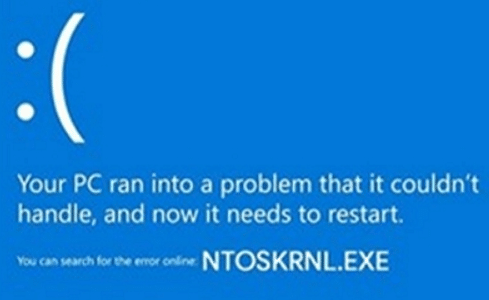
When your computer boots, the screen goes entirely blue and the following error message appears.

The Ntoskrnl.exe BSOD error can occur due to a number of reasons, including:

  • Faulty RAM
  • Outdated, corrupt, or incompatible device drivers
  • Corrupt system files
  • Overclocking your devices
  • Your local storage and RAM aren’t able to keep up with your PC’s activities

Regardless of the root cause, typically following symptoms are noticed before the BSOD error occurs:

  • High CPU usage
  • Slow computer performance
  • Random Windows reboots

Then, finally the “ntoskrnl.exe file is missing” error appears during system boot.

How to Fix Ntoskrnl.exe Error in Windows 11?

Ntoskrnl.exe error can be resolved in many ways. However, it’s not possible to tell which of the below-mentioned solutions will work for you. Therefore, it would be best to try these solutions one by one. While not mandatory, it’s advisable that you try the solutions in the order they appear below.

Solution 1 – Run a Virus Scan

Since virus and malware infection can cause ntoskrnl.exe error, we recommend you start by running a virus scan. If you are using Windows Defender (a built-in security tool in Windows), you can follow the steps listed below. If you are using a third-party tool, check it’s user manual to find out how to run a virus scan.

  • In the Start Search bar, type Windows Security and press Enter
  • Click Virus and Threat Protection

  • In the next window, click Scan options

  • Select Full scan
  • Select scan now
  • Wait for the scanning process to complete. If Windows Defender finds any threats, it will quarantine them

Solution 2 – Run Windows Memory Diagnostic Tool

The Windows Memory Diagnostic Tool is an in-built application that helps identify and diagnose problem with RAM.

Here’s how you can launch it.

  • Press Windows + R keys
  • In the Run dialog box, type mdsched.exe and press Enter
  • Select the first option in the Windows Memory Diagnostic window: Restart now and check for problems (recommended)

  • Windows will restart and the diagnostic tool will run the scan automatically. Wait for the scan to finish. It could take anywhere between a few minutes to an hour, depending on the RAM size

Solution 3 – Run SFC

SFC stands for System File Checker, a built-in tool in Windows that scans and repairs corrupt system files.

Before you run SFC, you need to boot to Command Prompt in Windows 11. If you are getting a blue screen when you start your PC, perform these steps to boot to Command Prompt.

  • Enter the Windows recovery environment. Turn the PC on and off 3 times. Turn off the PC when the Windows logo appears not before it. After the 3rd time, Windows 11 will boot into the diagnostic mode.
  • Now click Advanced options
  • Then click Troubleshoot | Advanced options | Command Prompt

  • The Command Prompt will load immediately

If you can boot, starting Command Prompt is relatively simple. Just follow these steps:

  • Type cmd in the Start Search bar
  • Right-click the first entry in the list and select Run as administrator

  • Command Prompt will start immediately

Once you have launched Command Prompt, perform these steps to run SFC.

  • Type sfc /scannow in the Command Prompt and press Enter

  • The System File Checker tool will scan the computer for corrupt system files. If such files are found, the tool will restore them automatically

If the ntoskrnl.exe error persists after running the SFC scan, move on to the next solution.

Solution 4 – Run CHKDSK Command

Ntoskrnl.exe error can also occur due to an incorrect or defective HDD. If this is the case, running the CHKDSK command can help. CHKDSK (check disk) is a built-in Windows utility that scans for and repairs system errors. It lets you check the hard driver for errors in Windows 11, especially system errors that occur because the files aren’t at the stored where they’re supposed to.

  • Boot to Command Prompt in Windows 11
  • In the Command Prompt window, type chkdsk /r /r D: and press the Enter key

  • Wait for CHKDSK to scan the computer
  • Once the scan is complete, restart your computer

If the error still persists, try resetting the Overclocking Settings

Solution 5 – Reset Overclocking Settings

One of the common causes behind the “ntoskrnl.exe is missing” is overclocked CPUs. For this reason, resetting the overclocking parameters is worth the effort.

  • Restart Windows
  • When a message indicating the key to access BIOS appears on your screen (e.g. Press F2 to enter BIOS), press that key (Depending on your computer, you may have to press the F2, F10, or Del key)
  • The BIOS setup utility screen will appear immediately
  • Now press the F9 key to load default factory settings
  • Windows will ask you to confirm your action; click the Yes button
  • Press the F10 key to save the changes and close the BIOS setup utility screen

Solution 6 – Uninstall Windows Update

If you are receiving the error after you’ve installed a Windows update and are able to boot Windows after receiving the error, uninstalling the recent Windows update may fix the issue.

  • Press Windows + I keys to launch the Settings window
  • Click Windows Update

  • Click Update history in the right pane

  • Scroll down in the Update history until you see the Uninstall updates option (below Related Settings) and then click Uninstall updates

  • Uninstall the most recent updates by clicking the Uninstall option next to them

Solution 7 – Update Device Drivers

If none of the previous solutions has worked for you, we recommend you to update device drivers. This is because the ntoskrnl.exe BSOD error can arise due to outdated, corrupt, or incompatible device drivers.

Windows include a built-in utility called Device Manager that allows you update device drivers. However, we recommend you use a reliable driver update tool instead of Device Manager. The main reason for this is that since you don’t know which device driver is causing the ntoskrnl.exe error, you’ll have to update the driver for all the installed devices separately, which can be cumbersome to say the least.

Nonetheless, if you want to go the manual route, here’s how you can update device drivers using Device Manager.

  • Type devmgmt.msc in the Start Search bar and press Enter
  • Expand the first category in the list and right-click all the listed devices under it one-by-one and select Update driver

  • In the Update Drivers window, select Search automatically for drivers

  • Windows will search your computer for the best available driver and install it. If the best available driver is already installed, you’ll see the following message on your screen
  • Repeat the process for all the listed devices

If the idea of spending hours manually updating device drivers doesn’t sound appealing, give Driver Updater a try. It is one of the most advanced driver update tool out there and will update all outdated device drivers in just a few minutes.

Automatic driver update tools offer many benefits, the most important ones being:

  • You can update device drivers automatically
  • The software scans and updates all outdated or missing drivers at one go
  • The tool picks the right drivers for your device and operating system, so you won’t have to worry about installing an incorrect driver by mistake
  • Automatic driver updates are 100% safe

Driver Updater is one of the best driver update tools out there. Outbyte Driver Updater will give you access to a database of over 1 million drivers. It will regularly scan your PC, suggesting new driver versions to install. Driver Updater contains drivers for a variety of Windows devices. With just one click, you can update drivers in your system.

Step 1
Click here to Install and launch the app

Step 2
Scan all devices

Step 3
Install or update drivers automatically


Start Download


Filed Under: PC Fix Tips Tagged With: Ntoskrnl.exe

How to fix NVIDIA App Not Opening? (5 DIY Fixes)

By Susan C on January 27, 2025

How to fix NVIDIA App Not Opening? (5 DIY Fixes)

Is the GeForce Experience not working properly?

You might be able to open the program only to see a random error message flash on screen. One error message that many users have claimed to receive is: “Something went wrong, try reinstalling GeForce Experience.” Or perhaps you are facing some other problem with the NVIDIA app.

In most cases, you should be able to fix any issue with the NVIDIA app using one of the following solutions.

Solution 1 – Restart the Nvidia GeForce Experience Program

Quiet often, restarting the app fixes the issue. Therefore, we recommend you start with this.

Here are the steps to follow:

  • Press Ctrl + Alt + Del and select Task Manager
  • In the Task Manager window, click Processes
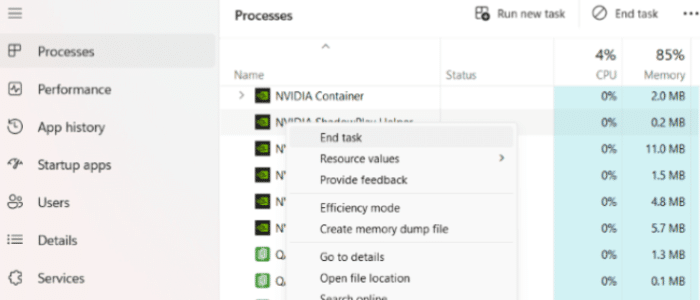
  • Scroll down through the list until you locate all programs related to NVIDIA such as NVIDIA container, NVIDIA GeForce Experience, user experience etc.
  • Right-click the first NVIDIA-related process in the list and select End Task. Do this for all other NVIDIA-related processes

  • Restart your computer

Check if the problem is fixed. If you’re still unable to open the NVIDIA app, try the next tweaking NVIDIA Telemetry Container’s settings.

Solution 2 – Change Nvidia Telemetry Container Settings

  • Press Windows + R keys to open the run dialog box
  • Type services.msc and press the Enter key
  • In the Services window, browse through the list of services until you locate Nvidia Telemetry Container
  • You’ll notice even though the startup type is configured as automatic, there’s no indication that the program has started. If you try to start the program manually, you’ll receive the Access Denied error message
  • Right-click Nvidia Telemetry Container and select Properties

  • Now, click the Log On tab and change to Local System Account

  • Click the Apply button and then click OK
  • Restart your computer

You should now be able to open the NVIDIA app. If you still can’t open GeForce Experience, move on to the next solution.

Solution 3 – Reinstall GeForce Experience Software

Sometimes the GeForce Experience software becomes corrupt. This in turn prevents the program from launching itself. In this situation, reinstalling the program often does the trick.

  • Press Windows + R keys
  • In the Run dialog box, type control panel and press Enter
  • Click Programs
  • In the next window, click the Uninstall a program option (listed below Programs and Features in the right pane)
  • Scroll down until you see Nvidia GeForce Experience. Select this option
  • Click Uninstall

  • Open your web browser and navigate to the official NVIDIA website. Download the installer
  • Save the downloaded file in a suitable location on your computer, such as the desktop. Once the download process is complete, double-click the .exe file
  • Follow the on-screen instructions. Wait for installation to complete and restart the computer, if asked

Check if the issue is fixed. If not, move on to the next solution.

Solution 4 – Disable your antivirus software temporarily

Strange as it may sound, at times an antivirus program may interfere with GeForce operations. The only way to check whether this is root cause in your case is to temporarily disable the antivirus program. While the exact steps may vary depending on the antivirus program that you are using, typically you can disable an antivirus program from its interface.

Below we have listed the steps for disabling the Windows Defender. If you are using some other antivirus program, we recommend you click its icon in the system tray (where date and time is displayed in the taskbar) to open the program and disable it from there.

  • Type Settings in the Start Search bar
  • Navigate to Update & Security | Windows Security | Virus & Threat Protection
  • You’ll now see the Windows Security window. In the left panel, click Virus & Threat Protection settings
  • Disable Real-time protection
  • Now open the GeForce Experience app

If GeForce Experience is now working fine, then you may have to switch to a different antivirus app. If the app is still not working, perform the above-mentioned steps to enable Windows Defender. If you are using some other security program, enable it from its interface.

Solution 5 – Update the NVIDIA Graphics Card Drivers

  • Type devmgmt.msc in the Start Search bar
  • In the Device Manager window, browse through the list of devices until you see Display Adapters. Expand this entry
  • Right-click NVIDIA GeForce (the exact version may vary from the screenshot below) and click Uninstall device
  • Wait for windows to uninstall the driver
  • Now, open your web browser and go to the NVIDIA official website and download the latest drivers for your version of Windows
  • Save the downloaded file in a suitable location on your computer, like the desktop
  • Double-click the .exe file to launch installation. Follow on-screen instructions to complete installation and then restart Windows

If the steps listed above sound like a lot of work or too technical for you, you should consider using a reliable driver update software. It will update the NVIDIA graphics card driver with just a few mouse clicks. We recommend you give Driver Updater a try since it is one of the most reliable driver software in the market.

Automatic driver update tools offer many benefits, the most important ones being:

  • You can update device drivers automatically
  • The software scans and updates all outdated or missing drivers at one go
  • The tool picks the right drivers for your device and operating system, so you won’t have to worry about installing an incorrect driver by mistake
  • Automatic driver updates are 100% safe

Driver Updater is one of the best driver update tools out there. Outbyte Driver Updater will give you access to a database of over 1 million drivers. It will regularly scan your PC, suggesting new driver versions to install. Driver Updater contains drivers for a variety of Windows devices. With just one click, you can update drivers in your system.

Step 1
Click here to Install and launch the app

Step 2
Scan all devices

Step 3
Install or update drivers automatically


Start Download


Filed Under: PC Fix Tips Tagged With: NVIDIA App

  • « Previous Page
  • 1
  • …
  • 25
  • 26
  • 27
  • 28
  • 29
  • …
  • 189
  • Next Page »


  • Recent Posts
  • Popular Posts
        

Read More Posts


Read More Posts

Drivers.com Sites

  • Software Drivers
  • Drivers Ed

About Us

  • Advertise
  • About Drivers
  • Drivers Support
  • Drivers.com Privacy Policy
  • Disclaimer
  • Software Drivers
  • Mac Fixes and Tips
  • PC Fix Tips
  • Security/ Backup
  • Tablets & Smartphones
  • Tech News

© Copyright 2026 PDE Publications Ltd. End User License Agreement (EULA)