Drivers.com

follow us:

facebook twitter
  • Home
  • Download Drivers
  • Drivers Help
  • PC/Mac Resources
  • Software Drivers
  • Mac Fixes and Tips
  • PC Fix Tips
  • Security/ Backup
  • Tablets & Smartphones
  • Tech News
  • Software Drivers
  • Mac Fixes and Tips
  • PC Fix Tips
  • Security/ Backup
  • Tablets & Smartphones
  • Tech News

How to Update HP Photosmart 6521e All-in-One Printer Driver?

By Susan C on January 27, 2025

How to Update HP Photosmart 6521e All-in-One Printer Driver?

Imagine this: You’ve an office meeting, but your printer stops working just as you were getting ready to print important files. Ugh, that’s enough to give anyone a mini anxiety attack.

Printers, like other peripheral devices, can break down — and the HP Photosmart 6521e All-in-One Printer is no exception. Fortunately, there are concrete steps that you can take to minimize the chances of your device falling you, especially when you may need it most.

One such step is updating printer drivers. Updating them on a regular basis not only ensures compatibility with your OS, but it also fixes bugs that might trigger printing errors, improves print quality, gives access to new features, and enhances security by patching vulnerabilities that could exist with older drivers.

In this post, we’ll show you how to quickly update the HP Photosmart 6521e printer driver so that it continues to perform at its optimal level for a long time.

How to update HP Photosmart 6521e Printer Drivers?

When it comes to updating HP printer drivers, you’ve two options. You can do this manually by browsing to the HP support website. Or you can use an advanced driver update software, which will update the printer driver (and other outdated device drivers) with just a few mouse clicks.

For most users, the second method is a right fit. This is because it is much quicker, doesn’t require any technical knowledge — meaning there’s no chance of your going wrong — and is 100% safe.

All the same, we’ll discuss both the methods, so you can decide for yourself which one is better for you.

Updating HP Photosmart 6521e Printer Driver Manually

Here are the steps to follow:

  • Open your web browser
  • Go to HP support website
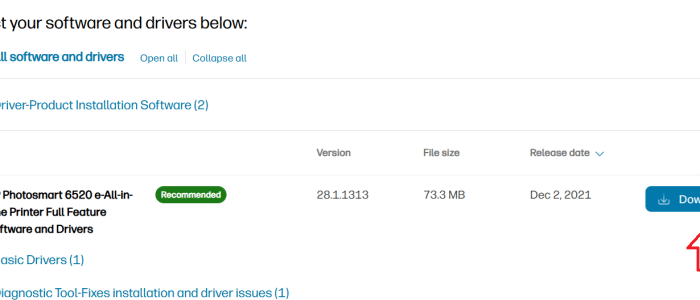
  • Search for the latest driver for HP 6521e printer. Make sure you select the correct Windows Operating System (e.g. if you use Windows 11, select windows 11)
  • Click the Download button
  • Save the downloaded file in a suitable location, such as the desktop
  • Once the file has been downloaded, double-click it to install it. Follow on-screen instructions and restart computer after the installation is complete

Updating HP Photosmart HP 6521e Printer Driver Automatically

Updating HP printer driver automatically is easy and simple. Just download DriverUpdater, the number one driver software out there. The software will automatically download the latest HP 6521e Printer Driver for you.

Automatic driver update tools offer many benefits, the most important ones being:

  • You can update device drivers automatically
  • The software scans and updates all outdated or missing drivers at one go
  • The tool picks the right drivers for your device and operating system, so you won’t have to worry about installing an incorrect driver by mistake
  • Automatic driver updates are 100% safe

Driver Updater is one of the best driver update tools out there. Outbyte Driver Updater will give you access to a database of over 1 million drivers. It will regularly scan your PC, suggesting new driver versions to install. Driver Updater contains drivers for a variety of Windows devices. With just one click, you can update drivers in your system.

Step 1
Click here to Install and launch the app

Step 2
Scan all devices

Step 3
Install or update drivers automatically
 

Start Download


Filed Under: PC Fix Tips Tagged With: HP Photosmart 6521e

Fix Error Code 43 for Intel Graphics Card

By Susan C on January 20, 2025

Fix Error Code 43 for Intel Graphics Card

Error Code 43 typically occurs due to:

  • Hardware problems
  • Driver problems
  • Settings corruption

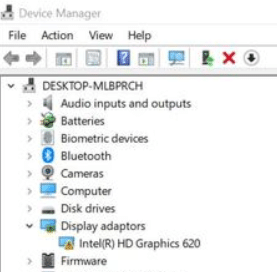
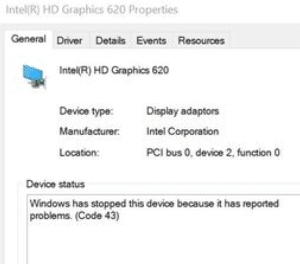
When this error occurs, you’ll see a yellow icon on the Intel graphics card (under Display Adapter) in the Device Manager. Upon double-clicking the Intel graphics card, this error message appears:

“Windows has stopped this device because it has reported problem. (Code 43)”

Fortunately, you can resolve this error on your own — and this post will show you how to go about it.

How to Fix Error Code 43

Performing a clean install of your Intel graphics card will fix the error. However, first you must get the latest driver for your Intel graphics card.

Step 1 – Download the latest Intel graphics card driver

You can either download the graphics card driver from the Intel website or by using a reliable driver update software (more on this at the end of the post). We recommend the latter since manually downloading a driver can be cumbersome. In contrast, a driver update software automatically downloads the latest driver for you with just a few mouse clicks.

If you want to go the manual route, you’ll need to know the model of your graphics card. You can find out this information by performing these steps:

  • Type devmgmt.msc in the Search bar in the taskbar and press Enter

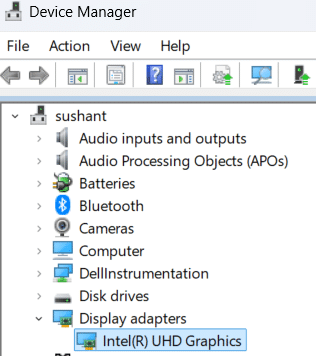
  • In the Device Manager window, expand Display adapters
  • The name and model of your graphics card will appear below

Once you’ve this information, go to the Intel website and search for the latest driver for your graphics card model. Make sure the selected driver is compatible with your Windows version. For example, if you use a 64-bit Windows 11 system, the driver should be for 64-bit Windows, not 32-bit.

Save the downloaded driver in a suitable location, such as the desktop.

Step 2 – Uninstall the Intel Graphics Card driver and Intel Display audio driver

The next step involves uninstalling these two drivers.

How to Uninstall the Intel graphics card driver

  • Type devmgmt.msc in the Search bar in the taskbar and press Enter
  • Expand the Display adapters category
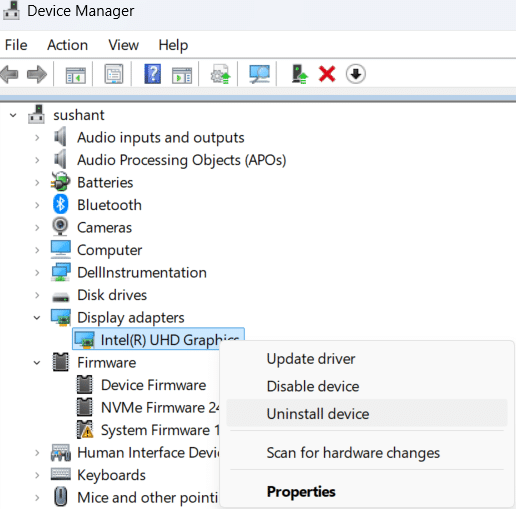
  • Locate the correct device, right-click it, and select Uninstall Device

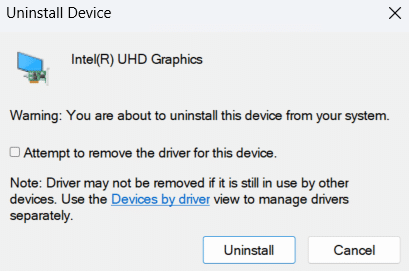
  • Select the checkbox before Attempt to remove the driver for this device and then click the Uninstall button

  • Wait until Windows complete the uninstallation process and then restart the computer

How to Uninstall the Intel audio card driver

  • Type devmgmt.msc in the Search bar in the taskbar and press Enter
  • Expand Sound, video, and game controllers
  • Find and right-click the correct device, and then select Uninstall Device
  • Select the checkbox before Attempt to remove the driver for this device and then click the Uninstall button
  • Wait until Windows complete the uninstallation process and then restart the computer

Step 3 – Install the latest Intel Graphics driver

Double-click the driver installation file that you downloaded and follow on-screen instructions to install the latest Intel Graphics driver.

How to update your graphics card driver (or any other device driver) automatically?

The simplest and quickest way to update a device driver is by using a reliable driver update software such as DriverUpdater. It automatically downloads new driver versions, saving you much time and effort.

Automatic driver update tools offer many benefits, the most important ones being:

  • You can update device drivers automatically
  • The software scans and updates all outdated or missing drivers at one go
  • The tool picks the right drivers for your device and operating system, so you won’t have to worry about installing an incorrect driver by mistake
  • Automatic driver updates are 100% safe

Driver Updater is one of the best driver update tools out there. Outbyte Driver Updater will give you access to a database of over 1 million drivers. It will regularly scan your PC, suggesting new driver versions to install. Driver Updater contains drivers for a variety of Windows devices. With just one click, you can update drivers in your system.

Step 1
Click here to Install and launch the app

Step 2
Scan all devices

Step 3
Install or update drivers automatically
 

Start Download


Filed Under: PC Fix Tips Tagged With: Intel graphics driver

How to Fix Critical Process Died Error in Windows 11

By Susan C on January 14, 2025

How to Fix Critical Process Died Error in Windows 11

The “Critical Process Died” error is a blue screen error which shows up when a critical process required to run Windows ends abruptly. In this post, we’ll discuss 8 DIY solutions to fix the error quickly and relatively effortlessly.

So, let’s dig right in.

What’s the Critical Process Died STOP Code?

The Critical Process Died STOP is one of the many error messages that appear on the Blue Screen of Death (BSOD), whose actual name is STOP Error message screen.

The whole display gets filled with the Blue screen of Death and is typically accompanied by the following error message:

Your PC ran into a problem and needs to restart. We’re just collecting some error info, and then we’ll restart for you.

Note: You cannot close the BSOD or STOP error message screen like a typical Windows error message. You must wait until its process completes and Windows restart automatically.

Critical Processes Died errors are mostly caused by:

  • A data conflict
  • New software or hardware
  • Malware and viruses
  • Lack of sufficient free memory
  • Outdated drivers

How to Fix Critical Process Died Error in Windows 11?

1. Prepare your computer for Safe Mode

When you launch Windows in Safe Mode, only essential files and drivers get loaded, which allows you to fix issues with minimal interference.

First, shut down Windows, unplug peripheral devices (except your keyboard and mouse), and then restart Windows. It’s important that you remove all peripheral devices except two since USB devices could cause the blue screen of death.

In case Windows start normally, follow these steps to enter Safe Mode.

  • Press the Windows key
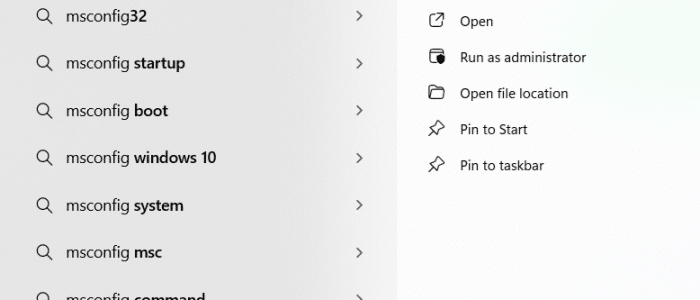
  • Type msconfig and press Enter

  • Click the Boot tab
  • Select Safe Mode and then select Minimal
  • Click Apply and then OK

In case you get the BSOD when you restart Windows, perform the following steps to enter Safe Mode

  • Restart Windows and in the sign-in screen, press the Shift key while you press Power and Restart
  • Once Windows restarts, choose Troubleshoot | Advanced Options | Startup Settings | Restart
  • Select Enable Safe Mode

2. Uninstall recently installed programs

Sometimes, you receive the Critical Process Died STOP error after you’ve installed a program. If this is the case, uninstall that program after entering into Safe Mode.

Follow these steps to uninstall a program on Windows 11:

  • Press the Windows key
  • Type Settings and press Enter
  • Click Apps
  • Click Installed Apps

  • Locate the recently-installed software, right-click it, and then select Uninstall

3. Install the latest Windows Update

Windows updates include security patches, driver updates, and bug fixes that often help fix computer errors, including the Critical Process Died STOP error.

To make sure, your Windows system is up to date, follow these steps:

  • Press the Windows key
  • Click Settings
  • Click Windows Update

  • Follow on-screen instructions to check if any new updates are available

4. Scan your PC for malware

Often malware and viruses can trigger various errors. It’s possible that the same is true in your case. If the previous solutions have not worked for you, we recommend you run a deep scan of your system to ensure there are no viruses and malware hiding.

5. Run an SFC scan

Windows come with an in-built utility, called Windows SFC or System File Checker, that can check for system files that have become corrupt and repair them. Because corrupt system files are one of the main causes behind Blue Screen of Death, running an SFC scan can help.

Here are the steps to follow:

  • Press the Windows key
  • Type Command Prompt and right-click the first result, and choose Run as administrator

  • In the Command Prompt window, type SFC /Scannow and press Enter

  • Once the scan is complete, restart Windows

6. Scan the hard drive

If the file system on the hard drive is corrupt, you can encounter various errors. Your system may also crash frequently. A CHKDSK scan allows you to check the complete hard drive, identify errors, and resolve them, improving your computer’s performance and frequent errors, such Blue Screen of Death.

Follow these steps to scan the hard drive:

  • Press the Windows key
  • Type Command Prompt, right-click the first result, and choose Run as administrator
  • In the Command Prompt window, type chkdsk /f /r and then press Enter

7. Check the RAM

An issue with the RAM can cause the Critical Process Died error. Windows include a diagnostic tool to check the RAM’s status. The diagnostic tool cannot actually repair the damaged RAM sectors, but it can identify them and prevent the computer from using them during operation.

Follow these steps to use this diagnostic tool:

  • Press the Windows key
  • Type Windows Memory Diagnostic and press Enter
  • Select Restart now and check for problems (recommended)

  • When Windows restarts, it will show the diagnostic results

In case the RAM is severely damaged, it would be best to upgrade it.

8. Update device drivers

If nothing else has worked, try updating device drivers. Outdated drivers can cause a number of errors. Since it is cumbersome to manually check every driver if it requires an update or not, we recommend you give DriverUpdater a try. It scans your computer to check for old drivers and updates them.

Automatic driver update tools offer many benefits, the most important ones being:

  • You can update device drivers automatically
  • The software scans and updates all outdated or missing drivers at one go
  • The tool picks the right drivers for your device and operating system, so you won’t have to worry about installing an incorrect driver by mistake
  • Automatic driver updates are 100% safe

Driver Updater is one of the best driver update tools out there. Outbyte Driver Updater will give you access to a database of over 1 million drivers. It will regularly scan your PC, suggesting new driver versions to install. Driver Updater contains drivers for a variety of Windows devices. With just one click, you can update drivers in your system.

Step 1
Click here to Install and launch the app

Step 2
Scan all devices

Step 3
Install or update drivers automatically

 

Start Download


Filed Under: Software Drivers Tagged With: bsod

  • « Previous Page
  • 1
  • …
  • 26
  • 27
  • 28
  • 29
  • 30
  • …
  • 189
  • Next Page »


  • Recent Posts
  • Popular Posts
        

Read More Posts


Read More Posts

Drivers.com Sites

  • Software Drivers
  • Drivers Ed

About Us

  • Advertise
  • About Drivers
  • Drivers Support
  • Drivers.com Privacy Policy
  • Disclaimer
  • Software Drivers
  • Mac Fixes and Tips
  • PC Fix Tips
  • Security/ Backup
  • Tablets & Smartphones
  • Tech News

© Copyright 2026 PDE Publications Ltd. End User License Agreement (EULA)