Drivers.com

follow us:

facebook twitter
  • Home
  • Download Drivers
  • Drivers Help
  • PC/Mac Resources
  • Software Drivers
  • Mac Fixes and Tips
  • PC Fix Tips
  • Security/ Backup
  • Tablets & Smartphones
  • Tech News
  • Software Drivers
  • Mac Fixes and Tips
  • PC Fix Tips
  • Security/ Backup
  • Tablets & Smartphones
  • Tech News

NVIDIA Driver Won’t Install Windows 11? 3 DIY Fixes

By Susan C on December 24, 2024

NVIDIA Driver Won’t Install Windows 11? 3 DIY Fixes

Trying to install NVIDIA drivers on Windows 11, but are unable to do so?

You’re not alone. This issue has been reported by many users.

Fortunately, you can fix the issue on your own — and this blog post will show you how to do that.

NVIDIA Driver Won’t Install Win 11

NVIDIA Graphics GPU require NVIDIA drivers to work properly. But in some cases, certain drivers won’t install in Windows 11. On the screen, an error message appears. Common error messages include:

  • NVIDIA Installer failed
  • NVIDIA Installer cannot continue
  • This NVIDIA graphics driver isn’t compatible with this version of Windows

Error messages may vary, but the following solutions work in most instance. We recommend you give them a try in the order they appear below.

Solution 1 – Ensure You’ve the Right Version of NVIDIA Driver

When installing a NVIDIA driver, make sure it is compatible with your version of Windows. For example, if you are using 32-bit Windows, the driver should be for 32-bit Windows, not 64-bit (and vice-versa). In addition, the driver should be compatible with your version of Windows. For instance, some times the old NVIDIA drivers won’t get installed on Windows 11.

Here’s how you can install an appropriate NVIDIA driver version directly from the NVIDIA website.

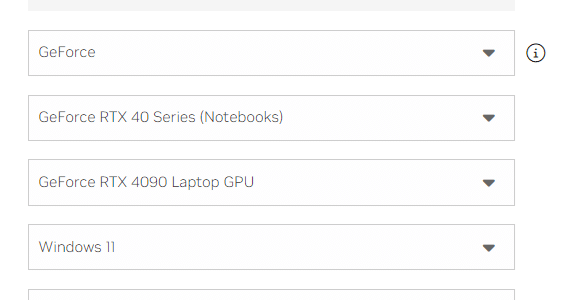
  • Open your web browser, navigate to NVIDIA drivers web page, select the appropriate product and operating system and click the Find button

  • You’ll now see a list of drivers based on the search criteria selected by you. Each driver will have a View button next to it. Click the View button of the driver you want to install

  • On the next page, click the Download button

  • Locate the downloaded driver file, double-click it to launch the installation wizard, follow the on-screen instructions, click Next to proceed through the installation until you get the message that the installation is complete

If an error message pops up during the installation process, go to the next solution. 

Solution 2 – Remove all NVIDIA Programs and Install the Driver Manually

Delete all NVIDIA programs and then let Windows install the correct driver.

Uninstall NVIDIA programs

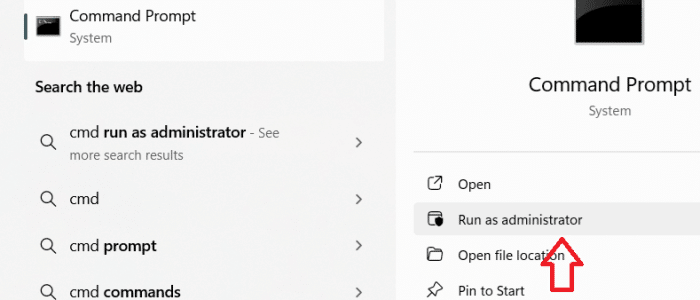
  • Type devmgmt.msc in the Search bar (located at the center of the desktop Taskbar) and press Enter

  • In the Device Manager window, expand Display adapters, right-click the NVIDIA graphics card, and select Uninstall device

  • Wait till Windows uninstall the device and then restart the computer
  • Now type run in the Search bar and press Enter

  • In the Run dialog box, type appwiz.cpl and then click OK

  • Right-click the first program related to NVIDIA that you see in the Programs and Features window and select Uninstall. Repeat this step for the remaining NVIDIA related programs
  • Restart Windows after you uninstalled all NVIDIA related programs

Install NVIDIA driver

  • Type devmgmt.msc in the Search bar and press Enter
  • Expand Display adapters, right the NVIDIA graphics card, and select Update driver

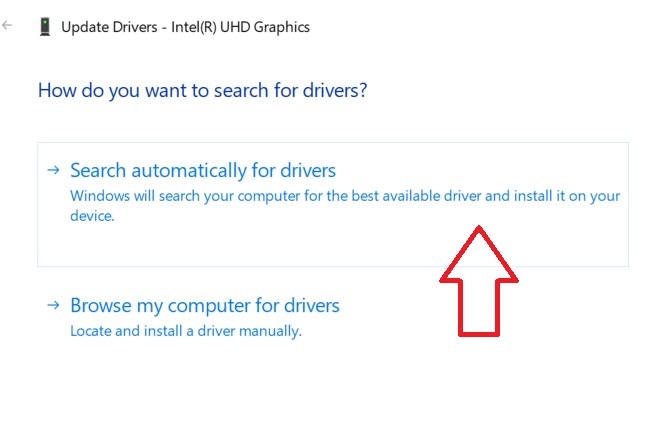
  • Select Search automatically for updated driver Software

  • Windows will locate the latest driver version and install it

If you still are are unable to install the NVIDIA driver, move on to the next solution.

Solution 3 – Disable Antivirus Temporarily

In rare instances, an antivirus program may block the installation of NVIDIA drivers. Therefore, temporarily disable your antivirus program and follow the steps listed in the Solution 2 section. You should be able to install the NVIDIA driver now. Once the installation is complete, enable the antivirus program.

The steps required for disabling antivirus may vary slightly depending on the antivirus program you are using. However, usually the process involves the following steps:

  • Click the antivirus icon in the System Tray (located to the right of the desktop Taskbar)

  • You will be able to find the Disable option in the app’s interface window (For example, to disable Avast from its interface, click Menu > Settings > Protection > Core Shields and then toggle the Core Shields off)

To enable your antivirus program, simply follow the steps listed above and select the Enable option.

Before we sign off for the day, it’s important to mention that you should keep your device drivers up to date. This will not only ensure software compatibility but also enhance performance. Using a reliable driver update software is an easy (and safe) way to update drivers. We recommend using DriverUpdater. It updates outdated device drivers in a jiffy with just a few mouse clicks.

Automatic driver update tools offer many benefits, the most important ones being:

  • You can update device drivers automatically
  • The software scans and updates all outdated or missing drivers at one go
  • The tool picks the right drivers for your device and operating system, so you won’t have to worry about installing an incorrect driver by mistake
  • Automatic driver updates are 100% safe

Driver Updater is one of the best driver update tools out there. Outbyte Driver Updater will give you access to a database of over 1 million drivers. It will regularly scan your PC, suggesting new driver versions to install. Driver Updater contains drivers for a variety of Windows devices. With just one click, you can update drivers in your system.

Step 1
Click here to Install and launch the app

Step 2
Scan all devices

Step 3
Install or update drivers automatically
 

Start Download


Filed Under: Software Drivers Tagged With: NVIDIA Driver

Fix File Explorer Crashes on Right-Click

By Susan C on December 20, 2024

Fix File Explorer Crashes on Right-Click

Does explorer crash or hang when you right-click in Windows 11?

If so, you’re not alone.

This is a fairly common problem. Fortunately, it doesn’t take much to fix it. By the end of this post, you’ll know exactly what you need to do to resolve the issue.

So, let’s get rolling.

Fix the “Win 11 Explorer Hangs or Crashes on Right-click” issue

We recommend you try the following solutions in the order they’re listed below. Before we begin, it’s necessary to state that except the Solution 1, all other solutions work with Windows 10. If you’re Windows 10 user who is facing the “explorer hangs on right-click” issue, start from the Solution 2.

Solution 1 – Restore old windows right-click context menu

Starting with Windows 11, the context menu in the Explorer is refreshed. It is more compact and based on modern design. There’s nothing wrong with that, but inexplicably the modern-designed right-click menu at times is noted to cause File Explorer to crash. So, it might be a good idea to restore the old right-click context menu to see if that fixes the issue.

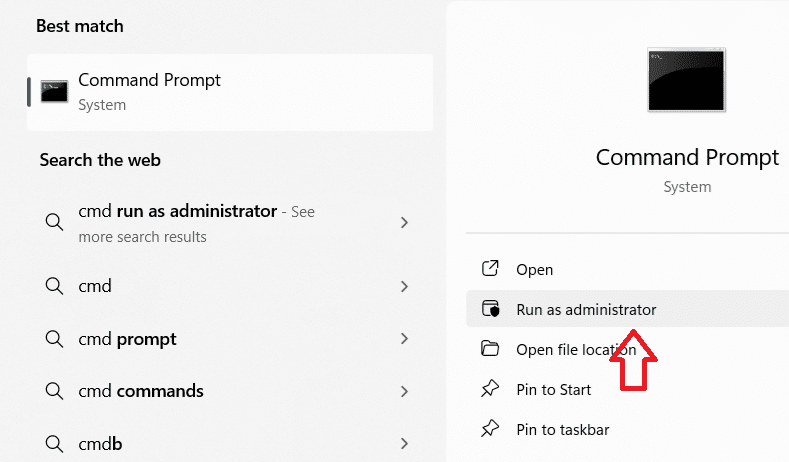
  • In the Search bar on your taskbar, type “cmd”, and then select Run as administrator under Command Prompt

  • Next, paste the following command in the terminal and then press Enter
  • reg add “HKCU\Software\Classes\CLSID\{86ca1aa0-34aa-4e8b-a509-50c905bae2a2}\InprocServer32” /f /ve

  • Close command prompt
  • Restart Windows
  • Once your computer restarts, you’ll see the classic right-click menu
  • Check if the problem is resolved

If the issue still persists, again open Command Prompt as Administrator, paste the following command and press Enter to undo the changes. Then, restart Windows.

  • reg delete “HKCU\Software\Classes\CLSID\{86ca1aa0-34aa-4e8b-a509-50c905bae2a2}” /f

Solution 2 – Get rid of 3rd party shell extensions

Sometimes File Explorer crashes when you right-click because of a 3rd party extension. Therefore, disable all 3rd party extensions and check whether that does the trick.

  • Go to NirSoft website and download ShellExView utility (Browse to the bottom of the page, where you’ll find the download link)
  • Extract shellexview.zip file to a folder
  • Now, double-click shexview.exe
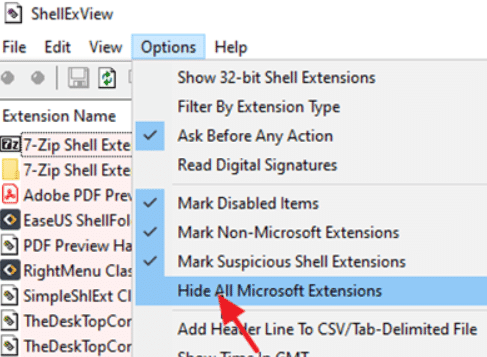
  • In ShellExView window, click Options and then click Hide All Microsoft Extensions

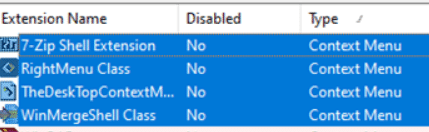
  • Select all the Context Menu extensions (You can do so by pressing and holding-down the CTRL key and clicking the relevant extensions one-by-one)

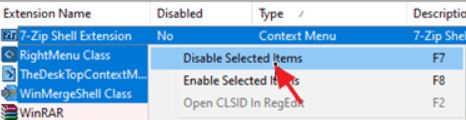
  • Right-click and select Disable Selected items. Click Yes when Windows ask you to confirm your action

  • Restart Windows and check if the issue is fixed

If the issue persists, select all the Context Menu extensions in the ShellExView Window and then right-click and choose Enable Selected items. Once you have done this, move on to the Solution 3.

If the issue is resolved, perform the following steps to locate the extension that is causing the issue:

  • Open ShellExView
  • Select the first Context Menu extension in the list, right-click it, and select Enable
  • Restart Windows. In case the File Explorer doesn’t crash when you right-click, Enable all other disabled Shell extensions except the one you have just disabled. If the issue persists, enable that extension. Now, disable the next Shell extension in the list, restart Windows, and check if the problem is fixed. Keep repeating the steps for the remaining Shell extensions until you are able to identify the culprit extension

Solution 3 – Repair Windows System Files

  • Type cmd in the Search bar and then select Run Command Prompt as Administrator
  • In the command prompt window, type the command shared below and press Enter
  • dism.exe /Online /Cleanup-Image /Restorehealth

  • Wait until you get the “The operation completed successfully” message. Then type sfc /scannow and press Enter

  • Wait until SFC scan is complete and then restart Windows
  • Check if the issue is fixed

Solution 4 – Update Graphics Card Driver

Sometimes, the File Explorer crashing issue occurs due to outdated graphics card driver. Updating the graphics card driver will resolve the problem. You can update graphics card driver manually or automatically. Both the methods are listed ahead. Simply pick the one you like better.

Updating Graphics Card Driver Manually

  • Type devmgmt.msc in the Search bar and press Enter to open the Device Manager window
  • Expand Display adapters
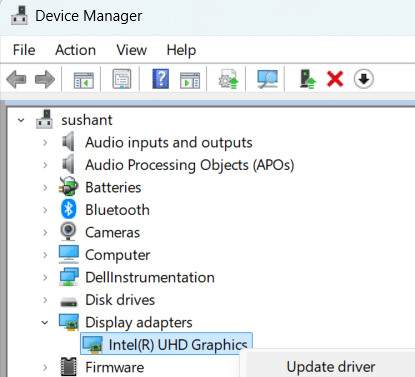
  • Right-click your graphics card and select Update driver

  • Click Search automatically for drivers. Windows will now search your computer for the best available driver and install it

If Windows is not able to find the latest driver version for your graphics card, go to the card manufacturer’s website and download the latest driver version (if available) from there.

Updating Graphics Card Driver Automatically

If the manual method of updating a driver seems like a lot of work, you may be better off using a driver update software, which automatically updates outdated drivers. We recommend DriverUpdater because it is super-fast, reliable, and accurate.

Automatic driver update tools offer many benefits, the most important ones being:

  • You can update device drivers automatically
  • The software scans and updates all outdated or missing drivers at one go
  • The tool picks the right drivers for your device and operating system, so you won’t have to worry about installing an incorrect driver by mistake
  • Automatic driver updates are 100% safe

Driver Updater is one of the best driver update tools out there. Outbyte Driver Updater will give you access to a database of over 1 million drivers. It will regularly scan your PC, suggesting new driver versions to install. Driver Updater contains drivers for a variety of Windows devices. With just one click, you can update drivers in your system.

Step 1
Click here to Install and launch the app

Step 2
Scan all devices

Step 3
Install or update drivers automatically
 

Start Download


Filed Under: PC Fix Tips Tagged With: File Explorer Crash

DIY Steps for Disabling Efficiency Mode in Edge, Firefox, and Chrome

By Susan C on December 19, 2024

DIY Steps for Disabling Efficiency Mode in Edge, Firefox, and Chrome

Efficiency mode, earlier known as Eco mode, in Windows 11 limits the resources certain applications use. This in turn helps improve energy efficiency and brings down the system’s overall resource usage.

However, some users have complained that because of the Efficiency mode, the performance and speed of their web browser takes a serious hit, causing it to hang or freeze. Users have faced this issue with popular browsers, including Chrome, Firefox, and Edge.

We’ve put together this guide that shows you how to switch the Efficiency mode off on these three browsers in Win 11.

Disable the Efficiency Mode in Chrome

  • Close the Chrome browser
  • Open task manager by simultaneously pressing the CTRL, SHIFT, and ESC keys
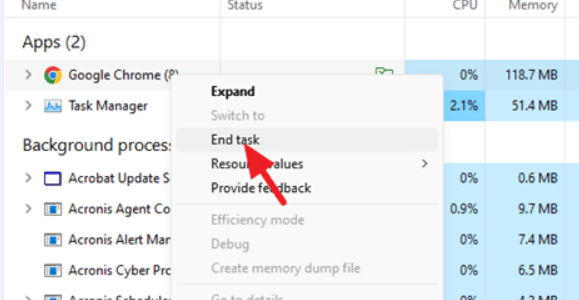
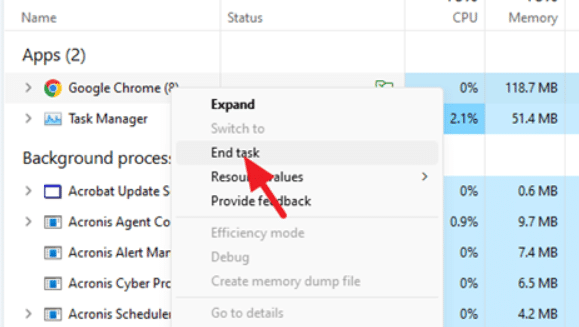
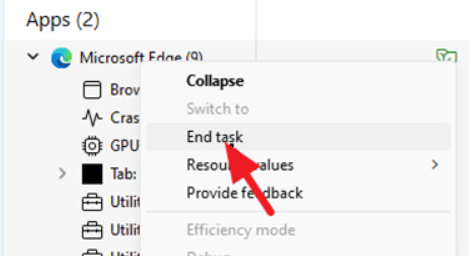
  • Right-click Chrome in the task manager window and then select End Task

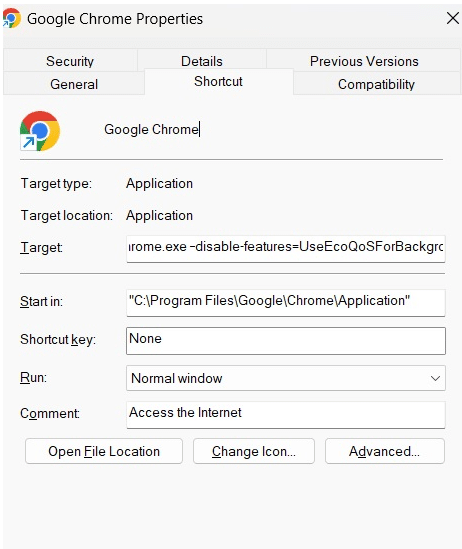
  • Right-click Chrome shortcut on the desktop and select Properties
  • Go to the Target field. At the end of the description (right after “chrome.exe”), press the space bar once and then paste this command: –disable-features=UseEcoQoSForBackgroundProcess

  • Click the OK button
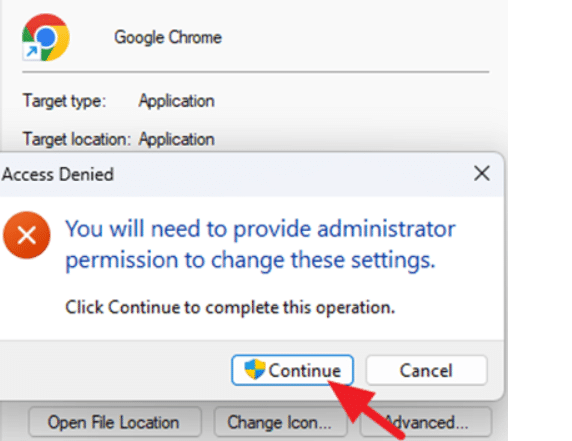
  • Click Continue in the pop-up window that shows up stating “You’ll need to provider administrator permission to change these settings”

  • All done! Open Chrome from the modified shortcut and you’ll find it running with efficiency mode disabled

Important: If you want to re-enable Efficiency mode in Chrome, follow the steps listed above and simply delete the command that you had added in Target field.

Disable Efficiency Mode in Microsoft Edge

  • Close the Microsoft Edge browser
  • Open task manager by simultaneously pressing the CTRL, SHIFT, and ESC keys
  • Right-click Microsoft Edge in the task manager window and then select End Task

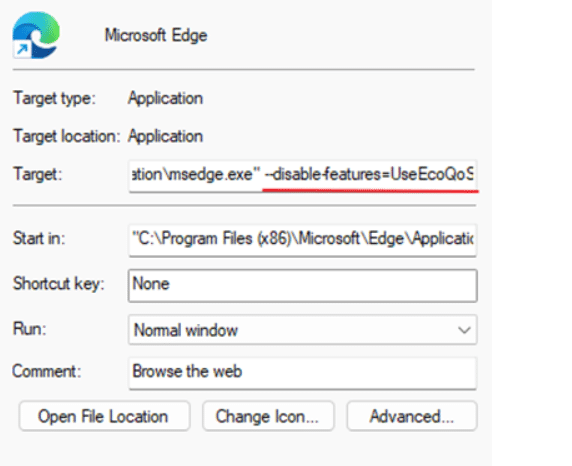
  • Right-click Microsoft Edge shortcut and then select Properties
  • Go to the Target field. At the end of the description (right after “msedge.exe”), press the space bar once and then paste this command: –disable-features=UseEcoQoSForBackgroundProcess

  • Click the OK button
  • Open Edge from the modified shortcut and you’ll find it running with efficiency mode disabled

Important: If you want to re-enable Efficiency mode in Edge, follow the steps listed above and simply delete the command that you had added in Target field.

Disable Efficiency Mode in Firefox

  • Open the Firefox browser
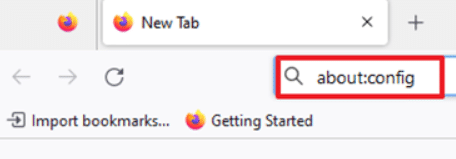
  • In address bar, type “about:config” and then press the Enter key

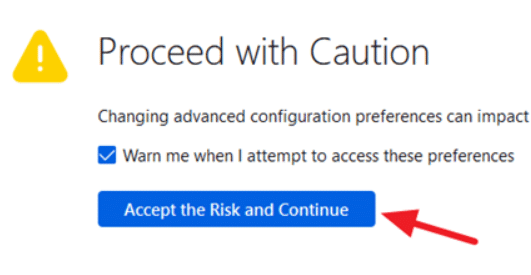
  • In the next window, click Accept the risk and continue

  • Paste the following command in the Search bar: dom.ipc.processPriorityManager.backgroundUsesEcoQoS
  • Click the icon shown in the image below and set the value to “false” instead of “true”. This will switch off Efficiency mode

  • Close Firefox and relaunch it for changes to take effect

Important: If you want to re-enable Efficiency mode in Firefox, follow the steps listed above and change the “ProcessPriorityManager” value to “true” instead of “false”. Once done, close Firefox and relaunch it.

Well, that’s about it! Leave your comments below if you have any questions.

Before we end this post, just a reminder that to keep your Windows 11 system working at its optimal level, it’s important you regularly install important Windows updates. Additionally, keep your device drivers up to date. This is extremely easy when you use an advanced driver software such as DriverUpdater.

Automatic driver update tools offer many benefits, the most important ones being:

  • You can update device drivers automatically
  • The software scans and updates all outdated or missing drivers at one go
  • The tool picks the right drivers for your device and operating system, so you won’t have to worry about installing an incorrect driver by mistake
  • Automatic driver updates are 100% safe

Driver Updater is one of the best driver update tools out there. Outbyte Driver Updater will give you access to a database of over 1 million drivers. It will regularly scan your PC, suggesting new driver versions to install. Driver Updater contains drivers for a variety of Windows devices. With just one click, you can update drivers in your system.

Step 1
Click here to Install and launch the app

Step 2
Scan all devices

Step 3
Install or update drivers automatically

 

Start Download


Filed Under: PC Fix Tips Tagged With: Disable Efficiency Mode

  • « Previous Page
  • 1
  • …
  • 28
  • 29
  • 30
  • 31
  • 32
  • …
  • 189
  • Next Page »


  • Recent Posts
  • Popular Posts
        

Read More Posts


Read More Posts

Drivers.com Sites

  • Software Drivers
  • Drivers Ed

About Us

  • Advertise
  • About Drivers
  • Drivers Support
  • Drivers.com Privacy Policy
  • Disclaimer
  • Software Drivers
  • Mac Fixes and Tips
  • PC Fix Tips
  • Security/ Backup
  • Tablets & Smartphones
  • Tech News

© Copyright 2026 PDE Publications Ltd. End User License Agreement (EULA)