
Drivers.com

follow us:

facebook twitter
  • Home
  • Download Drivers
  • Drivers Help
  • PC/Mac Resources
  • Software Drivers
  • Mac Fixes and Tips
  • PC Fix Tips
  • Security/ Backup
  • Tablets & Smartphones
  • Tech News
  • Software Drivers
  • Mac Fixes and Tips
  • PC Fix Tips
  • Security/ Backup
  • Tablets & Smartphones
  • Tech News

How to Update Dell S3845cdn Printer Driver?

By Susan C on January 13, 2025

Dell Color Smart Multifunction Printer S3845cdn is a relatively fast and good quality printer. Among color laser all-in-one printers, it has one of the lowest running costs and save you money in the long run. However, to ensure your Dell printer continues to function optimally, you must have the latest printer drivers.

In this post, we’ll show you how you can update Dell S3845cdn printer driver quickly and effortlessly. However, first let’s understand why it is important to keep your printer up to date in the first place.

Why Update Printer Driver?

Not updating the printer driver regularly or when an update is released could spell trouble with capital T. Some common issues that you could see include:

Printer disconnection

Printer becoming disconnected from the computer operating system is one of the most common issues users face when the printer is old, missing, or corrupt.

Issues with the model

Another problem that could surface could be bugs. For instance, you may encounter an issue whenever you use a particular font or layout within the document. This in turn will cause it to print incorrectly. Updating your printer driver can fix these issues, minimizing the down-time.

Crashing devices

A printer’s driver most important job is to facilitate the communication between your printer and computer OS. For this reason, an out-of-date printer driver could lead frequent system or printer crashes when you are trying to send files. If this happens, update the printer driver asap.

Now that you’ve seen why updating printer driver is crucial for smooth functioning of your printer, let’s check out the steps for updating the Dell S3845cdn printer.

How to update Dell S3845cdn Printer Driver?

  • Open your web browser
  • Go to Dell Support
  • Enter the required details, such as your version of Windows
  • Select the relevant driver
  • Click the Download button and save the driver in a suitable location, such as the desktop
  • Once the driver has been downloaded, launch the installer by double-clicking it
  • Follow on-screen instructions and wait till the installation is complete
  • Restart Windows if asked

If you don’t want to go through all this hassle, consider using a reliable driver update tool. We recommend you to give DriverUpdater a try. It is super-fast, reliable, and accurate.

Automatic driver update tools offer many benefits, the most important ones being:

  • You can update device drivers automatically
  • The software scans and updates all outdated or missing drivers at one go
  • The tool picks the right drivers for your device and operating system, so you won’t have to worry about installing an incorrect driver by mistake
  • Automatic driver updates are 100% safe

Driver Updater is one of the best driver update tools out there. Outbyte Driver Updater will give you access to a database of over 1 million drivers. It will regularly scan your PC, suggesting new driver versions to install. Driver Updater contains drivers for a variety of Windows devices. With just one click, you can update drivers in your system.

Step 1
Click here to Install and launch the app

Step 2
Scan all devices

Step 3
Install or update drivers automatically
 

Start Download


Filed Under: PC Fix Tips Tagged With: Dell S3845cdn Driver

Fix “Cannot Login into Windows 11 (or 10)” Issue

By Susan C on January 10, 2025

Fix “Cannot Login into Windows 11 (or 10)” Issue

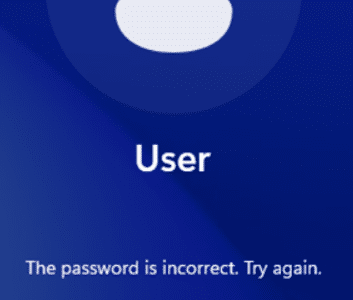
Not able to login to your Windows 11 (or 10) PC? Or perhaps you have forgotten the login password, resulting in the “The Password is incorrect” error, and are at a loss for what to do next.

Don’t worry, we’ve got you covered.

Typically, “The Password is incorrect” error occurs when the user makes a typo while entering the login password. In this scenario, the issue can be easily fixed by entering the right password.

However, the error message can also crop up if you enter a wrong password because you don’t remember the correct one. If that’s the case, just follow the solution listed in this post. 

How to reset Windows 11 or 10 login password if you don’t remember it

There’s only one way to fix the issue in this instance. You must reset the login password. To do so, perform the following steps.

Step #1 – Enable Command Prompt on Sign-in Screen

  • Click the Power button on the Windows sign-in screen
  • Now press down the SHIFT key and click Restart on the screen

  • Once Windows restart, click Troubleshoot | Advanced options | Command Prompt
  • Type the commands listed below in Command Prompt

move c:\windows\system32\utilman.exe c:\

copy c:\windows\system32\cmd.exe c:\windows\system32\utilman.exe

exit

  • Close Command Prompt
  • Click Continue

  • Click Accessibility icon

  • You’ll see a Command Prompt window.
  • Type the following command in Command Prompt and then press Enter

control userpasswords2

  • Click Reset Password

  • Type a new login password and click OK. Click OK once more so that changes are saved

  • Close Command Prompt and enter the new login password and press the Enter key
  • Now go to Step 2 and follow the instructions in that section

Step #2 – Disable Command Prompt on Sign-in Screen

  • Go to the C:\ drive and locate the utilman.exe file
  • Copy this file to C:\Windows\System32 folder. Click Yes

Additional Tips

It’s important that you regularly update your device drivers. This is because old, corrupt, or incompatible drivers can various performance issues. A reliable driver update tool can update your device drivers automatically. We recommend you use DriverUpdater.

Automatic driver update tools offer many benefits, the most important ones being:

  • You can update device drivers automatically
  • The software scans and updates all outdated or missing drivers at one go
  • The tool picks the right drivers for your device and operating system, so you won’t have to worry about installing an incorrect driver by mistake
  • Automatic driver updates are 100% safe

Driver Updater is one of the best driver update tools out there. Outbyte Driver Updater will give you access to a database of over 1 million drivers. It will regularly scan your PC, suggesting new driver versions to install. Driver Updater contains drivers for a variety of Windows devices. With just one click, you can update drivers in your system.

Step 1
Click here to Install and launch the app

Step 2
Scan all devices

Step 3
Install or update drivers automatically


Start Download


Filed Under: PC Fix Tips Tagged With: Login Password

How to Troubleshoot Blue Screen or 900 Firmware Errors on Dell Laser Printers

By Susan C on January 3, 2025

In this post, we’ll look at how to troubleshoot blue screen or 900 firmware errors on a Dell Laser Printer.

900 firmware errors typically occurs due to corrupt data. It rarely occurs due to a hardware-related issue.

If the error occurs because of corrupt data, clearing the print queue, changing the printer’s IP address, updating the printer firmware, or reinstalling the printer driver can help.

Clear the Print Spooler/Queue

To clear the print spooler or queue in Windows, follow these steps:

  • Type Services in the Search bar in your taskbar and press the Enter key
  • In the list of Services that appear in the right window pane, locate Print Spooler services and then double-click it
  • Click the Stop button and then click OK
  • Close the Services window
  • Type file explorer in the Search bar and press the Enter key
  • Click This PC on the left side
  • Double-click your Local Disk where Windows is installed
  • Locate the Windows folder and double-click it
  • Scroll down until you see the System32 folder and then double-click it
  • Scroll down until you see the Spool folder and then go ahead and double-click it
  • Double-click the PRINTERS folder. You may need administrative rights to access the folder. If you receive a message stating You don’t currently have permission to access this folder, then click the Continue button and enter the administrator credentials
  • Once you’ve opened the PRINTERS folder, highlight and delete any folder or file you see
  • Close the PRINTERS folder
  • Type services in the Search bar and press the Enter key
  • Scroll down in the Services window until you see the Print Spooler service and then double-click it
  • Click the Start button to start the service and then click OK
  • Close the Services window — and that’s it, you should be good to go

Once you’ve cleared all jobs from the printer spooler, restart the printer.

If you encounter the error before sending a new print job, try the next solution.

If the error doesn’t appear after the printer re-establishes network communication, print a test page from your system. If the error occurs after you’ve printed the test page, chances are that the printer on that system is corrupt. Print a test page from another system connected to the Dell Printer. If you don’t get an error, go to the Section 4.

If you don’t receive an error when you print a test page, try to re-print the original print job that was queued when the error message appeared. If you again receive the error, go to the Section 3.

Change the Printer’s IP Address

  • Turn off the printer
  • Remove any data cables connected to it (USB, Ethernet, and Fax) or disconnect the Dell printer from the wireless network
  • Turn the Dell printer on
  • Change the Dell’s printer address to a static IP address. Make sure this address is different from the last address and is currently not assigned to any other device on your network
  • Reconnect the printer to the network

Update the Printer’s Firmware

  • Go to Dell’s Support Website and download the latest firmware version for your printer and then install it
  • Once you have updated the firmware, reprint the documents

Reinstall the Printer Driver

  • Open Devices and Printer, select your printer, click Printer server properties, select the Drivers tab, select the printer driver to remove, and click Remove
  • Next, download and install the latest driver for your printer from Dell Support Website

Another way of installing the latest driver is by using a reliable driver update software. We recommend DriverUpdater. It will update your Dell Printer driver and drivers for other devices automatically.

Automatic driver update tools offer many benefits, the most important ones being:

  • You can update device drivers automatically
  • The software scans and updates all outdated or missing drivers at one go
  • The tool picks the right drivers for your device and operating system, so you won’t have to worry about installing an incorrect driver by mistake
  • Automatic driver updates are 100% safe

Driver Updater is one of the best driver update tools out there. Outbyte Driver Updater will give you access to a database of over 1 million drivers. It will regularly scan your PC, suggesting new driver versions to install. Driver Updater contains drivers for a variety of Windows devices. With just one click, you can update drivers in your system.

Step 1
Click here to Install and launch the app

Step 2
Scan all devices

Step 3
Install or update drivers automatically


Start Download


Filed Under: PC Fix Tips Tagged With: Dell laser printer

  • « Previous Page
  • 1
  • …
  • 27
  • 28
  • 29
  • 30
  • 31
  • …
  • 189
  • Next Page »


  • Recent Posts
  • Popular Posts
        

Read More Posts


Read More Posts

Drivers.com Sites

  • Software Drivers
  • Drivers Ed

About Us

  • Advertise
  • About Drivers
  • Drivers Support
  • Drivers.com Privacy Policy
  • Disclaimer
  • Software Drivers
  • Mac Fixes and Tips
  • PC Fix Tips
  • Security/ Backup
  • Tablets & Smartphones
  • Tech News

© Copyright 2026 PDE Publications Ltd. End User License Agreement (EULA)