


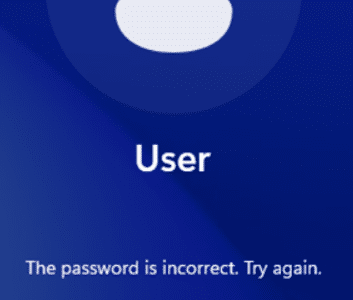
Not able to login to your Windows 11 (or 10) PC? Or perhaps you have forgotten the login password, resulting in the “The Password is incorrect” error, and are at a loss for what to do next.

Don’t worry, we’ve got you covered.
Typically, “The Password is incorrect” error occurs when the user makes a typo while entering the login password. In this scenario, the issue can be easily fixed by entering the right password.
However, the error message can also crop up if you enter a wrong password because you don’t remember the correct one. If that’s the case, just follow the solution listed in this post.
How to reset Windows 11 or 10 login password if you don’t remember it
There’s only one way to fix the issue in this instance. You must reset the login password. To do so, perform the following steps.
Step #1 – Enable Command Prompt on Sign-in Screen
- Click the Power button on the Windows sign-in screen
- Now press down the SHIFT key and click Restart on the screen

- Once Windows restart, click Troubleshoot | Advanced options | Command Prompt
- Type the commands listed below in Command Prompt
move c:\windows\system32\utilman.exe c:\
copy c:\windows\system32\cmd.exe c:\windows\system32\utilman.exe
exit

- Close Command Prompt
- Click Continue

- Click Accessibility icon

- You’ll see a Command Prompt window.
- Type the following command in Command Prompt and then press Enter
control userpasswords2

- Click Reset Password

- Type a new login password and click OK. Click OK once more so that changes are saved

- Close Command Prompt and enter the new login password and press the Enter key
- Now go to Step 2 and follow the instructions in that section
Step #2 – Disable Command Prompt on Sign-in Screen
- Go to the C:\ drive and locate the utilman.exe file
- Copy this file to C:\Windows\System32 folder. Click Yes
Additional Tips
It’s important that you regularly update your device drivers. This is because old, corrupt, or incompatible drivers can various performance issues. A reliable driver update tool can update your device drivers automatically. We recommend you use DriverUpdater.
Automatic driver update tools offer many benefits, the most important ones being:
- You can update device drivers automatically
- The software scans and updates all outdated or missing drivers at one go
- The tool picks the right drivers for your device and operating system, so you won’t have to worry about installing an incorrect driver by mistake
- Automatic driver updates are 100% safe
Driver Updater is one of the best driver update tools out there. Outbyte Driver Updater will give you access to a database of over 1 million drivers. It will regularly scan your PC, suggesting new driver versions to install. Driver Updater contains drivers for a variety of Windows devices. With just one click, you can update drivers in your system.
Step 1
Click here to Install and launch the app
Step 2
Scan all devices
Step 3
Install or update drivers automatically