
Drivers.com

follow us:

facebook twitter
  • Home
  • Download Drivers
  • Drivers Help
  • PC/Mac Resources
  • Software Drivers
  • Mac Fixes and Tips
  • PC Fix Tips
  • Security/ Backup
  • Tablets & Smartphones
  • Tech News
  • Software Drivers
  • Mac Fixes and Tips
  • PC Fix Tips
  • Security/ Backup
  • Tablets & Smartphones
  • Tech News

Resources by Tag

bsod

How to Fix Critical Process Died Error in Windows 11

How to Fix Critical Process Died Error in Windows 11

The “Critical Process Died” error is a blue screen error which shows up when a critical process required to run Windows ends abruptly. In this post, we’ll discuss 8 DIY solutions to fix the error quickly and relatively effortlessly.

So, let’s dig right in.

What’s the Critical Process Died STOP Code?

The Critical Process Died STOP is one of the many error messages that appear on the Blue Screen of Death (BSOD), whose actual name is STOP Error message screen.

The whole display gets filled with the Blue screen of Death and is typically accompanied by the following error message:

Your PC ran into a problem and needs to restart. We’re just collecting some error info, and then we’ll restart for you.

Note: You cannot close the BSOD or STOP error message screen like a typical Windows error message. You must wait until its process completes and Windows restart automatically.

Critical Processes Died errors are mostly caused by:

  • A data conflict
  • New software or hardware
  • Malware and viruses
  • Lack of sufficient free memory
  • Outdated drivers

How to Fix Critical Process Died Error in Windows 11?

1. Prepare your computer for Safe Mode

When you launch Windows in Safe Mode, only essential files and drivers get loaded, which allows you to fix issues with minimal interference.

First, shut down Windows, unplug peripheral devices (except your keyboard and mouse), and then restart Windows. It’s important that you remove all peripheral devices except two since USB devices could cause the blue screen of death.

In case Windows start normally, follow these steps to enter Safe Mode.

  • Press the Windows key
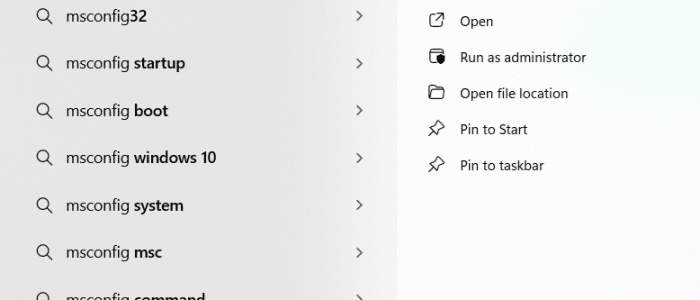
  • Type msconfig and press Enter

  • Click the Boot tab
  • Select Safe Mode and then select Minimal
  • Click Apply and then OK

In case you get the BSOD when you restart Windows, perform the following steps to enter Safe Mode

  • Restart Windows and in the sign-in screen, press the Shift key while you press Power and Restart
  • Once Windows restarts, choose Troubleshoot | Advanced Options | Startup Settings | Restart
  • Select Enable Safe Mode

2. Uninstall recently installed programs

Sometimes, you receive the Critical Process Died STOP error after you’ve installed a program. If this is the case, uninstall that program after entering into Safe Mode.

Follow these steps to uninstall a program on Windows 11:

  • Press the Windows key
  • Type Settings and press Enter
  • Click Apps
  • Click Installed Apps

  • Locate the recently-installed software, right-click it, and then select Uninstall

3. Install the latest Windows Update

Windows updates include security patches, driver updates, and bug fixes that often help fix computer errors, including the Critical Process Died STOP error.

To make sure, your Windows system is up to date, follow these steps:

  • Press the Windows key
  • Click Settings
  • Click Windows Update

  • Follow on-screen instructions to check if any new updates are available

4. Scan your PC for malware

Often malware and viruses can trigger various errors. It’s possible that the same is true in your case. If the previous solutions have not worked for you, we recommend you run a deep scan of your system to ensure there are no viruses and malware hiding.

5. Run an SFC scan

Windows come with an in-built utility, called Windows SFC or System File Checker, that can check for system files that have become corrupt and repair them. Because corrupt system files are one of the main causes behind Blue Screen of Death, running an SFC scan can help.

Here are the steps to follow:

  • Press the Windows key
  • Type Command Prompt and right-click the first result, and choose Run as administrator

  • In the Command Prompt window, type SFC /Scannow and press Enter

  • Once the scan is complete, restart Windows

6. Scan the hard drive

If the file system on the hard drive is corrupt, you can encounter various errors. Your system may also crash frequently. A CHKDSK scan allows you to check the complete hard drive, identify errors, and resolve them, improving your computer’s performance and frequent errors, such Blue Screen of Death.

Follow these steps to scan the hard drive:

  • Press the Windows key
  • Type Command Prompt, right-click the first result, and choose Run as administrator
  • In the Command Prompt window, type chkdsk /f /r and then press Enter

7. Check the RAM

An issue with the RAM can cause the Critical Process Died error. Windows include a diagnostic tool to check the RAM’s status. The diagnostic tool cannot actually repair the damaged RAM sectors, but it can identify them and prevent the computer from using them during operation.

Follow these steps to use this diagnostic tool:

  • Press the Windows key
  • Type Windows Memory Diagnostic and press Enter
  • Select Restart now and check for problems (recommended)

  • When Windows restarts, it will show the diagnostic results

In case the RAM is severely damaged, it would be best to upgrade it.

8. Update device drivers

If nothing else has worked, try updating device drivers. Outdated drivers can cause a number of errors. Since it is cumbersome to manually check every driver if it requires an update or not, we recommend you give DriverUpdater a try. It scans your computer to check for old drivers and updates them.

Automatic driver update tools offer many benefits, the most important ones being:

  • You can update device drivers automatically
  • The software scans and updates all outdated or missing drivers at one go
  • The tool picks the right drivers for your device and operating system, so you won’t have to worry about installing an incorrect driver by mistake
  • Automatic driver updates are 100% safe

Driver Updater is one of the best driver update tools out there. Outbyte Driver Updater will give you access to a database of over 1 million drivers. It will regularly scan your PC, suggesting new driver versions to install. Driver Updater contains drivers for a variety of Windows devices. With just one click, you can update drivers in your system.

Step 1
Click here to Install and launch the app

Step 2
Scan all devices

Step 3
Install or update drivers automatically
 

Start Download


Filed Under: Software Drivers Tagged With: bsod

Windows 7 or 8 PC can crash if Website contains these 4 characters

Did you know a website having an image directory with name $MFT can crash your PC? This peculiar bug was reported by a Russian website Habrhabr.ru.  The bug was first identified by Ars Technica, a website that publishes news and opinions on technology.  According to the report released, this bug affects older PCs running on Windows Vista, Windows 7 or Windows 8.  Windows 10 users need not worry as the bug does not affect the latest operating system.

How does this bug work?

Windows has several filenames in the system directory that are “special” as they do not refer to any file; they represent hardware devices. According to experts, the four characters “$MFT” refers to Master File Table in a Windows PC and the operating system expects to see this character string only in the special metadata file in your computer that is used by NTFS.

When the operating system finds the $MFT characters as a directory name in a website, the NTFS (file system) locks the files you are trying to access from the $MFT directory.  According to researchers, the file that you are trying to access from the $MFT directory is locked forever.

When you try to create files or read a volume of files, NTFS attempts to capture the ERESOURCE $MFT file. When you try to access any other file on the website from the browser, the computer blocks access to local resources as it is waiting for the NTFS to release the locked file from the $MFT directory which never happens. This causes every program to hang which slows down the PC and causes the computer to hang or freeze.  In some cases, the $MFT bug might also cause the BSOD (Blue Screen of Death) error.

Microsoft has been informed about this bug, but the company has not released any security patch to fix this vulnerability yet.  Though it is not known whether it is possible to emulate the process remotely by sending IIS a remote request for the bad file name, you can stay safe by using a Chrome browser which blocks access to images with malformed pathnames.

Filed Under: PC Fix Tips Tagged With: $MFT bug, bsod

3 biggest problems of Windows 8.1 and how to fix them

All Operating Systems have the flaws and Windows 8.1 is not without its problems. We have looked at three of the most common problems and how to fix them.

The Blue Screen of Death

The most common BSOD error message is “DRIVER_IRQL_NOT_LESS_OR_EQUAL.”. This error occurs because of corrupt or incompatible drivers. The solution to this problem is updating all drivers of your system. To update all drivers you can either use a Driver Update Tool or you can follow the steps set out below:

Updating Drivers Automatically

Automatic driver update tools offer many benefits, the most important ones being:

  • You can update device drivers automatically
  • The software scans and updates all outdated or missing drivers at one go
  • The tool picks the right drivers for your device and operating system, so you won’t have to worry about installing an incorrect driver by mistake
  • Automatic driver updates are 100% safe

Driver Updater is one of the best driver update tools out there. Outbyte Driver Updater will give you access to a database of over 1 million drivers. It will regularly scan your PC, suggesting new driver versions to install. Driver Updater contains drivers for a variety of Windows devices. With just one click, you can update drivers in your system.

Step 1
Click here to Install and launch the app

Step 2
Scan all devices

Step 3
Install or update drivers automatically
 

Start Download


  1. Move your mouse pointer to the lower right corner of the screen and move the pointer upwards
  2. Click Settings
  3. Click Change PC Settings
  4. Click Update & Recovery
  5. Click Windows update
  6. Click Choose how updates get installed
  7. Under Important updates, select Install updates automatically (recommended)

PC runs too slow in Windows 8.1

Many users complain of their Windows 8.1 PC running very slowly. This can be due to many reasons, including malware and the running of unnecessary services. A malware disguising as a Windows process (svchost.exe) is known to hog system performance. For this reason, you need to scan your system using good anti-virus software.

Another reason for your PC’s slow performance could be the Windows UPnP service. The Windows UPnP service scans your home network for compatible devices. However, in some cases, the service run inefficiently utilizing valuable system resources continuously causing the PC to slow down. To resolve this issue, follow the steps set out below:

  1. Right-click on the Network icon located on the right side of the taskbar
  2. Click Open Network and Sharing center
  3. go to the Advanced settings
  4. Turn Network Discovery Off

Blurred Text in Windows 8.1

Some Windows 8.1 users complain of the blurry screen that causes difficulty in reading. This problem is caused by older software designed to work with screens with lower resolutions. While the windows operating system tries to upscale the resolution, it does not always give perfect results. To resolve this display issue, follow the steps set out below:

  1. Right-click on the program’s executable file
  2. Go to the Compatibility tab
  3. Tick the box for “Disable display scaling on high DPI settings”
  4. Restart the program

If you are experiencing similar problem with general text and icons, make adjustments to the Windows UI by following steps set out below:

  1. Move your mouse pointer to the lower right corner of the screen and move the pointer upwards
  2. Click Search
  3. Type “Make text larger” in the search box
  4. Click “Make text and other items larger or smaller”
  5. Drag the slider until the preview image is of the size you want it to be.

If your issue is not covered here, feel free to post your question in the comments below or search our site for your specific problem.

Filed Under: PC Fix Tips Tagged With: bsod, windows 8.1

How to Fix USB driver Error Blue Screen

How to Fix USB driver Error Blue Screen
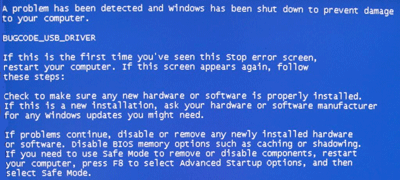
bugcode blue screen error

A Bugcode USB driver error, also referred to as a blue screen error, occurs when a USB driver (the term USB is an acronym for Universal Serial Bus) causes a stop error. This error means that your PC has abruptly shut down to safeguard itself against potential data loss or corruption.

There are many reasons why this error occurs, but the good part is that a Bugcode USB driver error is often easy to resolve.

Run USB Driver Scan >>

Run the FIX IT solution from Microsoft

You may be able to troubleshoot the error by downloading the FIX IT solution that is available on the Microsoft website. Run the solution after installing it to get rid of the error.

If the error persists, we recommend you perform these steps in the order they appear below.

Adjust the power settings of your computer

The following two adjustments may help you to reduce the frequency of this error.

Deselect the USB selective suspend setting:

  • Open the Control Panel window, and then select System
  • In the System window, click Hardware
  • Click Device Manager
  • Double-click Universal Bus Controller to see all the listed devices
  • Click each USB Root Hub one by one and check the box before Allow the computer to turn off this device to save power (this option is available under the Power Management tab)

Check if a system BIOS update is available for your computer

Many manufactures have released BIOS updates to resolve such issues. It is possible that the manufacturer of your computer may have also released such an update. So contact the manufacturer’s website to see if a BIOS update has been released for the specific model that you are using.

Install the latest USB Drivers

In case you recently added a new device such as a USB hub, check if a driver update is available. Even when you have not installed a new hardware device, it is recommended that you install any driver updates available.

There are two ways of updating and installing new drivers. One is by using a reliable and fast driver update tool. Such tools offer you numerous advantages, such as:

  • Update your drivers quickly – When you use a driver update tool, you can update all your drivers at the click of a button.
  • Get only 100% genuine drivers – To install a driver manually, you need to download it from the manufacturer’s website. However if the required driver is not listed on the manufacturer’s website, you will need to get it from an online driver directory. The problem with this approach is that with free online driver directories you can never be sure about the source of the driver provided.
  • Schedule the application to perform driver updates at regular intervals – You can configure your driver update tool to run periodic checks and install any new drivers available. This, in turn, allows you to keep your drivers up to date, limiting the chances of experiencing driver-related issues.

The other method is to update drivers manually. Because it can be both tedious and time-consuming, we recommend you to use a driver update tool for updating drivers.

Automatic driver update tools offer many benefits, the most important ones being:

  • You can update device drivers automatically
  • The software scans and updates all outdated or missing drivers at one go
  • The tool picks the right drivers for your device and operating system, so you won’t have to worry about installing an incorrect driver by mistake
  • Automatic driver updates are 100% safe

Driver Updater is one of the best driver update tools out there. Outbyte Driver Updater will give you access to a database of over 1 million drivers. It will regularly scan your PC, suggesting new driver versions to install. Driver Updater contains drivers for a variety of Windows devices. With just one click, you can update drivers in your system.

Step 1
Click here to Install and launch the app

Step 2
Scan all devices

Step 3
Install or update drivers automatically

 

Start Download


Filed Under: Software Drivers Tagged With: bsod, error, fix blue screen of death error, fix Bugcode USB driver error, usb

Fix ialmdev5.dll Blue Screen of Death Error

Fix ialmdev5.dll Blue Screen of Death Error

blue screen of deathVideo Card Drivers Errors

You may receive the following error, when you try to run Sim3 or when you start Windows: “ialmdev5.DLL PAGE_FAUT_IN_NONPAGED_AREA.” 

It is possible that you may receive an error message different from the one displayed below. Whatever the case, you can resolve the issue easily. But first, let us understand why this error occurs in the first place.

Video Controller Driver Issue in Windows 10 (Fixed)

Why does this dll error occur?

In most cases, this error occurs when there is some conflict between the application that uses this program and the installed video card drivers.

How to resolve this dll error – install latest video Driver

To fix the error, install the latest Intel video card drivers. You can either install the drivers manually or install the drivers automatically by using a driver update tool

Fix DLL Errors

Filed Under: Software Drivers Tagged With: Blue Screen, bsod, error, ialmdev5.dll


  • Recent Posts
  • Popular Posts
        

Read More Posts


Read More Posts

Drivers.com Sites

  • Software Drivers
  • Drivers Ed

About Us

  • Advertise
  • About Drivers
  • Drivers Support
  • Drivers.com Privacy Policy
  • Disclaimer
  • Software Drivers
  • Mac Fixes and Tips
  • PC Fix Tips
  • Security/ Backup
  • Tablets & Smartphones
  • Tech News

© Copyright 2026 PDE Publications Ltd. End User License Agreement (EULA)