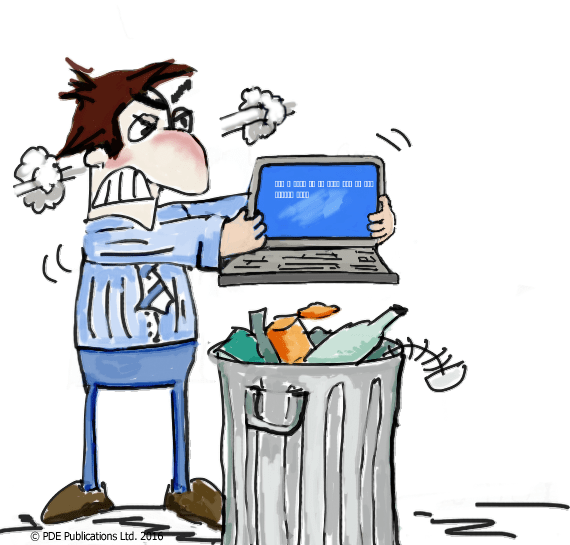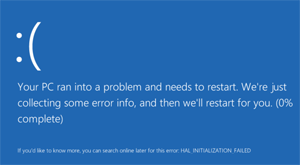
Just like in the older Windows system, in Windows 10 too blue screen errors arise when something goes wrong. Here are some easy ways to troubleshoot blue screen errors in Windows 10.
Blue screen errors in Windows 10 can be divided into 3 types, depending on when they appear:
- blue screen error while upgrading to Windows 10
- blue screen error while using your PC
- blue screen error after installing an update
Now let’s learn about some solutions for blue screen errors.
Blue Screen error while upgrading to Windows 10
If you get a blue screen error while upgrading to Windows 10, the setup will roll back to the previous version of Windows. Before you proceed to the Windows 10 upgrade again, here are few things you need to do.
- Open your Windows 10 system and ensure all components like RAM, Graphics card or any other cards are seated perfectly in their places
- If you have recently upgraded any component such as RAM or graphics card, then you need to run further investigations to ensure they are not causing BSOD (the acronym for Blue Screen of Death!) errors
Blue Screen Errors while using your PC
It is very hard to know the exact reason for blue screen errors. If you get blue screen errors while using your PC, you need to check a few things before trying out any solutions.
Have you added any new hardware? If yes, unplug it and see if the blue screen error persists. If there are no blue screen errors after unplugging the hardware, you can draw the conclusion that the problem is most likely related to the new piece of hardware. Try replacing it if possible.
If the blue screen error appears even after unplugging the new hardware, you need to install all important updates provided by Microsoft. To install important updates, follow the steps set out below:
- In the search bar on the desktop, type Windows update
- Select Windows update from the list of search results
- Select Check for updates
- Download and install all important updates
- Reboot PC
Blue Screen error after installing an update
The method to resolve blue screen errors after installing an update depends on whether you are able to get to the desktop screen.
If you are able to get to desktop, follow the steps set out below:
- In the search bar on the desktop, type view installed updates
- Select View installed updates
- Expand each entry of installed update to see the date of installation
- Select the update you want to uninstall
- Select uninstall
If you are not able to get to the desktop, you have no option other than using System Restore. If your system was unable to reach the desktop after several attempts, the automatic repair option will be automatically invoked. After you get to the automatic repair option, follow the steps below.
Select Troubleshoot > Advanced options > System Restore
Click here if you think you are seeing the blue screen due to a USB Driver error,
or click here if you think it may be due to a video driver error