
Drivers.com

follow us:

facebook twitter
  • Home
  • Download Drivers
  • Drivers Help
  • PC/Mac Resources
  • Software Drivers
  • Mac Fixes and Tips
  • PC Fix Tips
  • Security/ Backup
  • Tablets & Smartphones
  • Tech News
  • Software Drivers
  • Mac Fixes and Tips
  • PC Fix Tips
  • Security/ Backup
  • Tablets & Smartphones
  • Tech News

How to Check Network Adapter Speed? 4 Easy Ways

By Susan C on January 30, 2025

How to Check Network Adapter Speed? 4 Easy Ways

Think of a network adapter as your computer’s gateway to the Internet, via either a wireless or wired connection. Understanding how much speed your network card can handle can help you make the most of your internet plan.

Whether you are trying to diagnose (and troubleshoot) network speed related issues or thinking about upgrading the internet plan, there are four main ways to check the network adapter speed. Let’s look at each of them one by one.

Method 1 – Use Control Panel to Find Out Network Card Speed

Here are the steps you need to follow:

  • Press Win + R keys
  • In the Run dialog box, type control and press Enter
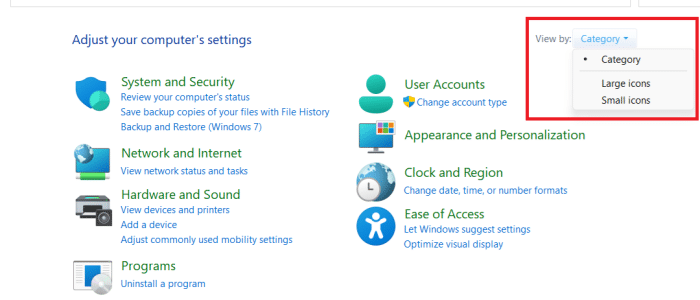
  • Change the View settings to Large icons or Small icons using the drop-down menu

  • Click Network and Sharing Center

  • In the left pane, click Change adapter settings

  • Now, double-click the Wi-Fi adapter or Ethernet adapter

  • Check the Speed field to find out your network adapter’s speed

Method 2 – Use Settings App to Find Out Network Adapter Speed

This is perhaps the quickest and easiest way to find out your Ethernet adapter or Wi-Fi adapter connection speed.

Here are the steps you need to follow:

  • Press Windows + I keys
  • In the Settings app, locate and click Network & internet in the left pane

  • Select Properties

  • You can view the connection speed in the Link speed section (Scroll down to see this section) in the right pane

Method 3 – Use Command Prompt to Find Out Network Adapter Speed

If you want to find out your network adapter speed via Command Prompt, follow these steps:

  • Press Windows + X keys
  • Click Terminal in the Power Use menu

  • Paste this command and press Enter

  • Check the readings in the Transmit rate and Receive rate sections to find out network adapter speed

Method 4 – Checking Speed via PowerShell

If you want to determine the network adapter speed via PowerShell, follow these steps:

  • In the Search box, type Windows PowerShell and press the Enter key

  • Paste this command and press Enter

Leave us a comment below to tell us which one of these methods you liked the best.

Before we wind up today’s post, a small piece of advice: Make sure your network adapter drivers are up to date because old, incompatible, or corrupt drivers can not only cause performance-related issues but also compromise your system’s security. If you’re wondering what’s the best way to update network adapter driver (and other device drivers), then our recommendation is an advanced driver update tool, such as Driver Updater.

Automatic driver update tools offer many benefits, the most important ones being:

  • You can update device drivers automatically
  • The software scans and updates all outdated or missing drivers at one go
  • The tool picks the right drivers for your device and operating system, so you won’t have to worry about installing an incorrect driver by mistake
  • Automatic driver updates are 100% safe

Driver Updater is one of the best driver update tools out there. Outbyte Driver Updater will give you access to a database of over 1 million drivers. It will regularly scan your PC, suggesting new driver versions to install. Driver Updater contains drivers for a variety of Windows devices. With just one click, you can update drivers in your system.

Step 1
Click here to Install and launch the app

Step 2
Scan all devices

Step 3
Install or update drivers automatically
 

Start Download


Filed Under: PC Fix Tips Tagged With: Network adapter speed

How to Fix Network Adapter Error Code 31?

By Susan C on January 30, 2025

How to Fix Network Adapter Error Code 31?

Encountering network adapter error code 31 can be frustrating for Windows users. Typically, when this error occurs, the following message comes up on your screen:

Network adapter error code 31: this device is not working properly

The error code 31 typically arises because of incorrect or corrupt network adapter driver. That said, other causes, such as incorrect device configuration (i.e. the network adapter is not correctly configured in the BIOS or device manager) or hardware conflict (i.e. a conflict between the network adapter and other hardware components) cannot be entirely ruled out.

This post discusses all the ways to fix the network adapter code 31.

Solution 1 – Ensure your network driver is up to date

First, check the network driver version installed on your system. Next, visit the manufacturer’s website to check if any new driver updates are available.

Perform these steps to check the network driver version:

  • Type devmgmt.msc in the Start Search box and press Enter

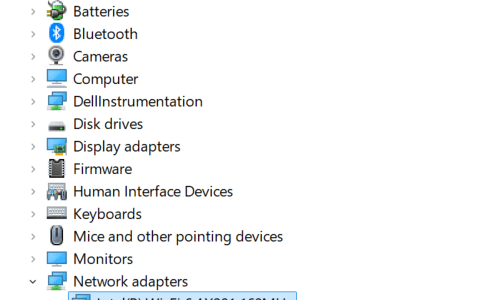
  • In the Device Manager window, locate and expand the Network adapters entry
  • Right-click on your network adapter and select Properties

  • Click the Driver tab. You’ll now be able to see the driver version and other important details regarding your network card driver. Note down the version of your network driver

Perform these steps to download and install a new driver version (if available):

  • Open a web browser and go to the network card’s manufacturer website
  • Search for the latest driver version for your network card model
  • If the driver version that you have is the latest one, go to the solution 2
  • If a new driver version is available, download it and save the .exe file in a suitable location on your PC, such as the desktop
  • Now, double-click the .exe file to launch the installation process
  • Follow on-screen instructions and restart Windows after installation is complete

Pro Tip: Instead of manually checking the driver version and downloading the latest driver yourself, consider using a reliable driver update tool. It will save you time and rule out the chances of any human error. We recommend you give Driver Updater a try. You can find more information about it towards the end of this post.

Solution 2 – Perform a driver roll back

Counter-intuitive as it may sound, the error code 31 can at times occur after you’ve updated the network driver. If the error has cropped up after a recent driver update, rolling back to the previous network driver is worth a try.

  • Type devmgmt.msc in the Start Search bar and press Enter
  • In the Device Manager window, locate and expand the Network Adapters entry
  • Right-click the network adapter and select Properties
  • Click the Driver tab
  • Click the Roll Back driver option. In case the Roll Back driver button is not active (meaning it is greyed out), it simply means there’s no previous network driver version to roll back to. In this situation, we recommend you to visit the manufacturer website and check if an older driver version is available. If it is, manually download it and install it

  • If you’ve clicked the Roll Back driver button, a confirmation dialog box will appear; select the appropriate reason for rolling back the driver and then click the Yes button

  • Wait for Windows to complete the rollback and then restart Windows
  • Now check if the error is fixed

If it is not, go to the next solution.

Solution 3 – Perform a Network Reset

Windows 11 and 10 include a “network reset” option. Some users have said they were able to fix the error after performing a network reset. It’s possible you may also be able to resolve the issue after a network reset.

A network resets all network adapters to their factory settings. Follow these steps to run a network reset:

  • Press Windows + I keys
  • In the Settings window, click Network & internet in the left pane

  • Click Advanced network settings in the right pane

  • Click Network reset in the right pane

  • Click Reset now and then click the Yes button

  • Wait until your PC restarts and then check if the error is fixed

Solution 4 – Reinstall the Network Card Driver

Manually uninstall the network adapter driver and then restart your PC to reinstall the driver.

Perform these steps to uninstall the network adapter driver using Device Manager

  • Type devmgmt.msc in the Start Search bar and press the Enter key
  • In the Device Manager window, locate and expand the Network Adapters entry
  • Right-click your network adapter and click Uninstall Device

  • A confirmation dialog box will appear; tick the checkbox before the Attempt to remove the driver for this device option and then click Uninstall

  • Wait for Windows to uninstall the network adapter driver
  • Restart your PC

Upon restart, Windows will automatically detect and install the network drivers. If, for some reasons, Windows fail to do that, then you can manually install it from Device Manager.

Perform these steps to manually install network driver:

  • Open Device Manager
  • Expand Network Adapters and right-click your network adapter and then select Update driver

  • Select the first option (Search automatically for drivers)

  • Wait for Windows to complete the installation
  • Restart Windows, if prompted

The other method to manually install the latest network driver is by downloading it from the manufacturer website and installing it by double-clicking the .exe file.

Solution 5 – Perform a system restore

If none of the above steps have worked for you, try restoring Windows to a previous state when there was no error code 31.

  • Type restore point in the Start Search bar and select Create a restore point in the search results

  • Click System Restore in the System Properties tab

  • Click Next to see all restore points that are available
  • Select the restore point that is most recent and then click the Next button
  • Confirm your choice and carefully read the text to ensure you understand what programs and data will be affected
  • Click Finish
  • Now Windows will reboot and your system will be restored to the previous state

In case Windows fail to restore the system to the selected previous state, we recommend you to give one or two more tries. It’s not uncommon for the restore process to take more than one try to be successful.

Solution 6 – Ensure the network card is properly installed

As said earlier, the network adapter error code 31 can also arise if the network card is not properly inserted in its slot. You can visually inspect the card to ensure it’s properly inserted in its slot. Another option is to open Device Manager and check if there’s a red or yellow exclamation mark next to the network adapter. If there’s one, it could indicate the network card isn’t properly inserted.

Solution 7 – Check for Hardware conflicts

If everything else has failed, check if there’s conflict between the network adapter and other hardware components installed on your system. To do so, open Device Manager and then check if there’s any yellow exclamation mark against any device. If there is, then update the driver for that device.

As mentioned above, you can update a device driver manually from the Device Manager or using an advanced driver update tool. A driver update tool saves you time and also ensure there’s no possibility of installing the wrong driver by mistake, which can further complicate matters. Driver Updater has been repeatedly voted by both users and experts as the fastest and most reliable driver update software, so give it a try.

Automatic driver update tools offer many benefits, the most important ones being:

  • You can update device drivers automatically
  • The software scans and updates all outdated or missing drivers at one go
  • The tool picks the right drivers for your device and operating system, so you won’t have to worry about installing an incorrect driver by mistake
  • Automatic driver updates are 100% safe

Driver Updater is one of the best driver update tools out there. Outbyte Driver Updater will give you access to a database of over 1 million drivers. It will regularly scan your PC, suggesting new driver versions to install. Driver Updater contains drivers for a variety of Windows devices. With just one click, you can update drivers in your system.

Step 1
Click here to Install and launch the app

Step 2
Scan all devices

Step 3
Install or update drivers automatically


Start Download


Filed Under: PC Fix Tips Tagged With: error code 31

Upgrading your GPU? Learn How to Totally Uninstall Old NVIDIA Drivers

By Susan C on January 29, 2025

Upgrading your GPU? Learn How to Totally Uninstall Old NVIDIA Drivers

Recently, one of our regular readers asked us: “I am upgrading to a different graphics card. Should I clean uninstall the old graphics card driver? If so, how to do that?”

Although not always strictly necessary, it’s a good practice to clean uninstall your old graphics card driver when you’re switching to a different graphics card. For the uninitiated, performing a clean uninstall means totally uninstalling a driver.

Say, you’re upgrading from NVIDIA to AMD graphics card. In this instance, performing a clean uninstall of the old Intel graphics card driver is a smart move.

Performing a clean uninstall of your old graphics card driver may also be necessary if:

  • You’re upgrading to a significantly newer version of a graphics card from the same manufacturer
  • You’re repeatedly encountering issues related to your graphics card
  • You’re facing error code 43 (which typically occurs when the installed graphics card isn’t working properly)

What does a clean uninstallation of a driver means?

Performing a clean uninstallation of a driver basically means removing all its traces from your PC.

How does this help? You may wonder.

Totally uninstalling your old NVIDIA (or any other device driver) helps remove any leftover files or potential conflicts from the old driver. This in turn ensures a fresh installation and optimal performance.

How to clean uninstall NVIDIA graphics card driver?

A clean uninstallation of the graphics driver is a multi-step process. Follow the instructions below in the order they appear.

Step 1 – Uninstall NVIDIA graphics driver using Device Manager

The Device Manager is a built-in utility in Windows computers that you can use to manage and configure hardware devices on your PC, including upgrading and uninstalling device drivers.

Here is what you need to do to uninstall a NVIDIA driver:

  • Type devmgmt.msc in the Start Search bar

  • Locate the Display adapters entry in the Device Manager window and expand it
  • Right-click the NVIDIA GPU and click Uninstall device

  • Tick the checkbox before Attempt to remove the driver for this device and then click Uninstall

  • Wait until Windows complete the uninstallation process and then restart your PC

Step 2 – Remove NVIDIA software via Control Panel

The next step involves removing any remaining NVIDIA apps from the Control Panel.

  • Type control panel in the Start Search bar and press Enter
  • Click the Uninstall a program under Programs

  • Locate the first NVIDIA software that you want to remove and then click Uninstall

  • If prompted, grant administrative privileges and uninstall
  • Now repeat the last two steps for the remaining NVIDIA apps that you wish to remove

Step 3 – Delete NVIDIA folders and files via File Explorer

Even after you’ve uninstalled NVIDIA drivers and apps, some files related to NVIDIA can remain on your hard drive. You can get rid of these files via File Explorer.

  • Type file explorer in the Start Search bar and press Enter
  • Go to the disk on which Windows is installed. Generally it is the :C drive
  • Open Program Files
  • Locate and right-click NVIDIA Corporation folder and then select Delete
  • Return to :C drive
  • Enter Program Files (x86)
  • Locate and right-click NVIDIA Corporation folder and then select Delete
  • Click the View menu, select the Show submenu, and then click Hidden items
  • Go to ProgramData
  • Locate and delete two NVIDIA folders
  • In the address bar, paste the following address: C:\Users\%username%\AppData
  • Delete NVIDIA folders from the Local, LocalLow, and Roaming folders

Step 4 – Remove NVIDIA Registry Keys

Now that you’ve deleted NVIDIA folders, you must remove its registry keys.

Follow these steps:

  • Press Windows + R keys to open the Run dialog box
  • Type regedit and press Enter
  • Now enter this address in the Search Bar: Computer\HKEY_CURRENT_USER\Software

  • Right-click NVIDIA Corporation folder and click Delete

  • Enter this address in the Search Bar: Computer\HKEY_LOCAL_MACHINE\SOFTWARE
  • Right-click NVIDIA folder and select Delete to remove it again

That’s it. Now you have clean uninstalled NVIDIA drivers and are ready to upgrade them. If you want, you may use a third-party tool to check if there are any remaining NVIDIA software and drivers present on your computer. However, using a third-party tool after you’ve performed the four steps listed above isn’t strictly necessary. What’s necessary is that you ensure you have the latest NVIDIA graphics drivers. This is because old drivers can cause performance-related issues, even frequent errors.

The best way to update NVIDIA graphics drivers (and other device drivers) is by using a reliable device update tool. We recommend Driver Updater because it is super-fast and accurate. Plus it has been around quite a few years and gets routinely updated.

Automatic driver update tools offer many benefits, the most important ones being:

  • You can update device drivers automatically
  • The software scans and updates all outdated or missing drivers at one go
  • The tool picks the right drivers for your device and operating system, so you won’t have to worry about installing an incorrect driver by mistake
  • Automatic driver updates are 100% safe

Driver Updater is one of the best driver update tools out there. Outbyte Driver Updater will give you access to a database of over 1 million drivers. It will regularly scan your PC, suggesting new driver versions to install. Driver Updater contains drivers for a variety of Windows devices. With just one click, you can update drivers in your system.

Step 1
Click here to Install and launch the app

Step 2
Scan all devices

Step 3
Install or update drivers automatically


Start Download


Filed Under: PC Fix Tips Tagged With: NVIDIA graphics driver

  • « Previous Page
  • 1
  • …
  • 24
  • 25
  • 26
  • 27
  • 28
  • …
  • 189
  • Next Page »


  • Recent Posts
  • Popular Posts
        

Read More Posts


Read More Posts

Drivers.com Sites

  • Software Drivers
  • Drivers Ed

About Us

  • Advertise
  • About Drivers
  • Drivers Support
  • Drivers.com Privacy Policy
  • Disclaimer
  • Software Drivers
  • Mac Fixes and Tips
  • PC Fix Tips
  • Security/ Backup
  • Tablets & Smartphones
  • Tech News

© Copyright 2026 PDE Publications Ltd. End User License Agreement (EULA)