Drivers.com

follow us:

facebook twitter
  • Home
  • Download Drivers
  • Drivers Help
  • PC/Mac Resources
  • Software Drivers
  • Mac Fixes and Tips
  • PC Fix Tips
  • Security/ Backup
  • Tablets & Smartphones
  • Tech News
  • Software Drivers
  • Mac Fixes and Tips
  • PC Fix Tips
  • Security/ Backup
  • Tablets & Smartphones
  • Tech News

How to Fix Xbox Error E106

By Susan C on February 11, 2025

When you turn on the Xbox console, either of the following errors crops up:

E106 or E106 xxxxxxxx xxxxxxxx

This is what is referred as Xbox Error E106. This error is not as common as, let’s say, the error code “8007-0570”, “351f-0000”, or “80151103”. All the same, it can be just as frustrating and disruptive. But don’t worry because we’ve got you covered.

This post shows you how to troubleshoot the Xbox Error E106. We recommend you try the solutions given below in the order they appear.

Why does the E106 error occur?

The error code E106 typically occurs when the Xbox console tries to install the latest update but runs into a problem.

How to troubleshoot Xbox error code E106?

Here’s what you need to do to get rid of this error.

Solution 1 – Clear the system cache

Turn off the Xbox and unplug it. Keep the device unplugged for 60 seconds or so to ensure the cache is flushed out of the memory. Next, use the Clear System Cache function by following these steps:

  • Press the Guide button on Xbox controller
  • Click the Settings tab
  • Select System Settings and then click Select Storage
  • Choose any storage device that’s listed here and then press Y
  • Click the Yes button when the Xbox OS prompts you for a confirmation

Solution 2 – Reset the console

  • Press the Xbox button and then click Profile & system | Settings | System | Console info
  • Choose Reset Console
  • Three options will come up on the next screen: Reset and remove everything, reset and keep my games & apps, and cancel. For troubleshooting, select the second option, reset and keep my games & apps. When you select this option, the XBOX OS will be reset to its factory settings and potentially corrupted files will be deleted. But the troubleshooter will not delete your apps or games

If the reset works, the Xbox console will function properly after it restarts.

If the error persists, try the next solution.

Solution 3 – Repair the console

In case none of the previous solutions worked for you, you must get your Xbox console repaired. To raise a request, go to Device service and repair.

While the E106 error is not related to graphics driver, some Xbox errors may occur due to outdated or corrupt graphics card drivers. Dodgy graphics drivers may also lead to frequent crashes when you’re playing games or cause other performance issues.

For this reason, it’s recommended that you update the graphics driver when a new version is released by the manufacturer. The easiest way to keep your graphics driver (and other device drivers) up-to-date is by using a third-party tool, such as Driver Updater.

Automatic driver update tools offer many benefits, the most important ones being:

  • You can update device drivers automatically
  • The software scans and updates all outdated or missing drivers at one go
  • The tool picks the right drivers for your device and operating system, so you won’t have to worry about installing an incorrect driver by mistake
  • Automatic driver updates are 100% safe

Driver Updater is one of the best driver update tools out there. Outbyte Driver Updater will give you access to a database of over 1 million drivers. It will regularly scan your PC, suggesting new driver versions to install. Driver Updater contains drivers for a variety of Windows devices. With just one click, you can update drivers in your system.

Step 1
Click here to Install and launch the app

Step 2
Scan all devices

Step 3
Install or update drivers automatically


Start Download


Filed Under: PC Fix Tips Tagged With: xbox error

How to Fix WHEA Uncorrectable Error on Windows 11 or 10?

By Susan C on February 10, 2025

How to Fix WHEA Uncorrectable Error on Windows 11 or 10?

If you ever had the bad luck of facing the dreaded Blue Screen of Death (BSOD) error, you would know just how irritating and disruptive it can be. It’s that moment when your computer’s screen turns blue, leaving you wondering how much work you have lost, what went wrong, and, most importantly, how to fix the issue.

There are many different BSOD errors, with “WHEA Uncorrectable Error” being one of them. If you are encountering this error, take heart from the fact that help is on the way. Cryptic as this error may be, together we can beat it. This post shows you 6 probable solutions for WHEA Uncorrectable Error.

Let’s dive right in.

What Causes WHEA Uncorrectable Error?

This is a hardware error. While the error could occur due to multiple reasons, all of them invariably are hardware-related. Most common causes include:

  • Corrupt hardware (like corrupt RAM, a damaged hard drive, or a faulty GPU)
  • Overclocking
  • Corrupt registry files or Windows system files
  • Dodgy drivers

How to fix WHEA Uncorrectable Error?

Listed below are 6 probable solutions for this issue. We recommend you try these solutions in the order they appear.

Solution 1 – Run CHKDSK

Check disk or CHKDSK is a Windows utility or tool that scans your hard drive for errors and repairs them.

Here’s how you can CHKDSK:

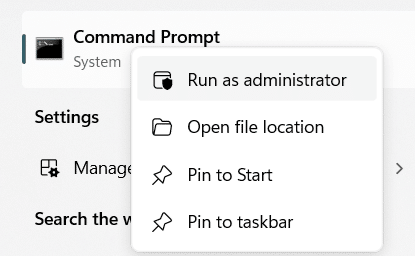
  • Type command prompt in the Search bar in the taskbar and right-click Command Prompt in the search results and select Run as administrator

  • Type the following command in Command Prompt and hit Enter

chkdsk /r

  • Wait for the scan to complete, which can take anywhere between a few minutes and an hour, depending on the size and health of your hard drive
  • If any errors are found, CHKDSK will repair them

Solution 2 – Check the Device Drivers

A dodgy driver can cause various issues and errors, including WHEA Uncorrectable Error. Fortunately, you can find all driver updates in the Windows update section, which in turn makes it easier to identify the issue.

On Windows 11

  • Press Windows + I keys
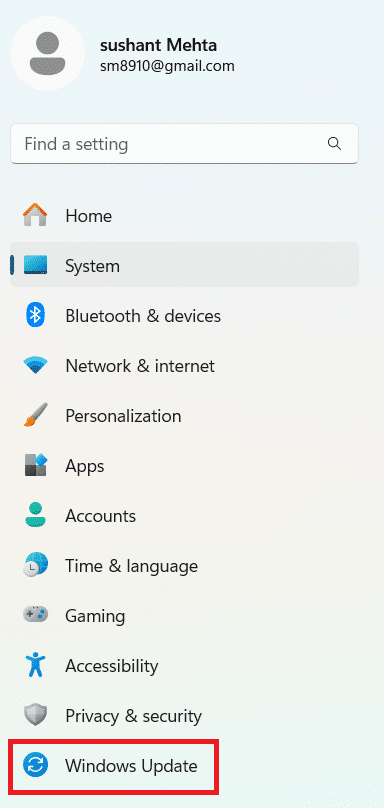
  • In the Settings window, click Windows Update in the left-side panel
  • Click Update history in right-side panel

  • You can find all recent updates in the Update history section. Go through the list to see if there are any driver updates

  • Close the Settings window

On Windows 10

  • Press Windows + I keys
  • Click Update & Security in the left-side panel in the Settings window
  • Click View update history
  • You can find all recent updates here. Check if there are any driver updates

Now, type device manager in Search bar in the taskbar and press Enter. In the Device Manager window, check for an error symbol. If you don’t find it, you can safely assume that the error is not due to a driver-related issue.

Having said that, you should consider using a driver update tool, as it will update all the system drivers at one go. There are many third-party tools on the market, but we like Driver Updater the best. It is not only super-fast, but also completely reliable. You can find more information about it and the download link towards the bottom of the post.

Solution 3 – Test your RAM

Windows computers come with a built-in utility tool called the Windows Memory Diagnostic tool that test your computer’s RAM for potential issues, like malfunctions or errors. It does so by running various memory tests, which help identify problems such as blue screen of death errors, slow performance, or system crashes.

To launch the Windows Memory Diagnostic tool on Windows 11 or 10, perform these steps:

  • Type mdsched in the Search bar in the taskbar and hit Enter

  • The Windows Memory Diagnostic tool provides you with two options: Restart now and check for problems and Check for problems the next time I start my computer. Select the option that works best for you. Keep in mind if you select the first option, you must save your work. Otherwise, you risk losing all the unsaved work

  • The Windows Memory Diagnostic tool will launch itself upon restart (A blue screen will appear as soon as Windows restarts)
  • You can let the tool run the memory test with standard test options or you can change the settings by pressing F1. For the majority of troubleshooting scenarios, the default settings work fine

  • Wait for the test to complete, which can take up to 20 or 30 mins (sometimes, even longer), depending on the RAM configuration
  • Once the memory diagnostic test is complete, Windows will continue to start. In case the tool diagnoses a problem, most likely a pop-up window will appear on the screen

Alternately, you can view the test results by opening Event Viewer. To open Event Viewer and check the memory diagnostic tool’s results on Windows 11 or 10, perform these steps:

  • Type event viewer in the search bar in the taskbar and hit Enter

  • In the Event Viewer window, expand Windows Logs (in the left-side pane), select System, and then select the most recent scan
  • You’ll see the test results in the MemoryDiagnostic-Results section in the bottom half of the right-hand pane

Solution 4 – Reset System Overclocking

You may encounter WHEA Uncorrectable Error if you have overclocked the system to boost its performance.

To undo overclocking, perform these steps:

  • Start your computer
  • Press F1, F2, or Del key
  • Click the Advanced tab and then click Performance
  • Go to the overheating section. On some PCs it is listed as Turbo boost or OC Tweaker, but it’s possible it might be named differently on your computer
  • Click the option to reset to default settings. The exact name for this option varies from one manufacturer to another
  • Exit BIOS after you have saved your preferences

Solution 5 – Check the system hardware

Since this error is related to hardware, checking the components in your machine is a good idea. Some of things to look for include whether the RAM and GPU are secure in their respective slots, the PC’s cooling systems are properly functioning, and CPU has not become loose.

Solution 6 – Reset Windows

Are you still getting the error after you’ve tried all the solutions listed above?

If so, consider resetting Windows. This should be your last resort, so reset Windows only if none of the above solutions has worked for you.

The “Windows Reset” feature allows you to restore your system to its original settings. This means all your personal files, apps, and settings will be removed. Backing up your data is always a smart idea before you press the Windows Reset option.

Here’s how to back up data on your Windows system:

  • Connect an external drive to your computer
  • Open the File Explorer window by typing file explorer in the search bar in taskbar and hitting Enter
  • The external drive should appear in the left-side panel
  • Copy all the files and folders you want to back up and paste them into the external drive

Once you’ve backed up data, you’re ready to factory reset your computer.

Factory Reset Windows 11

  • Type settings in the search bar in taskbar and hit Enter
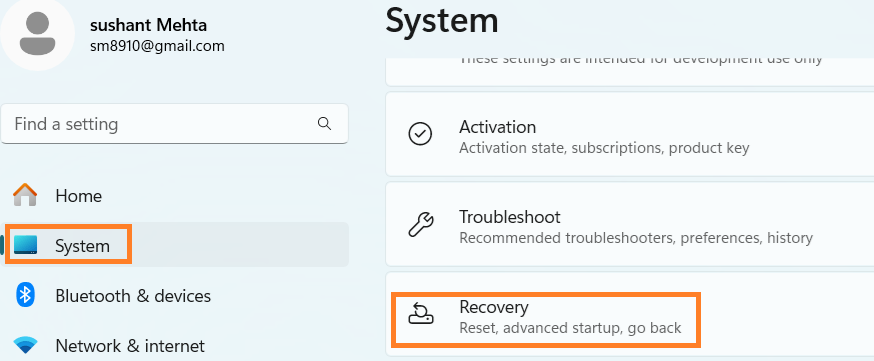
  • Click System in the left-side pane and then click Recovery

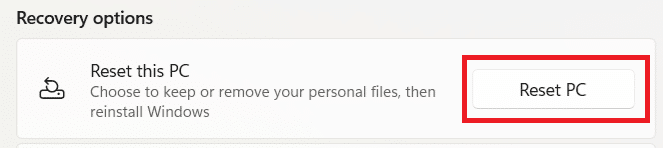
  • Click the Reset PC option under “Reset this PC” section

  • Select your preferred option for keeping or removing files
  • Follow on-screen prompts to complete the factory reset

Factory Reset Windows 10

  • Click the Start menu and then click the Setting icon
  • In the Settings app, click Update & Security and then select Recovery
  • Click Get Started under the “Reset this PC” option
  • Choose your preferred option for keeping or removing files
  • Follow on-screen instructions to complete the factory reset

Update Device Drivers Made Easy

As said above, keeping your driver up-to-date can help minimize the chances of various system errors and issues. The easiest way to update device drivers is by using a reliable third-party tool such as Driver Updater.

Automatic driver update tools offer many benefits, the most important ones being:

  • You can update device drivers automatically
  • The software scans and updates all outdated or missing drivers at one go
  • The tool picks the right drivers for your device and operating system, so you won’t have to worry about installing an incorrect driver by mistake
  • Automatic driver updates are 100% safe

Driver Updater is one of the best driver update tools out there. Outbyte Driver Updater will give you access to a database of over 1 million drivers. It will regularly scan your PC, suggesting new driver versions to install. Driver Updater contains drivers for a variety of Windows devices. With just one click, you can update drivers in your system.

Step 1
Click here to Install and launch the app

Step 2
Scan all devices

Step 3
Install or update drivers automatically


Start Download


Filed Under: PC Fix Tips Tagged With: BSOD error

Windows 11 Keeps Crashing? 7 DIY Fixes

By Susan C on February 9, 2025

Windows 11 Keeps Crashing? 7 DIY Fixes

A computer crash, marked by a black or blue screen or a sudden freeze or repeated shutdowns, can be disruptive and frustrating. Fortunately, the issue is easily fixable.

If your Windows 11 keeps crashing, try not to panic. Help is on the way. This blog post teaches you 7 ways to fix the “Windows 11 keeps crashing” issue.

So, let’s dive right in and get that computer of yours up and running.

Why is my Windows 11 crashing frequently?

This could because of a number of reasons. The following are the most common causes:

  • Bad driver installation or an outdated driver
  • Malware or virus attack
  • A recent system update might cause issues
  • An outdated Windows build version
  • Corrupted or broken system files
  • Your system is overheating
  • Outdated graphics card driver
  • RAM-related issues

How to Resolve the “Windows 11 keeps crashing” issue?

Now that you have an idea about why system crashes occur, let’s look at the most probable fixes.

Solution 1 – Check for new system updates

As said above, your system may crash repeatedly if the Windows build version is outdated. To keep incompatibility issues at bay, check for updates, and if they are available, then install them. Here’s how:

  • Type settings in the Search bar and press Enter
  • Click Windows Update

  • Let it check for new updates
  • If updates are available, download and install them

Solution 2 – Run a virus scan

If no updates are available, or if installing new updates doesn’t fix the issue, then scan your computer for viruses. Open your antivirus’s user interface and run a full system scan.

Once the virus scan is complete, restart Windows.

Solution 3 – Run DISM and SFC scan

DISM is a command-line tool that helps repair Windows images while SFC scan is a built-in tool that checks for and repair missing or corrupted system files.

Here’s what you need to do to run a SFC scan:

  • Type command prompt in Search bar in the taskbar
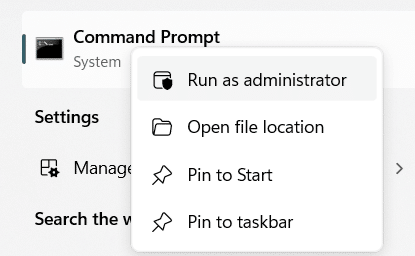
  • Right-click Command Prompt in the search results and select Run as administrator

  • In the Command Prompt, enter the following command:

SFC /Scannow

  • Press the Enter key and wait for Windows to finish the scan

The SFC scan will check for damaged or missing system files. If it doesn’t find any, give the DISM method a try. Here’s what you need to do.

  • Type command prompt in the Search bar in the taskbar
  • Right-click Command Prompt in the search results and select Run as administrator

  • In the Command Prompt, type the following command:

DISM /Online /Cleanup-Image /ScanHealth

  • Hit Enter and wait for the scan to complete
  • In case no violations are found, close Command Prompt
  • In case violations are found, type the following command:

DISM /Online /Cleanup-Image /RestoreHealth

  • Hit the Enter key and wait for Windows to restore the files

Solution 4 – Perform a clean boot

When you perform a clean boot, Windows launches itself with bare minimum startup programs and drivers. This in turn makes it easier for you to determine if a background program is interfering with another program, much like the Safe Mode. However, a clean boot provides you better control over which programs and services to launch at startup to help you diagnose the root cause.

Here’s what you need to do to perform a clean boot.

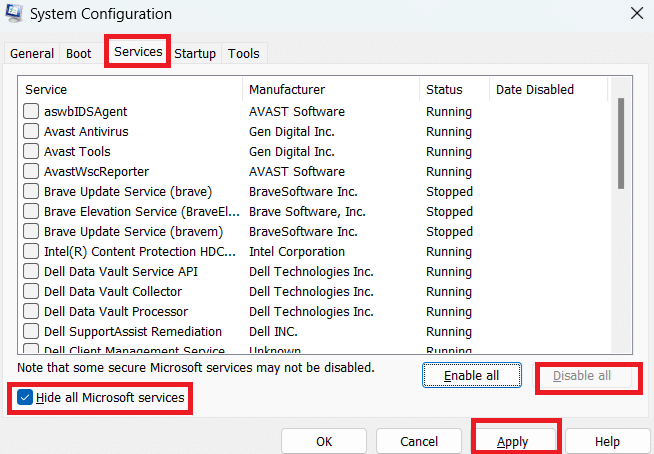
  • In the search bar in the taskbar, type msconfig and hit Enter
  • Click the Services tab
  • Select Hide all Microsoft services and then select Disable all
  • Click Apply

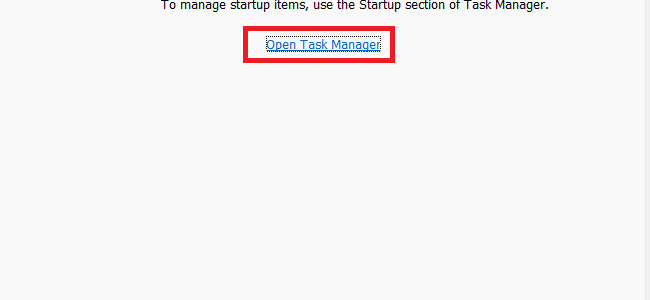
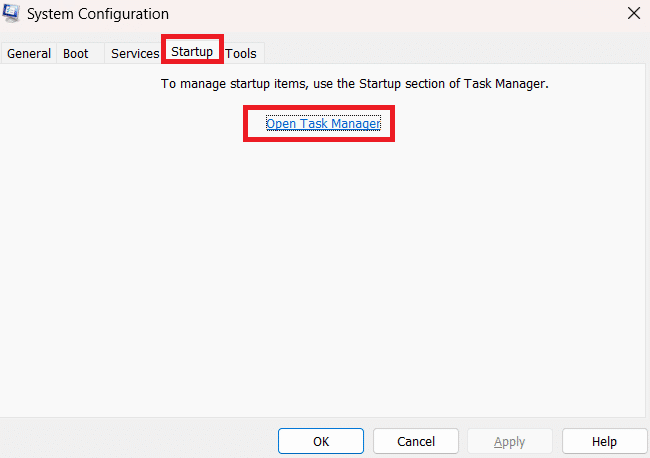
  • Now click the Startup tab and select Task Manager

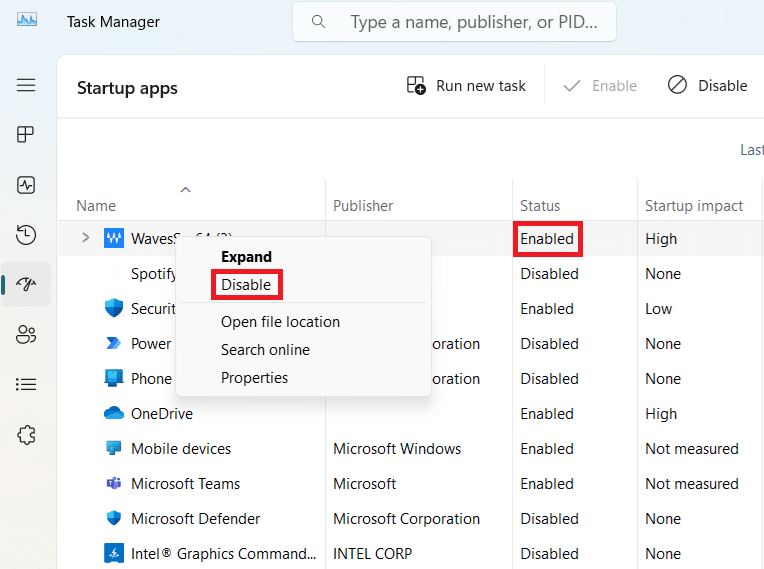
  • Select each Enabled item one by one (Check the Status field for a process or app to see if it’s disabled or enabled), right-click it, and select Disable

  • Keep track of all items you’ve disabled as you’ll require this information later
  • Close the Task Manager window
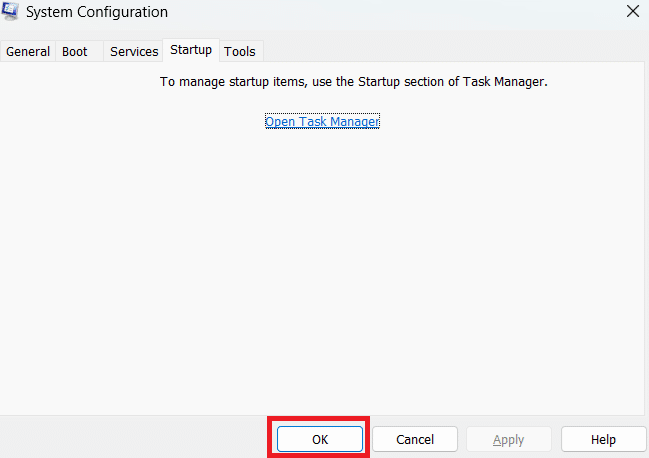
  • Click OK in the Startup tab

  • Restart your computer

If the issue was caused by a newly installed service, driver, or software, it will likely be resolved. In which case, enable the first software or service that you disabled and restart Windows and check if the error reappears. If it doesn’t, enable the next item and restart Windows. Do this for all other items until you find the service or software that’s causing the problem.

Solution 5 – Reduce overheating

Overheating is one of the most common reasons for computer crashes. When the computer’s internal temperatures becomes too high, sluggish performance, unexpected shutdowns, crashes, or slowdowns occur. Tell-tale signs of PC overheating are increased fan noise, sluggish performance, and frequent restarts. If not fixed, overheating can even lead to hardware damage.

So, why does your PC become overheated?

Well, this could happen due to many reasons, but the most common ones are:

  • Dust build-up – Dust can clog the fans, heat sinks, and vents, reducing the airflow and your system’s capacity to cool down.
  • Running too many programs – When multiple applications are active at the same time, the processor has to work harder. As a result, it generates more heat than the system’s cooling system can handle, leading to an increased internal temperature.
  • Outdated software – Outdated software may fail to optimize hardware usage effectively. This, in turn, forces the CPU to work harder and causes overheating.

To fix the overheating issue, try the following solutions:

  • Close unnecessary programs
  • Make sure software is up-to-date
  • Clean the computer’s air vents, which are typically located on the bottom or sides. To clean the air vents, first shut down the computer, use compressed air to clean dust, let the system cool down for about 10 minutes, and then restart it.

Solution 6 – Update graphics card driver

Sometimes the Windows keep crashing is caused by outdated graphics card driver. Upgrading the graphics driver can fix the problem.

You can update a device driver manually. Or you can do it automatically using a reliable driver update software. Most users prefer the second option, as it is not only faster but also doesn’t require any technical knowledge.

We recommend you give Driver Updater a try. It is one of the best driver update software out there and can update your graphics card (and other device drivers) in a jiffy with just a few mouse clicks. You can find more information about Driver Updater and its download link at the bottom of the post.

However, if you would rather take matters in your hand, here’s how to update the graphics card driver manually:

  • Press Win + R to open the Run dialog box
  • Type devmgmt.msc and hit Enter
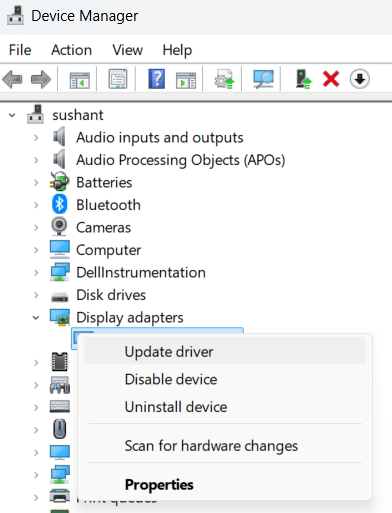
  • In the Device Manager window, locate and expand Display adapters
  • Right-click your graphics card and select Update driver

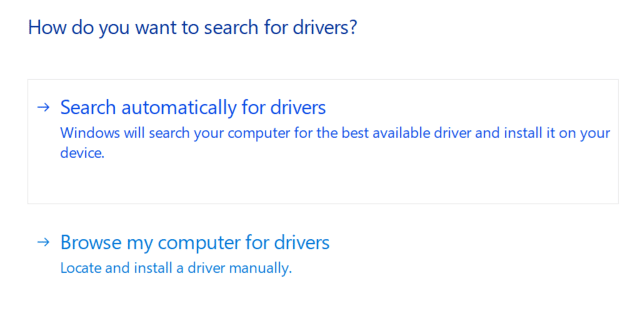
  • In the next window, select the first option “Search automatically for updated driver software”. Windows will now search the system for the latest driver. If it finds one, it will install the updated driver. If it doesn’t find an updated version, you’ll receive a message stating the current driver is up to date

  • Select Close to close the Update drivers window

If Windows fail to locate the latest driver, it might be worth checking the manufacturer website if a new driver update is available. To do so, open a web browser, go to the manufacturer’s website, locate Support and Driver section, and search for the latest driver for your graphics card model. If you find a new driver version, download it and then install it by double-clicking the .exe file.

Solution 7 – Reset your computer to factory settings

If nothing has worked for you, as a last resort reset the computer to its factory settings. But before you do that, make sure you back up all important data.

You can back up important data to an external drive by connecting it to your computer and completing the following these steps:

  • Type file explorer in search bar in the taskbar and hit Enter
  • You should see the external drive in the left-side panel
  • Now copy the folders and files you want to back up by pressing Ctrl + C or right-clicking them and selecting Copy
  • Now paste the copied folders and files into the external drive by opening it and pressing Ctrl + V

Now that you have backed up important data, follow these steps to reset your computer to factory settings.

  • Type settings in the search bar in the taskbar and press Enter
  • Click System > Recovery

  • Click the Reset PC button under the Recovery Options section

  • Select the preferred option for keeping or removing files
  • Wait for the computer to restart and reset

How to update graphics card (and other device drivers) automatically?

Updating device drivers on a regular basis helps prevent various issues and errors and ensure your computer performs optimally. As said before, the easiest (and the best) way to update device drivers is by using an advanced driver update tool, such as Driver Updater.

Automatic driver update tools offer many benefits, the most important ones being:

  • You can update device drivers automatically
  • The software scans and updates all outdated or missing drivers at one go
  • The tool picks the right drivers for your device and operating system, so you won’t have to worry about installing an incorrect driver by mistake
  • Automatic driver updates are 100% safe

Driver Updater is one of the best driver update tools out there. Outbyte Driver Updater will give you access to a database of over 1 million drivers. It will regularly scan your PC, suggesting new driver versions to install. Driver Updater contains drivers for a variety of Windows devices. With just one click, you can update drivers in your system.

Step 1
Click here to Install and launch the app

Step 2
Scan all devices

Step 3
Install or update drivers automatically


Start Download


Filed Under: PC Fix Tips Tagged With: Windows crashing

  • « Previous Page
  • 1
  • …
  • 22
  • 23
  • 24
  • 25
  • 26
  • …
  • 189
  • Next Page »


  • Recent Posts
  • Popular Posts
        

Read More Posts


Read More Posts

Drivers.com Sites

  • Software Drivers
  • Drivers Ed

About Us

  • Advertise
  • About Drivers
  • Drivers Support
  • Drivers.com Privacy Policy
  • Disclaimer
  • Software Drivers
  • Mac Fixes and Tips
  • PC Fix Tips
  • Security/ Backup
  • Tablets & Smartphones
  • Tech News

© Copyright 2026 PDE Publications Ltd. End User License Agreement (EULA)