Drivers.com

follow us:

facebook twitter
  • Home
  • Download Drivers
  • Drivers Help
  • PC/Mac Resources
  • Software Drivers
  • Mac Fixes and Tips
  • PC Fix Tips
  • Security/ Backup
  • Tablets & Smartphones
  • Tech News
  • Software Drivers
  • Mac Fixes and Tips
  • PC Fix Tips
  • Security/ Backup
  • Tablets & Smartphones
  • Tech News

Resources by Tag

safe mode

How to Start Windows 11 in Safe Mode (And When You May Need It)?

How to Start Windows 11 in Safe Mode (And When You May Need It)?

Ever wondered what is Safe Mode that experts often talk about when they give tips to troubleshoot computer errors? Or perhaps you know what Safe Mode is, but aren’t sure why and when to use it?

Worry not. In this post, we’ll tell you everything you need to know about Windows Safe Mode.

What is Safe Mode?

Think of Safe Mode as a bare-bone version of Windows or a diagnostic mode in which only essential files and drivers are loaded.

You might be wondering: That’s all great, but why would I ever need it?

You may need to boot Windows in Safe Mode in a number of situations. For example, let’s say you are getting a computer error. If your computer behaves fine when launched in Safe Mode, you can safely assume that the error is occurring not because of core Windows system files but is rather due to a non-essential file or driver. In other words, Safe Mode makes it easier to diagnose and troubleshoot issues.

In addition, because only essential files and drivers are loaded in Safe Mode, launching it makes it easier to find computer viruses and remove them without activating them.

Last but not the least, starting Windows in Safe Mode can help fix issues related to your hard drive, such as an overheating system.

What are the Different Types of Safe Mode?

There are three types of Safe Mode, and which one you should use depends on your needs.

  • Safe Mode: This is the standard version in which Windows launches itself without non-essential files
  • Safe Mode with Networking: This version of Safe Mode allows you to access the internet and network devices.
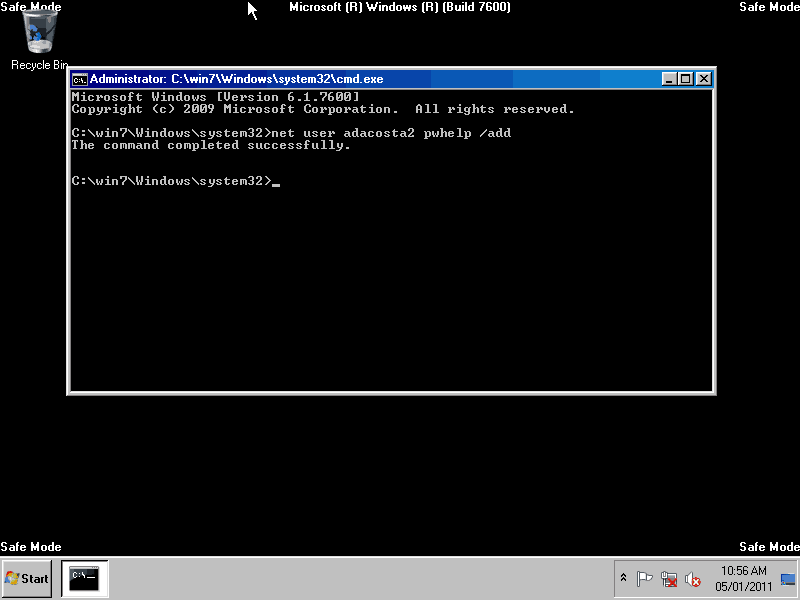
  • Safe Mode with Command Prompt: In this version, the Windows Graphic User Interface (GUI) is not launched with Windows. Instead you get direct access to an open Command Prompt window. System administrators often use Safe Mode with Command Prompt to fix errors and issues.

What are the different ways to start Windows 11 or 10 in Safe Mode?

When it comes to booting Windows in Safe Mode, the entire process is pretty straightforward. Plus, you can enter Safe Mode in different ways, making it possible to access it even when you cannot log in into your computer or encounter a black screen when you turn on your PC.

Method 1 – Startup Settings

This is perhaps the easiest way to boot into Safe Mode. On the flip side, this option is only available if you can log in into your computer.

  • Type settings in the Search bar in the taskbar and hit Enter
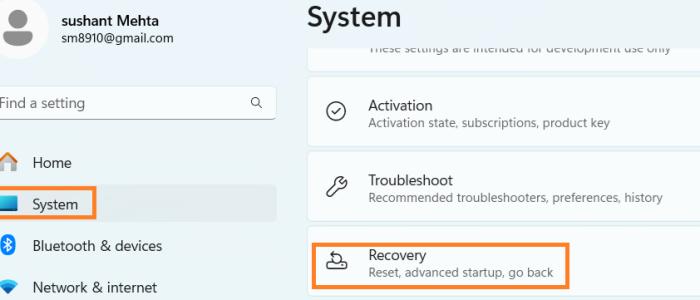
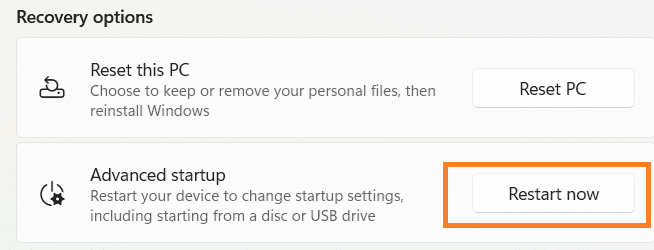
  • Click System in the left pane (Windows 10 users need to click Update and Security) and then select Recovery in the right pane
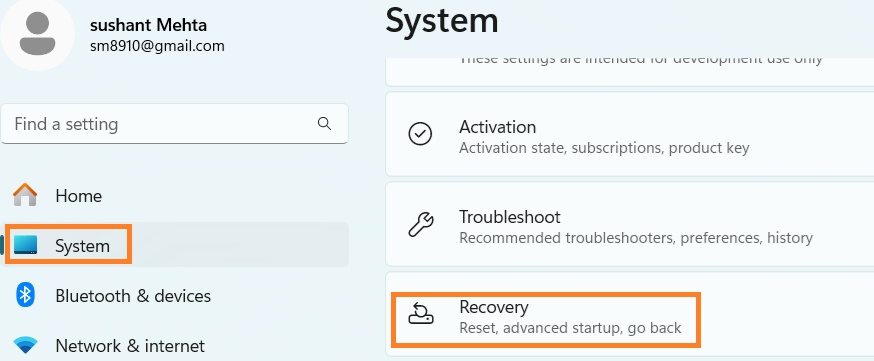
  • Click Restart now in the startup field
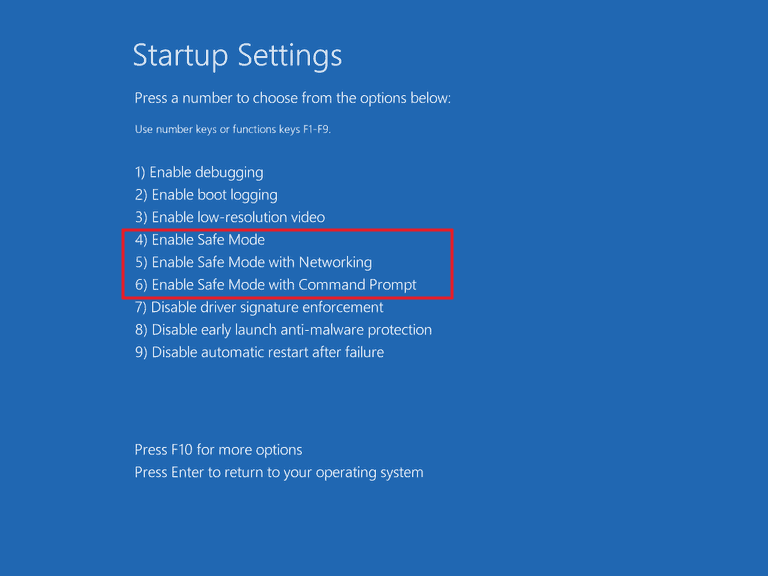
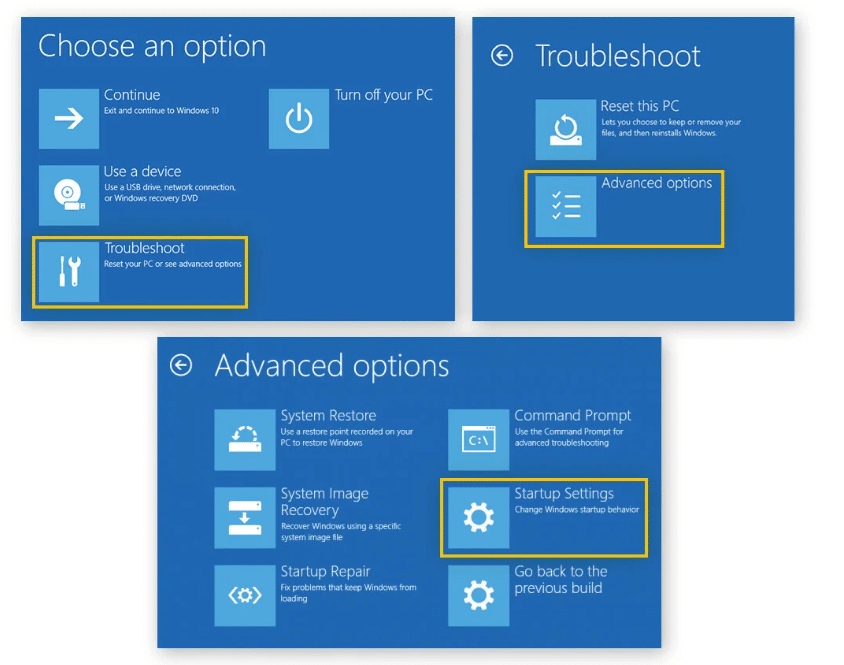
  • Once Windows restarts, select Troubleshoot | Advanced Options | Startup Settings | Restart
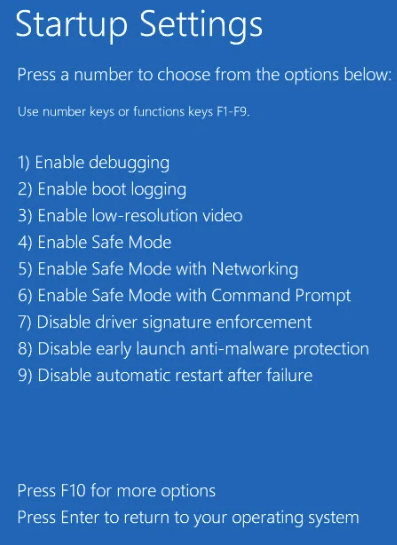
  • To enable Safe Mode, press F4 or 4. To enable Safe Mode with Networking, press F5 or 5. To enable Safe Mode with Command Prompt, press F6 or 6
Method 2 – Sign-in Screen

Can I log in into Safe Mode if I can’t log in into my computer or access Settings?

Several users have asked us this question. The answer is YES.

Here’s what you need to do:

  • Start your computer and when you reach the Windows sign-in screen, then press down and hold the Shift key while pressing Power and Restart
  • Once the PC boots, click Troubleshoot | Advanced Options | Startup Settings | Restart

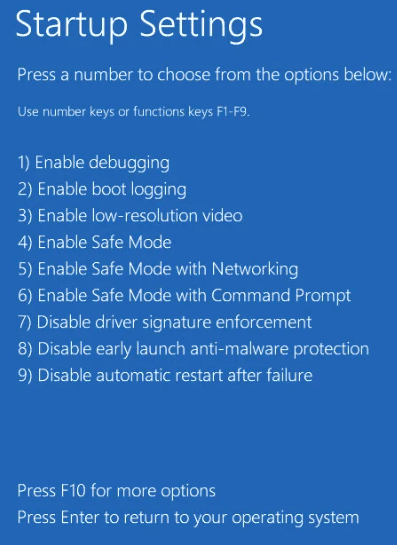
  • To enable Safe Mode, press F4 or 4. To enable Safe Mode with Networking, press F5 or 5. To enable Safe Mode with Command Prompt, press F6 or 6
Method 3 – Blank Screen

You can even enter Safe Mode if all you see is a black screen when you boot Windows. Here’s how:

  • Hold down the power button for roughly 10 seconds to switch off the computer
  • Press the power button to turn the computer on
  • Once the computer restarts, switch it off once more
  • Turn on the PC again
  • As soon as your computer restarts, switch it off again
  • Power on the computer once more. You may need to choose Advanced Options. Your computer should be in Windows Recovery Environment now
  • Select Troubleshoot | Advanced Options | Startup Settings and then click Restart

  • To enable Safe Mode, press F4 or 4. To enable Safe Mode with Networking, press F5 or 5. To enable Safe Mode with Command Prompt, press F6 or 6

What you need to do to turn Safe Mode off?

Turning off Safe Mode is easy. Simply click Start | Power | Restart. Now your computer should load normally. If it doesn’t, then perform the following additional steps:

  • Right-click the Start button and select Task Manager
  • Select File | Run New Task
  • Type msconfig and then click OK
  • Click the Boot tab in the System Configuration window and uncheck Safe boot
  • Click the Apply button and then click OK and Restart

That’s about it. Your computer should now boot normally.

What can I do to prevent my computer from crashing abruptly or avoid performance-related issues?

To ensure your computer runs smoothly, regularly update the operating system and install an advanced antivirus program. In addition, don’t forget to keep your device drivers up to date. The easiest (and the fastest) way to update device drivers is by using a reliable driver update tool, such as Driver Updater.

Automatic driver update tools offer many benefits, the most important ones being:

  • You can update device drivers automatically
  • The software scans and updates all outdated or missing drivers at one go
  • The tool picks the right drivers for your device and operating system, so you won’t have to worry about installing an incorrect driver by mistake
  • Automatic driver updates are 100% safe

Driver Updater is one of the best driver update tools out there. Outbyte Driver Updater will give you access to a database of over 1 million drivers. It will regularly scan your PC, suggesting new driver versions to install. Driver Updater contains drivers for a variety of Windows devices. With just one click, you can update drivers in your system.

Step 1
Click here to Install and launch the app

Step 2
Scan all devices

Step 3
Install or update drivers automatically

 

Start Download


Filed Under: PC Fix Tips Tagged With: safe mode

All You Wanted to Know About Windows Safe Mode

All You Wanted to Know About Windows Safe Mode

Safe Mode in Windows refers to a diagnostic mode that is used to access Windows operating system and its settings when the computer fails to boot normally.

In Safe Mode, the Windows operating system only loads a minimal set of drivers and services that are needed for Windows functioning. No third party programs or drivers are loaded in Safe Mode.

You know when your computer boots in Safe Mode because you will see Safe Mode mentioned at all four corners of the screen.

safe mode

When should you use Safe Mode?

You can use Safe Mode when experiencing problems in Windows in normal mode and you don’t know the exact reason or software that is causing the problem.

Since Windows only loads essential drivers and services, it is easy to remove the problematic software that is causing the problem.

Windows Safe Mode also provides you a safe environment to roll-back drivers or update drivers for any devices. This is because Windows uses generic drivers for most devices that allow you to roll-back driver or update drivers more easily.

 Which issues can be solved in Safe Mode?

The Safe Mode in Windows allows you to narrow down on the cause of the trouble.

Since no third party programs or drivers are loaded, you can know whether there is a problem with Windows components or if the problem is due to some third-party program.

  • Find out the cause of the error and fix it

If you are getting BSOD or any other errors that hamper normal functioning of the Windows, log into Safe Mode to sort the problem.

For example, if the Windows runs fine in Safe Mode, you can draw a conclusion that one of the third-party applications is the cause of Windows instability. You can uninstall recently installed programs and log into normal mode again to see if the issue is fixed.

  • Install or uninstall software

If you are facing problems while installing/uninstalling specific software in Normal mode, you can try doing it in Safe Mode.

In most cases, the installation/ un-installation in Safe Mode would run smoothly as Windows operating system is running basic services that are less likely to interfere with the process.

  • Remove Malware

If your computer is infected with malware or you have unstable drivers for some devices, you can use Safe Mode to rectify such problems.

Many malware programs lock files to prevent their removal from computer. In Safe Mode, the malware program files do not get loaded at boot, and it is easy for you to scan the system and get rid of malware from the system.

  • Update Drivers

If some hardware issue is making your Windows unstable, you will need to update drivers for that hardware device.

However, due to the instability of Windows in Normal mode, it might not be possible to update drivers. You can use the Safe Mode to update drivers.

What are different types of Safe Modes available?

There are three different types of Safe Modes available to Windows users

  • Safe Mode
  • Safe Mode with Networking
  • Safe Mode with Command Prompt
safe mode
  • Safe Mode

When you select this Safe Mode option, the computer loads basic configuration. You will get the GUI mode, that is, you will see a desktop with a black background where most program icons will be visible. However, these icons will be bigger in size as graphics drivers are not loaded in Safe Mode.

You will have access to the Start menu and some basic Windows tools like Event Viewer, Command Prompt, PowerShell, Device Manager, Event Log viewer that might prove useful to learn the cause of the error and fix it.

You will also have access to files and can use the antivirus to scan your system. If any malware is not completely removed in Normal Windows mode or the malware prevents you from using any removal tools, this Safe Mode is the best option to run Anti-virus scan or run removal tools to get rid of malware

Safe Mode with Networking

There are not many differences between Safe Mode and Safe Mode with Networking. When you select Safe Mode with Networking, Windows loads Network drivers that enable you to access the Internet.

It might be helpful to download some programs or utilities to fix an issue. However, expert advice not to surf the Internet like you do it regularly, as the anti-virus is not active in Safe Mode.

Also, the Windows built-in firewall would only be active if you have enabled the Windows Firewall option in Safe Mode with Networking.

Safe mode with Command Prompt

In this Safe mode option, you don’t get GUI or the Desktop and Start button.

You only see a command prompt window. This Safe Mode is for expert users who know how to perform advanced troubleshooting in Windows through commands.

SM-command prompt

Filed Under: PC Fix Tips Tagged With: safe mode

How to Start Windows 10 in Safe Mode

There are times when you are having issues with your computer and will need to start Windows in Safe Mode. Unfortunately accessing Safe Mode in Windows 10 is not as straightforward as it was in previous Operating Systems.

It is inevitable that your Windows computer will encounter an issue at some time. Because Windows loads only the most essential files and drivers in this stripped-down mode, booting in Safe Mode is an effective method to remove many variables, enabling you to get to the source of the problem.

In previous Windows versions accessing Safe Mode was very straightforward. Pressing the F8 key as Windows loads would let you enter into Safe Mode. However, this method rarely, if ever, works on Windows 10 PCs.

How to boot Windows 10 in Safe Mode:

  1. Click Start button
  2. Click the Power button and press the Shift key as you choose Restart
  3. Now select Troubleshoot > Advanced options > Startup Settings in the next screen
  4. This will take you to the Startup Settings screen. Here you need to click the Restart button to reboot your Windows 10 PC. This will take you a Startup Settings Screen
  5. Here, using the arrow keys, choose Enable Safe Mode. You can also select Enable Safe Mode with Networking.

However, what do you do in the event that you can’t successfully start your Windows 10 operating system?

Even in the case where you are unable to start your Operating System, you should first attempt to start booting Windows 10. If you can get as far as the login screen, you will be able to use the aforementioned steps by clicking on the Power icon.

But what can you do in the event that you can’t even reach the point where you see the Power icon? In such a scenario it is very likely that your Windows 10 is experiencing more serious problems and will not start in Safe Mode. Nevertheless, you should try the following which may work:

This solution requires Windows 10 Recovery Drive. If you had made one, proceed with the steps set out below:

  1. Boot your Recovery Drive and choose a keyboard layout
  2. Select Troubleshoot, then Advanced, and then Command Prompt
  3. Type the following lines in the Command Prompt (don’t forget to press Enter after typing each of these lines)
    • c:
    • bcdedit /set (default) bootmenupolicy legacy
    • exit
  4. Choose Turn off your computer
  5. Start your Windows 10 PC and press F8 repeatedly until your screen shows Advanced Boot Options. Now you can select Safe Mode. Alternatively, you can choose Safe Mode with Networking.

Please feel free to use the comments below if your issue is not covered here.

Filed Under: PC Fix Tips Tagged With: safe mode, Windows 10


  • Recent Posts
  • Popular Posts
        

Read More Posts


Read More Posts

Drivers.com Sites

  • Software Drivers
  • Drivers Ed

About Us

  • Advertise
  • About Drivers
  • Drivers Support
  • Drivers.com Privacy Policy
  • Disclaimer
  • Software Drivers
  • Mac Fixes and Tips
  • PC Fix Tips
  • Security/ Backup
  • Tablets & Smartphones
  • Tech News

© Copyright 2026 PDE Publications Ltd. End User License Agreement (EULA)