Drivers.com

follow us:

facebook twitter
  • Home
  • Download Drivers
  • Drivers Help
  • PC/Mac Resources
  • Software Drivers
  • Mac Fixes and Tips
  • PC Fix Tips
  • Security/ Backup
  • Tablets & Smartphones
  • Tech News
  • Software Drivers
  • Mac Fixes and Tips
  • PC Fix Tips
  • Security/ Backup
  • Tablets & Smartphones
  • Tech News

Resources by Tag

Intel Driver error

How to Fix Computer Manufacturer Graphics Deleted Error?

How to Fix Computer Manufacturer Graphics Deleted Error?

Are you encountering either of the following error messages?

When installing Intel graphics driver manually:

“The driver being installed is not validated for this computer. Please obtain the appropriate driver from the computer manufacturer. Setup will exit.”

When using Intel Driver and Support assistant:

“Installing the graphics driver from Intel may remove customizations from your computer manufacturer (OEM).”

How to troubleshoot?

First, you need to check what generation your Intel processor is. Follow these steps:

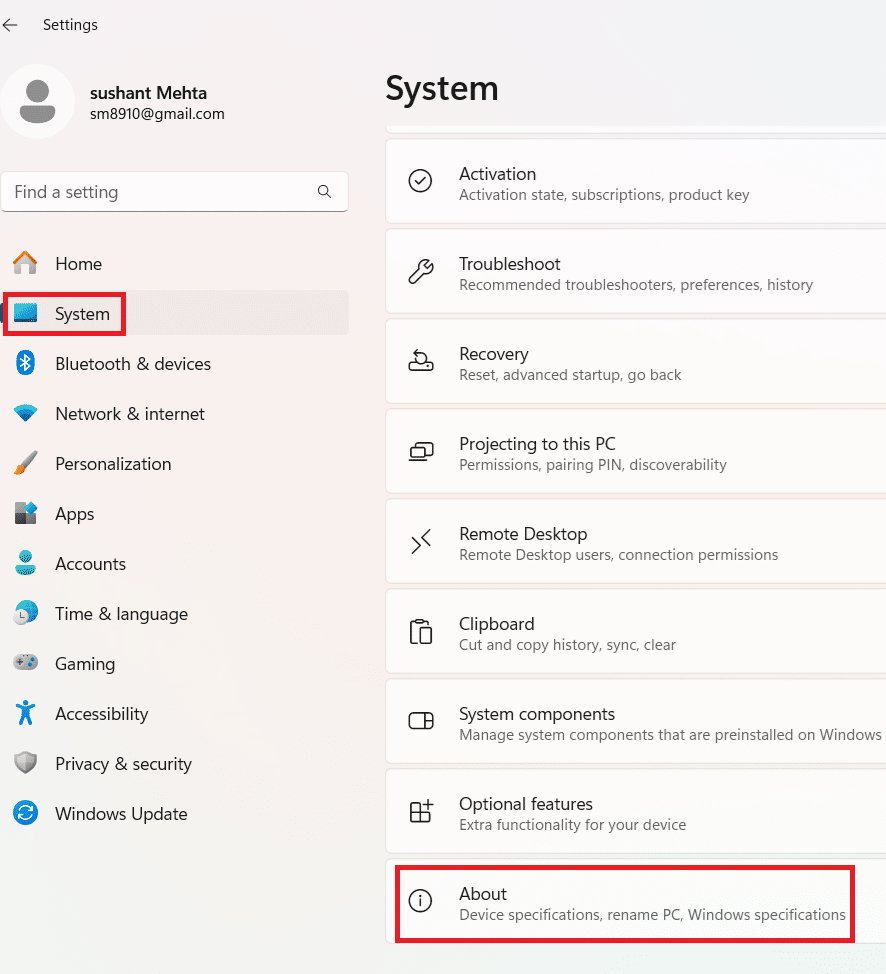
  • Type settings in the search bar in the taskbar

  • Click System in the left-side pane
  • Scroll down until you see About entry in the right-side pane. Click it
  • Under Device specifications section, check the information listed in the Processor field
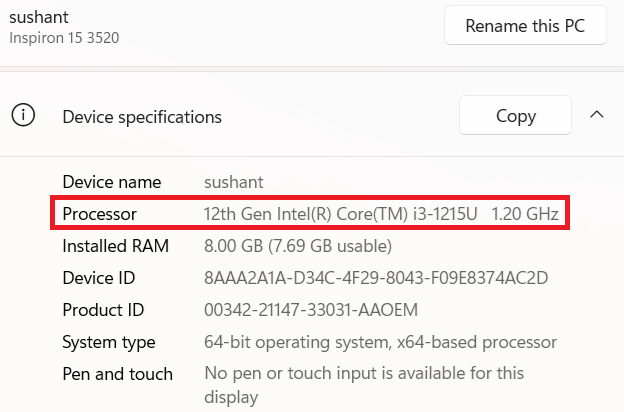
If you are using 12th Generation Intel Core Processor or anything before it till 6th Generation, the error in your case is occurring because you have a non-DCH driver. Therefore, installing the latest DCH driver will fix the issue.

Perform these steps to install the latest DCH driver if you a 6th Generation or a newer processor.

Step 1 – Download the latest DCH driver from the Intel website and save the file in a suitable location on the computer, such as the desktop.

Step 2 – Temporarily disconnect your internet connection. This prevents Windows from automatically reinstalling the older OEM driver.

Step 3 – Double-click the driver .exe file to launch the installation.

Step 4 – Click the Customize option when you reach the Install stage

Step 5 – Ensure “Execute a clean installation” checkbox is not enabled

Step 6 – Once the installation process is complete, click Optional reboot

Step 7 – When Windows reboots, type settings in the search bar in the taskbar and click Windows Update in the left-side pane.

Step 8 – Check if there’re any updates related to OEM customizations. If there are, install them.

That’s about it. You should no longer see the error.

Leave us a comment below if the article helped you or if you have a query. And don’t forget to share the article so that others can benefit from it.

Before we wind up for the day, here’s a pro tip…

Always keep your device drivers up to date. This will save you from much trouble. Outdated drivers are the most common cause for poor system performance. They can also trigger various computer errors, including the dreaded BSOD errors. Since manually updating device drivers is tedious, we recommend using Driver Updater. A top-rated driver update tool, Driver Updater updates the outdated drivers on your computer in a jiffy.

Automatic driver update tools offer many benefits, the most important ones being:

  • You can update device drivers automatically
  • The software scans and updates all outdated or missing drivers at one go
  • The tool picks the right drivers for your device and operating system, so you won’t have to worry about installing an incorrect driver by mistake
  • Automatic driver updates are 100% safe

Driver Updater is one of the best driver update tools out there. Outbyte Driver Updater will give you access to a database of over 1 million drivers. It will regularly scan your PC, suggesting new driver versions to install. Driver Updater contains drivers for a variety of Windows devices. With just one click, you can update drivers in your system.

Step 1
Click here to Install and launch the app

Step 2
Scan all devices

Step 3
Install or update drivers automatically
 

Start Download


Filed Under: PC Fix Tips Tagged With: Intel Driver error

Can’t Find the Name of Intel ICD Open GL Driver Error Solved

Can’t Find the Name of Intel ICD Open GL Driver Error Solved

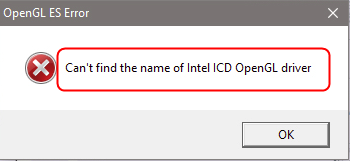
Some Windows users have complained of receiving “Can’t find the name of Intel ICD Open GL driver” error while playing games or opening Google Chrome or any other application that uses Open GL.

If you are receiving a similar error and looking for a solution this post is for you.

OpenGL Driver Download and Update

Solution One – Update Intel Graphics Driver

Since the error message mentions a problem with Intel driver, you need to install the latest Intel graphics driver that could fix the issue.

There are two methods to update Intel graphics driver – manually and automatically.

In the manual method, you need to go to Intel website, download the right driver and install it. If you want an easy alternative, you can use a driver update tool, which updates Intel graphics driver automatically.

Here we have given steps for both methods.

Intel Drivers Download & Updates

Steps to update Intel graphics driver manually

  • Press key combination – Windows logo key and R to invoke Run command
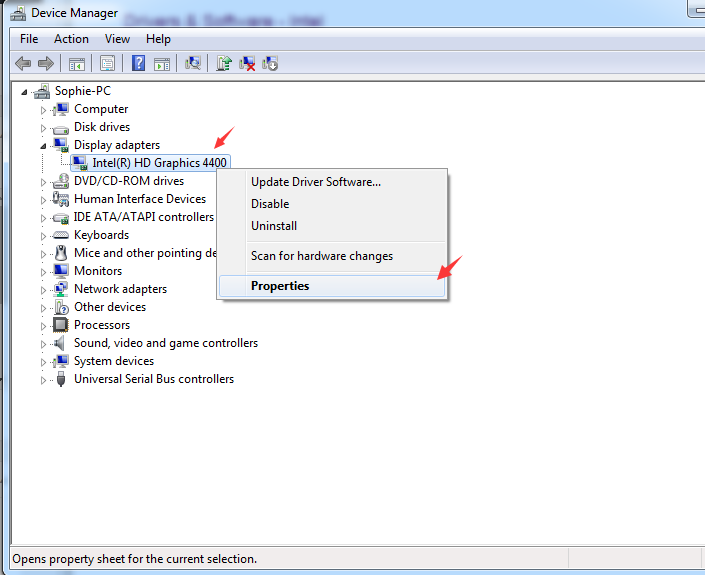
  • In Run command, type devmgmt.msc and click OK
  • In the Device Manager window, go to the Display adapters category and expand it
  • Right-click on Intel graphics entry and select Properties

  • In the Intel graphics properties window, go to Driver tab
  • Note down details like driver version. You will need the details to download the latest Intel graphics driver from the Internet.
  • Open an Internet browser and open Intel website
  • Go to Download Center
  • Choose the right product and operating system on the page
  • Make sure you pay attention to the bit architecture of the graphics driver (32-bit/64-bit) and the version number. You need to look for a higher version of the driver than one installed in your system.
  • After downloading the driver file, double-click on the exe file and follow on-screen prompts.
  • If the driver is in zip file format, unzip the contents to a folder and then double-click on the executable file.

Steps to update Intel graphics driver automatically

Automatic driver update tools offer many benefits, the most important ones being:

  • You can update device drivers automatically
  • The software scans and updates all outdated or missing drivers at one go
  • The tool picks the right drivers for your device and operating system, so you won’t have to worry about installing an incorrect driver by mistake
  • Automatic driver updates are 100% safe

Driver Updater is one of the best driver update tools out there. Outbyte Driver Updater will give you access to a database of over 1 million drivers. It will regularly scan your PC, suggesting new driver versions to install. Driver Updater contains drivers for a variety of Windows devices. With just one click, you can update drivers in your system.

Step 1
Click here to Install and launch the app

Step 2
Scan all devices

Step 3
Install or update drivers automatically
 

Start Download


Open any application or games that use OpenGL and check whether you are still getting the “Can’t find the name of Intel ICD Open GL driver” error. If the error persists, move to next solution.

Solution Two- Check the bit-architecture of applications

Though 32-bit applications run on 64-bit Windows, computer experts always recommend users to install 64-bit applications on 64-bit Windows OS.

Many users who experienced similar issues have reported the real culprit is not driver incompatibility but incompatibility with the application architecture version.

Here are the steps to find out bit architecture of Windows OS.

  • Press Windows logo key and R simultaneously to invoke Run command
  • In the Run command window, type cmd and hit Enter on the keyboard
  • Click command prompt from the list of results
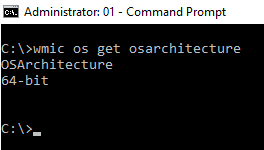
  • In the command prompt window, type wmic os get osarchitecture and hit Enter on the keyboard.

Now that you know Windows bit architecture, make sure you install the right version of the application. If you are using a 32-bit version application, uninstall it and install a 64-bit version of the application.

If the error still remains resolved, move to next solution.

Solution Three- Install a stable Intel graphics driver version

After the problem with OpenGL was reported, Intel released a fix for this specific issue in all of their driver versions 15.46 and higher. Since updating the Intel graphics driver has not helped you, the only viable solution available to you is use an old Intel graphics driver that is most stable.

(Note- According to computer experts, the version 15.40 is one of the stablest releases that could resolve the “Can’t find the name of Intel ICD Open GL driver” error)

Here are the steps to follow.

  • Visit this link from your Internet browser
  • Download the right driver file as per your Windows OS version and system’s bit architecture
  • Open Device Manager
  • Go to Display adapters category and expand it
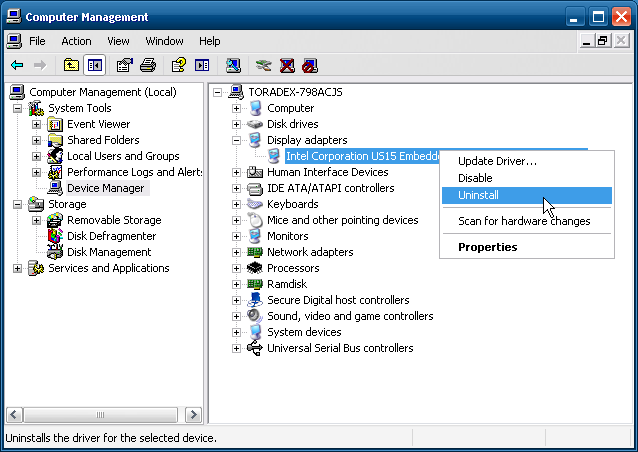
  • Right-click on Intel graphics entry and click Uninstall

  • Wait for the uninstallation to complete successfully
  • Now go to the folder where you have downloaded the Intel graphics driver version 15.40.
  • Double-click on the executable file and follow on-screen prompts
  • Restart your system after installing the Intel graphics driver.

We are hopeful that, like most Windows users, you would have been able to resolve the issue of “Can’t find the name of Intel ICD Open GL driver” using one of the solutions listed in this post. Which one was that? Leave us a comment.

Filed Under: PC Fix Tips Tagged With: Intel Driver error


  • Recent Posts
  • Popular Posts
        

Read More Posts


Read More Posts