Drivers.com

follow us:

facebook twitter
  • Home
  • Download Drivers
  • Drivers Help
  • PC/Mac Resources
  • Software Drivers
  • Mac Fixes and Tips
  • PC Fix Tips
  • Security/ Backup
  • Tablets & Smartphones
  • Tech News
  • Software Drivers
  • Mac Fixes and Tips
  • PC Fix Tips
  • Security/ Backup
  • Tablets & Smartphones
  • Tech News

Resources by Tag

access denied

How to Fix Access Denied Error on Windows 11?

How to Fix Access Denied Error on Windows 11?

Are you struggling with the “Access Denied” error on Windows 11? Here are six solutions that are sure to help.

Why am I receiving the Access Denied error?

In most cases, the error crops up when Windows blocks you or an application from accessing a file or folder or a particular application.

Why does Windows do that? You may wonder.

Not having the required permissions is the most common reason. Other reasons include:

  • User profile corruption
  • Folder or file ownership conflicts
  • System bugs or errors during Windows update
  • The file or folder is encrypted
  • Malware interference or misinterpretation of legitimate software or program by your security software

How to troubleshoot the Access Denied error on Windows 11?

Solution #1 – Check and modify permissions

Think of a file or folder on a computer as a private property with restricted access. Without prior permission, you cannot enter either. If you can’t open a file, chances are you don’t have the appropriate permissions. Here’s how you can check file or folder permissions on Windows 11 and change them, if necessary.

  • Right-click the file (or folder) you want to access and select Properties

  • Click the Security tab and then the Edit button

  • Select your user account in the Group or user names section and then tick the checkbox next to Full Control

  • When you’re done, click Apply and then OK
  • Close the Properties dialog box

Solution #2 – Modify file or folder ownership

Taking ownership of the file or folder in the event that the initial owner is no longer around may do the trick.

Here’s what to do:

  • Right-click the file or folder and choose Properties
  • Click the Security tab
  • Now click the Advanced button

  • Click the Change option next to the Owner field
  • In the Enter the object name to select box, type in your name
  • Click Check Names and then OK

  • Click Apply and then OK

Solution #3 – Turn on the hidden administrator account

Windows comes with a built-in hidden elevated account — aptly called the hidden administrator account — that gives a user full, unrestricted access to the system. However, this account is disabled by default. Enabling it can help fix thorny system issues like the Access Denied error.

Here’s how you can enable this account:

  • Press Windows + X keys and then select Terminal (Admin)
  • In the User Account Control box, click Yes
  • In the Elevated Command Prompt, type the following command and hit Enter

You’ve now activated the hidden administrator account. Log out of your account and log in as the admin user. Now, you should be able to access the file or folder.

To disable the account, log in with your regular user account and perform the first two steps to access Elevated Command Prompt. Now type this command and hit Enter.

Solution #4 – Decrypt the file or folder

If you’re getting the Access Denied error because the file or folder is encrypted, then decrypting it can help.

Here’s what to do:

  • Right-click the file or folder and select Properties
  • Click the General tab and then the Advanced button
  • Untick all the tabs, except “allow files in this folder to have content indexed”

  • Click OK twice
  • When Windows prompt you to confirm your action, select “Apply changes to this folder, subfolders, and files” and then click OK

Solution #5 – Temporarily disable your security software

Antivirus software can sometimes misinterpret a genuine file, folder, program, or software as a threat and block your access. Temporarily turning the antivirus tool off can allow you access to the file or folder. But don’t forget to enable the security software after you’re done. Turning off the antivirus protection will leave your computer vulnerable to viruses, malware, hackers, and more.

For third-party tools, the exact steps for disabling vary from one tool to another. That said, in most cases, all you have to do is open the app’s user interface, look for Real-Time Protection or Protection Settings, and then disable it.

If you’re using Microsoft Windows Defender — a built-in antivirus and antimalware tool in Windows operating systems — perform these steps to disable it:

  • Click the Windows icon, type windows security in the search bar, and select the Windows Security app
  • Click Virus & threat protection and then scroll down just a little bit and click Manage settings
  • You’ll notice four main options enabled (Real-time protection, Cloud-delivered protection, Automatic sample submission, and Tamper Protection). But before touching those, scroll down to Controlled folder access and click Manage Controlled folder access and then toggle it off
  • Click Yes on the User Access Control prompt
  • Hit the back arrow in the Windows Security window and turn off all the four options
  • If prompted, click Yes in the User Account Control window

Once you’re done, repeat the above-mentioned steps to enable Windows defender. 

Solution #6 – Perform a system restore

In case the problem is recent, System Restore can help fix it by reverting your computer’s state to a previous point in time, undoing changes that may be causing the issue.

Here’s what to do:

  • Click Start, type control panel in the search field, and click Control Panel in the search results
  • If View by is set to Category, change it to Small icons or Large icons and then click Recovery

  • In the next window, Click Open System Restore

  • Select a restore point by following the on-screen prompts to revert your system to an earlier time when the Access Denied error was not present
  • Once the process finishes, check if the issue is fixed

That’s it! Which solution worked for you?

Leave us a comment below and share the post so others facing the Access Denied error can benefit.

We leave you with a pro tip to keep you computer in top shape: Update your device drivers on a regular basis. This helps prevent many computer errors from occurring and enhances system’s performance and security. The easiest (and the fastest) way to update device drivers is by using a reputable third-party tool, such as Driver Updater.

Automatic driver update tools offer many benefits, the most important ones being:

  • You can update device drivers automatically
  • The software scans and updates all outdated or missing drivers at one go
  • The tool picks the right drivers for your device and operating system, so you won’t have to worry about installing an incorrect driver by mistake
  • Automatic driver updates are 100% safe

Driver Updater is one of the best driver update tools out there. Outbyte Driver Updater will give you access to a database of over 1 million drivers. It will regularly scan your PC, suggesting new driver versions to install. Driver Updater contains drivers for a variety of Windows devices. With just one click, you can update drivers in your system.

Step 1
Click here to Install and launch the app

Step 2
Scan all devices

Step 3
Install or update drivers automatically
 

Start Download


Filed Under: PC Fix Tips Tagged With: access denied

Solution to Access Denied error in Windows

Solution to Access Denied error in Windows

You may get the “Access denied” error when you access certain folders and files.

This is a pretty common Windows error. It is also relatively easier to solve.

If you are getting similar error and looking for a solution, this post is for you.

Why do you get “Access denied” error?

You can get this error both as a standard user or an administrator user.

One of the main reasons behind the error is lack of access permissions. That is, when you try to access a file that you’re not authorised to, you get this error.

If the files or folders that you’re trying to open are corrupt, then also you’ll get this error.

Some users who have reported this error had recently upgraded to Windows 8 or higher version.

Following the upgrade, they no longer had access to certain files and folders.  As a result, they received the error when they tried to open them.

How to fix the “Access denied” error?

It might be an irritating issue for you as you are not able to access important data stored in the folders.

If you are getting this error after upgrading Windows, the solution to problem is to restore the ownership of the files and folders.

Here we have discussed three different solutions to fix the “Access denied” error.

Solution One- Change or Restore Ownership of the files and folder

If you have not upgrade Windows and still getting this error, it is more likely the error is because you don’t have appropriate permissions to access the files and folders.

To resolve this error, you need to change ownership of the files and folder.

(Note – the steps to change ownership of the files and folders are different for Windows 7 and Windows 10/8. Kindly follow the steps as per the windows version installed in your computer)

You should be logged in as administrator to perform the troubleshooting steps given below.

Remember, only the administrator account has the rights to make changes to the access permissions for the files and folder.

If you don’t know whether the account you are logged in currently has admin rights, follow the steps to find the user account type.

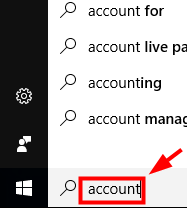
  • For Windows 10- Click Start and type account in the Cortana search box

account

  • For Windows 7 – Click Start button and type account in search box
  • Click User account or Manage your account in the list of results
  • You will see a window pop-up with the current user name details. If you see “Administrator” label below the user name, the account has admin rights and you can go ahead and perform the steps to change ownership of the files.

account admin

  • If you are logged in a guest or Standard User, log out of the account and log in as administrator.

Steps to Change /Restore Ownership of the files and folders in Windows 10/8

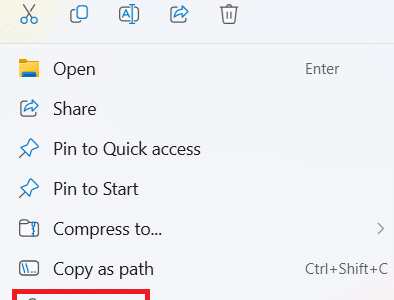
  • Right-click on problematic folder or file and click Properties
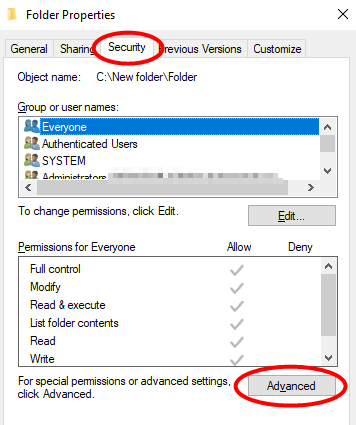
  • In the Properties window, go to Security tab

folder properties advanced

  • Click Advanced button
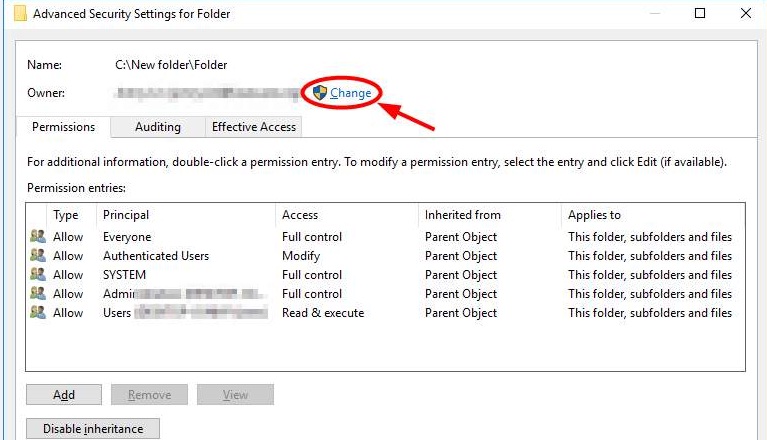
  • In the Advanced Security Settings window, click Change

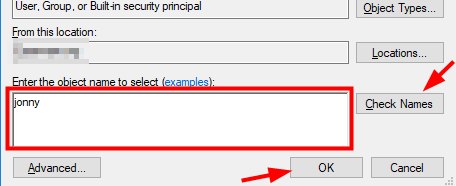
  • In the Select use window, go to the box titled- Enter the object name to select and type the username of currently logged in user. You don’t need to type complete name of the user, Windows will complete the username for you
  • Click Check Names

check names

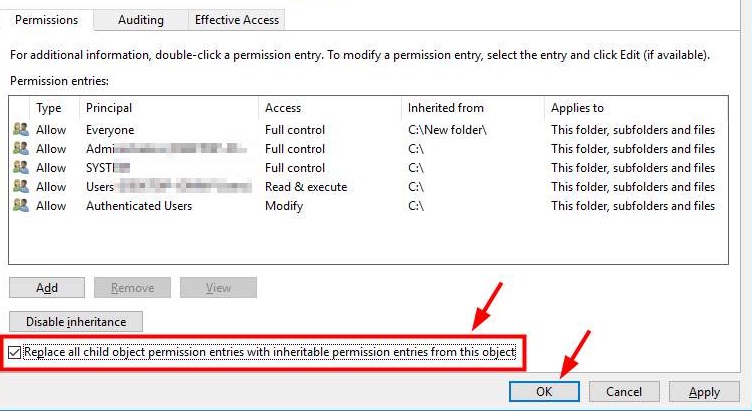
  • In the Advanced Security settings window, you need to check the box “Replace all child object permission entries with inheritable permission entries from this object”. Do this only if you want to take ownership of the folder, its subfolders, and files in it.

change permissions

  • Click OK
  • Now go to Folder properties dialog box and click OK

folder properties

  • Close all dialog boxes

Try opening the file or folder which gave out “Access Denied” error.  If the error is not resolved, move to next solution.

Steps to Change /Restore Ownership of the files and folders in Windows for Windows 7

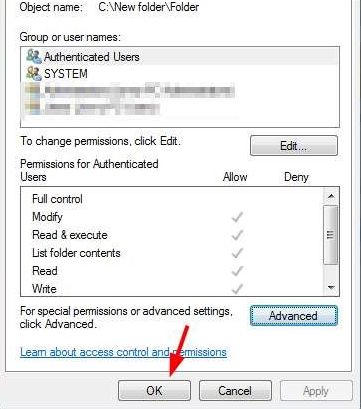
  • Right-click on problematic file or folder and select properties
  • In the folder/file properties window, go to security tab
  • Click advanced to access advanced security options of the folder
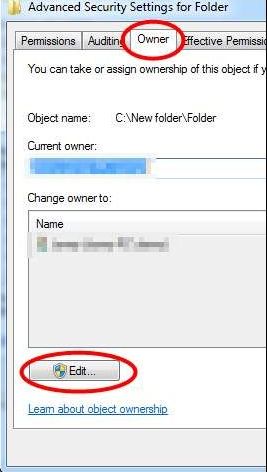
  • In the advances security settings window, go to owner tab
  • Click Edit

owner-edit

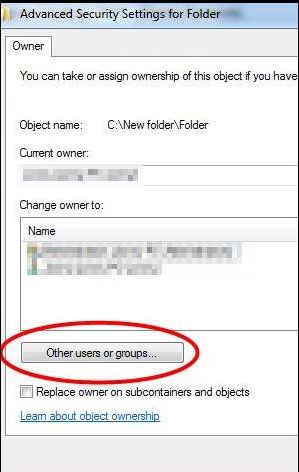
  • In the next window, click Other users and groups

other users

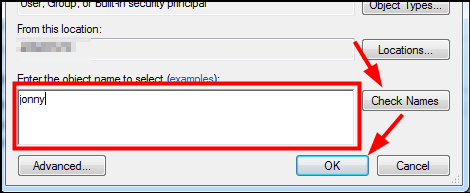
  • In the select user or group window, go to box named enter the object name to select
  • Type the current username. You don’t need to type full username; windows will complete it for you.
  • Click Check Names

check names

  • Click ok
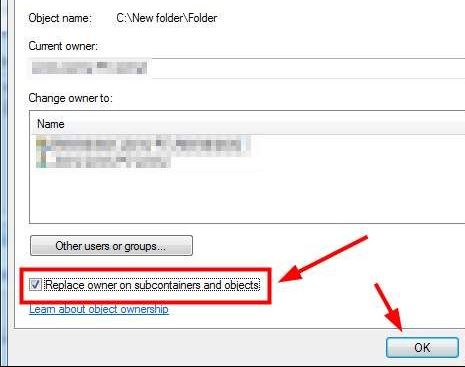
  • In the advanced security settings window, check the box- replace owner on subcontainers and objects

replace owner

  • Click ok
  • Now go to file properties dialog box, click ok

Now try opening the folder and file and see if the “access denied” error is displayed. If the error persists, move to next solution.

Solution Two- Get Appropriate Permissions

If you have upgraded Windows, it is more likely some permission for files and folders may have changed.

In that case, you need to get appropriate permissions in order to access the problematic files and folders. Here are the steps to follow.

(Note- In order to grant yourself appropriate permissions, you need to be logged in as administrator)

  • Right-click on folder or file for which you want appropriate permissions
  • Click Properties
  • In the Properties window, go to Security tab
  • Click Edit button
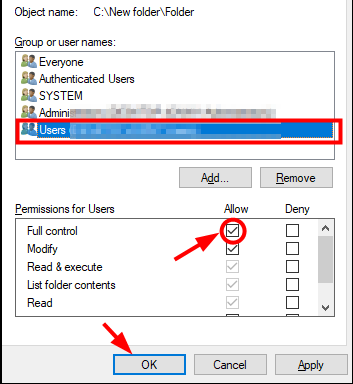
  • In the Permissions for the folder dialog, select your username in “Group or users names” box
  • Under Permissions for folder box, place a tick in Allow box  for Full control

users- allow

  • Click OK to close the Permissions dialog box
  • Now go to file/folder properties dialog box and click OK
  • Close all dialog box

Now check whether you are able to access the files and folders that weren’t earlier accessible.  If the problematic persists, go to next solution.

Solution Three – Recover your data

If the above two solutions have not worked for you, there is a possibility the folders and files you are trying to access are corrupt.  In most cases, these files cannot be recovered unless you have a backup copy.

If you have made a backup, you can delete the problematic files and folders and restore the files/folders from the backup.

Filed Under: PC Fix Tips Tagged With: access denied


  • Recent Posts
  • Popular Posts
        

Read More Posts


Read More Posts

Drivers.com Sites

  • Software Drivers
  • Drivers Ed

About Us

  • Advertise
  • About Drivers
  • Drivers Support
  • Drivers.com Privacy Policy
  • Disclaimer
  • Software Drivers
  • Mac Fixes and Tips
  • PC Fix Tips
  • Security/ Backup
  • Tablets & Smartphones
  • Tech News

© Copyright 2026 PDE Publications Ltd. End User License Agreement (EULA)