
Drivers.com

follow us:

facebook twitter
  • Home
  • Download Drivers
  • Drivers Help
  • PC/Mac Resources
  • Software Drivers
  • Mac Fixes and Tips
  • PC Fix Tips
  • Security/ Backup
  • Tablets & Smartphones
  • Tech News
  • Software Drivers
  • Mac Fixes and Tips
  • PC Fix Tips
  • Security/ Backup
  • Tablets & Smartphones
  • Tech News

How to Fix a Mouse that Double-click on a Single Click in Windows 11?

By Susan C on May 22, 2025

How to Fix a Mouse that Double-click on a Single Click in Windows 11?

Recently a user wrote:

“My laptop mouse double-clicks when I perform a single click. I am using Windows 11 home edition (64-bit). Is the problem related to my mouse or system? What should I do?” – Phillip

In most cases, when a mouse double-clicks when you perform a single-click, it could mean any of these three things:

  • The problem is software-related (which can be fixed relatively easily)
  • The problem is hardware-related (in which case getting a new mouse is recommended)
  • Your mouse is at the end of its lifespan (meaning you’ll need a replacement)

How to fix a mouse that double-clicks on a single click?

Mice are not easily repaired on account of tiny circuit boards and micro switches. Therefore, before buying a new mouse, ensure the problem is not software-related. If the issue is occurring because of a software-related issue, one of the following solutions should do the job.

Solution #1 – Check the double-click speed

If the double-click speed has been set too low, the mouse may register two separate single clicks as a double click. Open mouse settings and ensure the double-click speed is set to medium.

  • Click the Start button in the middle of the taskbar
  • Type control panel in the search bar and hit Enter
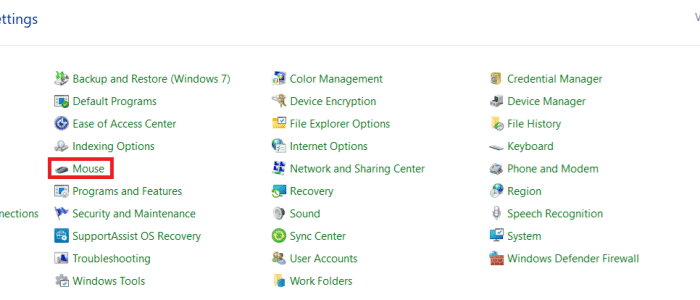
  • Now make sure View by is set to large icons or small icons. If it is set to Category, use the drop down menu next to View by to change the setting
  • Click Mouse

  • Make sure the double-click speed is set to medium

Of course, you can adjust the speed to whatever feels right for you, but most users prefer the medium setting. As this is Windows default setting, it is something people are generally used to.

Solution #2 – Update mouse drivers

Another reason for mouse to double-click is corrupt or outdated drivers. We recommend using a driver update tool, such as Driver Updater, to update mouse drivers automatically. You can find more information about this tool and a download link in the last section of the post.

If you’re averse to using a third-party tool, updating drivers manually via Device Manager is an option. Here’s what to do:

  • Click the Start icon in the center of the taskbar
  • Type device manager in the search bar and hit Enter
  • In the Device Manager window, locate and expand the Mice and other pointing devices category
  • Right-click your mouse and select Update driver

  • Now click the Search automatically… option (the first one in the list)

  • Windows will automatically install the latest driver (if available)

Solution #3 – Clean the mouse

If neither of the above solutions work for you, try cleaning your mouse and see if that fixes the issue. Wireless mouse users may also want to try a new battery. A dying battery may lead to poor communication between a mouse and the computer.

If the problem still persists, you should replace your mouse.

How to update mouse drivers (and other device drivers) automatically?

A reliable third-party tool, such as Driver Updater, updates outdated device drivers with just a few clicks.

Automatic driver update tools offer many benefits, the most important ones being:

  • You can update device drivers automatically
  • The software scans and updates all outdated or missing drivers at one go
  • The tool picks the right drivers for your device and operating system, so you won’t have to worry about installing an incorrect driver by mistake
  • Automatic driver updates are 100% safe

Driver Updater is one of the best driver update tools out there. Outbyte Driver Updater will give you access to a database of over 1 million drivers. It will regularly scan your PC, suggesting new driver versions to install. Driver Updater contains drivers for a variety of Windows devices. With just one click, you can update drivers in your system.

Step 1
Click here to Install and launch the app

Step 2
Scan all devices

Step 3
Install or update drivers automatically
 

Start Download


Filed Under: PC Fix Tips Tagged With: mouse issue

How to fix Windows 11 Screen Flickering?

By Susan C on May 21, 2025

How to fix Windows 11 Screen Flickering?

Is your Windows 11 screen flickering?

Don’t worry. You’re not alone.

Many users have reported this issue, one time or another. Generally speaking, the problem occurs due to software-related issues.

Continue reading to find out the most common software issues that cause Windows 11 screen to flicker and, more importantly, how to resolve them.

Solution 1 – Update the graphics card driver

Graphic card is an important component of your computer, and to function properly it requires a functional (and usually the latest) graphics card driver. Think of graphic card driver as a bridge between your Windows OS and the graphics card, allowing the system to display visuals on your screen.

An outdated, corrupt, or damaged graphics card driver can potentially trigger many issues, including screen flickering. The solution? You must install the latest graphics driver.

If you’re wondering how to update the graphics card driver, you mainly have two options. Either you can update the driver manually or use a third-party tool that’ll update the driver for you with a couple of clicks.

Needless to say, the second option is easier and faster. While driver update tool are available dime a dozen, not all of them are created equal. Some are much more advanced and reliable than others. One such tool is Driver Updater, which has been in the market for some years and is touted as the best tool for updating drivers by more than one software experts. You can find more information about Driver Updater, along with a download link, towards the end of this post.

If you’d rather update the graphics card driver yourself, head to the manufacturer’s website, search for the latest version for your graphics card, and download and install it.

Not sure about the make and model of your graphics card? No problem. Simply follow these steps:

  • Click the Start button located in the center of the taskbar at the bottom of your screen
  • Type device manager in the search bar and hit Enter
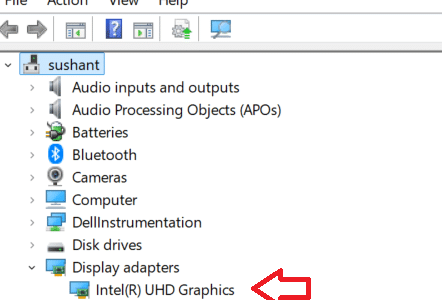
  • In the Device Manager window, look for and expand the Display adapters category
  • The model of your graphics card driver will be listed there. Right-click it and select Properties to view more detailed information (including the current driver version and hardware IDs)

Once you know what graphics card you have, go to the manufacturer’s website, search for the latest driver, and download it. Before you click the Download button, make sure the selected driver is compatible with your version of Windows. For example, if you’re using a Windows 11 32-bit computer, select the latest driver for Windows 11 32-bit, not Windows 11 64-bit or Windows 10 32-bit.

After you’ve downloaded the driver file, double-click it to launch the installation. If a User Access Control window pops up, click Yes. Follow on-screen instructions to complete the installation. Restart the computer, if required.

Solution 2 – Disable Hardware Acceleration

Hardware acceleration transfers some of the CPU processing work to inactive hardware resources, such as the GPU. This handy process improves processing speeds, reduces the load on CPU, and boosts graphic-display quality. However, there are instances when it does more damage than good. For instance, if your GPU cannot manage the increased workload due to hardware acceleration, screen flickering may occur.

If you’re already using the latest graphics card driver or the problem persists even after a driver update, disabling hardware acceleration may help.

  • Click the Start icon
  • Type system in the search bar and press the Enter key
  • Click System > Display > Graphics

  • Disable Hardware-accelerated GPU scheduling

Solution 3 – Adjust your monitor’s refresh rate

The screen flickering issue may also occur when the selected monitor’s refresh rate is too low or too high compared to your monitor’s native capacity.

Try selecting a refresh rate that aligns with the monitor’s capabilities and see if that fixes the issue.

  • Right-click on an empty space on the desktop and choose Display settings
  • Click Advanced display in the right-side pane
  • Change the refresh setting to your monitor’s native capacity using the drop-down menu next to Choose a refresh rate

If you don’t know your monitor’s native refresh rate, select each of the listed options. The setting at which the flickering issue stops is the native refresh rate.

Select the native resolution

If you have changed your monitor’s resolution, we recommend going back to its default setting. The default resolution setting gives the best visual quality and changing it may trigger flickers.

Here’s what to do:

  • Click the Start button
  • Type settings in the Search bar and hit Enter
  • Click System > Display
  • Select the resolution option with “Recommended” written next to it in the Display resolution drop-down menu

Adjust screen scaling

As with screen resolution, not using the recommended screen scaling may trigger screen flickering. Switching back to the recommended setting may fix the issue.

Here’s what to do:

  • Open the Settings app
  • Click System > Display > Advanced Display
  • Select the recommended setting in the drop-down menu in the Scale section (just below the Scale & layout heading)

That’s just about it! One of these solutions should work for you. But if you are still receiving this error, check the power and display cables for any visible signs of wear and tear. If there’re none, try another monitor if you’re using a desktop, if possible. If the other monitor works fine, you probably need a new monitor.

If you’re using a laptop or if you don’t have an alternate monitor, check whether the graphics card is damaged. You can ask a computer repair technician to have a look if you’re not comfortable with physically inspecting the graphics card. In case the graphics card is not damaged, the problem lies with your monitor.

Update graphics card drivers automatically

As said before, the most convenient way to update device drivers is by using a reliable third-party tool, and there’s no better software for this job than Driver Updater.

Automatic driver update tools offer many benefits, the most important ones being:

  • You can update device drivers automatically
  • The software scans and updates all outdated or missing drivers at one go
  • The tool picks the right drivers for your device and operating system, so you won’t have to worry about installing an incorrect driver by mistake
  • Automatic driver updates are 100% safe

Driver Updater is one of the best driver update tools out there. Outbyte Driver Updater will give you access to a database of over 1 million drivers. It will regularly scan your PC, suggesting new driver versions to install. Driver Updater contains drivers for a variety of Windows devices. With just one click, you can update drivers in your system.

Step 1
Click here to Install and launch the app

Step 2
Scan all devices

Step 3
Install or update drivers automatically


Start Download


Filed Under: PC Fix Tips Tagged With: screen flickering

How to Stop Automatic Restart in Windows 11 After an Update?

By Susan C on May 6, 2025

How to Stop Automatic Restart in Windows 11 After an Update?

Every time Microsoft performs an update it forces you to restart the computer, which can hamper your workflow. If the “automatic restart” feature is something you don’t like, there’s good news. You can turn it off, though you’ll have to jump through hoops to get the job done.

Basically, there are two ways to stop Windows from automatically restarting after an update. One is easier, but it doesn’t disable automatic restarts altogether. The other method completely disables automatic restart, but is a little complicated. I have listed step-by-step instructions for both, so you can pick the method that’s more to your liking.

Change your computer’s active hours

Microsoft Support defines “active hours” as times you usually use your device. The OS uses this information to ensure it doesn’t bother you with restarts when you are working.

Your device tracks the times you actively use your computer and then adjusts the active hours accordingly. Although Microsoft tries to schedule the active hours according to your work pattern, the default setting can sometimes be inaccurate. A more effective way to minimize the risk of inconvenient restarts is by setting active hours manually.

Here’s what you need to do:

  • Type settings in the Search bar in the taskbar and hit Enter
  • Click Windows Updates in the left-side pane and then click Advanced options in the right-side pane
  • Click Active hours and then select Manually in the drop-down menu
  • Set the Start time and End time

Active hours on Windows can be set to a max of 18 hours, so it might be a good idea to select the start time around the time you usually start work and end time as 18 hours from that time.

Keep in mind your active hours setting is not sacrosanct. Microsoft can, and sometimes does, override it. This can happen due to a bug or if updates are deemed critical. For this reason, I recommend you toggle on the “Notify me when a restart is required to finish updating” option. This way you will receive a prior notice and be able to save your work if your system needs to reboot during the set active hours.

But what if you keep your device always on and don’t want it to reboot at all? In that case, the second option is a better fit.

Disable Auto Restart Using the Group Policy Editor

The Group Policy Editor is a powerful tool that allows users to manage and configure settings on their computers. By default, the Group Policy Editor is only available in the Pro, Enterprise, and Server editions of Windows, not in the Home version. However, it’s possible to get it to work on Windows Home edition by completing a few simple steps.

If you have a Home edition, use the steps below to activate the Group Policy Editor. Pro users can skip this section and directly move to the next one.

  • Type command prompt in the Search bar in the taskbar, right-click the app, and select Run as administrator
  • Copy and paste the code listed below in Command Prompt and hit Enter
FOR %F IN ("%SystemRoot%\servicing\Packages\Microsoft-Windows-GroupPolicy-ClientTools-Package~*.mum") DO (DISM /Online /NoRestart /Add-Package:"%F")
  • Wait for the code to be executed. Once that happens, paste this code and hit Enter
FOR %F IN ("%SystemRoot%\servicing\Packages\Microsoft-Windows-GroupPolicy-ClientExtensions-Package~*.mum") DO (DISM /Online /NoRestart /Add-Package:"%F")

Wait until installation is complete. You should now be able to access Group Policy Editor

Steps to disable auto-restart via the Group Policy Editor

Here’s what to do:

  • Press Win+R keys to launch the Run dialog box
  • Type gpedit.msc and press the OK button

  • Expand Computer Configuration and then select Administrative Templates

  • In the right-side pane, double-click Windows Components

  • Locate and double-click Windows Update in the right-side pane

  • Double-click Legacy Policies

  • Select No auto-restart with logged on users for scheduled automatic updates installations
  • Now click Edit policy setting

  • Select Enabled

  • Click Apply and then OK

That’s about it. Now whenever Windows install a new update, you’ll receive a notification that it needs to reboot the device. However, Windows OS will not reboot the system automatically.

Talking about updates, system updates aren’t the only one that are important. Driver updates are necessary as well. While Windows Update can include driver updates for installed devices, the best way to update device drivers is by using a reliable third-party tool. We recommend you give Driver Updater a try. It is not only super-accurate and fast, but also updates drivers with just a single click.

Automatic driver update tools offer many benefits, the most important ones being:

  • You can update device drivers automatically
  • The software scans and updates all outdated or missing drivers at one go
  • The tool picks the right drivers for your device and operating system, so you won’t have to worry about installing an incorrect driver by mistake
  • Automatic driver updates are 100% safe

Driver Updater is one of the best driver update tools out there. Outbyte Driver Updater will give you access to a database of over 1 million drivers. It will regularly scan your PC, suggesting new driver versions to install. Driver Updater contains drivers for a variety of Windows devices. With just one click, you can update drivers in your system.

Step 1
Click here to Install and launch the app

Step 2
Scan all devices

Step 3
Install or update drivers automatically


Start Download


Filed Under: PC Fix Tips Tagged With: stop automatic restart

  • « Previous Page
  • 1
  • …
  • 7
  • 8
  • 9
  • 10
  • 11
  • …
  • 189
  • Next Page »


  • Recent Posts
  • Popular Posts
        

Read More Posts


Read More Posts

Drivers.com Sites

  • Software Drivers
  • Drivers Ed

About Us

  • Advertise
  • About Drivers
  • Drivers Support
  • Drivers.com Privacy Policy
  • Disclaimer
  • Software Drivers
  • Mac Fixes and Tips
  • PC Fix Tips
  • Security/ Backup
  • Tablets & Smartphones
  • Tech News

© Copyright 2026 PDE Publications Ltd. End User License Agreement (EULA)