Drivers.com

follow us:

facebook twitter
  • Home
  • Download Drivers
  • Drivers Help
  • PC/Mac Resources
  • Software Drivers
  • Mac Fixes and Tips
  • PC Fix Tips
  • Security/ Backup
  • Tablets & Smartphones
  • Tech News
  • Software Drivers
  • Mac Fixes and Tips
  • PC Fix Tips
  • Security/ Backup
  • Tablets & Smartphones
  • Tech News

How to Fix Mouse Lag in Call of Duty: Modern Warfare?

By Susan C on June 26, 2025

How to Fix Mouse Lag in Call of Duty: Modern Warfare?

Experiencing mouse lag in Call of Duty: Modern Warfare?

You’re not alone. This is a common issue that occurs in many games.

When mouse lag occurs, there’s mismatch between the movement of the mouse pointer on the screen and your mouse movement. This, in turn, can spoil your gaming experience.

Fortunately, fixing mouse lag or stuttering is not difficult. In this post, we’ll discuss the four most effective fixes. But before we dig into the solutions, let’s first understand why mouse stuttering occurs.

What triggers mouse lag in Modern Warfare?

Mouse lag can occur due to a number of reasons. Three most common ones are:

  • Issues with your mouse – Misconfigured settings or a faulty mouse can lead to mouse stuttering.
  • Wrong priority level – The issue can also arise if Modern Warfare’s priority level set in Task Manager is incorrect.
  • Outdated drivers – If the mouse driver is outdated, you can experience performance-related issues, including mouse lag

How to fix mouse lag in Call of Duty: Modern Warfare?

Let’s start with some simple tricks before moving on to more complex solutions.

  • If you’ve a wired mouse, plug it into another port and see if that fixes the problem. If you are using a wireless mouse, keep its dongle far away from another dongle such as Bluetooth or Wi-Fi receiver.
  • If your system has insufficient resources, free up some disk space, unload the CPU, and clear up RAM and check if that works.
  • Install the latest Windows Updates, if you’ve not already done so. In addition, if new update is available for Modern Warfare, install it and verify if that helps.

If none of these fixes worked, try the solutions listed below.

Solution #1 – Update your mouse driver

You can update the mouse driver manually or automatically. We recommend the second method, as it is most straightforward. Consider using a reliable third-party tool such as Driver Updater to update your mouse driver. For more information about the software (and its download link), check out the last section of the post.

If are the DIY type, perform the following steps to manually update the mouse driver.

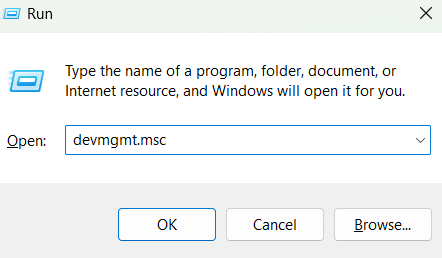
  • Press Win + R keys
  • Type devmgmt.msc in the Run dialog box

  • Locate and expand the Mice and other pointing devices entry
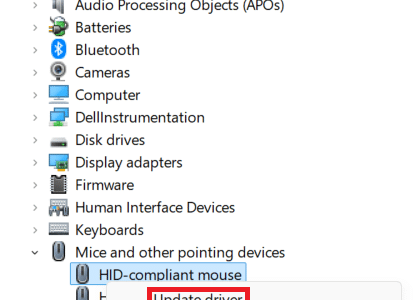
  • Right-click your mouse and choose Update driver

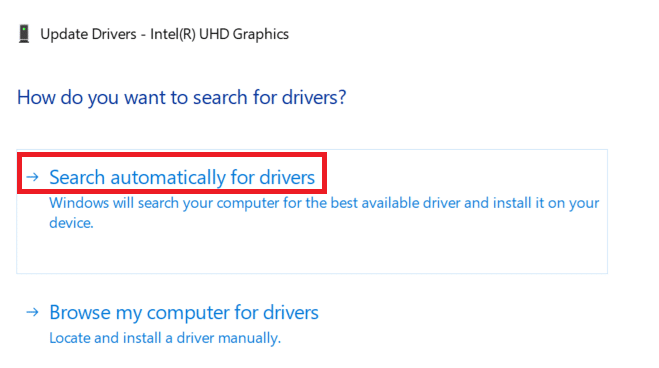
  • Select Search automatically for drivers
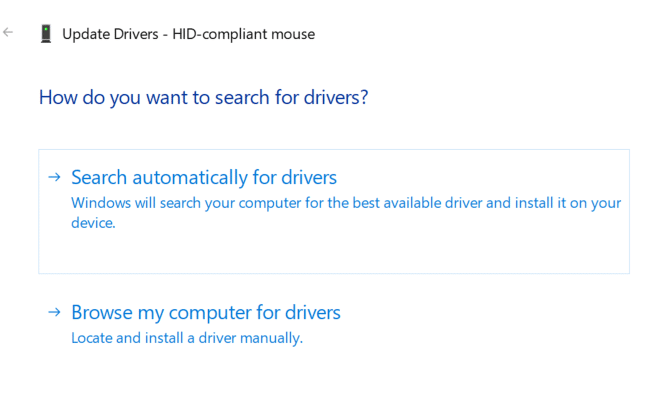
  • Windows will install the best driver for your device

If you receive a message that states that the best driver is already installed, consider checking the manufacturer website to see if they have a new version. If you do find a new version for your mouse make and model, download and install it. Just double-check the selected driver is compatible with your Windows version. For example, if you are using a 32-bit Windows 11, download a driver meant for 32-bit Windows 11, not 64-bit Windows 11 or 32-bit Windows 10.

Solution #2 – Change Priority Setting for Modern Warfare

Here’s what to do:

  • Open Call of Duty: Modern Warfare
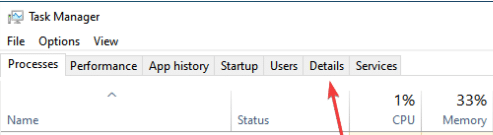
  • Press Alt + Enter or Windows and then press Ctrl + Shift + Esc to launch the Task Manager
  • Click the Details Tab

  • Locate ModernWarfare.exe, right-click it, select Set Priority, and then select Normal
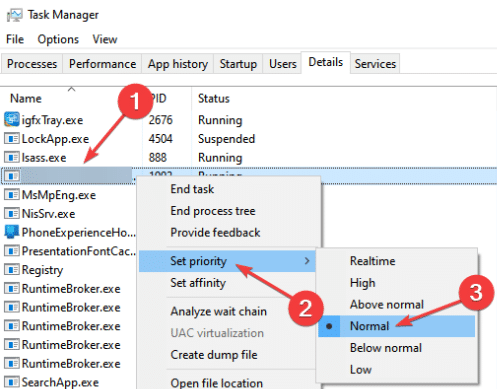
Now, go back to the Modern Warfare game and check whether there’s still mouse lag. If so, try the next solution.

Solution #3 – Adjust Modern Warfare’s settings

Here’s what to do:

  • Open Call of Duty: Modern Warfare
  • Open the Options menu, head to Keyboard & Mouse, and then make these changes:
  • Disable Mouse Smoothing
  • Change Mouse Acceleration to 0.00
  • Set Mouse Filtering to 0.00
  • Readjust Mouse Sensitivity till you get it right

Solution #4 – Disable Vsync

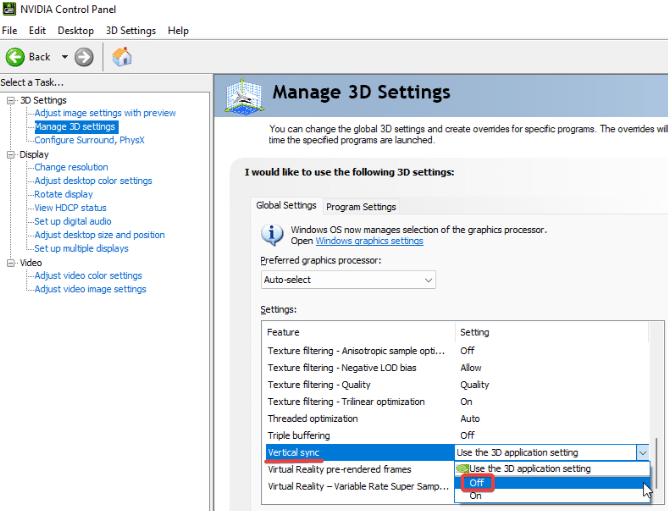
  • Open NVIDIA Control Panel
  • Choose Manage 3D settings
  • Under the I would like to use the following 3D settings section, select Off from the drop down menu next to Vertical sync
  • Click Apply

That’s it. Leave a comment below telling us which one of these solutions worked for you and share the blog post so that others can benefit from it.

Update mouse driver automatically using Driver Updater

As said earlier, the easiest (and the fastest) way to update the mouse driver and other device drivers is by using a third-party tool, such as Driver Updater.

Automatic driver update tools offer many benefits, the most important ones being:

  • You can update device drivers automatically
  • The software scans and updates all outdated or missing drivers at one go
  • The tool picks the right drivers for your device and operating system, so you won’t have to worry about installing an incorrect driver by mistake
  • Automatic driver updates are 100% safe

Driver Updater is one of the best driver update tools out there. Outbyte Driver Updater will give you access to a database of over 1 million drivers. It will regularly scan your PC, suggesting new driver versions to install. Driver Updater contains drivers for a variety of Windows devices. With just one click, you can update drivers in your system.

Step 1
Click here to Install and launch the app

Step 2
Scan all devices

Step 3
Install or update drivers automatically
 

Start Download


Filed Under: PC Fix Tips Tagged With: mouse lag

Mouse Suddenly Stopped Scrolling? 4 DIY Fixes

By Susan C on June 25, 2025

Mouse Suddenly Stopped Scrolling? 4 DIY Fixes

It’s not uncommon for a mouse wheel to suddenly stop scrolling, but that doesn’t necessarily mean you need a replacement. Before you shop for a new mouse, try these four DIY fixes.

Solution #1 – Try a new USB port

It’s possible the problem lies with the USB port to which the mouse is connected, not the mouse itself. Unplug your mouse from its USB port and plug it into a new USB port and check if that does the job.

If you use a wireless mouse, unplug its dongle and plug it into a new USB port.

Solution #2 – Replace the batteries

This solution is for wireless mouse users. Low battery power can trigger erratic behavior, including the mouse wheel not scrolling. Replace your mouse batteries and check if that fixes the issue. If not, try the next solution.

Solution #3 – Clean the mouse

Scroll wheel is prone to collecting dust and dirt, as well as food particles. These can slip through the mouse wheel’s side cracks and in turn trigger scrolling issues. Cleaning a mouse hardly takes more than a few seconds, so there’s no reason for not giving this solution a go.

Solution #4 – Update the mouse drivers

If the error still persists, consider updating the mouse driver. Outdated drivers can cause various issues, including the mouse wheel not scrolling.

Basically, there are two ways to update a driver: using a third-party software or via Device Manager.

We recommend the first method, since it’s easy and fast and requires no technical knowledge. Give Driver Updater a try, as most experts agree it’s the best driver update tool out there. You can find more information about the software, along with its download link, towards the bottom of the post.

If you want to take the manual route instead, open the Device Manager and update the mouse driver from there. Here’s what to do:

  • Press Win + R to launch the Run dialog box
  • Type devmgmt.msc and hit Enter
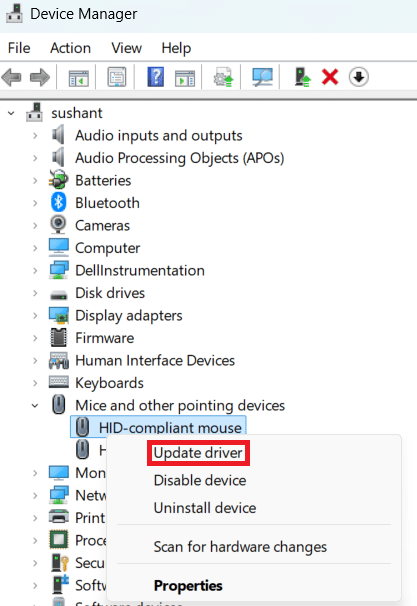
  • In the Device Manager window, expand Mice and pointing devices
  • Right-click your mouse and select Update driver

  • In the Update driver window, select Search automatically for drivers

  • Windows will scan the system for the latest driver and update it

If you receive a message saying something like “Windows has determined that the best driver for this device is already installed”, check the manufacturer website if they have a newer version.

If you see that the manufacturer has indeed released a new driver version for your mouse, download it. Once the download is complete, double-click the executable file to launch the installation. If a User Access Control window pops up, click Yes to proceed with the installation.

That’s just about it! We hope one of these methods work for you. If they don’t, it’d be best to replace your mouse.

Update mouse driver automatically using Driver Updater

Driver Updater updates your mouse (and other device) drivers in a jiffy.

Automatic driver update tools offer many benefits, the most important ones being:

  • You can update device drivers automatically
  • The software scans and updates all outdated or missing drivers at one go
  • The tool picks the right drivers for your device and operating system, so you won’t have to worry about installing an incorrect driver by mistake
  • Automatic driver updates are 100% safe

Driver Updater is one of the best driver update tools out there. Outbyte Driver Updater will give you access to a database of over 1 million drivers. It will regularly scan your PC, suggesting new driver versions to install. Driver Updater contains drivers for a variety of Windows devices. With just one click, you can update drivers in your system.

Step 1
Click here to Install and launch the app

Step 2
Scan all devices

Step 3
Install or update drivers automatically
 

Start Download


Filed Under: PC Fix Tips Tagged With: Mouse not scrolling

Brother ADS-1350 Scanner Not Working – How to fix it?

By Susan C on June 21, 2025

Brother ADS-1350 scanner not working? There could be several possible reasons for this. Most common ones are incorrect configurations, connectivity problems, driver-related issues, and hardware-related issues.

First, make sure the scanner’s connection to the power outlet and your system via a USB cable is secure. If the USB cable shows signs of wear and tear, replace it and then do a test run. Users with a wireless scanner must ensure that their scanner and system are connected to the same network.

How do I resolve the issue?

Solution #1 – Check if the scanner is recognized in Windows

Here’s what to do:

  • Click the Start icon
  • Type control panel in Search bar and hit Enter
  • Click Devices and Printers and make sure your scanner is listed
  • If it is not, unplug the cable and re-plug it. If you use a wireless version, reconfigure the Wi-Fi settings

Solution #2 – Reconfigure Wi-Fi settings

Here’s what to do:

  • Press down and hold the Wi-Fi button on your Brother ADS-1350 scanner till you see the Wi-Fi indicator blinking
  • Reconnect your scanner to the network. Refer to the user manual document that came with the scanner or download and use the Brother Printer Settings tool from the Brother Support page

Solution #3 – Update the scanner drivers

This is something you can do automatically, using a reliable third-party tool. We recommend Driver Updater since it has been around for several years and is second to none. You can find more information about Driver Updater towards the end of the post along with a download link.

If you’d rather install drivers manually, you can do so via device manager or the manufacturer website.

To update the Brother ADS-1350W scanner driver via device manager, follow these steps:

  • Press Windows + R keys
  • Type devmgmt.msc in the Run dialogue box
  • Expand the Printers or Imaging category
  • Locate your scanner, right-click it, and select Update driver
  • Click Search automatically for drivers
  • Windows will now automatically install the best available driver

However, if you get a message stating something like “Windows has determined that the best driver for this driver is already installed”, download the latest driver from the manufacturer website manually.

Here’s what to do:

  • Open a web browser and navigate to Brother Support Page for ADS-1350W
  • Download the latest driver for your operating system
  • Once download is complete, double-click the executable file to launch the installation
  • If a User Access Control Window pops up, simply click Yes
  • Restart the computer after installation is complete, if required

Solution #4 – Factory reset your scanner’s

Here’s what to do:

  • Launch the Brother software for your scanner and then select your scanner model name by clicking the drop-down list
  • Click Tools and then Remote Setup
  • Next, click Machine Info menu and select Reset for those settings which you want to reset
  • Click OK

We hope one of the above-mentioned solutions worked for you. If not, it would be best to contact Brother Customer Support or an authorized center.

We round off this post by sharing some key information about Driver Updater. You can use it to update all outdated device drivers (including Brother Scanner drivers) automatically.

Automatic driver update tools offer many benefits, the most important ones being:

  • You can update device drivers automatically
  • The software scans and updates all outdated or missing drivers at one go
  • The tool picks the right drivers for your device and operating system, so you won’t have to worry about installing an incorrect driver by mistake
  • Automatic driver updates are 100% safe

Driver Updater is one of the best driver update tools out there. Outbyte Driver Updater will give you access to a database of over 1 million drivers. It will regularly scan your PC, suggesting new driver versions to install. Driver Updater contains drivers for a variety of Windows devices. With just one click, you can update drivers in your system.

Step 1
Click here to Install and launch the app

Step 2
Scan all devices

Step 3
Install or update drivers automatically
 

Start Download


Filed Under: PC Fix Tips Tagged With: Brother ADS-1350W

  • « Previous Page
  • 1
  • …
  • 5
  • 6
  • 7
  • 8
  • 9
  • …
  • 189
  • Next Page »


  • Recent Posts
  • Popular Posts
        

Read More Posts


Read More Posts

Drivers.com Sites

  • Software Drivers
  • Drivers Ed

About Us

  • Advertise
  • About Drivers
  • Drivers Support
  • Drivers.com Privacy Policy
  • Disclaimer
  • Software Drivers
  • Mac Fixes and Tips
  • PC Fix Tips
  • Security/ Backup
  • Tablets & Smartphones
  • Tech News

© Copyright 2026 PDE Publications Ltd. End User License Agreement (EULA)