
Drivers.com

follow us:

facebook twitter
  • Home
  • Download Drivers
  • Drivers Help
  • PC/Mac Resources
  • Software Drivers
  • Mac Fixes and Tips
  • PC Fix Tips
  • Security/ Backup
  • Tablets & Smartphones
  • Tech News
  • Software Drivers
  • Mac Fixes and Tips
  • PC Fix Tips
  • Security/ Backup
  • Tablets & Smartphones
  • Tech News

6 DIY Solutions to “Error Code 22: This Device is Disabled”

By Susan C on July 11, 2025

6 DIY Solutions to “Error Code 22: This Device is Disabled”

Getting the Error Code 22: This Device is Disabled and are at a loss to know how to fix it?

Don’t worry. We’ve got your back.

In this post, we’ll show you 6 DIY ways to fix the Error Code 22. So, let’s dive right in.

Why does error code 22 occur?

This error code is generated when a hardware device is disabled. For this reason in a lot of cases, the first solution, which require enabling the relevant device, fixes the issue.

Solution #1 – Enable the hardware device

Since quite often the error code 22 is triggered when a hardware device is manually disabled, enabling it could resolve the problem.

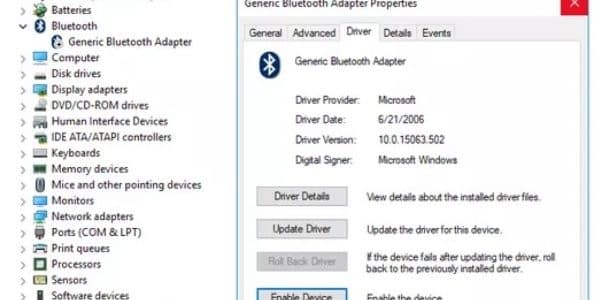
Perform these steps to enable a hardware device:

  • Click the start icon in the taskbar, type device manager in the Search bar, and then hit Enter
  • Go to the device that is disabled, right-click it, and select Properties
  • Click the Driver tab
  • Click the Enable Device button

  • Click OK

Now, check if the error is fixed. If it’s not, try the fixes below.

Solution #2 – Restart the computer

Temporary hardware glitches can trigger random errors. When this happens, a simple restart might be all you need to fix the issue. Since it hardly takes more than a couple of minutes to reboot, we recommend you it a shot before moving on to other solutions.

Solution #3 – Undo any recent changes made in Device Manager

Have you recently installed a device or made changes in Device Manager? If so, it’s possible the change you made is triggering the error. Undo it (if possible), reboot your system, and check if the issue is fixed.

Depending on the changes you made, some probable solutions include:

  • Removing or reconfiguring a recently-installed hardware device
  • Rolling back to a previous driver version (if the error has occurred after a recent driver update)
  • Reinstalling the device drivers
  • Performing a System Restore to undo any recent Device Manager-related changes

How to Roll back a previous driver version?

Here’s what to do:

  • Click the Start icon in the taskbar, type device manager in the Search bar, and hit Enter
  • In the Device Manager window, locate the hardware device
  • Right-click it, select Properties from the menu, click the Driver tab, and then click the Roll Back Driver button

How to reinstall the device drivers?

Here’s what to do:

  • Open Device Manager
  • Locate the hardware device with the driver you want to uninstall, right-click it, and select Uninstall device

  • Once that’s done, restart your computer to have Windows install the driver back

How to perform a System Restore?

System Restore is a good option if the error appeared after a Device Manager-related change.

Follow these steps to perform a System Restore:

  • Click the Start icon in the taskbar, type create a restore point in the Search bar, and hit Enter
  • Click the System Restore button
  • Click Next and select the restore point to undo any recent Driver Manager-related changes
Note: Windows will take some to perform a System Restore, so make sure the AC adapter is connected during the restore process. In addition, do not force shut down the computer during the restore process.

Solution #4 – Update the drivers for the device

If the error still persists, try updating the device drivers. You can update drivers manually or automatically. The second method is easier and faster, but we’ve listed both so that you can pick the one that you like better.

To update drivers automatically, you’ll need a third-party tool, such as Driver Updater. With just a single click, Driver Updater scans the system for outdated drivers and updates them.

For information on Driver Updater and its download link, check out the last section.

But if you’re the DIY type, open Device Manager and then perform these steps:

  • Locate the hardware device whose driver you want to update
  • Right-click this device and select Update driver

  • Select Search automatically for drivers and wait for Windows to complete the update process

Solution #5 – Clear CMOS

There are more than one ways to clear the CMOS, but the easiest one is to enter BIOS and select Reset BIOS settings.

Step 1 – Enter the BIOS setup utility

  • Turn on your system if it’s off or restart it
  • As soon as the “entering setup” message appears, press F2, Del, Esc, F10, or F12 several times to entre BIOS (The exact key you need to press depends on your computer’s brand and model)

Step 2 – Reset BIOS settings

  • Once you’re inside BIOS, reset its settings to the factor default levels by selecting the load setup default or a similar menu (The exact wording of the option for restoring BIOS vary by manufacturer, but it usually include phrases such as factory default, restore to default, clear BIOS, etc.)
  • Save the settings and exit BIOS
  • Restart your computer

Solution #6 – Replace the faulty hardware

If none of the above solutions worked for you, there’s a good chance the hardware is damaged or faulty. Replacing it could help fix the issue.

That’s just about it! We hope one of these solution worked for you.

How to update device drivers automatically?

Outdated drivers can cause a host of issues, including error code 22. That’s why it is important to ensure all device drivers on your system are up-to-date. The easiest way to do this is by using Driver Updater.

Automatic driver update tools offer many benefits, the most important ones being:

  • You can update device drivers automatically
  • The software scans and updates all outdated or missing drivers at one go
  • The tool picks the right drivers for your device and operating system, so you won’t have to worry about installing an incorrect driver by mistake
  • Automatic driver updates are 100% safe

Driver Updater is one of the best driver update tools out there. Outbyte Driver Updater will give you access to a database of over 1 million drivers. It will regularly scan your PC, suggesting new driver versions to install. Driver Updater contains drivers for a variety of Windows devices. With just one click, you can update drivers in your system.

Step 1
Click here to Install and launch the app

Step 2
Scan all devices

Step 3
Install or update drivers automatically
 

Start Download


Filed Under: PC Fix Tips Tagged With: Error code 22

Keyboard Not Typing? 6 DIY Fixes

By Susan C on July 7, 2025

Keyboard Not Typing? 6 DIY Fixes

Dealing with an unresponsive keyboard?

Don’t worry. We’ve got your back.

This post shows 6 DIY ways to troubleshoot a keyboard that’s not responding. Both wireless and wired keyboards are covered.

Fix #1 – Make sure the keyboard is turned on

Some keyboards come with an on-off switch. If you use such a keyboard, make sure it is turned on. Those using wireless keyboards should ensure the battery is not dead before attempting other solutions.

Fix#2 – Close the app and reopen it

A temporary glitch with an app may make your keyboard unresponsive. Solution? Simply close the app and launch it again.

Fix #3 – Ensure your keyboard is properly connected to the computer

Depending on whether you’re using a wireless or wired keyboard, we recommend trying the following:

  • If you’ve a USB keyboard, unplug it and then reattach it
  • If you’ve a wireless keyboard, remove the dongle for 30 seconds or so and plug it back in
  • Plug in the dongle or keyboard in a different USB (It’s possible the USB port you’re currently using has become corrupt
  • Use another detachable USB cable for a wired keyboards

Fix #4 – Restart your PC

If your computer is frozen, you’ll not be able to type. Restarting the PC should fix any temporary issue that’s causing your system to freeze up.

Fix #5 – Clean the keyboard

Dirt and dust stuck under the keys may prevent them from working properly. This could be the reason why some keys are working while others aren’t.

Fix #6 – Update Keyboard drivers

If the keyboard driver is missing or has a bug, it could cause the keyboard to become unresponsive. In such situation, updating the keyboard driver should do the trick.

How do I update my keyboard driver? You may ask.

Well, there are two ways to do that. One, you can manually update the driver via Device Manager — a process that can be lengthy or tedious. Two, you can automatically update the driver using a third-party tool in matter of just a couple of seconds.

Both methods are discussed below. You can choose the one that you like better.

Updating keyboard drivers manually

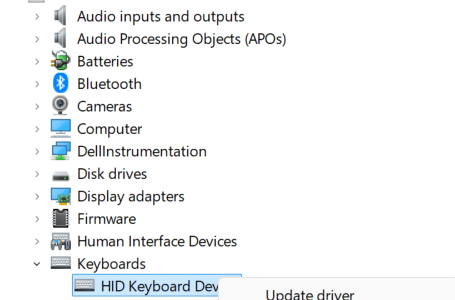
  • Click the Windows icon in the taskbar, type device manager in the Search bar and then hit Enter
  • In the Device Manager window, locate and expand Keyboards category, right-click your keyboard, and then select Update driver

  • Select Search automatically for updated driver software in the next window

  • Windows will install the best driver version it has for your keyboard

If you receive a message stating that Windows has detected that you already have the best driver version, it might be worth checking the manufacturer website to see if they have a later driver version.

To do that, first note down your current driver version.

  • In the Device Manager window, expand the Keyboard section
  • Right-click your keyboard and select Properties

  • Click the Driver tab

  • The driver version and other relevant details regarding the driver will be displayed here

Now, head to the manufacturer website and run a search for the latest driver for your keyboard model. If you find there’s a newer driver version available, download it. Once that’s done, double-click the executable file to launch the installation. Follow on-screen prompts to complete installation and reboot Windows, if asked.

Updating keyboard driver automatically

If you don’t want to go through all the hassle of updating drivers manually, then simply download a third-party tool, such as Driver Updater, and let it update the driver for you.

While there are many third-party driver update tools out there, we recommend using Driver Updater since it’s best in the category.

Automatic driver update tools offer many benefits, the most important ones being:

  • You can update device drivers automatically
  • The software scans and updates all outdated or missing drivers at one go
  • The tool picks the right drivers for your device and operating system, so you won’t have to worry about installing an incorrect driver by mistake
  • Automatic driver updates are 100% safe

Driver Updater is one of the best driver update tools out there. Outbyte Driver Updater will give you access to a database of over 1 million drivers. It will regularly scan your PC, suggesting new driver versions to install. Driver Updater contains drivers for a variety of Windows devices. With just one click, you can update drivers in your system.

Step 1
Click here to Install and launch the app

Step 2
Scan all devices

Step 3
Install or update drivers automatically


Start Download


Filed Under: PC Fix Tips Tagged With: Keyboard not responding

Fix: WDF_Violation Blue Screen Error on Windows 11

By Susan C on July 3, 2025

Fix: WDF_Violation Blue Screen Error on Windows 11

If you’re getting a WDF_Violation blue screen error on Windows 11 and wondering what you are supposed to do next, this post is for you. In this post, we’ll offer you 8 DIY solutions to resolve the WDF_Violation error.

So, let’s dive right in.

What causes the WDF_Violation blue screen error?

WDF stands for Windows Driver Framework. It is a set of Microsoft tools and libraries that simplify the process of writing high-quality device drivers. Therefore, usually the WDF_Violation error occurs because of an issue with a specific driver, like a video or display driver. In some cases, the root cause is a faulty or outdated Bluetooth driver. Other reasons include faulty USB peripherals, corrupt system files, and a malware or virus attack.

On HP computers, the WDF_Violation blue screen error results from keyboard drivers or a specific system file called HpqKbFiltr.sys.

How to fix the WDF_Violation error?

The first two solutions apply only two HP users. If you’re not an HP user, head to solution 3 and work your way down until you’re able to fix the issue.

Solution #1 – Remove HP keyboard driver (For HP users)

Here’s what to do:

  • Reboot your computer 3 times to access the Windows Recovery Environment (WinRE)
  • Next head to Troubleshoot, click Advanced options, and then click Command Prompt
  • Type the following commands, based on your Windows version, and hit Enter

32-bit Windows

64-bit Windows

  • Now exit Command Prompt and reboot your PC

Solution #2 – Reconfigure HpqKbFiltr.sys (For HP users)

On HP computers, the error may also occur when a specific system file — called HpqKbFiltr.sys — becomes corrupted. You can fix this issue by performing the following steps:

  • Reboot Windows three times to access WinRE
  • Head to Troubleshoot, click Advanced options, and then click Command Prompt

  • Type the following commands and hit the Enter key

Solution #3 – Run System Repair

  • Look for Startup Repair once your system boots into WinRE or booty your PC using the Windows installation disk and then click Repair your computer
  • Click Troubleshoot and then Advanced Options
  • Go to Startup Repair, choose the targeted operating system if you’ve more than one, and let Windows fix the issue by itself
  • Once the repair process finishes, restart Windows and check if the problem is resolved

Solution #4 – Disconnect USB Peripherals

A lot of times the WDF_Violation error arise due to one or more USB peripherals. Disconnect all peripheral devices, such as mouse, printer, external camera, etc., and check if that fixes the problem.

If not, try disabling all USB ports from BIOS. Here’s what to do:

  • Restart your system and continue pressing the Del or F2 key to access BIOS (The exact key you need to press depends on the make of your computer, but generally it is the delete key or one of the function keys)
  • Once you’re inside BIOS, go to Advanced Tab, and then head to Miscellaneous Devices > External USB Ports and then select disable External USB ports
  • Save the changes and exit BIOS
  • Reboot the system and check whether the error is fixed

Solution #5 – Uninstall Bluetooth driver in Safe Mode

If you’re not able to boot into Windows due to WDF_Violation blue screen of death error, force a Windows Recovery Environment (WinRE) entry and uninstall Bluetooth driver.

To force a WinRE entry, follow these steps:

  • Start your computer
  • As soon as you see the Windows logo, press and hold the power button until the system shuts down
  • Repeat the first two steps two more times
  • Now, boot Windows and it should automatically enter WinRE

Once you’re inside WinRE, follow these steps:

  • Click Troubleshoot and then click Advanced options
  • Next, go to Startup Settings and click Restart
  • Press the F5 key on the keyboard to select Enable Safe Mode with Networking

  • Now press Windows + X keys and choose Device Manager (an inbuilt utility in Windows that lets you view, manage, and configure hardware devices connected to your computer)
  • Expand the Bluetooth node in the Device Manager, right-click the Bluetooth device, and select Uninstall device
  • Select the Delete the driver software for this device option in the next window and then click Uninstall

If your PC is able to boot normally after the WDF_Violation error, you can uninstall Bluetooth driver directly via Device Manager. Here’s what to do:

  • Click the Windows icon in the taskbar, type device manager in the search bar, and hit Enter
  • In the Device Manager window, expand the Bluetooth category
  • Right-click the Bluetooth device and choose Uninstall device

  • Select the Delete the driver software for this device option and click Uninstall

  • Restart your computer and check if the error is fixed

Solution #6 – Update device drivers

As said before, the WDF_Violation error can occur due to the corruption of specific drivers. For example, if the video or display driver is outdated or corrupt, it could trigger the error.

To fix the issue, you need to update the corrupt or outdated device driver. You can do this automatically, using a reliable third-party tool, such as Driver Updater. Alternately, you can update the driver manually via Device Manager.

Updating device drivers automatically with Driver Updater is simple, easy, and fast. With just a single mouse click, the software will scan your entire system to identify outdated or corrupt drivers and update them automatically. For more information on Driver Updater, check out the last section of the post.

If you’re someone who’s comfortable using Device Manager, you may choose to update drivers manually. Here’s what to do:

  • Click the Windows icon in the taskbar, type device manager in the search bar, and hit Enter
  • In the Device Manager window, expand the Display Adapters category
  • Right click the display adapter and select Update driver

  • Select Search automatically for drivers

  • Windows will now search the system for the best driver version and install it

If you receive a message stating that Windows has determined you’re already running the best driver version, head to the manufacturer website and downloading the latest driver directly from there. Make sure you select the latest driver meant for your operating system version. For example, if you use Win 11 32-bit OS, the downloaded driver should be designed for 32-bit computers, not 64-bit.

Solution #7 – Perform a System Restore

If none of the above solutions have worked, you may want to perform System Restore. This will revert system to an earlier state when there was no WDF_Violation error.

If you can boot into Windows, perform these steps to complete the System Restore operation:

  • Click the Windows icon in the taskbar, type create a restore point in the Search bar, and hit Enter
  • In the System Properties window, click the System Protection tab
  • Click System Restore
  • Choose the restore point you want to use and then click the Next button
  • If you want to check out which programs and drivers might be affected, click Scan for affected programs
  • Click Next
  • Click the Finish button to launch the system restore process
  • Once your pc has been restored to an earlier state, the computer will reboot automatically

If you’re unable to boot into Windows, first access the Windows Recovery Environment (WinRE). For that, start your computer and, as soon as the Windows logo appears, press the power button until the system shuts down. Do this two more times. Then power on your computer again to boot into WinRE.

From there, go to Troubleshoot > Advanced Options > System Restore to launch the restoration process.

Solution #8 – Reset or reinstall Windows

If nothing has worked for you, try factory resetting Windows 11 as the last resort.

  • Click the Windows icon in the taskbar
  • Type settings in the Search bar and press Enter
  • In the Settings app window, click System in the left pane and then click Recovery
  • Click Reset PC under the “Reset this PC” heading
  • Select the preferred option for removing or keeping files
  • Follow the on-screen prompts to complete the Reset process

That’s it! Let us know which solution worked for you by leaving a comment below. Also, share the post so that others facing the WDF_Violation error can benefit.

How to update device drivers automatically?

The easiest and the fastest way to update drivers is by using a smart third-party tool such as Driver Updater. It has been around for a while and is the go-to choice for thousands of Windows users for updating device drivers.

Automatic driver update tools offer many benefits, the most important ones being:

  • You can update device drivers automatically
  • The software scans and updates all outdated or missing drivers at one go
  • The tool picks the right drivers for your device and operating system, so you won’t have to worry about installing an incorrect driver by mistake
  • Automatic driver updates are 100% safe

Driver Updater is one of the best driver update tools out there. Outbyte Driver Updater will give you access to a database of over 1 million drivers. It will regularly scan your PC, suggesting new driver versions to install. Driver Updater contains drivers for a variety of Windows devices. With just one click, you can update drivers in your system.

Step 1
Click here to Install and launch the app

Step 2
Scan all devices

Step 3
Install or update drivers automatically


Start Download


Filed Under: PC Fix Tips Tagged With: WDF_VIOLATION

  • « Previous Page
  • 1
  • …
  • 3
  • 4
  • 5
  • 6
  • 7
  • …
  • 189
  • Next Page »


  • Recent Posts
  • Popular Posts
        

Read More Posts


Read More Posts

Drivers.com Sites

  • Software Drivers
  • Drivers Ed

About Us

  • Advertise
  • About Drivers
  • Drivers Support
  • Drivers.com Privacy Policy
  • Disclaimer
  • Software Drivers
  • Mac Fixes and Tips
  • PC Fix Tips
  • Security/ Backup
  • Tablets & Smartphones
  • Tech News

© Copyright 2026 PDE Publications Ltd. End User License Agreement (EULA)
