Drivers.com

follow us:

facebook twitter
  • Home
  • Download Drivers
  • Drivers Help
  • PC/Mac Resources
  • Software Drivers
  • Mac Fixes and Tips
  • PC Fix Tips
  • Security/ Backup
  • Tablets & Smartphones
  • Tech News
  • Software Drivers
  • Mac Fixes and Tips
  • PC Fix Tips
  • Security/ Backup
  • Tablets & Smartphones
  • Tech News

Resources by Tag

Bluetooth issue

Bluetooth Not Working On Windows 11 (Solved)

Bluetooth Not Working On Windows 11 (Solved)

If Bluetooth is not working on your Windows 11, try not to panic. The issue typically occurs because of software-related issues and can be easily fixed (as this post shows). We recommend you try the solutions listed below in the order they appear.

Make sure Bluetooth is turned on

  • Click the Start icon in the center of the taskbar
  • Type settings in the search bar and hit Enter
  • Click Bluetooth & devices and toggle on the switch next to Bluetooth

Run Bluetooth troubleshooter

There’s a built-in Bluetooth troubleshooter in Windows that can help resolve common issues. Giving it a try is worth it if the Bluetooth is turned on but the system doesn’t connect to a Bluetooth device, such as earbuds.

  • Click the Start icon, type settings in the search bar, and hit Enter
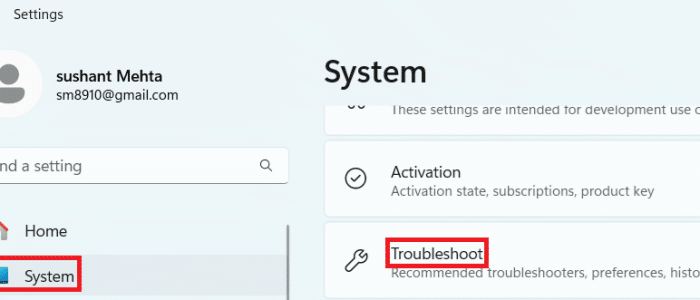
  • Click System in the left-hand panel and then click Troubleshoot

  • Click Other troubleshooters under the Options heading

  • Click the Run button next to Bluetooth in the right-hand panel

  • Wait for the troubleshooter to do its job. When it’s done, it will let you know whether it was successful or not

If running the Bluetooth troubleshooter didn’t help, try updating the Bluetooth driver.

Update the Bluetooth driver

There are two ways to update a device driver: (1) using a driver update too or (2) updating it manually via Device Manager or by downloading the latest driver from the manufacturer’s website.

We recommend the first method because it is many times easier and faster. If you’re wondering which third-party tool is best suited for the job, Driver Updater is an option. You can find out more about this amazing tool in the last section.

While an advanced driver update tool is worth the cost, not everyone may want to buy it. In that case, you must take matters into your own hands. Here’s what you need to do:

  • Click the Start icon in the taskbar, type device manager in the search bar, and hit Enter
  • Expand the Bluetooth entry
  • Right-click your Bluetooth adapter and click Update driver

  • Select Search automatically… (the first option) and Windows will automatically install the latest driver (if it is able to find one)

If Windows is unable to find the latest Bluetooth driver, head over to the manufacturer website. Next, download the latest driver for your Bluetooth device. Once you’ve done that, double-click the installer (it will be a file with .exe listed at the end of it) and wait for the installation to complete. If a User Access Control window pops up, click the Yes option.

Restart Bluetooth Support service

Restarting Bluetooth Support service is another solution worth trying. Here’s what you need to do:

  • Click the Windows icon in the taskbar
  • Type services in the Search bar and hit Enter
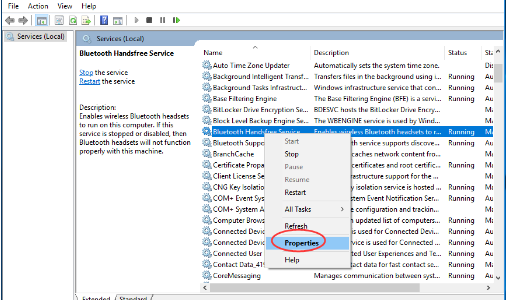
  • In the right-side panel, locate and double-click Bluetooth Support Service

  • Click Stop under Service Status in the General tab. Now click the Start button
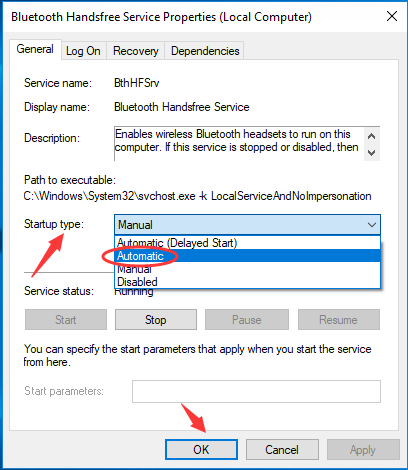
  • In the drop-down menu next to Startup type, select Automatic

  • Click Apply and then OK

Now, check whether Bluetooth is working or not.

Repair system files

If none of the above solutions have worked for you, as a last resort run the SFC scan to check if there are any damaged, missing, or corrupt system files. The SFC scan identifies and fixes such files.

Here’s what to do:

  • Press the Windows icon in the taskbar and type command prompt in the search bar
  • Right-click Command Prompt in the Best Match field and select Run as administrator. If asked to provide administrative permission, click Yes

  • Type the following command and hit Enter

Wait for Windows to complete the scan. Check if Bluetooth is working after SFC scan is complete.

How to automatically update Bluetooth (and other device) drivers?

We recommend Driver Updater for this purpose. It’s super-fast, reliable, and accurate, and updates your Bluetooth and other device drivers with just a couple of clicks.

Automatic driver update tools offer many benefits, the most important ones being:

  • You can update device drivers automatically
  • The software scans and updates all outdated or missing drivers at one go
  • The tool picks the right drivers for your device and operating system, so you won’t have to worry about installing an incorrect driver by mistake
  • Automatic driver updates are 100% safe

Driver Updater is one of the best driver update tools out there. Outbyte Driver Updater will give you access to a database of over 1 million drivers. It will regularly scan your PC, suggesting new driver versions to install. Driver Updater contains drivers for a variety of Windows devices. With just one click, you can update drivers in your system.

Step 1
Click here to Install and launch the app

Step 2
Scan all devices

Step 3
Install or update drivers automatically
 

Start Download


Filed Under: PC Fix Tips Tagged With: Bluetooth issue

Bluetooth Paired But Not Connected Solved

Bluetooth Paired But Not Connected Solved

Many Windows 10 users have complained of this problem:

They connect a device via Bluetooth to their Windows 10 computers and the devices are paired but not connected.

Are you facing the same issue? If yes, this post is all that you need.

I’ve provided two solutions to this problem. Let’s look at them.

Solution 1 – Restart the Bluetooth Service

Follow these steps to restart the Bluetooth Service:

  • Press the Windows key + R
  • Now in Run box, you need to type services.msc and then click the OK button
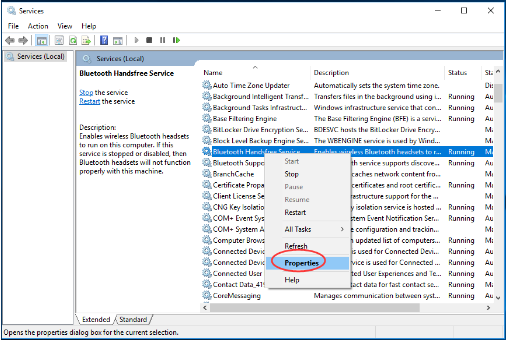
  • Now in the right pane of the Services window, browse and select Bluetooth-related services and then right-click on it. Now click Restart
  • Right-click Bluetooth service once again and now click PropertiesBluetooth services
  • In the Service Properties dialog box, use the Startup type drop-down menu to select Automatic. Now click the OK button
  • Bluetooth startup Automatic
  • Restart Windows 10 and now connect the device via Bluetooth and see if the issue is resolved

Solution 2 – Reinstall the Bluetooth driver

An outdated or corrupt Bluetooth driver can cause all sorts of issues including the titled error.

So what’s the solution? The best way to resolve Bluetooth driver-related errors is to install the latest driver.

You can do this in two ways — using inbuilt Driver Manager utility or a reliable driver update software.

The advantages of using the second method are several. For one, you don’t need any technical knowledge. Two, you can update drivers in a matter of just couple of minutes. Three — and perhaps most importantly — you are not going to download a wrong driver by mistake, which can cause much harm.

Here I’ve described both the methods. You choose the one that you are most comfortable with.

Updating Bluetooth Drivers Manually

Here are the steps to follow:

  • Press Windows key + R
  • Now in the Run box, type devmgmt.msc and then click the OK button
  • In the Device Manager window, expand Bluetooth, right-click the Bluetooth device, and then select Update driver
  • In the next window, select Search automatically for updated driver software
  • Now Windows will search the internet for a suitable driver and install it. Simply follow the on-screen instructions, to update the driver.

However, in case Windows is unable to find a relevant driver, you’ll have to manually download the driver from the manufacturer’s website. Before you download it, make sure the selected driver corresponds to your PC type. That is to say, if you use Windows 10 32-bit, the driver should be for a 32-bit PC. Windows 10 64-bit users need to download a driver meant for 64-bit. Save the driver file on your desktop or some other location and follow these steps.

  • In the Device Manager window, right-click your Bluetooth Device and select Uninstall device
  • You will see a confirmation box on your screen. Simply check the box before Delete the software for this device. And then click the Uninstall button
  • Restart Windows once the driver is uninstalled
  • Now double-click the driver setup file you downloaded and follow onscreen instructions to install the latest driver for your Bluetooth device

Update Bluetooth Driver With Driver Update Software

Automatic driver update tools offer many benefits, the most important ones being:

  • You can update device drivers automatically
  • The software scans and updates all outdated or missing drivers at one go
  • The tool picks the right drivers for your device and operating system, so you won’t have to worry about installing an incorrect driver by mistake
  • Automatic driver updates are 100% safe

Driver Updater is one of the best driver update tools out there. Outbyte Driver Updater will give you access to a database of over 1 million drivers. It will regularly scan your PC, suggesting new driver versions to install. Driver Updater contains drivers for a variety of Windows devices. With just one click, you can update drivers in your system.

Step 1
Click here to Install and launch the app

Step 2
Scan all devices

Step 3
Install or update drivers automatically
 

Start Download


Filed Under: PC Fix Tips Tagged With: Bluetooth issue


  • Recent Posts
  • Popular Posts
        

Read More Posts


Read More Posts

Drivers.com Sites

  • Software Drivers
  • Drivers Ed

About Us

  • Advertise
  • About Drivers
  • Drivers Support
  • Drivers.com Privacy Policy
  • Disclaimer
  • Software Drivers
  • Mac Fixes and Tips
  • PC Fix Tips
  • Security/ Backup
  • Tablets & Smartphones
  • Tech News

© Copyright 2026 PDE Publications Ltd. End User License Agreement (EULA)