Drivers.com

follow us:

facebook twitter
  • Home
  • Download Drivers
  • Drivers Help
  • PC/Mac Resources
  • Software Drivers
  • Mac Fixes and Tips
  • PC Fix Tips
  • Security/ Backup
  • Tablets & Smartphones
  • Tech News
  • Software Drivers
  • Mac Fixes and Tips
  • PC Fix Tips
  • Security/ Backup
  • Tablets & Smartphones
  • Tech News

Microsoft Compatibility Telemetry Issue (Solved)

By Susan C on July 9, 2020

Microsoft Compatibility Telemetry Issue (Solved)

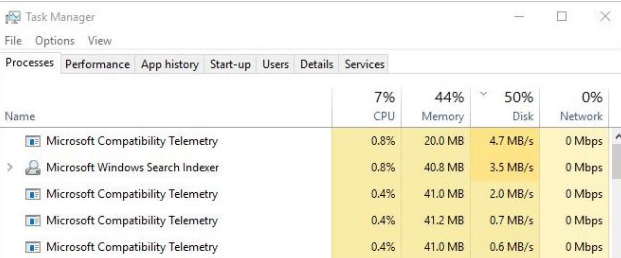
Are you having issues with Microsoft Compatibility Telemetry hogging resources in your Task Manager?

Microsoft Compatibility Telemetry process sometimes can consume much of your disk space or CPU resources. However, this issue is relatively easy to solve.

Before we look at the solutions let’s look at what Microsoft Compatibility Telemetry actually is.

What is Microsoft Compatibility Telemetry?

This is an automatic service in Windows 10. Its purpose is to collect data from your computer and send it to the Windows development team.

So why does the Windows development team wants this data?

Collecting data from Windows users helps the development team boost the operating system’s performance by finding solutions to known bugs.

Now you may be wondering: “But what if Microsoft uses this data on users like me?”

This is a valid question, but Microsoft has categorically guaranteed that all data collected by this service is used for only one purpose — and that’s development.

Nevertheless, if you are still not convinced and are not comfortable having the Microsoft Compatibility Telemetry service collect your data, you can easily remove it. We recommend you first thoroughly read the tutorial and follow the steps as they are listed.

What sort of data does this tool collect?

According to Microsoft, the Microsoft Compatibility Telemetry service collects the following types of data for development purposes:

  • It collects and sends text you type from the keyboard every 30 mins
  • It collects and sends whatever you say to the Microsoft Windows Live Assistant — Cortana. Additionally, it sends full transcription of the conversation you have with this software to Microsoft Windows developer team
  • It sends Microsoft a list of all multimedia files
  • It collects information regarding hardware that you’re using
  • It collects details regarding device drivers
  • When you use the Webcam for the first time, the Microsoft Compatibility Telemetry service collects the first 35MB of data

Because the tool sends the data across to the development team at Microsoft, it stores the collected data on your hard drive.

This is the main reason why a number of Windows 10 users are worried about the high disk usage caused by Microsoft Compatibility Telemetry.

What sort of data Microsoft Compatibility Telemetry doesn’t collect?

Microsoft Compatibility Telemetry doesn’t collect the following types of data:

  • Search history from Bing
  • Your geographical data
  • Your windows 10 wallpaper

Why is this tool included in Windows 10?

Microsoft cites the following reasons for introducing Microsoft Compatibility Telemetry in Windows 10:

  • The collected data helps Microsoft to improve the security of your system
  • It beefs up system security and also boost its performance
  • Allows Microsoft to upgrade their operating system according to the user’s preferences

While this tool is helpful, users can choose to turn it off and refuse to share any data with Microsoft.

As the tool collects various sorts of data, it can at times eat up a significant amount of hard disk space. You may want to get rid of it to free up important disk space.

Also, some users are concerned about Microsoft monitoring their activity. And that’s the main reason why they want to get rid of this data-collecting tool.

Whatever your reasons are, you can remove Microsoft Compatibility Telemetry easily. To get started, just follow any of the solutions shared in this post.

Solution 1 – Disable the tool using CMD

You can get rid of Microsoft Telemetry Compatibility high disk usage issue by following these steps:

  • Press the Windows + R keys simultaneously
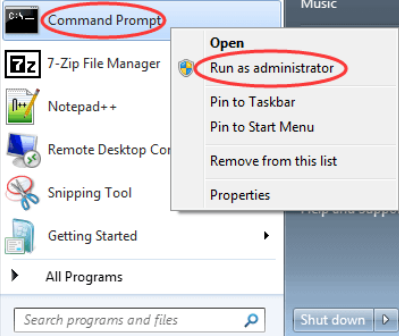
  • In the run dialog box, type cmd but don’t press Enter as we want to run command prompt as administrator. So press Ctrl + Shift + Enter at the same time
  • Now type the following command in command prompt and press the Enter key after every command
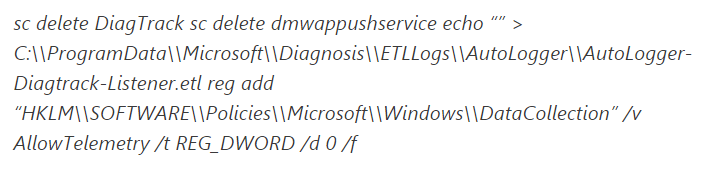
Solution 2 – Disable Microsoft Compatibility Telemetry by Removing CompatTellRunner.exe with owner rights

Here are the steps to follow:

  1. Log into your Windows computer with a user account that has administrative privileges
  2. Next press Windows + R keys simultaneously to launch the run dialog box
  3. Type C:Windows\System32 and then press the Enter key
  4. In the window that opens on your screen, locate the file named CompatTelRunner
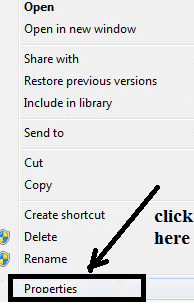
  5. Right CompatTelRunner and click properties
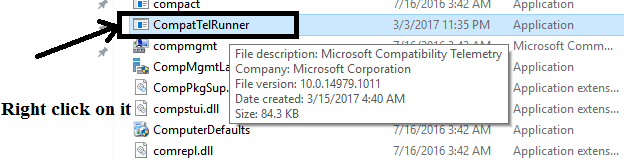
  1. Click the Security tab in the Properties dialog box, and then click Advanced settings
  2. In the new window that opens on your screen, click the Owner tab (third from left) and then click the Edit button
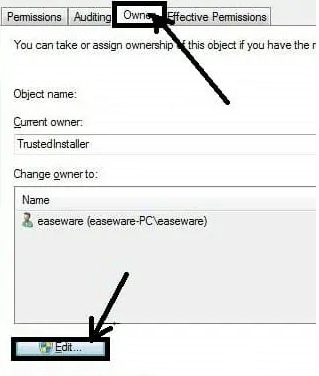
  1. Next, in the Edit window, click Administrators and then click Apply. Finally, click the OK button
  2. You might be prompted to close all properties window. If so, click the OK button
  3. You will have to change permission for this file before you can delete it. To do so, right click Capattelrunner.exe in the System32 folder (step 4)
  4. Click Properties and then click the Advanced tab. Choose Permissions tab and select your administrator account
  5. Click the Allow column next to Full control. Doing this will give you full control over this specific file. That’s exactly what you need to remove this file permanently.
  6. Go to the System32 folder, right click CompatTelRunner.exe to disable compatibility telemetry  
  7. Right click the recycle bin icon on your desktop and click Empty the Recycle Bin.

Now that you have deleted CompatTelRunner.exe successfully, the issue that you were having with Microsoft Compatibility Telemetry should be fixed.

You can try the next solution in case you can’t use this method for some reason.

Solution 3 – Disable Compattelrunner.exe from Task Scheduler

This method allows you disable compattelrunner.exe, the executable file that runs Windows Compatibility Telemetry. Once that is disabled, you will no longer encounter high disk or high CPU usage issues.

Here are the steps to follow:

  • Press Windows + R keys simultaneously
  • In the Run dialog box, type taskchd.msc and then press Enter
  • In the Task Scheduler window, click Task Scheduler Library to expand its view. Now click the folder called Microsoft to expand it
  • Next, locate and click Application Experience folder
  • In the new window that opens right-click the task called Microsoft Compatibility Appraiser and then click Disable
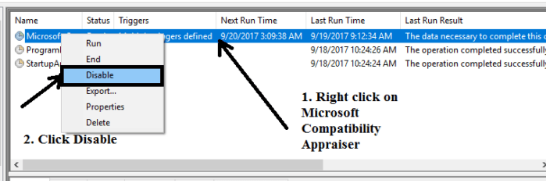
  • Now compatibility telemetry will be disabled

Restart Windows and check if the issue is fixed.

Solution 4 –Using group policy editor

Here are the steps to follow:

  • Press Windows + R keys simultaneously
  • In the run dialog box, type gpedit.msc and then click OK
  • Click Computer Configuration | Administrative Templates | Windows Components | Data Collection and Preview Builds
  • Double click Allow Telemetry
  • Click Disabled. Next, click the Apply button and then click OK

Now the service will be disabled.

However, in case you don’t want to disable Windows Compatibility Telemetry but want to get rid of its high disk usage issue, we recommend you update your device drivers.

Outdated drives can cause all sorts of issue, including Windows Compatibility Telemetry high disk usage. While you can update drivers manually, the process is not only time consuming but also tedious.

For this reason, we recommend you use an advanced driver tool to update all your required drivers.

Step 1
Click here to Install and launch the app

Step 2
Scan all devices

Step 3
Install or update drivers automatically

Start Download

Final Words

Microsoft Compatibility Telemetry is a genuine program. It is also a self-working one. However, it collects your data and transmits it to Microsoft.

Since it is not an essential service, you can safely remove it if you are worried about your privacy. This way the tool won’t collect your data and pass it on to Microsoft, and you will also free up a lot of disk space.

Filed Under: PC Fix Tips Tagged With: Microsoft Compatibility Telemetry

PFN LIST CORRUPT Error (3 DIY Solutions)

By Susan C on July 2, 2020

PFN LIST CORRUPT Error (3 DIY Solutions)

Looking for a solution to the PFN_LIST_CORRUPT error?

In this post we will be discussing various ways to get rid of this common Blue Screen of Death (or BSOD for short) error.

However, first let’s take a look at why this error occurs in the first place.

What causes PFN_LIST_CORRUPT?

PFN stands for page frame number. This database host lists that represent physical memory pages of a Windows system. When the system needs to determine where a file is located, it refers the PFN database. When this database becomes corrupted, the Windows system might not be able to locate files itself. This in turn causes the PFN_LIST_CORRUPT BSOD to appear on your screen

This brings us to an all-important question: What can you do about this error?

Here are three DIY solutions to the this error. You don’t have to try all the three solutions; start with the first one and work your way down, until you get rid of the PFN_LIST_CORRUPT error.

Solution 1 – Update your drivers

Did you know that one of the most common causes of this error is outdated, corrupt, or faulty drivers?

Therefore, before you do anything, we recommend performing a driver update.

You can update your device drivers manually or automatically. Most people prefer the automatic method because it’s convenient, fast, and more accurate. All the same, we’ve shown the steps for both, so you can decide which one works better for you.

Updating Drivers Manually

To update drivers manually, visit the manufacturer’s site for your devices, and then search and download the latest available driver. Take care to download drivers that are compatible with the version of Windows you’re using. For instance, if you have a Win 10 (32-bit), download drivers that are meant for 32-bit Windows 10 computers.

Updating Drivers Automatically

Automatic driver update tools offer many benefits, the most important ones being:

  • You can update device drivers automatically
  • The software scans and updates all outdated or missing drivers at one go
  • The tool picks the right drivers for your device and operating system, so you won’t have to worry about installing an incorrect driver by mistake
  • Automatic driver updates are 100% safe

Driver Updater is one of the best driver update tools out there. Outbyte Driver Updater will give you access to a database of over 1 million drivers. It will regularly scan your PC, suggesting new driver versions to install. Driver Updater contains drivers for a variety of Windows devices. With just one click, you can update drivers in your system.

Step 1
Click here to Install and launch the app

Step 2
Scan all devices

Step 3
Install or update drivers automatically


Start Download


Solution 2 – Check your RAM

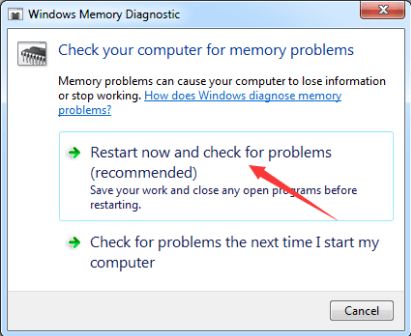
Windows come with an inbuilt Memory Diagnostic tool for checking faulty Random Access Memory (aka RAM).

Here’s what you need to do:

  • Press Win + R keys simultaneously
  • In the run dialog box, type mdsched.exe and then click OK
  • Select the first option – Restart now and check for problems
  • Windows Memory Diagnostic tool will now scan the RAM. This may take some time. Once the tool has finished scanning, it will show the results
  • Restart Windows and check if the error is fixed

Solution 3 – Check your hard drive

A corrupted hard drive can also throw this error. So if the first two solutions didn’t produce the desired result, we recommend you check the drive for corruption.

Here are the steps to follow:

  • Click the Start menu, find command prompt, right-click it, and select Run as administrator
  • If a User Account Control window pops-up on your screen, click the Yes button
  • Type the following command and then press the Enter key
  • The check disk tool will now scan your hard drive for errors. If it finds any errors, the tool will automatically fix them. This may take some time.
  • Now restart windows and check if the PFN_LIST_CORRUPT error is fixed

Filed Under: PC Fix Tips Tagged With: PFN LIST error

Exodus TV Shows Not Working (Fixed)

By Susan C on June 23, 2020

Exodus TV Shows Not Working (Fixed)

Are you having problems with Exodus not working?

If so then this post should help you fix this issue.

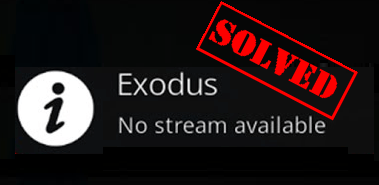
Whether you’re receiving an error such as “Exodus Error Message” or “No Stream Available,” the solutions discussed in this post will allow you to watch your favorite series on Kodi in no time at all.

Getting error like those mentioned above can be frustrating, , particularly if Exodus was working absolutely fine the last time and you haven’t made any changes since then.

However, it doesn’t take a lot to solve the issue—and we’ll show you what all you need to do.

In this post, we will be discussing several solutions to “Exodus TV Shows Not Working” problem. You don’t have to try all the listed solutions. Start with the first one and then move on to the second one and so forth, till Exodus TV is up and running again.

Solution 1 – Update Exodus

The first port of call is to update Exodus. You need to perform the following two steps to do that.

  • Uninstall Exodus
  • Re-install the newest version of Exodus

Uninstalling Exodus

Here are the steps to follow.

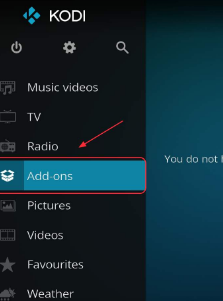
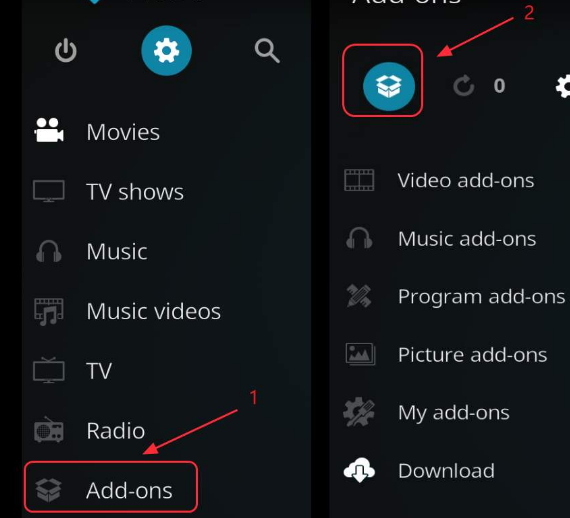
  • Open Kodi and then click Add-ons
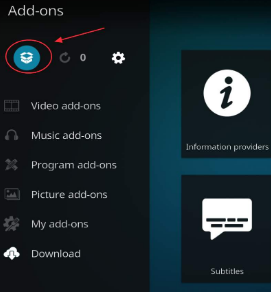
  • Next, you need to click the package icon
  • Now click My add-ons and then select Video Add-ons
  • Click Exodus
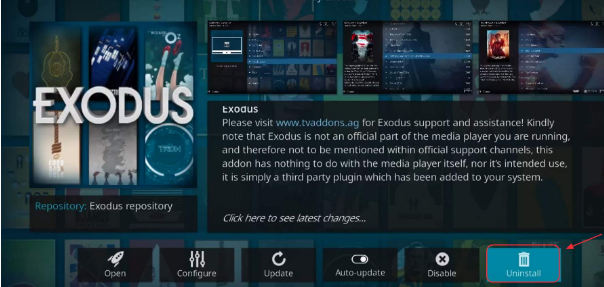
  • Go to the bottom right and click Uninstall. Next, click the Yes button

Wait for Exodus to get uninstalled. After the uninstall process is complete, reinstall the newest version of Exodus.

Install Latest Exodus

Here are the steps to follow.

  • The first thing you need to do is download the Kodi Bae Repository Zip file. Click here to get the .zip file. Alternately you get it by opening GitHub page and then clicking the repository.kodibase-X.X.X.zip to download the file.
  • Now open Kodi. Next click Add-ons. Click the Package icon present at upper left-hand corner
  • Click Install from zip file option
  • Now choose the .zip file you recently downloaded. To do so, browse to the location where you had stored the file.
  • Next, you’ll see Kodi Bae Repository Add-on installed notification
  • Now click Install from repository
  • Select Kodi Bae Repository
  • Select Video add-ons
  • Click Exodus
  • Now click the install button

Wait till the download process is complete. Once it’s complete, you shall see Exodus Add-on installed notification.

Solution 2 – Clear the Cached Data

Often the problem occurs due to the cached data. The chances of this happening are particularly high in case the error appearing on your screen is “No stream available.”

You can resolve this issue by clearing the cached data and the list of providers within Exodus. Here are the steps to follow.

  • Click Add-ons | My add-ons | Video add-ons | Exodus
  • Click Tools
  • Now click Providers and then click Yes
  • Click the Clear Cache option and then click Yes
  • Restart and check if the issue is fixed. If video streaming is back, you’re all set.

Solution 3 – Try a VPN

If Exodus is not working on your Kodi, especially if the error you’re getting is the “No stream available” error, it is possible that your internet provider has blocked Kodi videos.

A virtual private network offers a workaround. A VPN can pull wool over your ISP’s eyes by masking the video. As a result, the ISP will not be able to recognize the Kodi video, and hence will not prevent it from streaming.

Before you pay for a VPN service, we suggest you try a free plan to see if this works.

Solution 4 – Adjust Kodi’s Video Cache Settings

Whenever you load a TV program or a movie in Kodi, it saves a file. In case these files are bulky, you might face issues when you try to play videos. Chances are you may see a lot of buffering happening.

To confirm if this is indeed the problem and to resolve it, you must perform these steps:

  • Get Ares Wizard add-on
  • Tweak the cache settings
  • Get rid of cache files and temp files

Installing Ares Wizard add-on

Here are the steps to follow:

  • Open Kodi. Click Settings and then click File Manager
  • Double-click the Add Source option in the left pane
  • Double-click the None option. Next, type this URL and click the OK button
  • In the box below “Enter a name for this media source,” type ares repo, and then click the OK button
  • Come back to Kodi home page. Click Add-ons in the Menu section in the left pane and then click the Package icon
  • Select the Install from zip file option
  • Click ares repo. Next click the zip file for installing it
  • Select the Install from repository option
  • Navigate to Ares Project | Program Add-ons | Ares Wizard. Next click the Install button at the bottom right-hand corner

With the add-on installed, it’s time to tweak Kodi’s video cache settings. Following which, you need to remove the temp files.

Adjusting Kodi’s Video Cache Settings

  • In the Kodi homepage, click Add-ons. Next, click Program add-ons
  • Click Ares Wizard. Next, click Tweaks
  • Click Advanced Settings Wizard. Click Next
  • Tweak the Buffer Mode to a setting that suits your device (Compared to modes 3 and modes 4, mode 1 and mode 2 utilize more RAM)
    • Mode 1 – All internet streams, and this includes FTP streams, are buffered by Kodi
    • Mode 2 (recommended) – Everything, and this includes local files, are buffered by Kodi
    • Mode 3 – Only stream from internet is buffered by Kodi
    • Mode 4 – In this mode, buffering is disabled

Now, the next step involves deleting Kodi’s temp files.

Deleting Kodi’s Temp Files

In case there’s not enough space for Kodi on the device, you might encounter buffering issues. Therefore, try deleting Kodi’s temp files.

Here are the steps to follow:

  • Go to Kodi’s homepage and click Add-ons. Next, click Program add-ons
  • Click Ares Wizard. Next, click Tweaks
  • Click Maintenance
  • Click Delete Thumbnails, then click Delete Packages, and finally click Delete Cache\Temp

Check whether Kodi is now working fine or not.

Solution 5 – Update the Graphics Card

Sometimes, the Exodus not working properly on Kodi issue occurs because of outdated, corrupt, and incorrect graphics card drivers.

Therefore, you should try updating your graphics card drivers.

You can update your graphics drivers in two ways – via device manager (manually) or using a reliable driver update software. We recommend the latter, because it’s easy, fast, and more accurate. Nevertheless, we’ve given the steps for both the methods so that you can decide which one suits you better.

Update Graphics Card Driver Manually

Here are the steps to follow:

  • Press Windows logo + R
  • In the run dialog box, type devmgmt.msc
  • In the Device Manager window, expand Display adapters. All the installed graphic cards will appear here
  • Write down the name of your graphics card. Next, navigate to the car manufacturer’s website or your computer manufacturer’s website. Search for the newest driver for your graphics card or computer model. Alternatively, type the important details regarding your graphics card (such as its model number and the name) in Google search bar and press Enter. You will list of sites that have that driver. Select any reputable website. Whichever method you are using, once you’ve located the latest driver, download it and save it on your desktop or any other place. Before you download the latest driver, ensure it corresponds to your computer type. This basically means, Windows 10 32-bit users should use the driver file meant for 32-bit computers. Likewise, if you’re using Windows 64-bit computer, download the driver file meant for 64-bit computers.
  • Once you’ve downloaded and saved the latest driver file, go to Device Manager, right-click the graphics card and click Uninstall device
  • Select the box before Delete the driver software for this device. Now click Uninstall
  • Restart windows after the uninstalling process is complete
  • Now run the graphic card driver’s setup file. Follow on-screen instructions to complete installation.

Update Graphics Card Driver Automatically

Updating Drivers Automatically

Automatic driver update tools offer many benefits, the most important ones being:

  • You can update device drivers automatically
  • The software scans and updates all outdated or missing drivers at one go
  • The tool picks the right drivers for your device and operating system, so you won’t have to worry about installing an incorrect driver by mistake
  • Automatic driver updates are 100% safe

Driver Updater is one of the best driver update tools out there. Outbyte Driver Updater will give you access to a database of over 1 million drivers. It will regularly scan your PC, suggesting new driver versions to install. Driver Updater contains drivers for a variety of Windows devices. With just one click, you can update drivers in your system.

Step 1
Click here to Install and launch the app

Step 2
Scan all devices

Step 3
Install or update drivers automatically


Start Download


Solution 6 – Change the Stream Time

Here are the steps to follow.

  • Click Add-ons | My Add-ons | Video add-ons | Exodus
  • Next click Tools and then click General
  • Set Provider’s Timeout to 20-35 seconds. Click the OK button

Now, see if you the issue is fixed.

Solution 7 – Change the Time and Date Settings of Your Device

In case you’re watching only old TV shows and movies in Exodus on Kodi, it is possible that the time and date settings of your device may be incorrect. For instance, the date and time on your TV might be wrong. Therefore go to the device’s settings, locate the time and date settings, and set the correctly (that is, to present time and date).

Now, open Kodi and see if things are back to normal.

Solution 8 – Install Exodus from Another Repository

Exodus is no longer been supported by its original developer. It’s quite possible that your problem could be because of some bug. Therefore, try a different version, one which is being updated on a regular basis. Since a few other developers have created different versions and some update their versions regularly, you should not face much difficulty in finding such a version.

Filed Under: PC Fix Tips Tagged With: Exodus not working

  • « Previous Page
  • 1
  • …
  • 90
  • 91
  • 92
  • 93
  • 94
  • …
  • 189
  • Next Page »


  • Recent Posts
  • Popular Posts
        

Read More Posts


Read More Posts

Drivers.com Sites

  • Software Drivers
  • Drivers Ed

About Us

  • Advertise
  • About Drivers
  • Drivers Support
  • Drivers.com Privacy Policy
  • Disclaimer
  • Software Drivers
  • Mac Fixes and Tips
  • PC Fix Tips
  • Security/ Backup
  • Tablets & Smartphones
  • Tech News

© Copyright 2026 PDE Publications Ltd. End User License Agreement (EULA)