Drivers.com

follow us:

facebook twitter
  • Home
  • Download Drivers
  • Drivers Help
  • PC/Mac Resources
  • Software Drivers
  • Mac Fixes and Tips
  • PC Fix Tips
  • Security/ Backup
  • Tablets & Smartphones
  • Tech News
  • Software Drivers
  • Mac Fixes and Tips
  • PC Fix Tips
  • Security/ Backup
  • Tablets & Smartphones
  • Tech News

Update Video Drivers In Windows 10 (3 Methods Explained)

By Susan C on July 25, 2020

If you have reinstalled Windows 10 or recently upgraded to Windows 10, you may have to update your video drivers. Updating the video drivers may also help you boost your PC’s performance. This can also help fix issues related to the video driver.

You can update video drivers in three ways. Pick the one that works best for you.

Method 1 – Update Video Drivers Via Driver Manager

Driver Manager is a built-in utility in Windows that help you update drivers among other things.

Here are the steps to follow to update video drivers using Driver Manager:

  • Press Windows + R keys simultaneously
  • Type devmgmt.msc in the Run dialog box to open the Device Manager window
  • Expand the display driver and right-click the graphics card you are using. Click the Update driver option
  • The next window will show you two options. Select the first option (Search automatically for updated driver software)
  • Follow onscreen prompts and restart Windows

Method 2 – Download the new driver from the manufacturer’s website

Go to your video graphic card manufacturer’s website and locate the latest driver for your graphic card.

If you’re unsure which graphic card you’re using, perform these steps:

  • Click the Start Search button and type run and press Enter
  • In the run dialog box, type dxdiag and then press Enter
  • Click the Display tab in the DirectX Diagnostic Tool
  • Check for the information regarding your graphics card

When selecting the latest driver for your graphic card, make sure the driver is meant for your operating system. For instance, if you use Windows 10 32-bit, the driver must be for 32-bit computers. Similarly those using 64-bit version of Windows 10 should download drivers that work with 64-bit PCs.

Once you have found the right driver, download it and save the driver file to a suitable location, such as your desktop. Double-click the driver installer file (one with .exe extension) to install the driver. Follow onscreen instructions to complete the installation process. You may have to restart Windows.  You may also be able to download the latest graphic card driver from your pc manufacturer’s website.

Method 3 – Download the driver automatically

If you are looking for a more straightforward and faster option, then you can update your drivers using a Driver Update Tool.

Driver Updater is one of the best driver update tools out there. Outbyte Driver Updater will give you access to a database of over 1 million drivers. It will regularly scan your PC, suggesting new driver versions to install. Driver Updater contains drivers for a variety of Windows devices. With just one click, you can update drivers in your system.

Step 1
Click here to Install and launch the app

Step 2
Scan all devices

Step 3
Install or update drivers automatically

Filed Under: PC Fix Tips Tagged With: update video drivers

CE-34878-0 Error in PS4 (7 Solutions)

By Susan C on July 20, 2020

CE-34878-0 Error in PS4 (7 Solutions)

Many PS4 users have complained of getting the CE-34878-0 error in PS4 in the middle of a game. Are you also getting the error shown below:

If yes, this post is just for you. In this post, we’ll look at not one but 7 ways to solve this error once and for all.

  1. Update the game software
  2. Restart the PS4 firmware
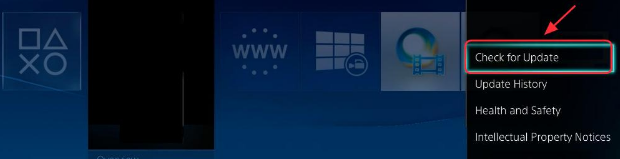
  3. Update the PS4 system software
  4. Initialize your PS4
  5. Put the original HDD
  6. Disconnect PS4 camera
  7. Call the Sony Support

Why are you getting the error code CE-34878-0?

This error is amongst the most common ones appearing in PS4. Sometimes this error is displayed as CE-36329-3.

The error appears when the applications or games crash. Typically, system software problems or corrupted PS4 data causes this error.

Try the solutions in the order they appear below to get rid of CE-34878-0 error.

Solution 1 – Update the game software

Unknown bugs in the game you are playing can cause this error. For this reason, we recommend you update the game by installing the newest patches available.

You can update the game software in the following three ways:

  • Method 1 – Check for Updates using the PS4 settings
  • Method 2 – Reinstall the game
  • Method 3 – Reinsert the disc

Method 1 – Check for Updates

Use the following steps to check for updates for a game.

  • Highlight the application/game that you want to update on PS4 home-screen
  • Next click the Options button and then click Check for updates
  • Now just follow the wizard and download available updates. Next install those updates
  • Restart PS4

Method 2 – Reinstall the game in PS4

If the first step didn’t work, uninstall and then reinstall the game. Here are the steps to follow:

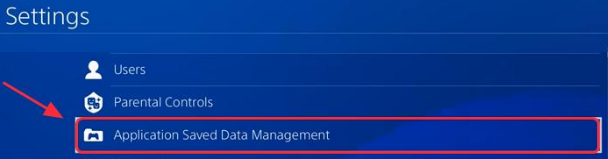
  • Go to PS4 Settings
  • Then click Application Saved Data Management
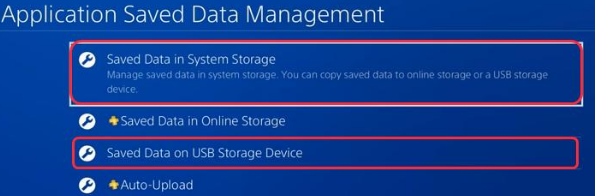
  • Choose Saved Data in System Storage in case you want to save the game in the PS4 system. Else, click Saved Data on USB Storage Device if you are using a USB drive
  • Now follow the onscreen instructions
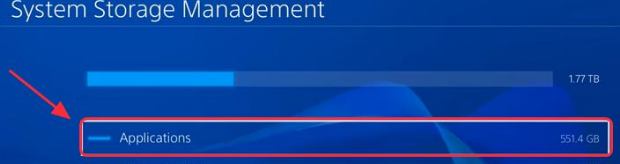
  • Browse to PS4 Settings. Click System Storage Management and then click Applications
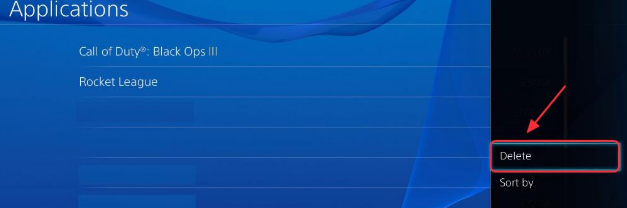
  • Locate the game with which you are getting the problem. Highlight this game
  • Click the Options button
  • Choose Delete
  • Restart PS4
  • Reinstall the game. Check if the issue is sorted

Method 3 – Re-insert the disc

In case you are playing PS4 games on the disc, you should use this option.

  • Uninstall the game that you want to update from your hard drive
  • Power cycle the PS4 to turn it off completely
  • Now re-insert the disc
  • Reinstall your game and its updates
  • Launch your game now and check if things are working correctly now

Solution 2 – Restart the PS4 Firmware

Faulty hardware can cause this problem. Therefore, try restarting PS4 controller and the PS4 console to see if it reconnects and work.

  • Completely power off the PS4 console
  • Next, completely power off the PS4 controller
  • Reboot the PS4 console
  • Reboot the PS4 controller
  • Now open the game and check if the error is fixed

Solution 3 – Update the PS4 System Software

System crashes concerning PlayStation can lead to this error. That’s why updating system software can help.

Here are the steps to follow:

  • Connect the PS4 to Internet
  • In PS4 Settings, click System Software Update
  • In case new updates are available, select them (If you have the newest version of PS4 installed, this message will not appear on your screen and you can move on to the next solution)
  • Download the updates. Wait for them to get downloaded
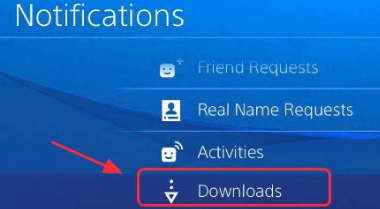
  • Go to Notifications on the PS4 home-screen. Click Downloads
  • Follow the onscreen instructions (if any) to install updates
  • Now check if the game is working fine

Solution 4 – Initialize Your PS4

Many users have said that this method worked for them. Therefore, it’s definitely worth a try. Initialization removes data that’s saved on system storage. Additionally, it also removes all users, as well as their data.

Note: When you do initialization, all information and settings saved in the PS4 system gets irrevocably removed. That is, you can’t retrieve the removed information. For this reason, make sure you don’t remove any important data. Also, before you begin initialization, backup the data either to a USB driver or PS plus. Furthermore, don’t power off the PS4 system while it is being initialized. Doing that may damage the system.

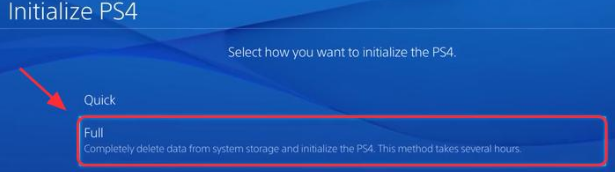
  • Go to PS4 Settings and then select Initialization. Next, select Initialize PS4
  • Click Full
  • Now follow onscreen instructions
  • After initialization is finished, restore the backup data. Reinstall games and applications
  • Now check if the game is working now

Solution 5 – Put the original HDD

In case you have recently upgraded the HDD (hard disc drive), that might have an impact on the performance of the game. Therefore, it is recommended that you try installing the original HDD back in the PS4. However, before reinstalling the original HDD, back up your data saved in PS4.

Note:  You require either an exFAT-formatted or a FAT32 USB drive. Also ensure there’s plenty of space in your USB drive. In case space is limited, you may opt to not make a backup of the Application Data.

  • Insert your USB storage device
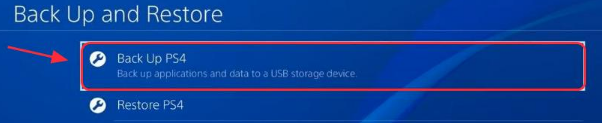
  • Go to PS4 settings. Click System. Then select Back Up and Restore
  • Now confirm the data that you want to back up. In case you don’t back up applications, you will have to reinstall or download them in case you restore with the current back up.
  • Select a name for the backup. Highlight Back Up and then click X button
  • The process will take a few minutes, so be patient
  • After backup is created, install the original HDD
  • Let the installation process complete. Check if the issue is fixed

Solution 6 – Disconnect PS4 Camera

If you have connected the PS4 camera to PS4, try disconnecting it.

Here are the steps to follow:

  • In PS4 Settings, click Devices and then click Turn off Device
  • Pick the camera you want to turn off. Now power cycle PS4
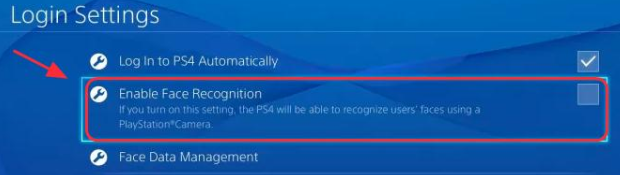
  • In PS4 Settings, select User and then select Login Settings
  • Unselect Enable Face Recognition
  • Run the game again and check if the error is fixed

Solution 7 – Call Sony Support

In case the problem persists, you should consider contacting Sony for support. You may have to send the PS4 for repair. In case your PS4 is in warranty period, you may get a new replacement.

Do you want to play your PS4 on a Mac or PC?

Filed Under: PC Fix Tips

Realtek PCIe GBE Family Controller Driver Issue in Windows 7 (Solved)

By Susan C on July 15, 2020

Realtek PCIe GBE Family Controller Driver Issue in Windows 7 (Solved)

Are you having problems accessing the internet due to a problem with Realtek PCIe GBE Family Controller driver?

If yes, then this post should be able to help you resolve the issue.

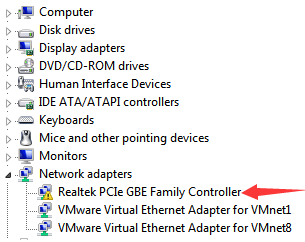
You may see a yellow exclamation mark next to the Realtek PCIe GBE Family Controller device in the Device Manager window if there’s some problem with its driver.

To solve the problem, you’ll need to update the device driver.

There are two ways to update device drivers. You can update the driver manually or automatically. The latter is much easier and convenient; nonetheless, we’ve listed both the methods here so that you can decide for yourself which one works better for you.

Solution 1 – Uninstall and Reinstall the driver

When there’s a yellow mark next to the device, it means the driver is either missing or incorrectly installed. Therefore, removing the driver and then letting Windows install it again will do the trick.

To uninstall the device driver, here are the steps you need to follow:

  • Press Win + R keys on the keyboard to launch the run dialog box
  • Next type devmgmt.msc and press the Enter key
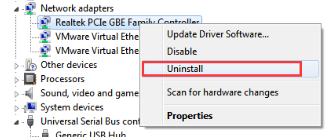
  • In the Device Manager window, browse through the list until you see Network Adapters. Next expand this entry, right-click Realtek PCIe GBE Family Controller and choose Uninstall
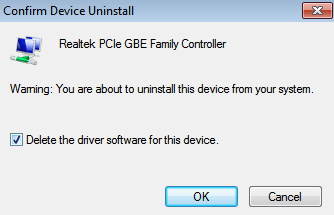
  • In the Confirm Device Uninstall box, tick the checkbox next to Delete the driver software for this device
  • Next click the OK button
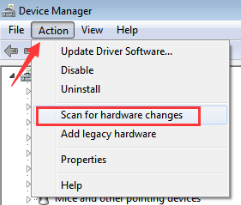
  • Now click the Action menu in top menu bar
  • Click the fourth option from the top, that is, Scan for hardware changes
  • Now Windows will look for a relevant driver for this device and install it

Solution 2 – Update the device driver automatically

In case the first step didn’t work, we recommend you update the driver using a Driver Update Tool to update the Realtek PCIe GBE Family Controller driver.

Automatic driver update tools offer many benefits, the most important ones being:

  • You can update device drivers automatically
  • The software scans and updates all outdated or missing drivers at one go
  • The tool picks the right drivers for your device and operating system, so you won’t have to worry about installing an incorrect driver by mistake
  • Automatic driver updates are 100% safe

Driver Updater is one of the best driver update tools out there. Outbyte Driver Updater will give you access to a database of over 1 million drivers. It will regularly scan your PC, suggesting new driver versions to install. Driver Updater contains drivers for a variety of Windows devices. With just one click, you can update drivers in your system.

Step 1
Click here to Install and launch the app

Step 2
Scan all devices

Step 3
Install or update drivers automatically
 

Start Download


Filed Under: PC Fix Tips Tagged With: Realtek PCIe driver

  • « Previous Page
  • 1
  • …
  • 89
  • 90
  • 91
  • 92
  • 93
  • …
  • 189
  • Next Page »


  • Recent Posts
  • Popular Posts
        

Read More Posts


Read More Posts

Drivers.com Sites

  • Software Drivers
  • Drivers Ed

About Us

  • Advertise
  • About Drivers
  • Drivers Support
  • Drivers.com Privacy Policy
  • Disclaimer
  • Software Drivers
  • Mac Fixes and Tips
  • PC Fix Tips
  • Security/ Backup
  • Tablets & Smartphones
  • Tech News

© Copyright 2026 PDE Publications Ltd. End User License Agreement (EULA)