Drivers.com

follow us:

facebook twitter
  • Home
  • Download Drivers
  • Drivers Help
  • PC/Mac Resources
  • Software Drivers
  • Mac Fixes and Tips
  • PC Fix Tips
  • Security/ Backup
  • Tablets & Smartphones
  • Tech News
  • Software Drivers
  • Mac Fixes and Tips
  • PC Fix Tips
  • Security/ Backup
  • Tablets & Smartphones
  • Tech News

iTunes Could Not Connect to iPhone iPad Because an Invalid Response (Fixed)

By Susan C on September 2, 2020

iTunes Could Not Connect to iPhone iPad Because an Invalid Response (Fixed)

Many people have reported experiencing iTunes sync issue after they have updated to new iOS 10 or a much newer version such as iOS12.

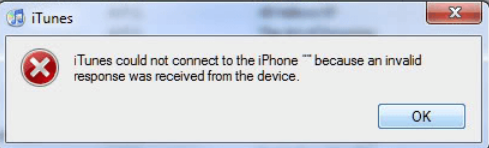
This is the error message that most people receive: iTunes could not connect to the iPhone because an invalid response was received from the device.

Regardless of with which device you are getting this error—iPad or iPhone—this post will show you multiple ways to fix the problem once and for all.

Solution 1 – Update the iPhone to the most recent iOS version

One of the most common causes is an old iOS version. For this reason, we recommend you update the iPhone to the most recent version.

Here are the steps to follow:

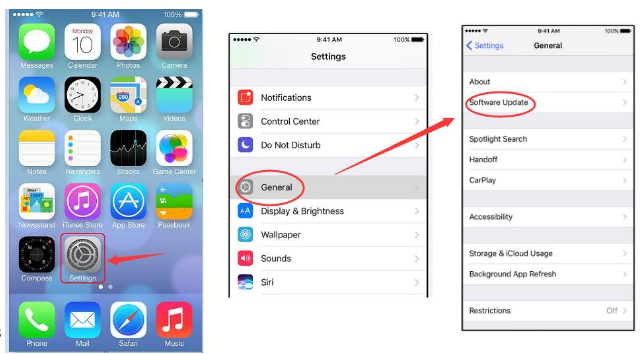
  • Open the iPhone. Tap on Settings, General, and then Software Update
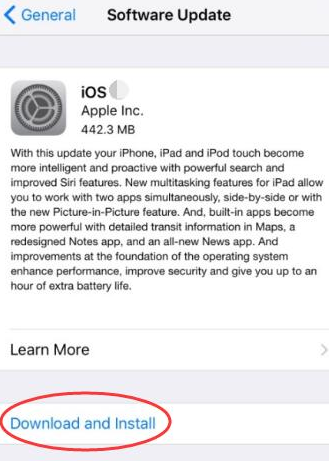
  • Tap Download and Install
  • Now enter the passcode in case you are asked to
  • Then tap Agree twice
  • The system will automatically download the newest iOS
  • Now connect iTunes to the iPhone

Solution 2 – Update the iTunes App

You may also get this error if the version of the iTunes that you are using is old. Therefore, if the previous solution didn’t fix the problem, it’s time to update the iTunes app.

Mind you, if you are already using the latest version of iTunes app, skip this step and move on to the next one.

Here are the steps to follow:

  • Run iTunes on your iPhone or iPad
  • Click the Help menu and then click Check for Updates
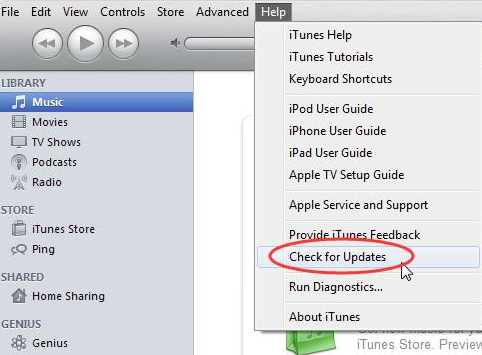
  • In case a newer iTunes version is available, you will able to download and install it. All you have to do is follow the onscreen prompts
  • Connect the iTunes to your device once again

Solution 3 – Uninstall and re-install iTunes

First completely uninstall iTunes. Here are the steps you need to follow:

  • Go to Applications folder and locate iTunes app
  • Right-click iTunes and choose Get Info
  • Find and click the padlock icon located at the bottom right side of the window. You will be prompted to enter your admin password, so do that
  • Click and expand Sharing & Permissions section. Here tweak the privileges for “everyone” to Read & Write. By doing this you can gain complete control of iTunes app and effectively uninstall it from your Apple device
  • Now close Get Info window. Next, drag iTunes app to Trash (As long as you don’t empty Trash, you can always pull back iTunes if you want)

Once you have completely uninstalled iTunes from your device, visit App Store to download it. You can also download it from Apple’s website. Once you have downloaded iTunes, just follow onscreen instructions to complete the installation process.

Solution 4 – Reset the iPhone Network Settings

In some cases, the cause of the problem was an incorrect network setting on the iPhone. For this reason, if the previous solutions failed to resolve the issue, we recommend you reset the network settings of your device.

Here are the steps to follow to reset the network settings on iPhone:

  • Open the iPhone and tap Settings
  • Tap General, Reset, and then Reset Network Settings

Solution 5 – Reboot the iPhone

If nothing else has worked, there’s no harm in trying the good old restart solution. Many a time a simple restart fixes software issues. So go ahead, reboot the iPhone and your computer and then try connecting the iTunes to the iPhone.

Filed Under: Mac Fixes and Tips Tagged With: iTunes cannot connect

Burn a CD or DVD in Windows 10 (Step-by-step Instructions)

By Susan C on August 28, 2020

Burning a CD or DVD in Windows 10 is easy. It’s something everyone can do, regardless of their level of technical knowledge. In this post we’ll show you step-by-step instructions about how to burn a CD or DVD in Windows 10.

Many computers come with a DVD or CD drive for creating recordable DVDs and CDs. Thanks to this drive, you can save data stored on your computer’s or laptop’s hard drive onto a removable media. A blank, recordable DVD or CD is a prerequisite for burning a DVD or CD in Windows 10. Next, insert into the appropriate drive on your computer.

When AutoPlay Is Enabled

  • In case you’ve enabled AutoPlay, you’ll see a notification box on your screen
  • This notification box basically tells you to decide the desired action you would want Windows to take every time you insert a blank, recordable DVD or CD
  • Once you click or tap this notification box, you’ll see another message, which lists all actions your device can take.

When AutoPlay Is Not Enabled

  • In case you’ve not enabled AutoPlay, you need to open a File Explorer window
  • Next, click This PC and then right click CD DVD drive. Now you will see a pop-up menu. Here select AutoPlay to view the different options available to you
  • Choose Burn files to disc using File Explorer option irrespective of the AutoPlay setting
  • In the Burn a disc window, type the name for your disc in the Disc title box
  • In the next screen select what type of recordable DVD or CD you want to create by picking the appropriate option
  • Pick the Like a USB flash drive option in case you want the disc to act like a removable drive
  • Pick the With a CD/DVD player option if you want to make a recordable, standard disc which plays on almost every CD player and computer
  • Once you’ve made the appropriate choice, click Next
  • In case you chose the option Like a USB flash drive, Windows will format your disc and then display it in a File Explorer window after it has formatted it. Now you will be able to use the disc the same way you use a folder saved on your hard drive. That is, you can copy the desired files or delete files as you want
  • In case you chose the option With a CD DVD player, you will see an empty File Explorer window. You will need to copy the desired folders and files to burn to a DVD or CD
  • Once you are through, click Share
  • Next, click Burn to disc and Windows 10 will now burn the chosen files to your removable disc

Filed Under: PC Fix Tips

VCRUNTIME140.dll Is Missing Error Fixed

By Susan C on August 23, 2020

VCRUNTIME140.dll Is Missing Error Fixed

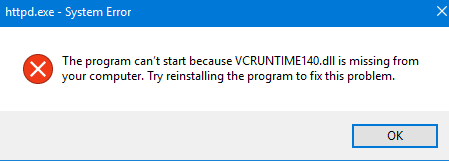
You may come across the VCRUNTIME140.dll error when you try to launch an application. The exact error message reads:

“The program can’t start because VCRUNTIME140.dll is missing from your computer. Try reinstalling the program to fix the problem.”

You can come across this error when you try launching Skype, HP 3D DriveGuard, or some other app.

In this post, we have described several methods for fixing this error. You don’t have to try all of them; start with the first one and work your way down until you are able to get rid of the issue. However, before we look at the solutions, let us look at the common causes for “VCRUNTIME140.dll is missing” error.

Why VCRUNTIME140.dll Error Occurs?

  • VCRUNTIME140.dll file is corrupted or missing – Typically, this error occurs when the said dll file is missing or corrupt. In either situation, the app you want to launch cannot start; hence the error. Restoring or re-installing the dll file in question will resolve the issue.
  • An issue with Adobe’s Creative Cloud – Adobe has taken care of an issue that cropped up in its Creative Cloud after Adobe migrated to Visual C++ from Microsoft runtimes.
  • Your computer is malware infected – Malware infection can cause all sorts of issues to appear, including the VCRUNTIME140.dll one.
  • Corrupt system files – In many situations system files can get corrupted. This in turn can cause the VCRUNTIME140.dll is missing error.
  • Outdated device drivers – If your drivers are not up to date, your system’s performance suffers and it becomes more vulnerable to errors such as this one.

Now that we have looked at the main plausible causes, let us check out various ways to solve this error.

Solution 1– Re-register VCRUNTIME140.dll

To re-register a missing file, use the command prompt. Here are the steps you need to follow.

  • Simultaneously press the Windows key + R key to launch the Run utility
  • In the Run box, type cmd and then press Ctrl+Shift+Enter. This will allow you to launch command prompt with administrative privileges
  • In case you are asked to confirm if you want command prompt to make changes to the device, click Yes
  • Before you re-register a dll file, you need to un-register it. Enter the following command to un-register VCRUNTIME140.dll
  • Now enter the following command to re-register VCRUNTIME140.dll file
  • Exit command prompt
  • Launch the problematic application again to check if the issue is fixed

Solution 2 – Run System File Checker

System files , like any other, can become damaged or corrupt over time. However, Windows offers an inbuilt utility—called System File Checker—to fix issues with system files.

To run SFC scan, here is what you need to do:

  • Simultaneously press the Windows key + R key to launch the Run utility
  • In the Run box, type cmd and then press Ctrl+Shift+Enter. This will allow you to launch command prompt with administrative privileges
  • In case you are asked to confirm if you want command prompt to make changes to the device, click Yes
  • Type the following command and press Enter
  • The System File Checker utility will scan the system for problematic files. This may take some time, so be patient. If the utility finds some errors, it will fix them automatically
  • Once the utility has run, close command prompt and reboot Windows
  • Now launch the problematic application to see if the error is fixed

Solution 3 – Reinstall Visual C++ Redistributable for Visual Studio 2015

Experts often advise reinstalling the Visual C++ Redistributable for Visual Studio 2015 in case of problems related to .dll files. You can do this by downloading the relevant files from Microsoft.

  • Go to Microsoft Download Center and download Microsoft Visual C++ 2015 Redistributable. To start the download process, simply click the Download button
  • In case you use a 32-bit system, choose vc_redist.x86.exe. In case you use a 64-bit system, choose vc_redist.x64.exe
  • Click the Next button after you have selected the relevant file, and save the downloaded file in an appropriate location
  • After the download is complete, open the file. In the installation wizard, click the box next to I agree to the license terms and conditions
  • Click the Install button
  • Wait till the installation process is complete. Once it is, restart Windows and then try launching the application with which you got the error

Solution 4 – Download the missing VCRUNTIME140.dll file manually

If this error appears only with specific applications, we recommend you to manually download the missing .dll file and place it in the app directory. While this is a fairly simple procedure, it is going to fix the .dll error for that specific application only.

Note: You should always manually download .dll files from genuine sources. Often, unscrupulous websites list dll files for download that are actually rogue files.

  • You can download the VCRUNTIME140.dll file from DLL-Files. Select either 32-bit or 64-bit version, based on your system
  • The fill will be downloaded in the zip format. Once the download is complete, open the file and copy the vcruntime140.dll and paste into the application directory of the program with which you were getting the error
  • In case prompted, replace the original file with the one you have downloaded
  • Now check if you are able to launch the problematic program. If yes, manually replace the file in the directories of all applications with which you were getting the error

Solution 5 – Update your Windows 10

We have been told by some users that they were able to fix the issue by simply updating their Windows 10 to the latest version. We recommend you to also try updating to the newest release to fix VCRUNTIME140.dll error.

Here is what you need to do:

  • Open Settings in the Start menu
  • Click Update & Security
  • Click Check for updates
  • In case Windows find a new update, click Install
  • You may have to restart Windows. Either way, launch the application to check if the error is fixed

Solution 6 – Update your device drivers

Did you know that outdated device drivers can trigger all sorts of errors, including VCRUNTIME140.dll error?

That is why we recommend you to use an driver update tool, which will automatically update outdated device drivers.

Automatic driver update tools offer many benefits, the most important ones being:

  • You can update device drivers automatically
  • The software scans and updates all outdated or missing drivers at one go
  • The tool picks the right drivers for your device and operating system, so you won’t have to worry about installing an incorrect driver by mistake
  • Automatic driver updates are 100% safe

Driver Updater is one of the best driver update tools out there. Outbyte Driver Updater will give you access to a database of over 1 million drivers. It will regularly scan your PC, suggesting new driver versions to install. Driver Updater contains drivers for a variety of Windows devices. With just one click, you can update drivers in your system.

Step 1
Click here to Install and launch the app

Step 2
Scan all devices

Step 3
Install or update drivers automatically


Start Download


Solution 7 – Reinstall the problematic application

As a final attempt, reinstall the application with which you are getting the error. Here is what you need to do:

  • Click the Settings button
  • Click Apps
  • Browse through the list until you see the problematic application. Select it and click the Uninstall button. Follow onscreen instructions
  • Download the software again and re-install it

Filed Under: PC Fix Tips

  • « Previous Page
  • 1
  • …
  • 87
  • 88
  • 89
  • 90
  • 91
  • …
  • 189
  • Next Page »


  • Recent Posts
  • Popular Posts
        

Read More Posts


Read More Posts

Drivers.com Sites

  • Software Drivers
  • Drivers Ed

About Us

  • Advertise
  • About Drivers
  • Drivers Support
  • Drivers.com Privacy Policy
  • Disclaimer
  • Software Drivers
  • Mac Fixes and Tips
  • PC Fix Tips
  • Security/ Backup
  • Tablets & Smartphones
  • Tech News

© Copyright 2026 PDE Publications Ltd. End User License Agreement (EULA)