


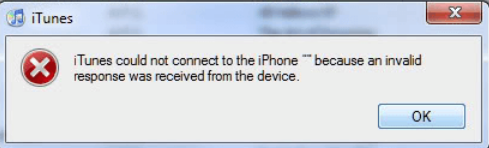
Many people have reported experiencing iTunes sync issue after they have updated to new iOS 10 or a much newer version such as iOS12.
This is the error message that most people receive: iTunes could not connect to the iPhone because an invalid response was received from the device.
Regardless of with which device you are getting this error—iPad or iPhone—this post will show you multiple ways to fix the problem once and for all.
Solution 1 – Update the iPhone to the most recent iOS version
One of the most common causes is an old iOS version. For this reason, we recommend you update the iPhone to the most recent version.
Here are the steps to follow:
- Open the iPhone. Tap on Settings, General, and then Software Update
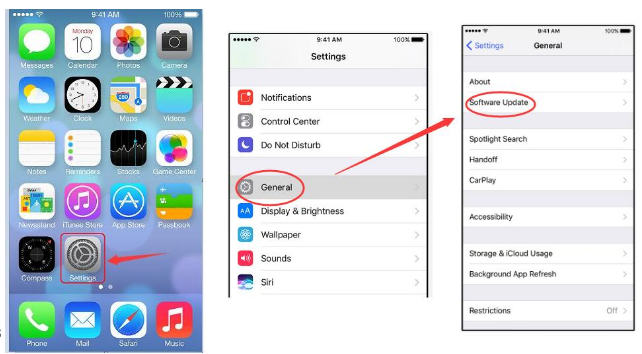
- Tap Download and Install
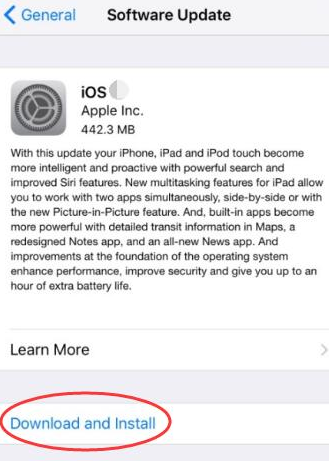
- Now enter the passcode in case you are asked to
- Then tap Agree twice
- The system will automatically download the newest iOS
- Now connect iTunes to the iPhone
Solution 2 – Update the iTunes App
You may also get this error if the version of the iTunes that you are using is old. Therefore, if the previous solution didn’t fix the problem, it’s time to update the iTunes app.
Mind you, if you are already using the latest version of iTunes app, skip this step and move on to the next one.
Here are the steps to follow:
- Run iTunes on your iPhone or iPad
- Click the Help menu and then click Check for Updates
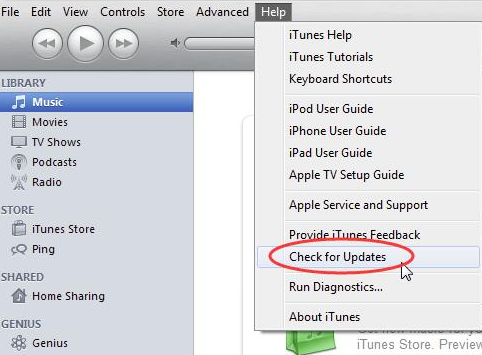
- In case a newer iTunes version is available, you will able to download and install it. All you have to do is follow the onscreen prompts
- Connect the iTunes to your device once again
Solution 3 – Uninstall and re-install iTunes
First completely uninstall iTunes. Here are the steps you need to follow:
- Go to Applications folder and locate iTunes app
- Right-click iTunes and choose Get Info
- Find and click the padlock icon located at the bottom right side of the window. You will be prompted to enter your admin password, so do that
- Click and expand Sharing & Permissions section. Here tweak the privileges for “everyone” to Read & Write. By doing this you can gain complete control of iTunes app and effectively uninstall it from your Apple device
- Now close Get Info window. Next, drag iTunes app to Trash (As long as you don’t empty Trash, you can always pull back iTunes if you want)
Once you have completely uninstalled iTunes from your device, visit App Store to download it. You can also download it from Apple’s website. Once you have downloaded iTunes, just follow onscreen instructions to complete the installation process.
Solution 4 – Reset the iPhone Network Settings
In some cases, the cause of the problem was an incorrect network setting on the iPhone. For this reason, if the previous solutions failed to resolve the issue, we recommend you reset the network settings of your device.
Here are the steps to follow to reset the network settings on iPhone:
- Open the iPhone and tap Settings
- Tap General, Reset, and then Reset Network Settings
Solution 5 – Reboot the iPhone
If nothing else has worked, there’s no harm in trying the good old restart solution. Many a time a simple restart fixes software issues. So go ahead, reboot the iPhone and your computer and then try connecting the iTunes to the iPhone.