Drivers.com

follow us:

facebook twitter
  • Home
  • Download Drivers
  • Drivers Help
  • PC/Mac Resources
  • Software Drivers
  • Mac Fixes and Tips
  • PC Fix Tips
  • Security/ Backup
  • Tablets & Smartphones
  • Tech News
  • Software Drivers
  • Mac Fixes and Tips
  • PC Fix Tips
  • Security/ Backup
  • Tablets & Smartphones
  • Tech News

MSVCP100.dll is Missing Error Fixed (8 Solutions)

By Susan C on September 14, 2020

MSVCP100.dll is Missing Error Fixed (8 Solutions)

Are you getting the following error message when you try to launch a program: The program cannot start due to MSVCP100.dll missing from the computer?

The exact message appearing on your screen may be slightly different, but in essence it will point to the same thing — a program or a function cannot be run because MSVCP100.dll is missing from the computer.

DLL errors are fairly common, but thankfully they are generally quite easy to resolve. And by the end of this post you should know all that you need to do to get rid of the MSVCP100.dll error.

Before we look at the various solutions, let’s understand what DLL files are in the first place and the typical causes of the MSVCP100.dll file error.

DLL files, in simple terms, are files that contain instructions required by programs to perform certain functions. If the program requires a particular file to run and if it is unable to locate that file, the program won’t run.

However, that doesn’t mean the missing MSVCP100.dll file error occurs only when this file is missing, corrupt, or outdated. While this is the most common cause, there are other reasons also why this error crops up. For instance, a malware infection or outdated device drivers can trigger this error. You can also get this error when the Visual C++ Redistributable patch is not installed on your computer or is not properly installed.

Now let’s check out the various solutions. We will start with the most common fixes first before diving into other solutions.

Solution 1 – Check the Recycle Bin

It is possible that you may have deleted the said file in error. Therefore, before you do anything check the Recycle Bin. If you do find MSVCP100.dll in the Recycle Bin, right-click it and select Restore.

Solution 2 – Install or Reinstall Microsoft Visual C++ Redistributable Page

Many types of development projects often use the general C suite of programming, of which Visual C++ is an integral part. Included in Visual C++ are runtime libraries and packages to create different compilations of procedures, function calls, and other code elements that work in integrated software environments. MSVCP100.dll is associated with Visual C++ Redistributable for Visual Studio 2010.

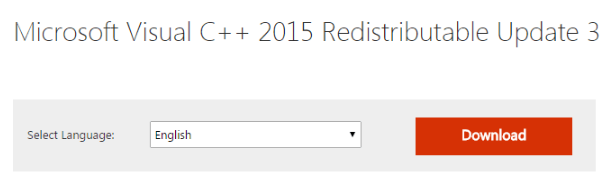
You can go to Microsoft Download Center and get the newest Microsoft Visual C++ Redistributable for Visual Studio 2010. Next, click the red Download button.

You will see three files in the next window; pick the one that’s appropriate for you.
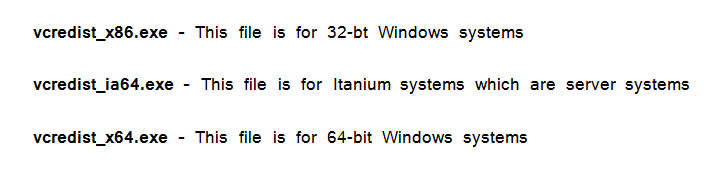
Pick the first file if you have Windows 32-bit. Pick the third file if you are running 64-bit Windows.

Not sure whether your have 32-bit or 64-bit operating system? Don’t worry. You can find this out in just a few steps.

Click Start and then click Settings. In the Window Settings window, click System and in the System menu, click About (the last section in the list). You will find the information about your operating system in here.

Solution 3 – Check for Windows Updates

If the problem still persists, it’s worth a shot to check for Windows updates. There’s a chance that a new update may update or replace the said DLL file.

Here are the steps to follow:

  • Click Start
  • Click Settings
  • In the Windows Settings window, click Update & Security
  • Now click Check for Updates in the Windows Update section

Windows will now check for new updates. Install any new updates that Windows find and then check if the MSVCP100.dll error is solved.

Solution 4 – Copy the File from another Computer

Many users were able to fix this error by copying over the missing MSVCP100.dll file from a trusted computer. You should also give this solution a try if you have not been able to fix the problem so far.

Here are the steps to follow:

  • Find another Windows computer that has the same operating system as yours
  • Open File Explorer on that system (press Windows logo key and E key), navigate to the System32 folder (usually in the C drive under Windows folder)
  • Copy msvcp100.dll into an external drive
  • Connect this external to your computer and copy the file in your System32 folder

Now, restart the program and check if the error is fixed.

Solution 5 – Reinstall the Program

Are you getting the MSVCP100.dll is missing from your computer error with only one program? If that is so, you may be able to fix the issue by uninstalling and reinstalling the said program.

Here are the steps you need to follow to uninstall a program:

  • In the Start Search box, type run
  • In the run dialog box, type appwiz.cpl and press the OK button
  • In the Programs and Features window, browse through the list of installed programs to locate the problematic program. Once you have located it, right-click it and then select Uninstall
  • Wait till program gets completely uninstalled
  • Now download and install this program again

Now check if the issue is fixed. If not, move on to the next step.

Solution 6 – Update Your Device Drivers

While not very common, outdated device drivers can also cause DLL errors, including MSVCP100.dll error. Therefore, you should give this solution a try.

You can, of course, update your drivers manually. But if you have ever done that, you would know it can be a time-consuming process. You can use a Driver Update Tool to automate this process for you.

Solution 7 – Run System File Checker

Windows comes with a built-in utility that allows you to scan system files for corruptions and restores them. The name of this very useful utility is System File Checker.

You can use it to replace missing files or repair corrupt system files, including DLL files such as MSVCP100.dll. To launch this utility, you will need to have administrative rights.

Here are the steps to run system file checker:

  • Click the Start Search box, type command prompt and then right-click command prompt in the list and select Run as administrator
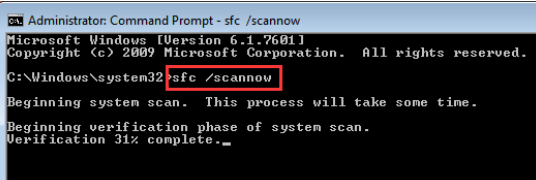
  • In the command prompt window, type the following command and press Enter
  •  
sfc-scannow

System File Checker takes some time to scan and fix files, so be patient. Once the process is complete, reboot windows and check if the problem is solved.

  • Scan the System For Malware Infection or Virus Infection

All sorts of issues can crop up if your computer is infected with virus or malware. It is very much possible that you might be getting the MSVCP100.dll is missing error because a virus or malware infection has caused issues with the Microsoft Visual C++ Redistributable package.

For this reason, we recommend you to run a full system scan. While this type of scan takes time, a deep scan is required to weed out virus or malware infections. You can perform a scan using Windows built-in protection tool, called Windows Defender. It does the all-important job of protecting your system against malware, virus, spyware, ransomware, and other malicious software.

Here are the steps to follow to run a full system scan using Windows Defender:

  • In the Start Search box, type virus
  • Click Virus & threat protection
  • Click Full Scan and then click the Scan now button

The software will now scan your system for infection. If it reports any malicious programs, delete or quarantine them. Then restart Windows and check if the issue is solved.

Solution 8 – Use System Restore

If none of these steps have worked, as a last-ditch attempt, you may want to restore your system to an earlier time when this error didn’t occur. However, you can use this tool only if you have previously created restore points. If there’s no restore point, there’s nothing to revert to, and consequently there’s nothing that this tool can do.

To run System Restore, follow these steps:

  • Press Windows key + R key simultaneously
  • In the run dialog box, type rstrui.exe and then press Enter
  • In the System Restore window, click Next
  • In case the system has created restore points, you will see them in a list format. Pick the appropriate restore point and click the Next button
  • Now, click Finish and Windows will now restore the settings

Upon restart, check if the MSVCP100.dll is missing issue is fixed.

We hope one of these solutions would have worked for you. Do let us know which one by leaving us a comment.
Filed Under: PC Fix Tips Tagged With: msvcp100.dll missing

Asus Smart Gesture Not Working (6 Solutions)

By Susan C on September 9, 2020

Asus Smart Gesture Not Working (6 Solutions)

As a smart touchpad driver, ASUS smart gesture has the ability to identify palm and finger contact by the user. Different gestures by you on your touchpad can in turn trigger different actions on your system. For instance, you can move pages by sliding two fingers and switch programs by sliding three fingers. Thanks to this feature, you can enjoy the feel of a notebook on your laptop and complete actions without using the mouse.

However, sometimes ASUS smart gesture doesn’t work as expected. Either ASUS smart gesture doesn’t run at all or the gestures don’t get registered in the expected way.

Update Asus Drivers

In this post, we will look at this issue in detail and discuss the ways to solve it.

Solution 1 – Check if the Touchpad is Disabled or Locked

The first thing you must do is make sure the feature is not disabled on your system. In most ASUS laptops, you can enable or disable the touchpad keyboard using the F9 key. If that doesn’t work, try Fn + F9 keys.

Many Windows users have complained of this feature getting automatically disabled after a Windows 10 update. In this case, you can try to enable the feature by following the steps set out below:

  • Press Windows key + S key together to launch Settings
  • Click Devices
  • Select Mouse (in the left pane) and then click on Additional mouse options
  • Go to ELAN input device and then enable the device

Reboot Windows and check if the issue is solved.

Solution 2 – Repair ASUS Smart Gesture

Windows checks each and every installation file for errors when you run a software repair. It also checks group policies and corrects any errors it finds, and the same goes for the registry set with the software.

Here are the steps to follow to repair ASUS Smart Gesture:

  • Press Windows key + R key to launch the run dialog box
  • Type appwiz.cpl and then press the Enter key
  • You will see all installed programs here. Browse through the list till you locate ASUS Smart Gesture
  • Right-click it and then choose Repair

The repair process usually takes some time to finish, so be patient. Once it is finished, reboot windows and see if things are back to normal.

Solution 3 – Update the Touchpad Driver

An outdated driver can result in the ASUS Smart Gesture not working as expected. Therefore, we recommend you download and install the latest touchpad drivers. You can download the driver manually or automatically. The latter is a much easier, not to mention faster and simpler, but we have listed both methods for your convenience.

Download ASUS Smart Gesture Touchpad Driver Manually

Go to the ASUS website and locate the latest driver for your touchpad. Next, download it and save the installer file in a suitable location. Finally, double-click it to launch the installation process and follow onscreen prompts (if any). Now check if the issue is resolved.

Download ASUS Smart Gesture Touchpad Driver Automatically

A simpler alternative is to use a driver update tool to automatically download the latest touchpad drivers.

Automatic driver update tools offer many benefits, the most important ones being:

  • You can update device drivers automatically
  • The software scans and updates all outdated or missing drivers at one go
  • The tool picks the right drivers for your device and operating system, so you won’t have to worry about installing an incorrect driver by mistake
  • Automatic driver updates are 100% safe

Driver Updater is one of the best driver update tools out there. Outbyte Driver Updater will give you access to a database of over 1 million drivers. It will regularly scan your PC, suggesting new driver versions to install. Driver Updater contains drivers for a variety of Windows devices. With just one click, you can update drivers in your system.

Step 1
Click here to Install and launch the app

Step 2
Scan all devices

Step 3
Install or update drivers automatically


Start Download


Solution 4 – Roll Back Driver

At times a newer version of Windows is not compatible with software or drivers present currently on your computer. So if you are receiving this error after you have upgraded to Windows 10 and the manufacturer has not released a new update, rolling back to a driver of previous version is worth a try.

Here are the steps to follow:

  • Press Windows key + R key to launch the run dialog box
  • Type dvmgmt.msc and then press the OK button
  • In the Device Manager window expand Mouse and other pointing devices. Now right-click ASUS touchpad and click Properties
  • Click the Driver tab
  • Click Roll Back Driver

Windows will now roll back to the previous driver version. Reboot Windows and check if the problem is resolved.

Solution 5 – Reset ASUS Setting to Default

In case none of these methods worked, try to reset computer settings to default. Also, it is possible that you might have incorrectly edited the settings while customising options. When you reset the settings, you lose all the preferences that you have set, and you will have to reset them once again from scratch.

Here are the steps to follow reset ASUS setting to default:

  • Press Windows key + R key to launch the run dialog box
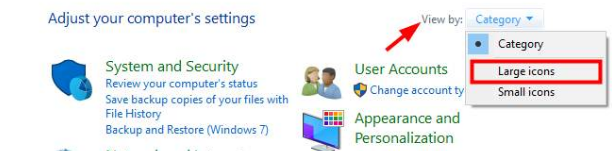
  • Type control and press Enter
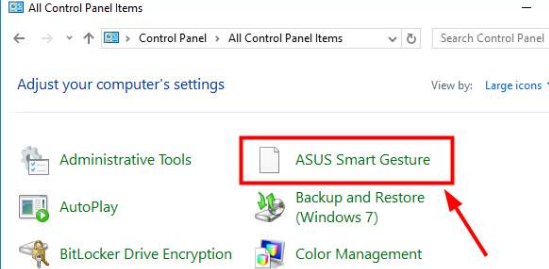
  • Now choose Large icons
  • Double-click ASUS Smart Gesture
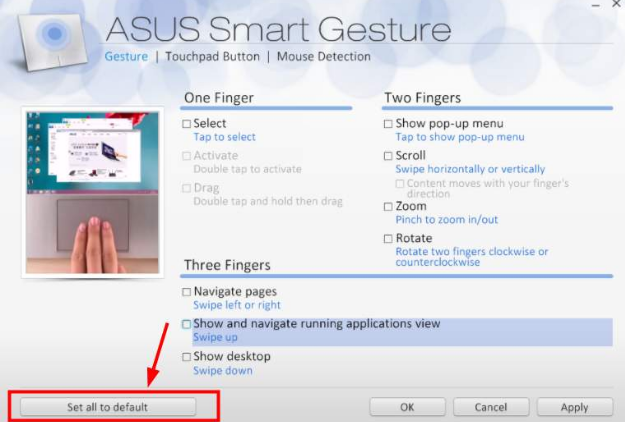
  • Finally click Set all to Default option in the ASUS Smart Gesture Settings window

Now reboot Windows and check if the issue is fixed.

Solution 6 – Reinstall ASUS Smart Gesture

In case none of the above-mentioned steps worked, as a last-ditch attempt uninstall the touch module and reinstall it.

Here are the steps to follow:

  • Press Windows key + R key to launch the run dialog box
  • Type appwiz.cpl
  • You will see all the applications installed on your system in this window. Right-click ASUS Smart Gesture and then select Uninstall
  • Now go to the official ASUS website and download the software and save it in an appropriate location
  • Now run the installer and follow onscreen prompts

Restart Windows and check if the issue is resolved.

Filed Under: PC Fix Tips Tagged With: ASUS Smart Gesture

Windows Could Not Automatically Detect This Network’s Proxy Settings

By Susan C on September 5, 2020

Windows Could Not Automatically Detect This Network’s Proxy Settings

A yellow exclamation mark on the WiFi name in the system tray is not a good sign. It indicates there is an issue of some sort with the WiFi.

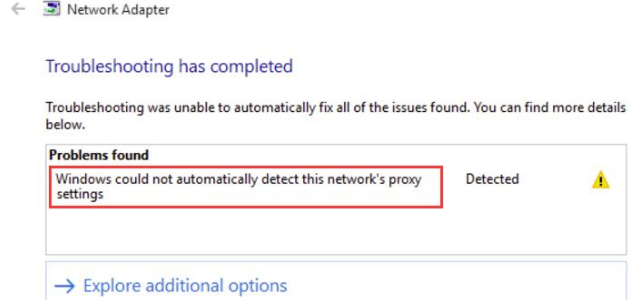
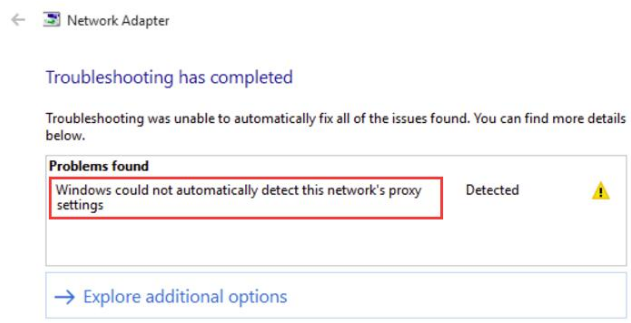
Sometimes windows troubleshooting can help with these issues but sometimes not. Here we offer a number of potential solutions for you to work through.

Why Does The ‘Could Not Automatically Detect This Network’s Proxy Settings’ Error Occur?

Quite often this issue crops up due to a change in the proxy settings on your computer. That, in turn, can occur because of several reasons, including malware infection, file corruptions, and a change in network settings or system files. Even an old, outdated network driver can trigger this issue.

We recommend you start with general troubleshooting solutions before moving on to the more technical ones.

Solution 1 – Update your network driver

Connection problems can arise if the network driver is outdated. Updating to the latest network driver will often fix the issue.

Updating the network driver is not difficult, particularly if you use an advanced driver update tool. For your convenience, we have shared the steps for updating network driver manually as well as automatically. You decide which one works best for you.

Updating the network driver manually

Here are the steps to follow:

  • Press down Windows key and R key simultaneously
  • In the Run dialog box, type devmgmt.msc and press Enter
  • In the Device Manager window, locate Network Adapters and then double click it
  • Now you will see all network devices on your computer. Select the right network device and select Uninstall
  • Once the device has been uninstalled, exit the device manager window
  • Reboot Windows
  • Windows will now automatically install the most appropriate driver, which in turn should solve the problem

If the problem persists, that means Windows doesn’t have the right driver for the network device. In this case, you can manually download the latest network driver from the manufacturer’s website. Make sure you download the driver suitable for the type of Windows you are running. That is, if you have 32-bit Windows 10, download the driver meant for 32-bit PCs. Similarly, those with 64-bit Windows 10 should download the network driver meant for 64-bit systems.

Once you have downloaded the driver file, double-click it to start the installation process. Follow the onscreen prompts (if any) to complete the process.

Update the network driver automatically

Automatic driver update tools offer many benefits, the most important ones being:

  • You can update device drivers automatically
  • The software scans and updates all outdated or missing drivers at one go
  • The tool picks the right drivers for your device and operating system, so you won’t have to worry about installing an incorrect driver by mistake
  • Automatic driver updates are 100% safe

Driver Updater is one of the best driver update tools out there. Outbyte Driver Updater will give you access to a database of over 1 million drivers. It will regularly scan your PC, suggesting new driver versions to install. Driver Updater contains drivers for a variety of Windows devices. With just one click, you can update drivers in your system.

Step 1
Click here to Install and launch the app

Step 2
Scan all devices

Step 3
Install or update drivers automatically


Start Download


Solution 2 – Use Windows Network Adapter Troubleshooter

Some users were able to fix the problem by using the Network Adapter Troubleshooter built into Windows. Since the troubleshooter solves the issue on its own, you don’t have to do anything—other than running it, of course.

Here are the steps to follow:

  • Press the Windows key
  • In the Start Search bar, type control panel and then click Control Panel in the search results
  • Next, click Network and Internet and then click Network and Sharing Center
  • Now click Troubleshoot problems and then click Network Adapter
  • Click Advanced and select the option Apply repairs automatically
  • Click Run as administrator and then click Next

Let the Network Adapter Troubleshooter do its thing. Once it has run, check if the error is fixed.

If not, try resetting Internet Explorer, which is up next.

Solution 3 – Reset Internet Explorer

This solution worked for many users, but resetting the Internet Explorer will remove any personal settings that you might have set, so bear that in mind.

Here are the steps to follow:

  • Press Windows key and R key
  • In the run dialog box, type inetcpl.cpl and then press the OK button
  • Now click the Advanced tab and then click Reset
  • Select the option Delete personal settings
  • Now click Reset

Reboot Windows and check if the issue is resolved.

Solution 4 – Uncheck “Use a Proxy Server” option

Here are the steps to follow:

  • Press Windows key and I Key together
  • Click Network and Internet
  • Click Proxy (in the left pane)
  • Deselect the option Use a Proxy Server. Next, select the checkbox before Automatically detect settings.
  • Click OK

Now see if the problem is solved. If not, it’s time to try more complicated solutions. For each solution below, we have listed all the steps, so all you have to do is follow them.

Solution 5 – Use Winsock Reset Commands

Change the Winsock settings to default and see if that fixes the issue. Here are the steps you need to follow:

  • Press Windows key
  • In the Start Search box, type cmd
  • Right-click Command Prompt and then choose Run as administrator
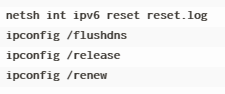
  • Now type this command and then press Enter
  • Reboot Windows to see if the issue is fixed. If not, repeat the first three steps given above
  • Now type this command and then press Enter
  • Now type the below-listed commands in the order they appear
  • Type exit and then press the Enter key

See if the issue is solved. If you are still getting the error, reboot Windows once and then check.

Solution 6 – Deselect Proxy Server Option

Deselecting proxy server option is another solution that has worked for many Windows users. Unchecking this option basically means you are giving your Windows computer scope to automatically detect proxy settings.

Here are the steps to follow:

  • Press the Windows key and R key simultaneously
  • In the run dialog box, type inetcpl.cpl and then click the OK button
  • Click the Connections tab
  • Next click LAN Settings
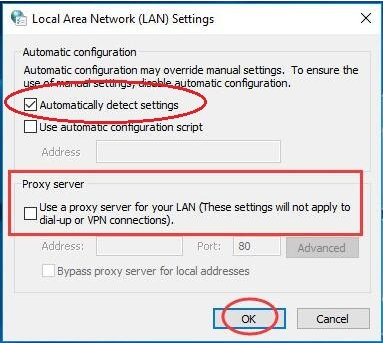
  • Deselect the option Use proxy servers for your LAN
  • Click the OK button twice

Check if the problem is now solved.

Solution 7 – Run a virus scan

Malware infection can cause all sorts of problems, including the this issue. Therefore, running a virus scan is worth a shot if you have been unable to solve the problem so far.

We recommend you run a boot-time scan, which runs at start-up before the majority of the applications files and most of the operating system have been loaded. Since not all malware can be detected and consequently quarantined or removed once Windows has booted and is running, a boot-time scan gives you the best chance to remove modern malware.

Solution 8 – Use System Restore

A built-in utility, System Restore allows you to roll back your computer’s setting to a previous time. In case the error is due to file corruption, running a System Restore is a viable option. Likewise, if the problem started after you downloaded and installed a particular software, then too System Restore is a good option.

Here are the steps to follow restore the system using System Restore Point:

  • Search System Restore using Cortana
  • Click Create a restore point
  • Click System Restore
  • In System Restore choose option Choose a different restore point
  • Click Next
  • Here you will see all available restore points. Select a suitable restore point and click the Next button

Windows will now reboot and roll back to the selected previous setting.  

Solution 9 – Run System File Checker

Windows comes with a built-in utility called System File Checker (SFC) which scans system files for errors and automatically repairs them. With its help you can fix errors occurring because of file corruption.

Here are the steps to follow to run system file checker:

  • Press the Windows key
  • In the Start Search box, type cmd
  • Right click Command Prompt and then select Run as administrator
  • Type the following command and press Enter
  • Wait for System File Checker to scan the system files and fix any reported error

Solution 10 – Network Reset

Some Firewall configurations or network restrictions can prevent Windows from connecting to the internet. Similarly, if some network configurations have become outdated, you may not be able to access the web. In both these situations, a simple network reset can solve the issue.

Here are the steps to follow:

  • Press the Windows key and I key simultaneously
  • In the Windows Settings window, click Network and Internet
  • Click Status
  • Now click Network Reset and then click Reset Now

No check if you are able to connect to the Internet.

Solution 11 – Reset Network Adapter

In some cases, the network adapter acquires certain wrong configurations, which in turn prevents the system from connecting to the internet. Resetting the network adapter should fix this issue.

Here are the steps you must follow to reset network adapter:

  • Press the Windows key and R key simultaneously
  • In the run dialog box, type npa.cpl and then click the OK button
  • Right-click Network Adapter and choose Disable
  • Wait for a minute and then right-click network adapter and click Enable

Now check if the problem is solved. If not, try the last solution in the list, enabling Custom 3D Support.

Solution 8 – Enable Custom 3D Support

This solution is mainly for those users who use MSI Afterburner along with Riva Statistics Tuning Server for monitoring how their hardware is performing. Sometimes, you need to enable this setting in Riva Statistics so that everything works seamlessly with the overlay.

  • Click System Tray
  • Double click Riva Tuner Statistics Server
  • In the Settings window, turn on Custom 3D Support

Now check if the problem is resolved.

Filed Under: PC Fix Tips Tagged With: network error

  • « Previous Page
  • 1
  • …
  • 86
  • 87
  • 88
  • 89
  • 90
  • …
  • 189
  • Next Page »


  • Recent Posts
  • Popular Posts
        

Read More Posts


Read More Posts

Drivers.com Sites

  • Software Drivers
  • Drivers Ed

About Us

  • Advertise
  • About Drivers
  • Drivers Support
  • Drivers.com Privacy Policy
  • Disclaimer
  • Software Drivers
  • Mac Fixes and Tips
  • PC Fix Tips
  • Security/ Backup
  • Tablets & Smartphones
  • Tech News

© Copyright 2026 PDE Publications Ltd. End User License Agreement (EULA)