Drivers.com

follow us:

facebook twitter
  • Home
  • Download Drivers
  • Drivers Help
  • PC/Mac Resources
  • Software Drivers
  • Mac Fixes and Tips
  • PC Fix Tips
  • Security/ Backup
  • Tablets & Smartphones
  • Tech News
  • Software Drivers
  • Mac Fixes and Tips
  • PC Fix Tips
  • Security/ Backup
  • Tablets & Smartphones
  • Tech News

INACCESSIBE BOOT DEVICE Error Fixed (5 DIY Solutions)

By Susan C on August 11, 2020

INACCESSIBE BOOT DEVICE Error Fixed (5 DIY Solutions)

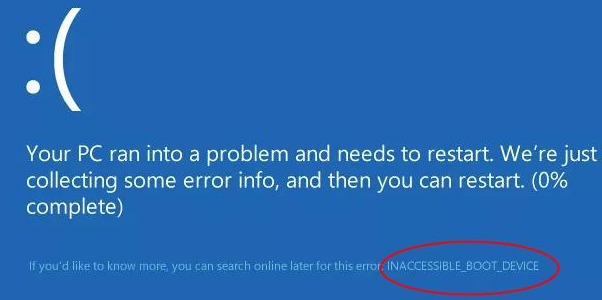
There are no errors more disruptive than Blue Screen of Death (BSOD) errors. One such BSOD error is INACCESSIBLE_BOOT_DEVICE error. It can appear when you start Windows after upgrading to Windows 10.

If you’re getting this error, then read on.
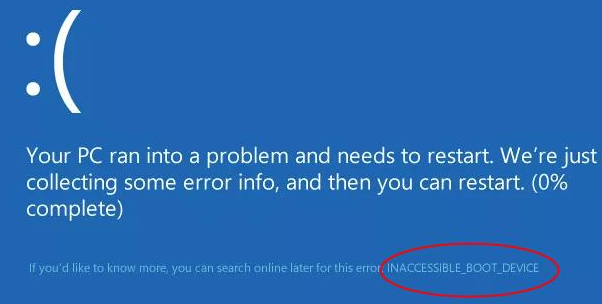
In this post we’ll show you five ways to fix the error.

  • Disconnect external devices
  • Start Windows in Safe Mode and then restart your computer
  • Uninstall the installed packages
  • Disable your antivirus software
  • Update faulty or outdated drivers

Fix 1 – Disconnect External Devices

You may get this when an external device is incompatible with your system. Therefore, if you’ve plugged in external devices, such as a hard drive, then unplug them. This solution typically works after you’ve reset Windows 10 or when you’re upgrading to Windows 10.

Fix 2 – Start Windows in Safe Mode & Restart Windows

Many users have said they were able to fix the problem by starting windows in Safe Mode and then restarting windows in normal mode. We recommend you give this solution a try if the previous solution didn’t produce the desired result.

Here’s how you enter Safe Mode in Windows 10 if you can’t boot normally:

  • Make sure your computer is turned off
  • Press the power button to power on the computer. If you see the Preparing Automatic Repair screen, go to the step 3
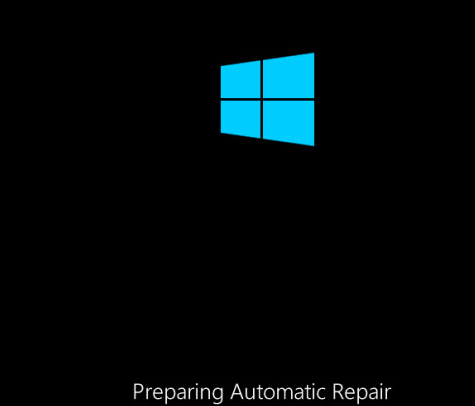
  • If you didn’t see the Preparing Automatic Repair Screen the first time you power on Windows, then press power button until your computer shut down on its own. Now power on and power off your computer like this two more times till you see the Preparing Automatic Repair Screen.
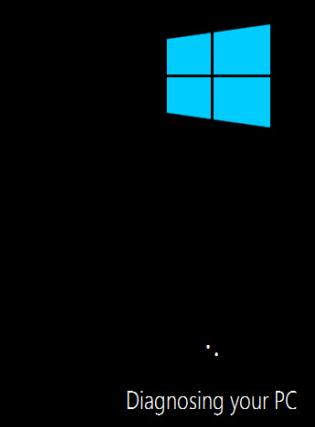
  • Wait for Windows to Diagnose your PC
  • Click the Advanced Options button in the Startup Repair window
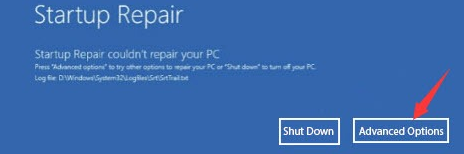
  • Click Troubleshoot when you are asked to choose an option
  • Click Advanced Options in the Troubleshoot screen
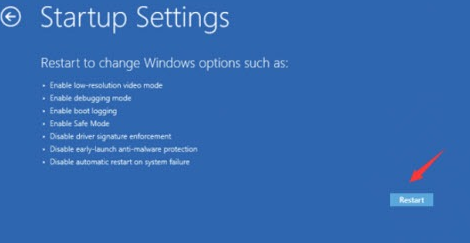
  • Click the Startup Settings option in the Advanced options screen
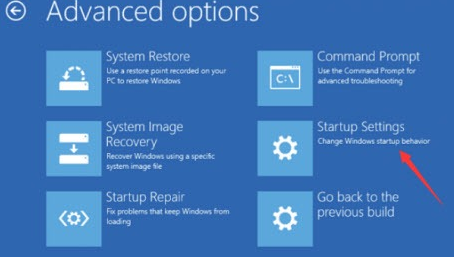
  • Click the Restart button
  • Press the number 4 key on your keyboard to boot in Safe Mode
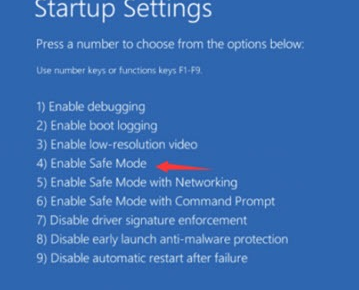
Here’s how to enter Safe Mode when you’re able to start windows normally:

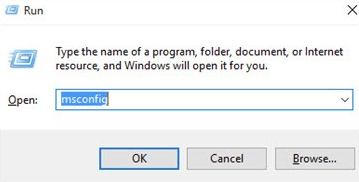
  • Press Win + R keys simultaneously on your keyboard
  • In the run dialog box, type msconfig and then press OK
  • Click Boot in the System Configuration window
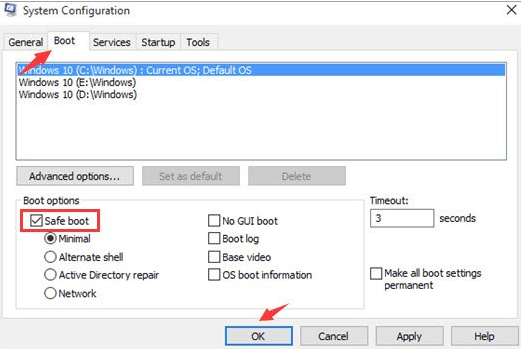
  • Under Boot options, click Safe boot
  • Click the OK button
  • You’ll be prompted to restart Windows. Click the Restart button

Solution 3 – Uninstall installed packages

Installed Windows packages may also trigger this error. If Windows Update is configured to automatically install updates, you will not receive a notification when a Windows package is installed.

To resolve the issue, uninstall the package after whose installation you started getting the error. If you’re not sure about this, the best thing to do is to uninstall all recent packages.

Here are the steps you need to follow.

  • Make sure your computer is turned off
  • Power on the computer by pressing the power button, then press down the same button for about 5 seconds till the computer shuts down. Repeat the steps till you’re able to see Preparing Automatic Repair

Note: The whole purpose of the above-mentioned step is to access the Preparing Automatic Repair screen. In the event of Windows not booting properly, this particular screen comes up and then Windows tries to solve the issue on its own. In case the screen comes up the very first time you power on computer, you don’t need to press the power button further.

  • Wait untill Windows diagnoses your computer
  • Click the Advanced options button to access the Windows Recovery screen
  • Click the Troubleshoot button in the Windows Recovery screen
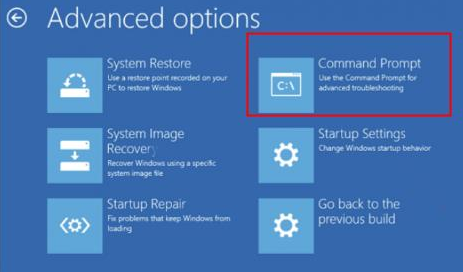
  • Next, click Advanced Options
  • Click Command Prompt
  • You’ll need to check the drive on which you’ve installed the system. To find this, run the dir command. If you’re aware of where Windows is installed, skip this particular step. In the image shown below, Windows is on C drive
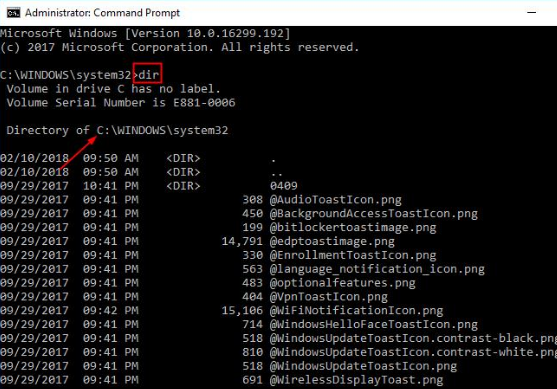
  • Run the following command to find the packages installed on your system (In the command below, X stands for the drive that has Windows on it)

  • Now you’ll be able to see all packages that were installed. Locate the one that’s triggering the error by checking the installation date, and then uninstall it. If you aren’t sure about the problematic package, uninstall all recently-installed packages.

  • Use the following command to delete the package

The package name show in the above is just an example; you will need to replace this name with the name of the package that you are uninstalling. That said, many users have said that this particular package was responsible for the error in their case. If you have this particular package, it may be a good idea to uninstall it before removing any other packages.  

The uninstall process may take several minutes, so be patient.

  • Restart windows after you’ve uninstalled the packages. Now check whether the issue is fixed.

If not, move on to the next step.

Step 4 – Update outdated or faulty drivers

Did you know that faulty drivers, especially faulty graphics card drivers, can trigger the titled error?

Therefore, we recommend you to update your device drivers. The easiest and the fastest way to do this is by using a driver update tool.

Automatic driver update tools offer many benefits, the most important ones being:

  • You can update device drivers automatically
  • The software scans and updates all outdated or missing drivers at one go
  • The tool picks the right drivers for your device and operating system, so you won’t have to worry about installing an incorrect driver by mistake
  • Automatic driver updates are 100% safe

Driver Updater is one of the best driver update tools out there. Outbyte Driver Updater will give you access to a database of over 1 million drivers. It will regularly scan your PC, suggesting new driver versions to install. Driver Updater contains drivers for a variety of Windows devices. With just one click, you can update drivers in your system.

Step 1
Click here to Install and launch the app

Step 2
Scan all devices

Step 3
Install or update drivers automatically


Start Download


Step 5 – Disable your third-party antivirus software

Sometimes, third-party antivirus software may cause this error. If nothing else has worked, temporarily disable your third-party antivirus software, and then check if that fixes the error. If it does, you should consider switching to another third-party antivirus software or using the built-in Windows Defender.

Filed Under: PC Fix Tips Tagged With: Inaccessible Boot Device

Bluetooth Windows 10 Issue (How to Turn Bluetooth On)

By Susan C on August 1, 2020

Bluetooth Windows 10 Issue (How to Turn Bluetooth On)

Is Bluetooth not turning on? If you are having problems turning on Bluetooth then read on for solutions to this issue.

You need Bluetooth “on” if you want to connect any Bluetooth device (such as mouse, headphones, etc.) or transfer files from your smartphone to your laptop via Bluetooth.

In this post, you’ll learn:

  • How to easily turn on Bluetooth in Windows 10?
  • What steps you need to perform in case Bluetooth doesn’t turn on the normal way in Windows 10?

Turn Bluetooth on in Windows 10

Here are the steps to follow.

  • On the keyboard, simultaneously press Windows log key + I key
  • This will open the Settings window. Now click the Devices option
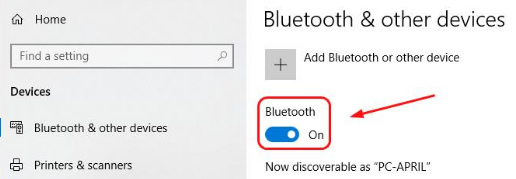
  • Click the slider under Bluetooth to On

However, sometimes it’s possible you may not see the Bluetooth switch. Instead, you may see this screen. Don’t worry if that’s what you see. Shared ahead are the steps you need to perform to get the Bluetooth switch back.

What if you aren’t able to turn Bluetooth on in Windows 10?

There are three ways to solve the issue. You don’t have to try all of them. Start with the first, and if that doesn’t work, try the second and so on.

However, if you’re connecting a Bluetooth device with your computer for the very first time, first check whether your PC has Bluetooth or not. If you’re sure it has Bluetooth, go directly to the solutions listed ahead.

How to check if your computer has Bluetooth?

Here are the steps to follow:

  • On your keyboard, click the Windows logo key + R
  • This will launch the run dialog box. Type devmgmt.msc here and then press Enter
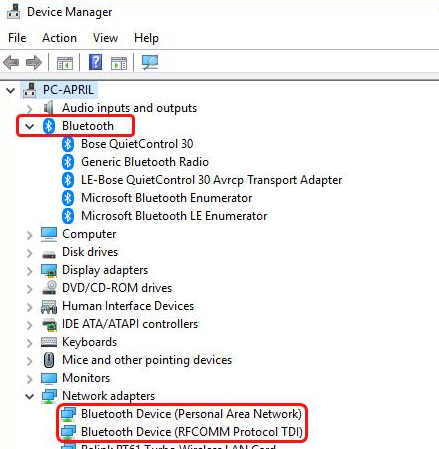
  • In the Device Manager window, check if you see any Bluetooth section or any Bluetooth adapter under Network adapters. You should also check if any Bluetooth adapter is located below the Other Devices section
  • In case you see one or more Bluetooth adapters in your Device Manager window, you can safely conclude your computer has Bluetooth capabilities
  • In case there’s no Bluetooth adapter in the Device Manager window, it means your Windows computer doesn’t support Bluetooth. However, a Bluetooth receiver can solve the issue easily, so there’s no cause for worry.  

Solution 1 – Update the Bluetooth driver

Without the supporting software and hardware, Bluetooth won’t work. If you are sure that your Windows PC supports Bluetooth, but for some reason it isn’t working the try updating the Bluetooth driver.

You can update the Bluetooth driver manually or automatically. The second method is easier and much faster. However, we’ve listed both the solutions, so you can pick whichever suits you best.

Update Bluetooth Driver Manually

If you want to manually update your Bluetooth driver, go to your computer manufacturer’s site and locate the latest Bluetooth driver. Once you’ve located the driver, download it. Make sure you download the driver meant for your version of Windows. For instance, if you use 32-bit Windows, download 32-bit Bluetooth driver only.

After you’ve downloaded and saved the driver file, double-click it to install the driver. Follow onscreen instructions (if any). You may have to reboot Windows once the installation is complete.

Update Bluetooth Driver Automatically

Automatic driver update tools offer many benefits, the most important ones being:

  • You can update device drivers automatically
  • The software scans and updates all outdated or missing drivers at one go
  • The tool picks the right drivers for your device and operating system, so you won’t have to worry about installing an incorrect driver by mistake
  • Automatic driver updates are 100% safe

Driver Updater is one of the best driver update tools out there. Outbyte Driver Updater will give you access to a database of over 1 million drivers. It will regularly scan your PC, suggesting new driver versions to install. Driver Updater contains drivers for a variety of Windows devices. With just one click, you can update drivers in your system.

Step 1
Click here to Install and launch the app

Step 2
Scan all devices

Step 3
Install or update drivers automatically


Start Download


Solution 2 – Re-enable Bluetooth driver software

Follow the steps set out below:

  • On your keyboard, click the Windows logo key + R
  • This will launch the run dialog box. Type devmgmt.msc here and then press Enter
  • In the Device Manager window, right-click the Bluetooth device under Bluetooth section. Then click Disable device
  • Now right-click the Bluetooth device again, and this time select Enable device
  • On the keyboard, simultaneously press the Windows logo key and I key
  • This will open Settings window and check if you can see the Bluetooth switch. If not, move to the next solution

Solution 3 – Ensure Bluetooth support service is running

Below are the steps to follow:

  • On your keyboard, click the Windows logo key + R
  • This will launch the run dialog box. Type services.msc and click the OK button
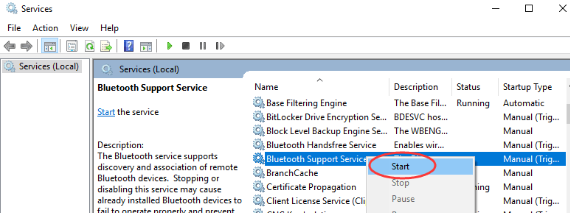
  • Right-click Bluetooth Support Service and click Start. In case you see that the Start option is greyed out, press Restart
  • Right-click Bluetooth Support Service once again, click Properties
  • In case the startup type is set as Manual then change it to Automatic
  • Press the Apply button
  • Press the OK button to save the changes
  • On your keyboard, simultaneously click Windows logo key + I. Now check if Bluetooth is marked as “on” in the Settings window

Filed Under: PC Fix Tips Tagged With: Bluetooth On

How to Start Outlook in Safe Mode

By Susan C on July 28, 2020

How to Start Outlook in Safe Mode

One of the most popular email applications, Outlook allows users to easily manage their emails. However, just like other applications, at times it may not function as intended. If Outlook is not working they way it should, try launching it in the Safe Mode. As often as not, that does the trick, and you can then fix the underlying issue.

In this post, we’ll show you how to launch Outlook in the Safe Mode in Windows 10.

Method 1

Here are the steps to follow:

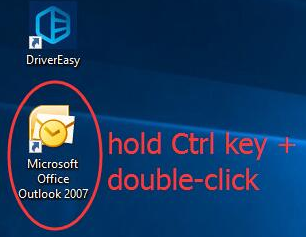
  • Locate the Outlook shortcut on your desktop. Pressing the Ctrl key, double-click the Outlook shortcut
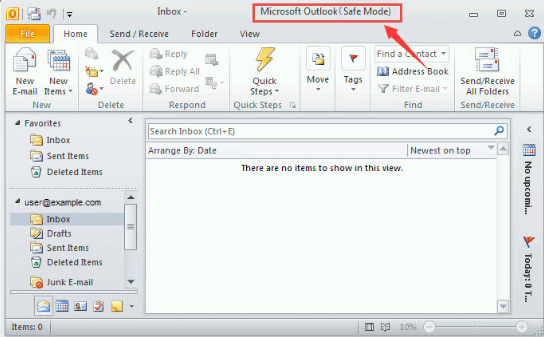
  • Click Yes when you are asked if you want to open Outlook in the safe mode
  • Now you can open Outlook in the safe mode and fix the issue that was causing the problem

Method 2

Here are the steps to follow:

  • Press Windows logo key + R key  simultaneously
  • In the run dialog box, type outlook.exe/safe and then click the OK button
  • Now Outlook will open in the safe mode and fix the issue that was causing the problem

So, that’s it. Opening Outlook in safe mode for troubleshooting issues is simple, quick, and easy. You can use either of the methods shared above.

Filed Under: PC Fix Tips Tagged With: Outlook Safe Mode

  • « Previous Page
  • 1
  • …
  • 88
  • 89
  • 90
  • 91
  • 92
  • …
  • 189
  • Next Page »


  • Recent Posts
  • Popular Posts
        

Read More Posts


Read More Posts

Drivers.com Sites

  • Software Drivers
  • Drivers Ed

About Us

  • Advertise
  • About Drivers
  • Drivers Support
  • Drivers.com Privacy Policy
  • Disclaimer
  • Software Drivers
  • Mac Fixes and Tips
  • PC Fix Tips
  • Security/ Backup
  • Tablets & Smartphones
  • Tech News

© Copyright 2026 PDE Publications Ltd. End User License Agreement (EULA)