Drivers.com

follow us:

facebook twitter
  • Home
  • Download Drivers
  • Drivers Help
  • PC/Mac Resources
  • Software Drivers
  • Mac Fixes and Tips
  • PC Fix Tips
  • Security/ Backup
  • Tablets & Smartphones
  • Tech News
  • Software Drivers
  • Mac Fixes and Tips
  • PC Fix Tips
  • Security/ Backup
  • Tablets & Smartphones
  • Tech News

Task Manager Disk 100% Usage on Windows 10 (Solved)

By Susan C on October 19, 2020

Task Manager Disk 100% Usage on Windows 10 (Solved)

Windows 10 users experiencing issues like sluggish response time may check their Task Manager to find what is using up the computer resources. Task Manager offers loads of useful information about active processes. One of the most useful things you can monitor via Task Manager is your system’s disk usage.

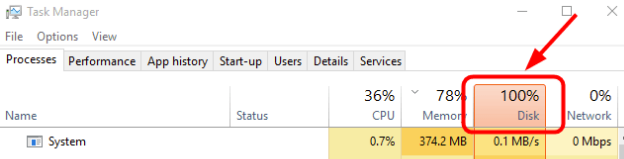
If you find disk usage of 100%, it means your system’s disk usage has maxed out. This, in turn, affects your computer performance and unless you take some corrective measures, this will cause problems.

The “disk usage of 100%” issue can occur at any time. Many users encounter it after they upgrade to Windows 10.

In this post, we’ll share with you 10 different methods by which you can solve the disk 100% usage issue. So let’s get started.

Solution 1 – Restart Windows 10

The first thing you should do is turn your computer off and on again. While restarting Windows sounds simple, it often cures issues that you might otherwise spend hours investigating.

If you use Windows 10, remember to use the Start option rather than the Shut Down. When you select the latter, Windows 10 saves the system state to boot up faster the next time. As you may guess, that means the problems you are experience will reappear on reboot.

100% Disk Usage Windows 10

Solution 2 – Update Device Drivers in Windows 10

Outdated drivers can cause all sorts of issues including disk 100% usage. Therefore, before you proceed to more complicated solutions, you should consider updating your device drivers.

Automatic driver update tools offer many benefits, the most important ones being:

  • You can update device drivers automatically
  • The software scans and updates all outdated or missing drivers at one go
  • The tool picks the right drivers for your device and operating system, so you won’t have to worry about installing an incorrect driver by mistake
  • Automatic driver updates are 100% safe

Driver Updater is one of the best driver update tools out there. Outbyte Driver Updater will give you access to a database of over 1 million drivers. It will regularly scan your PC, suggesting new driver versions to install. Driver Updater contains drivers for a variety of Windows devices. With just one click, you can update drivers in your system.

Step 1
Click here to Install and launch the app

Step 2
Scan all devices

Step 3
Install or update drivers automatically


Start Download


Solution 3 – Disable the Antivirus Software Temporarily to Fix 100% Disk Usage

Sometimes, your antivirus software may interfere with other programs and in turn cause the disk space to max out. Therefore, we recommend you to temporarily disable your antivirus software. Windows come with built-in protective software called Windows Defender. By default this program is enabled, so you don’t have to worry about your system being unprotected for the time duration you turn your third-party antivirus software off. If, for some reasons, you’ve disabled Windows Defender, enable it before you disable your antivirus tool.

Please refer to your antivirus software’s documentation to check the steps for disabling it. After you’ve disabled the antivirus tool, check the computer’s disk usage again.

To do so, type “task manager” in the Start Search box and then click Task Manager. In the Processes tab, check the disk usage.

In case the reading in the Disk column shows less than 100%, you can safely assume your antivirus software was the culprit. In that case, you can consider using another third-party antivirus software or contacting the vendor of your antivirus software for help.

Solution 4 – Disable SuperFetch to Fix Disk Usage problem

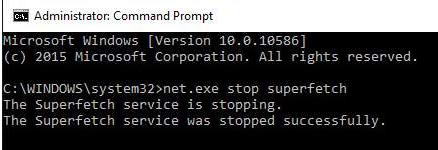
With the help of SuperFetch, it’s possible to bring down boot time. SuperFetch also ensures the must-load programs get launched more efficiently. That said, many Windows 10 and Windows 8 users have complained about it causing the disk usage to max out. For this reason, we recommend you disable SuperFetch and then check the disk usage.

To disable this service, perform the following steps:

  • Press the Windows logo key on your keyboard. In the Start Search box, type command prompt and then select Run as administrator option
  • In the User Access Control window, click the Yes button
  • Type the following message
  • Press the Enter key
  • If you get a message stating something like “the command you’ve put is invalid”, try this command

  • Now go wait for a few minutes and then open task manager window and check the disk usage percentage

Solution 5 – Perform Disk Check in Windows 10

Windows come with a tool called Check Disk utility which scans your hard disk for errors and fixes them automatically.

Here’s how you can check your hard disk for errors and get them fixed:

  • Press the Windows logo key on your keyboard. In the Start Search box, type command prompt and then select Run as administrator option
  • In the User Access Control window, click the Yes button
  • Type the following command
  • Press the Enter key. Next type Y to confirm you want the system to check the disk when Windows boots next
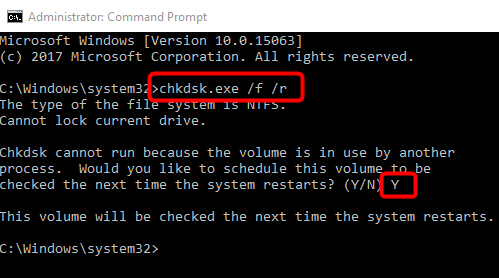
Note: Windows will now run a disk scan the next system you start the system. This tool may take a long time to finish its job, so ensure you can afford not using your computer for a couple of hours (maybe even longer). But if you can’t, skip disk check when system reboots. You can reschedule the scan for the next time following the steps shown above.

  • After disk check is complete, wait for a few minutes and then open task manager and check the percentage of disk usage

If the problem persists, go to the next solution.

Solution 6 – Reset Virtual Memory

Windows uses a section of the hard drive to temporarily store files when the available RAM doesn’t suffice. Many users claim they were able to resolve the issue by resetting virtual memory, so it’s worth giving it a shot.

Here are the steps to follow:

  • Press Windows key and Pause/Break key simultaneously
  • Click Advanced system settings in the left panel
  • Click the Advanced tab
  • Click Settings
  • Click the Advanced tab once more. Select Change… in the Virtual Memory Section and deselect the checkbox before Automatically manage paging file size for all Drivers
  • Choose the drive on which you have Windows installed (in most cases it’s the “C” drive). Now set a Maximum size and an Initial size for the virtual memory:

Initial Size – This figure varies from one computer to next. We recommend you to go along with whatever number appears in the recommended category.

Maximum Size – Avoid entering a too high number. We recommend not exceeding 1.5 times the size of RAM. For example, if your PC has a RAM of 4GB, you should set this value greater than 6,144 MB.

  • After you’ve set the values, click the Set button and then click the OK button
  • Now remove all temporary files. Press Widows key and R key simultaneously. In the run dialog box, type temp and press the OK button. This will open the Temp folder. This is where all the temp files reside.
  • Select all temp files and delete them

Wait for a few minutes. Go to task manager and check the disk usage percentage. If it’s less than 100%, the issue is resolved. If no improvement is seen, go to the next step.

Solution 7 – Update Windows 10

Updating Windows fixes many problems, so it’s worth giving a shot. To make sure Windows is up to date, perform the following steps:

  • Click the Start icon
  • Go to Settings > Update & Security settings > Windows Update
  • Check for new updates and install them if available.

Solution 8 – Check for Malware

Your system may be infected with virus or malware that’s causing the disk usage to max out. To rule out this cause or fix it if that’s what’s triggering the problem, scan your hard disk for a malware infection.  

The antivirus software you use may take some time to finish scanning, as your hard disk is already reporting high usage, so be patient.

Solution 9 – Disable Windows Search

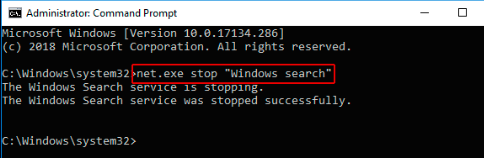
Sometimes high disk usage issue crops up because of a known bug in Windows that causes a search loop. To fix the problem, you can temporarily stop the Windows Search facility.

Here are the steps to follow:

  • Press the Windows logo key on your keyboard. In the Start Search box, type command prompt and then select Run as administrator option
  • In the User Access Control window, click the Yes button
  • Type the following command

Now wait for a few minutes and check if the disk usage percentage has come down below 100%. If so, you can safely assume Windows Search was causing the Windows 10 disk usage 100% issue and choose to permanently disable it.

Here are the steps to follow:

  • Press the Windows key and R key simultaneously
  • In the run dialog box, type services.msc and press the OK button
  • In the Services window, select Windows Search entry and then double-click it
  • Under Startup type, choose Disabled and then click the OK button

Solution 9 – Change Energy Options to High Performance from Balanced

Changing the energy settings have worked for several users who were plagued by the 100$ disk usage issue.

Here’s what you need to do:

  • Click Power Options > Change plan settings > Change advanced power settings
  • Choose High-performance from drop-down box. Ensure all plan settings are set to their defaults

Solution 10 – Fix StoreAHCI.sys Driver

This issue might also rear up because of an Advanced Host Controller Interface PCI-Express model using inbox StoreAHCI.sys driver. There’s a firmware bug which causes this error.

Here’s what you need to do:

  • Press Widows key and R key simultaneously. In the run dialog box, type devmgmt.msc to launch Device Manager
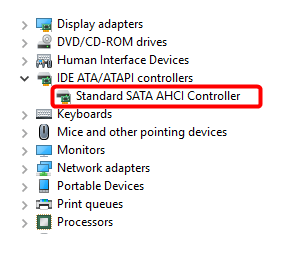
  • Expand IDE ATA/ATAPI Controllers category
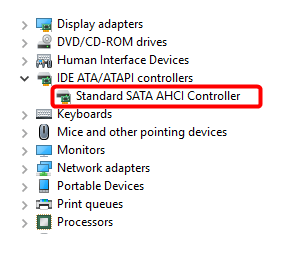
  • Double-click AHCI controller
  • Click the Driver tab and then select Driver Details. In case storachi.sys is saved in a path that has system32 in it, that means you’re using inbox AHCI driver
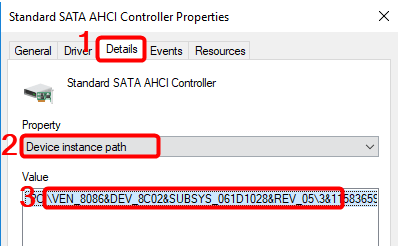
  • Now close Driver details. Click the Details tab, select Device Instance Path in the drop-down menu, and then note down the path (starting from VEN_)
  • Press Widows key and R key simultaneously. In the run dialog box, type regedit and press Enter to launch Registry Editor
  • Now go to:

The <Random Number> varies from one device to the next

The <AHCI Controller> refers to the name you saw in Step two.

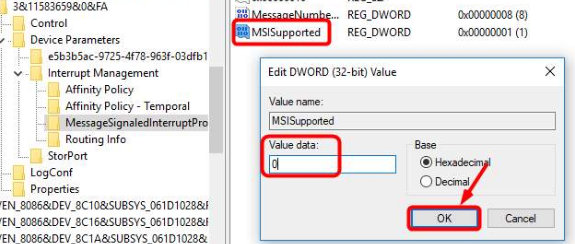
  • Double-click MSISupported key and alter the value to 0
  • Reboot Windows. Open Task Manager and check the Disk Usage percentage under the Process Tab. Hopefully, it would be less than 100% now.

Filed Under: PC Fix Tips Tagged With: disk usage 100%

Connect Bluetooth Headphones to PS4

By Susan C on October 12, 2020

Connect Bluetooth Headphones to PS4

Want to connect Bluetooth headphones to PS4 but are not sure about how to do it?

If so, don’t worry. We’ve you covered.

In this post, we’ll share with you four different ways to connect Bluetooth headphones to PS4. These are:

  • Using the supported Bluetooth devices
  • Connecting the headset wired to your PS4
  • Connecting the Bluetooth headset using a USB adapter
  • Using a dongle to connect the Bluetooth headphones to your PS4

All these methods are fairly simple. You can use any one of them you like.

Why PS4 Doesn’t Support Audio Devices?

Sony had declared after launching PS4 that it doesn’t support A2DP (which includes Bluetooth devices) or other audio streaming Bluetooth profile. The full form of A2DP is Advanced Audio Distribution Profile. This basically is stereo music transmitted wirelessly over Bluetooth.

So why Sony stopped Bluetooth devices support in PS4? A2DP is associated with lagging of roughly 100-200ms. This means you will get a less than optimal performance when you use these devices. And for this reason, more than anything else, Sony stopped Bluetooth support.

However, there’s an easy workaround to this limitation. You can use any of the following ways to connect Bluetooth devices to PS4.

Method #1 – Use Supported Bluetooth Devices to Connect to PS4

If Sony supports your Bluetooth device, you can configure the settings directly to pair them. In case you are in two minds about whether Sony supports the device, read the information on the headset package. However, setting up the settings never hurt in any situation.

Here are the steps to follow:

  • Turn the Bluetooth headset on in pair mode
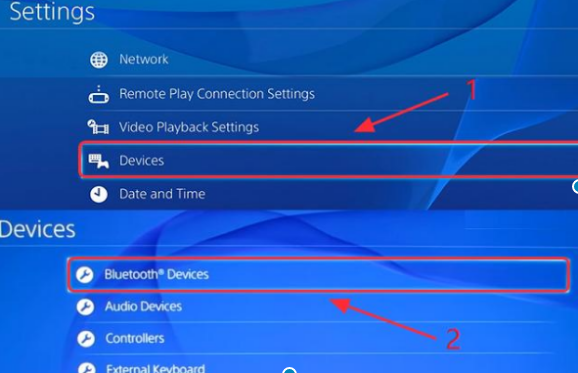
  • In the PS4 Settings, click Devices and then click Bluetooth Devices
ps4 settings
  • Choose your headset’s name
bluetooth devices
  • Does it connect successfully? If so, then you start playing games

In case the connection is unsuccessful and you get an error message that reads something like Cannot connect to the Bluetooth device within the time limit or Bluetooth audio devices are not supported by PS4, then try the solutions listed ahead.

bluetooth audio devices are no supported on the ps4

Method 2 – Connect Bluetooth headset wired to PS4

With Sony stopping support to the majority of Bluetooth devices for its PS4, it may be a good idea to use an external tool for establishing a connection between Bluetooth headset and PS4. Many Bluetooth headsets have cable that you can use to wire them to PS4.

Here are the steps to follow:

  • Connect the Bluetooth headset and the PS4 controller using the audio cable having a built-in mic. Turn on the headset
  • In the PS4 settings window, click Devices and then click Bluetooth Devices
  • Choose your headset’s name
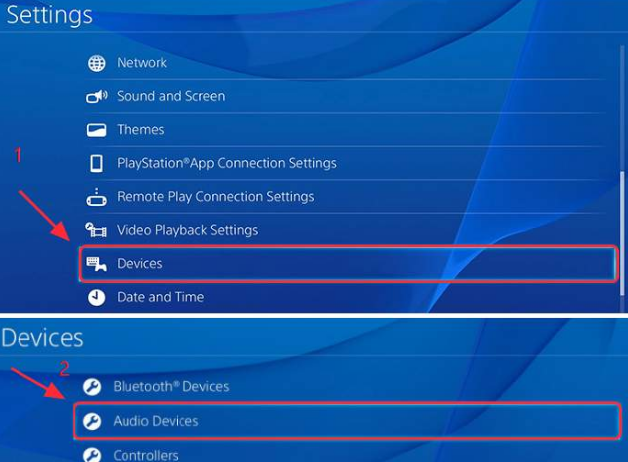
  • Click Devices and then go to Audio Devices
audio devices settings
  • Click Output Device and then click Headset Connected to Controller
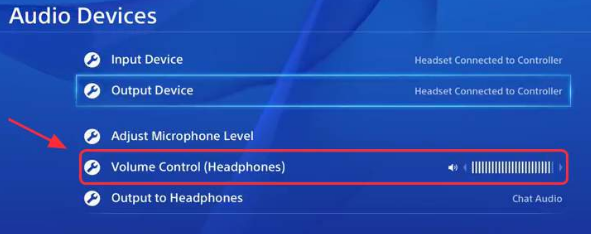
  • Go to Volume Control and then adjust it to either louder or medium
audio devices volume control
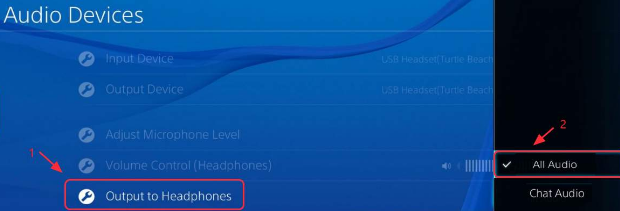
  • Go to Output to Headphones and then click All Audio
audio device headphones
  • Now see whether you are able to use the headset with PS4 or not

Method 3 – Use a USB adapter to connect the Bluetooth headset to PS4

If you’ve a USB adapter, you’re in luck. That’s the simplest possible method for connecting the Bluetooth headset with PS4.

Here are the steps to follow:

  • Insert your USB adapter into the PS4 USB slot
  • Turn the Bluetooth headset on
  • In PS4 Settings, click Devices and then click Audio Devices
  • Now click Output Device and then choose USB Headset
  • Go to Volume Control and then adjust the setting either to louder or medium
  • Click Output to Headphones and then choose All Audio
  • Check whether you are able to use the Bluetooth headphones with PS4 or not

Method 4 – Connect Using a Dongle

There’s no faster way to connect a Bluetooth headset with PS4 than using a dongle and a wireless mic. Since the majority of dongles today come with a wireless microphone, you don’t really need to buy these two tools separately.

Here is what you need to do:

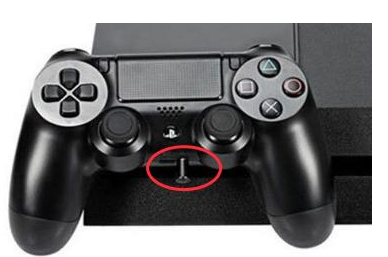
  • Insert your wireless mic in to PS4 controller
image of ps4 controller
  • Now insert the Bluetooth Dongle into PS4 USB slot
usb slot
  • Turn on the Dongle
  • Turn your Bluetooth headset on. In a few seconds, the Bluetooth headset should connect to dongle
  • Once connection has been established, in PS4 settings click Devices and then Audio Devices
  • Now select Input Device and then click Headset Connected to Controller
  • Then click on Output Devices and then click USB Headset
  • Click on Volume Control and then adjust the level either to louder or medium
  • Click on Output to Headphones and then choose All Audio
  • Now check whether you are able to use the Bluetooth headset or not

If you are looking to play your Playstation 4 on a Mac or PC then view our article here.

A Bonus Tip: In case you want to play games on your Windows computer, consider updating the graphic card driver. An updated graphic card driver can help boost game performance. You can update your graphics driver easily using reliable driver update software.

Automatic driver update tools offer many benefits, the most important ones being:

  • You can update device drivers automatically
  • The software scans and updates all outdated or missing drivers at one go
  • The tool picks the right drivers for your device and operating system, so you won’t have to worry about installing an incorrect driver by mistake
  • Automatic driver updates are 100% safe

Driver Updater is one of the best driver update tools out there. Outbyte Driver Updater will give you access to a database of over 1 million drivers. It will regularly scan your PC, suggesting new driver versions to install. Driver Updater contains drivers for a variety of Windows devices. With just one click, you can update drivers in your system.

Step 1
Click here to Install and launch the app

Step 2
Scan all devices

Step 3
Install or update drivers automatically


Start Download


Filed Under: PC Fix Tips Tagged With: PS4 Bluetooth

Connect PS4 Controller to PC in 3 Simple Steps

By Susan C on October 7, 2020

Connect PS4 Controller to PC in 3 Simple Steps

Have you ever wanted to connect your PS4 controller to your Windows computer?Read our post on how to play your PS4 on a Mac or PC

Maybe you think since the controller is specifically designed for PlayStation 4, it won’t work with your PC.

Truth to be told: It will. And you can count on us to show how to connect it with a Windows computer.

What’s more, the whole process is quite easy. Just follow these three simple steps and you’ll be able to enjoy your favorite Windows games with PS4.

Step #1 – Connect PS4 Controller through Bluetooth or USB

The first thing you need to do if you want to use PS4 Controller with Windows is to connect it to the PC physically. You can do this by either of the following ways:

First Method – Connect PS4 Controller through USB

The easiest way to establish a physical connection between your computer and PS4 is by using a micro-USB cable. The best part of using this method is that once you connect PS4 to the PC, you don’t need to do any further configuration.

You can use the regular micro-USB cable for this purpose. Next, follow these steps:

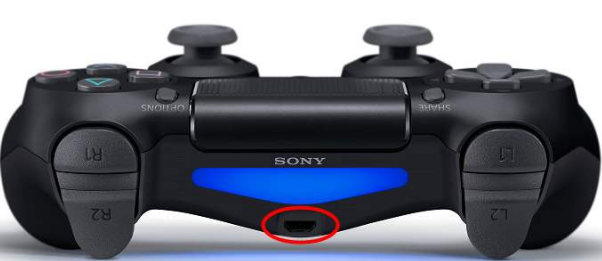
  • Plug in the smaller end of the USB cable into the port on your PS4. The port is present on the front side (as shown below)
  • Next, plug in the bigger end of the cable in a USB port on your Windows computer
  • Go to the next step (Those using Windows 10 can directly go Step 3)

Second Method – Establish a connection via Bluetooth

If you don’t like or want to use a micro-USB cable, connect the PS4 controller to your PC using Bluetooth.

In case your Windows computer has Bluetooth capabilities, you can directly pair it with the PS4 controller. In case it doesn’t have the Bluetooth feature, you will have to use an external Bluetooth adapter.

To ensure the Bluetooth adapter driver runs without any problem, you should have the latest Bluetooth driver on your Windows computer. If you don’t know how to manually update device drivers, use a Driver Update Tool.

Automatic driver update tools offer many benefits, the most important ones being:

  • You can update device drivers automatically
  • The software scans and updates all outdated or missing drivers at one go
  • The tool picks the right drivers for your device and operating system, so you won’t have to worry about installing an incorrect driver by mistake
  • Automatic driver updates are 100% safe

Driver Updater is one of the best driver update tools out there. Outbyte Driver Updater will give you access to a database of over 1 million drivers. It will regularly scan your PC, suggesting new driver versions to install. Driver Updater contains drivers for a variety of Windows devices. With just one click, you can update drivers in your system.

Step 1
Click here to Install and launch the app

Step 2
Scan all devices

Step 3
Install or update drivers automatically


Start Download


Once your Bluetooth adapter is ready, connect the two devices together. Here are the steps to follow:

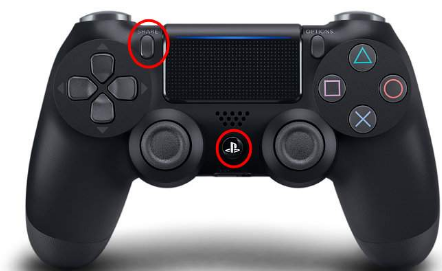
  • Press and hold the PS and Share buttons together on your PS4 till the light bar flashes
  • Pair the controller with Windows. Steps to this for Windows 10 are different than for Window 7

For Windows 10

  • Click Start and then click Settings
  • Click Devices
  • Click Bluetooth & Other devices
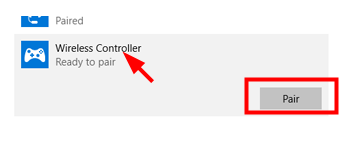
  • Choose Wireless Controller and then click on Pair
  • Now the wireless connection between the two devices is complete and you can directly go to Step 3

For Windows 7

  • Click Start and then click on Devices and Printers
  • Click on Add a device
  • Choose your PS4 controller and then add it as a device on Windows PC (In case you are asked to enter a pair code, write “0000”
  • Now the wireless connection between the two devices is complete. Go to the next step now.

Step 2 – Install Xbox 360 Controller driver (for users with Windows 7 or a lower version)

This step is only for those using Windows 7 or a lower version. If you have Windows 10, directly go to Step 3.

You can’t use the PS4 controller with Windows 7 or lower versions by just physically connecting it to your PC. Windows Games can’t directly recognize PS4; they need a bit of help in this department. What you need is a third-party application software that emulates Xbox 360 controller.

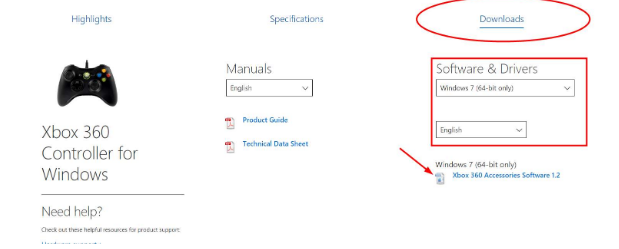
However, for such applications to work on Windows 7 or a lower version, you will need Xbox 360 controller software. You can download the software from Microsoft website.

Here are the steps to follow:

  • Go to Xbox 360 controller for Windows page
  • Click the Download button and save the file in a suitable location like your desktop
  • Open the file and install the software
  • Reboot Windows when the installation is complete

Step 3 – Use a third-party Xbox controller emulator

You can use either Steam or DS4Windows to allow you to use PS4 controller with Windows.

In case you are already using Steam, that’s great news. Your Steam client will help your Windows PC recognize the controller. Steam already provides native support for DualShock 4.

You can configure PS4 controller on Steam using these steps:

  • Disconnect the PS4 controller. (In case of wireless controller, unpair the controller by going to Bluetooth settings. In case of wired controller, simply unplug the micro-USB cable from your Windows PC)
  • Open the Stream Client. Now log in into it.
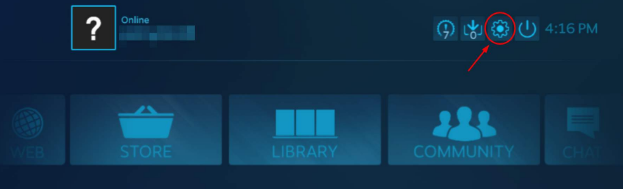
  • Click the gamepad icon (as shown below)
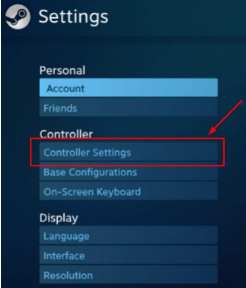
  • Click Settings
  • Click Controller Settings
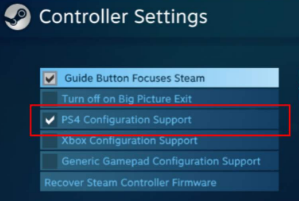
  • Select PS4 Configuration Support
  • Connect the controller to the Windows PC. Steam will automatically detect the PS4 controller
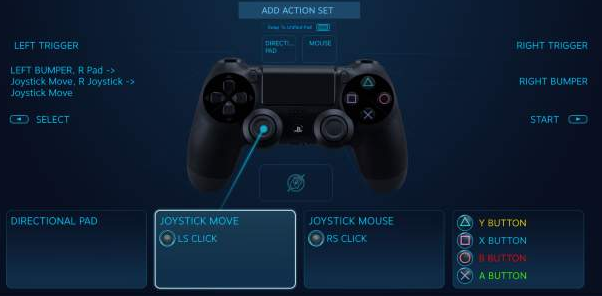
  • Launch any game which supports controller. Press the PS button on PS4 and then choose Controller Configuration
  • Modify button settings
  • Exit Controller Configuration. Now you can enjoy your favorite game with controller on Steam

In case you don’t have Steam or the game you like playing doesn’t work with Steam well, you can use alternatives like DS4 windows. It can easily map the PS4 controller on to the Xbox controller driver.

Here’s what you need to do:

  • Go to DS4Windows site. Download the program and save it in a suitable location like your desktop and then install the program.
  • Extract each and every file in the compressed folder
  • Double-click DS4Windows.exe
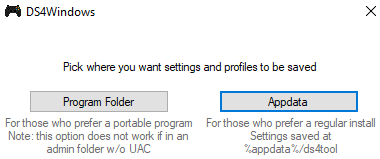
  • Select the location where you would like to save profiles and settings. You have two options — Program Folder and Appdata. Locating Program Folder is easier but you need to be logged in as an administrator to save the files. Appdata, on the other hand, allows access to restricted users but it is at times hidden by Windows. So choose accordingly.
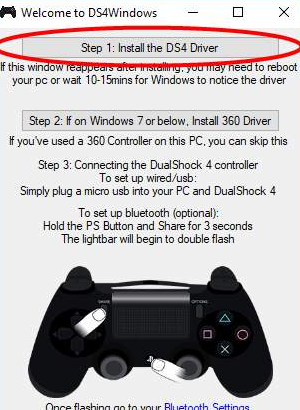
  • In the Welcome to DS4Windows screen, click Step 1: Install the DS4 Driver. This will ensure downloading of a special driver for this particular program
  • Next you need to click the Install button to start installation of the driver
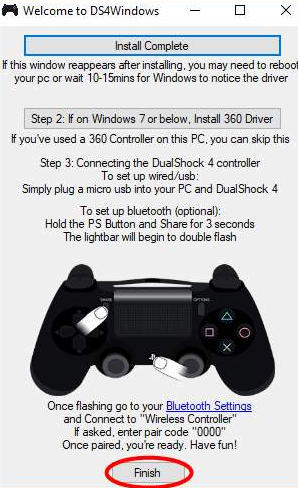
  • Now if you are able to see Install Complete button, this means driver installation is complete. To close this window, click the Finish button
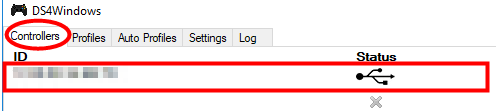
  • Click Controllers tab in the DS4Windows Window. You will be able to see the PS4 controller here in the list of all connected drivers.
  • If you don’t see it, you need to reboot Windows. Upon reboot, Windows will automatically discover the driver and the controller. Next, open the DS4 Window and you will be able to see the controller in the list of all connected drivers under the Controllers tab

That’s just about it. You can now use the PS4 controller on your Windows computer to enjoy games.  

Filed Under: PC Fix Tips Tagged With: PS4 Controller

  • « Previous Page
  • 1
  • …
  • 84
  • 85
  • 86
  • 87
  • 88
  • …
  • 189
  • Next Page »


  • Recent Posts
  • Popular Posts
        

Read More Posts


Read More Posts

Drivers.com Sites

  • Software Drivers
  • Drivers Ed

About Us

  • Advertise
  • About Drivers
  • Drivers Support
  • Drivers.com Privacy Policy
  • Disclaimer
  • Software Drivers
  • Mac Fixes and Tips
  • PC Fix Tips
  • Security/ Backup
  • Tablets & Smartphones
  • Tech News

© Copyright 2026 PDE Publications Ltd. End User License Agreement (EULA)