Drivers.com

follow us:

facebook twitter
  • Home
  • Download Drivers
  • Drivers Help
  • PC/Mac Resources
  • Software Drivers
  • Mac Fixes and Tips
  • PC Fix Tips
  • Security/ Backup
  • Tablets & Smartphones
  • Tech News
  • Software Drivers
  • Mac Fixes and Tips
  • PC Fix Tips
  • Security/ Backup
  • Tablets & Smartphones
  • Tech News

The Active Directory Domain Services is Currently Unavailable (Solved)

By Susan C on November 6, 2020

The Active Directory Domain Services is Currently Unavailable (Solved)

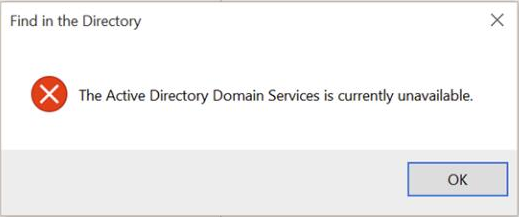
If your printer has suddenly stopped working and you are getting the “The Active Directory Domain Services is Currently Unavailable” error, you are not alone.

printer error

This is a common printer-related issue, and one that you can solve fairly easily.

In this post, we will discuss two easy methods to solve this problem once and for all. So let’s start.

Solution 1 – Tweak the Printer Spooler Settings

Here are the steps to follow:

  • Press the Windows key + R key on your keyboard to launch the Run dialog box
  • Type services.msc and then press the OK button
  • In the right-pane of the Services window, right-click Printer Spooler and then click the Start button
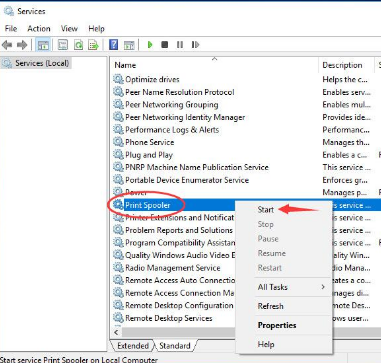
print spooler

  • Once the Printer Spooler service starts, double-click it. Next, using the drop-down menu under the General tab set its startup types as Automatic
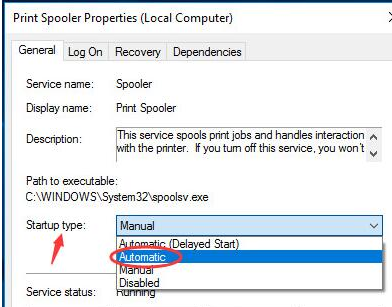
  • Click the OK button
  • Now check if the problem is fixed

Solution 2 – Use Registry Editor

If the problem persists, you will need to use registry editor. Here are the steps to follow:

  • Press the Windows key + R key on your keyboard to launch the Run dialog box
  • Type regedit and then press the OK button
  • Click Yes if you see a User Account Control box
  • In Windows Registry, navigate to this location

  • Right-click Devices under CurrentVersion and then click Permissions
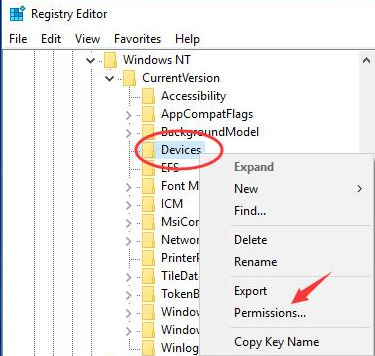
  • Click your account. Next select Full Control
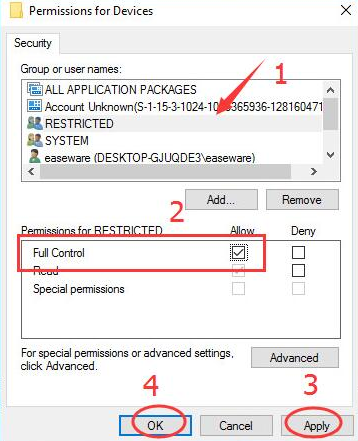
  • Click the Apply button and then click OK
  • Now give your account full control of PrinterPorts and Windows
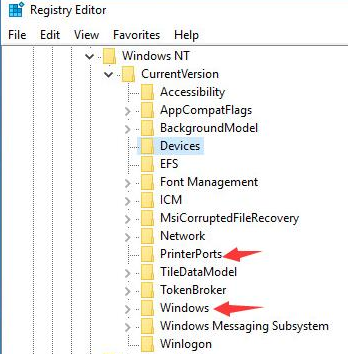
  • Exit Windows Registry and check if the problem is fixed

We hope one of these two solutions would have worked for you. If you know any other solution for this problem, don’t forget to share it with us. Thanks!
Filed Under: PC Fix Tips Tagged With: printer error

Windows update stuck at 0 (Solved)

By Susan C on October 29, 2020

Windows update stuck at 0 (Solved)

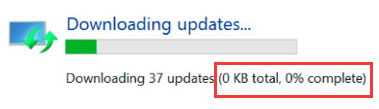
Windows update is a useful feature that allows you to automatically download the latest updates. However, sometimes this feature can throw up an unexpected error. For instance, many users complain of “Windows Update not working” issue from time to time.

downloading updates

If you’re looking for a way to fix “Windows Update stuck at 0” issue, this post is all you need. We’ll show you how to solve this error in Windows 10, 8, & 7.

Solution 1 – Wait for some time

Sometimes, the update process picks up the pace itself, without any help from you. So, if this is the first time you are seeing this error, the smart thing to do is to be a little patient. However, if doing nothing doesn’t work, try the next solution.

Solution 2 – Disable non-Microsoft services

Here are the steps to follow:

  • Press the Windows key and R key simultaneously
  • In the run dialog box, type msconfig and then press the Enter key
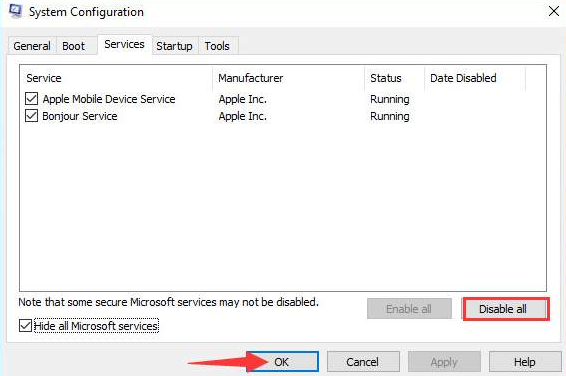
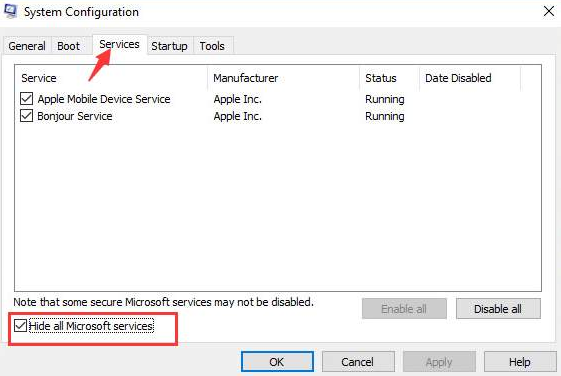
  • Click the Services tab and then select Hide all Microsoft Services
system configuration
  • Click Disable all and then click the OK button
disable system configration
  • Reboot Windows so that the changes can take effect
  • Now run Windows Update again and check if updates are getting downloaded

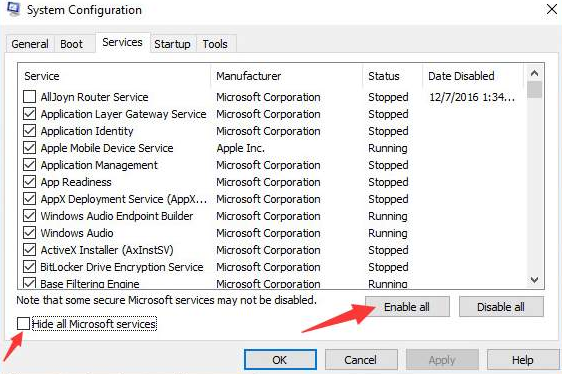
Once Windows have downloaded the latest updates, you can open the System Configuration box again (by following the above steps), and enable all services that you had previously disabled.

To do so, uncheck the box before Hide all Microsoft services and then click the Enable all button.

system configuration services

Solution 3 – Turn Windows firewall off temporarily

It is possible that Windows Firewall may be blocking the download. Therefore, temporarily turn it off and check if that does the trick.

Here are the steps to follow:

  • Open Control Panel
  • Set View by as Small icons using the drop-down menu
  • Click Windows Firewall
  • Choose Turn Windows Firewall on or off
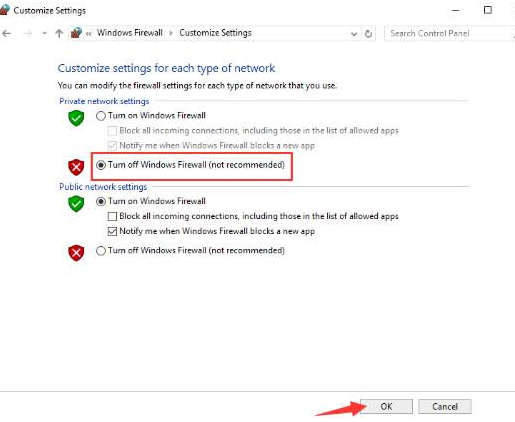
  • Choose Turn off  Windows Firewall (not recommended)
customise settings
  • Click the OK button

Now check if you are able to download Windows Updates. If so, after the download process is complete, enable Windows Firewall once again.

Solution 4 – Run a virus scan

A virus infection can cause all sorts of issues, including the titled one. Therefore, run a boot time scan to check your system for malware infection. In case any malicious programs are detected, the antimalware software will automatically suggest a suitable action. We recommend you to follow the recommendations made by your protective software.

Solution 5 – Stop and then restart Windows Update service

Here are the steps to follow:

  • Press Windows key and R key simultaneously
  • In the run dialog box, type services.msc and then click OK
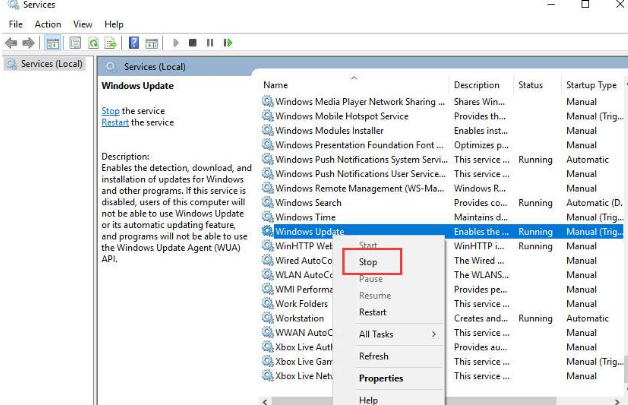
  • Browse through the list in the right pane until you locate Windows Update service. Right-click it and then click Stop
windows update
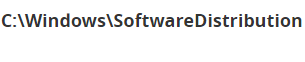
  • Now browse to the following location and delete all content you find here
  • Again right-click Windows Update service and then select Start

Now try downloading Windows Updates again. We hope one of these solutions would work for you.

Filed Under: Software Drivers Tagged With: windows update issue

Display driver stopped responding and has recovered

By Susan C on October 29, 2020

Display driver stopped responding and has recovered

Computer errors such as the titled error can occur any time. The good news is that many errors are pretty to resolve. And you can add the “display driver stopped recovering and has recovered” error in that list.

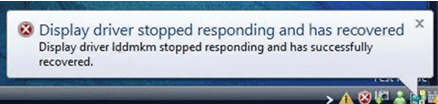
So if you are getting the below error message, there’s no cause to worry. We’ve got you covered.

In this post, we will look at why this error occurs and more importantly how can you fix it on your own.

Why “Display Driver Stopped Responding and Has Recovered” error occurs?

This error rears up its ugly face when Timeout Detection and Recovery (or TDR) feature finds that Graphic card didn’t respond in a set time period. When that happens, the system restarts the display driver to make sure Windows don’t reboot.

This problem usually occurs because of one of the following reasons:

  • Your display driver is faulty
  • You have a large number of programs running
  • Overheating of GPU
  • GPU timeout issues

How to solve the error?

We have listed 5 solutions to resolve this issue. You don’t have to try each one of them; instead, start with the first one and work your way down until you are able to fix the problem.

Solution 1 – Uninstall your graphic driver

Here are the steps you need to perform to uninstall graphic card driver:

  • Press Windows key and R key simultaneously
  • In the run dialog box, type devmgmt.msc and then press OK to launch Device Manager
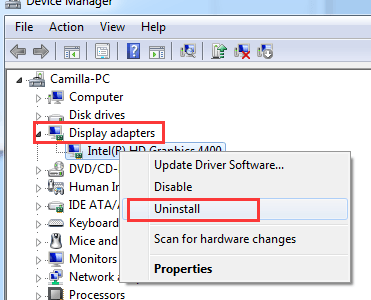
  • Browse through the list and locate Display adapters. Expand it and right-click your display driver and then select Uninstall
  • Once the driver gets uninstalled, reboot Windows

Now check if the problem is fixed. If not, move on to the next solution.

Solution 2 – Download and install newest graphic driver

You may want to update your graphic driver if the above step didn’t produce the desired result.

When it comes to updating drivers, you have two options. You can update them manually or automatically. The latter is a much easier, simpler, and faster solution. But we will share both methods, so you can decide which one is right for you.

Updating graphic driver manually

Here are the steps to follow:

  • Press Windows logo + Rto open the run dialog box
  • Type devmgmt.msc to open the Device Manager window
  • Expand Display adapters. All the installed graphic cards will appear here

Note down the name of your graphics card. Now, visit the card manufacturer’s website or your computer manufacturer’s website and check for the newest driver for your graphic card or PC model. Alternately, you can type the name as well as the model number of your video card in Google search bar and locate the latest driver. After you’ve found the appropriate driver, download the driver file and save it in a suitable location, such as the desktop. Make sure that your driver file corresponds to your PC type. This basically means if you are using Windows 10 32-bit, the driver file should be for 32-bit Windows 10 PCs. Likewise Windows 64-bit users need to download the driver file that’s meant for 64-bit Windows 10 version.

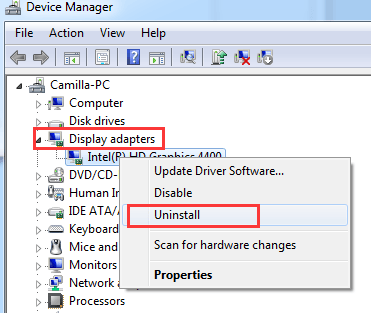
  • Now in Device Manager window, right-click your graphics card and then click Uninstall device
  • A confirmation dialog box will appear on your screen. Tick the box before Delete the driver software for this device. Now select Uninstall
  • After driver is fully uninstalled, reboot Windows
  • Now launch the driver installation file and follow the instructions that appear on your screen to complete the installation process

Updating your graphics card automatically

Automatic driver update tools offer many benefits, the most important ones being:

  • You can update device drivers automatically
  • The software scans and updates all outdated or missing drivers at one go
  • The tool picks the right drivers for your device and operating system, so you won’t have to worry about installing an incorrect driver by mistake
  • Automatic driver updates are 100% safe

Driver Updater is one of the best driver update tools out there. Outbyte Driver Updater will give you access to a database of over 1 million drivers. It will regularly scan your PC, suggesting new driver versions to install. Driver Updater contains drivers for a variety of Windows devices. With just one click, you can update drivers in your system.

Step 1
Click here to Install and launch the app

Step 2
Scan all devices

Step 3
Install or update drivers automatically


Start Download


Solution 3 – Increase GPU Processing Time

Important: This step involves modifying Windows registry. You should proceed only if you are confident about tweaking the registry. You should always back up registry before making any sort of changes to it. This will help you restore Windows registry to its prior state in case any problem occurs due to the changes made by you.

  • Press the Windows key + R key simultaneously
  • In the run dialog box, type regedit and click the OK button
  • Navigate to the following registry subkey
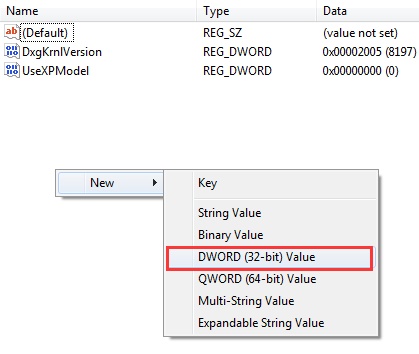
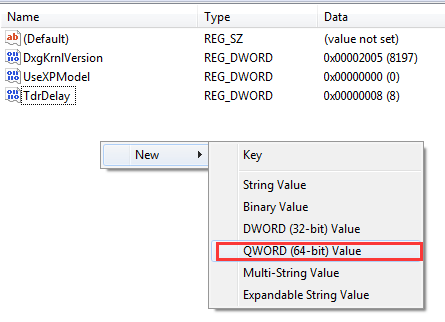
  • In the right pane, you need to right-click anywhere in the blank space. Select New and then choose the below registry value according to the Windows version you are using

Those running Windows 32-bit need to follow these steps:

  • Choose DWORD (32-bit) Value
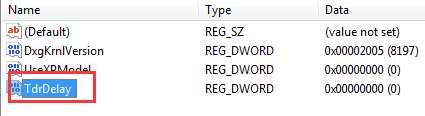
  • Use TdrDelay as the Name and then click Enter
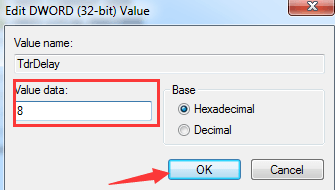
  • Double-click on TdrDelay and in the Value Data field add 8
  • Click the OK button

Those running Windows 64-bit need to follow these steps:

  • Choose QWORD (64-bit) Value
  • Use TdrDelay as the Name and then click Enter
  • Double-click on TdrDelay and in the Value Data field add 8
  • Click the OK button

Now reboot Windows. Check if the problem is solved.

Solution 4 – Exit some programs that are running

PC performance can take a hit when a lot of programs are running at the same time. Therefore, we recommend you to close some programs and check if that does the trick.

If not, try the next — and the last — solution.

Solution 5 – Clean GPU radiator

Sometimes, the issue is caused by the overheating of the GPU. Cleaning the GPU radiator can help prevent overheating. So do that and see if that solves the problem.

So that’s it. We hope one of these solutions would work for you.

Filed Under: PC Fix Tips Tagged With: display driver error

  • « Previous Page
  • 1
  • …
  • 83
  • 84
  • 85
  • 86
  • 87
  • …
  • 189
  • Next Page »


  • Recent Posts
  • Popular Posts
        

Read More Posts


Read More Posts

Drivers.com Sites

  • Software Drivers
  • Drivers Ed

About Us

  • Advertise
  • About Drivers
  • Drivers Support
  • Drivers.com Privacy Policy
  • Disclaimer
  • Software Drivers
  • Mac Fixes and Tips
  • PC Fix Tips
  • Security/ Backup
  • Tablets & Smartphones
  • Tech News

© Copyright 2026 PDE Publications Ltd. End User License Agreement (EULA)