
Drivers.com

follow us:

facebook twitter
  • Home
  • Download Drivers
  • Drivers Help
  • PC/Mac Resources
  • Software Drivers
  • Mac Fixes and Tips
  • PC Fix Tips
  • Security/ Backup
  • Tablets & Smartphones
  • Tech News
  • Software Drivers
  • Mac Fixes and Tips
  • PC Fix Tips
  • Security/ Backup
  • Tablets & Smartphones
  • Tech News

Resources by Tag

printer error

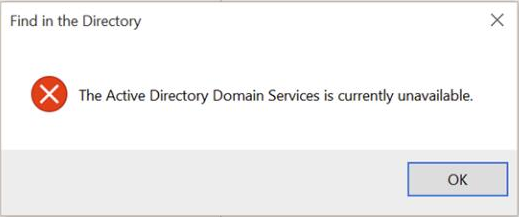
The Active Directory Domain Services is Currently Unavailable (Solved)

The Active Directory Domain Services is Currently Unavailable (Solved)

If your printer has suddenly stopped working and you are getting the “The Active Directory Domain Services is Currently Unavailable” error, you are not alone.

printer error

This is a common printer-related issue, and one that you can solve fairly easily.

In this post, we will discuss two easy methods to solve this problem once and for all. So let’s start.

Solution 1 – Tweak the Printer Spooler Settings

Here are the steps to follow:

  • Press the Windows key + R key on your keyboard to launch the Run dialog box
  • Type services.msc and then press the OK button
  • In the right-pane of the Services window, right-click Printer Spooler and then click the Start button
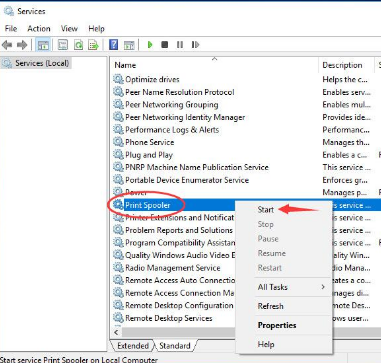
print spooler

  • Once the Printer Spooler service starts, double-click it. Next, using the drop-down menu under the General tab set its startup types as Automatic
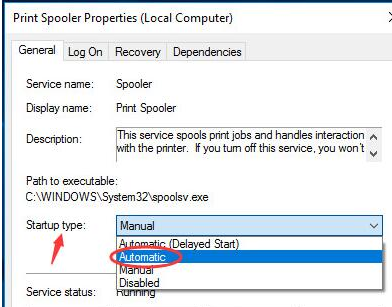
  • Click the OK button
  • Now check if the problem is fixed

Solution 2 – Use Registry Editor

If the problem persists, you will need to use registry editor. Here are the steps to follow:

  • Press the Windows key + R key on your keyboard to launch the Run dialog box
  • Type regedit and then press the OK button
  • Click Yes if you see a User Account Control box
  • In Windows Registry, navigate to this location

  • Right-click Devices under CurrentVersion and then click Permissions
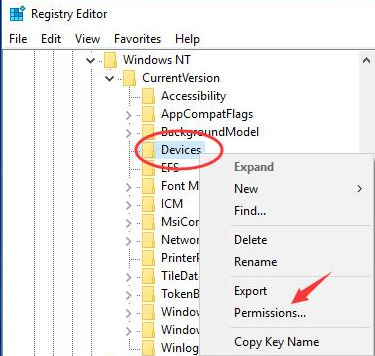
  • Click your account. Next select Full Control
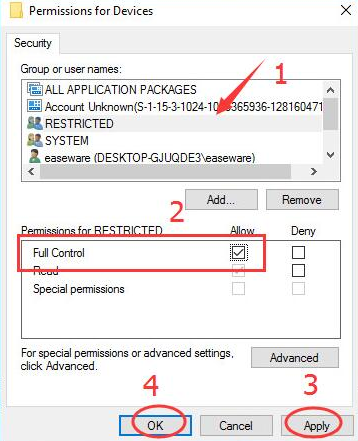
  • Click the Apply button and then click OK
  • Now give your account full control of PrinterPorts and Windows
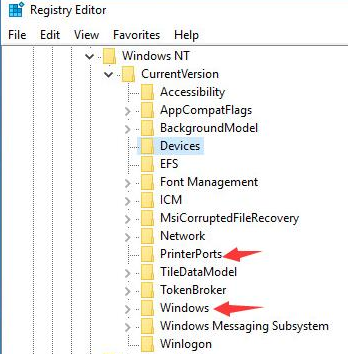
  • Exit Windows Registry and check if the problem is fixed

We hope one of these two solutions would have worked for you. If you know any other solution for this problem, don’t forget to share it with us. Thanks!

Filed Under: PC Fix Tips Tagged With: printer error

Scan to Computer is no Longer Activated Printer Error (Fixed)

Printer errors can be very frustrating and the “scan to computer is no longer activated” error is no different. However, the good news is that it is relatively easy to fix.

In this post, we’ll show not one but three possible solutions for this error.

Solution 1 – Check Your Printer Connection

This error, much like several printer-related issues, can prevent you from printing files. Before you try other solutions, we recommend you check the printer connection.

First check how your printer is connected. Is it connected using a USB? In that case make sure the USB is properly connected to the computer.

Have you connected the printer not via a USB but wirelessly? In that case ensure your printer is connected to your network.

If your printer is already properly connected, move on to the next solution in the post.

Solution 2 – Reinstall the Printer Driver

As often as not, the real cause behind this kind of printer issue is a corrupt printer driver. In such cases, updating the printer driver usually does the trick.

Now you can update the driver software in two ways – manually and automatically. The latter is easier and much faster. It also doesn’t require any sort of technical knowledge. Nonetheless we have discussed both options so you can decide which one to choose yourself.

Updating Printer Driver Manually

Here are the steps to follow:

  • Press Windows logo key + R together to bring up the Run command
  • In Run command, type devmgmt.msc and click OK
  • In the Device Manager, go and expand Print queues
  • Right-click the printer software and select Uninstall device
  • Restart Windows. Upon reboot, Windows will install the printer driver on its own.

However, in case Windows fails to do that, you’ll have to visit the printer manufacturer’s website and download and install the latest printer driver manually. Make sure you download the latest driver for your version of Windows. For instance, if you are using a 32-bit Windows 10, the driver should be for 32-bit only, not 64-bit.

Update Printer Driver Automatically

Automatic driver update tools offer many benefits, the most important ones being:

  • You can update device drivers automatically
  • The software scans and updates all outdated or missing drivers at one go
  • The tool picks the right drivers for your device and operating system, so you won’t have to worry about installing an incorrect driver by mistake
  • Automatic driver updates are 100% safe

Driver Updater is one of the best driver update tools out there. Outbyte Driver Updater will give you access to a database of over 1 million drivers. It will regularly scan your PC, suggesting new driver versions to install. Driver Updater contains drivers for a variety of Windows devices. With just one click, you can update drivers in your system.

Step 1
Click here to Install and launch the app

Step 2
Scan all devices

Step 3
Install or update drivers automatically


Start Download


Solution 3 – Remove ‘Scan to computer is no longer activated error’

In some case, you are able to print files, even though the aforementioned error message keeps popping up on your screen every few minutes.

Here are the steps to remove it.

  • Press Ctrl+Shift+Esc
  • In the task manager window, locate scanToPCActivationApp below Process tab. Now right-click it and select End task
  • Now click the Startup tab. Under it locate and select scanToPCActivationApp. Now right click it and select Disable

Filed Under: PC Fix Tips Tagged With: printer error


  • Recent Posts
  • Popular Posts
        

Read More Posts


Read More Posts

Drivers.com Sites

  • Software Drivers
  • Drivers Ed

About Us

  • Advertise
  • About Drivers
  • Drivers Support
  • Drivers.com Privacy Policy
  • Disclaimer
  • Software Drivers
  • Mac Fixes and Tips
  • PC Fix Tips
  • Security/ Backup
  • Tablets & Smartphones
  • Tech News

© Copyright 2026 PDE Publications Ltd. End User License Agreement (EULA)