Drivers.com

follow us:

facebook twitter
  • Home
  • Download Drivers
  • Drivers Help
  • PC/Mac Resources
  • Software Drivers
  • Mac Fixes and Tips
  • PC Fix Tips
  • Security/ Backup
  • Tablets & Smartphones
  • Tech News
  • Software Drivers
  • Mac Fixes and Tips
  • PC Fix Tips
  • Security/ Backup
  • Tablets & Smartphones
  • Tech News

NVIDIA Control Panel won’t open (Solved)

By Susan C on December 4, 2020

NVIDIA Control Panel won’t open (Solved)

The NVIDIA control panel provides you easy access to the graphics settings of the NVIDIA graphics card.    Many users have complained about the NVIDIA control panel not opening on Windows that prevents them from accessing important graphics settings for the graphics card.

If you are facing a similar problem, you have come to the right place. Here we have discussed few solutions to resolve the NVIDIA control panel won’t open issue.

“NVIDIA Display settings are not available” issue in Windows

Solution One- Restart the NVIDIA Control Panel Service

Every application running on your Windows has a background process. When you click any application icon in the Start Menu or anywhere on the desktop, the associated process is initiated. The processes related to graphics are scheduled to start with Windows every time as they are essential for graphics card functioning.

Much time due to some computer glitches the app does not function properly even though the background service is running. In that case, you need to restart the service and see if it helps. Here are the steps to follow.

  • Press the key combination – Ctrl+Shift+Esc to launch Task Manager
  • In the Task Manager window, go to the Applications tab
  • Find the NVIDIA Control Panel Application in the list and right-click on it
  • Choose End Task
  • Close the Task Manager
  • Try launching the NVIDIA control panel

If the above solution does not yield success, proceed to Solution 2.

Solution Two- Check important services are running

The first thing you need to check whether important services related to the NVIDIA control panel are running. Here are the steps to follow.                                 

  • Press Windows and R keys to bring Run command window
  • Type services. msc in the Run command window and press Enter
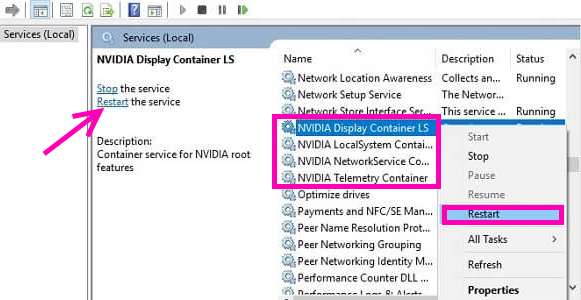
  • Find NVIDIA Display Container LS in the list and double-click on it to access Properties
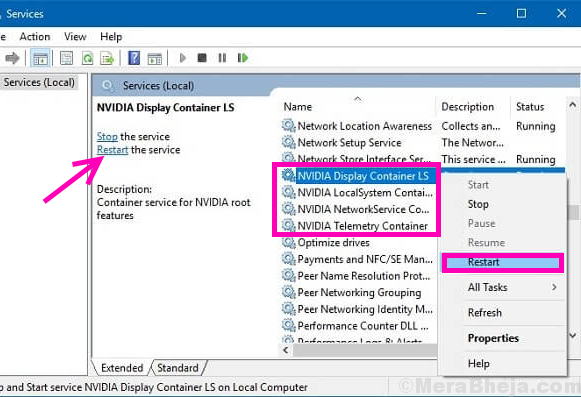
  • In the Properties window, go to General Tab
  • Check the Service Status. If the Service Status is started, the service is running. If the Service Status is stopped, the service is not running.
  • If the service is not running, click Start
  • No go to Start-up Type and select Automatic from the drop-down list
  • Click Apply and then click OK
  • Now try launching the NVIDIA Control Panel

If the above solution does not work for you, try the steps in Solution 2.

Solution Three- Update NVIDIA Drivers

One reason for the NVIDIA Control Panel, not opening is drivers are obsolete. In that case, you need to update NVIDIA drivers and see if the issue gets fixed. Here are the steps to follow.

  • Click Windows icon
  • Type Device Manager in the search box
  • Click Device Manager from the list of search results
  • In the Device Manager, go to the Display Adapters section and expand it
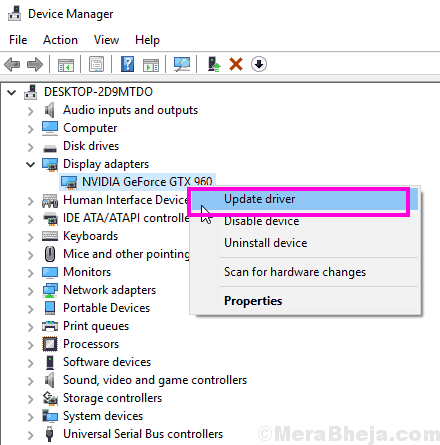
  • Click Update Drivers
  • Follow on-screen instructions to update the driver.

If the above process does not work, you can uninstall the display adapter and install the latest drivers which will install the NVIDIA Display Adapter again. Here are the steps to follow.

  • Repeat steps 1 to 4
  • Select Uninstall device from the list
  • Follow on-screen instructions to remove the device
  • Close Device Manager
  • Open browser and type NVIDIA latest drivers
  • Go to the NVIDIA website
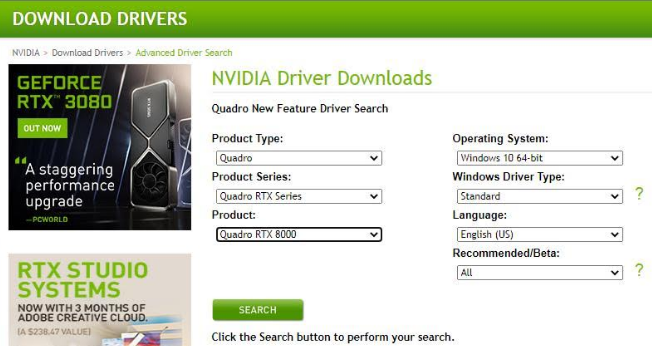
  • Select the Product Type,  Operating System, Product Series, Product
  • Click Search
  • Download the latest drivers from the website
  • Install the latest graphics drivers and restart your system

Solution Four- Update Drivers Automatically

Automatic driver update tools offer many benefits, the most important ones being:

  • You can update device drivers automatically
  • The software scans and updates all outdated or missing drivers at one go
  • The tool picks the right drivers for your device and operating system, so you won’t have to worry about installing an incorrect driver by mistake
  • Automatic driver updates are 100% safe

Driver Updater is one of the best driver update tools out there. Outbyte Driver Updater will give you access to a database of over 1 million drivers. It will regularly scan your PC, suggesting new driver versions to install. Driver Updater contains drivers for a variety of Windows devices. With just one click, you can update drivers in your system.

Step 1
Click here to Install and launch the app

Step 2
Scan all devices

Step 3
Install or update drivers automatically

 

Start Download


Filed Under: PC Fix Tips Tagged With: NVIDIA Driver

How to Delete Microsoft Edge (Solved)

By Susan C on November 25, 2020

How to Delete Microsoft Edge (Solved)

Disabling or uninstalling Microsoft Edge in Windows 10 is easy and simple. Simply, follow the instructions shared in this post.

The steps for disabling Microsoft Edge are different than for uninstalling Microsoft Edge. We’ve shared steps for both tasks.

Steps to disable Microsoft Edge

You can disable Microsoft Edge quickly following these steps:

  • Open Windows Explorer
  • Navigate to C:\Windows\SystemApps
  • Highlight Microsoft.MicrosoftEdge_8wekyb3d8bbwe folder
  • Right-click Microsoft.MicrosoftEdge_8wekyb3d8bbwe folder and then click rename
  • Now rename the folder as per your choice and click Continue

That’s just about it! The Edge browser is now disabled. If you want it back, simply rename the folder to its original name.

Steps to uninstall Microsoft Edge

Important: You may encounter stability issues if you remove Microsoft Edge. Instead of uninstalling it, you may want to consider changing your default internet browser.  In case you still want to remove it, use the steps detailed below (at your own risk).

  • Press Windows logo + S keys at the same time
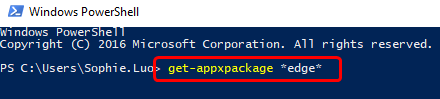
  • Type powershell and then click Windows PowerShell
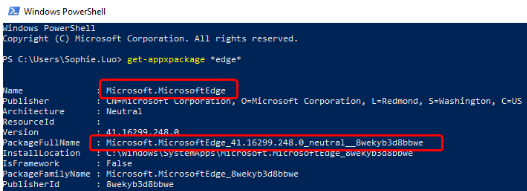
  • Type the following command in the pop-up window
command
windows powershell
  • Press Enter
  • The detailed location of Microsoft Edge will appear
windows powershell detail
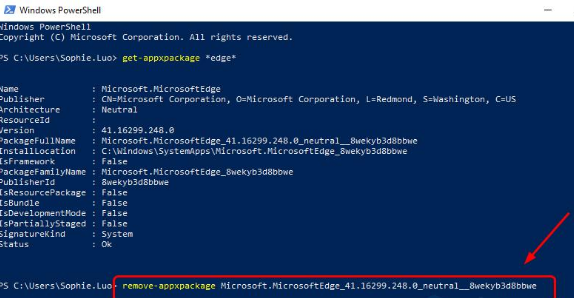
  • Now type remove-appxpackage in the Powershell window. Press the space key and then copy the address next to the item PackageFullName and paste it after the command that you’ve just typed. Refer the screen shot below if you are not sure about what to do
windows powershell

That’s just about it! The Edge browser should now be uninstalled.

If you are using the latest version of Windows 10, you may not get the desired result from this method. In that case, we recommend you disable Edge rather than delete it.

Filed Under: Software Drivers

HP Drivers Download Made Easy

By Susan C on November 25, 2020

Is your HP printer not working properly?

One of the most common causes of printer-related errors is outdated or faulty printer driver. Therefore, the first thing you should do is download and install the latest printer driver.

You can update HP printer driver in two ways. In this post, we’ve shared both methods.

Method 1 – Download and Install the Driver from HP Customer Support

Make note of your printer model or serial number. Next, open your internet browser and hop on to HP’s official website. Finally, locate the latest driver for your printer and then download and install it.

Method 2 – Update the Driver Using Driver Update Tool

Automatic driver update tools offer many benefits, the most important ones being:

  • You can update device drivers automatically
  • The software scans and updates all outdated or missing drivers at one go
  • The tool picks the right drivers for your device and operating system, so you won’t have to worry about installing an incorrect driver by mistake
  • Automatic driver updates are 100% safe

Driver Updater is one of the best driver update tools out there. Outbyte Driver Updater will give you access to a database of over 1 million drivers. It will regularly scan your PC, suggesting new driver versions to install. Driver Updater contains drivers for a variety of Windows devices. With just one click, you can update drivers in your system.

Step 1
Click here to Install and launch the app

Step 2
Scan all devices

Step 3
Install or update drivers automatically
 

Start Download


Filed Under: Software Drivers Tagged With: HP Printer Driver

  • « Previous Page
  • 1
  • …
  • 81
  • 82
  • 83
  • 84
  • 85
  • …
  • 189
  • Next Page »


  • Recent Posts
  • Popular Posts
        

Read More Posts


Read More Posts

Drivers.com Sites

  • Software Drivers
  • Drivers Ed

About Us

  • Advertise
  • About Drivers
  • Drivers Support
  • Drivers.com Privacy Policy
  • Disclaimer
  • Software Drivers
  • Mac Fixes and Tips
  • PC Fix Tips
  • Security/ Backup
  • Tablets & Smartphones
  • Tech News

© Copyright 2026 PDE Publications Ltd. End User License Agreement (EULA)