Drivers.com

follow us:

facebook twitter
  • Home
  • Download Drivers
  • Drivers Help
  • PC/Mac Resources
  • Software Drivers
  • Mac Fixes and Tips
  • PC Fix Tips
  • Security/ Backup
  • Tablets & Smartphones
  • Tech News
  • Software Drivers
  • Mac Fixes and Tips
  • PC Fix Tips
  • Security/ Backup
  • Tablets & Smartphones
  • Tech News

Universal serial bus controller issue in Windows Fixed

By Susan C on December 29, 2020

Universal serial bus controller issue in Windows Fixed

The universal serial bus controller is an important element of Windows OS.  It refers to the driver programming interface that interacts with USB connectors, host controllers, and USB devices.  If you face any Universal serial bus controller issue, your system might not recognize USB devices like keyboards, mice, pen drives, etc.  Here we have discussed a few solutions that could help you fix Universal serial bus controller issues.

Solution One – Uninstall Universal serial bus controller driver

Any problem with the Universal serial bus (USB) controller driver can be easily identified and found in the Driver Manager. Generally, you will see the Universal serial bus controller (USB controller) listed under other devices with a yellow exclamation mark that signifies the USB controller does not have the right driver. An easy solution to this problem is uninstalling the Universal serial bus controller driver. Here are the steps to follow to uninstall the USB Driver.

  • Press key combination Windows Key + R to invoke the Run command
  • In the Run command box, type devmgmt.msc and hit Enter
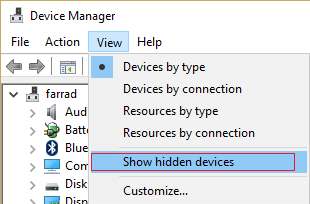
  • In the Device Manager window, click View in the menu bar
  • Click  Show hidden devices
device manager usb drivers
  • Go to Other Devices and expand it
  • Right-click Universal serial bus controller and select  Uninstall Device
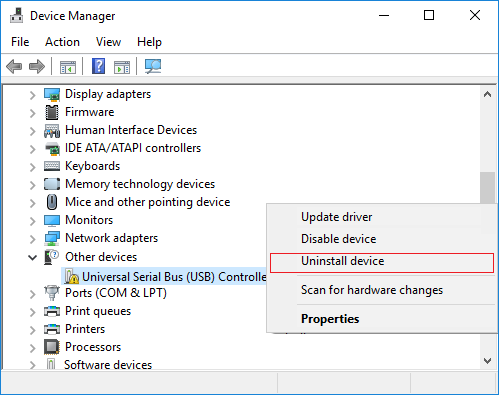
uninstall usb drivers
  • Close Device Manager
  • Restart your computer

Windows will install the right drivers from its driver stack that will resolve the Universal serial bus controller driver issue.

Solution Two- Uninstall Device Driver

This solution might look the same for many users but it isn’t. Here the problematic Universal serial bus controller driver is listed under Universal serial bus controllers. The right solution for you depends on the location of the Universal serial bus controller with a yellow exclamation mark. Here are the steps to follow.

  • Open Device Manager
  • Go to the Universal serial bus controllers section and expand it

<insert-usbc-Universal-Serial-Bus-controllers section>

  • Look for Universal serial bus controllers entries in the list with a yellow exclamation mark
  • Right-click Generic USB hub and click Uninstall
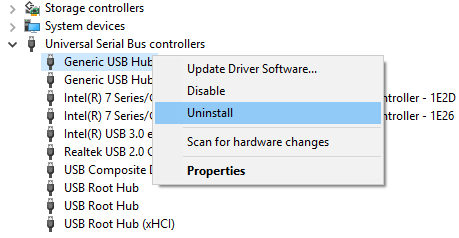
uninstall usb controller driver
  • If asked for confirmation, click Yes or Confirm
  • Follow this for all Universal serial bus controllers
  • Close all windows
  • Restart your PC

If the Universal serial bus controllers issue is not fixed by following steps in Solution 2, proceed to the next solution in the list.

Solution 3- Update Device Drivers

If you look closely at the Universal serial bus controllers section in the Device Manager, you will find Generic USB hub entries. According to Windows experts, the generic hub splits one USB port into multiple ports available on your computer.  The problem related to the Universal serial bus controllers might be linked to an outdated generic USB hub driver.

Here we will try updating the generic hub driver and see if it helps. You can update the driver manually or automatically. Though we recommend the latter, as it’s faster, simpler, and more reliable, we have shared the steps for both.

USB device not recognized

Windows 10 USB Not Working Solved

Update the driver manually

Here are the steps to follow.

  • Open Device Manager
  • Expand the Universal serial bus controllers section
  • Right-click the Generic USB hub entry and select Update Driver Software
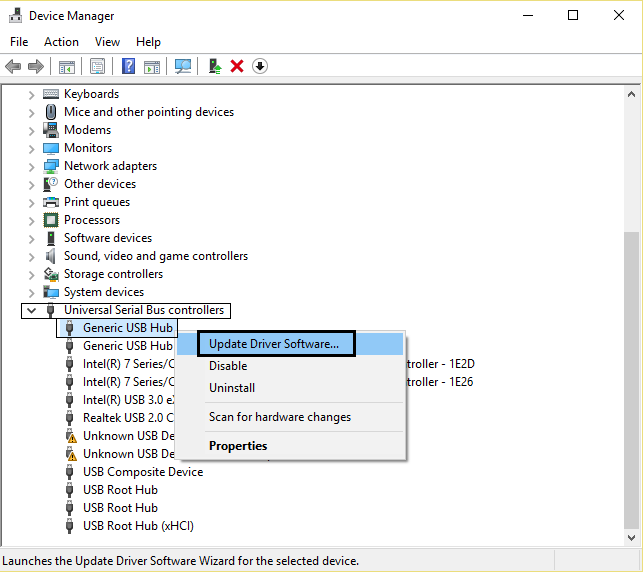
device manager update usb drivers
  • Select Browse my computer for driver software.
  • In the next window, click Let me pick from a list of drivers on my computer.
  • Now, select Generic USB Hub from the list of drivers
  • Click Next
  • Wait for Windows to complete  the installation
  • Click Close
  • Repeat the above steps for all Generic USB hub entries under Universal serial bus controllers
  • Close Device Manager

In most cases, your Universal serial bus controllers issue would be resolved. If you still see the issue persists, update system drivers.

Update the Driver automatically

Automatic driver update tools offer many benefits, the most important ones being:

  • You can update device drivers automatically
  • The software scans and updates all outdated or missing drivers at one go
  • The tool picks the right drivers for your device and operating system, so you won’t have to worry about installing an incorrect driver by mistake
  • Automatic driver updates are 100% safe

Driver Updater is one of the best driver update tools out there. Outbyte Driver Updater will give you access to a database of over 1 million drivers. It will regularly scan your PC, suggesting new driver versions to install. Driver Updater contains drivers for a variety of Windows devices. With just one click, you can update drivers in your system.

Step 1
Click here to Install and launch the app

Step 2
Scan all devices

Step 3
Install or update drivers automatically
 

Start Download


Filed Under: PC Fix Tips Tagged With: USB controller issue

Windows 10 freezes on Startup(Fixed)

By Susan C on December 27, 2020

Windows 10 freezes on Startup(Fixed)

One of the frustrating things for Windows users is their PC freezes on startup.  They do not see any error message or any Blue Screen error message and there is no way to find out what is wrong. When you encounter such an issue, you might see the “Windows is starting” message does not disappear from the screen and there is no sign of desktop even after staring at the screen or long periods.

If you think restarting the computer might solve the issue, you might feel more frustrated to see the Windows 10 freeze on startup again. Here we have shared a few solutions that could help resolve the issue.

Solution One- Disable Fast Startup

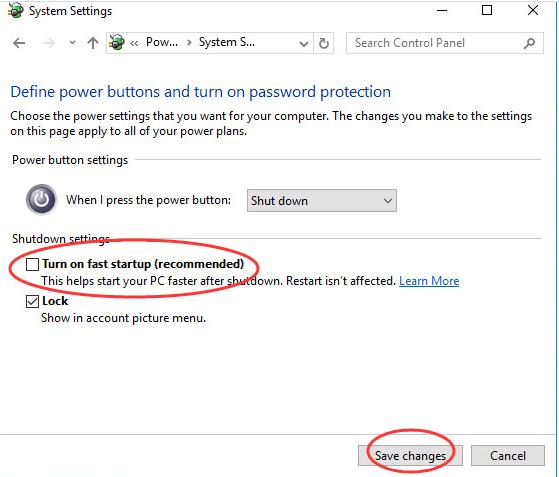
The fast startup option in Windows helps the computer start faster after a shutdown. When the fast startup mode is activated, Windows OS saves the kernel session and the system information (device drivers) to the hiberfil.sys file instead of closing them. There is a possibility fast startup mode is causing Windows 10 to freeze on startup.

According to experts, you need to disable fast startup and see if the issue is resolved. Here are the steps to follow.

  • Right-click the Start button on the desktop
  • Click Search
  • Type Control Panel in the search box and press Enter on the keyboard
  • In the Control Panel window, click Power Options
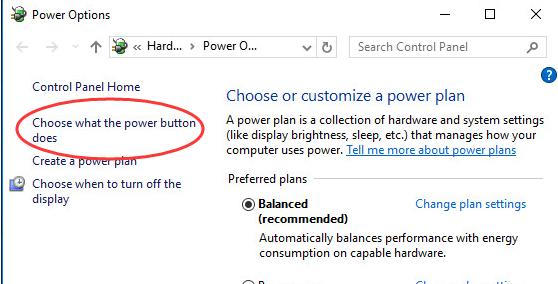
  • In the next window, click Choose what the power buttons do that appears in the left pane
  • Click Change settings that are currently unavailable.
  • In the next window, uncheck the box Turn on Fast startup
  • Click Save Changes
  • Close all windows and restart the system 

Solution Two- Remove all USB-connected devices

According to experts, USB connected devices could also cause problems like Windows 10 freezing on startup. To ensure that is not in your case, you need to unplug all USB connected devices like camera, keyboard, mouse, and other USB peripheral devices and restart your computer.

If Windows boots successfully, you can conclude some USB device is causing the problem. In this scenario, you need to connect one USB device at a time and restart Windows. After you have found the culprit USB device, try getting a replacement or look for updated drivers. If Windows continues to freeze at startup, the problem is not caused by USB connected devices. You can move to the next solution in the list.

Solution Three – Run SFC and DISM

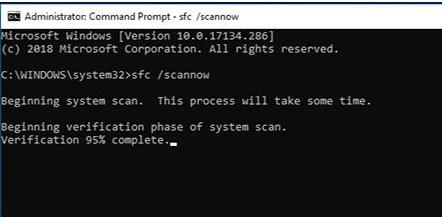
Windows needs several files during the booting process. If any system file is missing or corrupt, it could lead to issues like windows freezing at startup. The SFC(System File Checker) is an in-built Windows maintenance tool that checks the integrity of system files. If it finds any files missing or corrupt, it replaces them with a cached version.

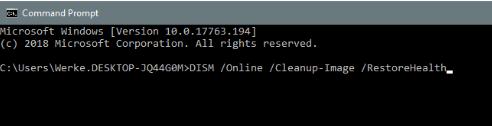
The DISM is a part of Windows maintenance tools. It is a command-line tool used to service Windows images. According to experts, DISM should be used if SFC fails to resolve the issue. DISM can connect to the Windows update server and fix any system file issues that cannot be fixed by other maintenance tools.

Run SFC

  • Press Win+ X keys simultaneously on your keyboard
  • Select Command Prompt with admin rights
  • Click Yes in the User Account Control Menu prompt
  • When you see a blinking cursor appears in the command window, type the following command:
  • Press the Enter key

Allow the SFC tool to run and wait for the process to complete. The tool is designed to find and perform file fixes automatically. After SFC has completed its operation, restart your computer to see if the issue has been fixed. If you still see the Windows 10 is freezing at startup, run the DISM tool.

Run DISM 

  • Open Command prompt with admin rights
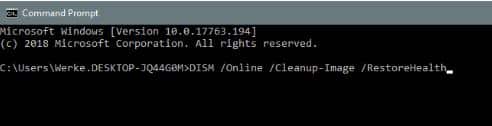
  • In the command prompt window, type DISM /Online /Cleanup-Image /Check Health
  • Hit enter on the keyboard
  • Wait for the command operation to complete and  then type the command given below
  • DISM /Online /Cleanup-Image /Restore Health
  • Press Enter

Solution Four – Disable AppXSvc

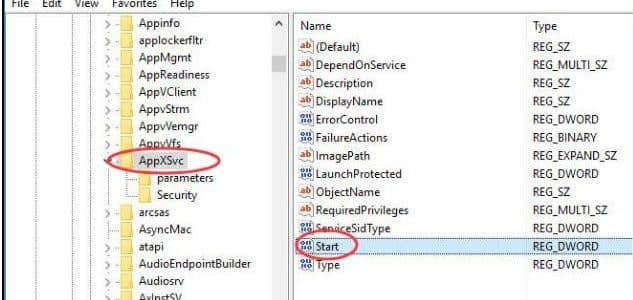
AppXSvc refers to AppX Deployment Service.  The service deploys Store Apps.  The  AppXSvc Process is used for installing, uninstalling, and updating Store apps. The service runs at the startup and it could be the reason behind Windows 10 freezing at startup.  You need to disable AppXSvc and see if it helps. We have discussed steps to disable AppXSvc through a registry hack. Here are the steps to follow.

  • Press the key combination Windows + R  to launch the Run command box
  • In the Run command, type regedit and hit Enter on the keyboard
  • In the User Account Control window, click Yes
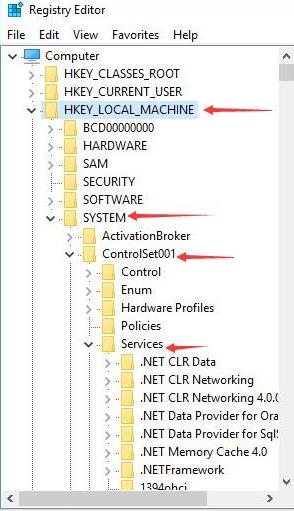
  • In the registry editor, navigate to HKEY_LOCAL_MACHINE > SYSTEM > ControlSet001 > Services.
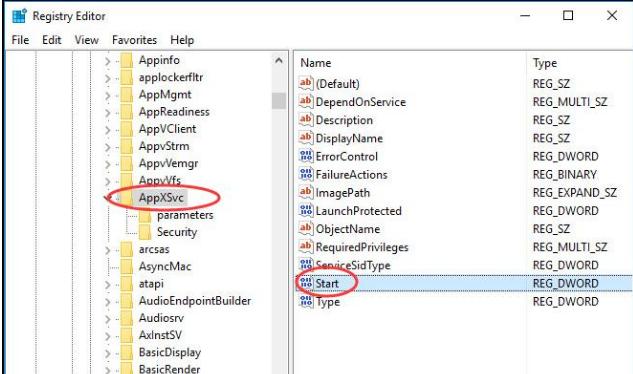
  • Click AppXSvc in the left-hand pane
  • In the right-hand pane, double-click Start.
  • In the Edit DWORD window, set  the start value to 4
  • Click OK
  • Close registry editor and all windows

Restart your computer and see if you have succeeded in resolving the issue of Windows 10 freezing at startup.

Solution Five – Update Device Drivers

Last but not the least, keep your device drivers up to date. Outdated drivers can cause all sorts of problems in Windows, including frequent freeze ups at the startup.

The good news is that updating drivers is neither time-consuming nor complicated if you use a driver update software tool.

Automatic driver update tools offer many benefits, the most important ones being:

  • You can update device drivers automatically
  • The software scans and updates all outdated or missing drivers at one go
  • The tool picks the right drivers for your device and operating system, so you won’t have to worry about installing an incorrect driver by mistake
  • Automatic driver updates are 100% safe

Driver Updater is one of the best driver update tools out there. Outbyte Driver Updater will give you access to a database of over 1 million drivers. It will regularly scan your PC, suggesting new driver versions to install. Driver Updater contains drivers for a variety of Windows devices. With just one click, you can update drivers in your system.

Step 1
Click here to Install and launch the app

Step 2
Scan all devices

Step 3
Install or update drivers automatically
 

Start Download


Filed Under: PC Fix Tips Tagged With: Startup issues

Service host SuperFetch high disk usage in Windows 10 resolved

By Susan C on December 19, 2020

Service host SuperFetch high disk usage in Windows 10 resolved

Windows has several system processes that are introduced by Microsoft with good intentions. However, many times these system processes make the system slow and cause errors.  Many users have complained about a system process – SuperFetch that causes high disk usage and makes the system unresponsive. 

If your system has become non-responsive, just check the Task Manager. Many users have found Service Host: SuperFetch taking a large amount of memory.  If you are experiencing a similar issue with your computer, you have arrived at the right page. Here we have discussed few solutions to resolve high disk usage caused by the service host SuperFetch process.

Solution One- Disable SuperFetch Window service

Every window process is related to a window service. Disabling the SuperFetch windows service is a good idea to resolve this issue. Here are the steps to follow.

  • Press the Windows button on the keyboard and type Run in the search box. Alternatively, you can press Windows + R key combination to bring up the Run command box.
  • In the run command box, type services.msc and click OK
  • In the services window, locate SuperFetch windows service and right-click on it
  • Select Properties and then click Stop

To ensure this issue does not arise again, you need to disable this service which will prevent Windows OS to launch this service at startup. Here are the steps to disable SuperFetch windows service

  • In the Services windows, right-click SuperFetch windows service  and select Properties
  • In the properties window, go to Startup Type
  • From the drop-down list, select  Disabled
  • Click OK-> Apply
  • Close all windows and restart the system

If the above troubleshooting does not help, move to the next solution.

Solution Two – Fix problem with Windows Update

According to experts, Windows update could be the cause behind high disk usage. Windows OS is designed to continuously check for updates to ensure optimal performance and security of the system.  The solution to this problem is fixing problems with Windows update.   Here are the steps to follow

  • Press the Windows button on the keyboard  and type control panel in the search bar
  • Select Control Panel from the list of results.
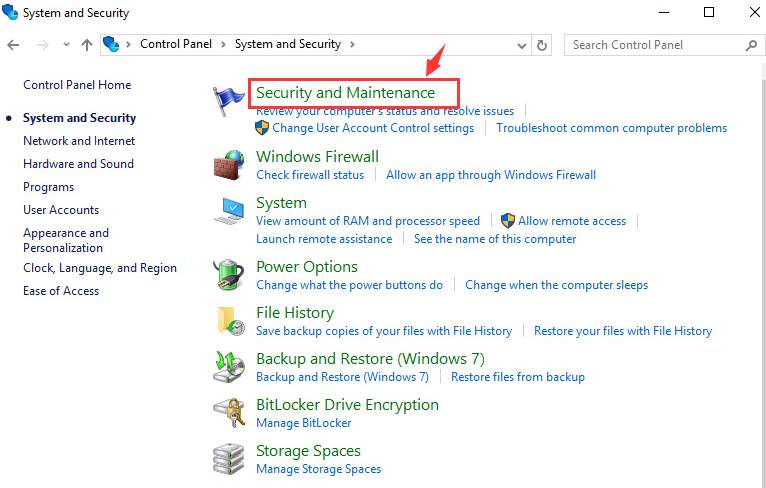
  • In the control panel window, locate System and security and click on it
  • In the next window, click Security and Maintenance
  • In the next window, locate Troubleshooting and click on it
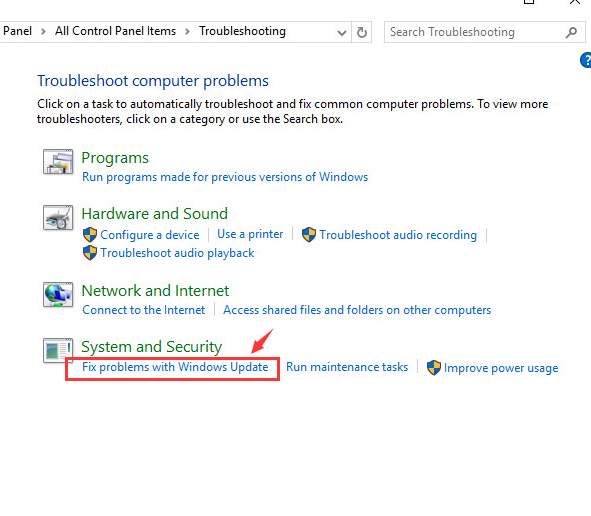
  • In the Troubleshooting window, locate System and Security.
  • Click Fix Problems with Windows update
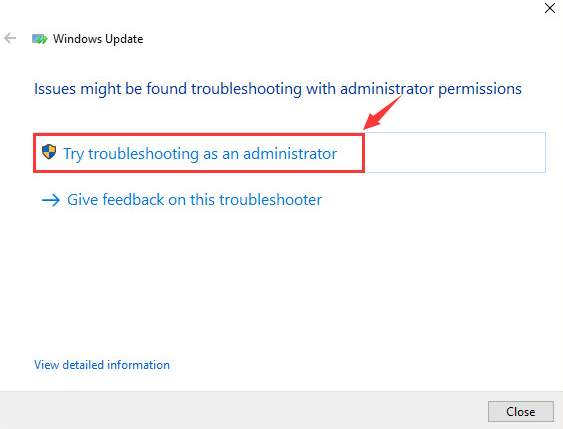
  • Click on Next
  • Click the option Try troubleshooting as an administrator
  • Follow on-screen instructions if any to apply fixes
  • Restart your system

Now check Task Manager. If you still see high disk usage by service host SuperFetch, move to the next solution in the list.

Solution Three – Run DISM

DISM is short stands for Deployment Image Servicing and Management. It has been part of in-built windows maintenance tools for several decades.  The DISM tool utilizes the Windows update feature to fix any issues with system files.  Here are the steps to follow.

  • Click Start
  • In the search box, type Command prompt
  • Right-click on the command prompt in the list of results
  • Select Run as administrator
  • In the command prompt window, type DISM /Online /Cleanup-Image /Check Health
  • Hit enter on the keyboard

The tool will check for any issues with Windows system files. You should also run the advanced scan and repair option in the DISM tool. Here are the steps to follow.

  • Go to command prompt window, type DISM /Online /Cleanup-Image /Restore Health
  • Press Enter

Before you execute these steps make sure the computer is connected to the Internet. Windows OS will establish a connection with the Windows Update server to download files needed to fix the corruption. If the above solution does not service host SuperFetch high disk usage issue, you need to run another in-built windows maintenance tool.

Solution Four – System File Checker

System File Checker (SFC) is an inbuilt tool in Windows. Like DISM, SFC also helps in troubleshooting issues in Windows.  The SFC scanning tool verifies the integrity of the system files.  It finds and replaces any corrupted files with a cached copy of the files. The cached copies of system files are located in the compressed folder:

The SFC scan also replaces any missing files.  Here are the steps to run an SFC tool on your computer.

Solution Five- Stop certain services

There is a possibility some Windows services are the cause of high disk usage in Windows. Here we disable few Windows services that could be the culprit.  Here are the steps to follow.

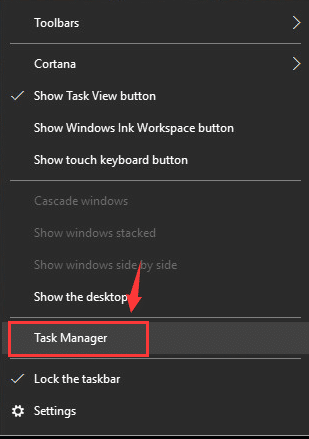
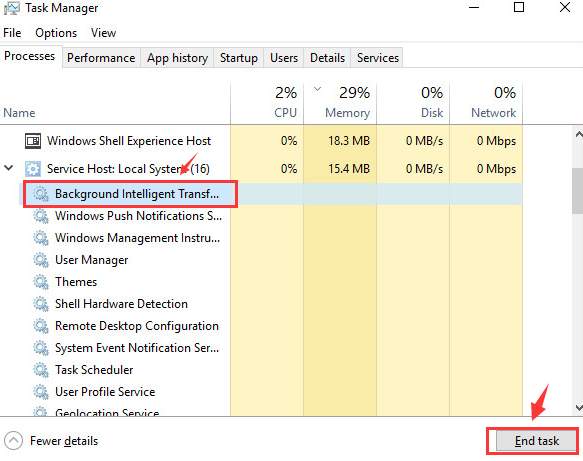
  • Click empty space on the taskbar and select Task Manager from the menu
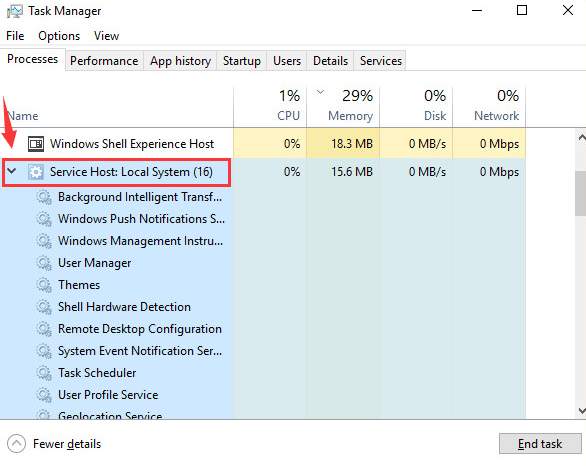
  • In the Task Manager, go to the Processes tab
  • Locate Services Host: Local System and select it
  • Click End task
  • Now locate Background intelligent transfer and select it
  • Click End Task

Keep an eye on the CPU usage when you disable these services. If you see the CPU usage drops when you disable a specific service, you have located the culprit.

  • Now open the services window, refer to steps in Solution One
  • Locate Windows Push Notification system service and right-click on it
  • Select Stop from the menu

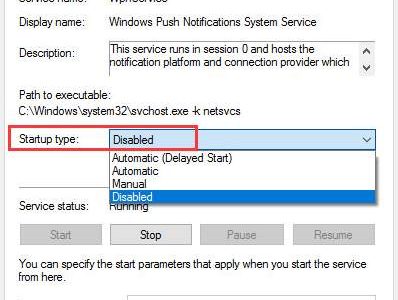
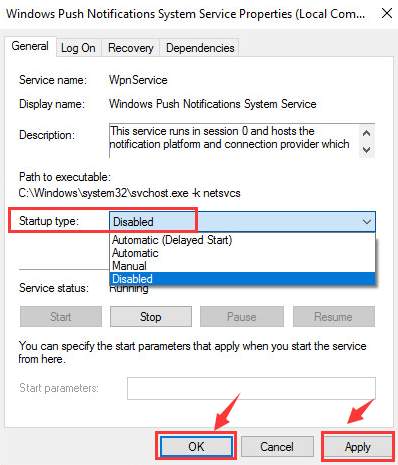
If you see the CPU usage has dropped after stopping the service, you can conclude the Windows notification service is the cause of the high disk usage. In that case, it is better to disable this service so that you don’t face the problem again. Here are the steps to follow.  

  • Right-click on Windows Push Notification system service and click Properties
  • Go to Startup type and select Disabled from the drop-down list
  • Restart your computer

If the solution does not resolve the issue, you need to update drivers.

Solution Six- Update Drivers

You need to go to the OEM website to download the latest drivers for your device. Download drivers and install them and see if it helps resolve the issue

The easiest and the best way to download drivers is by using a reliable and fast driver update software tool.

Automatic driver update tools offer many benefits, the most important ones being:

  • You can update device drivers automatically
  • The software scans and updates all outdated or missing drivers at one go
  • The tool picks the right drivers for your device and operating system, so you won’t have to worry about installing an incorrect driver by mistake
  • Automatic driver updates are 100% safe

Driver Updater is one of the best driver update tools out there. Outbyte Driver Updater will give you access to a database of over 1 million drivers. It will regularly scan your PC, suggesting new driver versions to install. Driver Updater contains drivers for a variety of Windows devices. With just one click, you can update drivers in your system.

Step 1
Click here to Install and launch the app

Step 2
Scan all devices

Step 3
Install or update drivers automatically
 

Start Download


Filed Under: PC Fix Tips Tagged With: SuperFetch

  • « Previous Page
  • 1
  • …
  • 79
  • 80
  • 81
  • 82
  • 83
  • …
  • 189
  • Next Page »


  • Recent Posts
  • Popular Posts
        

Read More Posts


Read More Posts

Drivers.com Sites

  • Software Drivers
  • Drivers Ed

About Us

  • Advertise
  • About Drivers
  • Drivers Support
  • Drivers.com Privacy Policy
  • Disclaimer
  • Software Drivers
  • Mac Fixes and Tips
  • PC Fix Tips
  • Security/ Backup
  • Tablets & Smartphones
  • Tech News

© Copyright 2026 PDE Publications Ltd. End User License Agreement (EULA)