Drivers.com

follow us:

facebook twitter
  • Home
  • Download Drivers
  • Drivers Help
  • PC/Mac Resources
  • Software Drivers
  • Mac Fixes and Tips
  • PC Fix Tips
  • Security/ Backup
  • Tablets & Smartphones
  • Tech News
  • Software Drivers
  • Mac Fixes and Tips
  • PC Fix Tips
  • Security/ Backup
  • Tablets & Smartphones
  • Tech News

The Active Directory Domain Services is currently unavailable Error [Fixed]

By Susan C on January 23, 2021

The Active Directory Domain Services is currently unavailable Error [Fixed]

The Active Directory Domain Services are critical functions of the Active directory and play an important role in functions like rights management, Single Sign-On, security certificates, and many more. In most cases, the Active Directory Domain Services is currently unavailable is related to the printer. The Windows OS throws this error when it is not able to find the printer or connect to it.

If you are getting a similar error and looking for a solution, you have landed on the right page. In this post, we have discussed a few solutions that could help you resolve the error.

Solution One – Make changes to printer spooler settings.

The Print Spooler is in-built software in Windows that temporarily stores print jobs until the printer is ready to print. The solution discussed here covers two scenarios – the Print Spooler service is running and not running. The initial steps for both solutions are the same. The right solution depends on the status of the Print Spooler service

Case 1 – the Print Spooler service is not running

In this case, the Print Spooler service startup is set to manual and it is not running due to some reason. This might be the reason behind the “the Active Directory Domain Services is currently unavailable” error.

  • Press Windows logo key and R simultaneously to launch the Run command
  • In the Run command, type services. msc and click OK
  • In the Services window, right-click Print Spooler service and click Start
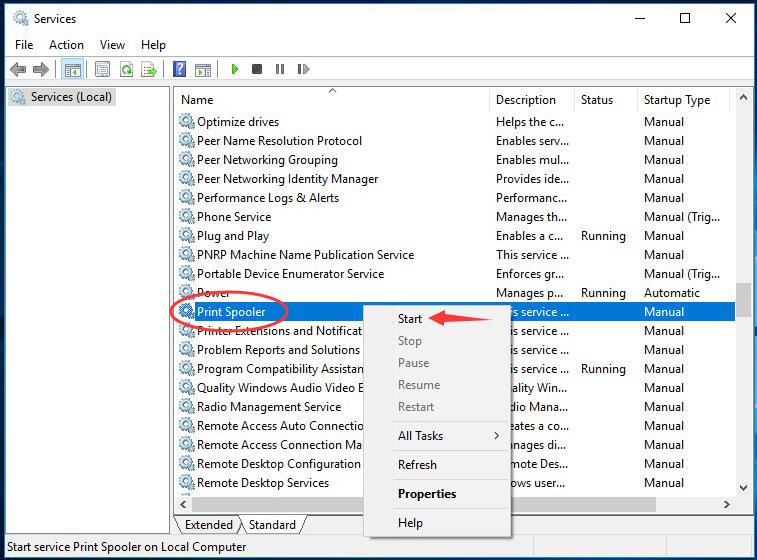
  • After starting the Print Spooler service, right-click the Print Spooler service again and click properties
  • In the Properties window, go to the Startup type section and select Automatic from the drop-down list
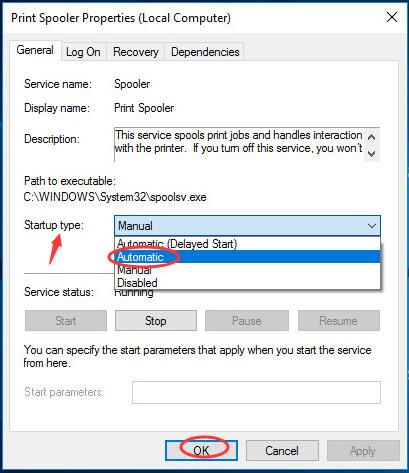
  • Click Apply and then OK
  • Close all windows  

Case 2 – the Print Spooler service is running

As mentioned earlier, the Print Spooler service is responsible for managing print jobs.  The service is visible to users and you can cancel print jobs. Since the Windows OS is giving an error though the Print Spooler service is running, we will see if restarting the Print Spooler service resolves the error.

  • In the Services window, right-click Print Spooler service and click Stop
  • Click This PC icon on the desktop to launch Windows Explorer.
  • Navigate to following folder – C:\Windows\System32\spool\PRINTERS
  • Windows might prompt access permissions dialog when you try to access this folder, click Continue
  • Once you get access to the folder, select all files and delete them
  • Now go back to the Services window and right-click Print Spooler service and select Properties
  • Go to the Service Status section and click Start
  • Now go to the Startup type section and select Automatic from the drop-down list
  • Click Apply -> OK
  • Close all windows

Now try printing a file and see if you get the “Active Directory Domain Services is currently unavailable”. If the error is not resolved, move to the next solution.   

Solution Two – Fix the problem through Registry

The registry is a hierarchical database in Windows.  It stores low-level settings of all windows functions.  By making the changes in the registry, you can bring changes to the way system components work. Here we try to fix the problem through the registry editor. Here are the steps to follow.

  • Press Windows logo key and R simultaneously to launch the Run command
  • In Run command, type Regedit and press Enter on the keyboard

In the Registry Editor window, navigate to HKEY_CURRENT_USER > Software > Microsoft > Windows NT > CurrentVersion.
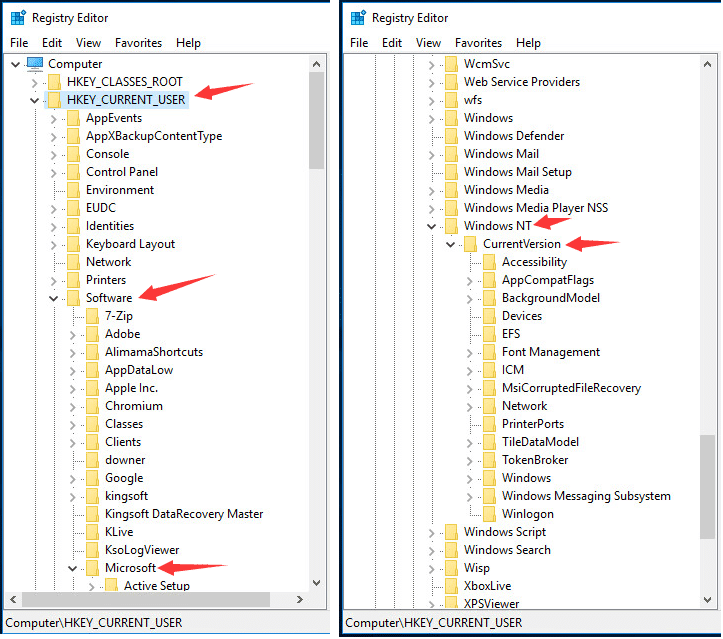
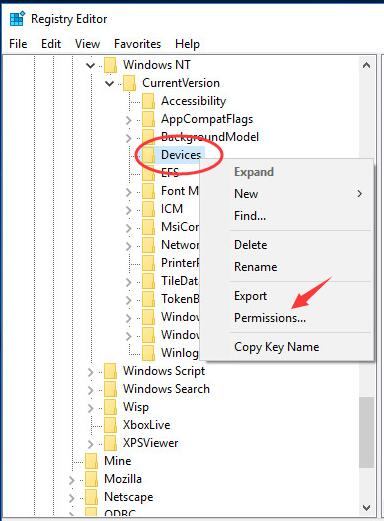
  • Under CurrentVersion, right-click on Devices and click on Permissions
  • In the Permissions for Devices dialog, select your account and place a tick on Allow of Full Control
  • Click Apply -> OK
  • Go to the Under Current Version section again. Now right-click on Printer Ports and click on Permissions
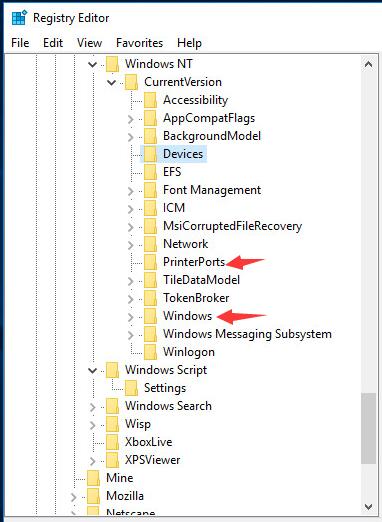
  • In the Permissions for Printer Ports dialog, select your account and place a tick on Allow of Full Control
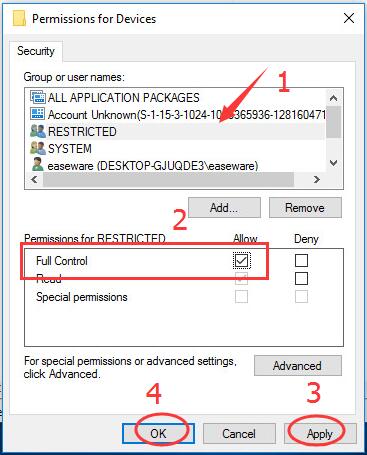
  • Click Apply -> OK
  • Go to the Under Current Version section again. Now right-click on the Printer Ports folder and click on Permissions
  • In the Permissions for Printer Ports dialog, select your account and place a tick on Allow of Full Control
  • Click Apply -> OK
  •  Now go to the Under Current Version section again and locate the Windows folder and right-click on it and select Permissions
  • In the Permissions for Windows dialog, select your account and place a tick on Allow of Full Control
  • Click Apply -> OK
  • Close the registry editor

Send a print command and check whether you are getting an error. If the error is not resolved, move to the next solution.

Filed Under: PC Fix Tips Tagged With: active directory error

Computer black screen with cursor Windows 10 problem [fixed]

By Susan C on January 19, 2021

Computer black screen with cursor Windows 10 problem [fixed]

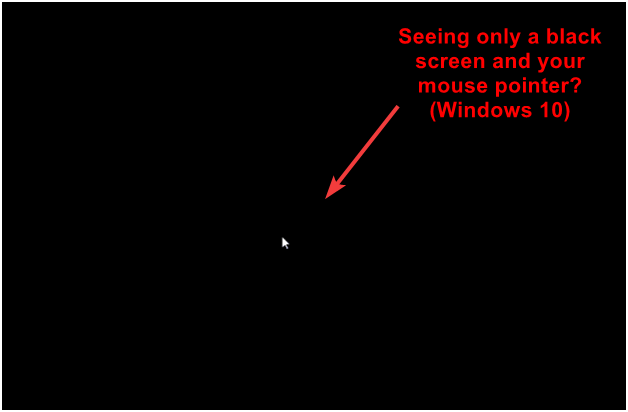
Windows 10, while an efficient operating system, can surprise you with random errors. One such problem is that of a black screen with a cursor. 

There is no error code shown on the screen, nor is there any indicator that tells for how long the black screen will stay.

The computer black screen with a cursor in Windows 10 is not a normal thing, and there could be several reasons why this error has cropped up. Common reasons include:

  • A feature update installation that may causing compatibility issues
  • Some problem with a Windows update
  • Loose display connection
  • A hardware related issue

Kindly note this is not an all-inclusive list. You may also get this error because of other reasons.

Whatever the reason might be, the good news is you can resolve the computer black screen with cursor Windows 10 problem fairly quickly. To make things easy for you, we have shared a few solutions that can help resolve the issue.

Windows 10 black screen with cursor

Solution One – Check connection (for Desktops)

The first thing you need to do is ensure the connection at both ends is firm and the video input connector is well seated in the slot. The connection check solution is directed towards desktop users. If you have multiple video ports, try using a different video port. If the black screen problem does not appear with the new video port, the old port is to blame for the issue.

If the black screen issue is persistent at all video ports, you can conclude the video ports are working fine and you need to look elsewhere to find the root cause of the issue. Try the next solution in line.

Solution Two- Remove the battery (for laptops)

As mentioned above the solution is the only application for the computer that runs on batteries. Here are the steps to follow.

  • Shut down your Windows 10 OS
  • After the laptop is completely switched off, remove the battery
  • With the battery removed, press and hold the power button on the laptop for half a minute or more
  • Put back the battery in your laptop  and boot Windows

Check whether the black screen issue is resolved. If it persists, move to the next solution.

Note – All solutions discussed below require access to Windows settings. Since you are facing the black screen with a cursor problem in Normal mode, you cannot execute the steps until you reach the desktop screen. In that scenario, the only way out is booting Windows in Safe Mode and then following the steps given below.

How to start Windows 10 in Safe Mode from a black/blank screen?

Before you boot Windows 10 into Safe Mode, the computer needs to enter the Windows Recovery Environment. To do this, switch off the computer repeatedly (2-3 times). Here are the steps to follow.

  • Press the Power button and hold it down for 10 seconds to power off the computer
  • Press the Power button to switch the computer on
  • When you see the Windows logo on the screen or the manufacturer’s logo, press and hold down the Power button for 10 seconds to power off the computer again
  • Press the Power button to turn on your computer
  • Restart your computer and press and hold down the Power button again for 10 seconds to turn off the computer
  • Press the Power button again to start the computer
  • This time allow the computer to restart completely. It will enter the Windows Recovery environment

Now that the computer is in the Recovery environment, you can start the computer in Safe Mode. Here are the steps to follow.

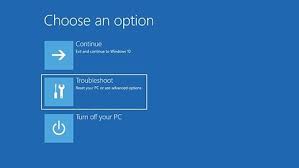
  • On the Choose an option screen, click Troubleshoot -> Advanced options -> Startup Settings -> Restart.

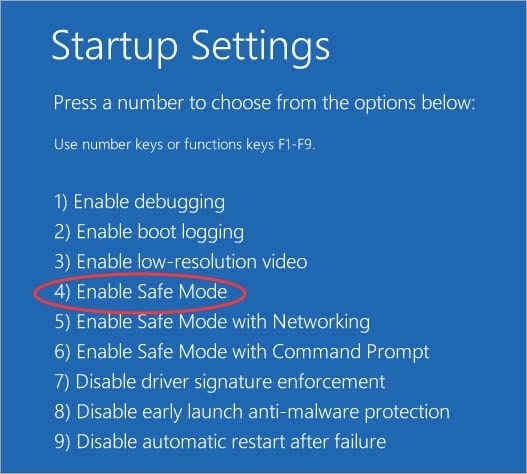
After the computer restarts, you will see different options to start your computer

  • You need to select option 5 – Safe Mode with networking. You can press F5 to start the computer in Safe Mode.

After your computer boots into Safe Mode, you need to perform the troubleshooting steps given in the solutions given below.  After trying every solution, you need to exit Safe Mode and see if the computer black screen with the cursor Windows 10 issue is resolved.

How to exit Windows Safe Mode?

  • Press Windows logo key and R button on the keyboard simultaneously
  • Type msconfig in the Run box and hit Enter on the keyboard
  • In the System Configuration window, go to the Boot tab
  • Under the boot options, uncheck the box – Safe boot
  • Close all windows
  • Shut down the PC

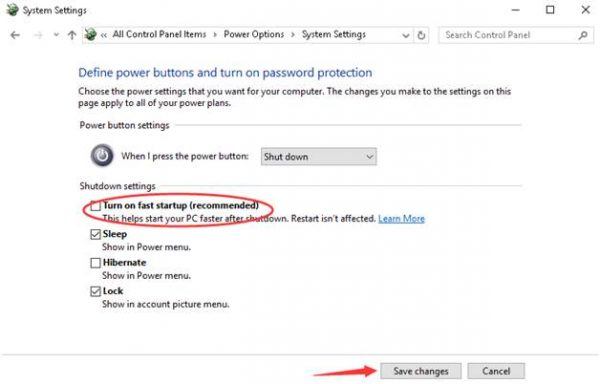
Solution Three- Disable Fast Startup

The Windows 10 Fast Startup mode is a nice feature.  It combines the hibernate and cold shutdown features.  When the fast startup mode is enabled Windows shits down all programs and logs off all users before shutdown just like a cold shutdown. However, the Windows kernel and system session is running and its image is stored like in the hibernate mode.

When you boot your system, the Windows kernel and system session is not freshly loaded but loaded from the memory. This might cause errors like a black screen with a cursor. Many users have reported disabling fast startup has resolved the black screen issue in Windows 10. Here are the steps to follow.

  • Press the key combination Windows +  R to bring up the Run dialog
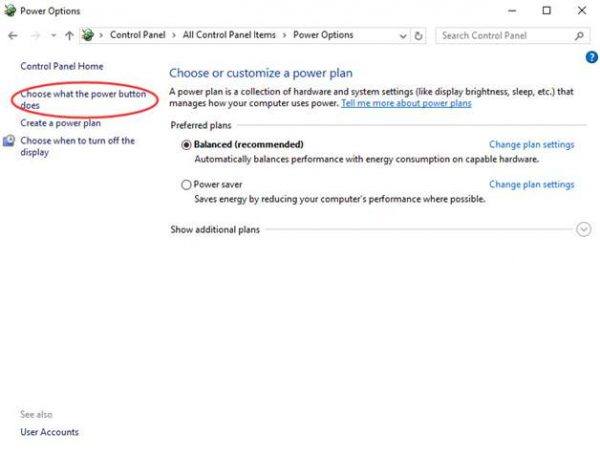
  • Type powercfg.cpl and hit Enter on the keyboard
  • In the Power Options window,  click the “Choose what the power buttons do” option that appears on the left
  • In the next screen, scroll down to Shutdown settings
  • Uncheck the option – Turn on fast startup
  • Click Save changes
  • Close all windows
  • Restart your PC

 Check if the black screen with a cursor problem appears. If the issue is not resolved, move to the next solution.

Solution 4 – Disable integrated graphics card

Many laptops come with a dedicated graphics card. In some scenarios, the motherboard in the laptop also has an integrated graphics card. According to computer experts, only one graphics card needs to be active in Windows. There is a possibility the Windows 10 OS is considering the integrated graphics card as a second monitor which is causing the black screen computer.

In that scenario, disabling an integrated graphics card is a safe option. Here are the steps to follow.

  • Click on Start and then click on Run
  • Type devmgmt.msc and hit Enter on the keyboard
  • In the Device Manager window, expand Display Adapters
  • Check whether you can see two display adapters

In most cases, the graphics card with Intel’s name is the integrated graphics card, for example the Intel HD 400 graphics card. Check the computer specifications to know about integrated graphics card

  • Right-click on the integrated graphics card and click on Disable
  • Close Device Manager window

Reboot your computer in normal mode to see if the black screen issue has been fixed. If the problem persists, move to the next solution.

Solution 5 – Login into Windows with a different user account

The black screen issue could be the result of a corrupted user profile. To ensure that is not the case in your computer problem, you need to log into Windows with a different user account.  If the black screen problem does not surface when you log in as a different user, you can copy the current user profile (the good one) to your existing profile (the bad one) and get the older user account working again.

  • Start your computer in Safe Mode
  • At  the login screen, you will see an option Switch user
  • Click Switch User
  • It will show you all existing user account in Windows 10 including the regular user account you used that might be corrupt
  • Click on the user account which you want to use
  • Enter PIN or password to log in to Windows

After you have logged into a working user account, perform the steps given below

Go to following folder – C:\Users\{working-user-profile-name}\AppData\Local\Microsoft\Windows\Caches.

Copy the folder Caches

Log in with the corrupted user account

Go to following folder – C:\Users\{working-user-profile-name}\AppData\Local\Microsoft\Windows\Caches.

Replace the folder with a folder from the working user profile

If you don’t have another user account, you need to create one with administrator rights.  Here are the steps to follow.

Steps to create a new user account with admin rights

Before you proceed with the steps given below, you need to ensure the account you would be signing in is an administrator account. If it is not an administrator account, you need to activate the default administrator account by following the steps given below

  • Click Start and type cmd in Cortana search
  • Right-click command prompt from search results and click Run as administrator
  • If prompted type the username and password that grants admin rights to the computer
  • Type: net user administrator /active:yes.
  • Hit Enter on the keyboard

After activating the default admin account, log in to your admin account and perform the steps given below.

  • Click Start and type settings in Cortana search
  • Click Settings that appears at the top of search results
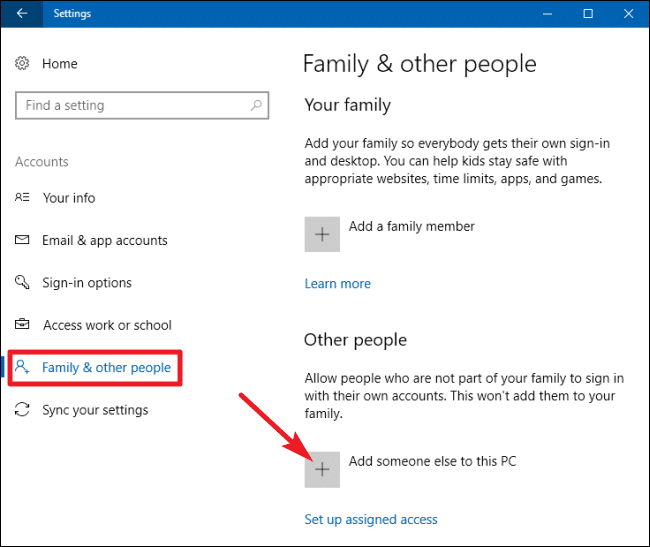
  • In Windows Settings, click Accounts
  • In the next window, click Family and Other People that appears in the left pane
  • Under Other People, click the + icon with the title Add someone else to this PC
  • Follow the on-screen instructions to create a user account.

If changing user accounts have not helped, move to the next solution.

Solution 6 – Set the display output to IGFX in BIOS

IGFX sets the onboard graphics as the first display. Many users have reported setting the display output to IGFX in BIOS helped them resolve the black screen with a cursor issue in Windows 10.

You need to access BIOS to set the display output to IGFX. The BIOS access key is not standard and it could be F2, Del, or F4. Check your laptop documentation or motherboard documentation to know the right BIOS access key

  • Start the computer and press the right BIOS access key repeatedly until the computer enters BIOS
  • Once you get access to BIOS settings, look for the display output setting and set it to IGFX
  • Save Changes to BIOS and exit BIOS.
  • Restart your computer

Check whether the black screen issue has been resolved. If it persists, the last resort is Reset the PC.

Solution 7 – Reset this PC

Reset Windows will reinstall windows that are more likely to resolve the black screen with a cursor issue in Windows. Resetting the PC will delete all settings, apps, and files. Hence, we recommend you to take a backup of important data in Safe Mode before following the steps given below.

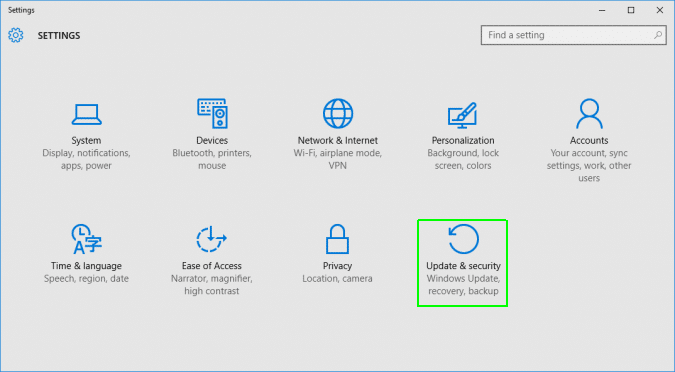
  • Click Start -> Settings
  • In the Settings window, click Update and Security
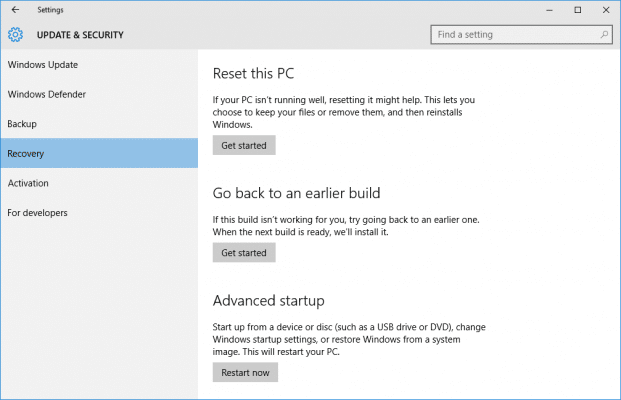
  • In the Update and Security, click Recovery in the left pane
  • When the Recovery options are revealed in the window, go to Reset this PC section
  • Click Get Started
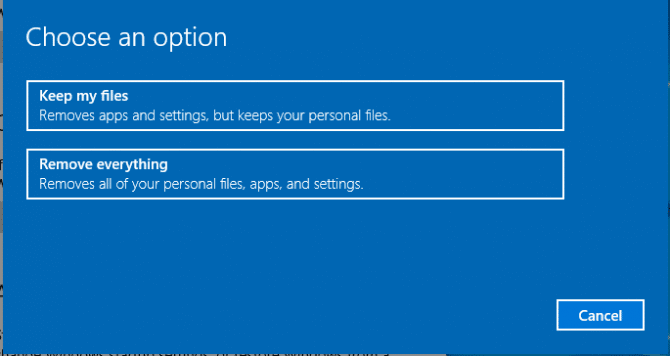
  • In the next window, you will get two options – Keep my files and Remove Everything
  • Select any option you want
  • Click Next
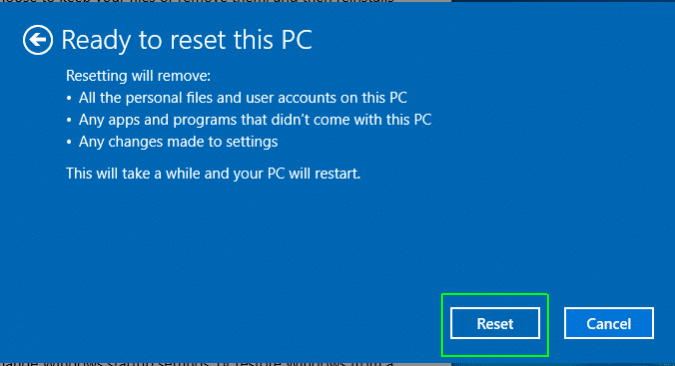
  • Click Reset
  • Click Continue when prompted

Wait for the process to get over. Start your PC and see whether the problem is resolved. 

Filed Under: PC Fix Tips

How to remove Edge from Windows 10?

By Susan C on January 14, 2021

Microsoft Edge is the default browser in Windows 10. However, many people prefer to use other browsers like Google Chrome or Mozilla Firefox.  If you think you can uninstall Edge like other app, you are in for a bad surprise.

According to experts, removing Edge from Windows 10 is not easy. The reason is the Edge browser is integrated into several Windows processes and your operating system might become unstable if you try to remove it the wrong way. 

(Note- the manual uninstallation method for Edge is only available for manual Edge installations. If the Edge browser was installed along with other components of Windows, you need to follow the methods given in this post.)

Though we have mentioned it is difficult to uninstall Edge from Windows 10, we never said it is impossible. To make things easy for you we have shared Edge removal steps for users who wish nothing less than uninstalling Microsoft Edge for Windows 10.  For less persuasive users, we have also shared steps to disable Microsoft Edge in Windows 10.

Method One – Disable Microsoft Edge in Windows 10

Disabling Microsoft Edge is the safest way to get the browser out of sight. This way you will not risk making your Windows OS unstable but would be contended of not seeing a recommendation for using Edge from time to time. Here are the steps to follow.

  • Click This PC on the desktop
  • Navigate to C:\Windows\SystemApps in File Explorer. Locate the Microsoft.MicrosoftEdge_xxxxxx folder.
  • Right-click the folder and click Rename
  • You can rename the folder anything like but we recommend keeping things simple. Just add old to the folder name. It will allow you to find and rename the folder (default name) if you change your mind and want the Edge browser back.
  • When you see a User Account Controls window, click Yes

When the folder is renamed, Windows OS will not be able to access the folder and the Edge will remain disabled until you rename the folder back to its original name. 

Method Two- Uninstall Microsoft Edge

As mentioned earlier, you cannot remove Edge browser from the Apps and Features option in the Settings app. You won’t find the Edge listed with other apps. To uninstall Edge, you need to use Windows PowerShell. 

Windows PowerShell is a configuration management framework from Microsoft. It uses a command-line shell to make changes to the Windows configuration. Here are the steps to follow.

  • Click Start
  • Type windows powershell in the Cortana search
  • Click windows powershell with a description as “app” that appears at the top of the search results
  • In the PowerShell window, type get-appxpackage *edge* and press Enter on the keyboard
  • The above command will show you the detailed location of Microsoft Edge in Windows installation
  • Type remove-appxpackage” in the PowerShell window
  • Now press the space bar on the keyboard and copy the address next to the item PackageFullName
  • Paste the address just after the command
  • Wait for the process to complete. The above command will uninstall the Edge browser from Windows 10 completely.

Filed Under: PC Fix Tips Tagged With: Remove Edge

  • « Previous Page
  • 1
  • …
  • 77
  • 78
  • 79
  • 80
  • 81
  • …
  • 189
  • Next Page »


  • Recent Posts
  • Popular Posts
        

Read More Posts


Read More Posts

Drivers.com Sites

  • Software Drivers
  • Drivers Ed

About Us

  • Advertise
  • About Drivers
  • Drivers Support
  • Drivers.com Privacy Policy
  • Disclaimer
  • Software Drivers
  • Mac Fixes and Tips
  • PC Fix Tips
  • Security/ Backup
  • Tablets & Smartphones
  • Tech News

© Copyright 2026 PDE Publications Ltd. End User License Agreement (EULA)