Drivers.com

follow us:

facebook twitter
  • Home
  • Download Drivers
  • Drivers Help
  • PC/Mac Resources
  • Software Drivers
  • Mac Fixes and Tips
  • PC Fix Tips
  • Security/ Backup
  • Tablets & Smartphones
  • Tech News
  • Software Drivers
  • Mac Fixes and Tips
  • PC Fix Tips
  • Security/ Backup
  • Tablets & Smartphones
  • Tech News

Windows 10 does not detect second monitor issue [Fixed]

By Susan C on February 4, 2021

Windows 10 does not detect second monitor issue [Fixed]

A dual monitor setup is a great way to increase your screen space and increase your productivity. Windows 10 comes with a feature known as “dual monitor” that allows you to add a monitor to the existing setup. Setting up a dual monitor is easy and takes only a few minutes. However, things may not always go as planned and you may encounter an error such as Windows 10 does not detect the second monitor.

If you are facing a similar issue, we’ve got you covered. Here we have discussed several solutions that can fix the issue and help you enjoy the dual monitor setup.

Before anything else

Before you jump to the solutions given below, here are some things you need to check.

  • Confirm the 2nd monitor is connected to a power source and switched on
  • Check the signal cable connection between 2nd monitor and your laptop or graphics card
  • Use the monitor built-in controls to select the correct input signal
  • Cold reboot the system to refresh the connection

If there is no improvement in the situation after the above checks, do the following:

  • Remove the signal cable from both ends and reconnect it firmly
  • Disconnect all peripherals from the computer like a USB mouse or keyboard to ensure there is no interference in the connection. You can connect them later once the connection is established

Solution One – Force 2nd Monitor detection

  • Click Start ->Settings
  • Click System-> Display
  • Go to the “Multiple displays” section and click Detect button to connect to the monitor.
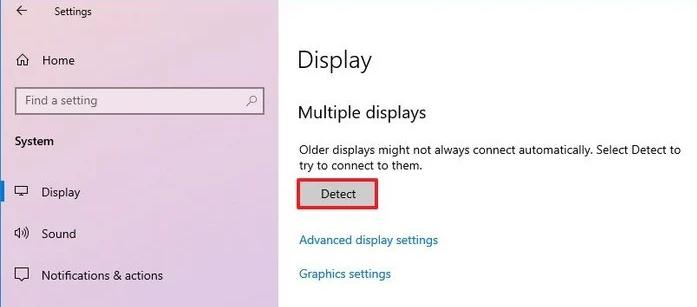
display settings
  • Windows should now detect the 2nd monitor. After the 2nd monitor is detected, you can adjust the orientation and the resolution through Display Settings.

 If the solution did not work for you, move to the next solution.  

Solution Two – Rollback graphics driver

If you recently installed a driver update for the device after which Windows 10 stopped detecting the 2nd monitor, you need to roll back the graphics driver to resolve the 2nd monitor detection problem. Here are the steps to follow

  • Click Start
  • Type Device Manager in Cortana search
  • Click Device Manager from the search results
  • In the Device Manager window, double-click the Display adapters section to expand it
  • Right-click graphics adapter and click Properties
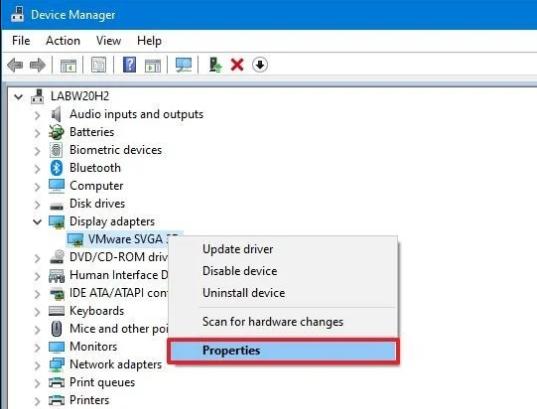
display properties
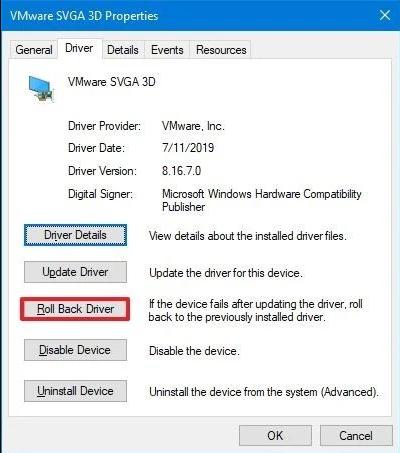
  • In the Properties window, go to the Driver tab
  • Click the Roll-back driver button
roll back driver
  • Click OK
  • Windows will ask you for reasons to roll back the driver. Click any one you feel appropriate or click For another reason
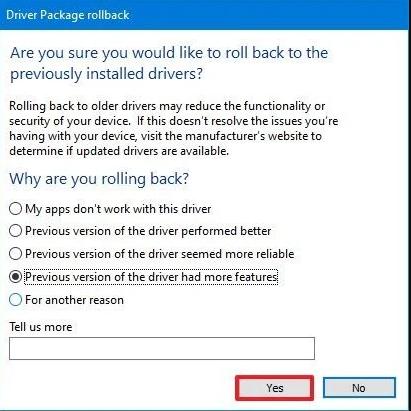
driver package rollback
  • Click Yes
  • Windows will not roll-back graphics driver.
  • Restart your computer

Check whether 2nd monitor is detected. If the problem persists, move to the next solution.

Solution Three – Update Graphics Driver

Many times the problem is related to the graphics driver. Updating the graphics driver can help resolve the issue. Here are the steps to update the graphics card driver.

  • Open Settings app
  • Click Update and Security
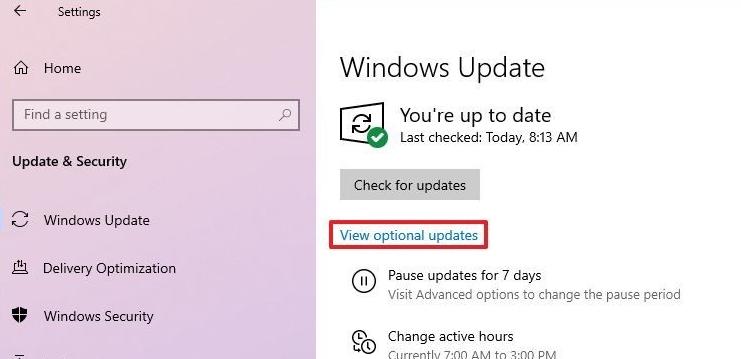
  • Click Windows Update
  • Click View optional updates
windows update

If the update option is not available, Windows is up to date. In that case, move to the next solution. If the view optional updates option is available, do the following

  • Click Driver updates to expand the category.
  • If a display driver update is available, place a tick in the corresponding box and click Download and install

Once you complete the above steps, Windows OS will download and install the driver. After the driver is installed, restart the system and repeat the steps given in Solution One.

You can also update the graphics driver automatically by using a Driver Update Tool.

Updating Drivers Automatically

Automatic driver update tools offer many benefits, the most important ones being:

  • You can update device drivers automatically
  • The software scans and updates all outdated or missing drivers at one go
  • The tool picks the right drivers for your device and operating system, so you won’t have to worry about installing an incorrect driver by mistake
  • Automatic driver updates are 100% safe

Driver Updater is one of the best driver update tools out there. Outbyte Driver Updater will give you access to a database of over 1 million drivers. It will regularly scan your PC, suggesting new driver versions to install. Driver Updater contains drivers for a variety of Windows devices. With just one click, you can update drivers in your system.

Step 1
Click here to Install and launch the app

Step 2
Scan all devices

Step 3
Install or update drivers automatically


Start Download


If the problem persists even after you have updated the graphics driver, move to the next solution.

Solution Four – Make sure the monitor refresh rate is the same for both monitors

The monitor refresh rate refers to the number of times your screen refreshes in a second. Some graphics cards do not support different refresh rates in a dual monitor setup. You need to make sure the monitor refresh rate is the same for both monitors in your case. Here are the steps to follow.

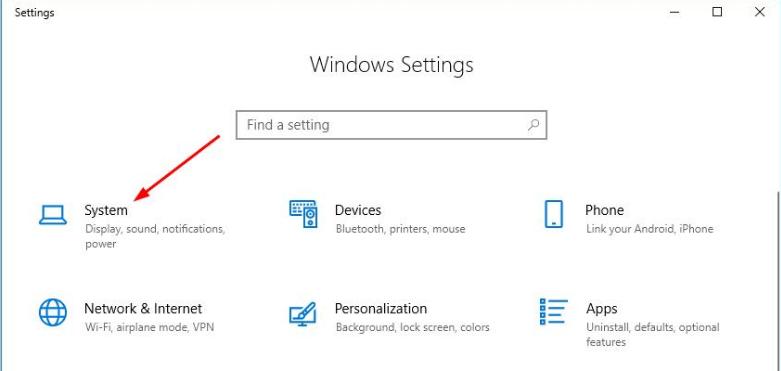
  • Open Settings
  • In the Settings window, click System
windows settings
  • In the System window, click Display in the left column
  • On the right side under the Display section, Click Advanced Display settings
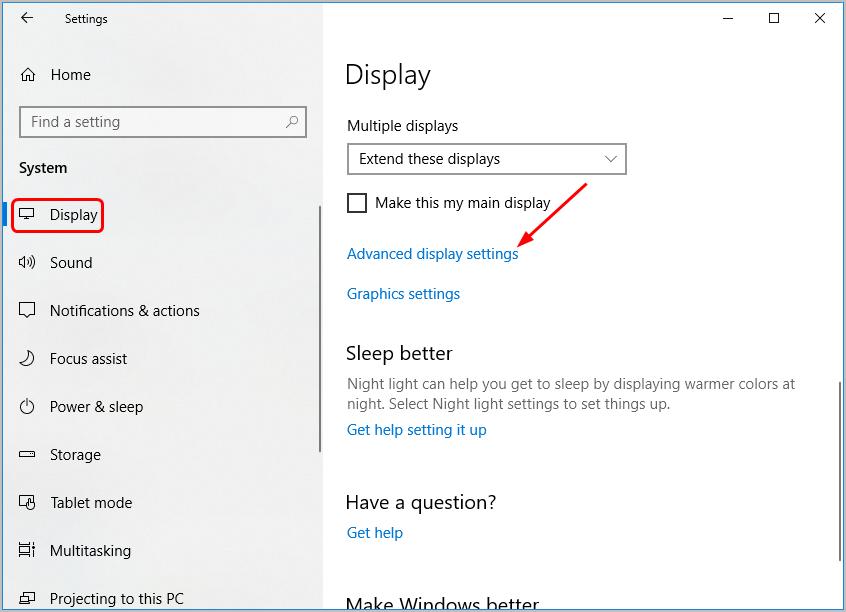
display settings
  • Check the refresh rate for both monitors. If the refresh rates of both monitors are the same, move to the next solution
  • If the refresh rates are different for both monitors, follow the steps given below.
  • Click Display adapter properties for Display 1
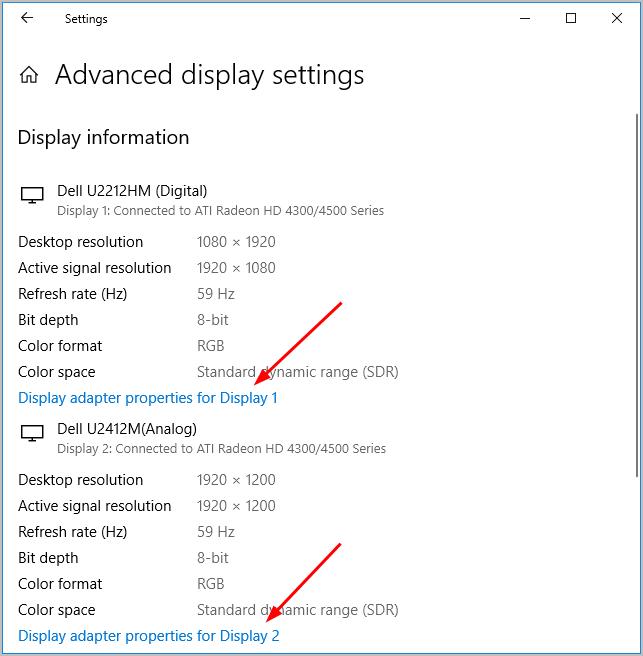
advanced display settings
  • In the Properties window that pops up, go to the Monitor tab
  • Under Monitor settings, Select 59 Hz or any other display frequency from the drop-down list
  • Click Apply -> OK
  • Now click Display adapter properties for Display 2
  • In the Properties window. Click Monitor tab
  • Under Monitor settings, Select 59 Hz or any other display frequency from the drop-down list. Make sure the refresh rate is the same for both monitors
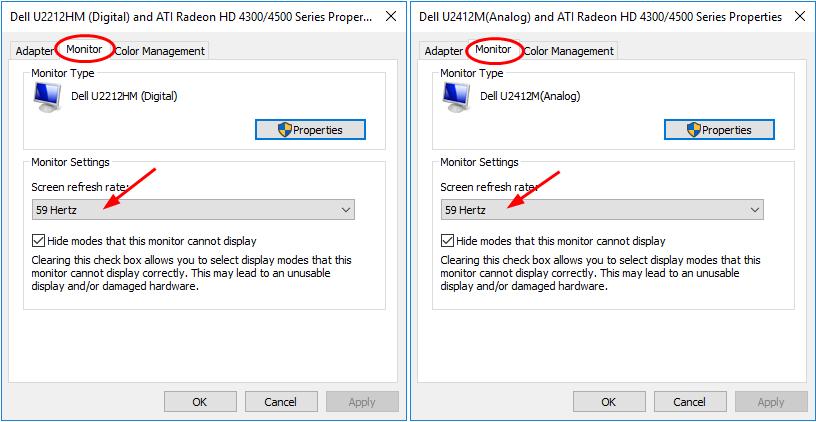
monitor settings
  • Click Apply-> OK

Now check whether Windows 10 detects the second monitor. If the issue persists, move to the next solution.

Solution Five – Change Project Mode

Windows 10 features a project mode where the user can project the display of the Windows 10 screen on another screen. There is a possibility wrong project mode is selected which is causing problems in the detection of the second monitor. Here are the steps to change project mode.

  • Press the key combination- Windows + P on the keyboard
  • Select Extend if you want to increase your desktop space. Select Duplicate if you want to mirror your Windows screen on the second monitor

Hopefully one of the solutions solves the Windows 10 does not detect a second monitor issue for you.

Filed Under: PC Fix Tips Tagged With: Second monitor issue

igdkmd64.sys Windows 10 BSOD error [Fixed]

By Susan C on February 2, 2021

igdkmd64.sys Windows 10 BSOD error [Fixed]

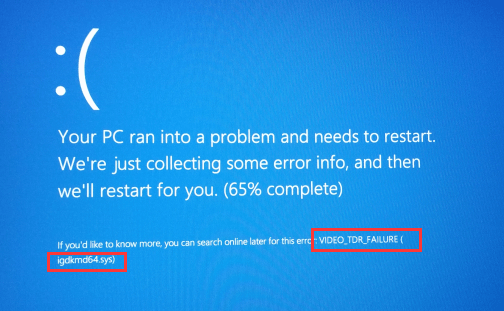
A blue screen of death error is not new to Windows users. BSODs indicate a fatal error that leads to a system crash. The BSOD error is generally accompanied by an error code and an error message that mentions the name of the component. Many users have reported an igdkmd64.sys BSOD error with an error code VIDEO TDR FAILURE.  

What is igdkmd64.sys BSOD error?

IGDKMd64 stands for Intel Graphics Driver Kernel Mode 64-bit. So there is doubt the error is related to the Intel graphics driver. Igdkmd64.sys is a Windows driver that allows your computer to interact with hardware and connected devices.

 Intel provides the igdkmd64.sys driver on an OEM basis and laptop manufacturers using Intel graphics chipset. Several problems with this driver have been discovered including a VIDEO TDR FAILURE. If you have been getting this error and looking for solutions, you have reached the right page. Here we have discussed some easy to follow solutions that could help resolve the error.

Solution One – Run SFC

SFC is short for System File Checker. It is an in-built maintenance tool that can detect and fix problems in system files. Here are the steps to run the system file checker tool in Windows 10

  • Click Start button
  • In Cortana search, type cmd
  • From the results, right-click Command Prompt and select Run as administrator
  • When the system displays the User Account Control Menu prompt, click Yes
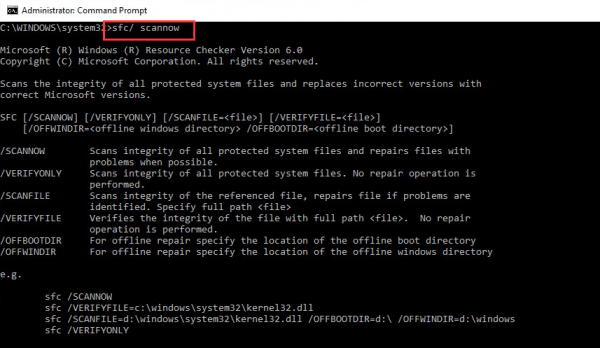
  • When you see a blinking cursor appears in the command window, type SFC /scannow
  • Hit the Enter key on the keyboard.

The System File Checker tool will scan system files for corruption and replace the corrupted files with goods cached versions. The scan will take time. After the SFC scan is complete, use the computer normally and see if you get igdkmd64.sys BSOD error. If the error persists, move to the next solution

Solution Two- Roll back graphics driver

Many users have complained they started experiencing igdkmd64.sys BSOD error after updating the graphics driver. If that is true in your case, there is an easy solution available. All you need to do is roll back the graphic driver by following the steps given below. Rolling back the driver will reinstall the older Intel graphics drivers that worked well.

  • Click Start
  • Type Device Manager in Cortana search
  • Click Device Manager from the list of search results.
  • In the Device Manager window, go to the Display adapter section and expand it
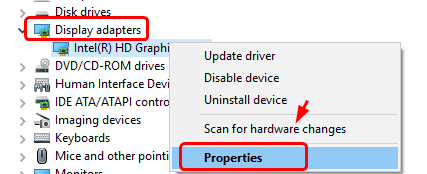
  • Right-click Intel graphics and click Properties
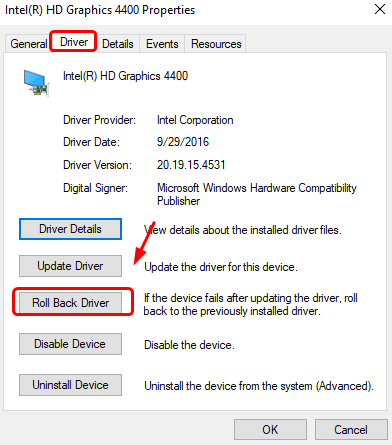
  • In the Properties window, go to the Driver tab
  • Click Rollback driver
  • Restart your computer.

If you see the option – Roll back driver is not available (grayed out), move to the next solution

Solution Three- Disable Intel Graphics Driver

If your computer has more than one graphics card (integrated Intel chip and dedicated graphics chip), it could cause conflict and lead to errors like igdkmd64.sys BSOD error. In that scenario, you can disable the Intel graphics driver and see if it helps. Here are the steps to follow.

  • Open Device Manager
  • Go to the Display adapter section and expand it
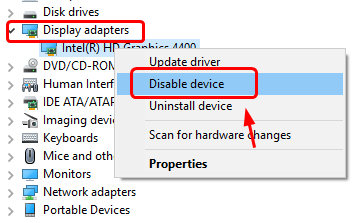
  • Right-click Intel graphics
  • From the menu, click Disable device
  • Restart your computer

Check whether the problem is resolved. If the error persists, you need to uninstall the graphics driver completely. Here are the steps to follow.

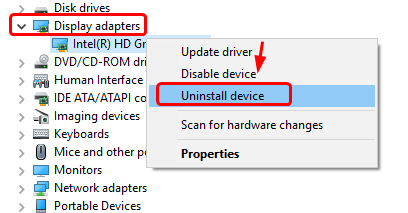
  • Right-click Intel graphics and click Uninstall device
  • Windows will show a confirmation dialog. Tick the option that says Delete the driver software
  • Click Uninstall.

After the Intel display driver has been uninstalled, restart your computer and check whether igdkmd64.sys BSOD error has been resolved. If the error persists, move to the next solution.

Solution Four – Update Intel graphics driver

You need to go to your laptop manufacturer’s website and check whether there is an update for the Intel graphics driver. If you are a desktop user, you need to go to the Intel website and check whether Intel has offered any graphics driver update. If there is a driver update available, download and install it.

A much easier way to install the graphics card driver is by using a reliable driver update software.

Automatic driver update tools offer many benefits, the most important ones being:

  • You can update device drivers automatically
  • The software scans and updates all outdated or missing drivers at one go
  • The tool picks the right drivers for your device and operating system, so you won’t have to worry about installing an incorrect driver by mistake
  • Automatic driver updates are 100% safe

Driver Updater is one of the best driver update tools out there. Outbyte Driver Updater will give you access to a database of over 1 million drivers. It will regularly scan your PC, suggesting new driver versions to install. Driver Updater contains drivers for a variety of Windows devices. With just one click, you can update drivers in your system.

Step 1
Click here to Install and launch the app

Step 2
Scan all devices

Step 3
Install or update drivers automatically


Start Download


Filed Under: PC Fix Tips Tagged With: Intel graphic card

Computer randomly freezes problem [Fixed]

By Susan C on January 23, 2021

Computer randomly freezes problem [Fixed]

The fall creator update was a package of new features in Windows 10. However, after the fall creator update, many windows users are complaining of computer freezing randomly. Unfortunately, this happens more frequently and unexpectedly and there’s not much you can do. Besides, there is no error displayed, nor can you find anything in error logs and that makes things difficult.  

If you have been facing a similar problem and want to get rid of it, we have got you covered. Here we have shared easy to follow solutions that help you resolve the issue.

Now let’s proceed towards the solutions.

Solution One- Roll back to the previous version

If you have recently installed an update after which you started experiencing the problem of computer freezes randomly. The best option you have is to roll Windows 10 back to the previous version. Here are the steps to follow.

  • Click Start and click Settings (gear icon)
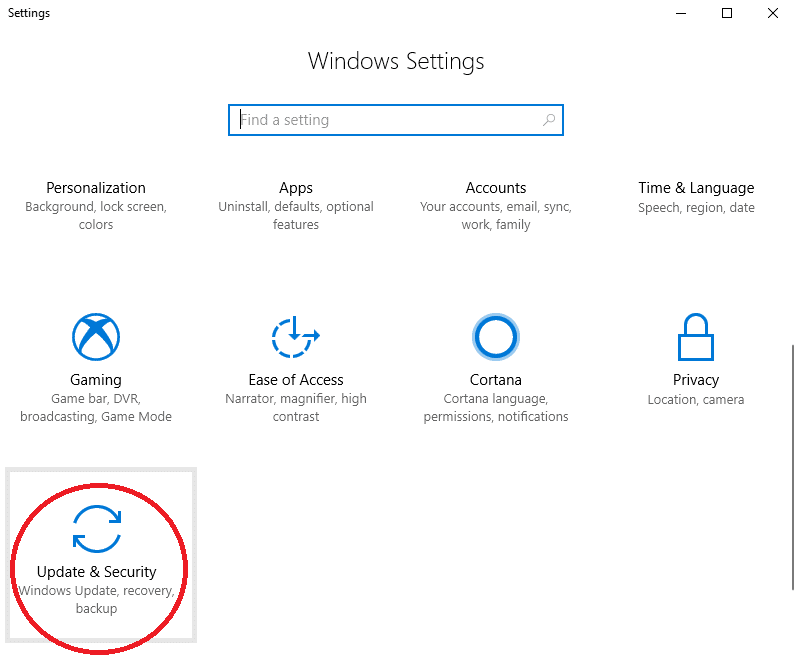
  • In the Settings window, click the Update and Security option
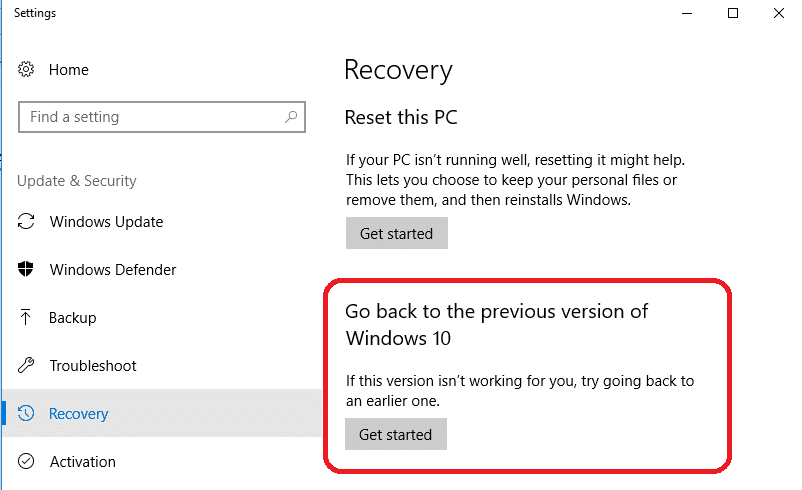
  • In the next screen, click Recovery from the left column
  • On the right side, under ‘Go back to the previous version of Windows 10’, click ‘Get Started.’
  • Follow on-screen prompts

You will not see this option if more than 10 days have passed since installing the last update. In that case, you cannot revert to an earlier version of Windows 10. You need to try other solutions given in this post.

If the solution did not work to resolve the issue, proceed to the next solution.

Solution Two- Run Memory Scan

Faulty RAM can cause issues like computer freezes randomly. Hence, the first thing you need to do is run a memory scan to ensure there is no problem with memory. Windows comes with an in-built memory diagnostic tool that checks memory for any problems. Here are the steps to run a memory scan on your computer.

  • Close all programs
  • Launch the Run command box by pressing Windows key + R simultaneously
  • In the Run command, type mdsched.exe and hit Enter on the keyboard

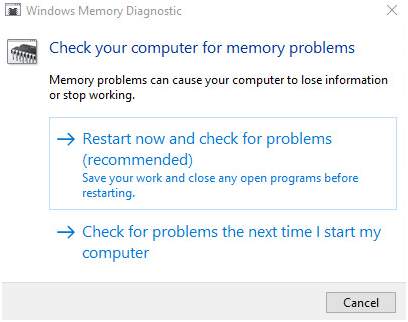
You will see a Windows Memory Diagnostic dialog pop-up with two-options

  1. Restart now and check for problems (recommended).
  2. Check for problems the next time I start my computer.

The first option restarts the computer and starts a Memory scan while the 2nd option will run a memory scan during the next reboot. If you have to finish some work, you can select option 2 else select option 1 to start the memory scan immediately

After selecting option 1, the computer will reboot and you will see the Memory Diagnostic tool running. The blue screen will show the progress of the memory scan and the errors it may find. Wait for the memory scan to complete. If the memory diagnostic scan does not list any error, you can conclude the RAM is working fine. In that scenario, proceed to the next solution.

Solution Three – Adjust Virtual Memory

The virtual memory refers to the page file used by the Windows operating system. Virtual memory is an important feature in windows where the operating system compensates for the shortage of physical memory by transferring some pages from RAM to the hard disk.

According to experts, windows need a page file (also referred to as virtual memory) to run programs. The size of the page file is set by default but you can change it for better performance. Here are the steps to adjust virtual memory.

  • Press Windows key + E on the keyboard to launch the File explorer
  • Right-click on This PC
  • Select Properties from the drop-down menu
  • In the System window, click Advanced System Settings’ that appears in the left column
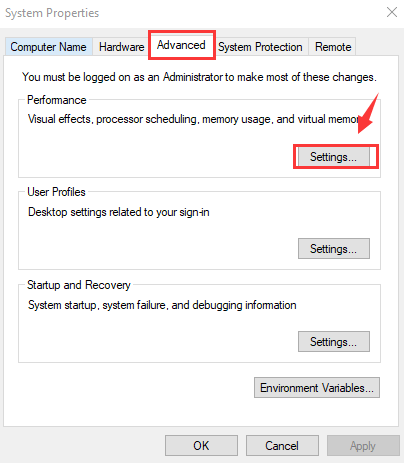
  • In the System Properties window, click on the Advanced tab
  • Go to the Performance section and click on Settings
  • In the Performance Options window, click on the Advanced tab
  • Now under Virtual memory, click Change
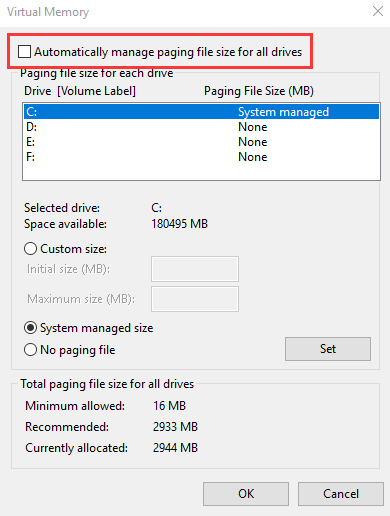
  • In the virtual memory dialog, uncheck the option- Automatically manage paging file size for all drives
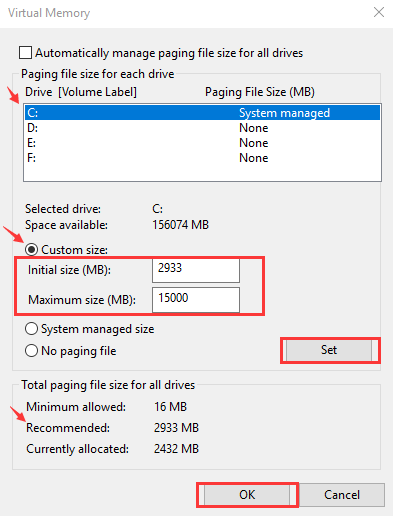
  • Select your Windows installation drive(C 🙂
  • Click Custom Size
  • Enter values for Initial and Maximum size (in MB). Follow the tip given below to decide the values for Initial and Maximum size.
  • Initial Size –You can go with the Microsoft recommended values
  • Maximum size- the value should not be set very high. As a basic rule, the maximum value should not be higher than 1.5 times of physical RAM installed on your computer. For example, if you have 4GB RAM (4096 MB), the maximum size should not exceed 6,144 MB that is derived by 4096 X 1.5
  • After you have entered initial and maximum values, click Set-> OK
  • Close all windows

If you find the computer freezes randomly even after adjusting virtual memory, proceed to the next solution.

Solution Four – Clear all temporary files

As you use your computer, the operating system generates hundreds of files during each session. These files collect over time and they can affect the performance of your computer. It is always a good habit to delete temporary files regularly. Here are the steps to clear all temporary files.

  • In the Cortana search, type disk cleanup and hit Enter on the keyboard
  • Click Disk Cleanup from the list of results
  • Select C: for disk cleanup
  • Click OK
  • Under the Files to delete section, select the file types you to want get rid of. To get a description of the file type, select it.
  • Click OK

You can also delete unwanted system files to optimize windows performance. Here are the steps to follow.

  • In Disk Cleanup, click Clean up system files.
  • Select the file types to get rid of. To get a description of the file type, select it.
  • Click OK.

If clearing temporary files did not help, move to the next solution.

Solution Five – Run a disk check

There is a possibility the disk has developed some bad sectors which have led to the corruption of system files. In that case, you need to run a disk check and fix the bad sectors and recover the information. Windows comes with an in-built CHKDSK tool that can automatically check and fix disk errors. Here are the steps to run the CHKDSK tool.

  • Click Start
  • Type explorer in Cortana search and hit Enter on the keyboard
  • Click windows explorer from the list
  • In windows explorer, right-click the Windows installation drive (C 🙂
  • Click Properties
  • Go to the Tools tab
  • Select Check, at the Error-checking section

The CHKDSK tool will now scan the disk for errors. It will automatically fix the errors. If the CHKDSK scan does not find any errors, you might see a message like the one below. In that case, you need to move to the next solution.

Solution Six – Run SFC scan

SFC is short for System File Checker. It is an in-built maintenance tool that fixes the corruption of system files. According to experts, the computer randomly freezes could be due to some corrupted file. The SFC scan checks the integrity of the system files and replaces the corrupt files with good cached versions. Here are the steps to run an SFC scan.

  • Click Start and type cmd in Cortana search
  • From the results, right-click Command Prompt and select Run as administrator
  • Click Yes in the User Account Control Menu prompt
  • When you see a blinking cursor appears in the command window, type SFC /scannow
  • Press the Enter key

Allow the SFC tool to run and wait for the process to complete. The tool finds and performs file fixes automatically and there is no user intervention needed. After the SFC scan is completed, restart your computer. Check whether the computer freezes randomly. If the problem persists, move to the next solution.

Solution Seven – Disable C-State in BIOS

C-states are CPU states when the CPU has reduced or turned off certain functions. According to experts, an active C-State can cause problems like computer freezes randomly. Hence, you need to disable C-State in BIOS. Here are the steps to follow.

  • Press the BIOS access key on your computer. It could be F2, Delete, F11, or any other key
  • After entering BIOS, go to the Advanced tab. Use the arrows keys to navigate through BIOS options
  • In the Advanced menu, select CPU configuration
  • Look for C1E Function and Intel(R) C-STATE tech options. They both should be disabled. If they are enabled, you need to disable them.
  • Use the up and down arrow keys to reach these options. Once the required option is highlighted, press Enter on the keyboard
  • Use the up and down arrow keys to select the Disable option in the menu. When the disable option is highlighted, press Enter on the keyboard.
  • Follow the above steps to disable C1E Function and Intel(R) C-STATE
  • Save BIOS settings and exit

Filed Under: PC Fix Tips Tagged With: computer freezes

  • « Previous Page
  • 1
  • …
  • 76
  • 77
  • 78
  • 79
  • 80
  • …
  • 189
  • Next Page »


  • Recent Posts
  • Popular Posts
        

Read More Posts


Read More Posts

Drivers.com Sites

  • Software Drivers
  • Drivers Ed

About Us

  • Advertise
  • About Drivers
  • Drivers Support
  • Drivers.com Privacy Policy
  • Disclaimer
  • Software Drivers
  • Mac Fixes and Tips
  • PC Fix Tips
  • Security/ Backup
  • Tablets & Smartphones
  • Tech News

© Copyright 2026 PDE Publications Ltd. End User License Agreement (EULA)