Drivers.com

follow us:

facebook twitter
  • Home
  • Download Drivers
  • Drivers Help
  • PC/Mac Resources
  • Software Drivers
  • Mac Fixes and Tips
  • PC Fix Tips
  • Security/ Backup
  • Tablets & Smartphones
  • Tech News
  • Software Drivers
  • Mac Fixes and Tips
  • PC Fix Tips
  • Security/ Backup
  • Tablets & Smartphones
  • Tech News

How to connect unsupported Bluetooth to PS4

By Susan C on March 4, 2021

Want to connect unsupported Bluetooth headphones to PS4 but are not sure how to go about it?

In this post, we’ll be discussing 4 DIY solutions to this problem. You can try any one of them to pair your Bluetooth headphones. However, before we look at the solutions, let’s check why Bluetooth audio devices aren’t supported by PS4.

Why Bluetooth Audio Devices Aren’t Supported by PS4?

After launching PlayStation 4, Sony declared that PS4 will not support A2DP, which includes Bluetooth devices. A2DP is the short-form for Advance Audio Distribution Profile. It is basically stereo music that is distributed wirelessly over Bluetooth.

Why has Sony stopped supporting Bluetooth devices for the PlayStation 4? The answer is to prevent lagging. With A2DP, you are going get a lagging of roughly 100-200ms. As you may guess, that will lead to poor user experience, and hence Sony supporting Bluetooth devices with PS4.

That said, while you can’t pair a Bluetooth device with PS4 the normal way, workarounds are available. Let’s now look at them.

Connect Bluetooth Headphones to PS4

Solution 1 – Use Supported Bluetooth Devices to Connect to PS4

In case the Bluetooth device you use is supported by Sony, configure the settings directly to pair it. Not sure if Sony supports the Bluetooth device you use? In that case, you should check the information on the headset package. That said, tweaking the settings to try pairing PS4 with your Bluetooth device never hurts, so it’s worth giving it a shot.

Here are the steps to follow:

  • Turn the Bluetooth headset on in pair mode to establish a connection
  • Navigate to PS4 Settings. Click Devices and then click Bluetooth Devices
  • Choose your headset
  • In case the Bluetooth headset connects successfully, see if you’re able to play your favorite games with it

If a successful connection isn’t made and you get an error message such as Cannot connect to the Bluetooth device within the time limit or Bluetooth audio devices are not supported by the PS4, give the solutions listed ahead a try.

Solution 2 – Connect the Bluetooth Headset Wired to the PS4

You might require an additional to establish a connection between the Bluetooth headset and PS4. For this method, use an audio cable that has an inbuilt microphone. The majority of Bluetooth headsets come with such a cable. For instance, you can easily find such headsets online or elsewhere.

Here are the steps to follow:

  • Connect the Bluetooth headset with the PS4 controller using the audio cable having an inbuilt mic
  • Now turn the headset on
  • Navigate to PS4 Settings. Click Devices and then click Bluetooth Devices
  • Choose your headset in the list
  • Navigate to Devices and then click Audio Devices
  • Now select Output Device. Click Headset Connected to Controller
  • Select Volume Control, and then adjust its setting to either louder or medium
  • Select Output to Headphones and then click All Audio
  • Now see if the headset is working

If this solution doesn’t work, move on to the next one.

Solution 3 – Use a USB Adapter to Connect the Bluetooth Headset to PS4

You may be able to connect the Bluetooth headset to the PS4 by using just a USB adapter. If you don’t have a USB adapter, perhaps you can buy one and then try the following steps:

  • In the PS4 USB slot, insert your USB adapter
  • Turn the Bluetooth headset on
  • Navigate to PS4 Settings. Click Devices. Then click Audio Devices
  • Select Output Device and then click USB Headset
  • Select Volume Control. Now change the setting to either louder or medium
  • Select Output to Headphones and then click All Audio
  • Now see if the headset is working

If this solution didn’t work for you, give this last solution a try.

Solution 4 – Use a Dongle to Connect the Bluetooth headset with the PS4

This method allows you to quickly and easily connect the Bluetooth headset with the PS4. All you need is a wireless microphone and a Dongle. Most Dongles come with a wireless microphone. That means you don’t have to buy them separately.

Here are the steps to follow:

  • Insert your wireless mic
  • Into the PS4 USB slot insert your Bluetooth Dongle
  • Turn the Dongle on by pressing the button on it
  • Turn the Bluetooth headset on. Now move a little closer to your Dongle and wait a little for the devices to connect
  • Once the connection has been made, navigate to PS4 Settings. Click Devices and then click Audio Devices
  • Select Input Device. Now, choose Headset Connected to Controller
  • Select Output Devices. Click USB Headset
  • Select Volume Control. Adjust the setting to either louder or medium
  • Select Output to Headphones. Now click All Audio
  • Now see if the headset is working

If the headset is still not working, you try updating graphic card drivers. Often, outdated drivers cause unexpected issues, so this step is worth giving a shot. We recommend you use an advanced driver update tool.

Updating Drivers Automatically

Automatic driver update tools offer many benefits, the most important ones being:

  • You can update device drivers automatically
  • The software scans and updates all outdated or missing drivers at one go
  • The tool picks the right drivers for your device and operating system, so you won’t have to worry about installing an incorrect driver by mistake
  • Automatic driver updates are 100% safe

Driver Updater is one of the best driver update tools out there. Outbyte Driver Updater will give you access to a database of over 1 million drivers. It will regularly scan your PC, suggesting new driver versions to install. Driver Updater contains drivers for a variety of Windows devices. With just one click, you can update drivers in your system.

Step 1
Click here to Install and launch the app

Step 2
Scan all devices

Step 3
Install or update drivers automatically


Start Download


Filed Under: Software Drivers Tagged With: Bluetooth PS4 issue

Windows update error 0x800705b4[Fixed]

By Susan C on February 25, 2021

Microsoft regularly updates the Windows operating system to fix bugs and improve its performance. These updates are expected to go smooth, but things may not always go as planned. Many users have complained of receiving 0x800705b4 Error while updating Windows.

If you are experiencing the same update error, this post is for you. Here we have discussed the 0x800705b4 Error update error in detail.

Causes of 0x800705b4 Error

There can be several reasons behind the 0x800705b4 error. You can get the error when the system files are damaged or corrupted or when there are some registry errors, or when the windows update service is not set to automatic. A malware or virus attack can also cause this error.

Many users ignore this error, which is not advisable. According to experts, the 0x800705b4 Error can spell disaster for your computer.  It can affect the security and performance of your computer that can be difficult to resolve.

Here we have discussed a few solutions to resolve the 0x800705b4 error.

Before Anything Else

Windows OS depends on several components and services for smooth functioning. Many times a required service doesn’t get started as it should, which might lead to errors. Hence, before following any solutions in the post, restart your computer and see if the 0x800705b4 Error persists.

If you still get the error while updating Windows, you can start with the first solution in the list.

Solution One – Run Windows Update Troubleshooter

Windows comes with an Update Troubleshooter that can fix most errors with the Windows update process. When you run this tool, it will detect the error and fix it automatically. Here are the steps to follow

  • Click Start and type troubleshoot in the Cortana search bar
  • From the list of search results, click Troubleshooting
  • In the left-hand pane, click View All
  • In the All categories window, locate and click Windows Update
  • In the next window, click Advanced
  • Click Run as administrator
  • Click Next

Let the troubleshooting utility run and fix the errors. After the Update Troubleshooter completes its operation, try updating Windows. If the Windows Update Troubleshooter was not able to fix the error, move to the next solution.

Solution Two- Delete some update related files

You cannot rule out the possibility of corruption of Windows update files. According to experts, deleting specific Windows update files will force the Windows OS to download these files again that might help resolve the issue. Here are the steps to follow.

  • Click Start and type Services in Cortana search
  • Open Services app
  • In the Services window, locate and right-click Background Intelligent Transfer Service and select Stop
  • Now right-click Windows Update then select Stop
  • Open Windows Explorer and go to following folder- C:\Windows\SoftwareDistribution
  • Select all files in the folder and press delete button on keyboard
  • Close all windows

Now try installing Windows updates. If deleting Windows update files has not helped, move to next solution

Solution Three- Make Changes to Windows Update Settings

There is a possibility some Windows update settings are preventing the installation of updates. To rule out this possibility, make some changes to the Windows update settings. Here are the steps to follow.

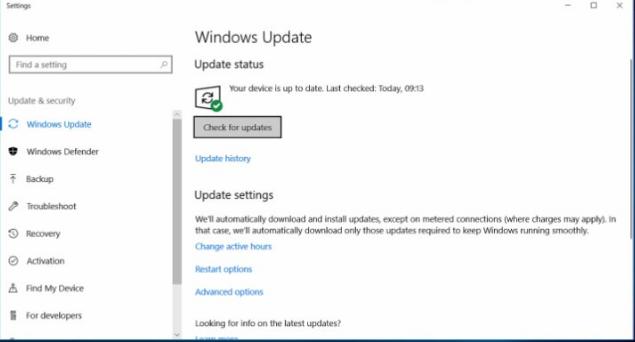
  • Click Start and type Windows updates in the Cortana search box
  • In the search results, click Check for updates
  • In the Settings window, click Advanced options
  • Uncheck the option- Give me updates for other Microsoft products when I update Windows.
  • Close all windows and restart your computer
  • Open the Windows Update settings and click Check for updates

If the above solution has not worked for you, proceed to the next solution in the list.

Solution Four- Disable 3rd party Anti-virus software and start Windows Defender

Though 3rd party anti-virus solutions are good they can be the reason behind errors like 0x800705b4 Error. To ensure your 3rd party anti-virus solution is not causing the problem, disable the anti-virus temporarily and enable Windows Defender. Here are the steps to follow.

Disable 3rd party anti-virus software

The steps to disable anti-virus software vary. Here we have provided general steps to disable 3rd party anti-virus software.

  • Open anti-virus application
  • Go to Settings and look for options like disable for 10 minutes, disable for 1 hour, disable until next restart.
  • Click on the desired option in the list to disable anti-virus temporarily

The next step is to enable Windows Defender which is part of  Windows security tools. Here are the steps to follow.

  • Press Windows + R key combination on the keyboard
  • Type services.msc and click OK
  • In the Services window, make sure the Windows Defender Antivirus service and Windows Defender Firewall service is running. If they are stopped, you need to start them
  • Right-click Windows Defender Antivirus service and select Properties
  • In the Startup type- select Automatic from the drop-down list
  • Under the Service Status section, click the Start button
  • Click Apply->OK
  • Now you need to start the Windows Defender service similarly.
  • Right-click Windows Defender service and select Properties.
  • Start Windows Defender firewall and close all windows

Now try updating the Windows. If the above solution has not helped, move to the next solution.

Solution Five – Run SFC scan

Windows comes with an in-built maintenance tool known as System File Checker. It is designed to check the integrity of the system files and replace any missing or corrupted files.  It is easy to use and the error detection and repair process is automatic. Here are the steps to run an SFC scan on your computer.

  • Click Start
  • Type cmd in the search bar
  • Right-click command prompt from the list of results and select Run as administrator
  • The computer prompts a User Account Control dialog, click Yes to confirm
  • In the command prompt, type SFC /scannow
  • Hit the Enter key on the keyboard
  • Wait for the SFC scan process to complete.
  • Restart your computer and try installing Windows updates.

If the 0x800705b4 error is not fixed by SFC scan, you need to run DISM scan by following steps given in the next solution

Solution Six- Run DISM scan

DISM is short for Deployment Image Servicing and Management. It is a command-line tool used to service and prepare Windows images. The main difference between SFC and DISM is the former utility tool scans your hard drive for corrupt and missing system files while the latter fixes the corrupt system files in the component store of Windows system image.  Here are the steps to run the DISM scan on your computer.

  • Open an elevated command prompt
  • In the command prompt window, type DISM /Online /Cleanup-Image /Check Health
  • Press enter on the keyboard

The DISM tool checks system files and repairs any corrupted files from Windows image. Experts advise users to run advanced scan and repair option by executing the following command

  • In the command prompt window, type DISM /Online /Cleanup-Image /Restore Health
  • Press Enter on the keyboard

Solution Seven- Reset Windows update components

Since the error is related to Windows updates, resetting Windows update components could help resolve the issue. Here are the steps to follow.

Open command prompt with administrator rights

In the command prompt, type the following commands and press Enter after each command.

  • net stop bits
  • net stop wuauserv
  • net stop cryptsvc.
  • net stop appidsvc

the above command will stop the related Windows update services. The next step involves deleting a specific file. In the command prompt, type the command given below

Del “%ALLUSERSPROFILE%ApplicationDataMicrosoftNetworkDownloaderqmgr*.dat”

After deleting the file you have to make changes to the files in the system32 folder. Here is the command you have to type in the command prompt window- cd /d %windir%system32

The next step is to start all the BITS files. BITS stands for Background Intelligent Transfer Service. It is used by the Windows operating system to download updates to your local system. Here is the list of commands to type. You need to press Enter after each command.

  • exe cryptdlg.dll
  • exe slbcsp.dll
  • exe atl.dll
  • exe wups2.dll
  • exe wuapi.dll
  • exe ole32.dll
  • exe dssenh.dll
  • exe shell32.dll
  • exe msxml.dll
  • exe wuaueng.dll
  • exe actxprxy.dll
  • exe softpub.dll
  • exe wuaueng1.dll
  • exe urlmon.dll
  • exe muweb.dll
  • exe wuwebv.dll
  • exe wintrust.dll
  • exe shdocvw.dll
  • exe jscript.dll
  • exe oleaut32.dll
  • exe sccbase.dll
  • exe qmgr.dll
  • exe wucltui.dll
  • exe wups.dll
  • exe gpkcsp.dll
  • exe wuweb.dll
  • exe scrrun.dll
  • exe mshtml.dll
  • exe msxml3.dll
  • exe wucltux.dll
  • exe qmgrprxy.dll
  • exe browseui.dll
  • exe initpki.dll
  • exe vbscript.dll
  • exe msxml6.dll
  • exe rsaenh.dll

After executing these commands, you need to perform a Winsock reset that will clear any socket errors that arise due to the download of some unknown file. Winsock is an important element of Windows OS that contains settings of Internet connectivity. Type the following command to reset Winsock – netsh winsock reset

The next thing you need to do is restart all Windows update services through the following commands. Press enter on the keyboard after each command.

  • net start bits
  • net start cryptsvc
  • net start appidsvc
  • net start wuauserv

The last step in this solution is to restart the computer and try installing the updates. If none of the above solutions has worked for you, you need to perform a clean install of Windows and then try updating Windows.

Filed Under: PC Fix Tips Tagged With: error 0x800705b4

Msvcp140.dll missing Windows 7 error [fixed]

By Susan C on February 16, 2021

Msvcp140.dll missing Windows 7 error [fixed]

Msvcp140.dll is an essential file in Windows operating system. It is part of Microsoft C Runtime Library that’s associated with Microsoft Visual Studio® 2017. The Msvcp140.dll is required by many programs to run. If you get an error Msvcp140.dll is missing, it would negatively affect the working of the software dependent on it.

system error

What are the reasons behind Msvcp140.dll missing error?

There are several causes for Msvcp140.dll missing error like faulty applications, malware, and windows registry issues. If you are getting an Msvcp140.dll missing error, it could mean the file is missing, has been removed, corrupted, or installed incorrectly.

Here are some versions of Msvcp140.dll missing errors.

  • “Cannot register msvcp140.dll”
  • “Cannot find msvcp140.dll”
  • “The procedure entry point msvcp140.dll error”
  • “msvcp140.dll Access Violation”
  • “msvcp140.dll could not be located”
  • “msvcp140.dll was not found”
  • “msvcp140.dll crash”
  • “msvcp140.dll error loading”

If you are getting any of the errors, it means the same thing: “msvcp140.dll file is missing.” Here we have shared a few solutions that could resolve the issue.

Solution One – Download msvcp140.dll

Several websites offer you the msvcp140.dll file. However, not all are safe and you might download malware along with the file. Hence, you need to check the reputation of the Internet source before downloading the DLL file. There are several versions of the msvcp140.dll file. Download the latest version of the msvcp140.dll file.

Microsoft offers 34-bit and 64-bit msvcp140.dll file. If you have a 64-bit application installed that needs an msvcp140.dll file, download 64-bit msvcp140.dll. Else you can download a 32-bit msvcp140.dll file.

Besides the bit and version, you also need to also check the language of the DLL file. You need to choose the language that corresponds to the language of the program. We recommend you download the latest msvcp140.dll version for updated functionality of the program

Where to place the msvcp140.dll file?

After downloading the DLL file, you need to place it in the right folder to work. The msvcp140.dll file should be pasted in the application/game installation folder. Alternatively, you can also copy the file to the Windows system directory.

Many users have complained that the error did not resovle even after placing the msvcp140.dll file in the right folder. In that scenario, you need to register the msvcp140.dll file by following the steps given below.

  • Press Windows key + R to launch the “Run: box
  • In the Run command box, type cmd and press Ctrl+Shift+Enter to open an administrator Command Prompt.
  • In the Command prompt window, type regsvr32 msvcp140.dll and press Enter.

If you do not trust Internet sources offering msvcp140.dll file, you have the option of getting it from someone else’s computer. In that case, follow the steps in solution two.

Solution Two – Copy msvcp140.dll file from another computer

One thing you should know that the version and architecture of other computer needs to be same. For example, if you have a Windows 10 32-bit OS running on your computer, the other computer (source of DLL file) should also be running Windows 10 32-bit OS. The same rule applies to 64-bit Windows OS.

Now that you know the important things, you can go ahead and copy the DLL file from another computer. Here are steps you need to follow on another computer:

  • Press Windows key + E simultaneously to open Windows Explorer
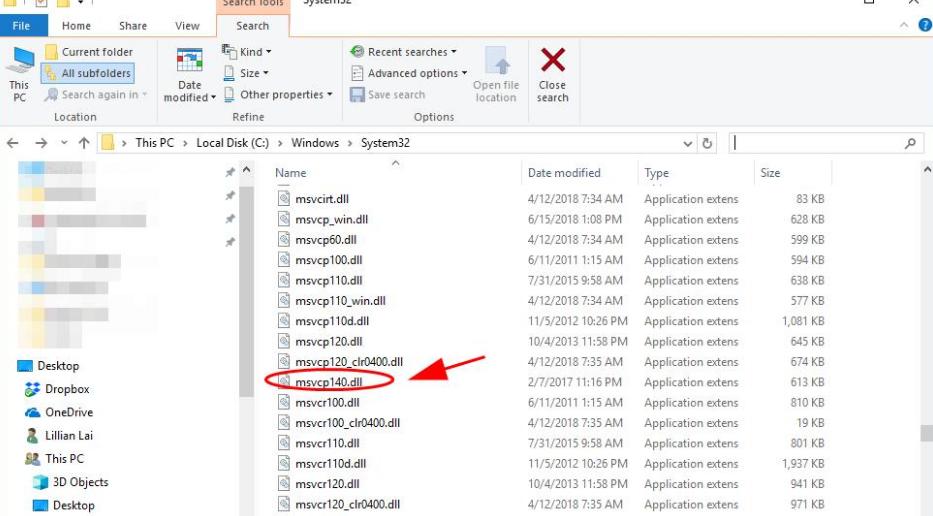
  • Navigate to C:\Windows\System32
copy dll file
  • Copy msvcp140.dll and save it on your USB drive

Here are the steps you need to perform on your computer:

  • Attach the USB drive to your computer
  • Open Windows Explorer on your computer and go to C:\Windows\System32
  • Copy the msvcp140.dll file from USB to C:\Windows\System32

Launch the program which was giving out the msvcp140.dll missing error. If the error persists, move to the next solution.

Solution Three – Reinstall Microsoft Visual C ++ Redistributable package

As mentioned earlier, msvcp140.dll is part of the Visual C ++ Redistributable for Visual Studio 2015 package. It provides essential components to run C++ applications. The file is so important that it gets installed with Windows. There is a possibility the msvcp140.dll exists but is corrupted which is the cause of the error.

A simple solution to this problem is to reinstall the Microsoft Visual C ++ Redistributable package which will fix the problem. The Microsoft Visual C ++ Redistributable package is available for free on the Microsoft website. You should download it from the official Microsoft website only as unapproved sources might be providing Microsoft Visual C ++ Redistributable package infested with malware. Here are the steps to follow.

  • Open Internet browser
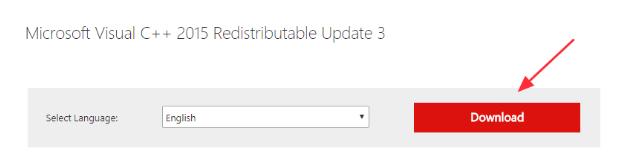
  • Go to Microsoft Visual C++ 2015 Redistributable Update 3 download page
download drivers
  • Select the right language and click Download
  • Select the right version of the file. If you have 32-bit Windows OS running on your computer, you need to download the vc_redist.x86.exe file. For 64 bit Windows OS, download vc_redist.x64.exe.
  • Select the file you want to download and click Next
  • Select the destination folder for the download and click Save
  • Once the file is downloaded, close all programs and double-click on the exe file
  • Follow on-screen instructions to install the package
  • After the installation is complete, restart Windows

Try launching the program which gave out the msvcp140.dll error. If you are still getting the error, move to the next solution.

Solution Four – Reinstall the program

The msvcp140.dll error suggests user reinstall the program to fix the error. The reason is re-installation would install the correct version of the msvcp140.dll file. You need to first uninstall the program and then reinstall it. Here are the steps to follow.

  • Press Windows + R button simultaneously on the keyboard to bring up the Run command box
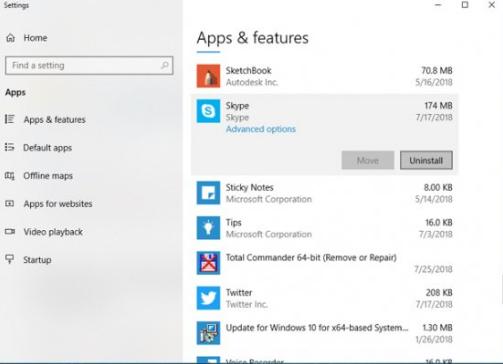
  • In the Run command box, type appwiz.cpl and press Enter on the keyboard. This will bring up the list of installed programs on your computer
  • Select the problematic program and click Uninstall
uninstall program
  • When asked for confirmation, click Yes.
  • Restart your computer
  • Reinstall the program

Launch the program. If the problem is not fixed, move to the next solution.

Solution Five – Run SFC scan

SFC stands for System file checker. It is an in-built windows maintenance tool that checks the integrity of system files and replaces any missing or corrupt system files. Since msvcp140.dll is also a system file, running an SFC scan might help resolve the issue. Here are the steps to follow.

  • Click Start and type cmd in the search box
  • From the results, right-click Command Prompt and select Run as administrator
  • Click Yes in the User Account Control Menu prompt
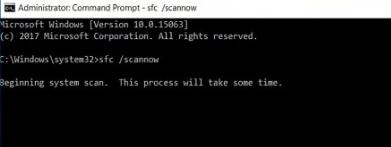
  • When you see a blinking cursor appears in the command window, type sfc/scannow
sfc/scannow
  • Hit Enter on the keyboard

Solution Six – Install pending updates

Note – This solution applies only to Windows 10.

Microsoft is providing regular updates to fix bugs in Windows 10. There is a possibility the msvcp140.dll missing error is due to some Windows bug and installing pending updates could fix the error. Here are the steps to follow.

  • Press Windows key and I simultaneously on the keyboard
  • In the Settings window, click Security and Updates
  • In the next window, click Check for updates
check for driver updates
  • Install all essential updates and then restart your computer.

Check whether msvcp140.dll missing error has gone. If the error persists, move to the next solution.

Solution Seven – Check your system for malware

There is a possibility the system is infected with malware that is causing the problem. In that case, you need to install a good antivirus and run a deep scan to remove any malware from your system.

Solution Eight – Update your device drivers

Automatic driver update tools offer many benefits, the most important ones being:

  • You can update device drivers automatically
  • The software scans and updates all outdated or missing drivers at one go
  • The tool picks the right drivers for your device and operating system, so you won’t have to worry about installing an incorrect driver by mistake
  • Automatic driver updates are 100% safe

Driver Updater is one of the best driver update tools out there. Outbyte Driver Updater will give you access to a database of over 1 million drivers. It will regularly scan your PC, suggesting new driver versions to install. Driver Updater contains drivers for a variety of Windows devices. With just one click, you can update drivers in your system.

Step 1
Click here to Install and launch the app

Step 2
Scan all devices

Step 3
Install or update drivers automatically


Start Download


Filed Under: Software Drivers Tagged With: Msvcp140.dll

  • « Previous Page
  • 1
  • …
  • 74
  • 75
  • 76
  • 77
  • 78
  • …
  • 189
  • Next Page »


  • Recent Posts
  • Popular Posts
        

Read More Posts


Read More Posts

Drivers.com Sites

  • Software Drivers
  • Drivers Ed

About Us

  • Advertise
  • About Drivers
  • Drivers Support
  • Drivers.com Privacy Policy
  • Disclaimer
  • Software Drivers
  • Mac Fixes and Tips
  • PC Fix Tips
  • Security/ Backup
  • Tablets & Smartphones
  • Tech News

© Copyright 2026 PDE Publications Ltd. End User License Agreement (EULA)