Drivers.com

follow us:

facebook twitter
  • Home
  • Download Drivers
  • Drivers Help
  • PC/Mac Resources
  • Software Drivers
  • Mac Fixes and Tips
  • PC Fix Tips
  • Security/ Backup
  • Tablets & Smartphones
  • Tech News
  • Software Drivers
  • Mac Fixes and Tips
  • PC Fix Tips
  • Security/ Backup
  • Tablets & Smartphones
  • Tech News

MSVCR120.dll is missing windows 10 (8 Fixes)

By Susan C on March 19, 2021

MSVCR120.dll is missing windows 10 (8 Fixes)

You may have come across this error while launching programs or loading games: msvcr120.dll is missing.

This is not a very complicated error, and you can easily fix it quickly. In this post, we’ll discuss several methods to resolve the issue. You don’t have to try all of these solutions. Start with the first one in the list and work your way down until you are able to get rid of this error.

However, before we look at the solution, let’s check what the msvcr120.dll file is all about.

MSVCR120.dll – What is it?

The MSVCR120.dll is an important file for Windows. It is required for extracting the key application resources needed at runtime by 3rd party installation programs. In case this file has gone missing, you can’t launch programs in C++ programming languages. That’s because this file is the corresponding C++ library.

Solution 1 – Reinstall the Visual C++ Redistributable Packages

The easiest way to replace the missing MSVCR120.dll file is to download the redistributable package. Once you’ve downloaded it, install it to get this file back.

Note: You should not download .dll files from any non-official website. That’s because some websites may push malware disguised as genuine files. Downloading and installing corrupt files can make your PC unstable or worse put your sensitive information at risk.   

Here are the steps to install the redistributable package:

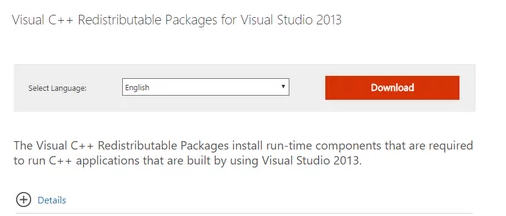
  • Go to Microsoft Download Center
  • Choose your language, and then click at the Download button
click Download
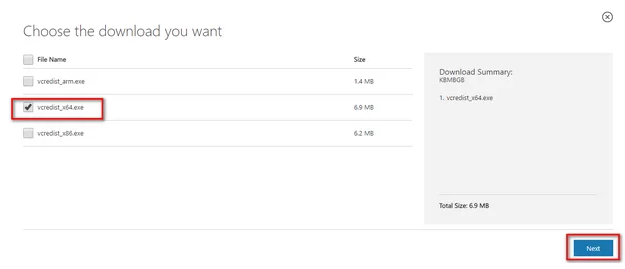
  • Now select the file that corresponds to your operating system. That is, if you use 32 bit Windows, select vredist_x86.exe. On the other hand, those using 64 bit can choose either vredist_x64.exe or vredist_86.exe.
  • Once you have selected the right file, click the Next button to download it. You should save the downloaded file in a readily accessible location, like your desktop
  • Run this file to install it. Once the installation is complete, reboot Windows
  • Now check whether the issue is fixed

If the problem persists, go to the next step.

Solution 2 – Run System File Checker

Windows have a built-in utility — system file checker (SFC) — that allows users to check for corrupt files on their computers. This is an immensely useful tool to diagnose the issue and check whether a problem is occurring because of corrupt files.

You should give SFC a shot and see if that solves the problem. When you run SFC, you’ll get any of the following three responses:

  • Windows was not able to locate any integrity violations on the computer
  • Windows Resource Protection was able to find corrupt files and repair them
  • Windows Resource Protection located corrupt files but it was not able to fix some or all of these files

Here are the steps to follow to run SFC:

  • Press the Windows key and R key simultaneously
  • In the run dialog box, type taskmgr and then press Enter
  • In the Task Manager menu, click File and then click Run new task
  • In the Create new task dialog box, type powershell, select the option below it (Create this task with administrative privileges)
  • Now type sfc /scannow in the Windows Powershell window and press the Enter key. Kindly not that this process might take a bit of time as the tool will scan all your Windows files for corrupt phases.
  • In case you come across an error that states Windows found errors but couldn’t resolve them, type the following command – sfc /verifyonly
  • The process may take some time. Wait until it completes.
  • In case you still couldn’t repair corrupt files, run this command – DISM/Online/Cleanup-Image/RestoreHealth
  • This command works by downloading the correct version of corrupt files from Windows update servers and then it will replace the latter with correct files. The whole process may take some time, depending on how fast the internet connection is. You shouldn’t cancel the command once you’ve run it.

If Windows was able to detect an error and fix it using the methods listed in this section, reboot the computer. Upon restart, reinstall the program or application with which you were getting the error. Now check if the problem is fixed.

Solution 3 – Download MySQL Installer Community

In case you are facing problems when you run a MySQL application like MySQL Workbench, we recommend that you download and install this tool – MySQL Installer Community. If your Windows computer is lacking in one or more Visual Studio component, this tool will detect that. After that it may launch an installer to make up for the gaps. Like always, you should always download application from trusted sources only. You can download this tool from Mysql website.

Solution 4 – Install both VC Redist Packages

Some users were able to fix the issue by:

  • Reinstalling VC Redist packages
  • Installing the 32-bit as well as the 64-bit version

We recommend that you also give this method a try. First, you’ll need to uninstall previous VC Redist installations. After that, you’ll have to reinstall VC Redist packages.

Here are the steps to follow:

  • Press the Windows key and R key simultaneously
  • In the Run dialog box, type cpl and then press the OK button or hit Enter
  • Locate and right-click Visual C++ Redistributable application in app management window
  • Select Uninstall. Follow on-screen instructions in order to uninstall the application
  • You will need to perform the uninstallation steps for each installation of this software
  • Now go to Microsoft website. Next, download these installations
    • Microsoft Visual C++ Redistributable 2005 64-bit + 32-bit
    • Microsoft Visual C++ 2008 Redistributable Package (x86)
    • Microsoft Visual C++ 2008 Redistributable Package (x64)
    • Microsoft Visual C++ 2010 Redistributable Package (x86)
    • Microsoft Visual C++ 2010 Redistributable Package (x64)
    • Visual C++ Redistributable Packages for Visual Studio 2013 32+64 bit
    • Visual C++ Redistributable for Visual Studio 2015
  • After you have downloaded these, install the applications one at a time by launching their setup files
  • Now check if the issue is resolved

Solution 5 – Scan for Virus

You may also get this error if your computer is infected with malware or virus. Scan the computer for infection using your antivirus. Below we have given steps for Windows Defender, which is included in Windows 10 by default.

  • Press the Windows key and S key simultaneously
  • In the start search bar, type Windows Defender. Select the result that appear
  • A scan option will appear on your screen. Choose Full Scan and then click Scan Now. The scan will scan all the files, so the process will take some time.
  • In case the software identifies any rogue file, it will remove or quarantine it. Restart Windows and check if the problem is fixed

Solution 6 – Update your drivers

Automatic driver update tools offer many benefits, the most important ones being:

  • You can update device drivers automatically
  • The software scans and updates all outdated or missing drivers at one go
  • The tool picks the right drivers for your device and operating system, so you won’t have to worry about installing an incorrect driver by mistake
  • Automatic driver updates are 100% safe

Driver Updater is one of the best driver update tools out there. Outbyte Driver Updater will give you access to a database of over 1 million drivers. It will regularly scan your PC, suggesting new driver versions to install. Driver Updater contains drivers for a variety of Windows devices. With just one click, you can update drivers in your system.

Step 1
Click here to Install and launch the app

Step 2
Scan all devices

Step 3
Install or update drivers automatically


Start Download


Solution 7 – Install Windows Updates

You may also receive this error if some important Windows update has not been installed on your system. Therefore, check if any updates are available and install them.

Here are the steps to follow:

  • Press Windows key and I key simultaneously
  • Click Updates and Security
  • Click Windows Update in the left pane. Next, click Check for Updates
  • Windows will now check for updates. If any updates are available, it will automatically install them
  • Now check if you are still getting the error

Solution 8 – Reinstall Application

In case you are getting the error with just one game or application, as a last resort first uninstall it and then reinstall. After you have uninstalled the application or game in question, download it again from its original source and run the setup file to complete the installation process.
Filed Under: PC Fix Tips Tagged With: msvcr120 dll

Windows 10 Locking Up Frequently (8 Solutions)

By Susan C on March 18, 2021

Windows 10 Locking Up Frequently (8 Solutions)

Many users have complained about Windows 10 freezing frequently. Are you facing this issue as well? If so, this post is just for you.

Today, we’ll be discussing seven ways to fix up the Windows 10 Freezing issue. So, let’s get started

Solution 1 – Update your device drivers

Did you know that outdated device drivers can cause all sorts of issues, including the Windows 10 freezing problem? Therefore, before you try anything else, update your device drivers.

You can update your drivers manually or automatically, but we recommend you take the latter route as it is easier and simpler. You don’t need to be proficient in Windows to update your drivers automatically. Instead, all you need is a reliable driver update tool.

Updating Drivers Automatically

Automatic driver update tools offer many benefits, the most important ones being:

  • You can update device drivers automatically
  • The software scans and updates all outdated or missing drivers at one go
  • The tool picks the right drivers for your device and operating system, so you won’t have to worry about installing an incorrect driver by mistake
  • Automatic driver updates are 100% safe

Driver Updater is one of the best driver update tools out there. Outbyte Driver Updater will give you access to a database of over 1 million drivers. It will regularly scan your PC, suggesting new driver versions to install. Driver Updater contains drivers for a variety of Windows devices. With just one click, you can update drivers in your system.

Step 1
Click here to Install and launch the app

Step 2
Scan all devices

Step 3
Install or update drivers automatically


Start Download


Solution 2 – Remove your computer’s temp files

When was the last time you cleared your computer’s temp files? If it has been a while, it’s possible the temp files might be occupying a lot of space and slowing down the system in return.

Here are the steps you need to follow to remove the temp files.

  • Press Window Key and R Key on your keyboard simultaneously
  • In the run dialog box, type temp and press the Enter key
  • In the Temp folder, select all the files and remove them
  • Now check if the issue is solved

If the problem persists, try the next solution.

Solution 3 – Adjust virtual memory

Virtual memory is nothing more than an extension of the physical memory of your computer. When the physical memory is in short supply, Windows transfers pages of data from RAM to disk storage. In other words, when RAM is running low, the hard disk is used to provide an extension to it.

Here’s how you can adjust the virtual memory.

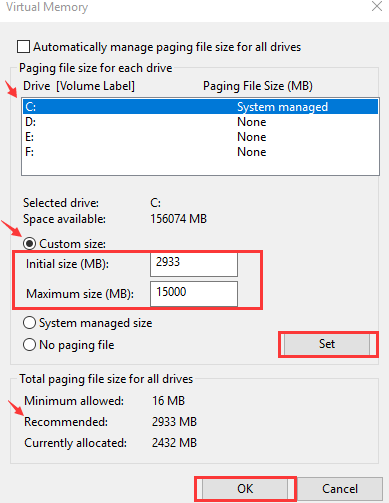
  • Press the Windows key and Pause/Break key simultaneously. Then click Advanced System Settings in the left window
  • In the System Properties dialog box, click the Advanced tab. Next, click the Settings button
  • Click the Advanced tab again and then click Change (below Virtual memory)
  • Make sure that the square box before “Automatically manage paging file size for all drivers” is not ticked
  • Choose the windows drive (that is, the partition or the hard drive that houses Windows, typically it is the “C” drive). Now, enter both an initial and maximum size for virtual memory
virtual memory

Initial size – You can use the number listed in the recommended category. Else, you can pick a value that’s suitable for your computer.

Maximum size – This value should be around 1.5 times the size of your physical RAM. For example, if your PC has 4GB RAM, virtual memory should be roughly 6,144 MB (that is, 4096 MB x 1.5). Keep in mind you shouldn’t set virtual RAM too high.

  • Once you’ve set the values, click the Set button and then click OK
  • Now check if the problem is solved

If the issue still persists, try the next solution.

Solution 4 – Perform a memory check

You can also encounter the issue of Windows freezing often if you have a faulty memory card. You can use an inbuilt tool to check if the memory card is faulty or not.

Here’re the steps to follow:

  • Press the Windows logo key and R simultaneously. In the run dialog box, type mdsched.exe and press Enter
  • Click “Restart now and check for problems (recommended)” in case you want to investigate the issue immediately. Otherwise, choose “Check for problems the next time I start my computer”
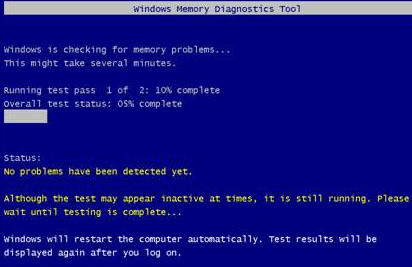
  • Now windows will reboot. You will come across the following page, which will show you the progress of the scan
memory diagnostic tool
  • If no error is reported here, that means there’s no problem with the memory card

Solution 5 – Check disk for errors

Disk errors can occur any time and cause all sorts of issues, including locking up of Windows 10. Checking the hard disk for errors and fixing is easy and requires no effort on your part. All you have to do is launch a built-in tool.

Here’re the steps to follow:

  • Close all open files and programs on your computer
  • Click Start, then click File Explorer, and finally click This PC
  • In the list, locate the drive that you want to check. Right-click it and then click Properties
  • In the Properties dialog box, click the Tools tab and then click Check
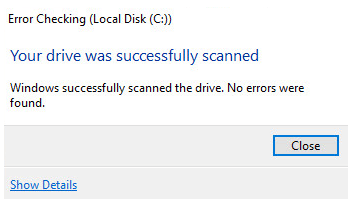
  • If there’re no issues with the hard disk, you shall see the following message
check hard drive

This means there’s no problem with the hard drive either.

Solution 6 – Run system file checker

Another built-in tool that you can use to troubleshoot the Windows locking up frequently issue is the System File Checker. It restores any missing or broken system files and consequently may help fix various problems, including the titled one.

Here’s what you need to do:

  • Press the Windows key
  • Type cmd (but don’t press Enter). In the list of programs, locate Command Prompt, right-click it, and select Run as administrator
  • Click Yes in case you are asked to provide administrative permission
  • Type the following command in Command Prompt and then press Enter
scan disk

Windows will now scan the system files to identify and fix missing and corrupt system files. So it’s important that you let the tool run and don’t shut it prematurely. Once it’s done, you will see the results in the Command Prompt window.

If the tool finds that everything is fine with your system files, move on to the next solution.

Solution 7 – Disable CPU-States in BIOS

Simply put, these are power saving options. That is, they will turn down the system’s multipliers, voltage, etc. so that the computer utilizes minimum possible power in its idle state. If you disable CPUT-States (also called C-States), your Windows computer will become more stable. This, in turn, lowers the chances of you encountering unexpected problems such as rebooting or random freezing.

Here’s what you need to do:

  • Restart Windows. When the logo screen appears, press the Setup Key. Different manufactures have a different Setup Key. However, generally it’s F1, F2, F12, Delete, or Esc or a combination of these.
  • In case the Windows logo screen disappears before you were able to press the Setup Key, reboot windows once more
  • In the BIOS setup, browse to the main menu using arrow keys. Navigate to Advanced tab and click CPU Configuration
  • The following two should be disabled — Intel(R) C-STATE tech and C1E Function. In case they aren’t, disable them. To do so, use the arrow keys to browse to the list of options, select the setting you want to change, and press the Enter key on the keyboard, and then change the setting to Disabled using the arrow keys

Once you’ve made the necessary changes, save the changes and exit BIOS setup. Then restart computer and check whether the problem has got solved or not.

Solution 8 – Run a malware scan

If the problem persists, scan your computer for virus and malware. Run a full system scan to ensure that your computer is not infected. If there are any malware programs present, the scan will identify them and take an appropriate action.

Filed Under: Security/ Backup Tagged With: Windows Freezes Up

Second Monitor Not Detected on Windows 10 (Solved)

By Susan C on March 11, 2021

Second Monitor Not Detected on Windows 10 (Solved)

We frequently get asked this question:

Windows 10 is not detecting my second monitor even when there’s no problem with the monitor itself — what should I do?

Well, this is a pretty common problem. Thankfully, it’s also not a major one. Nearly always this problem can be traced back to a driver issue, which means you can fix it quickly by yourself.

In this post, we’re going to share four solutions. You don’t have to try all of them. Simply start with the first one in the list and move your way downward until the issue gets resolved.

Sounds good, eh? Let’s dive right in then.

Solution 1 – Roll back to a previously installed driver

Driver-related issues crop up not only because of old drivers. Sometimes, it’s the latest drivers that may be the culprit. It is possible that the newest drivers that you have aren’t working properly with Windows 10.

Therefore, before you try anything else, just roll back to an earlier version of the video driver.

Here’re the steps to follow:

  • Press the Windows key and R key on your keyboard simultaneously
  • In the Run dialog box, type devmgmt.msc and press Enter
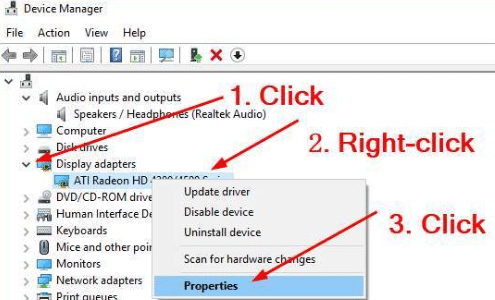
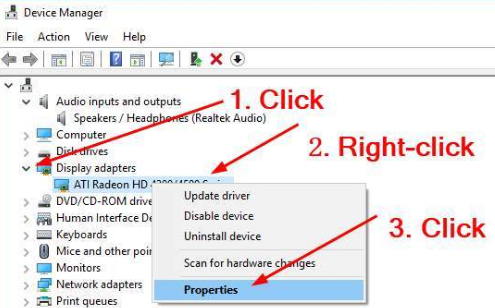
  • In the Device Manager window, expand the Display adapters section, right-click your device, and choose Properties
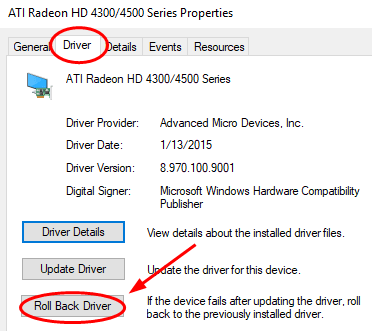
  • Now click the Driver tab and then click the Roll Back Driver

Note: In case you see that the “Roll Back Driver” option is grayed out, download a previous version of the video driver from the manufacturer’s official website and install it. Else, you can give Solution 2 a try.

  • Once the roll back has been done, reboot Windows and check if now the second monitor is getting detected

Solution 2 – Update your video driver

If the first step didn’t work, there’s a good chance you have a wrong driver. The remedy is to install the right driver. There are two ways to go about this — manually or automatically.

Manual driver update

To install a video driver manually, perform the following steps:

  • Go to the video card manufacturer’s website and look for a driver for your card. Once you’ve found it, download and install it and then restart Windows.

Automatic driver update

Automatic driver update tools offer many benefits, the most important ones being:

  • You can update device drivers automatically
  • The software scans and updates all outdated or missing drivers at one go
  • The tool picks the right drivers for your device and operating system, so you won’t have to worry about installing an incorrect driver by mistake
  • Automatic driver updates are 100% safe

Driver Updater is one of the best driver update tools out there. Outbyte Driver Updater will give you access to a database of over 1 million drivers. It will regularly scan your PC, suggesting new driver versions to install. Driver Updater contains drivers for a variety of Windows devices. With just one click, you can update drivers in your system.

Step 1
Click here to Install and launch the app

Step 2
Scan all devices

Step 3
Install or update drivers automatically


Start Download


Solution 3 – Ensure both monitors have the same refresh rates

The screen/monitor refresh rate is the number of times the images on your screen get refreshed. When you connect two monitors to your Windows 10, this reading plays a key role. If the refresh rate of the two monitors isn’t exactly the same, some video cards might not work the way you want.

If the two monitors have different refresh rate, the second monitor may not get detected.

Here are the steps to follow to ensure the refresh rate of the two monitors is the same.

  • Press the Windows logo and I keys simultaneously
  • In the Settings window, click Systems
  • Click Advanced display settings
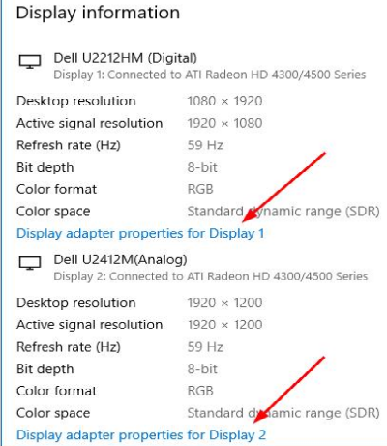
  • First click the option – Display adapter properties for Display 1. Then click the other option – Display adapter properties for Display 2
Display Adapter
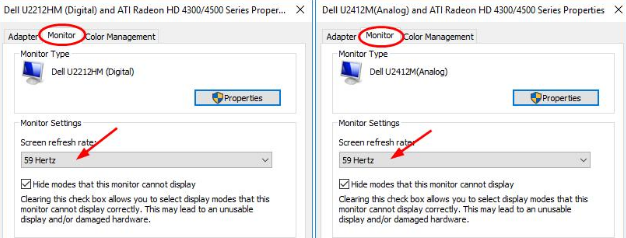
  • Now click the Monitor tab in Properties dialog box of both the monitors and check if they have the same screen refresh rate
  • If the two monitors have different refresh rates, change the reading of one of them to make it same as the other’s.

Solution 4 – Change the Project Mode

If the project mode is wrongly set, that may also prevent the second monitor from getting detected. You can easily and quickly change the project mode by following these steps:

  • Press the Windows + P keys on your keyboard simultaneously
  • Choose Duplicate in case you want to have the same screen displayed on the two screens. If you need more workplace, choose Extend

So that’s just about it. Hopefully, you would have been able to fix the issue using one of these solutions.

Filed Under: Software Drivers Tagged With: Second monitor issue

  • « Previous Page
  • 1
  • …
  • 73
  • 74
  • 75
  • 76
  • 77
  • …
  • 189
  • Next Page »


  • Recent Posts
  • Popular Posts
        

Read More Posts


Read More Posts

Drivers.com Sites

  • Software Drivers
  • Drivers Ed

About Us

  • Advertise
  • About Drivers
  • Drivers Support
  • Drivers.com Privacy Policy
  • Disclaimer
  • Software Drivers
  • Mac Fixes and Tips
  • PC Fix Tips
  • Security/ Backup
  • Tablets & Smartphones
  • Tech News

© Copyright 2026 PDE Publications Ltd. End User License Agreement (EULA)