


We frequently get asked this question:
Windows 10 is not detecting my second monitor even when there’s no problem with the monitor itself — what should I do?
Well, this is a pretty common problem. Thankfully, it’s also not a major one. Nearly always this problem can be traced back to a driver issue, which means you can fix it quickly by yourself.
In this post, we’re going to share four solutions. You don’t have to try all of them. Simply start with the first one in the list and move your way downward until the issue gets resolved.
Sounds good, eh? Let’s dive right in then.
Solution 1 – Roll back to a previously installed driver
Driver-related issues crop up not only because of old drivers. Sometimes, it’s the latest drivers that may be the culprit. It is possible that the newest drivers that you have aren’t working properly with Windows 10.
Therefore, before you try anything else, just roll back to an earlier version of the video driver.
Here’re the steps to follow:
- Press the Windows key and R key on your keyboard simultaneously
- In the Run dialog box, type devmgmt.msc and press Enter
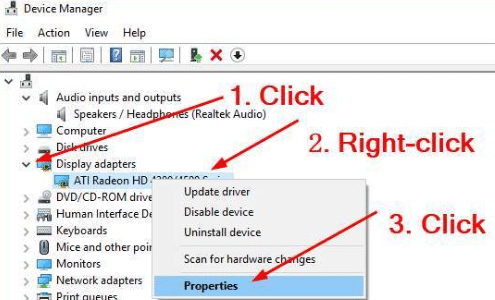
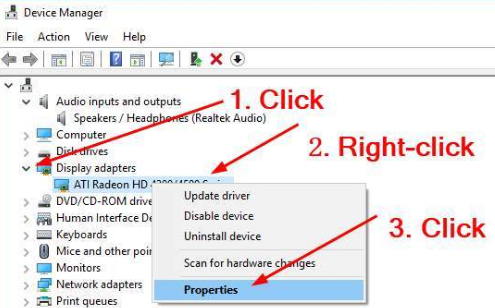
- In the Device Manager window, expand the Display adapters section, right-click your device, and choose Properties
- Now click the Driver tab and then click the Roll Back Driver
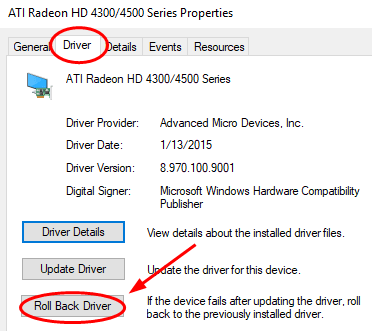
Note: In case you see that the “Roll Back Driver” option is grayed out, download a previous version of the video driver from the manufacturer’s official website and install it. Else, you can give Solution 2 a try.
- Once the roll back has been done, reboot Windows and check if now the second monitor is getting detected
Solution 2 – Update your video driver
If the first step didn’t work, there’s a good chance you have a wrong driver. The remedy is to install the right driver. There are two ways to go about this — manually or automatically.
Manual driver update
To install a video driver manually, perform the following steps:
- Go to the video card manufacturer’s website and look for a driver for your card. Once you’ve found it, download and install it and then restart Windows.
Automatic driver update
Automatic driver update tools offer many benefits, the most important ones being:
- You can update device drivers automatically
- The software scans and updates all outdated or missing drivers at one go
- The tool picks the right drivers for your device and operating system, so you won’t have to worry about installing an incorrect driver by mistake
- Automatic driver updates are 100% safe
Driver Updater is one of the best driver update tools out there. Outbyte Driver Updater will give you access to a database of over 1 million drivers. It will regularly scan your PC, suggesting new driver versions to install. Driver Updater contains drivers for a variety of Windows devices. With just one click, you can update drivers in your system.
Step 1
Click here to Install and launch the app
Step 2
Scan all devices
Step 3
Install or update drivers automatically
Solution 3 – Ensure both monitors have the same refresh rates
The screen/monitor refresh rate is the number of times the images on your screen get refreshed. When you connect two monitors to your Windows 10, this reading plays a key role. If the refresh rate of the two monitors isn’t exactly the same, some video cards might not work the way you want.
If the two monitors have different refresh rate, the second monitor may not get detected.
Here are the steps to follow to ensure the refresh rate of the two monitors is the same.
- Press the Windows logo and I keys simultaneously
- In the Settings window, click Systems
- Click Advanced display settings
- First click the option – Display adapter properties for Display 1. Then click the other option – Display adapter properties for Display 2
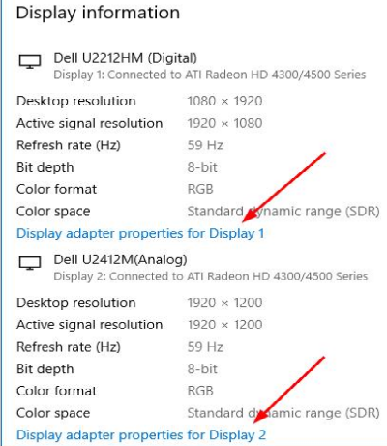
- Now click the Monitor tab in Properties dialog box of both the monitors and check if they have the same screen refresh rate
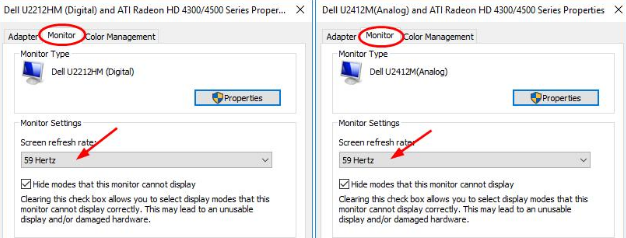
- If the two monitors have different refresh rates, change the reading of one of them to make it same as the other’s.
Solution 4 – Change the Project Mode
If the project mode is wrongly set, that may also prevent the second monitor from getting detected. You can easily and quickly change the project mode by following these steps:
- Press the Windows + P keys on your keyboard simultaneously
- Choose Duplicate in case you want to have the same screen displayed on the two screens. If you need more workplace, choose Extend
So that’s just about it. Hopefully, you would have been able to fix the issue using one of these solutions.
Leave a Reply