Drivers.com

follow us:

facebook twitter
  • Home
  • Download Drivers
  • Drivers Help
  • PC/Mac Resources
  • Software Drivers
  • Mac Fixes and Tips
  • PC Fix Tips
  • Security/ Backup
  • Tablets & Smartphones
  • Tech News
  • Software Drivers
  • Mac Fixes and Tips
  • PC Fix Tips
  • Security/ Backup
  • Tablets & Smartphones
  • Tech News

Resources by Tag

Second monitor issue

Second Monitor Not Detected on Windows 10 (Solved)

Second Monitor Not Detected on Windows 10 (Solved)

We frequently get asked this question:

Windows 10 is not detecting my second monitor even when there’s no problem with the monitor itself — what should I do?

Well, this is a pretty common problem. Thankfully, it’s also not a major one. Nearly always this problem can be traced back to a driver issue, which means you can fix it quickly by yourself.

In this post, we’re going to share four solutions. You don’t have to try all of them. Simply start with the first one in the list and move your way downward until the issue gets resolved.

Sounds good, eh? Let’s dive right in then.

Solution 1 – Roll back to a previously installed driver

Driver-related issues crop up not only because of old drivers. Sometimes, it’s the latest drivers that may be the culprit. It is possible that the newest drivers that you have aren’t working properly with Windows 10.

Therefore, before you try anything else, just roll back to an earlier version of the video driver.

Here’re the steps to follow:

  • Press the Windows key and R key on your keyboard simultaneously
  • In the Run dialog box, type devmgmt.msc and press Enter
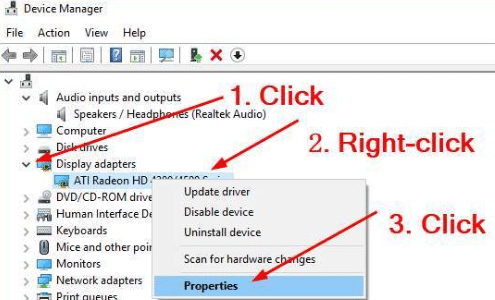
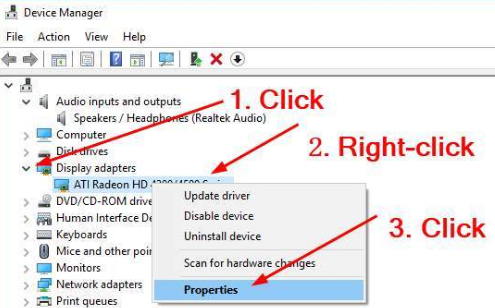
  • In the Device Manager window, expand the Display adapters section, right-click your device, and choose Properties
  • Now click the Driver tab and then click the Roll Back Driver
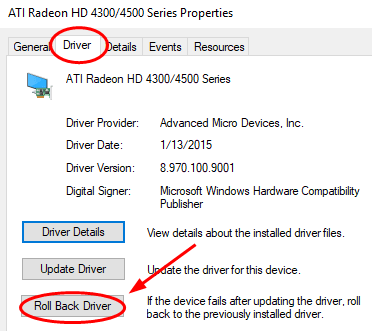
Note: In case you see that the “Roll Back Driver” option is grayed out, download a previous version of the video driver from the manufacturer’s official website and install it. Else, you can give Solution 2 a try.

  • Once the roll back has been done, reboot Windows and check if now the second monitor is getting detected

Solution 2 – Update your video driver

If the first step didn’t work, there’s a good chance you have a wrong driver. The remedy is to install the right driver. There are two ways to go about this — manually or automatically.

Manual driver update

To install a video driver manually, perform the following steps:

  • Go to the video card manufacturer’s website and look for a driver for your card. Once you’ve found it, download and install it and then restart Windows.

Automatic driver update

Automatic driver update tools offer many benefits, the most important ones being:

  • You can update device drivers automatically
  • The software scans and updates all outdated or missing drivers at one go
  • The tool picks the right drivers for your device and operating system, so you won’t have to worry about installing an incorrect driver by mistake
  • Automatic driver updates are 100% safe

Driver Updater is one of the best driver update tools out there. Outbyte Driver Updater will give you access to a database of over 1 million drivers. It will regularly scan your PC, suggesting new driver versions to install. Driver Updater contains drivers for a variety of Windows devices. With just one click, you can update drivers in your system.

Step 1
Click here to Install and launch the app

Step 2
Scan all devices

Step 3
Install or update drivers automatically


Start Download


Solution 3 – Ensure both monitors have the same refresh rates

The screen/monitor refresh rate is the number of times the images on your screen get refreshed. When you connect two monitors to your Windows 10, this reading plays a key role. If the refresh rate of the two monitors isn’t exactly the same, some video cards might not work the way you want.

If the two monitors have different refresh rate, the second monitor may not get detected.

Here are the steps to follow to ensure the refresh rate of the two monitors is the same.

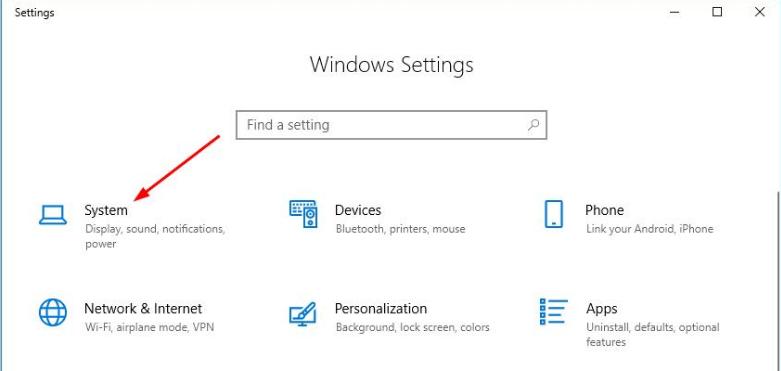
  • Press the Windows logo and I keys simultaneously
  • In the Settings window, click Systems
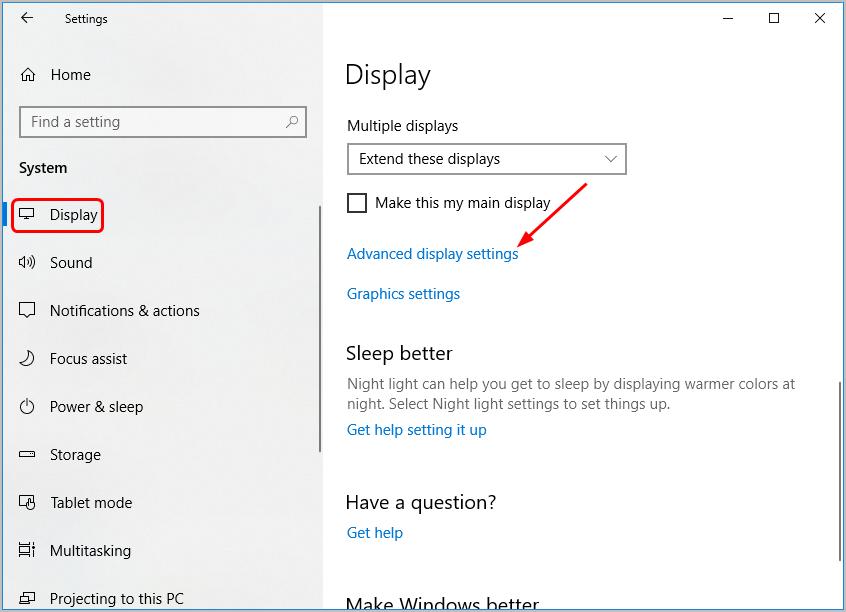
  • Click Advanced display settings
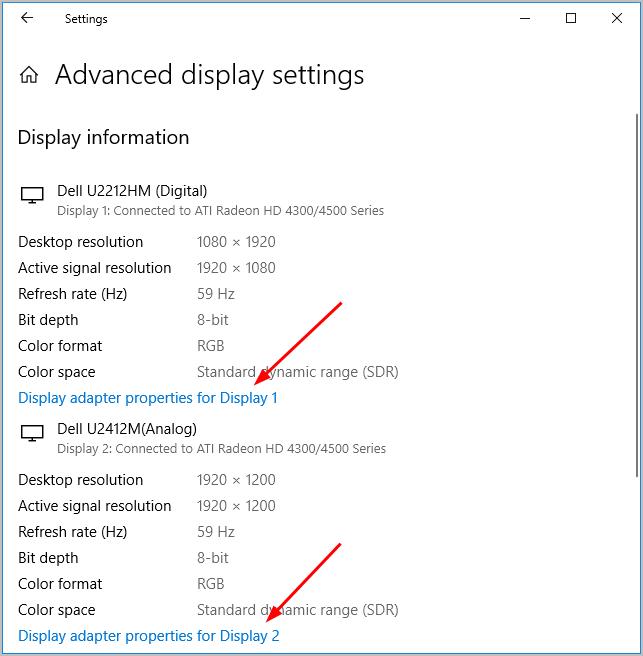
  • First click the option – Display adapter properties for Display 1. Then click the other option – Display adapter properties for Display 2
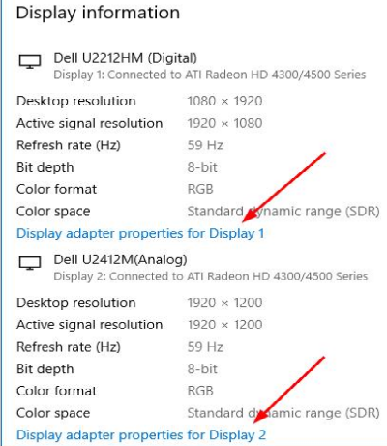
Display Adapter
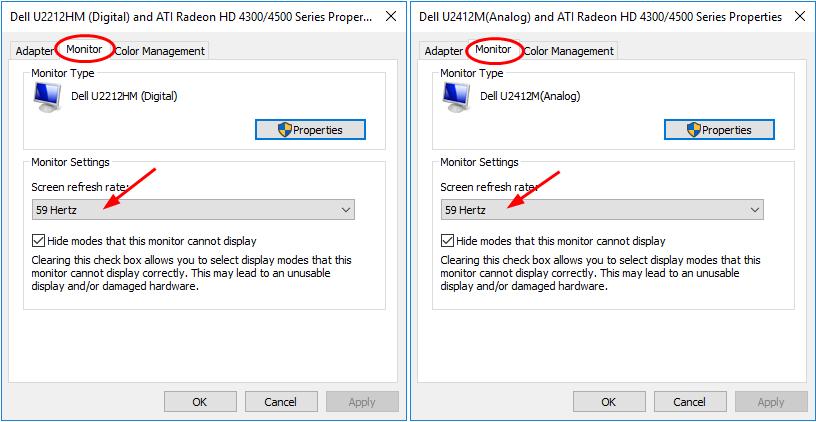
  • Now click the Monitor tab in Properties dialog box of both the monitors and check if they have the same screen refresh rate
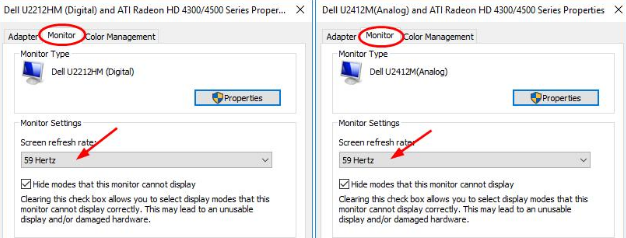
  • If the two monitors have different refresh rates, change the reading of one of them to make it same as the other’s.

Solution 4 – Change the Project Mode

If the project mode is wrongly set, that may also prevent the second monitor from getting detected. You can easily and quickly change the project mode by following these steps:

  • Press the Windows + P keys on your keyboard simultaneously
  • Choose Duplicate in case you want to have the same screen displayed on the two screens. If you need more workplace, choose Extend

So that’s just about it. Hopefully, you would have been able to fix the issue using one of these solutions.

Filed Under: Software Drivers Tagged With: Second monitor issue

Windows 10 does not detect second monitor issue [Fixed]

Windows 10 does not detect second monitor issue [Fixed]

A dual monitor setup is a great way to increase your screen space and increase your productivity. Windows 10 comes with a feature known as “dual monitor” that allows you to add a monitor to the existing setup. Setting up a dual monitor is easy and takes only a few minutes. However, things may not always go as planned and you may encounter an error such as Windows 10 does not detect the second monitor.

If you are facing a similar issue, we’ve got you covered. Here we have discussed several solutions that can fix the issue and help you enjoy the dual monitor setup.

Before anything else

Before you jump to the solutions given below, here are some things you need to check.

  • Confirm the 2nd monitor is connected to a power source and switched on
  • Check the signal cable connection between 2nd monitor and your laptop or graphics card
  • Use the monitor built-in controls to select the correct input signal
  • Cold reboot the system to refresh the connection

If there is no improvement in the situation after the above checks, do the following:

  • Remove the signal cable from both ends and reconnect it firmly
  • Disconnect all peripherals from the computer like a USB mouse or keyboard to ensure there is no interference in the connection. You can connect them later once the connection is established

Solution One – Force 2nd Monitor detection

  • Click Start ->Settings
  • Click System-> Display
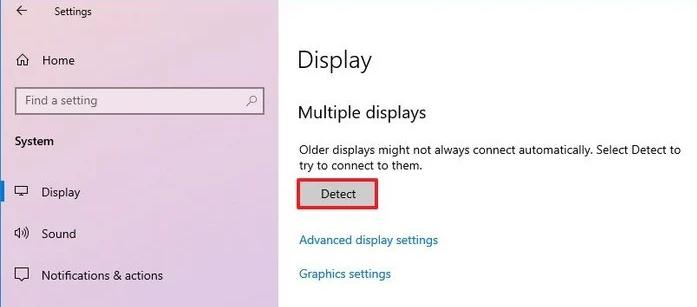
  • Go to the “Multiple displays” section and click Detect button to connect to the monitor.
display settings
  • Windows should now detect the 2nd monitor. After the 2nd monitor is detected, you can adjust the orientation and the resolution through Display Settings.

 If the solution did not work for you, move to the next solution.  

Solution Two – Rollback graphics driver

If you recently installed a driver update for the device after which Windows 10 stopped detecting the 2nd monitor, you need to roll back the graphics driver to resolve the 2nd monitor detection problem. Here are the steps to follow

  • Click Start
  • Type Device Manager in Cortana search
  • Click Device Manager from the search results
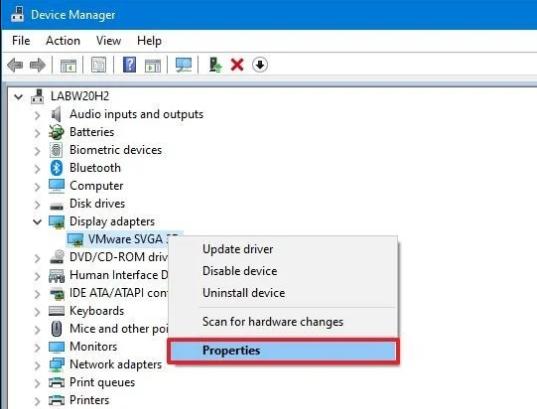
  • In the Device Manager window, double-click the Display adapters section to expand it
  • Right-click graphics adapter and click Properties
display properties
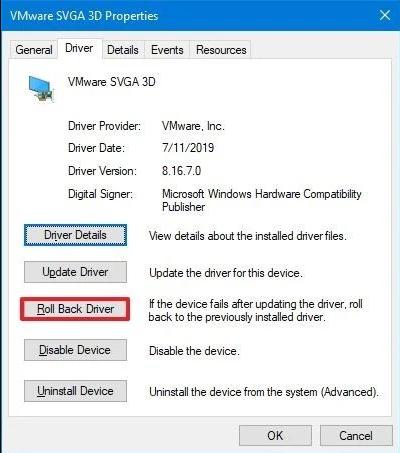
  • In the Properties window, go to the Driver tab
  • Click the Roll-back driver button
roll back driver
  • Click OK
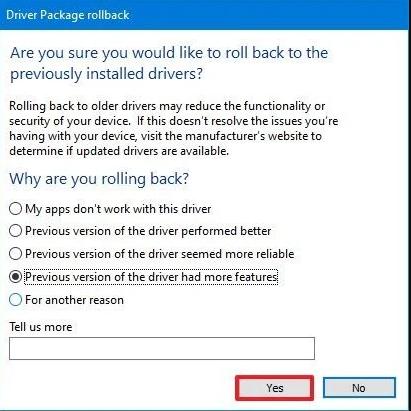
  • Windows will ask you for reasons to roll back the driver. Click any one you feel appropriate or click For another reason
driver package rollback
  • Click Yes
  • Windows will not roll-back graphics driver.
  • Restart your computer

Check whether 2nd monitor is detected. If the problem persists, move to the next solution.

Solution Three – Update Graphics Driver

Many times the problem is related to the graphics driver. Updating the graphics driver can help resolve the issue. Here are the steps to update the graphics card driver.

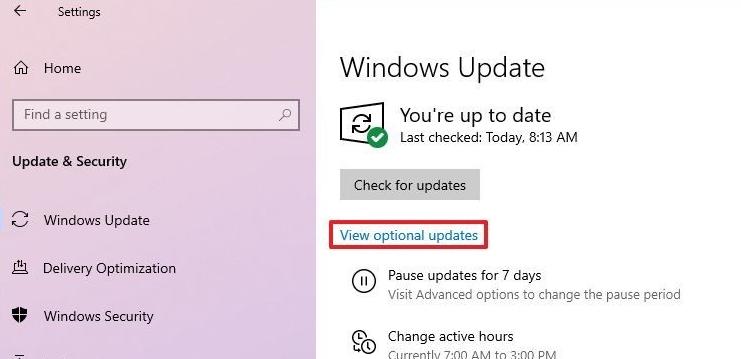
  • Open Settings app
  • Click Update and Security
  • Click Windows Update
  • Click View optional updates
windows update

If the update option is not available, Windows is up to date. In that case, move to the next solution. If the view optional updates option is available, do the following

  • Click Driver updates to expand the category.
  • If a display driver update is available, place a tick in the corresponding box and click Download and install

Once you complete the above steps, Windows OS will download and install the driver. After the driver is installed, restart the system and repeat the steps given in Solution One.

You can also update the graphics driver automatically by using a Driver Update Tool.

Updating Drivers Automatically

Automatic driver update tools offer many benefits, the most important ones being:

  • You can update device drivers automatically
  • The software scans and updates all outdated or missing drivers at one go
  • The tool picks the right drivers for your device and operating system, so you won’t have to worry about installing an incorrect driver by mistake
  • Automatic driver updates are 100% safe

Driver Updater is one of the best driver update tools out there. Outbyte Driver Updater will give you access to a database of over 1 million drivers. It will regularly scan your PC, suggesting new driver versions to install. Driver Updater contains drivers for a variety of Windows devices. With just one click, you can update drivers in your system.

Step 1
Click here to Install and launch the app

Step 2
Scan all devices

Step 3
Install or update drivers automatically


Start Download


If the problem persists even after you have updated the graphics driver, move to the next solution.

Solution Four – Make sure the monitor refresh rate is the same for both monitors

The monitor refresh rate refers to the number of times your screen refreshes in a second. Some graphics cards do not support different refresh rates in a dual monitor setup. You need to make sure the monitor refresh rate is the same for both monitors in your case. Here are the steps to follow.

  • Open Settings
  • In the Settings window, click System
windows settings
  • In the System window, click Display in the left column
  • On the right side under the Display section, Click Advanced Display settings
display settings
  • Check the refresh rate for both monitors. If the refresh rates of both monitors are the same, move to the next solution
  • If the refresh rates are different for both monitors, follow the steps given below.
  • Click Display adapter properties for Display 1
advanced display settings
  • In the Properties window that pops up, go to the Monitor tab
  • Under Monitor settings, Select 59 Hz or any other display frequency from the drop-down list
  • Click Apply -> OK
  • Now click Display adapter properties for Display 2
  • In the Properties window. Click Monitor tab
  • Under Monitor settings, Select 59 Hz or any other display frequency from the drop-down list. Make sure the refresh rate is the same for both monitors
monitor settings
  • Click Apply-> OK

Now check whether Windows 10 detects the second monitor. If the issue persists, move to the next solution.

Solution Five – Change Project Mode

Windows 10 features a project mode where the user can project the display of the Windows 10 screen on another screen. There is a possibility wrong project mode is selected which is causing problems in the detection of the second monitor. Here are the steps to change project mode.

  • Press the key combination- Windows + P on the keyboard
  • Select Extend if you want to increase your desktop space. Select Duplicate if you want to mirror your Windows screen on the second monitor

Hopefully one of the solutions solves the Windows 10 does not detect a second monitor issue for you.

Filed Under: PC Fix Tips Tagged With: Second monitor issue


  • Recent Posts
  • Popular Posts
        

Read More Posts


Read More Posts

Drivers.com Sites

  • Software Drivers
  • Drivers Ed

About Us

  • Advertise
  • About Drivers
  • Drivers Support
  • Drivers.com Privacy Policy
  • Disclaimer
  • Software Drivers
  • Mac Fixes and Tips
  • PC Fix Tips
  • Security/ Backup
  • Tablets & Smartphones
  • Tech News

© Copyright 2026 PDE Publications Ltd. End User License Agreement (EULA)