
Drivers.com

follow us:

facebook twitter
  • Home
  • Download Drivers
  • Drivers Help
  • PC/Mac Resources
  • Software Drivers
  • Mac Fixes and Tips
  • PC Fix Tips
  • Security/ Backup
  • Tablets & Smartphones
  • Tech News
  • Software Drivers
  • Mac Fixes and Tips
  • PC Fix Tips
  • Security/ Backup
  • Tablets & Smartphones
  • Tech News

“Ethernet Cable not Working” issue [Fixed]

By Susan C on June 28, 2021

“Ethernet Cable not Working” issue [Fixed]

Ethernet and Wi-Fi are two modes of connection used by a computer to connect to the Internet. According to networking experts, an Ethernet connection is considered more stable since it creates a direct link with your computer and consequently there are few chances of interruptions or congestion.

Many times, however, users suddenly find that the Ethernet cable is not working. And to make matters worse, they often cannot think of any reason behind the problem.

If you are facing the “Ethernet cable not working” issue, rest easy. In this post we’ll show you three solutions to this problem. Let’s get started, then.

Solution One – Try a different port on the router and Check Cable

A router has 3-4 LAN ports and there is a possibility the LAN port currently in use is not functioning properly. To ensure there is no problem with the LAN port, just try a different LAN port on the router and see if the problem is solved.

You need to also try different Ethernet cables for making the connection. This will rule out any problem with the Ethernet cable. If both the Ethernet cable and LAN ports are working fine, you can conclude, the problem lies somewhere else. In that case, you need to move to the next solution in the post.

Solution Two – Update Network Card Driver

Like any hardware device or port, your Ethernet port also needs drivers to function. Without a network card driver, Ethernet connectivity cannot be established between your router and computer. Here are the steps to update the Network Card driver

  • Click Start
  • Type Device manager in the search box and click Device Manager from the list of results
  • In the Device Manager window, go to Network Adapters and expand the section
  • Look for Ethernet or PCIe driver in the list. If there is any Red Cross or yellow exclamation mark beside the entry, you can conclude the root cause of the problem is the network card driver.
  • In that case, you need to go to OEM or motherboard manufacturer website for your region and download the network card driver for your system. Pay attention to the OS and the bit architecture (32-bit/64-bit) when downloading network drivers.
  • Download the network drivers and install them and restart your PC. Now check whether the Ethernet cable connection is working.

Alternatively, you can also use a driver software to automatically download and install network card drivers.

Updating Drivers Automatically

Automatic driver update tools offer many benefits, the most important ones being:

  • You can update device drivers automatically
  • The software scans and updates all outdated or missing drivers at one go
  • The tool picks the right drivers for your device and operating system, so you won’t have to worry about installing an incorrect driver by mistake
  • Automatic driver updates are 100% safe

Driver Updater is one of the best driver update tools out there. Outbyte Driver Updater will give you access to a database of over 1 million drivers. It will regularly scan your PC, suggesting new driver versions to install. Driver Updater contains drivers for a variety of Windows devices. With just one click, you can update drivers in your system.

Step 1
Click here to Install and launch the app

Step 2
Scan all devices

Step 3
Install or update drivers automatically


Start Download


Solution Three – Make sure Ethernet is enabled

There is a possibility the Ethernet connectivity in your computer is disabled which is causing the Ethernet connection problem. In that case, you just need to enable the Ethernet connection to make things right. Here are the steps to follow.

  • Press Windows key and R simultaneously to bring up the Run command
  • Type devmgmt.msc and click OK. This will open the Device Manager window.
  • In the Device Manager window, go to Network Adapters
  • Expand the section by clicking on “>” sign
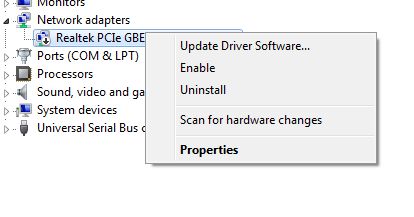
  • Look for a PCIe adapter in the list. If the Ethernet icon has a downward-facing arrow, it means the Ethernet port is disabled. Alternatively, you can also right-click the Ethernet icon and you will see an Enable option in the menu which means the Ethernet connection is disabled.
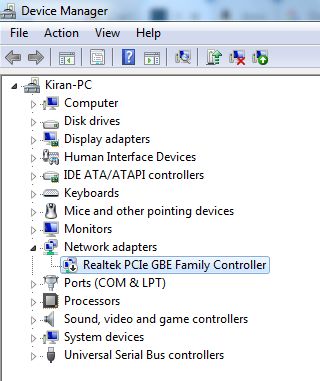
ethernet disabled
  • Right-click the Ethernet icon and click Enable
ethernet enabled

Now the Ethernet connection is enabled and you can see the Ethernet Cable has started working
Filed Under: PC Fix Tips Tagged With: ethernet not working

Windows 7 Will Not Download Updates (5 DIY Fixes)

By Susan C on April 22, 2021

Windows 7 Will Not Download Updates (5 DIY Fixes)

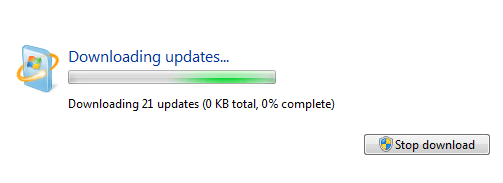
The Windows Update feature, while an immensely important one, can be a source of pain sometimes. Users have complained that at times Windows Update simply stalls at 0% when downloading and refuses to budge forward.

Are you encountering this issue as well? The good news is that you can relax because in this we’ll show you five simple fixes to resolve this problem for once and for all.

Solution #1 – Run Troubleshooter

The good thing about Windows operating system is that it usually includes a troubleshooter, which can prove handy when in distress. You can use the inbuilt troubleshooter in Windows 7 to flick off this pesty error.

Here are the steps to follow:

  • Click the Start menu. Next, type “troubleshoot” in the start search bar. Click Troubleshooting in the displayed results.
  • Navigate to the System and Security section inside the Troubleshooting window, click Fix problems Windows Update
  • Click the Next button in the Windows Update window

Solution #2 – Reset Windows Update Service

This is the built-in service that allows Windows users to use Windows Update. In case you encounter a problem with Windows Update, we recommend you can reset this service to check if that does the job.

Here are the steps to follow:

  • Simultaneously press Windows key + R key on the keyboard. In the Run dialog box, type msc and then click the OK button
  • In the Services window, browse through the list on your right to locate Windows Update Single-click on this service and then click Restart in left pane.
  • Wait for the restart of Windows Update to complete

Solution #3 – Update Windows Update Agent

An inbuilt agent program, Windows Update Agent helps identify updates that your computer requires and then download them. Many users have reported they were able to fix Windows Updates not downloading issue by updating Windows Update Agent, so it’s definitely worth a try.

You first need to download and install the program and then update it. You can download it from Microsoft website.

Important: You need to have Service Pack 1 (SP1) installed on your Windows 7 computer before you can update Windows Agent. Refer to the Microsoft official guide for downloading and installing Windows 7 Service Pack 1.

Once you have Windows 7 SP1, perform the following steps:

  • Go to Microsoft support website
  • Click Stand-alone packages for Windows 7 SP1 and Windows Server 2008 R2 SP1. Now choose the installation package that is appropriate for your Windows operating system and then download it and save it to a suitable location on your computer
  • Now open this file and follow onscreen instructions to complete installation
  • Once the program has been installed, reboot Windows. Check if the problem is fixed

Solution #4 – Download Updates Manually

What if Windows Update isn’t able to download these Updates? What should you do then?

It is very much possible download updates manually and install them. This way you can keep your Windows 7 system up-to-date and fix the titled error.

Here are the steps to follow:

  • Click the Start menu
  • Type “update” in the start search bar
  • Now click Windows Update in the displayed results
  • Choose updates available. Windows will now show you a list of updates that are available for download
  • Go through the list and check the update code (You should look for code starting with KB) of Windows updates you need to download
  • Now head to Windows Download Center and look for the code you need
  • In the search results, you may see multiple Downloads Click the result that you need to download
  • Now click the Download button to start the downloading process and save the downloaded file in an appropriate location on your PC
  • Once the download process is complete, open the file and follow the instructions on your screen to complete the installation process

This way you can install all important system updates one by one. For sure, installing multiple updates manually is likely to require a lot of time, but the tradeoff is that it can fix the titled error and ensure the smooth functioning of your Windows computer.

Solution #5 – Perform a clean boot

In case the problem persists in spite of completing the proposed solutions above, check if any particular is interfering with Windows Update.

You will need to perform a clean boot to do that. This basically means starting Windows with as few drivers and startup programs as possible. This way you can locate the application that is triggering the issue.

Here are the steps to follow:

  • Simultaneously press Windows key and R key on your keyboard
  • In the run dialog box, type msconfig and then press the OK button
  • In the System Configuration box, click the General tab. The default setting here is Normal startup. What you need to do is choose Selective startup and unselect the checkbox in the front of Load startup items
  • Now click the Service tab (third from left)
  • Select the box in the front of Hide all Microsoft services. Now click Disable all (It is necessary that you first hide all Microsoft services and then click the Disable all button. Otherwise, you may disable some secure services, which in turn can trigger unexpected and severe consequences.)
  • Click the OK button
  • Reboot Windows. Now your system will boot into clean boot state. Once Windows has booted, check if you are able to download updates the normal way, that is, through Windows Update. In case you are, use the steps listed above to enable the services separately, that is, one by one. This will help you identify the application that is causing the problem. Once you have identified the application that’s at fault, you can either uninstall or disable it.

Important: Once you have finished troubleshooting, don’t forget to restore the original System Configuration settings.


Filed Under: PC Fix Tips Tagged With: windows update issue

Unknown USB Device (Device Descriptor Request Failed) [4 DIY Solutions]

By Susan C on April 17, 2021

Unknown USB Device (Device Descriptor Request Failed) [4 DIY Solutions]

Plugged in an external USB drive only to find your computer isn’t recognizing it? And when you open the Device Manager window, you see the following error: Unknown USB Device (Device Description Request Failed).

You’re not alone. This is a fairly common error. Thankfully, it is also relatively easy to fix. In this post, we’ll discuss four DIY solutions.

But before we look at them, let’s first check out why this error occurs in the first place.

Why Does Unknown USB Device Error occur?

You’ll see a yellow triangle on the USB device in the Device Manager window.

Often, this problem arises due to hardware issues. Therefore, we recommend you follow these simple instructions first.

  1. Try connecting the device on a different USB port. This can help your whether a broken port is the root cause or not.
  2. Try connecting the device to another PC. This can help you check if the problem lies with the external device itself.

In case the problem lies with neither the device nor the USB device, you should give the following solutions a try. Of course, there’s no need for you to try all of these solutions. Simply start from the first one, and if that doesn’t work, move on to the next one in the list and so on.

First Solution – Remove Power Supply

If the issue is triggered by Power Supply, you’ll be able to resolve the issue by following these steps:

  • Remove your power supply plug from the computer
  • Now, re-plug the power supply
  • Restart Windows and now connect your external device to the USB port

Second Solution – Uninstall the USB driver

If the previous solution didn’t fix the issue, try uninstalling the USB driver. Here are the steps to follow:

  • Open Device Manager
  • Expand category Universal Serial Bus Controllers. Next, identify the USB device not recognized by Windows
  • Right-click the device and click Uninstall
  • Let the un-installation process finish. Then restart your computer. Windows will automatically reinstall the driver.

Third Solution – Update Your USB driver

A faulty or outdated USB driver could also cause this error. That’s why it is necessary that you update your USB driver. The easiest way to do so is by using a reliable driver update tool.

Automatic driver update tools offer many benefits, the most important ones being:

  • You can update device drivers automatically
  • The software scans and updates all outdated or missing drivers at one go
  • The tool picks the right drivers for your device and operating system, so you won’t have to worry about installing an incorrect driver by mistake
  • Automatic driver updates are 100% safe

Driver Updater is one of the best driver update tools out there. Outbyte Driver Updater will give you access to a database of over 1 million drivers. It will regularly scan your PC, suggesting new driver versions to install. Driver Updater contains drivers for a variety of Windows devices. With just one click, you can update drivers in your system.

Step 1
Click here to Install and launch the app

Step 2
Scan all devices

Step 3
Install or update drivers automatically


Start Download


Fourth Solution – Disable Fast Startup

In case Windows boots up too quickly, it may fail to detect the external device before the booting is complete. For this reason, it’s a good idea to disable the fast boot option.

Here’re the steps you need to follow:

  • On your keyboard, press Windows key + R key simultaneously
  • In the Run dialog box, type control and then click the OK button
  • Now in the Control Panel window, set View by to Large icons
  • Click Power Options
  • Click Choose what the power buttons do (This option will be visible in the left pane)
  • Now, click Change settings that are currently unavailable
  • Now go to Shutdown settings. Here uncheck the box before Turn on fast startup (recommended). Now click Save changes button
  • Reboot Windows and check if the issue is fixed or not

Filed Under: PC Fix Tips Tagged With: USB driver error

  • « Previous Page
  • 1
  • …
  • 71
  • 72
  • 73
  • 74
  • 75
  • …
  • 189
  • Next Page »


  • Recent Posts
  • Popular Posts
        

Read More Posts


Read More Posts

Drivers.com Sites

  • Software Drivers
  • Drivers Ed

About Us

  • Advertise
  • About Drivers
  • Drivers Support
  • Drivers.com Privacy Policy
  • Disclaimer
  • Software Drivers
  • Mac Fixes and Tips
  • PC Fix Tips
  • Security/ Backup
  • Tablets & Smartphones
  • Tech News

© Copyright 2026 PDE Publications Ltd. End User License Agreement (EULA)