Drivers.com

follow us:

facebook twitter
  • Home
  • Download Drivers
  • Drivers Help
  • PC/Mac Resources
  • Software Drivers
  • Mac Fixes and Tips
  • PC Fix Tips
  • Security/ Backup
  • Tablets & Smartphones
  • Tech News
  • Software Drivers
  • Mac Fixes and Tips
  • PC Fix Tips
  • Security/ Backup
  • Tablets & Smartphones
  • Tech News

“My mouse disappears” issue in Windows [Fixed]

By Susan C on July 11, 2021

“My mouse disappears” issue in Windows [Fixed]

Many Windows users have reported issues like “my mouse disappears” after installing software or installing updates. Sometimes it may happen randomly and it is hard to recall what actions caused the mouse to disappear. If your mouse pointer has disappeared from the screen, leave your worries aside as we have prepared a list of a few easy-to-use solutions that could fix the issue.

Solution One – Reboot your PC

Whenever you see the mouse cursor has disappeared from the screen and moving the mouse on the surface does not lead to anything (does not move the pointer), the first thing to do is check your mouse.

In an optical mouse, a red light glows at the bottom which is an indication that the mouse is working fine. If you see the red light under the mouse glowing but the mouse does not work, just restart your PC. Sometimes such issues are temporary and a simple restart will resolve the issue. Restart your PC and see if the mouse has appeared on the screen. If the solution did not work for you, move to the next solution.

Solution Two – Plug it into a different port

The mouse is generally connected to a USB port on your computer. You cannot eliminate the possibility of the USB port going bad.  Before following any complex resolution steps, it is always a good idea to perform some basic checks.  Here are the steps to follow.

Unplug the mouse from the current USB port and plug it in a different USB port. Check whether the mouse has reappeared. If changing the USB port does not help, you can conclude the problem is deep. In that case, you need to move to the next solution.

Solution Three – Use function keys to get the mouse pointer back

This solution specifically applies to Windows 10.  The installation of Windows 10 sometimes disables the function of your mouse cursor.  If that is true in your case, you can get the mouse cursor back by pressing a combination of function keys.  Depending on the keyboard and mouse model, the combination of function keys may vary. Here are some function keys combinations you can try to get back the mouse cursor.

  • Fn + F3
  • Fn + F5
  • Fn + F9
  • Fn+ F11

If pressing the function keys combination does not get back the mouse cursor, there is a possibility the problem lies with mouse drivers. In that case, you need to proceed to the next solution.

Solution Four – Change Mouse settings

Windows has separate mouse settings that allow you to control mouse functionality. Sometimes default mouse settings get changed due to the installation of updates or software. Here we will try to change few mouse settings and see if it helps. Many users have reported they were able to resolve the “my mouse disappears” issue by changing mouse settings.

  • Press the Windows key on your keyboard
  • Type mouse in the search box
  • You will see mouse settings options in the search results. Click that option
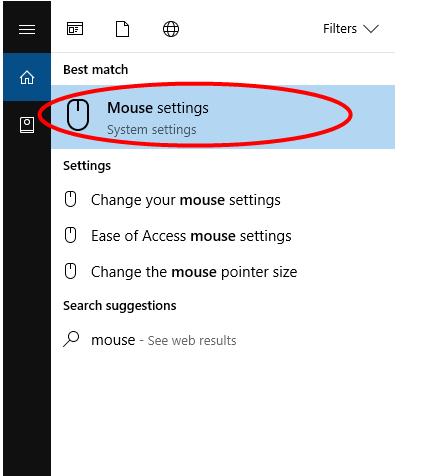
mouse settings
  • In mouse settings, press the Tab on your keyboard until the Buttons tab is highlighted
  • Press the right arrow key until the Device Settings option is revealed

device settings
  • If you find the device is disabled, press the Tab button on your keyboard until the Enable button is highlighted
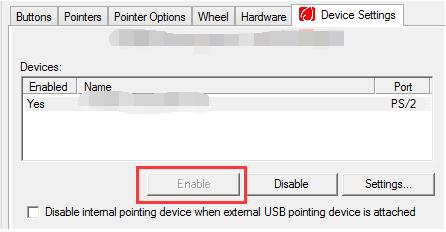
click enable
  • Press Enter on the keyboard to enable the device

Close all windows and see if the mouse cursor has started working. If changing mouse settings did not resolve the issue, move to the next solution.

Solution Five– Reinstall mouse drivers

Windows installs drivers for every hardware connected to your system. Sometimes the drivers become corrupt which affects the functioning of the related hardware. Here we will uninstall and reinstall mouse drivers and see if it helps

(Note –since your mouse is not working you have to use up and down arrow keys to navigate in Device Manager. You might also have to use left and right arrow keys to expand the sections)

  • Press Windows keys and R simultaneously to launch the Run command
  • In the Run command window, type devmgmt.msc and press Enter
  • In the Device Manager window, go to the Mice and pointing devices section and expand it
  • You will find an HD compliant mouse or similar entry. Use the up and down arrow key to highlight the option
  • Press Shift+F10 to bring up right-click menu and use arrow keys to select the Uninstall option.
  • Press Enter on the keyboard to confirm your selection.
  • Alternatively, you can press Alt->a->u to trigger the uninstall option.
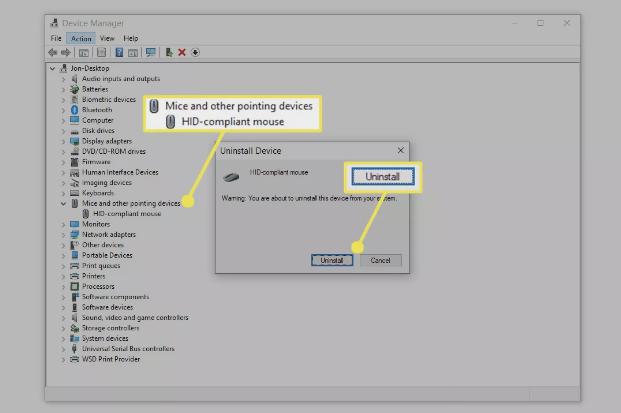
mouse unistall
  • A dialog box with a warning will pop up on the screen. Use arrow keys to highlight Uninstall option and press Enter to confirm your action.
  • Once the mouse driver is uninstalled. Unplug the Mouse from the current USB port and plug it again

Windows will detect the mouse as new hardware and install new drivers. Check whether the mouse cursor is moving when you move the mouse on the surface. If you find the issue is not resolved, you can consider updating all system drivers.

Updating outdated device drivers is easy with a Driver Update Tool.

Automatic driver update tools offer many benefits, the most important ones being:

  • You can update device drivers automatically
  • The software scans and updates all outdated or missing drivers at one go
  • The tool picks the right drivers for your device and operating system, so you won’t have to worry about installing an incorrect driver by mistake
  • Automatic driver updates are 100% safe

Driver Updater is one of the best driver update tools out there. Outbyte Driver Updater will give you access to a database of over 1 million drivers. It will regularly scan your PC, suggesting new driver versions to install. Driver Updater contains drivers for a variety of Windows devices. With just one click, you can update drivers in your system.

Step 1
Click here to Install and launch the app

Step 2
Scan all devices

Step 3
Install or update drivers automatically
 

Start Download


Filed Under: PC Fix Tips Tagged With: mouse disable

Windows Update error 80244019 (7 DIY Solutions)

By Susan C on July 11, 2021

Windows Update error 80244019 (7 DIY Solutions)
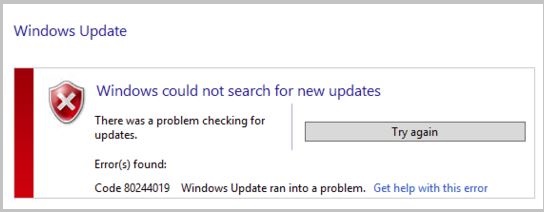
error image

Windows update is an essential part of Windows maintenance. Microsoft provides regular Windows updates to fix any bugs, security loopholes and improve Windows performance. The Windows update runs in the background and its component connects to the Windows update server whenever your system is connected to the Internet.

Lately, many users have complained about error 80244019. There is no exact cause known for this error but experts mention it usually one of the following triggers this issue:

  • Corrupt system files
  • Windows updates service is not working properly
  • A service or app is interfering with Windows update download

Users who have complained about error 80244019 cannot install windows automatically. If you are facing a similar issue, rest assured as we have provided a few easy-to-follow solutions that could resolve error 80244019.

Solution One – Repair corrupt system files

Since one of the causes for the error could be corrupt system files, you need to run the DISM tool and repair corrupt system files. DISM stands for Deployment Image Servicing and Management. It is a command-line tool used to prepare and service Windows images. The DISM tool can check corruption system-wide and automatically attempt to fix corrupt files and restore missing ones. Here are the steps to run the DISM tool.

  • Press the Windows and R keys simultaneously on your keyboard. This will bring up the Run command tool.
  • In the Run command window, type cmd and press Ctrl+Shift+ Enter on your keyboard. This key combination launches the Run command prompt with administrative privileges
  • The system may prompt you to confirm your choice to make changes to the system. Click Yes to allow command prompt to make changes
  • In the Run command window, type the following commands one after another. After typing the first command, press Enter on the keyboard and wait for the execution to complete. Then type the second command and press Enter.
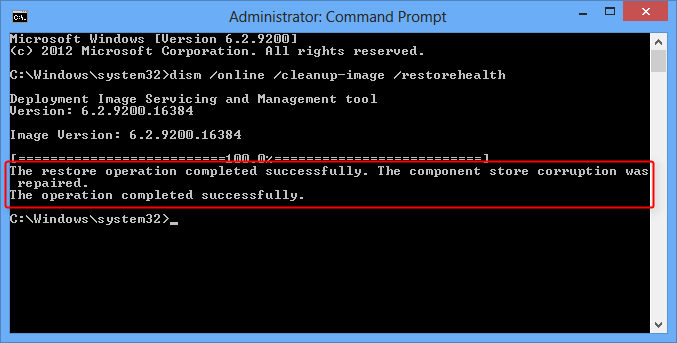
dism commands
  • exe /Online /Cleanup-image /Scanhealth
  • exe /Online /Cleanup-image /Restorehealth
  • After the command execution is completed, restart Windows

Try updating Windows and see if it works. If you still get the error 80244019, move to the next solution

Solution Two – Run SFC scan

If the DISM tool fails to resolve the error, you need to run an SFC scan that also works to repair corrupt system files. SFC stands for System file checker which is an in-built maintenance tool. Here are the steps to run an SFC scan.

  • Click Start and type cmd in the search box
  • In the search results, right-click cmd and select Run as administrator.
  • Alternatively, you can refer to steps given in solution one
  • The system will present you with a User Account Control window that needs to confirm you want to make changes to Windows. Click Yes to proceed.
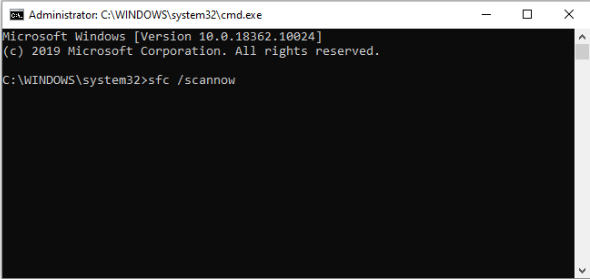
  • In the Command prompt window, type sfc /scannow and hit Enter on the keyboard
sfc scan
  • The SFC scan takes time and you need to wait until the process is complete.
  • After the SFC scan is over, close the command prompt and restart your computer

Check whether Windows can download updates. If the error remains unresolved, move to the next solution

Solution Three – Restart Windows update service

Every windows process has a Windows service running in the background. The Windows update also has a service that controls the whole Windows update process like checking for updates, downloading them, and then installing Windows updates. There is a possibility the Windows update service is not working properly. Restarting the Windows update service might fix things and resolve the error 80244019. Here are the steps to follow.

  • Launch Run command utility by pressing Windows and R keys simultaneously
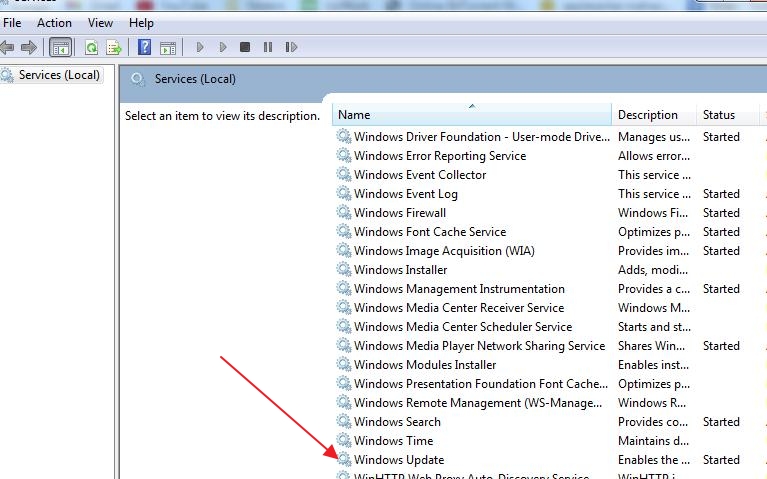
  • In the Run command window, type services.msc and click OK. This will bring up the Services window and you will be able to make changes. Wait for all services to load
windows update service
  • Scroll down until you find the Windows update service in the list. Right-click on it and select Stop
  • Wait for 30 seconds
  • Right-click on the Windows update service again and select Start. This will restart the Windows update service
  • Close all windows
  • Attempt to update windows. If you still get error 80244019 while updating Windows, move to the next solution

Solution Four – Turn on Data Execution Prevention.

Data Execution Prevention (DEP) is a Microsoft security feature. It monitors and protects certain regions in the memory preventing them from executing any malicious code. When Data Execution Prevention is enabled, all data regions are marked executable. According to windows experts, DEP is closely related to the Windows updates process. The Windows Update process needs DEP enabled. If DEP is disabled, you will get errors while updating Windows.

There is a possibility DEP is disabled for the Windows update process which is causing the error 80244019. By turning on the DEP, you can resolve the Windows update error. Here are the steps to follow.

  • Bring up Run command utility. Refer to steps given in the above solution
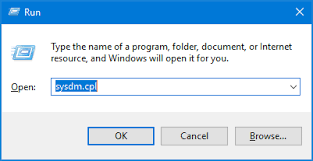
  • In the Run command window, type sysdm.cpl and click the OK button. This will open the System properties window
sysdm
  • In the System Properties window, click the Advanced tab – > Settings
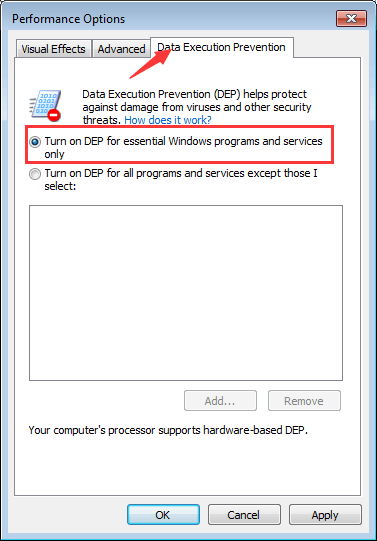
  • Next, click Date Execution Prevention
  • Select the “Turn on DEP for Essential Windows Programs and Services only” option
DEP
  • Click Apply
  • Restart your computer

Try running Windows update again. If you still get the error 80244019, move to the next solution.

Solution Five – Run Windows Update Troubleshooter

Windows provides troubleshooting utilities to fix different Windows-related issues. In your case, you can use the Windows Update Troubleshooter tool that will detect any problems with the Windows update process and try to fix them. The tool is part of the Windows 10 operating system and all you need to do is run it on your computer. Here are the steps you need to follow

  • Click Start -> Settings
  • Click Update & Security – > Troubleshoot
  • Next, click Additional troubleshooters.
  • Under Get up and running, select Windows Update -> Run the troubleshooter

<insert- error 80244019 – windows update troubleshooter>

Wait for the troubleshooter to complete its operation. If it finds any errors it will fix them automatically or prompt you to follow certain steps to fix the issue. If the Windows troubleshooter is not able to fix the issue, move to the next solution.

Solution Seven- Update Drivers

Windows heavily rely on drivers for efficient functioning. Over time, the system drivers become corrupt, get accidentally deleted which might cause different errors. There is a possibility the error 80244019 is caused by some driver-related issues. In that case, you need to update all drivers.

Automatic driver update tools offer many benefits, the most important ones being:

  • You can update device drivers automatically
  • The software scans and updates all outdated or missing drivers at one go
  • The tool picks the right drivers for your device and operating system, so you won’t have to worry about installing an incorrect driver by mistake
  • Automatic driver updates are 100% safe

Driver Updater is one of the best driver update tools out there. Outbyte Driver Updater will give you access to a database of over 1 million drivers. It will regularly scan your PC, suggesting new driver versions to install. Driver Updater contains drivers for a variety of Windows devices. With just one click, you can update drivers in your system.

Step 1
Click here to Install and launch the app

Step 2
Scan all devices

Step 3
Install or update drivers automatically
 

Start Download


If updating drivers did not help, the last resort is manually installing the failing Windows update. Go to the next solution for the steps.

Solution Seven – Manually install the failing Windows update

Sometimes you face problems with a specific Windows update and the computer fails to download and install the Windows update automatically. Since the Windows Update tool is facing problems with a certain update, you need to download it manually to overcome the issue. Here are the steps to follow.

  • Bring up Run utility. Refer steps given in solution one or two
  • Type control and click OK. This will open the Control Panel window
  • Look for Windows Update in the Control Panel window and click on it
  • Click View Update History
  • Copy the number of the Windows update that is failing and search for it on the Internet. You should find a download link on the Microsoft website that allows you to download the update manually.
  • Click on the update download link
  • After the update is downloaded, install it on your computer.

Filed Under: PC Fix Tips

System Idle Process High CPU Usage issue [Fixed]

By Susan C on June 28, 2021

System Idle Process High CPU Usage issue [Fixed]

If you have ever looked at the processes in the Task Manager, you will see a System Idle process running on your system. The System idle process is an important system process in windows that is spawned by the system to keep the CPU engaged when no other processes are running. The basic objective behind the existence of the system idle process is to prevent the system from freezing which might happen when the CPU is completely idle.

In general, the system idle process uses CPU resources that are not being used. In normal situations, you can see system idle process consuming around 5-10% of CPU resources. However, if other programs are using 5% and the system idle process is using 90 to 95% of CPU resource, there is a reason to worry.

Many users have complained of system idle process high CPU usage that makes their system slow and unresponsive. If you are facing a similar problem with your system, you have landed on the right page. Here we have discussed few easy-to-follow solutions that could help resolve the issue.

Solution One – Disable some processes at Startup

Every time you start Windows, the operating system loads some processes at the startup that could be related to programs installed on your system. Many users have been able to resolve the issue by disabling some processes at Startup and it might help in your case as well. Here are the steps to follow.

  • Press Windows + R simultaneously to launch the Run application
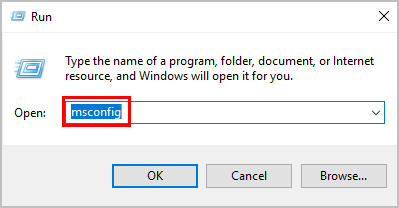
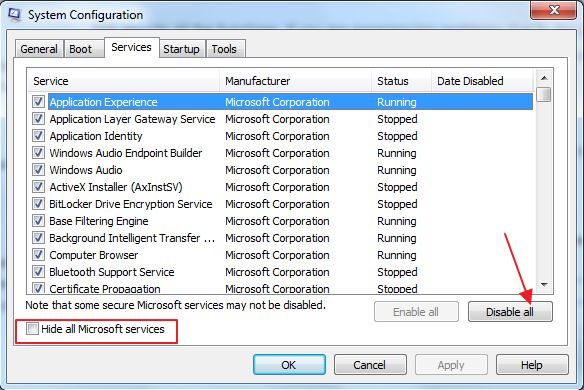
  • In the Run application window, type msconfig and click OK
msconfig
  • In the System Configuration window, go to the Services tab
  • At the bottom of the system configuration, look for the “Hide all Microsoft Services” option.
  • Click the box to activate the option. Clicking the box will make a checkmark appear which indicates the option is now activated
  • Once all Microsoft services are hidden, you will see all 3rd party application services or processes that are launched during the startup
  • At the bottom of the window, click Disable all. This will disable all non-Microsoft services at the startup.
  • Click Apply to save changes and close the system configuration window
  • Open Task Manager and check the system idle process CPU usage.

If the system idle process CPU usage is 5-10%, you can conclude the steps in the solution worked for you. If you see the system idle process continues to use maximum CPU resources, proceed to the next solution in the post

Solution Two – Check drivers

There is a possibility some drivers on your system are outdated, missing, or corrupt which is causing the problem. In that case, you need to check all drivers and update any outdated drivers or reinstall missing drivers. Here are the steps to follow.

  • Open Run window
  • Type devmgmt.msc in the Run window and click OK. This will open the Device Manager window
  • In the Device Manager window, navigate through all drivers and look for signs like a yellow exclamation mark and a red cross. Both signs indicate a driver problem. A yellow exclamation mark means the driver is outdated or corrupt. In that case, you need to find and install the latest driver for the component.
driver problem
  • If you see a red cross mark near any device, it indicates the driver is missing. In that case, you need to find and install the latest driver for the component.

If you find the manual driver installation process too technical or time consuming, we suggest you to consider a driver update tool. It can update all outdated drivers quickly and automatically.

Updating Drivers Automatically

Automatic driver update tools offer many benefits, the most important ones being:

  • You can update device drivers automatically
  • The software scans and updates all outdated or missing drivers at one go
  • The tool picks the right drivers for your device and operating system, so you won’t have to worry about installing an incorrect driver by mistake
  • Automatic driver updates are 100% safe

Driver Updater is one of the best driver update tools out there. Outbyte Driver Updater will give you access to a database of over 1 million drivers. It will regularly scan your PC, suggesting new driver versions to install. Driver Updater contains drivers for a variety of Windows devices. With just one click, you can update drivers in your system.

Step 1
Click here to Install and launch the app

Step 2
Scan all devices

Step 3
Install or update drivers automatically
 

Start Download


Filed Under: PC Fix Tips Tagged With: CPU High Usage

  • « Previous Page
  • 1
  • …
  • 70
  • 71
  • 72
  • 73
  • 74
  • …
  • 189
  • Next Page »


  • Recent Posts
  • Popular Posts
        

Read More Posts


Read More Posts

Drivers.com Sites

  • Software Drivers
  • Drivers Ed

About Us

  • Advertise
  • About Drivers
  • Drivers Support
  • Drivers.com Privacy Policy
  • Disclaimer
  • Software Drivers
  • Mac Fixes and Tips
  • PC Fix Tips
  • Security/ Backup
  • Tablets & Smartphones
  • Tech News

© Copyright 2026 PDE Publications Ltd. End User License Agreement (EULA)