Drivers.com

follow us:

facebook twitter
  • Home
  • Download Drivers
  • Drivers Help
  • PC/Mac Resources
  • Software Drivers
  • Mac Fixes and Tips
  • PC Fix Tips
  • Security/ Backup
  • Tablets & Smartphones
  • Tech News
  • Software Drivers
  • Mac Fixes and Tips
  • PC Fix Tips
  • Security/ Backup
  • Tablets & Smartphones
  • Tech News

Windows modules installer worker high disk usage windows 10 [Fixed]

By Susan C on July 31, 2021

Windows modules installer worker high disk usage windows 10 [Fixed]

Many Windows 10 users have reported experiencing the unexplained high disk usage by the windows modules installer worker process. This in turn causes the system to freeze up.

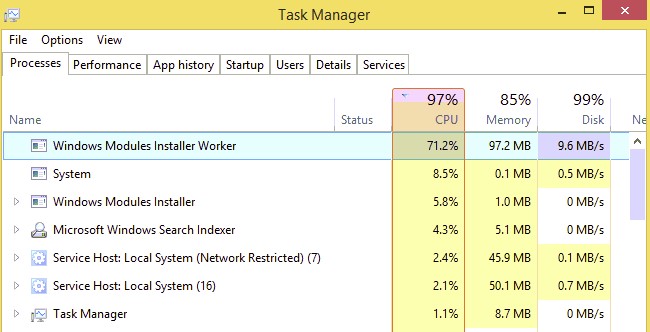
In such situations, the Task Manager invariably shows that Windows modules installer worker process is using a large amount of CPU resources – sometimes the CPU usage was more than 50%.

If you are experiencing similar problems, this post is just for you. We have listed several DIY solutions for this problem.

What is the windows modules installer worker process?

Windows Modules installer — also known as windows modules installer worker, WMIW, or TiWorker.exe — is a core component of the Windows operating system that checks and install updates for Windows and other Microsoft products installed on your computer.

Since the Windows update process is automatic, it is common to see Windows modules installer working in the background. If the windows modules installer worker is showing high CPU and disk usage, try the following suggestions

A few checks before troubleshooting

Check if Scheduled Automatic Maintenance is running

Before you follow any troubleshooting steps, check if your Windows is running the Scheduled Automatic Maintenance task.

If the answer is yes, wait for some time and allow the process to finish. You can get information about Scheduled Automatic Maintenance by following the steps given below.

  • In the search bar that appears next to the Start button, type control panel
  • Click Control Panel from the list of results
  • In the control panel window, click Security and Maintenance
  • Next click Automatic Maintenance. Here you can see details about Automatic Maintenance

Check whether Windows is installing updates

If Windows operating system is able to download and install updates, it is normal for windows modules installer worker process to use more CPU and disk resources. In that case, you need to be patient and wait till the Windows complete installing updates.

You can check more about Windows updates by following the steps given below

  • Click Start-> Settings
  • In the Setting window, click Update and Security
  • Next click windows update
  • In the Windows Update window, you will get information about the updates that are being downloaded and installed. It will also show the percentage of work completed(installing updates)

If you have done the above-mentioned checks and see there is no reason for windows modules installer worker to use more CPU and disk resources, proceed to the solutions given below.

Solution One – Run an Antivirus scan

There is a possibility some virus has infected your system and is the root cause behind high disk usage. Run an anti-virus scan and see if it helps. If the issue remains unresolved, move to the next solution.

Solution Two – Disable Windows Update Service

Windows modules installer worker process is related to Windows update service. Many users were able to resolve the issue by disabling the Windows update service. Therefore, this solution is worth attempting.

Here are the steps to follow.

  • Press Windows + R on your keyboard simultaneously. This will launch the Run command tool
  • In the Run command, type services.msc and click OK. This will open the Services window
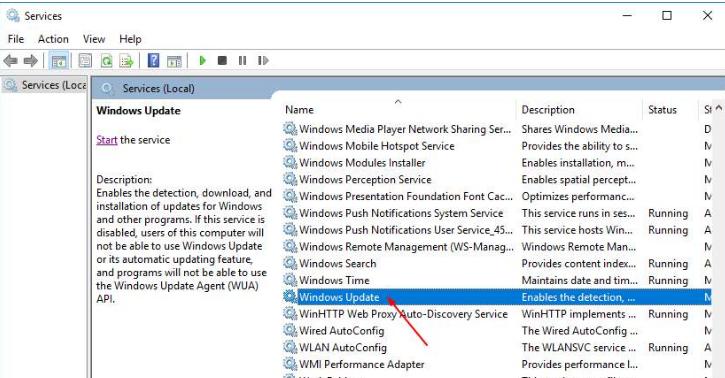
  • In the Services window, find and double-click Windows update service in the list. This will open the Windows update service properties window.
  • In the Window update properties window, go to the Startup type section and select Disabled from the drop-down list. This will ensure Windows does not start Windows update service automatically at the next startup.
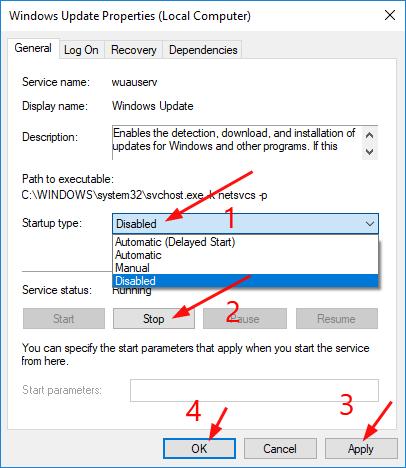
  • Click Stop button
  • Click Apply-> OK to apply changes

The CPU and disk usage would return to normal after making changes to the Windows updates setting. Open Task Manager and go to the Processes tab to confirm. If you see Windows modules installer worker process using a large amount of CPU and disk resources, move to the next solution.

Solution Three – Change Internet Settings

Since changing the windows update setting did not work, it would be a good idea to try changing the Internet settings on your computer. Doing so might help resolve this issue once and for all.

Many users were able to get rid of the issue after changing their Internet settings and it might help you as well.

The steps for changing the Internet Settings for a computer using a Wi-Fi network are different from that for a system using an Ethernet connection. Below we have listed the steps for both scenarios; you can use the one that apply in your case.

Case 1 – Your computer is using a Wi-Fi network

Case 2- Your computer has an Ethernet connection

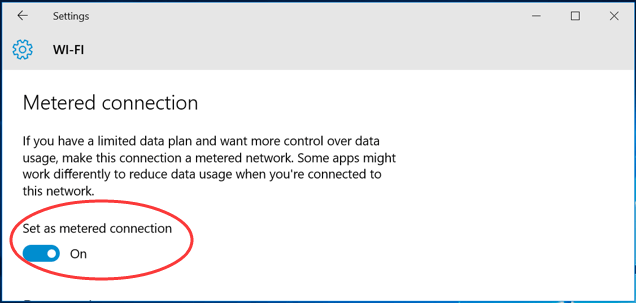
How to change Internet settings when the computer is using a Wi-Fi network?

  • Click Start-> Settings
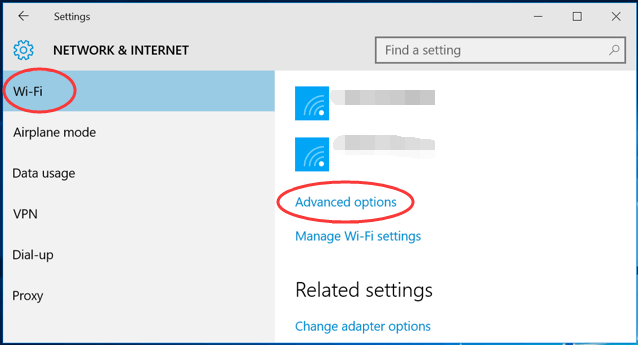
  • Click Network and Internet -> Wi-Fi
  • Click Advanced options
  • In next window, tick on set as metered connection
How to change Internet settings when the computer has an Ethernet connection?

  • Press Windows key and R together to bring up the Run command
  • In the Run command box, type regedit and click OK. This will open the Registry window
  • If the User Account Control dialog pops up to confirm your action, click Yes to proceed
  • In the Registry window, navigate to the following key
  • HKEY_LOCAL_MACHINE > SOFTWARE > Microsoft > Windows NT > CurrentVersion > NetworkList > DefaultMediaCost
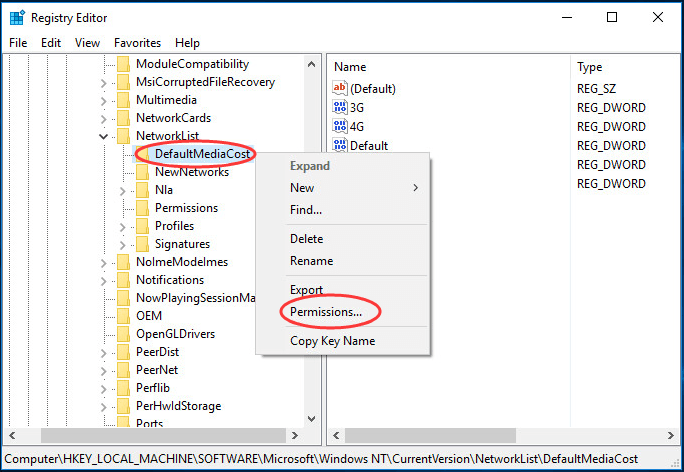
  • Right-click  DefaultMediaCost and selectPermissions
  • In the Permissions window, click Add
  • Type your user name into Enter object names section
  • Next, click Check Names
  • Click OK
  • Go to the Permissions window again and now you will see your username in the Security section
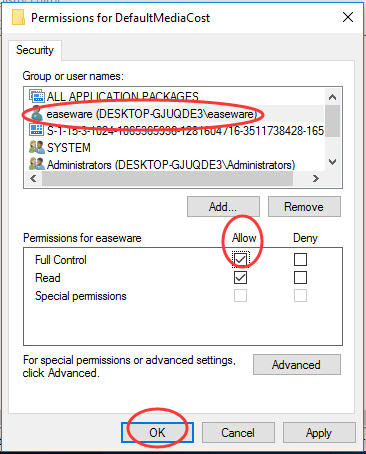
  • Click your user name and place a tick on Allow for Full control
  • Click OK
  • Now go back to the main Registry window and double click on DefaultMediaCost
  • In the right-hand section, double-click on Ethernet
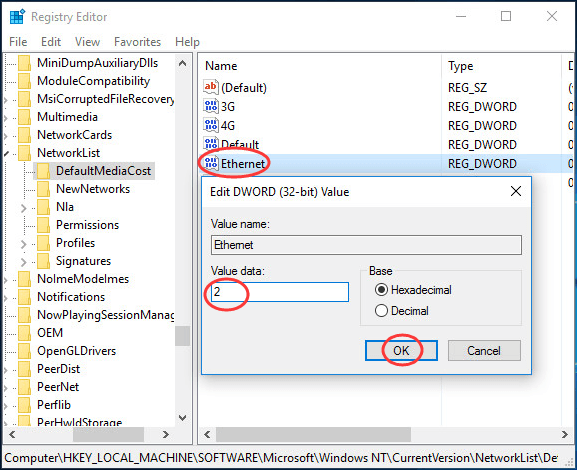
  • Set its value data to 2
  • Click OK
  • Close Registry editor
  • Reboot your computer.

After changing Internet settings, open Task Manager and you will see the Windows modules installer worker CPU usage has returned to normal.

Update Your Device Drivers

Outdated device drivers can cause many issues, including the aforementioned problem. Therefore, if nothing else has worked for you, we recommend you update your device drivers.

Automatic driver update tools offer many benefits, the most important ones being:

  • You can update device drivers automatically
  • The software scans and updates all outdated or missing drivers at one go
  • The tool picks the right drivers for your device and operating system, so you won’t have to worry about installing an incorrect driver by mistake
  • Automatic driver updates are 100% safe

Driver Updater is one of the best driver update tools out there. Outbyte Driver Updater will give you access to a database of over 1 million drivers. It will regularly scan your PC, suggesting new driver versions to install. Driver Updater contains drivers for a variety of Windows devices. With just one click, you can update drivers in your system.

Step 1
Click here to Install and launch the app

Step 2
Scan all devices

Step 3
Install or update drivers automatically


Start Download


Filed Under: PC Fix Tips Tagged With: high cpu usage

iPhone disconnects from Wi-Fi problem resolved (8 DIY Solutions)

By Susan C on July 25, 2021

If your iPhone is not able to maintain a stable connection to the Wi-Fi network, you may feel frustrated. But don’t worry, it’s a problem that can be easily resolved—and in this post, we will show you how to go about it.

Many users have complained of iPhone dropping the Wi-Fi connection or disconnecting from Wi-Fi frequently. If you are experiencing a similar issue with your iPhone, this post is for you. We have listed eight DIY solutions to this problem. Take a look. If your problem is with a black iPhone screen (where device is still switched on) click here.

Solution One – Check your Wi-Fi network status

Wi-Fi network has distance limitations. The closer your iPhone is to the router, the stronger signal it will have. If you move away from the router, the signal gets weak and at some point, the Wi-Fi connection is lost. Check your iPhone for the Wi-Fi signal.

If the Wi-Fi icon shows only one curve line cascading outside, it indicates your iPhone has a weak Wi-Fi signal. A Wi-Fi icon showing three cascading lines outside indicates a strong Wi-Fi signal. If possible take your iPhone closer to the router and see if the iPhone can maintain a stable Wi-Fi connection.

Solution Two – Reboot your iPhone and Router

If the Wi-Fi signal is strong and yet iPhone disconnects from the Wi-Fi network, do the following.

  • Switch off the router and wait for 5-10 seconds.
  • Switch on the router and allow it to establish a connection with the modem
  • Restart your iPhone and try connecting to the Wi-Fi network.

Following the steps above will reset the Wi-Fi connection between your iPhone and router. It will also eliminate any temporary connection problem and resolve the issue. If the steps in the solution did not resolve the issue, move to the next solution.

Solution Three – Enable Auto-Join to Wi-Fi network

Auto Join is a useful feature in iPhone that connects your iPhone automatically to a Wi-Fi network for which it has credentials stored. The process is automatic and you have to do nothing. Whenever the iPhone is in the range of the Wi-Fi network that you have connected to earlier, it will connect to the Wi-Fi network.

If the Auto Join option is disabled on your iPhone it could cause problems like iPhone temporary disconnects from Wi-Fi. In that scenario, you need to check whether that is not true in your case by enabling the Auto Join option. Here are the steps to follow.

  • On your iPhone, open Settings
  • Choose Wi-Fi
  • Tap the information mark next to your Wi-Fi network name
  • Tap the toggle switch to enable Auto Join

If the method works for you, your iPhone will not disconnect from Wi-Fi. If the method does not help, move to the next solution.

Solution Four – Forget the Wi-Fi network and Reconnect

iPhone remembers which Wi-Fi networks you have accessed. Whenever the iPhone is in the Wi-Fi network range, it uses stored login credentials to connect to the Wi-Fi network. Since the computer is not able to establish a stable Wi-Fi connection with your iPhone, you need to erase the Wi-Fi login credentials from your iPhone by choosing the option to forget the wifi network. Here are the steps to follow.

  • Open Settings app on your iPhone
  • Choose Wi-Fi
  • Tap the information mark next to your Wi-Fi network name
  • Tap Forget this network

After following the steps above, you need to reconnect the network. Make sure you are in the Wi-Fi network range before following the steps given below

  • From the home screen, go to Settings-> Wi-Fi
  • Turn on Wi-Fi. Your iPhone will search for available Wi-Fi networks
  • Tap the Wi-Fi network you want to join
  • iPhone will prompt you to enter the password for the Wi-Fi network
  • After you join the Wi-Fi network, you will see a blue tick next to the Wi-Fi network name.

In most cases, the iPhone disconnects from the Wi-Fi issue will be resolved by the above method. If the issue persists, move to the next solution.

Solution Five – Renew Lease

Whenever your iPhone connects to a Wi-Fi network, the router assigns an IP address to the iPhone that helps identify your device on the network. Sometimes there is the same IP address assigned to two different devices on the network that causes IP address conflict forcing one device to drop the connection.

Renew lease option forces the iPhone to release the current IP address and the router assigns a new IP address to your device. Here are the steps to follow.

  • From the home screen, go to Settings -> Wi-Fi
  • Tap the information mark next to your Wi-Fi network name
  • Tap Renew Lease

Check whether the frequent Wi-Fi disconnection problem is resolved. If the problem persists, move to the next solution.

Solution Six – Reset iPhone network settings

There is a possibility the network settings are causing problems due to some misconfiguration. Since you don’t know what is causing the disconnection of the Wi-Fi network, you need to reset the iPhone network settings. Here are the settings to follow.

  • Open Settings on your iPhone
  • Select General
  • Tap the Reset option at the bottom of the screen
  • In the next screen, tap Reset Network Settings
  • iPhone will prompt you to enter Password. Type password to proceed.
  • Wait for the process to complete
  • iPhone will restart to reset network settings
  • After iPhone restarts and apps are loaded, try connecting to the Wi-Fi network

Reset network settings will return all iPhone network settings to default. You have to select a Wi-Fi network and password to connect to the Wi-Fi network. Check whether the frequent disconnection problem is resolved. If the issue persists, move to the next solution.

Solution Seven – Stop your iPhone from using Wi-Fi assist

Wi-Fi assist is a useful feature in iPhone that allows users to stay connected to the Internet. If Wi-Fi assist is active on your iPhone and your Wi-Fi signal or Wi-Fi connection is slow, iPhone will automatically switch to cellular data to ensure the user has stable Internet connectivity. The Wi-Fi Assist feature is On by default.

There is a possibility the Wi-Fi assist is forcing the iPhone to disconnect from the Wi-Fi network. You can resolve this problem by disabling the Wi-Fi assist option. Here are the steps to follow.

  • Go to Settings > Settings
  • Tap Mobile Data.
  • Scroll down the screen and tap the slider Wi-Fi Assist to turn it off

Solution Eight – Run Software Update

Apple provides regular updates for iPhone to fix any bugs. You need to always use the latest version of iOS on your iPhone as the older operating system might have bugs. To check whether your iPhone has the latest version of iOS, follow the steps given below.

  • Open Settings > General
  • Tap Software Update. If any new iteration is available for install
  • Tap Download
  • Wait for the software update to download and install.
  • Like many iPhone a user, the iPhone disconnects from Wi-Fi problems will be resolved after updating iPhone software.


Filed Under: Mac Fixes and Tips Tagged With: iPhone dropping Wi-Fi

Bluetooth peripheral device driver for Windows 7 issue [Fixed]

By Susan C on July 16, 2021

Bluetooth peripheral device driver for Windows 7 issue [Fixed]

Are you facing trouble connecting your mobile device to your computer using Bluetooth? Many users have complained of the Bluetooth peripheral device driver not found error.

If you are getting an error message as shown below, this post is just for you.

driver software installation

The error mentions Windows did not find any driver for the Bluetooth device. Hence it couldn’t establish a connection between the device and computer. Installing a Bluetooth peripheral device driver can help fix this issue.

In this post, we will discuss some easy ways to install a Bluetooth device driver.

Method One – Install Bluetooth driver automatically

You can try updating the Bluetooth driver automatically by following the steps given below.

  • On your keyboard, press key combination Windows + R simultaneously to bring up the Run command
  • In the Run command box, type devmgmt.msc and click OK. This will launch Device Manager
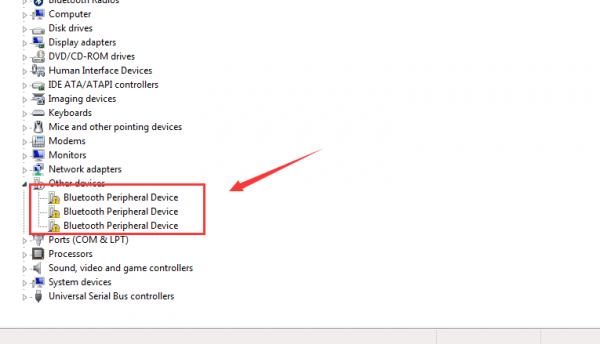
  • In the Device Manager window, go to the Other devices section and expand it. Here you will find Bluetooth peripheral device entry with a yellow exclamation mark. Refer to the image given below.
bluetooth driver task manager

(Note: If you are not able to find any Bluetooth peripheral devices under Other devices, click View and select Show hidden devices. This will show all hidden devices in Device Manager)

To install Bluetooth driver follow the steps given below

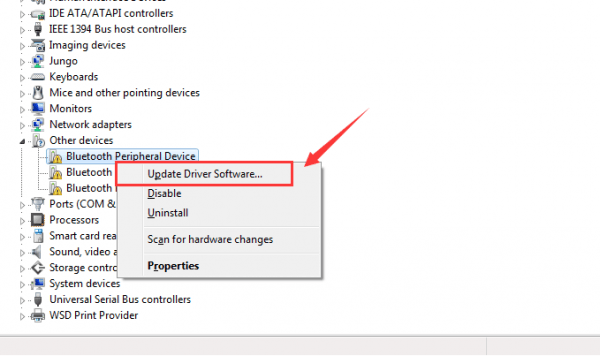
  • In the Device Manager, right-click the Bluetooth peripheral device entry and click Update Driver software
update bluetooth peripheral device
  • Windows will search for the driver and install it automatically. Once the Bluetooth peripheral device driver is installed, try connecting your mobile device to your computer.

If Windows fails to install Bluetooth peripheral device driver automatically, you need to update the Bluetooth driver manually.

Bluetooth Drivers Download & Updates

 Method Two – Install Bluetooth driver manually

To install Bluetooth driver manually, you need to first download it from the Internet. Before you download the driver, you need to first check whether the Windows running on your computer is 32-bit or 664-bit.

(Note: these steps apply to Windows 7 only)

  • To check the system bit architecture of Windows, follow the steps given below
  • Press the Windows key and continue to hold it and press E. It will open file explorer.
  • In the left-hand column, right-click on Computer and select Properties
  • In the System window that opens, go to the System section and find what is mentioned in the field System type. It will be either a 64-bit operating system or a 32-bit operating system.
  • If you have a 32-bit Windows operating system, browse the link below to download Microsoft Mobile Device
  • If you have a 64-bit Windows operating system, browse the link below to download Microsoft Mobile Device

https://www.microsoft.com/en-us/download

  • If you are not able to find Microsoft Mobile Device download links at the URLs mentioned above, you can download it from the third-party website mentioned below.

https://www.microsoft.com/en-us/download

  • Users having Windows 32-bit Windows need to download File one. Click the link drvupdate-x86.exe on the page. Users having Windows 64-bit Windows need to download File one. Click the link drvupdate-amd64.exe on the page
  • After the file is downloaded, click on the file to start the installation and wait for it to complete.
  • Now open the Device Manager again and go to Other Devices and expand it
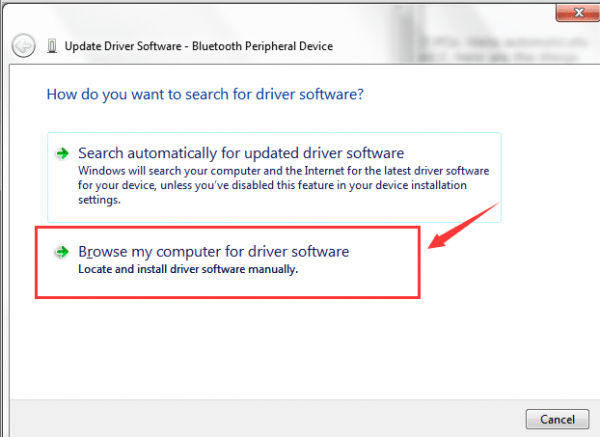
  • Right-click Bluetooth peripheral device and select Update Driver software
  • In the next window, click Browse my computer for driver software
update windows 7 bluetooth drivers
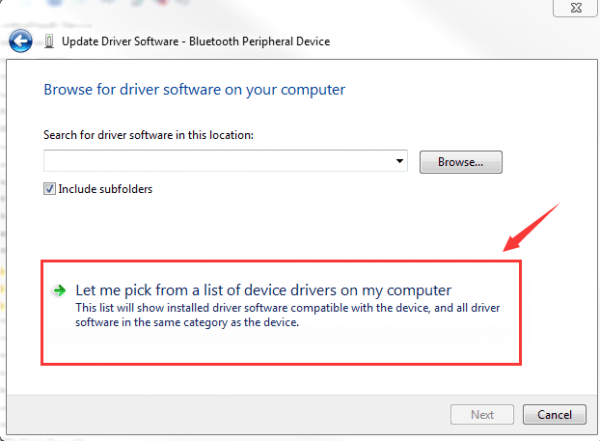
  • In the next window, click the option Let me pick from a list of device drivers on my computer
bluetooth peripheral device
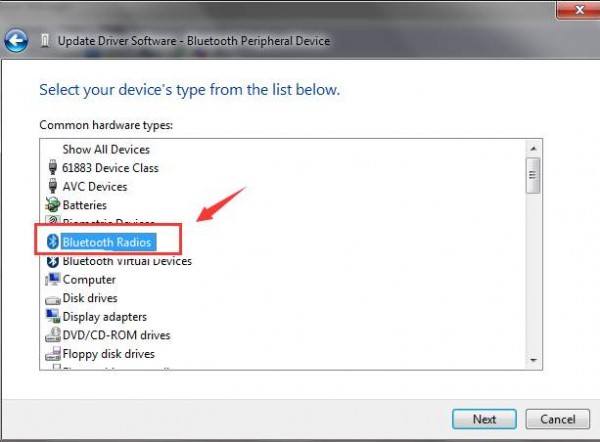
  • In the next step, you will be asked to select a device type from the list displayed in the window.
  • Click Bluetooth Radios from the list and click Next
bluetooth drivers
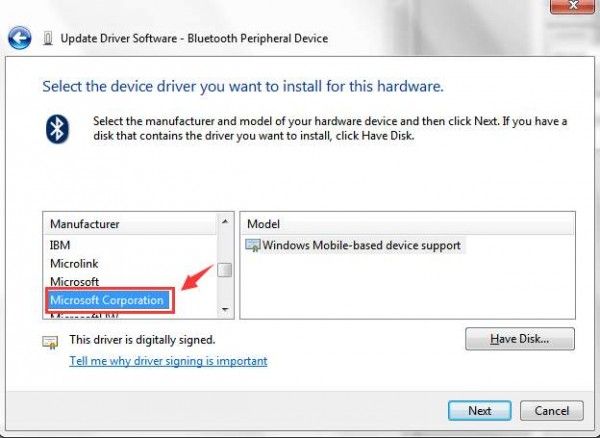
  • In the next window, you will see a list of device manufacturers. In the manufacturer column, click Microsoft Corporation
microsoft bluetooth drivers
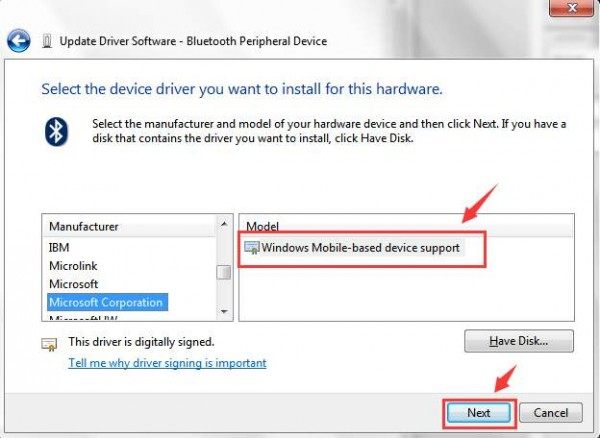
  • When you select Microsoft Corporation in the left column, you will see Windows Mobile-based device support appear. Some users may see more than one Windows Mobile-based device support. In that case, select the latest version.
bluetooth peripheral device drivers
  • Press Next
  • Windows might show some warnings when you try to install the driver. Keep pressing Next to proceed with the installation until you reach the last step. At the last step, click Finish. If the installation was successful, you will see a message pop-up that says the driver was successfully installed.
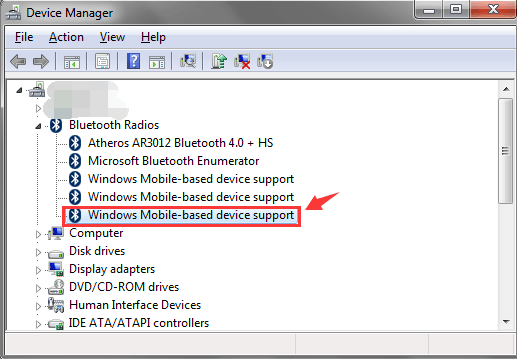
  • Open the Device Manager window and go to the Bluetooth Radios section and expand it.
  • It would show Windows Mobile-based device support entry or multiple entries.
bluetooth radios

Try connecting your mobile device now; it should connect without any hindrance.  If you are still facing problems connecting your mobile device to your computer, follow the steps given below

  • Open Device Manager
  • Go to Bluetooth Radios and expand it
  • Right-click Windows Mobile-based device support and click Uninstall
  • Close the Device Manager
  • Restart your computer
  • Try connecting your mobile device now

Method Three – Update Bluetooth driver automatically

Updating a device driver manually is not only cumbersome but also time-consuming. Plus, you require some technical knowledge to complete the process. A much simpler, easier way is to use a driver update tool like Driver Updater.

You can update all your drivers easily with Driver Updater. While the program provides a driver report for free, you’ll need to register it to get automatic driver updates. Click below to:

  • Speed up your PC
  • Fix Windows Problems
  • Unlock Device Features

Download Now (windows 11, 10, 8 and 7)

Filed Under: PC Fix Tips Tagged With: Bluetooth device driver

  • « Previous Page
  • 1
  • …
  • 69
  • 70
  • 71
  • 72
  • 73
  • …
  • 189
  • Next Page »


  • Recent Posts
  • Popular Posts
        

Read More Posts


Read More Posts

Drivers.com Sites

  • Software Drivers
  • Drivers Ed

About Us

  • Advertise
  • About Drivers
  • Drivers Support
  • Drivers.com Privacy Policy
  • Disclaimer
  • Software Drivers
  • Mac Fixes and Tips
  • PC Fix Tips
  • Security/ Backup
  • Tablets & Smartphones
  • Tech News

© Copyright 2026 PDE Publications Ltd. End User License Agreement (EULA)