Drivers.com

follow us:

facebook twitter
  • Home
  • Download Drivers
  • Drivers Help
  • PC/Mac Resources
  • Software Drivers
  • Mac Fixes and Tips
  • PC Fix Tips
  • Security/ Backup
  • Tablets & Smartphones
  • Tech News
  • Software Drivers
  • Mac Fixes and Tips
  • PC Fix Tips
  • Security/ Backup
  • Tablets & Smartphones
  • Tech News

What is Conhost.exe and why it is running on my computer?

By Susan C on August 19, 2021

What is Conhost.exe and why it is running on my computer?

Task Manager is a basic Windows utility used frequently used for closing applications or killing process, among other things. If you have ever opened the Task Manager window, you might have come across a process called conhost.exe.

Wondering what is it and why is it running on your computer?

If you have NVIDIA graphics or run graphics-intensive applications, you might see several instances of conhost.exe. Contrary to what many think, this is a legitimate process and not malware.

What is Conhost.exe?

Conhost is short for Console Windows Host. The file is legitimate and completely safe. Microsoft provides the file as a part of the operating system and you can see it running on Windows 7, Windows 8, and Windows 10.

Conhost.exe is needed to run to allow Command prompt to work with Windows Explorer. One of its features enables you to directly drag and drop files/folders into the command prompt. Third-party utilities also use conhost.exe to access the command line.

Software that uses Conhost.exe

It is impossible to tell which processes are using conhost.exe by just looking at the Task Manager. According to experts, any program that uses the command line spawns the conhost.exe process.

Here are some processes that use conhost.exe.

  • NVIDIA’s “NVIDIA Web Helper.exe”
  • Adobe Creative Cloud’s “node.exe”
  • Dell’s “DFS.Common.Agent.exe”
  • Plex’s “PlexScriptHost.exe”

Is it a virus?

Conhost.exe is not a virus. In most circumstances, conhost.exe is a normal and safe process. It does need to be scanned for viruses or deleted. It is also normal to see multiple instances of conhost.exe in the Task Manager.

However, there are situations when a virus disguises itself as a legitimate file, such as conhost.exe, to evade detection. One sign that shows conhost.exe is fake or malicious is if it uses a large amount of memory.

Another indicator of conhost.exe being a virus is when it is stored in the wrong folder. The legitimate conhost.exe runs from a specific folder and from that folder only.

The simplest way to know whether or not the conhost.exe file running on your computer is dangerous is to check its description and location.

Here are the steps to follow.

  • Press Ctrl+Shift+Esc simultaneously to launch Task Manager
  • In the Task Manager window, go to the Processes tab
  • If there are multiple entries you need to follow the steps given below for each conhost.exe entry in the Task Manager

  • Navigate to the conhost.exe entry in the Task Manager and look to the far right under the Description column. It should read Console Windows Host. If you see any other description, you can consider that conhost.exe instance as a threat.
  • However, the right description alone does not indicate the file is safe; you need to also check its location.
  • Right-click conhost.exe process and select Open file location
  • The folder that opens will show the location of the conhost.exe. The real location of the conhost.exe process is C:\Windows\System32\. If the file is running from the System32 folder, there is a chance the process is not dangerous.
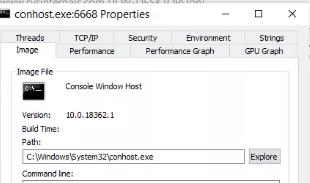
If the conhost.exe is using a large amount of memory, that could be a reason to worry. You should update your antivirus and run a full scan to make sure no malware is masquerading itself as conhost.exe.

Apart from regularly running antivirus scans to ensure smooth functioning of your computer, you should frequently update device drivers. Outdated drivers can not only slow down your computer but also cause all sorts of issues.

Automatic driver update tools offer many benefits, the most important ones being:

  • You can update device drivers automatically
  • The software scans and updates all outdated or missing drivers at one go
  • The tool picks the right drivers for your device and operating system, so you won’t have to worry about installing an incorrect driver by mistake
  • Automatic driver updates are 100% safe

Driver Updater is one of the best driver update tools out there. Outbyte Driver Updater will give you access to a database of over 1 million drivers. It will regularly scan your PC, suggesting new driver versions to install. Driver Updater contains drivers for a variety of Windows devices. With just one click, you can update drivers in your system.

Step 1
Click here to Install and launch the app

Step 2
Scan all devices

Step 3
Install or update drivers automatically


Start Download


Filed Under: PC Fix Tips Tagged With: conhost.exe

Bad pool header blue screen error in Windows [4 DIY Solutions]

By Susan C on August 13, 2021

Bad pool header blue screen error in Windows [4 DIY Solutions]

If you are a Windows user, chances are you would have encountered at least one or two “Blue Screen of Death” errors while working. BSODs occur, while utterly frustrating, are not always difficult to resolve.

They usually occur when you install new hardware or software, and it does not work well on your PC. That said, you might also get BSOD for a number of other reasons such as:

  • failing hardware
  • corrupt system files
  • problems with your RAM or hard disk
  • other random reasons

A BSOD is actually not your enemy. Think of it as part of your Windows computer’s defense mechanism. It occurs so that your computer doesn’t incur any further damage because of the underlying hardware or software issue.

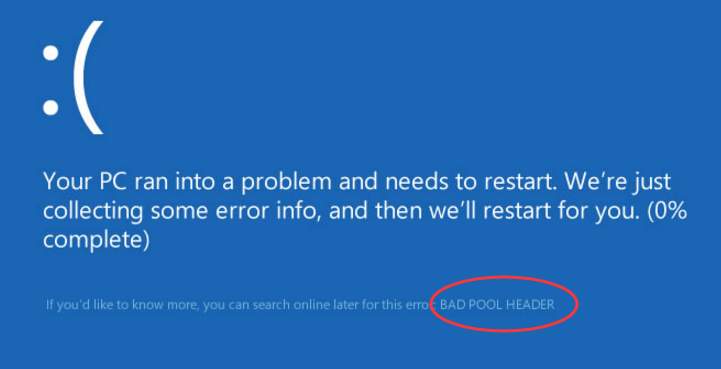
Many Windows 10 users have reported receiving “bad pool header” BSOD. Are you receiving this error as well?

If so, you are at the right place. Here are four easy-to-follow solutions to get rid of this BSOD error once and for all.

What is a bad pool header error?

The bad pool header error comes with a code 0x00000019, and as said above, a number of things can cause it.

When you get this error, your PC may restart abruptly and you will lose all unsaved work. That can be fatal especially if you are working on an important project, presentation, or document.

Solution One – Disconnect external devices and drives

Disconnect all external devices and drives except your keyboard and mouse. Now use the PC normally and check whether you’re getting the error.

If no, it means an external drive or device was the culprit. After confirming the cause, find the problematic device or drive.

How to do that? Glad you asked.

Connect external device and drive one at a time, and see after connecting which device you receive the error. For example, if you get the BSOD error after connecting the external hard disk, that’s where the problem lies.

The next step is to detect what’s wrong with the problematic device and fix the issue.  Alternately, you may consider installing a new device. For instance, if your hard drive is the real culprit, you may find replacing it a better idea — and even a cheaper one perhaps — than repairing it.

If the above solution did not resolve the issue, move on to the next solution.

Solution Two- Disable 3rd party anti-virus temporarily

Some 3rd party anti-virus does not work well with Windows 10 and you might get the titled error after installing or updating a 3rd party anti-virus.

To rule out this possibility, disable the anti-virus temporarily. The steps to disable anti-virus vary from one provider to the next. Check the documentation of your anti-virus solution to find out how to disable it temporarily.

In general, you can disable anti-virus temporarily through its interface. Just dig into its settings and look for an option like disable temporary, disable for XXX minutes/hours, disable until next restart.

After disabling 3rd party anti-virus solution, use your PC normally. If you do not get the error, it’s safe to assume that the 3rd party anti-virus was the cause behind the BSOD error.

In that case, you can switch to a better 3rd party anti-virus solution or use Windows Defender that is part of Windows security tools. If you have been using 3rd party anti-virus solution, windows defender is more likely to be disabled. You need to enable it by following the steps given below.

How to enable Windows Defender?

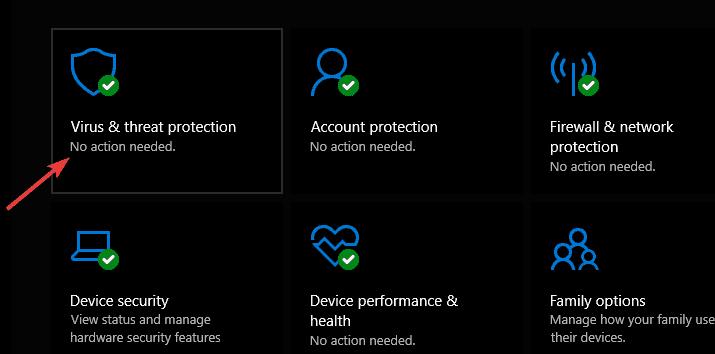
  • Click the Windows logo button to bring up the Start menu
  • Scroll down and click the Windows Security option
  • On the Windows Security window here are some things you will find.
  • If you will see a green tick on Virus and threat protection, it indicates a 3rd party solution is active on your system. In that case, you need to uninstall it and then perform these steps.
  • If you do not see a Windows tick, it indicates no anti-virus solution and Windows defender is active on your system. In that case, you need to activate Windows Defender
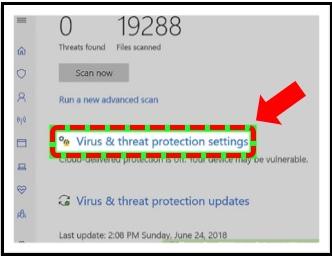
  • Click Virus and threat protection
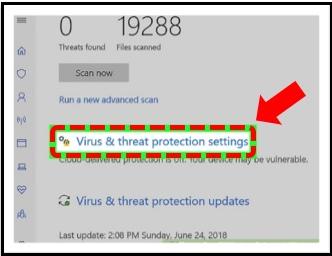
  • Next, click Virus & threat protection settings
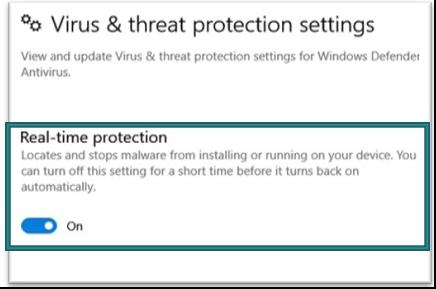
  • Turn On the Real Protection

If disabling 3rd party anti-virus solution does not help, move on to the next solution.

Solution Three – Disable Fast Start-up

Windows 10 comes with a Fast Start-up option that reduces boot time. When you select Fast Start-up, Windows will enter hibernation mode when you shut down the computer instead of shutting down all windows.

When you start your computer the next time, Windows will use the hibernation file to boot windows. In other words, it will not load system drivers as it does in a normal boot.

Many users were able to resolve bad pool header BSOD error by disabling fast start. The idea behind disabling fast start-up is to force windows to boot normally and load all system drivers and components at every boot.

Here are the steps to follow.

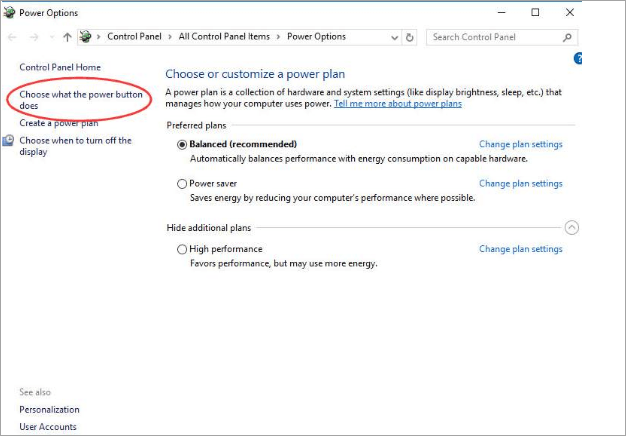
  • Press Windows key and R simultaneously to open Ease of Access Center
  • Click Power Option from the menu
  • <insert – bph – power options>
  • In the Power Options window, click Choose what the power button does
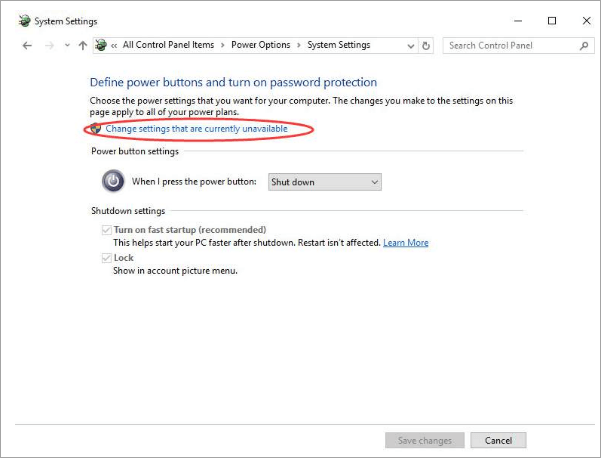
  • In the System Settings window, click Change settings that are currently unavailable
  • Uncheck Turn on fast startup (recommended)
  • Click Save changes
  • Reboot your PC

Use your PC normally and see whether your system throws bad pool header BSOD error. If the issue remains still unresolved, move on to the next solution.

Solution Four – Update Drivers

Drivers are essential software components of Windows. Over time, drivers may become corrupt or go missing (accidental deletion) which may lead to BSOD errors like bad pool header. Hence, you need to update all drivers on your system.

You can update your device drivers in two ways—manually and automatically.

The manual process, besides being tedious, is time-consuming and requires some technical risk. It also comes with a certain degree of risk, especially if you download the driver file from an unreliable source.

Updating Drivers Automatically

Automatic driver update tools offer many benefits, the most important ones being:

  • You can update device drivers automatically
  • The software scans and updates all outdated or missing drivers at one go
  • The tool picks the right drivers for your device and operating system, so you won’t have to worry about installing an incorrect driver by mistake
  • Automatic driver updates are 100% safe

Driver Updater is one of the best driver update tools out there. Outbyte Driver Updater will give you access to a database of over 1 million drivers. It will regularly scan your PC, suggesting new driver versions to install. Driver Updater contains drivers for a variety of Windows devices. With just one click, you can update drivers in your system.

Step 1
Click here to Install and launch the app

Step 2
Scan all devices

Step 3
Install or update drivers automatically


Start Download


Solution Five – Check RAM

A faulty RAM can also cause bad pool header BSOD error. Hence, you need to check RAM and rule out the possibility of a faulty RAM.

Windows comes with a memory diagnostic tool that can help find any problems with RAM. Here are the steps to run Memory Diagnostic Tool.

  • Press Windows key and S together. This will open Windows Search
  • In the search box, type Memory Diagnostic and hit Enter on the keyboard
  • Click Windows Memory Diagnostic from search results
  • The Windows Memory Diagnostic tool is launched and you are presented with two options – 1) Restart Now and check for problems recommended and 2) Check for problems the next time when I start my computer
  • Click 1st option
  • Windows Memory Diagnostic takes time to complete the memory scan which depends on the amount of RAM installed in your system. Be patient and allow the tool to complete the operation.

If it finds errors, it will show on the screen. In that case, you need to replace the RAM module. If it does not show any errors, you can conclude there is no problem with RAM.

Like most users, one of the solutions in this post is very likely to work for you. Follow the instructions carefully and you will be able to resolve bad pool header BSOD error without any professional help.

Filed Under: PC Fix Tips Tagged With: bad pool header

Video Scheduler Internal Error in Windows 10 [Fixed]

By Susan C on August 13, 2021

Video Scheduler Internal Error in Windows 10 [Fixed]

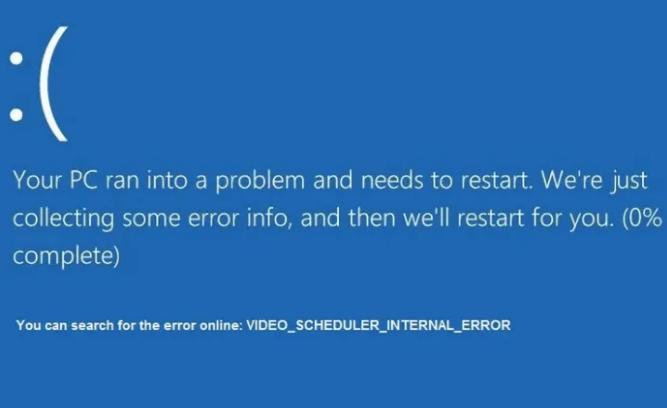
When you are working on an important project, the last thing you want is a Blue Screen of Death error. BSODs errors are not only frustrating but also hamper productivity. Many Windows 10 users have complained of Video Scheduler Internal Error BSOD that shuts their system abruptly.

If you are getting this error, keep your worries aside. Here we have presented a few easy-to-follow solutions that can resolve the Video Scheduler Internal Error BSOD error in Windows 10.

What is Video Scheduler Internal Error?

As mentioned earlier, Video Scheduler Internal Error is a BSOD error when Windows detects a fatal violation error. Its big check value is 0x00000119. As the name suggests, the error is mostly related to the graphic card and its drivers. However, you cannot rule out the possibilities of other causes behind this error.

Other reasons behind this error could be old, outdated drivers or corrupt system files, or bad sectors on the hard disk. There is also a possibility that some malware infection might be causing the error. Many times newly installed hardware and software are not compatible with Windows OS and this could result in a fatal error in the form of Video Scheduler Internal BSOD Error.

The solutions shared in the post focus on each of these issues. Since finding out the exact reason behind the Video Scheduler Internal Error is difficult (if not almost impossible), you should start with the first solution in the list and then move on to the next one and so on until the issue gets fixed.

Solution One – Run an anti-virus scan

To eliminate the possibility of malware, you need to run an anti-virus scan on your system. If you have a 3rd party antivirus, refer to its documentation and learn how to run an anti-virus scan. If you are using a built-in Windows Defender to protect your system, follow the steps given below.

  • Go to the Start menu and type Windows Defender
  • In the list of search results, double-click Windows Defender to launch the anti-virus
  • In the Windows Defender window, click Virus & threat protection.
  • In the new window that pops up, click the Advanced scan option
  • Check the Full Scan option to launch a full system scan

Wait for the scan to complete. Use your Windows normally and see whether you encounter Video Scheduler Internal Error after running a full system scan.

If the error persists, move on to the next solution.

Solution Two – Check your system drive

With the threat of viruses out of the way, it’s time to check your hard drive or SSD for corruption. Here are the steps to follow.

  • Click Windows key and type cmd., but don’t press Enter.
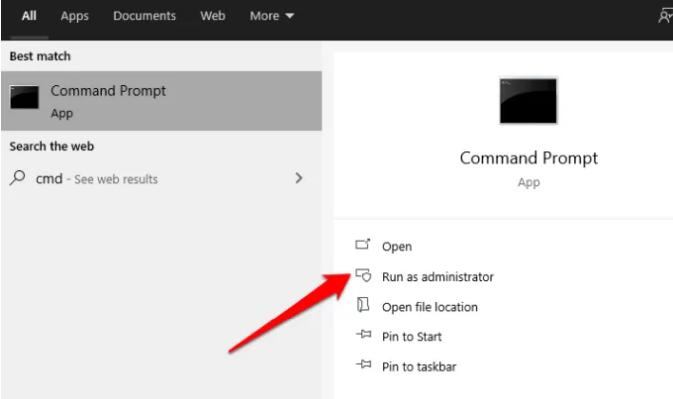
  • Right-click cmd in the search results and select Run as administrator
  • Windows will show a User Account Control pop that asks you whether you want the app to make system changes. Click Yes
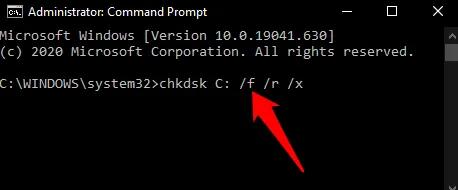
  • Type the following command and press Enter
  • chkdsk /f /r
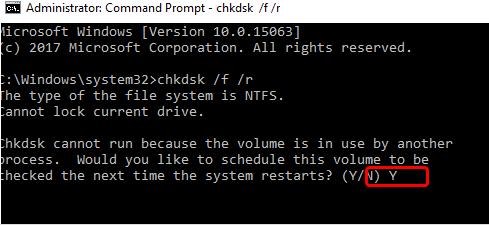
  • Windows will show a message that says it cannot run check disk as files are in use. It will also ask you whether you want to run chkdsk at the next OS restart. Click Yes.
  • Close all windows and restart your computer
  • After Windows restarts, it will inform you a check disk has been scheduled. It will give you an option to abandon the check disk scan and proceed with booting. Don’t press any key until Windows starts Check Disk.
  • Wait for Check Disk to complete

Windows will fix any errors it finds and boot. Use the computer like you normally do. If you encounter Video Scheduler Internal Error after running the check disk scan, move to the next solution.

Solution Three – Run SFC scan

As mentioned earlier, corrupt system files could be the reason behind Video Scheduler Internal error. Windows 10 comes with an in-built maintenance tool (SFC) that can fix the corruption of system files. SFC is an acronym for System File Checker. The SFC scan checks the integrity of the system files and replaces the corrupt files with good cached versions.

Here are the steps to run an SFC scan.

  • Click Start and type cmd in Cortana search
  • From the results, right-click Command Prompt and select Run as administrator
  • Click Yes in the User Account Control Menu prompt
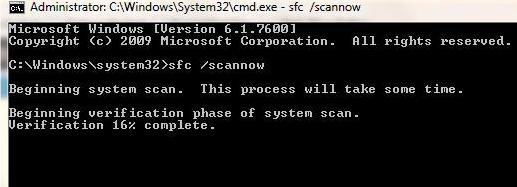
  • When you see a blinking cursor appears in the command window, type SFC /scannow
  • Press the Enter key

Wait for the SFC scan process to complete. The tool is designed to find and perform file fixes automatically and you don’t need to do anything.

After the SFC scan is complete, restart your computer. Check whether you are still getting Video Scheduler Internal Error BSOD. If the problem persists, move on to the next solution.

Solution Four- Run DISM scan

Since the SFC scan did not help fix the issue, you need to use another Microsoft in-built maintenance tool that helps fix corrupt and missing system files. The tool is called Deployment Image Servicing and Management (DISM).

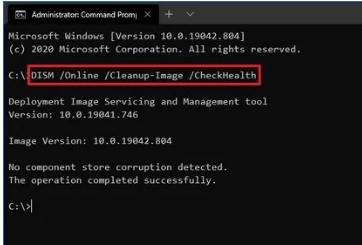
DISM command with CheckHealth option

The CheckHealth option in the DISM tool allows you to quickly determine if there is any corruption in the local Windows image. However, it does not fix any errors it finds. Here are the steps to follow.

  • Click Start and type cmd
  • Right-click cmd and select Run as administrator
  • In the command prompt, type the following command and press Enter
  • DISM /Online /Cleanup-Image /CheckHealth

Allow DISM to scan the windows image and verify data corruption that needs to be fixed

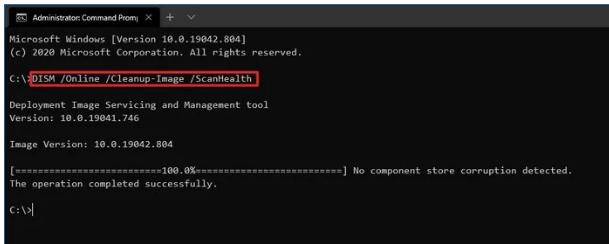
DISM command with ScanHealth option

The ScanHealth option is an advanced scan that determines if the Windows image has any problems. Here are the steps to follow

  • Open Command prompt with administrator rights
  • In the command prompt, type the following command and press Enter
  • DISM /Online /Cleanup-Image /ScanHealth

Wait for the scan to complete. The advanced scan may take several minutes to scan your windows image for problems. If any CheckHealth and ScanHealth option detects problems with Windows image, use the next step to repair the Windows image.

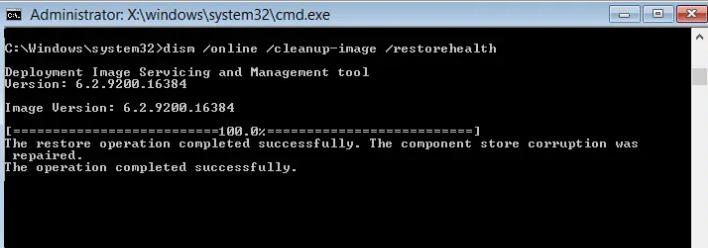
DISM command with RestoreHealth option

DISM has a RestoreHealth command that can fix problems in Windows image that could help resolve Video scheduler internal error. Here are the steps to follow

  • Open Command prompt with administrator right
  • In the command prompt, type the following command and press Enter
  • DISM /Online /Cleanup-Image /RestoreHealth

After you complete the above steps, the Deployment Image Servicing and Management tool will connect to the Window Update server to download and replace damaged or missing files.

After DISM completes its operation, restart the computer. Check whether the computer still generates Video Scheduler Internal error. If the issue remains unresolved, move on to the next solution.

Solution Five – Install all available Windows updates

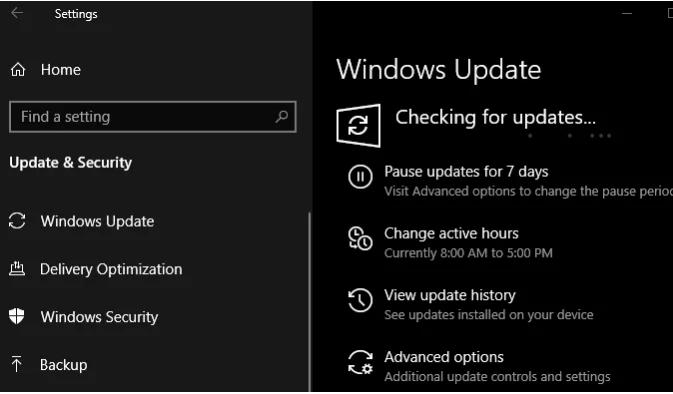
Microsoft is always releasing updates to fix bugs and performance issues in Windows 10. There is a possibility the Video scheduler internal error is the result of some Windows bug that has been fixed by the latest update. You need to check whether your PC has all the latest Windows 10 updates. Here are the steps to follow.

  • Click Start – > Settings(gear icon)
  • In the Setting window, click Update and Security settings
  • In the next window, click Windows Update in the left column.
  • If you see Updates available on the right side, it means you need to install pending updates.
  • Click download and install all important updates

Use your computer normally and check whether you still get Video Scheduler internal error. If the error remains unresolved, move to the next solution.

Solution Six – Update your graphics driver

Windows 10 installs the latest drivers through Windows updates. Since installing Windows update has not helped resolve the issue, you need to manually update your graphics drivers following the steps given below.

  • In the search bar on the taskbar, type device manager
  • Select Device Manager from the list of results
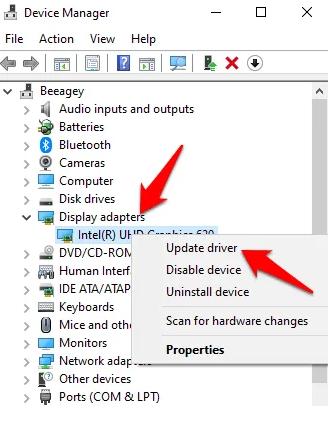
  • In the Device Manager window, go to the Display adapters section and expand the list
  • Right-click video adapter and select Update driver
  • Follow the prompts on your screen to update the graphics driver.
  • Restart your computer

If Windows is not able to find any driver update, you need to check the hardware manufacturer’s website for driver updates. If you are using a laptop, you need to visit the OEM website to check for graphic driver update. If a driver update is available, download and install.

If updating the graphics driver did not help resolve the Video scheduler internal BSOD error, move on to the next solution

Updating Drivers Automatically

Automatic driver update tools offer many benefits, the most important ones being:

  • You can update device drivers automatically
  • The software scans and updates all outdated or missing drivers at one go
  • The tool picks the right drivers for your device and operating system, so you won’t have to worry about installing an incorrect driver by mistake
  • Automatic driver updates are 100% safe

Driver Updater is one of the best driver update tools out there. Outbyte Driver Updater will give you access to a database of over 1 million drivers. It will regularly scan your PC, suggesting new driver versions to install. Driver Updater contains drivers for a variety of Windows devices. With just one click, you can update drivers in your system.

Step 1
Click here to Install and launch the app

Step 2
Scan all devices

Step 3
Install or update drivers automatically


Start Download


Solution Seven – Reinstall faulty drivers

Faulty drivers can also cause Video scheduler internal BSOD error. To rule out this possibility follow the steps given below.

  • Open Device Manager
  • In the Device Manager window, click the Help menu above
  • Click scan for hardware changes option
  • Go to the Other devices section and expand it
  • You are more likely to see devices with a yellow exclamation mark that indicates it has faulty device drivers.
  • Right-click on the device with faulty drivers and click Uninstall
  • When Windows prompts you for confirmation, click OK
  • Go to the device manufacturer’s website and download the latest driver and install it.

Solution Eight – Remove recently installed hardware/software

Not all hardware and software available in the market will work well with Windows 10. Can you recall when you encountered a Video scheduler internal BSOD error on your system for the first time? Have you installed any hardware or software recently? If the answer is yes, you need to remove recently installed hardware and software from your computer and see if that helps.

Filed Under: PC Fix Tips Tagged With: video scheduler error

  • « Previous Page
  • 1
  • …
  • 68
  • 69
  • 70
  • 71
  • 72
  • …
  • 189
  • Next Page »


  • Recent Posts
  • Popular Posts
        

Read More Posts


Read More Posts

Drivers.com Sites

  • Software Drivers
  • Drivers Ed

About Us

  • Advertise
  • About Drivers
  • Drivers Support
  • Drivers.com Privacy Policy
  • Disclaimer
  • Software Drivers
  • Mac Fixes and Tips
  • PC Fix Tips
  • Security/ Backup
  • Tablets & Smartphones
  • Tech News

© Copyright 2026 PDE Publications Ltd. End User License Agreement (EULA)