Drivers.com

follow us:

facebook twitter
  • Home
  • Download Drivers
  • Drivers Help
  • PC/Mac Resources
  • Software Drivers
  • Mac Fixes and Tips
  • PC Fix Tips
  • Security/ Backup
  • Tablets & Smartphones
  • Tech News
  • Software Drivers
  • Mac Fixes and Tips
  • PC Fix Tips
  • Security/ Backup
  • Tablets & Smartphones
  • Tech News

Screen Tear Issue in Windows [Fixed]

By Susan C on September 4, 2021

Screen Tear Issue in Windows [Fixed]

Immersive gaming is critical for enjoying computer games. For this reason only, most avid gamers don’t shy away from investing in the best hardware and software to enjoy their favorite games. However, one issue that can spoil the fun is screen tearing.

Screen tearing refers to horizontal splits on the screen at one or more places. It occurs when the monitor’s refresh rate and GPU’s rate are unsynchronized. This issue is not only limited to gaming; you can also experience it while watching movies or videos.

Why does your screen tear?

Screen tearing occurs when your computer’s display outputs more video frames than your monitor can handle. The general refresh rate of a monitor is set at 60Hz. This means the screen refreshes visuals 60 times in a second.

If the video port gives out more number of frames per second than 60, it causes an out-of-sync situation. As a result, the monitor tries to adjust by displaying multiple frames at once on your screen, which is known as screen tear.

Another cause of screen gear could be corrupt or out-of-date display drivers. In that case, the easiest solution available is updating your display drivers.

Solution One – Update Display Drivers

You can update display drivers manually or automatically. The latter is a much easier, simpler, and faster method. Nevertheless, we have discussed both methods here. You can pick the one that works for you better.

Update Display Drivers Manually

  • Simultaneously press Win + R
  • In the run dialog box, type devmgmt.msc and then press the OK button
  • In the Driver Manager window, expand Display adapters, right-click your graphics card and then click Properties
  • Click the Driver tab
  • Next, click the Update Driver option
  • In the Update Driver Software window, click the first option (Search automatically…)
  • Follow the onscreen instructions

Alternately, you can download the latest drivers from your graphics card manufacturer’s website and install it.

Updating Display Driver Automatically

As you can see, the manual updating process is tedious. It also requires a fair bit of technical knowledge. If you don’t have the time or technical know-how to update the display driver manually, we recommend you use a reliable driver update software tool.

Automatic driver update tools offer many benefits, the most important ones being:

  • You can update device drivers automatically
  • The software scans and updates all outdated or missing drivers at one go
  • The tool picks the right drivers for your device and operating system, so you won’t have to worry about installing an incorrect driver by mistake
  • Automatic driver updates are 100% safe

Driver Updater is one of the best driver update tools out there. Outbyte Driver Updater will give you access to a database of over 1 million drivers. It will regularly scan your PC, suggesting new driver versions to install. Driver Updater contains drivers for a variety of Windows devices. With just one click, you can update drivers in your system.

Step 1
Click here to Install and launch the app

Step 2
Scan all devices

Step 3
Install or update drivers automatically


Start Download


If the issue is not resolved by updating display drivers, you should enable VSync. And see if it helps.

Solution Two- Enable VSync

VSync is a graphics technology that allows you to synchronize the frame rate of the game to the refresh rate of the monitor. The synchronization delivers uninterrupted and smooth gameplay for graphics-heavy 3D games.

Here are the steps to enable VSync.

For NVIDIA cards

If you have NVIDIA graphics cards installed on your PC, you need to follow the steps given below to enable VSync.

  • Click the Start button
  • In the search bar, type NVIDIA control panel and hit enter on your keyboard.
  • Click Manage 3D settings
  • Under the Global Setting tab, you should find a list of features.
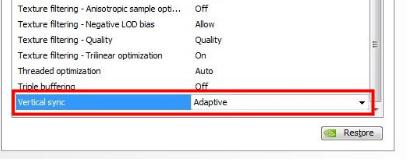
  • Scroll down and find Vertical Sync
  • Using the dropdown menu to the right, select Adaptive or On
For AMD Radeon graphics card

  • Click the Start button
  • In the search bar, type AMD Radeon Software and press Enter on your keyboard
  • Click the cogwheel in the top right
  • Click Graphics tab
  • Under Wait for vertical refresh rate, choose Always on
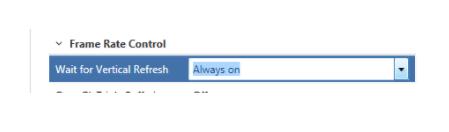
For Intel graphics Users

  • Click Start
  • In the search bar, type Intel HD Graphics Control Panel and press Enter on your keyboard
  • In the control panel window, click 3D
  • Click Custom Settings.
  • Under Vertical Sync, click Driver Settings
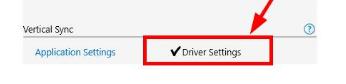
  • Click Apply

In-game Settings

Popular 3D games have an in-built setting for VSync. Here are the steps to activate VSync in the in-game settings

  • In your game, go to Settings
  • Click Video -> Graphics -> Quality
  • Set VSync ON

Filed Under: PC Fix Tips Tagged With: screen tear

How to turn off windows updates?

By Susan C on August 26, 2021

How to turn off windows updates?

Microsoft regularly provides incremental updates that help fixes known bugs in the Windows system. However, it is possible that you may want to temporarily turn off Windows Updates. In this post, we have shared some ways in which you can do exactly that.

Solution One – Disable Windows 10 Update Service

The Windows update process is managed by the Windows update service. This service is set to start with windows. When you start Windows, the Windows update service connects to the Windows update server and checks for new Windows updates.

You can disable this service if you want. This will prevent your computer from connecting to the Windows update server and the Windows update process will stop.

Here are the steps to follow.

  • Press Windows key + R simultaneously on the keyboard to bring up the Run command
  • In the Run command dialog, type services.msc and click OK
  • In the Services window, locate Windows Update service in the list and double click on it. This will open the Windows Update Properties window
  • In the Windows Update Properties window, go to the General tab and click Stop in the Service Status section
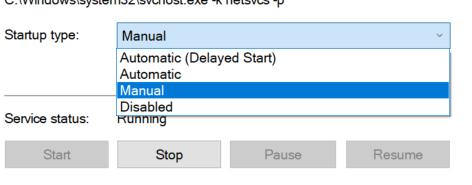
  • Next, find the Startup type option that is located above the Service Status section

  • Click the drop-down list and select disabled.
  • Click Apply-> OK to save the changes
  • Close all windows.

After following this solution, Windows OS will not download updates automatically.

Solution Two – Disable Windows updates via Settings Menu

The Windows settings give you control over how Windows OS functions. You can disable Windows update via the Settings menu. The steps in this solution are simpler than the one discussed above but they are meant to serve as a permanent solution.

Here are the steps to follow.

  • Go to your Windows Start button menu and click on the Settings cog
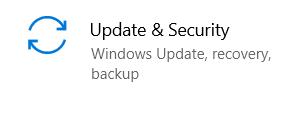
  • In the Settings window, click Update and Security

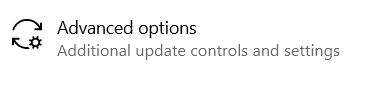
  • Next click on Advanced options

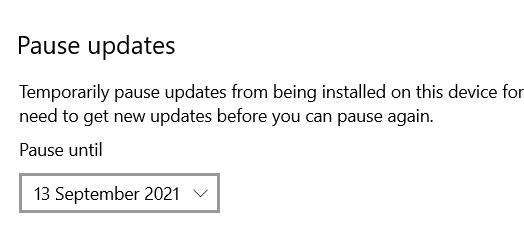
  • In the Advanced options window, go to the Pause updates section

  • Select the date until which you want to turn off Windows updates. This setting allows you to stop windows updates for your device for up to a maximum of 35 days.
  • When the 35 days limit gets over, windows will start downloading and installing updates automatically and you need to follow the steps again to stop windows updates for the next 35 days.

Solution Three – Stop Windows updates via Registry

The Registry gives you access to Windows settings that are not generally available through options or menus. However, making changes in the Registry is risky and any wrong changes could make your system unstable. Hence you need to tread cautiously and always make a registry backup.

Here are the steps to stop Windows updates via Registry

  • Launch Run dialog box (Press Windows key and R together)
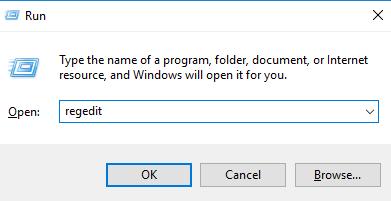
  • In the Run dialog box, type regedit and click OK. This will open the Registry hive
  • On the left side of the Registry hive, navigate to the following key
  • HKEY_LOCAL_MACHINE > SOFTWARE > Microsoft > Windows > CurrentVersion > WindowsUpdate > OSUpgrade
  • After you reach the OSUpgrade option, you need to follow the steps given below
  • Right-click on the key name and select the New submenu
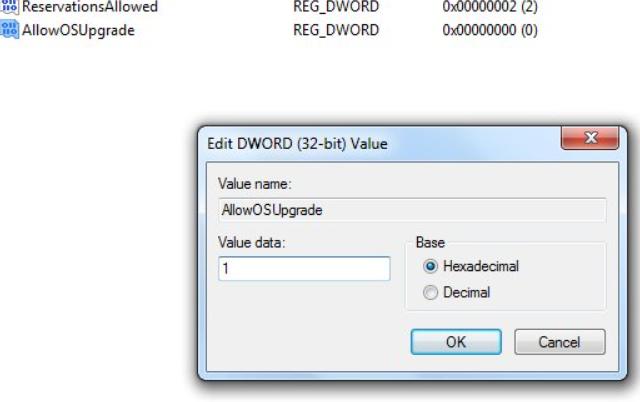
  • Next select DWORD (32-bit) Value. You will see the new value created is named New Value #1. You need to rename as AllowOSUpgrade

  • The last step in this solution is to ensure the OS upgrade option is turned off. You can do it by changing the value of AllowOSUpgrade.
  • Double-click the AllowOSUpgrade key and change its value to 0. Make sure the hexadecimal option is selected when you make the changes to the value.
  • Close the Registry window

Solution Four – Set your Wi-Fi connection as metered connection to Stop Windows update

Many users have an internet connection with data limits on it. If they exceed their data limit, they will have to pay an additional amount. Windows comes with an option called Metered connection that allows you to set any internet connection as Metered connection.

When you set any internet connection as Metered, Windows will not initiate the Windows update process. Here are the steps to set your Wi-Fi connection as Metered connection.

  • Click Windows Start and then click on the Settings cog
  • In the Settings windows, click Network and Internet
  • In the next window, click on the Wi-Fi option in the left side column
  • Next, click on Manage known networks
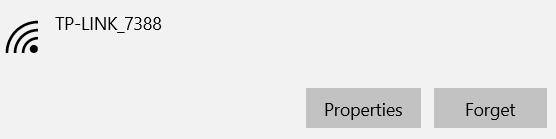
  • In the next window, click on your Network icon and click Properties

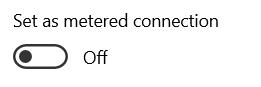
  • In the properties window, scroll down the screen to Set as metered connection

  • Click the toggle switch to ON position
  • Close all windows

This may not be a perfect solution for users who use Microsoft One Drive. When you set your Wi-Fi connection as metered, OneDrive will not update or backup files from your computer.

Solution Five – Using Group Policy to stop Windows updates

This option is not available for users who have Windows Home Edition installed. Others can use the Group policy to stop windows updates. Here is how you do it.

  • Open Run dialog box and type gpedit.msc” and press Enter on the keyboard
  • Next, click on Computer Configuration -> Administrative Templates -> Windows Components -> Windows Updates
  • Locate Configure automatic updates and double-click it
  • Check Disabled
  • Click Apply-> OK to apply changes

Should you stop the Windows update?

Windows update keeps your system secure and healthy. There are several threats from different sources that can affect your system’s stability. Windows updates work to plug any security loopholes that might exist in your Windows 10 version.

When you install windows updates, the security patches plug the security vulnerabilities and prevent hackers or people with malicious intent from infecting your PC with malware. Windows updates are also the door to new features that are regularly introduced in Windows 10. Some windows updates are intended to optimize your PC.

When you stop Windows updates, you prevent your system from getting all the good things that can make your Windows 10 a better operating system.


Filed Under: PC Fix Tips Tagged With: Windows update

Dim the screen issue in Windows (Four DIY Solutions)

By Susan C on August 19, 2021

Dim the screen issue in Windows (Four DIY Solutions)

Many Windows users have complained they are unable to change the brightness setting of their laptop after an update.

While the dim screen issue could be related to windows update, the problem could also be due to some hardware issue. If you are unable to change the brightness of the laptop screen, this post is just for you.

Here we have provided a few easy-to-follow solutions that can help resolve the issue.

Solution One – Press the brightness increase button during startup

This is a quick fix that can temporarily allow you to decrease/increase the brightness of the laptop screen. You can follow the solution until you find a solution that will permanently resolve the issue.

Here are the steps you need to follow:

  • Shut down your laptop and wait for few seconds
  • Press the Power button on the laptop. While the laptop is booting, you need to press the brightness up or brightness down button on the keyboard to increase or decrease the brightness of the screen. The brightness increase and decrease signs are displayed on the laptop keyboard.
  • Depending on which button you pressed, you could see the brightness of the laptop screen has increased or decreased.

Solution Two – Adjust the brightness level from Power Options

Not many users know the Power options menu gives you the option to tweak laptop screen brightness. The method given below only works in a laptop running Windows 7 and Windows 8.

Here are the steps to follow:

  • Press Windows key + R simultaneously on the keyboard. This will invoke the Run command.
  • In the Run command box, type powercfg.cpl and hit Enter on the keyboard. This will open the Power Options Menu
  • In the Power Options menu, click Change plan settings
  • Next, click Change advanced power settings
  • In the next window, scroll down to the Display option and press “+” to expand the menu
  • In the Display brightness menu, adjust the screen brightness level to your preference.
  • Go to the dimmed display brightness option and adjust the screen brightness level to your preference.
  • Go down to Enable adaptive brightness option and turn it off.
  • Once all brightness settings are tuned to your preferences, you can click Apply and close all windows

Solution Three – Change Registry Settings

Windows allows you to adjust screen brightness settings through Registry. However, making changes in the Registry is risky and if you make an error, it may make the system unstable. Hence, you must try these steps only if you are comfortable working with Windows Registry. Also, always make a registry backup before making any changes to it.

Here are the steps to follow:

  • Open Run dialog by pressing Windows key and R simultaneously
  • In the Run dialog box, type regedit and click OK
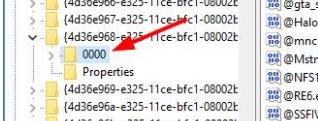
  • In the Registry window, go to the left side of the Registry hive and navigate to the following registry key.
  • HKEY_LOCAL_MACHINE\SYSTEM\ControlSet001\Control\Class\{4d36e968-e325-11ce-bfc1-08002be10318}\0000” OR “HKEY_LOCAL_MACHINE\SYSTEM\ControlSet001\Control\Class\{4d36e968-e325-11ce-bfc1-08002be10318}\0001“.
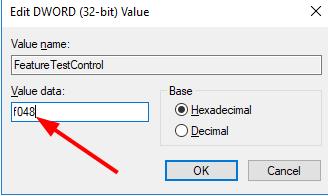
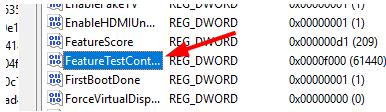
  • Once you reach the desired Registry key, look for the FeatureTestControl key and double click on it
  • Change the value data to “f048” and then click OK.
  • Close the registry editor and reboot your laptop.

Solution Four- Update Graphics drivers

There is a possibility the graphics drivers in your laptop are outdated. In that case, you need to update graphics drivers.

Automatic driver update tools offer many benefits, the most important ones being:

  • You can update device drivers automatically
  • The software scans and updates all outdated or missing drivers at one go
  • The tool picks the right drivers for your device and operating system, so you won’t have to worry about installing an incorrect driver by mistake
  • Automatic driver updates are 100% safe

Driver Updater is one of the best driver update tools out there. Outbyte Driver Updater will give you access to a database of over 1 million drivers. It will regularly scan your PC, suggesting new driver versions to install. Driver Updater contains drivers for a variety of Windows devices. With just one click, you can update drivers in your system.

Step 1
Click here to Install and launch the app

Step 2
Scan all devices

Step 3
Install or update drivers automatically


Start Download


Filed Under: Software Drivers

  • « Previous Page
  • 1
  • …
  • 67
  • 68
  • 69
  • 70
  • 71
  • …
  • 189
  • Next Page »


  • Recent Posts
  • Popular Posts
        

Read More Posts


Read More Posts

Drivers.com Sites

  • Software Drivers
  • Drivers Ed

About Us

  • Advertise
  • About Drivers
  • Drivers Support
  • Drivers.com Privacy Policy
  • Disclaimer
  • Software Drivers
  • Mac Fixes and Tips
  • PC Fix Tips
  • Security/ Backup
  • Tablets & Smartphones
  • Tech News

© Copyright 2026 PDE Publications Ltd. End User License Agreement (EULA)