Drivers.com

follow us:

facebook twitter
  • Home
  • Download Drivers
  • Drivers Help
  • PC/Mac Resources
  • Software Drivers
  • Mac Fixes and Tips
  • PC Fix Tips
  • Security/ Backup
  • Tablets & Smartphones
  • Tech News
  • Software Drivers
  • Mac Fixes and Tips
  • PC Fix Tips
  • Security/ Backup
  • Tablets & Smartphones
  • Tech News

No internet, secured error in Windows 10 Fixed (8 DIY Solutions)

By Susan C on October 1, 2021

No internet, secured error in Windows 10 Fixed (8 DIY Solutions)

Have you found yourself in a situation where the computer is connected to the Internet but you cannot open a webpage? Many Windows 10 users have complained about the “No internet, secured” error. Internet connectivity issues in Windows 10 are easy to solve and you don’t need to be a tech expert to fix this issue. Here we have shared some easy-to-follow solutions that can help resolve the “No internet, secured” error.

Solution One – Run the Network Troubleshooter

Windows 10 features in-built troubleshooting tools that can automatically check for errors and fix them. Since the “No internet, secured” error is related to the network, we will run Network Troubleshooter and see if it helps.

  • Click Start -> Settings (wrench icon). This open Settings window
  • Next, click Update and Security

  • In the left side bar, click Troubleshoot
  • In the right hand section, find and click additional troubleshooters
  • In the next screen, click Internet connections -> Run the troubleshooter
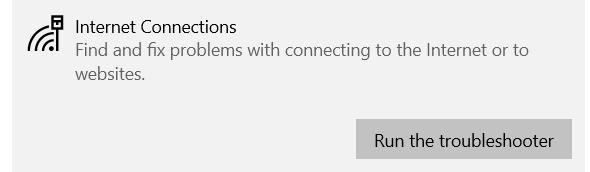
  • Wait for the troubleshooter to complete operation.

Solution Two – Enable the following networking options

Many Windows users were able to restore Internet connectivity after enabling these options. Here are the steps to follow

  • Click Start and type control panel
  • Click the Control panel from the search results
  • In the Control Panel window, click Network and Internet -> Network Connections
  • Select your Wi-Fi connection, right-click and select Properties
  • In the Wi-Fi Properties window, in the “This connection uses the following items:” tab, you need to place a tick for the following options:
  • File and Printer Sharing for Microsoft Networks
  • Client for Microsoft Networks
  • Link-Layer Topology Discovery Mapper I/O Driver
  • Internet Protocol Version 4 (TCP/IPv4)
  • Reliable Multicast Protocol
  • Internet Protocol Version 6 (TCP/IPv6)
  • Link-Layer Topology Discovery Responder

Solution Three – Refresh Windows IP configuration

There is a possibility the “No internet, secured” error could be related to the current IP configuration. In this solution, we will release and renew the IP that might resolve the error. Here are the steps to follow.

  • Click Start
  • Type PowerShell in the search bar
  • Click Windows PowerShell.
  • Enter the following commands in order given below
  • ipconfig /release
  • ipconfig /renew

These commands will force the computer to release current IPs and request new IPs from the router

Solution Four – Perform a Winsock reset

Reset Winsock is a command-line solution that can help resolve the “No internet, secured” error. Here are the steps to follow

  • Click the Start button and type cmd in the search bar
  • From the results, right-click on Command Prompt and select Run as Administrator.
  • Click Yes on the User Account Prompt for the program to be able to make changes to your computer.
  • In the Command Prompt window, type netsh winsock and hit Enter on the keyboard to run the command.
  • A message will appear saying to restart the computer to complete the reset.
  • Restart your computer
  • You have to connect to Wi-Fi manually after reboot

Solution Five – Disable VPN

VPN has in-built security features that can cause such errors. If you are using a VPN service, disable it and see if it helps. Refer to the VPN documentation to find the steps to disable VPN. After disabling VPN, try connecting to the Internet again.

Solution Six – Disable IPv6

IPv6 is set to replace IPv4 as the latter is running out of IP addresses. While IPv6 runs well on most hardware, it can be susceptible to errors. Disable IPv6 for a while and see if it resolves the error.

  • Right-click on the network icon/Wi-Fi icons in the system tray
  • Click Open Network and Sharing Center.
  • In the Network and Sharing Center window, click Change adapter
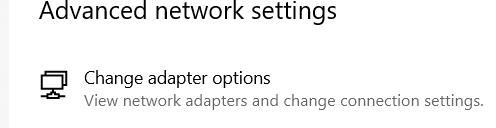
  • You will see a list of network adapters available on your computer
  • Right-click on your active network adapter (WiFi or Ethernet)
  • Click Properties
  • In the Properties window, scroll down until you see Internet Protocol Version 6
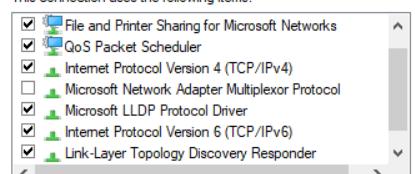
  • Uncheck the Internet Protocol Version 6 (TCP/IPv6) checkbox
  • Click OK to save changes
  • Restart your computer to allow the changes to take effect

Solution Seven – Set a new DNS server

The Domain Name System is like a phonebook. It provides you IP addresses of the websites you want to visit. Often the default DNS configuration does not work properly. In that case, you can set a new DNS server to access the Internet. Here are the steps to set a new DNS server.

  • Right-click on the network icon in the system tray
  • Click Open Network and Sharing Center.
  • In the Network and Sharing Center window, click Change adapter
  • You will see a list of network adapters available on your computer
  • Right-click on your active network adapter
  • Click Properties
  • Scroll down and select Internet Protocol Version 4
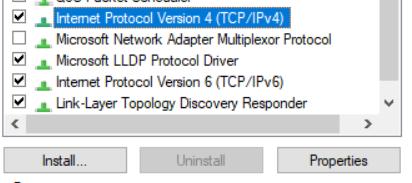
  • Click Properties
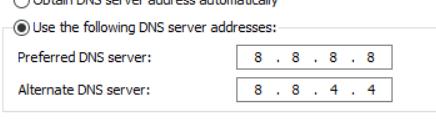
  • Check to Use the following DNS server addresses and enter Google DNS server IP addresses

  • Preferred DNS Server: 8.8.8.8
  • Alternative DNS Server: 8.8.4.4
  • Click OK

Solution Eight – Update Network drivers

The “No internet, secured” error could be the result of outdated drivers. In that case, you need to update the network driver. You can update drivers manually or using a driver update tool. The latter is much easier and faster, but we have discussed the steps for both methods. You can pick the one that works better for you.

Updating Network Drivers Manually

Here are the steps to follow:

  • Click the Start button, type Device Manager in the Start Search box
  • In the Device Manager window, locate and expand Network Drivers
  • Select the appropriate network adapter, right-click it, and then click Update Driver Software
  • In the next window, select the first option (which is “Search Automatically for Updated Driver Software”)
  • Follow the onscreen instructions
  • Reboot Windows

Updating Network Drivers Automatically

Outdated drivers can cause serious problems with your PC. With Driver Updater keeping your drivers up to date is very easy. With just a few clicks, you can update all your drivers. A free trial of this Driver Update Tool means you can give it a try without commitment.

Download using the link below and get your Driver problems fixed.

Start Download

Filed Under: PC Fix Tips Tagged With: no internet

d3dx9_43.dll missing error [6 DIY Solutions]

By Susan C on October 1, 2021

d3dx9_43.dll missing error [6 DIY Solutions]

If you are using your Windows computer for playing games, you might come across the d3dx9_43.dll missing error. The error usually appears when are trying to launch a game. You will not be able to run the game until the error is resolved. You may also receive the d3dx9_43.dll missing error with other applications, but it is mostly encountered when launching a game.

The error will only prevent you from running an app or game not from reinstalling the app or game. Let’s take a look at this error in detail.

What is d3dx9_43.dll missing error?

As the name suggests, the error informs you about a missing dll file. DLL stands for dynamic linked libraries. A DLL file is a library of code and data that can be used by one or more programs.

In Windows, much of the functionality of programs is provided by shared DLL files. The use of DLL files promotes code reuse, modularization of code, reduced disk space, and memory usage. When a program uses DLL, it depends on the DLL file on execution and may not run if the DLL is missing.

The d3dx9_43.dll is one of the files in the DirectX software collection. Advanced graphics program and Windows based games rely on DirectX for their smooth functioning..

Solution One – Install DirectX

Since the missing file is part of DirectX software collection, you need to install latest version of DirectX on your PC. Microsoft provides updates to DirectX but the version number remains same. Here are steps to install DirectX on your computer.

  • Click this link to download latest DirectX
  • Download the DirectX offline installer.
  • Run the offline installer. It will install all DirectX components on your computer including d3dx9_43. Dll. This is a preferred option if the d3dx9_43. Dll is corrupted.

You can also use web installed to install DirectX. However, it will not replace any corrupt files. Hence, experts suggest users to opt for offline DirectX installer.

Solution Two- Install updates

Since Windows 8, Microsoft provides DirectX updates through Windows updates. Windows 8 uses DirectX 11.1 while Windows 10 uses DirectX 12. To get latest DirectX for your computer, you need to install all pending updates. Here are the steps to follow.

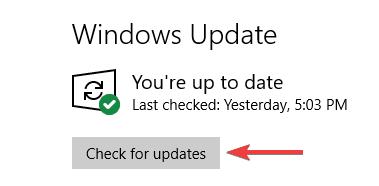
  • Click Start->Settings(cog wheel)
  • In the Settings window, click Update & Security
  • Click check for updates button

Windows will check for updates and install them.

Solution Three – Reinstall problematic program

Most games and programs are bundled with DirectX version. It means everything needed to run the game/program is included in the setup file. If you are facing d3dx9_43. dll file missing error with specific program or game, then uninstall and reinstall the game. Reinstalling the game/program will ensure all software components needed by game/program are newly copied/installed in your system.

Solution Four – Run SFC and DISM scan

SFC (System file checker) is an in-built windows maintenance tool that checks the integrity of system files and replaces any missing or corrupt system files. Since d3dx9_43. Dll file is integrated in new Windows builds (8 and 10), running an SFC scan can help resolve the issue. Here are the steps to follow.

  • Click Start and type cmd in the search box
  • From the results, right-click Command Prompt and select Run as administrator
  • Click Yes in the User Account Control Menu prompt
  • When you see a blinking cursor appears in the command window, type sfc/scannow
  • Hit Enter on the keyboard

Wait for the SFC scan to complete.

Launch the problematic game or program and see if the issue is resolved. If you still get d3dx9_43. dll file missing error, run DISM scan. Here are the steps to follow

  • Open command prompt with administrator privileges
  • When you see a blinking cursor appears in the command window, type DISM /Online /Cleanup-Image /RestoreHealth
  • DISM scan will now start. Wait for the process to complete

Solution Five – Copy d3dx9_43. dll file from another computer

You can copy d3dx9_43. dll file from another computer. However, the version and architecture of other computer needs to be same. For example, if you have a Windows 10 64-bit operating system running on your PC. The other Windows PC (source of DLL file) should be running Windows 10 64-bit operating system. The same rule applies to 32-bit Windows operating system. Here are steps you need to follow on another computer

  • Press the Windows key + E together to open Windows Explorer
  • Go to C:\Windows\System32
  • copy d3dx9_43. dll and save it on your flash drive

Here are the steps you need to perform on your computer

  • Attach the flash drive to your computer
  • Open Windows Explorer on your computer and go to C:\Windows\System32
  • Copy the d3dx9_43. dll file from USB to C:\Windows\System32

Solution Six – Update Graphics Drivers

Since d3dx9_43. dll file is related to graphics, you can manually update display drivers on your Windows PC. Here are the steps to follow

  • Go to your video manufacturer website
  • Enter the product serial number and go to the Downloads section
  • Look for latest version of display driver for your graphics card
  • Download latest graphics driver
  • Double click the installation file and follow onscreen instructions. You may have to reboot windows once the installation is complete

Alternatively, you can use a Driver Update Tool to updated drivers automatically.

Outdated drivers can cause serious problems with your PC. With Driver Updater keeping your drivers up to date is very easy. With just a few clicks, you can update all your drivers. A free trial of this Driver Update Tool means you can give it a try without commitment.

Automatic driver update tools offer many benefits, the most important ones being:

  • You can update device drivers automatically
  • The software scans and updates all outdated or missing drivers at one go
  • The tool picks the right drivers for your device and operating system, so you won’t have to worry about installing an incorrect driver by mistake
  • Automatic driver updates are 100% safe

Driver Updater is one of the best driver update tools out there. Outbyte Driver Updater will give you access to a database of over 1 million drivers. It will regularly scan your PC, suggesting new driver versions to install. Driver Updater contains drivers for a variety of Windows devices. With just one click, you can update drivers in your system.

Step 1
Click here to Install and launch the app

Step 2
Scan all devices

Step 3
Install or update drivers automatically


Start Download


Filed Under: PC Fix Tips Tagged With: d3dx9_43.dll missing

How to enable flash on Google Chrome, Mozilla Firefox, Microsoft Edge, and Opera browser?

By Susan C on September 20, 2021

How to enable flash on Google Chrome, Mozilla Firefox, Microsoft Edge, and Opera browser?

If you are an Internet user, you need to download and install Flash Player to view and interact with SWF (small web format) content. An SWF file contains vector-based animations and videos.

Why do you need to enable flash player in your browser?

Many web developers embed Flash player in their web pages as it is the single most popular multimedia platform in the world. Many web projects like online game portals are based on Flash player software. When developers use Flash player in the web pages, they have wider hosting options on the type of media and sources of those media on the page. Using flash player software also gives more content options to visitors which can be an advantage.

Besides being a reliable platform, Flash player is completely free and developers don’t have to worry about security issues as the software receives regular performance and security updates. Many times the flash player option is disabled in your internet browser which prevents you from watching the media hosted on the webpage. Here we have shared steps to enable flash player in popular web browsers.

Steps to enable flash in Google Chrome

  • Launch Google chrome
  • Type the following in the address bar – chrome://settings/content and hit Enter on the keyboard
  • On the next screen look for option that mentions settings of Flash player
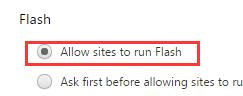
  • Click Allow sites to run flash
  • Click Done

There may be a few sites you access regularly and they need flash player to show content. You can activate flash player by default for these websites by following steps given below.

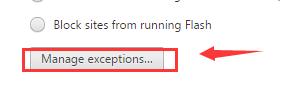
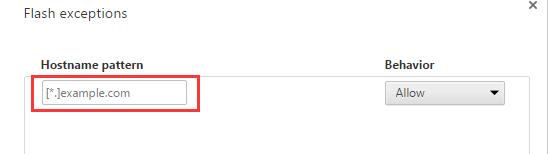
  • Under Pop-ups, click Manage Exceptions
  • Type the website URL for which you want to enable flash
  • Make sure the behavior is set to Allow
  • Click Done

Steps to enable flash in Mozilla Firefox

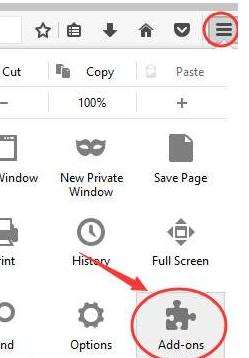
  • Launch Firefox and click the hamburger menu icon(three horizontal bars) on the right
  • When the menu opens, click Add-ons
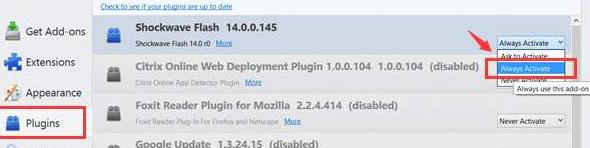
  • In the Plugins list, locate Shockwave flash player
  • From the drop-down menu, choose Always Activate

Steps to enable flash in Microsoft Edge

Microsoft has renamed its browser – Edge. It is bundled with all the latest versions of the Windows operating system.

  • Launch Edge browser
  • Click the three vertical dot icons on the right to access settings
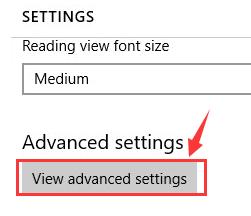
  • In the next window, click View Advanced settings
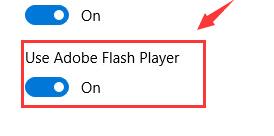
  • Click the toggle switch Use Adobe flash player and make sure it rests at the On position

Steps to enable flash in Opera browser

  • Launch Opera browser
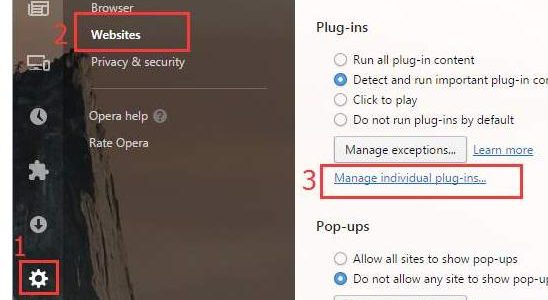
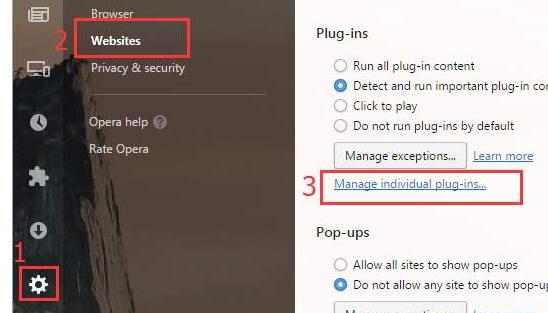
  • The menu bar is located on left side of browser. Scroll down the menu bar and click Settings (cogwheel)
  • Next click Websites
  • Click Manage individual plug-ins
  • In the next screen, look for the “Adobe flash player” option
  • Click enable button

Using the right software, having an advanced malware protection system, and installing important Windows updates are the key to keeping your Windows system error-free. Another thing you must do is install latest drivers whenever they are available. The easiest way to do so is by using reliable driver update software.

Automatic driver update tools offer many benefits, the most important ones being:

  • You can update device drivers automatically
  • The software scans and updates all outdated or missing drivers at one go
  • The tool picks the right drivers for your device and operating system, so you won’t have to worry about installing an incorrect driver by mistake
  • Automatic driver updates are 100% safe

Driver Updater is one of the best driver update tools out there. Outbyte Driver Updater will give you access to a database of over 1 million drivers. It will regularly scan your PC, suggesting new driver versions to install. Driver Updater contains drivers for a variety of Windows devices. With just one click, you can update drivers in your system.

Step 1
Click here to Install and launch the app

Step 2
Scan all devices

Step 3
Install or update drivers automatically


Start Download


Filed Under: PC Fix Tips Tagged With: enable flash

  • « Previous Page
  • 1
  • …
  • 65
  • 66
  • 67
  • 68
  • 69
  • …
  • 189
  • Next Page »


  • Recent Posts
  • Popular Posts
        

Read More Posts


Read More Posts

Drivers.com Sites

  • Software Drivers
  • Drivers Ed

About Us

  • Advertise
  • About Drivers
  • Drivers Support
  • Drivers.com Privacy Policy
  • Disclaimer
  • Software Drivers
  • Mac Fixes and Tips
  • PC Fix Tips
  • Security/ Backup
  • Tablets & Smartphones
  • Tech News

© Copyright 2026 PDE Publications Ltd. End User License Agreement (EULA)