Drivers.com

follow us:

facebook twitter
  • Home
  • Download Drivers
  • Drivers Help
  • PC/Mac Resources
  • Software Drivers
  • Mac Fixes and Tips
  • PC Fix Tips
  • Security/ Backup
  • Tablets & Smartphones
  • Tech News
  • Software Drivers
  • Mac Fixes and Tips
  • PC Fix Tips
  • Security/ Backup
  • Tablets & Smartphones
  • Tech News

How to set up a Bluetooth Soundbar?

By Susan C on October 27, 2021

How to set up a Bluetooth Soundbar?

The soundbar is a special type of speaker that is designed to make the audio in your device sound louder. These speakers can connect to televisions, smartphones, and computers wirelessly through Bluetooth.

Soundbars have several speakers (1-3) and a subwoofer fitted in an enclosure that creates a better quality of sound than your devices. They are easy to set up as long as you know the right steps.

In this post, we’ll discuss steps to set up a Bluetooth soundbar in Windows 10. The steps are similar to those required for pairing the Bluetooth soundbar with your television or smartphone.

Activate pairing mode on your soundbar

Pairing your Bluetooth soundbar with Windows 10 PC is essential for connecting both devices wirelessly. When you switch on the soundbar, Bluetooth is activated. However, it needs to enter pairing mode to scan for nearby devices and establish a Bluetooth connection.

The soundbar comes with a dedicated button that forces the speaker into Bluetooth pairing mode. In some Soundbars, you need to long-press the start button on the speaker to activate the pairing mode. Refer to your soundbar documentation to know how to activate pairing mode in Bluetooth soundbar.

Steps to set up Bluetooth Soundbar

If you are setting up a Bluetooth soundbar on your desktop, make sure it has a Bluetooth adapter installed. Laptops and Smartphones come with Bluetooth functionality, so there should be no problem in setting up a Bluetooth soundbar.

Here are the steps to follow.

  • Click Start
  • Type Bluetooth in the search bar
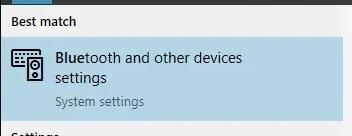
  • Click Bluetooth and other device settings from the search results
  • In the Settings window, go to the right-hand pane and make sure the Bluetooth toggle switch is at ON position; it will be blue. If the Bluetooth toggle switch is grayed out, click the toggle switch to turn on Bluetooth
  • Next click Add Bluetooth or other device

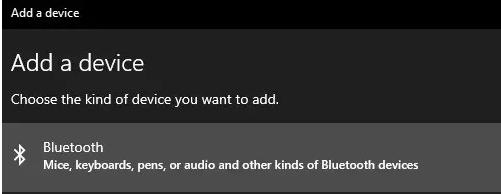
  • In the Add device popup dialog, click Bluetooth. When you click this option Windows 10 computer will search for Bluetooth devices nearby and present you with an option to connect
  • Select your soundbar from the list of devices. Windows may list your soundbar with its model name, serial number, or just soundbar.
  • When you find the correct device, click to select and then click Connect

After this step, the Window’s sound output would be directed to the soundbar. Play some video or audio files to see if the soundbar connection is working.

If you are not able to hear any sound, you need to make a few changes to the sound/audio settings on your computer. Here are the steps to follow.

  • Click Start->Settings
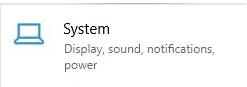
  • In the Settings window, click System

  • In the next window, navigate to the Sound option in the left pane and click it
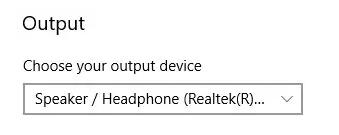
  • In the right pane, go to the Output section and click the drop-down list to see all output options
  • You will see the Bluetooth soundbar as one of the options in the drop-down list, click to select it.

  • Now Bluetooth soundbar is your default sound output.
Filed Under: PC Fix Tips

Logitech Wireless Mouse Not Working [fixed]

By Susan C on October 7, 2021

Is your Logitech wireless mouse not working?


This is one issue you can easily fix on your own and in this post we will show you how to go about it. These solutions has helped other users resolve the same issue with their Logitech mouse (M325, M570, M705, M510, M185, etc.).

All of the solutions discussed here are something that an average Windows user can do themselves without any technical help. Of course, you don’t have to attempt all of them; instead, use them in the order they appear below until you are able to fix the issue.

Note: All of the solutions discussed in this post are for the Logitech mouse connecting via a USB receiver. These methods are not intended for the Logitech mouse connecting via Bluetooth. Therefore, before you start, ensure you are using a Logitech wireless USB mouse.

Check your Logitech wireless mouse connection

First things first, make sure the mouse power switch is not mistakenly turned off. Generally, the power switch is located either at the back or at the bottom of the Logitech wireless mouse.

Once you have made sure the power switch is turned on, try the solutions listed below.

Solution #1 – Remove the receiver and batteries for a few seconds

Before you try more complicated solutions, first remove the unifying receiver as well as the batteries for a few seconds (5 seconds or so). Many Logitech users were able to solve the issue using this simple method, so it’s worth giving it a try. When you remove and reinsert the device, it allows it to restart and gives the computer a chance to recognize it.

Logitech Drivers Download & Updates

Solution #2 – Uninstall and then reinstall mouse driver

In most cases, the mouse works automatically without you having to install the drivers manually. When you connect a wireless mouse for the first time, Windows installs the correct driver. However, the Logitech mouse driver, like any other piece of software, can develop issues. And that’s why uninstalling and reinstalling your Logitech wireless mouse driver can be a good idea if it has stopped working.

Here are the steps to follow:

  • Press Win + R
  • In the run dialog box, type devmgmt.msc and then press Enter
  • In the device manager window, browse to Mice and other pointing devices (you can use the Tab key for this purpose) and then press Alt + right arrow to expand it (Pressing Alt + left arrow keys will close the selected category). Your Logitech mouse will be listed under this very category
  • Browse to the Logitech mouse device using arrow keys and then press Shift + F10 This will open the context menu and then select Uninstall
  • Reboot windows. Upon restart, Windows will automatically install the correct driver

Now check if the issue is fixed. If it isn’t, consider updating your mouse driver.

Solution #3 – Update the Logitech mouse driver

Outdated drivers can cause all sorts of issues. If your mouse driver is old or faulty, you can get an error. Logitech, like other hardware manufacturers, periodically releases driver updates, but manually updating a driver can be a time-consuming process.

Automatic driver update tools offer many benefits, the most important ones being:

  • You can update device drivers automatically
  • The software scans and updates all outdated or missing drivers at one go
  • The tool picks the right drivers for your device and operating system, so you won’t have to worry about installing an incorrect driver by mistake
  • Automatic driver updates are 100% safe

Driver Updater is one of the best driver update tools out there. Outbyte Driver Updater will give you access to a database of over 1 million drivers. It will regularly scan your PC, suggesting new driver versions to install. Driver Updater contains drivers for a variety of Windows devices. With just one click, you can update drivers in your system.

Step 1
Click here to Install and launch the app

Step 2
Scan all devices

Step 3
Install or update drivers automatically

Start Download

Solution #4 – Change the USB port

One of the reasons for the titled error is USB hub failing to provide sufficient power to your Logitech mouse. For this reason, we recommend you try connecting the unifying receiver via another USB port.

All you have to do is first unplug receiver from your USB port. Next, plug it back into a different USB port. Now check if the issue is fixed. If not, try another port and so forth until you have checked all your USB ports.

Solution #5 – Check receiver on a different computer

If the issue still persists, we can’t rule out the possibility of a faulty receiver. A defective or faulty receiver can result in the aforementioned error. The easiest way to check whether or not the receiver is faulty is by testing it on a different PC or laptop.

Here are the steps to follow:

  • Open device manager on a different computer (You can check the steps shared in the solution 2)
  • Locate and expand Mice and other pointing devices
  • Now plug receiver into any of the USB ports
  • In case the computer recognizes the receiver, below the Mice and other pointing devices you will see a new HD-compliant mouse. This, in turn, means there is no problem with the receiver. You can now go to Solution 6

In case there is no new category displayed under Mice and other pointing devices category, what it means is that the computer can’t recognize the receiver. In other words, the receiver is probably broken and therefore you would need to replace it.

Solution #6 – Replace batteries

If there’s a problem with the batteries, the wireless mouse will not function properly or at all. First, remove the batteries and re-insert them. If this doesn’t work, use new batteries.

Filed Under: PC Fix Tips Tagged With: wireless mouse

Dell Drivers Download for Windows 7

By Susan C on October 6, 2021

Dell Drivers Download for Windows 7

Want to update Dell drivers for windows 7?

If you need to update your Windows 7 Dell Drivers, ensure you only download official Dell drivers. Otherwise, you run the risk of getting your Windows computer becoming infected with malware, spyware, or viruses. Many websites contain harmful programs disguised as genuine files, so only download Dell drivers from Dell’s official website or reputable Driver Update Tool.

Continue reading to find out how to download Dell drivers for Windows 7.

Download & Update Dell Drivers

Downloading Dell Drivers for Windows 7

You can download Dell drivers — or, for that matter, any device drivers — either manually or automatically. The manual process is not only time-consuming but also requires a bit of technical knowledge. If you want an easier method, use a reliable driver update tool.

In this post, we have shared both the methods. You can pick the one that works best for you.

Downloading Dell Windows 7 Drivers Manually

Here are the steps to follow:

  • Open Chrome or any other internet browser
  • Navigate to Dell driver download page
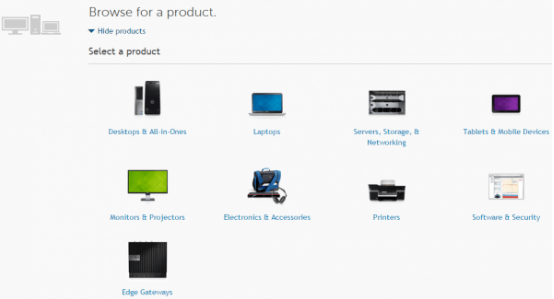
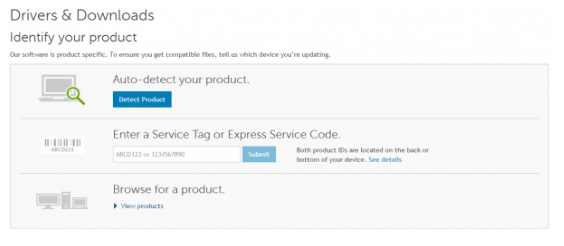
  • Next, identify your Dell product. You can do so in three ways. Here we will be using the “Browse for a product” option for “Dell Vostro 3900”. However, if you don’t have the model name of the product with you, it’s better to click the Detect Product option. This allows you to download and install Dell System Detect, which will automatically detect your product

  • View products and then choose the right product. In our case, we chose Desktops & All-in-ones

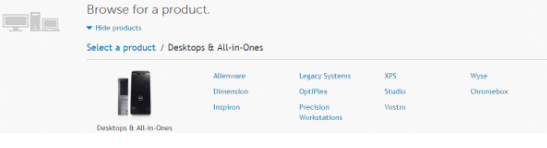
  • Now, choose the right series. We have selected Vostro for Dell Vostro 3900

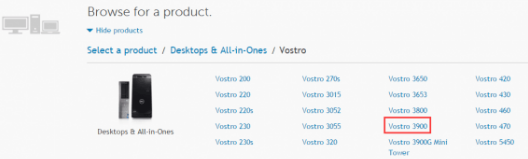
  • Choose the specific product

  • Now you will be taken to the download page. Here, click Find it myself. Next, select your OS (
    If you are running Windows 32-bit, then change the OS to 32-bit. Likewise those who use 64-bit Windows must select 64-bit)

  • Now you will see a list of available drivers. Download the correct driver

Download Dell Windows 7 Drivers Automatically

If you don’t want to go through all the hassle the manual method entails, we recommend you use a Driver Update Tool. With it installed, you can download the latest drivers for your Dell and other devices.

Outdated drivers can cause serious problems with your PC. With Driver Updater keeping your drivers up to date is very easy. With just a few clicks, you can update all your drivers. A free trial of this Driver Update Tool means you can give it a try without commitment.

Download using the link below and get your Driver problems fixed.

Start Download

Filed Under: PC Fix Tips Tagged With: Dell Drivers

  • « Previous Page
  • 1
  • …
  • 63
  • 64
  • 65
  • 66
  • 67
  • …
  • 189
  • Next Page »


  • Recent Posts
  • Popular Posts
        

Read More Posts


Read More Posts

Drivers.com Sites

  • Software Drivers
  • Drivers Ed

About Us

  • Advertise
  • About Drivers
  • Drivers Support
  • Drivers.com Privacy Policy
  • Disclaimer
  • Software Drivers
  • Mac Fixes and Tips
  • PC Fix Tips
  • Security/ Backup
  • Tablets & Smartphones
  • Tech News

© Copyright 2026 PDE Publications Ltd. End User License Agreement (EULA)