Drivers.com

follow us:

facebook twitter
  • Home
  • Download Drivers
  • Drivers Help
  • PC/Mac Resources
  • Software Drivers
  • Mac Fixes and Tips
  • PC Fix Tips
  • Security/ Backup
  • Tablets & Smartphones
  • Tech News
  • Software Drivers
  • Mac Fixes and Tips
  • PC Fix Tips
  • Security/ Backup
  • Tablets & Smartphones
  • Tech News

How to remove cookies in Chrome?

By Susan C on November 17, 2021

How to remove cookies in Chrome?

When you visit websites, you might have seen prompts like save cookies, save necessary cookies, or save all cookies. Cookies can be very useful in that they keep track of things you do and store important information like login details and personal information.

The information stored in the form of cookies is used when you visit the websites the next time. Websites use it to understand your preferences and improve your browsing experience.

Over time, the cookies get collected on your computer and can results in a large store of data. This in turn can make it difficult for Chrome to find relevant information, as a result of which you may find your Chrome browser slowing down.

A simple solution to this problem is deleting all cookies. There is no harm in deleting all cookies as the browser can get information from the website server the next time you visit a particular website.

Here’s what you need to do to cookies in Chrome.

  • Open Chrome
  • Click three vertical dots that appear on the top right corner of the browser. It opens the Menu.
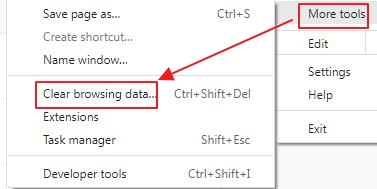
  • Click More tools
  • Click Clear browsing data
  • In the Clear browsing data window, click the Time range drop-down list and select All time
  • Check the following boxes – Browsing history, Download history, Cookies, and other site data, Cached Images and Files, Site Settings
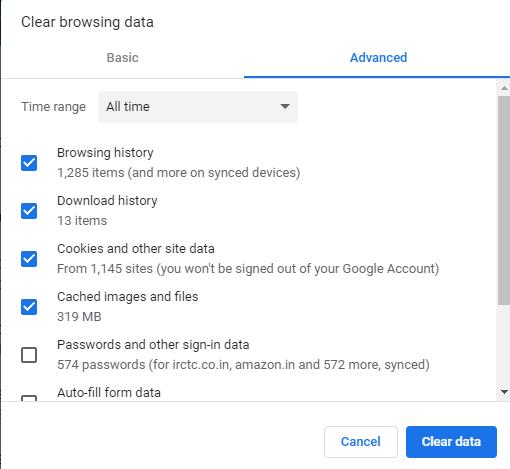
  • Click Clear Data

Now try opening a website and the browser should work faster than before.

As you can see, removing cookies in Chrome is straightforward. But what if the problem is with your computer? What should you do if your computer has suddenly started running slowly or showing random errors?

Such computer issues are not difficult to resolve either, especially if you have a reliable driver update tool. Outdated, faulty, or incorrect drivers can cause all sorts of problems, including the aforementioned ones. So, the best way to keep your Windows computer fit and healthy is by regularly updating drivers.

Benefits of using an automatic driver update tool

Automatic driver update tools offer many benefits, the most important ones being:

  • You can update device drivers automatically
  • The software scans and updates all outdated or missing drivers at one go
  • The tool picks the right drivers for your device and operating system, so you won’t have to worry about installing an incorrect driver by mistake
  • Automatic driver updates are 100% safe

Driver Updater is one of the best driver update tools out there. Outbyte Driver Updater will give you access to a database of over 1 million drivers. It will regularly scan your PC, suggesting new driver versions to install. Driver Updater contains drivers for a variety of Windows devices. With just one click, you can update drivers in your system.

Step 1
Click here to Install and launch the app

Step 2
Scan all devices

Step 3
Install or update drivers automatically

 

Start Download


Filed Under: PC Fix Tips Tagged With: remove chrome cookies

How to remove cookies in Firefox

By Susan C on November 8, 2021

How to remove cookies in Firefox

Cookies are text files and small pieces of data that are stored by websites on your computer. They store personal information like username and password and are used to identify your computer. Browser cookies are used to identify the user and improve the browsing experience.

Chrome, Firefox, Safari, or Opera — Which is the best browser?

There can be several reasons to remove cookies in Firefox. For instance, you might be seeing pop-up ads you are not interested in.

If you are concerned about privacy and scared of cookie hijacking, you may want remove cookies in Firefox.

Here are the steps to follow.

  • Open Firefox
  • Click three horizontal bar icon on the top right corner of the browser. It opens the browser menu
  • Click Settings from the menu
  • In the Settings window, click Privacy and Security
  • In the right-hand pane, locate Cookies and Site data
  • Click Clear data
  • In the Clear data window, check the Cookies and site data and Cached web content options
  • Click Clear

The above actions will remove cookies from Firefox. If your browsing experience has not improved after removing cookies from Firefox, try updating drivers.

Outdated drivers can cause a number of issues, so it is best to keep your drivers up-to-date.

Benefits of using an automatic driver update tool

Automatic driver update tools offer many benefits, the most important ones being:

  • You can update device drivers automatically
  • The software scans and updates all outdated or missing drivers at one go
  • The tool picks the right drivers for your device and operating system, so you won’t have to worry about installing an incorrect driver by mistake
  • Automatic driver updates are 100% safe

Driver Updater is one of the best driver update tools out there. Outbyte Driver Updater will give you access to a database of over 1 million drivers. It will regularly scan your PC, suggesting new driver versions to install. Driver Updater contains drivers for a variety of Windows devices. With just one click, you can update drivers in your system.

Step 1
Click here to Install and launch the app

Step 2
Scan all devices

Step 3
Install or update drivers automatically

 

Start Download


Filed Under: PC Fix Tips Tagged With: remove firefox cookies

Bluetooth Driver Troubleshooting Tips for Windows 10

By Susan C on October 27, 2021

Bluetooth Driver Troubleshooting Tips for Windows 10

Bluetooth is an important functionality in modern computers. It allows users to connect their Bluetooth-enabled devices to their computers wirelessly. However, sometimes users are not able to connect Bluetooth enabled devices to their Windows 10 PC. When this happens, you may notice signs like:

  • Bluetooth icon is missing from the system tray or you cannot turn Bluetooth On or Off
  • Bluetooth is not shown in Device Manager
  • Bluetooth stops working after installing an update
  • Bluetooth stops working after upgrading to Windows 10 from Windows 7/8 or Windows 8.1.

In this post, we will discuss some Bluetooth driver troubleshooting tips for Windows 10 that can help you.

Solution One – Check if Bluetooth is enabled in Windows 1o

Sometimes users forget to turn on the Bluetooth functionality. If you are facing any problem with Bluetooth, first check whether or not Bluetooth is enabled.

Here are the steps to follow.

  • Go to the Windows notification area located at the right bottom corner of the desktop
  • Click the notification area to expand
  • If the Bluetooth option is grayed out, the Bluetooth functionality is switched off. In that case, click the Bluetooth icon to turn it on.
  • If the Bluetooth symbol is blue, it means the Bluetooth option is enabled. In that case, you don’t need to do anything and perform other troubleshooting steps. In some cases, the Bluetooth icon also shows the number of connected devices.
  • Alternatively, you can turn the Bluetooth On/Off with the toggle switch. Go to Settings – Devices – > Bluetooth and other devices.
  • On the right-hand side, you will see the Bluetooth toggle switch. Click the toggle switch to turn Bluetooth On/Off a few times. In the end, make sure the Bluetooth toggle switch is at the On position

Solution Two-Turn Off Airplane Mode in Windows 10

Airplane mode in Windows is a quick way to turn off all wireless communication in your computer. If Airplane Mode is on, the Bluetooth functionality won’t work.

It’s possible that you might have turned on Airplane mode accidentally. You can check whether this is the case or not by performing these simple steps:

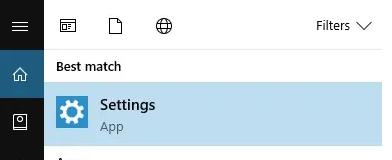
  • Click Start-> Settings
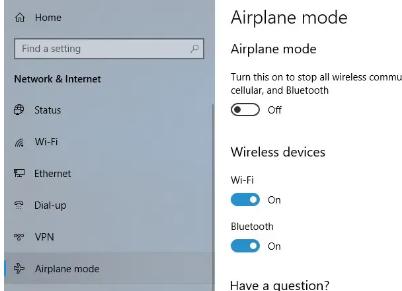
  • In the Settings window, click Network and Internet
  • In the left-hand pane, click Airplane Mode
  • Look for the Airplane Mode toggle switch. If it is at on position, click the switch to turn off Airplane mode.

Solution Three – Check your Bluetooth device

The Bluetooth functionality devices are not enabled by default. You need to start Bluetooth service in your device to connect it with your Windows 10 computer.

Check your Bluetooth device to make sure the Bluetooth functionality is switched on. Also, make sure the Bluetooth device is nearby. Additionally, check your Bluetooth device instruction manual to find out how you can enable Bluetooth in the device.

Here are some troubleshooting steps you can follow

  • Turn off your Bluetooth device. Wait for few seconds and turn it on again
  • Go to Bluetooth settings and turn on Bluetooth
  • Make sure the Bluetooth device is closer to your Windows 10 computer.
  • Check whether the Bluetooth device can establish a Bluetooth connection with your Windows 10 computer.
  • If you are not able to connect your Bluetooth device to Windows 10 computer, try the troubleshooting steps given below

Solution Four – Reinstall your Bluetooth device

Often reinstalling your Bluetooth device can resolve Bluetooth connectivity issues. Here are the steps to reinstall the Bluetooth device.

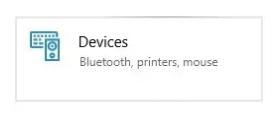
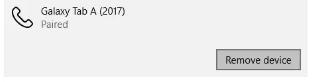
  • Click Start-> Settings -> Devices -> Bluetooth and other devices
  • In the right-hand pane, go to the other devices section and select the device having Bluetooth connection issues.
  • Click Remove device
  • When the system prompts for confirmation, click Yes
  • After you have removed the Bluetooth device, you need to reconnect it to your windows 10 computer. Here are the steps to follow.
  • Click Start-> Settings -> Devices -> Bluetooth and other devices
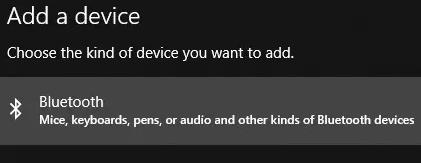
  • In the right-hand pane, click Add Bluetooth or other device
  • In the Choose kind of device menu, click Bluetooth
  • Click the device you want to add
  • Some devices require a PIN to pair. Windows will show you a PIN on the screen for pairing the Bluetooth device. Check your Bluetooth device screen and confirm pairing. On some devices, you need to enter the PIN shown on Windows 10 computer screen to complete the pairing.

Solution Five- Run Windows 10 Troubleshooter

Windows 10 comes with an in-built troubleshooter tool that can fix most connectivity issues. Here are the steps to run Windows 10 troubleshooter.

  • Click Start button-> Settings
  • In the Settings window, click Update and Security
  • In the left-hand pane, click Troubleshoot
  • In the right-hand pane, click Bluetooth under Find and fix other problems
  • Windows 10 will launch the Bluetooth troubleshooter. Wait until the troubleshooter completes its operation
  • Follow the troubleshooter prompts for a guided solution

Solution Six – Special Case- Bluetooth Audio

Many users complain of low-quality sound when their Bluetooth audio device is connected to Windows 10 computer. Such a problem can occur when the discovery mode is open on your Windows 10 PC. In that case, windows will continuously search for devices to connect.

Additionally, many users do multitasking like transferring files through Bluetooth and listening to the audio on their Bluetooth device. The Bluetooth device is not capable of fast transfers, and if you are performing two tasks simultaneously, there’s a good chance that one task will get affected. If you are experiencing similar issues, follow the steps given below.

  • Click Start
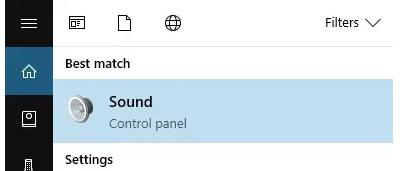
  • Type sound in the search bar
  • Click Sound in the search results
  • In the Sound settings, select your Bluetooth audio and click Set Default
  • Click Apply and then click OK

Solution Seven – Check your Windows 10 Bluetooth Drivers

Sometimes Bluetooth problems can be caused bu missing or outdated Bluetooth drivers. You can fix this issue by performing these steps:

  • Click Start Button
  • Type Device Manager in the search box
  • Click Device Manager from the search results
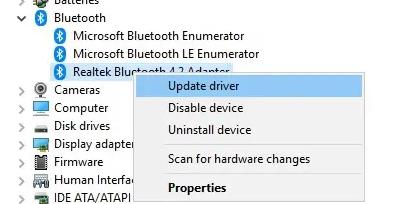
  • In the Device Manager window, click Bluetooth and expand it
  • Right-click Bluetooth adapter and click Update Driver
  • In the next window, click Search automatically for updated driver software.
  • Windows will connect to the Internet and search for driver updates and install them.
  • Follow any prompts shown on the screen to update your drivers

Updating Drivers Automatically

Automatic driver update tools offer many benefits, the most important ones being:

  • You can update device drivers automatically
  • The software scans and updates all outdated or missing drivers at one go
  • The tool picks the right drivers for your device and operating system, so you won’t have to worry about installing an incorrect driver by mistake
  • Automatic driver updates are 100% safe

Driver Updater is one of the best driver update tools out there. Outbyte Driver Updater will give you access to a database of over 1 million drivers. It will regularly scan your PC, suggesting new driver versions to install. Driver Updater contains drivers for a variety of Windows devices. With just one click, you can update drivers in your system.

Step 1
Click here to Install and launch the app

Step 2
Scan all devices

Step 3
Install or update drivers automatically
 

Start Download


What you should do if the Bluetooth icon is missing from your computer?

In some cases, you will see there is no Bluetooth icon in the system tray, and searching for Bluetooth settings in windows yields no results.

If you are experiencing a similar issue, follow the steps given below.

  • Open Device Manager window (refer to the steps in the Update driver section)
  • Go to the Bluetooth section and expand it
  • Right-click Bluetooth adapter and click Uninstall device
  • Close Device Manager
  • Restart your computer
  • When the computer reboots, Windows will identify the Bluetooth adapter and install appropriate drivers. This will make the Bluetooth icon appear again in the system tray
  • If you do not see a Bluetooth icon in the system tray after reboot, do the following
  • Open Device Manager
  • Click Action -> Scan for hardware changes. This will allow Windows to detect Bluetooth adapters and missing drivers. It will install reinstall Bluetooth drivers.

Filed Under: PC Fix Tips Tagged With: bluetooth troubleshooting

  • « Previous Page
  • 1
  • …
  • 62
  • 63
  • 64
  • 65
  • 66
  • …
  • 189
  • Next Page »


  • Recent Posts
  • Popular Posts
        

Read More Posts


Read More Posts

Drivers.com Sites

  • Software Drivers
  • Drivers Ed

About Us

  • Advertise
  • About Drivers
  • Drivers Support
  • Drivers.com Privacy Policy
  • Disclaimer
  • Software Drivers
  • Mac Fixes and Tips
  • PC Fix Tips
  • Security/ Backup
  • Tablets & Smartphones
  • Tech News

© Copyright 2026 PDE Publications Ltd. End User License Agreement (EULA)