Drivers.com

follow us:

facebook twitter
  • Home
  • Download Drivers
  • Drivers Help
  • PC/Mac Resources
  • Software Drivers
  • Mac Fixes and Tips
  • PC Fix Tips
  • Security/ Backup
  • Tablets & Smartphones
  • Tech News
  • Software Drivers
  • Mac Fixes and Tips
  • PC Fix Tips
  • Security/ Backup
  • Tablets & Smartphones
  • Tech News

Hidden Chrome Settings you should adjust

By Susan C on December 13, 2021

Google Chrome is one of the most popular Internet browsers around with nearly 2.65 billion users worldwide. The chrome is known for providing fast and safe browsing experience. While chrome works like a charm right out of the box, there are certain hidden settings that can considerably improve user experience.

In this post, we will talk about hidden chrome settings that you should know if you want a better browsing experience.

Access Google Settings

To access Chrome’s settings, click the three vertical dots that appear on the top right hand corner of the browser. Next, click Settings from the menu.

Google chrome has several internal pages and Chrome: // Settings is one of it. You can also type the Chrome: // Settings in the Omnibar to access the Settings page. To see all internal pages of the Chrome type Chrome: //about in the omnibox and press Enter on keyboard.

The Settings page gives you access to basic settings of the Chrome browser. Look for Privacy and Security option in the left hand pane and click on it. Here you can change permissions regarding how Chrome manages security certificates, passwords, and accesses services like Gmail. You can also determine how Chrome caches data.

Chrome Permission Settings

Chrome has a dedicated section for site settings. These are high priority settings that give websites to access your computer’s hardware.

As web technologies improve, web applications have become smarter and offer better user experience by accessing your computer hardware. To access site settings follow the steps given below.

  • Click Privacy and Security
  • Click Site Settings

Some of the important site settings you need to look at are

All sites –It gives you an overview of current settings along with specific site settings

Cookies – they are integral part of your browsing experience. The recommended settings are “Allow Sites to save and read cookie data”.

Location – today’s website access user’s geographical location to deliver specific content to the browser. The recommended setting is “Ask before accessing”

Camera – Some websites need access to camera for initiating video chat. The recommended setting is “Ask before accessing”

Microphone – some websites need access to microphone for audio chat. The recommended setting is “Ask before accessing”

Motion Sensors- Some websites access motion sensors to collect data about users. The websites collects information about unique patterns that tie specific users to their devices. It allows them to track users. The recommended setting is Block sites from using motion sensors”.

Notifications – When you visit a website, it seeks your permissions to send notifications. Websites create notifications in your browser even when you are not visiting the website. The recommended settings is “Ask before sending”

JavaScript – Most website use JavaScript (ECMA 6), CSS 4, and HTML5.  The recommended setting is “Allowed”

Flash – Though Flash was a great technology in the past, it carries inherent risks in current Internet infrastructure. Hence, most companies are phasing out flash from their websites and switching to new technologies. The recommended setting is “Ask First”

Images – they are integral part of websites but they also affect the user experience. Too many images can slow down browsing and increase the data you use. You can turn off all images that can load the pages faster and also reduce data usage.

Popups and Redirects – they are not only annoying but can be harmful too. Hence Chrome blocks popups and redirects by default. Hence, the recommended setting is “Blocked”

Ads- Advertisements are annoying most of the time. Besides they consume around 40% of your data. You cannot block all ads in chrome. However, you can certainly block the misleading ones. The recommended settings is Blocked on sites that show intrusive or misleading ads”.

Background Sync – Sites like Twitter and Facebook have multiple platforms. For example, you can access your Facebook through browser and also through Facebook app on smartphones. The Background sync allows websites to sync information even after closing the tab. The recommend setting is “Recently closed sites can finish sending and receiving data”

Sound – allows websites to play sound. The recommended setting is “Allow sites to play sound”

Automatic Downloads – Many sites attempt to download files on your PC without your permission. The file being downloaded could be a malware or tracking app. The recommended setting is •   Do not allow any site to download multiple files automatically”.

Unsandboxed Plugin Access – Some websites have plugins that allows accessing your PC’s system which can be a dangerous thing. The recommended setting is “Ask when a site wants to use a plugin to access your computer”.

Handlers – they refer to Internet Information Services (IIS) components that are configured to process requests to specific content. For example, ASP.NET Web page is one type of handler. The recommended setting is “Allows sites to prompt you before becoming default handler of the protocol

MIDI Devices – This setting allows website to access any MIDI devices on your PC. The recommended settings are “Ask when a site wants to access MIDI devices on your computer.

USB Devices – this setting prevents websites access to connected drives or USB on your computer. The recommended setting is “Ask when a site wants to access USB devices.

Payment Handlers – It allows website to install payment management protocols. The recommended setting is “Allow sites to install payment handlers”.
 

Filed Under: PC Fix Tips

Slow Chrome Fixes (6 DIY Solutions)

By Susan C on December 5, 2021

A slow browser can be very frustrating but the good news is that if Google Chrome is running slowly, help is available. In this post, we will share several DIY tips to fix slow Chrome issues.

Check if slow browser speed is really the problem

It is easier to blame chrome for the slow browsing experience but the culprit could be something else. Check your internet speed, update your DNS settings, and check your network drivers. Low hard drive space or your antivirus could be the reasons behind slow browsing. Try using Edge, Firefox, or Safari. If you find them sluggish, Chrome is not the culprit.

There is a possibility your internet connection is slow or your computer is outdated and lacks the hardware/software needed to handle fast internet connections. If your entire internet experience is sluggish, you may need to update your network drivers. You can use a Driver Update tool to update your network drivers automatically.

Driver Updater contains drivers for a variety of Windows devices. With just one click, you can update drivers in your system.

Automatic driver update tools offer many benefits, the most important ones being:

  • You can update device drivers automatically
  • The software scans and updates all outdated or missing drivers at one go
  • The tool picks the right drivers for your device and operating system, so you won’t have to worry about installing an incorrect driver by mistake
  • Automatic driver updates are 100% safe

Driver Updater is one of the best driver update tools out there. Outbyte Driver Updater will give you access to a database of over 1 million drivers. It will regularly scan your PC, suggesting new driver versions to install. Driver Updater contains drivers for a variety of Windows devices. With just one click, you can update drivers in your system.

Step 1
Click here to Install and launch the app

Step 2
Scan all devices

Step 3
Install or update drivers automatically


Start Download


If you have tried everything mentioned above, you can move ahead to slow chrome fixes.

Fix 1 to Speed up Chrome – Close Open Tabs

Initially, Chrome loads the page faster. However, as you open more tabs, Chrome has to handle multiple processes which cause it to slow down. If you have multiple tabs open, you need to close unwanted tabs. Closing tabs will reduce Chrome’s background processes and improve its performance.

You can check the system resource monitor to see the CPU and RAM usage drop after closing unwanted tabs in Chrome. You may wish to keep the tabs open for those pages you need to access frequently. Close other tabs to improve Chrome’s performance. You can bookmark tabs before closing them for easy access next time you need them.

Fix 2 to Speed up Chrome – Update Chrome

Google updates the Chrome browser frequently. There is a possibility you are using an outdated version of Chrome and missing the improved performance features in the latest version. If you look at Chrome development history, you will find there have been performance issues in Chrome that were later fixed by updates.

You need to update your Chrome browser to the latest version by following the steps given below.

  • Click three dots located on the top right corner of the Chrome browser.
  • Click Settings
  • Click About Chrome
  • Chrome is designed to update automatically. When Chrome finishes installing updates, you need to relaunch the browser to use the latest Chrome version

Fix 3 to Speed up Chrome – Clear Old Files and Cache

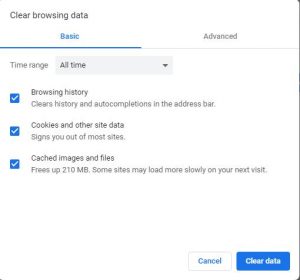
When you access websites, Chrome captures and stores information about websites and internet sessions. Over time the old files and cache can become very large and slow down the browser. A simple solution to this problem is deleting old browser files and cache. Here are the steps to follow

clear chrome data
  • Open Chrome Settings
  • Click Privacy and Security in the left-hand pane
  • Click Browsing data in the right-hand pane
  • Click Basic tab
  • Check the following options – Browsing history, cookies, and other site data, Cached images and files
  • In the Time range – click All time from the drop-down list
  • Click Clear Data

Fix 4 to Speed up Chrome – Disable Add-ons

Add-ons can slow down your Chrome browser. Many people install add-ons from the Chrome Web store to get additional features. Though Add-ons downloaded and installed from the Chrome Web store as safe, they consume system resources and may slow down your internet browser. If you have many add-ons installed, you need to disable them one by one and see if the performance improves. If you find the performance improves after disabling a specific add-on, you can conclude the add-on is the culprit behind slow Google chrome. You can keep it disabled or uninstall it to speed up Chrome. Here are the steps to follow.

  • Open Chrome Settings
  • Click More Tools -> Extensions
  • You can click the slider for each extension to disable it.
  • To uninstall the add-on, click Remove

Fix 5 to Speed up Chrome – Hardware Acceleration

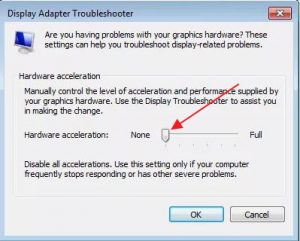
Google comes with a feature known as Hardware Acceleration. It allows Chrome to take advantage of your computer’s GPU to speed up processes and free vital CPU time. However, due to driver incompatibilities, the hardware acceleration may affect the performance of Chrome. Here we will check the status of Hardware Acceleration. If it is enabled and your Chrome is slow, try disabling it. If it is not enabled, try enabling it and see if the Chrome performance improves. Here are the steps to follow.

  • Open Chrome Settings
  • Click Advanced to reveal options
  • Click System
  • Look for the hardware acceleration option. Depending on its current status, you can enable or disable it
hardware acceleration

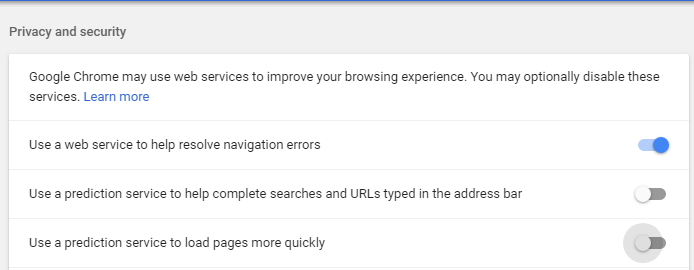
Fix 6 to Speed up Chrome – Enable Predictions

Google offers you page predictions feature based on your browsing data. When the prediction feature is On, you will experience increased speed while browsing. Here are the steps to follow.

  • Type chrome://settings/syncSetup in the Omni box
  • Enable the following options on the page
  • Make searches and browsing better
  • Google Drive search suggestions

The solutions given above are effective in most cases and many users were able to fix the Slow Chrome issue by following the solutions given in the post.

chrome prediction service off

Filed Under: PC Fix Tips Tagged With: slow chrome

Windows 10 Missing Bluetooth Settings Issue [Solved]

By Susan C on November 27, 2021

Windows 10 Missing Bluetooth Settings Issue [Solved]

Bluetooth is an important functionality in Windows. You need Bluetooth enabled in your computer to connect your wireless speakers, headphones, or transfer files from your smartphone to your computer or vice versa.

Many Windows users, however, have reported issues with Bluetooth where the Bluetooth settings go missing from Windows 10.

If you are facing a similar problem, we can help. Here are some solutions to Windows 10 Missing Bluetooth Setting problems.

Fix Bluetooth settings – boot in Safe Mode then boot in Normal Mode

  • Hold down Windows keys and press the R key to bring up the Run command
  • In the Run command box, type msconfig and click OK
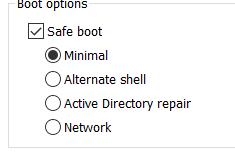
  • Go to the Boot tab and navigate to Boot options
  • Place a tick in the Safe boot option

  • Click Apply-> OK
  • Close all windows and restart your computer
  • The PC will reboot in Safe Mode and Windows 10 will install missing Bluetooth drivers.
  • Repeat the first three steps
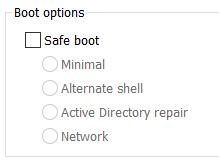
  • Now you have to remove the tick from the Safe Boot option

  • Click Apply-> OK
  • Close all windows and restart your computer
  • Now Windows 10 will boot in normal mode. Check whether you can see Bluetooth settings.

Check Bluetooth Service in Windows 10

Windows has a service for each functionality. Since the Bluetooth settings are missing there is a possibility that the Bluetooth service is not able to launch itself.

By default, the Bluetooth service is scheduled to start automatically when the computer boots. However, if the Bluetooth service startup has been changed from automatic to manual, you could face problems like missing Bluetooth settings.

The good news is that you can change the service’s settings again to automatic. Here are the steps to follow.

  • Press Windows + R key combination to bring up the Run command window.
  • In the Run command box, type services. msc and click OK
  • In the Services window, scroll the services list entries to find “Bluetooth support service”

  • Double click “Bluetooth support service”
  • In the Bluetooth service window, check the Service status. If it mentions stopped, click Start to start the Bluetooth support service.
  • Next, click the Startup type drop-down list and select automatic

  • Click Apply-> OK to save changes
  • Close all windows
  • Click Start -> Settings
  • Click Devices
  • Check whether the Bluetooth option has appeared in the left pane

Enable Bluetooth using a Physical key

Some laptops come with a physical button to start Bluetooth. Check your laptop manual to see if there’s such a button. If your laptop has a physical key for Bluetooth, use it to turn on Bluetooth.

Update Bluetooth Drivers

If none of the above options have fixed your bluetooth problem, you should try updating Bluetooth drivers. Outdated drivers are often the root cause of many problems and it is possible that the Bluetooth issue you are experiencing is because of old or faulty Bluetooth drivers.

Updating drivers manually can be difficult as you must have some technical knowledge. Plus, you must know the specifications of the Bluetooth device you are using, as well as the details of your device in order to download the correct driver.

Driver Updater is one of the best driver update tools out there. Outbyte Driver Updater will give you access to a database of over 1 million drivers. It will regularly scan your PC, suggesting new driver versions to install. Driver Updater contains drivers for a variety of Windows devices. With just one click, you can update drivers in your system.

Step 1
Click here to Install and launch the app

Step 2
Scan all devices

Step 3
Install or update drivers automatically

Start Download

Filed Under: PC Fix Tips Tagged With: Bluetooth Settings Issue

  • « Previous Page
  • 1
  • …
  • 61
  • 62
  • 63
  • 64
  • 65
  • …
  • 189
  • Next Page »


  • Recent Posts
  • Popular Posts
        

Read More Posts


Read More Posts

Drivers.com Sites

  • Software Drivers
  • Drivers Ed

About Us

  • Advertise
  • About Drivers
  • Drivers Support
  • Drivers.com Privacy Policy
  • Disclaimer
  • Software Drivers
  • Mac Fixes and Tips
  • PC Fix Tips
  • Security/ Backup
  • Tablets & Smartphones
  • Tech News

© Copyright 2026 PDE Publications Ltd. End User License Agreement (EULA)