Drivers.com

follow us:

facebook twitter
  • Home
  • Download Drivers
  • Drivers Help
  • PC/Mac Resources
  • Software Drivers
  • Mac Fixes and Tips
  • PC Fix Tips
  • Security/ Backup
  • Tablets & Smartphones
  • Tech News
  • Software Drivers
  • Mac Fixes and Tips
  • PC Fix Tips
  • Security/ Backup
  • Tablets & Smartphones
  • Tech News

How to download the Logitech M185 Driver

By Susan C on February 26, 2022

How to download the Logitech M185 Driver

The M185 is a popular wireless mouse, thanks to its sleek design and affordability. It is compatible with a range of operating systems. These include Windows 10, Windows 8, Windows 7, Windows Vista, Chrome OS, Linux kernel 2.6, and Mac OS or later. You need to have a USB port to use this mouse, regardless of which operating system you use.

Main features of the Logitech M185 Wireless Mouse

The M185 comes with a battery that has a life of approximately one year. The Logitech M185 wireless mouse also boasts a sleep mode which helps to conserve power. Like all other accessories from Logitech, this mouse also guarantees superior quality and reliability.

As far as wireless connectivity is concerned the Logitech M185 mouse runs on 2.4 GHz. With the M185 affordably priced, there’s no reason why you should use a mouse with a cord. Plus, a wireless accessory like the M185 offers additional benefits, like high-speed data transmission without any delays.

And thanks to its being a plug-and-play device, you don’t have to go through the hassle of researching which software you need to use with it. All you have to do is simply plug the M185 in a functional USB port and you’re all set.

Logitech Drivers Download & Updates

Why is the M185 wireless mouse is not working

You may face problems with your mouse for many reasons, the most common ones are:

  • You need a new battery
  • The USB port you are using has stopped functioning
  • There’s some problem with your computer (Try checking your M185 on another device to see if this is the case)
  • The surface on which you are using the mouse is not letting it work properly
  • Your mouse drivers are faulty, corrupt, or outdated

Try these DIY solutions first

If your M185 mouse has stopped working properly, give these simple solutions a try.

  • Get new the batteries. Are you facing tracking or connection problems? If so, it might be worth trying new batteries.
  • Use a different USB port. In case the problem is with the USB port you are using, you should be able to fix the issue using this simple solution
  • Make sure other wireless devices are not too close to the M185 mouse. Sometimes, you may encounter issues if this is the case, so it’s something worth checking.
  • Make sure you are not using the M185 on a metal surface. In case you are, try it on a wooden or some other surface.

If the issue persists, you can safely assume you need mouse drivers.

How to download Logitech M185 device drivers

You can download drivers manually or automatically. The second method is easier and faster, not to mention less complicated. However, we have shared both methods in this post and you can pick the one that you are more comfortable with.

Manually download M185 device drivers

You can manually download the latest drivers for M185 in three different ways. These are:

Updating the M185 Mouse Driver with Windows Update

Running Windows Update is a good place to start from in case your M185 is not properly working. Windows update will install the relevant details automatically and these updates may also relate to the outdated drivers on your system.

Here’s how you can run Windows Update:

  • First click Start button and, in the start search box, type Windows Update
  • Click on Windows Update from the list of options appearing on your screen. Next, click on Check for updates
  • If you see any onscreen instructions, follow them. Windows is going to automatically install all relevant updates
  • Reboot Windows and then check if the M185 mouse is working like it should

There’s a possibility that Windows Update might not have the newest device drivers for the mouse. In that case, you can try any of the methods discussed next.

Updating the M185 driver via Device Manager

The device manager is a utility built into Windows that allow you to view as well as control the attached hardware.

Perform these steps to update the M185 driver via the device manager.

  • Press Win + R to open the run dialog box and then type devmgmt.msc and press the OK button or the Enter key
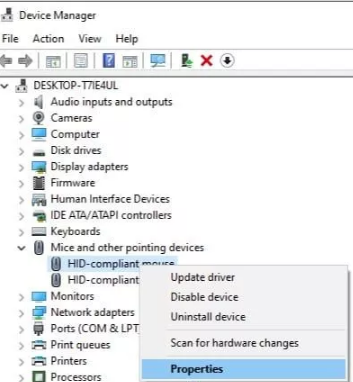
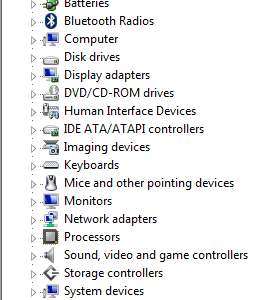
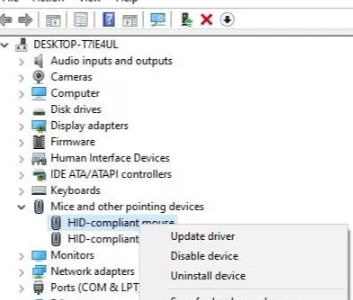
  • Expand Mice and Other Pointing Devices option
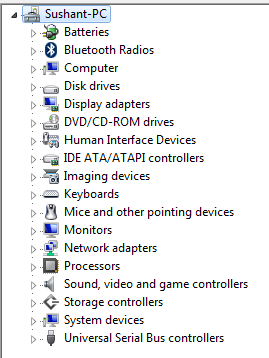
device manager

  • Now, right-click the Logitech M185 mouse and click Properties
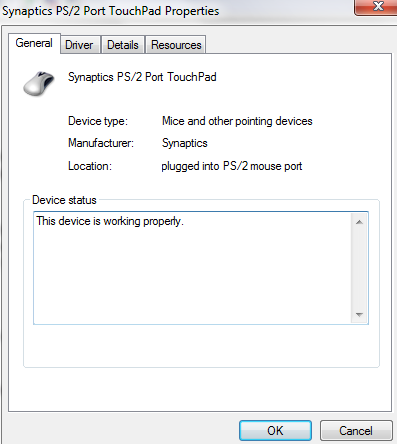
mouse properties

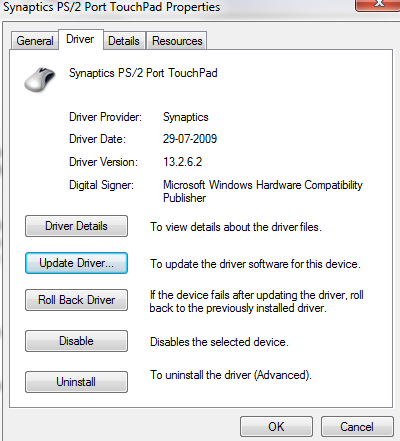
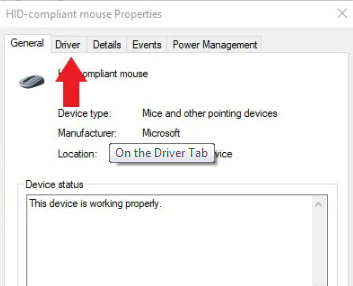
  • Click the Driver tab
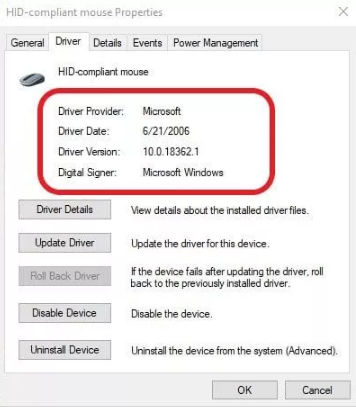
  • Click the Update Driver button

update Logitech M185 mouse driver

  • In the next window, select Search automatically for updated driver software
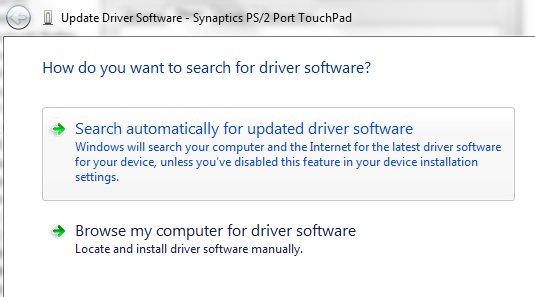
Search automatically

  • Windows will search the internet to find a driver update and install it. If it does not find a driver update, you have to manually download the mouse driver and install it.
  • Restart Windows

Download the Logitech M185 driver from the manufacturer website

You can also download the latest M185 driver from the manufacturer’s website by following these steps.

  • Open a web browser and go to the Logitech website
  • Search for the latest driver for the M185 mouse. Take care to download the version corresponding to your Windows PC or laptop. By this we mean if you have a 32-bit Windows, you need to install drivers designed for 32-bit Windows, not 64-bit. Likewise, 64-bit Windows users need to click on drivers created for 64-bit PCs or laptops.
  • Save the downloaded file on your computer
  • Double-click the .exe file to start the installation. Follow on-screen instructions, if any
  • Reboot windows

Note: When you are manually downloading device drivers, take care to download them only from the device manufacturer’s or your laptop manufacturer’s website, and not other websites.

Downloading the Logitech M185 Wireless Mouse driver automatically

The manual installation method requires not only time and effort but also some technical knowledge. A much easier approach is to use a reliable and fast driver update tool, like Driver Updater. It can update all your device drivers, including the M185 driver, in a couple of minutes.

Outdated drivers can cause serious problems with your PC. With Driver Updater keeping your drivers up to date is very easy. With just a few clicks, you can update all your drivers. A free trial of this Driver Update Tool means you can give it a try without commitment.

Download using the link below and get your Driver problems fixed.
Start Download

Filed Under: PC Fix Tips Tagged With: Logitech M185 Driver

How to Download the Logitech M510 Wireless Mouse Driver

By Susan C on January 31, 2022

The Logitech M510 is a wireless mouse that helps you work and browse the web faster. Logitech has made a name for itself by developing quality peripheral devices and its various mouse models are a favorite among computer users. The M510 is one of the most popular general-purpose mice, but like other hardware devices it needs a compatible driver to function.

When you install the Logitech M510 Wireless Mouse, Windows automatically installs a compatible driver. However, sometimes things may not go as planned and you may face driver-related performance issues and errors. A malware infection or other things can also trigger driver-related issues.

In this post, we will show you how to download and install the Logitech M510 wireless mouse driver. However, first let’s take a look at the main features of this popular device.

What is the Logitech M510 Wireless Mouse?

Superior technical and practical features make this device very popular among Windows users.

Physical features of the Logitech M510 Wireless Mouse

Some of the most attractive physical attributes are as follows:

  • Wireless – Its plug-and-play installation make it super easy and convenient to use.
  • Comfort – Since the M510 is ergonomically designed, it nicely fits your hands.
  • Key placement – The placement of keys is very convenient with buttons for zoom, forward and back, and side-to-side functions.

Technical features of the Logitech M510 Wireless Mouse

The mouse incorporates several technical features worth talking about.

  • Programmable controls. You can set keys and buttons according to your preferences
  • Laser-grade tracking accuracy and precise control
  • Logitech Unifying receiver. It can communicate with as many as 6 compatible devices
  • Impressive battery life (roughly 2 years)
  • Comes with 7 buttons that streamline browser functions and simplify application use
  • Compatible with Windows 10, 8, and 7 (also works with Chrome OS and Linux Kernel 2.6)
  • 4GHz wireless communications (approximate range = 10m)

Common mouse errors with the Logitech M510 Wireless Mouse

The M510 mouse, like any other peripheral device, can at times develop physical or technical problems. Some of the common issues that you encounter with it include:

  • Your computer is not recognizing the plugged mouse
  • Mouse is no longer tracking consistently
  • Mouse buttons are no longer performing as programmed

Mouse related problems can occur because of various reasons, including outdated or corrupt drivers.

Logitech Drivers Download & Updates

DIY solutions to fix M510 mouse issues

If your M510 mouse is not working properly, try these DIY solutions first.

  • Replace the batteries. If you are facing connection or tracking problems, inserting a new pair of batteries is likely to fix the problem
  • Plug the mouse into a new USB port. If the USB port in which your mouse is presently plugged into is faulty, using a new USB port should fix the problem
  • Ensure there are no other wireless devices in close proximity. If other wireless devices are lying very close to your wireless mouse, you may encounter problems with it.
  • Ensure the mouse is not on a metal surface. If you are using the mouse on a metal surface, try it on some other surface, like wooden.

If none of the above-mentioned solutions work, chances are the issue is because of the mouse driver. If your driver fails to match up with the model of device you are using or the operating system, you may encounter performance issues and errors.

Updating the Logitech M510 Mouse Driver with Windows Update

The first thing you should do when you suspect there’s some problem with your M510 drivers is to run Windows Update. It will check your system and automatically install all the relevant updates. New updates may include updates not only for the Windows OS but also for any outdated drivers.

You can run Windows Update by performing the following steps:

  • Click the Start button
  • Type Windows Update
  • In the list of options that appear on your screen, click Windows Update. Next, click ‘Check for updates’
  • Follow the onscreen instructions, if any. Windows will automatically install the relevant updates
  • Restart Windows and check if your mouse is now working fine

It’s possible that Windows Update might not have all the newest drivers issued by Logitech for its M510 mouse. If that’s the case, you will need to update the mouse driver. You can do this manually or automatically. The latter is a much faster and easier option, but we have listed the steps for both the methods so that you can pick one that works better for you.

Updating the M510 driver manually

When it comes to updating mouse drivers manually, you have two options. You can do this via Device manager or directly through the manufacturer website.

Updating your M510 drivers via Device Manager

Windows comes with a built-in utility, called Device Manager, that allows users to not only view but also control the hardware attached to their computer.

Here are the steps you need to perform to update your mouse driver using Device Manager:

  • Press Win + R to open the run dialog box
  • Type devmgmt.msc and then press Enter
  • Expand Mice and Other Pointing Devices option
  • When the menu expands, right-click the Logitech M510 mouse and click Properties
  • Click the Driver tab (the second one from left).
  • Click the Update Driver button
  • In the next window, select Search automatically for updated driver software.
  • Windows will search the internet to find a driver update and install it. If it does not find a driver update, you have to manually download the mouse driver and install it.
  • Restart Windows

Download the Logitech M510 driver from the manufacturer website

Here are the steps for downloading the M510 driver from the Logitech website.

  • Open your internet browser
  • Browse to the Logitech website
  • Search for the latest driver for your mouse. It is important to note that you must download the version that corresponds to your Windows PC or laptop. For instance, if you are using a 32-bit Windows, then you should download a driver meant for 32-bit Windows computers and not 64-bit.
  • Save the downloaded file on your desktop or some other location
  • Double-click the .exe file to launch installation and follow on-screen instructions if any
  • Reboot Windows after installation is complete

Downloading the Logitech M510 driver automatically

As you can see, the manual method requires effort, time, and technical knowledge. If you are lacking in any of these, try the automatic method. With the help of an advanced driver tool, like Driver Updater, you can update all your outdated drivers, including the M510 driver.

Automatic driver update tools offer many benefits, the most important ones being:

  • You can update device drivers automatically
  • The software scans and updates all outdated or missing drivers at one go
  • The tool picks the right drivers for your device and operating system, so you won’t have to worry about installing an incorrect driver by mistake
  • Automatic driver updates are 100% safe

Driver Updater is one of the best driver update tools out there. Outbyte Driver Updater will give you access to a database of over 1 million drivers. It will regularly scan your PC, suggesting new driver versions to install. Driver Updater contains drivers for a variety of Windows devices. With just one click, you can update drivers in your system.

Step 1
Click here to Install and launch the app

Step 2
Scan all devices

Step 3
Install or update drivers automatically

Filed Under: PC Fix Tips Tagged With: Logitech M510 Mouse Driver

How to Download the Logitech M325 Mouse Driver

By Susan C on January 31, 2022

How to Download the Logitech M325 Mouse Driver

Is your Logitech M325 mouse not working well? Are you facing some driver-related issues?

If so you need to download and install the latest Logitech M325 mouse driver. Drivers can help optimize performance and it is important to keep them up-to-date.

When it comes to downloading the Logitech M325 mouse driver, you basically have two options. You can download the driver manually or automatically. While the latter is a more convenient option, this post lists the steps for both the methods. But first a few words about the Logitech M325 mouse.

What is the Logitech M325 mouse?

A convenient-to-use wireless mouse, the Logitech M325 is designed for everyday use. Thanks to its small and sleek design, it is a great option for traveling. The mouse comes with a smart battery, which will likely last you 18 months or so.

The Logitech M325 mouse comes with the popular plug-and-play installation and obviates the need for using the touchpad, allowing you to work faster. Since the device is ergonomically designed and fits nicely in your hand.

When you install the Logitech M325, Windows automatically detects the proper driver and installs it. However, sometimes compatibility issue may arise, especially after a Windows update. Therefore, it is understand how to update your existing driver for seamless performance.

Logitech Drivers Download & Updates

Downloading the latest Logitech M325 mouse driver manually

First, let’s go through the steps for downloading your mouse driver manually. You can manually download a driver in two ways – via the device manager utility or directly through the manufacturer’s website.

Downloading the Logitech M325 from Device Manager

Device manager is an in-built utility in Windows that allows users to view as well as control the hardware attached to their device.

Below are the steps you need to perform to update your mouse driver using Device Manager:

  • Press Win + R to open the run dialog box
  • Type devmgmt.msc and then press Enter
  • Expand Mice and Other Pointing Devices option
  • When the menu expands, right-click the Logitech M325 mouse and click Properties
device manager image
  • Click the Driver tab (the second one from left).
device manager general tab
  • Click the Update Driver button
device manager driver tab
  • In the next window, select Search automatically for updated driver software.
  • Windows will search the internet to find a driver update and install it. If it does not find a driver update, you have to manually download the mouse driver and install it.
  • Restart Windows

Download the Logitech M325 driver from the manufacturer website

If for some reason, Windows is unable to download and install the latest driver for your mouse, you can directly go the Logitech website and download it.

Here are the steps to follow:

  • Open your internet browser
  • Browse to the Logitech website
  • Search for the latest driver for your mouse. It is important to note that you must download the version that corresponds to your Windows PC or laptop. For instance, if you are using a 32-bit Windows, then you should download a driver meant for 32-bit Windows computers and not 64-bit.
  • Save the downloaded file on your desktop or some other location
  • Double-click the .exe file to launch installation and follow on-screen instructions if any
  • Reboot Windows after installation is complete

Download the Logitech M325 Mouse Driver Automatically

The manual process of updating device drivers can be tedious and time-consuming. You also require a bit of technical knowledge to complete the process. If you would rather simplify and speed up the entire process, consider using a reliable driver update tool.

Benefits of using an automatic driver update tool

Automatic driver update tools offer many benefits, the most important ones being:

  • You can update device drivers automatically
  • The software scans and updates all outdated or missing drivers at one go
  • The tool picks the right drivers for your device and operating system, so you won’t have to worry about installing an incorrect driver by mistake
  • Automatic driver updates are 100% safe

Driver Updater is one of the best driver update tools out there. Outbyte Driver Updater will give you access to a database of over 1 million drivers. It will regularly scan your PC, suggesting new driver versions to install. Driver Updater contains drivers for a variety of Windows devices. With just one click, you can update drivers in your system.

Step 1
Click here to Install and launch the app

Step 2
Scan all devices

Step 3
Install or update drivers automatically


Start Download


DIY Fixes for Logitech M310 Mouse Driver Errors

How to download the Logitech M185 Driver

How to Download the Logitech M510 Wireless Mouse Driver

How to Download the Logitech M325 Mouse Driver

Filed Under: PC Fix Tips Tagged With: logitech, Logitech M325 mouse driver

  • « Previous Page
  • 1
  • …
  • 59
  • 60
  • 61
  • 62
  • 63
  • …
  • 189
  • Next Page »


  • Recent Posts
  • Popular Posts
        

Read More Posts


Read More Posts

Drivers.com Sites

  • Software Drivers
  • Drivers Ed

About Us

  • Advertise
  • About Drivers
  • Drivers Support
  • Drivers.com Privacy Policy
  • Disclaimer
  • Software Drivers
  • Mac Fixes and Tips
  • PC Fix Tips
  • Security/ Backup
  • Tablets & Smartphones
  • Tech News

© Copyright 2026 PDE Publications Ltd. End User License Agreement (EULA)