Drivers.com

follow us:

facebook twitter
  • Home
  • Download Drivers
  • Drivers Help
  • PC/Mac Resources
  • Software Drivers
  • Mac Fixes and Tips
  • PC Fix Tips
  • Security/ Backup
  • Tablets & Smartphones
  • Tech News
  • Software Drivers
  • Mac Fixes and Tips
  • PC Fix Tips
  • Security/ Backup
  • Tablets & Smartphones
  • Tech News

How to Download Logitech Mouse Drivers

By Susan C on January 21, 2022

Logitech sells a number of computer accessories, including mice. It is one of the most important accessories with most laptop users choosing to use it over the touchpad. Hardware like mice needs a relevant driver to work properly. A driver is simply a file that tells hardware how to work.

An outdated driver can lead to all sorts of problems. For example, if your Logitech mouse driver is outdated or faulty, your mouse might not work properly or you may receive recurring errors. Fortunately, downloading the Logitech mouse driver is very straightforward. While the automatic method is far more convenient and simple, in this post we will show you steps for the manual download also.

How to download Logitech mouse drivers manually

You can manually download Logitech mouse drivers in two ways. The first method involves visiting the Logitech website, locating the right driver for your mouse, and downloading it.

Even though Logitech has numerous mouse models, locating the right one for your device is not difficult. Once you are on their website, simply select the right mouse category and locate the specific model. This is very important because two mice which look and cost the same can have different mouse drivers.

Once you’ve found the right driver, download the driver file and save it to your desktop or elsewhere. Before downloading the driver file, ensure it corresponds to your PC type. That means if you use Windows 10 32-bit, the file should be for 32-bit Windows 10 PCs. Likewise, if you use Windows 64-bit, you should download the driver file meant for 64-bit Windows 10 version.

After you have downloaded the driver file, double-click to launch it and follow onscreen instructions to complete the installation of the new driver. Upon completion of the installation, you might be prompted to restart Windows. If so, reboot your computer.

If you find this approach tedious, there’s another way to download the latest driver. You can use device manager, a built-in utility in Windows, for this purpose.

Use Device Manager to download Logitech mouse drivers manually

Here are the steps to follow:

  • Press Windows Key + R and then type devmgmt.msc in the run dialog box
  • In the Device Manager window, browse to Mice and other pointing devices category and expand it
  • Choose your mouse and right-click it
  • Next, select update driver
  • In the next window, you must select Search automatically for updated driver software.
  • Windows is now going to browse the internet to find a driver update and install it. In case Windows is unable to find a driver update, you will need to download the driver manually and install it
  • Restart Windows
Keyboard and Mouse Drivers Download & Updates

How to download Logitech mouse drivers automatically

As you can see, downloading the mouse driver manually requires some patience and effort. If you would rather speed up the process, consider using a reliable driver update tool.

Benefits of using an automatic driver update tool

Automatic driver update tools offer many benefits, the most important ones being:

  • You can update device drivers automatically
  • The software scans and updates all outdated or missing drivers at one go
  • The tool picks the right drivers for your device and operating system, so you won’t have to worry about installing an incorrect driver by mistake
  • Automatic driver updates are 100% safe

Driver Updater is one of the best driver update tools out there. Outbyte Driver Updater will give you access to a database of over 1 million drivers. It will regularly scan your PC, suggesting new driver versions to install. Driver Updater contains drivers for a variety of Windows devices. With just one click, you can update drivers in your system.

Step 1
Click here to Install and launch the app

Step 2
Scan all devices

Step 3
Install or update drivers automatically
 

Start Download


Filed Under: PC Fix Tips Tagged With: logitech mouse driver

How to Remove Cookies in Internet Explorer

By Susan C on January 7, 2022

Cookies help improve your browsing experience by storing information regarding your preferences. These are small files which websites put on your computer when you visit them. Cookies allow sites to remember your preferences when you revisit them. Websites that require a sign-up can use cookies to allow you to skip this essential step every time you pay a visit. Useful as cookies are, they are not popular with everyone. Your privacy can be at risk as cookies can help a person with malicious intentions to track the websites you visit.

But the good news is that you can easily get rid of cookies if you want to. If you like using Internet Explorer, follow these short steps to you remove cookies.

To Remove Cookies

  • In Internet Explorer, click the Tools button
  • Next, go to Safety and click Delete browsing history
  • Now, select the check box that’s next to Cookies and website data. Then, click Data

Block or Allow Cookies

You can easily block cookies if you don’t websites to store cookies on the device. However, keep in mind that some web pages may not appear correctly if you do so. You may also see a message from a website telling you that you must allow cookies if you want to view it.

  • In Internet Explorer, click the Tools button
  • Now click Internet options
  • Click on Privacy Go to Settings and then choose Advanced. You can now pick the preference that will work best for you. You can choose to accept cookies or block them. Alternately, you can ask to be prompted for third-party and first-party cookies.

Filed Under: PC Fix Tips Tagged With: Remove cookies

How to Change Default Settings in Chrome

By Susan C on December 31, 2021

How to Change Default Settings in Chrome

Google Chrome is a very versatile Browser. With Chrome, you can easily customise the settings to meet your personal browsing needs. In this post, we’ll show you how to change default settings in Chrome.

Why change default settings in Chrome?

Chrome’s default settings work fine for most users. However, if you want to change them this can be done very easilt. There are several reasons why someone might want to change the default settings. For instance, if you want to change Chrome’s looks or the way it works, you will have to make changes to its settings. Likewise, if you prefer more privacy and security or want to clean Chrome, you will first need to change the default settings.

Changing Chrome’s Default Settings

You can see each and every Chrome configuration setting on the master Settings page. To change a setting, you’ll need to open this page.

Step 1 – Open Chrome’s Settings Page

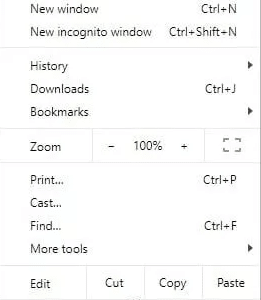
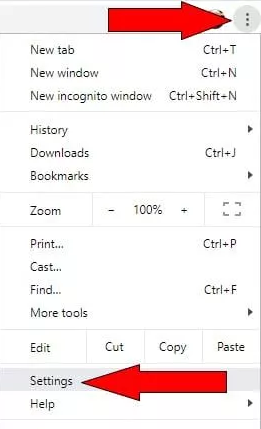
First, click Chrome’s hamburger (3 vertical dots) menu, and then click Settings. This will open the Settings page.

Step 2 – Change People Settings

Google syncs your browsing data across multiple devices when you sign in to your personal Google account via Chrome. All of this is managed by the settings in the People section of the Settings page. (You will see this setting at the top of the page)

Depending on your needs and preferences, you can:

  • Disable or enable personalization and syncing
  • Import bookmarks (as well as other settings) from other browsers
  • Change your Chrome picture and name
  • Manage the Google account

Step 3 – Change Autofill Settings

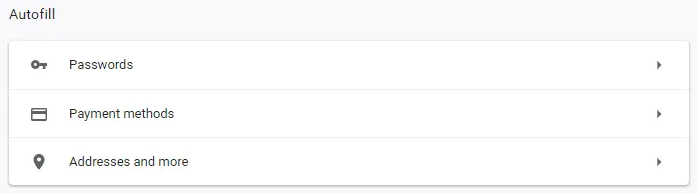
Chrome has the ability to autofill various forms that you come across on different websites. What Chrome does is store data that you feed into such forms for later use. If you want to disable or enable saved addresses, passwords, and payment methods, browse to the Autofill section of the Google Chrome Settings page.

Step 4 – Change the look of Chrome

Not a great fan of how Chrome looks by default? You can change it with a few clicks. Simply browse to the Appearance section of the Chrome Settings page and make the desired changes.

You can change the following here:

  • Your browser’s theme
  • Show a bookmark bar or Home button
  • Change the font size or type
  • Zoom in or out on your current page
Hidden Chrome Settings you should adjust

Step 5 – Change Chrome’s Default Settings

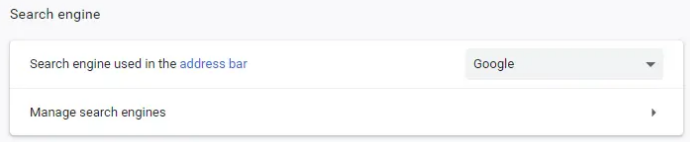
Chrome is configured in such a way as to use the Google search engine by default when you run a search query. However, it is possible to set another search engine, like Yahoo or Bing, as the default one. To do this, browse to the Search engine section in Settings page. Next, click at the Search engine list. This will allow you to view the names of all other search engines. You can select the any name you want by clicking Manage search engine.

Step 6 – Set Chrome as the Default Browser

There’s a good chance that Chrome is already the default browser. However, if that isn’t the case, simply browse to Default browser and then click at Make default on the Settings page.

Step 7 – Tweak Startup Behavior

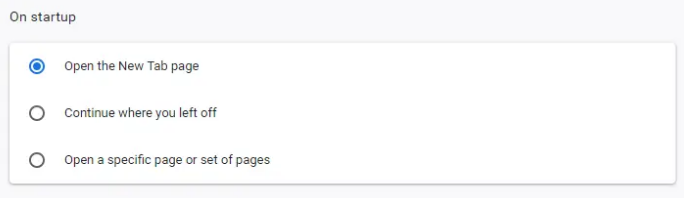
Want to know what happens when Chrome gets launched? Browse to On Startup in the Settings page. You can set various settings here. For instance, if you can have Chrome to open a New Tab page every time you launch the browser. Alternately, you can have it open a specific page or a set of certain pages or display the previously opened page.

Step 8 – Tweak Privacy and Security Settings

Chrome makes it easy to change Security or Privacy settings. For this, you need to click the Advanced option (scroll down the page to see it). In this section, you will see several new configuration settings. You can use the Privacy and Security section to make the browsing experience more secure and private or to make it less secure and private. This section also allows you to clear cookies, cache, and other types of browsing data.

Step 9 – Tweak Language Settings

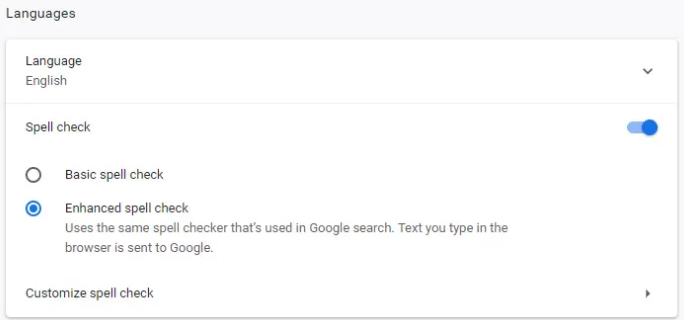
Chrome shows the same language as on your laptop or computer in its Settings page. Of course, you can change that with a single click. If you want, you can ask Chrome to run an Enhanced spellcheck. Both the settings can be tweaked by browsing to the Languages section.

Step 10 – Change Download Behavior

Chrome is configured to save all files that you download from internet in the default Download’s folder. But if you want to change that, browse to Downloads in the Settings page and select a new location. Alternately, you can have Chrome ask you where you would like to save a file every time you download one.

Step 11 – Configure Print Settings

Want to add a Cloud Print device for printing web content? Simply go to Printing in the Settings page and set up new devices.

Step 12 – Add Accessibility Features

One of the more useful features of Chrome is that you can make it more accessible for someone with physical or visual challenges. All of this can be done from the Accessibility section. You can find and download accessibility features that you require.

Step 13 – Change System Settings

Want to tweak how Chrome runs on your PC or laptop? You can change such settings by going to the System section.

Step 14 – Restore and Clean Up Chrome

Last but not the least, Chrome offers two tools, which can be accessed by going to the Reset and cleanup section, for restoring it to its prime condition. You can either opt to restore the browser’s default settings or clean up the computer by allowing Chrome to search for and get rid of harmful programs and software.

Updating Device Drivers Can Improve Your Computer’s Performance

Is your computer performing sluggishly? Do you frequently receive frequent errors or issues? If so, we recommend you to make sure your device drivers are up to date. Outdated drivers are the main reason behind poor computer performance.

Benefits of using an automatic driver update tool

Automatic driver update tools offer many benefits, the most important ones being:

  • You can update device drivers automatically
  • The software scans and updates all outdated or missing drivers at one go
  • The tool picks the right drivers for your device and operating system, so you won’t have to worry about installing an incorrect driver by mistake
  • Automatic driver updates are 100% safe

Driver Updater is one of the best driver update tools out there. Outbyte Driver Updater will give you access to a database of over 1 million drivers. It will regularly scan your PC, suggesting new driver versions to install. Driver Updater contains drivers for a variety of Windows devices. With just one click, you can update drivers in your system.

Step 1
Click here to Install and launch the app

Step 2
Scan all devices

Step 3
Install or update drivers automatically
 

Start Download


Filed Under: PC Fix Tips Tagged With: Chrome settings

  • « Previous Page
  • 1
  • …
  • 60
  • 61
  • 62
  • 63
  • 64
  • …
  • 189
  • Next Page »


  • Recent Posts
  • Popular Posts
        

Read More Posts


Read More Posts

Drivers.com Sites

  • Software Drivers
  • Drivers Ed

About Us

  • Advertise
  • About Drivers
  • Drivers Support
  • Drivers.com Privacy Policy
  • Disclaimer
  • Software Drivers
  • Mac Fixes and Tips
  • PC Fix Tips
  • Security/ Backup
  • Tablets & Smartphones
  • Tech News

© Copyright 2026 PDE Publications Ltd. End User License Agreement (EULA)