Drivers.com

follow us:

facebook twitter
  • Home
  • Download Drivers
  • Drivers Help
  • PC/Mac Resources
  • Software Drivers
  • Mac Fixes and Tips
  • PC Fix Tips
  • Security/ Backup
  • Tablets & Smartphones
  • Tech News
  • Software Drivers
  • Mac Fixes and Tips
  • PC Fix Tips
  • Security/ Backup
  • Tablets & Smartphones
  • Tech News

Chrome, Firefox, Safari, or Opera — Which is the best browser?

By Susan C on May 6, 2022

Most computer users take browsers for granted, but that’s not how it should be, especially if you want the best possible user experience without comprising on privacy. This post helps you evaluate your options so that you can the browser that’s best for you.

The internet browser war is just as strong as ever, though one competitor has thrown in the towel — Internet Explorer. Once the leader of the pack, Internet Explorer is set to retire forever in June, 2022.

All the same, users have many options to choose from, although Google dominates the browser landscape right now. The fact that Google serves far more content compared to others surely helps Chrome to stay ahead of other browsers. Estimate suggests Google serves over 60% the desktop browser market. Mobile users, too, use it far more often than other browsers. With Chrome being the favorite browser of most users, it’s hardly surprising that the majority of other browsers try to use Chrome-rending code. Firefox, however, is an exception.

Chrome Leads the Pack

When it comes to usage, Chrome beats other browsers to the punch, except on Apple devices. Even so, it doesn’t lead by every measure, nor is it ahead by number of features. Opera, Safari, Edge, and Firefox all possess capabilities you will not find in Google’s Chrome. This doesn’t mean Chrome is an outstanding software, because it is. However, at the same time, you should be aware of the facts that worthy alternatives are available.

So, what are the most important requirements in a browser for today’s users? Unsurprisingly, compatibility and speed remain the top requirements. Browsing privacy and security also are top concerns for users when it comes to choosing a browser. With Smartphones becoming a part of our daily lives, linkage between your phone and desktop browser is a feature that most users desire. Indeed, several internet browsers make it seemingly easy for you to bookmark and share web pages between devices.

Compatibility Matters

HTML5test remains the most-accepted measure of standards compatibility, with the highest possible score being 555. Chrome continues to lead on this front, with an unmatchable score of 528. Opera, Edge, and other Chromium-coded web browsers are just a few steps behind it. Firefox, on the other hand, has a score of 491 while Safari receive manages 469.

Speed Counts

To test the speed, we used the JetStream benchark, regarded by most experts as the most complete performance benchmark for web browsers. Chrome is speediest browser for Windows 10, whereas Safari wins the battle on macOS.

Privacy is Important

Some of the main differentiators today include privacy, convenience features, customizations, start-page tools, mobile integration, and tab tools. All the top browsers are capable for remembering your passwords and synching them (of course, in the encrypted form) between devices. In addition, they can sync your bookmarks and browsing history between laptops, desktops, and smartphones and other mobile devices. By default, Chrome signs you up into popular Google services, such as YouTube and Gmail. While a useful and time-saving feature, some users nevertheless think this is presumptuous.

Those who hold their privacy paramount use VPNs to prevent their ISPs and other meddling entities from finding out their browsing activities. At present, only Opera comes with an inbuilt VPN. With Firefox, you will need to pay a fee to use this feature. That said, Firefox has a decent privacy profile. You can use it in the privacy mode to do away with cookies and a browsing session’s history. A private session also hides the browsing activities from various 3rd parties tracking websites.

Recently, Firefox rolled out DNS over HTTPS.  This provides end-to-end encryption and also extends privacy, since a network administrator or your ISP cannot easily intercept your DNS traffic. Firefox also has fingerprint protection, which makes it harder for trackers to identify you on the basis of your software and hardware setup. Apart from Firefox, Safari and Edge also offer this feature.

Tools and Goodies

For many users, browsing tools can be an important factor — and understandably so. These tools can considerably enhance your browsing experience. For instance, Reading Mode removes clutter, like videos and ads, from web pages, which makes content reading easier. Another useful tool is the Share button. Given the popular of social media channels, this tool is almost a must-have convenience.

Some web browsers include unique tools. For example, Opera comes with an inbuilt cryptocurrency wallet. Another of its salient feature of is Speed Dial. It comprises of pinned tiles on the home screen with a toolbar that allows you to quickly assess frequently used services like WhatsApp.

When it comes to voice-reading of web pages, Microsoft Edge is a clear winner. Other useful features included in Microsoft Edge include robust privacy settings and customizable homepage. With Firefox, you can easily save an interesting page or video by clicking the Pocket button.  It also offers a unique multi-account containers extension, which allows you to wrangle multiple social or email accounts.  Firefox, Opera, and Edge all offer the screenshot tool, which makes it easier to save an image of the entire or parts of a webpage.

Google Chrome

Google Chrome is one web browser that needs no introduction. After all, it is the most popular web browser by a country mile. Attractively designed, Chrome is known for loading pages speedily. Given its popularity, it’s not surprising that most websites’ code target it.  As a result of which, compatibility is rarely (if ever at all) an issue.

Speed-wise, Chrome tops the charts. However, it uses more RAM than some other web browsers, but that is partially because it preloads content to speed up web page loading.

If you use Google Chrome, you won’t see those potentially-irritating messages that urge you to use Chrome every time you open YouTube, Gmail, Google News, and so on. Chrome is very robust security-wise, but like any other piece of software, bugs can happen. For this reason, it is important you always stay updated.

Chrome, however, is no longer the most feature-rich browser. It doesn’t offer several advanced browsing features one finds in other browsers. For example, it has no inbuilt VPN, nor does it include a cryptocurrency locker, a reading mode, a Share button, or a screenshot tool. While the absence of the reading mode might make a lot of sense for Google, since it get paid for web ads. However, some users may prefer the reading mode which hides these ads.

Some time back, Google announced the removal of API function, which allows ad-blockers to completely block ads. After this announcement, came another in which it revealed new standards for enhancing privacy of the internet users, termed Privacy Sandbox. It caters to user privacy as well as ad targeting. The inbuilt ad blocking option in Chrome, however, is not only weak but is also buried under many layers of setting. When you turn it on, it will only block those ads which Google regards as intrusive. It will not block all ads.

The mobile chrome version is extremely capable. It offers synching of settings, bookmarks, and passwords. It also includes the voice input feature with Google search.

Mozilla Firefox

 One of the most unique features of Mozilla Firefox is its multi-account containers. It helps you to easily wrangle multiple social or email accounts. Its Pocket button is another useful feature, allowing you save a web page for later viewing. You can view the saved pages with just a single click. On top of all this, you also have the option of The Reader View — a feature conspicuously absent in Chrome. When you turn it on, the browser will de-clutter a page by removing ads, buttons, background videos, and images. This allows you to read the web page content without any distractions. Like other top browsers, Firefox is very customizable. You can arrange toolbar buttons  in different ways and have a large selection of Theme add-ons to choose from.

Mozilla Firefox also offers VPN as a paid extra. You can also use its comprehensive password-management service — Lockwise — by paying a small fee. It generates complex passwords, syncs them between multiple devices, and secures all these details under a very complex master password.

Apple Safari

 Safari, which is the default browser on Apple devices, is a top choice, although there are some non-standard elements in its interface. Safari introduced the reading mode before other browsers. While Apple states it’s committed to fingerprinting protection, which makes it harder for trackers to identify you through the system specs, other browsers offer better protection. If you are using a Mac and an iPhone, using Safari as your default browser makes sense. With the Handoff feature, you can seamlessly continue browsing sessions between devices.

Opera

While Opera has considerably fewer users than other web-browsers mentioned in this list, it has several novel features. If you are a strong support of VPN, Opera is definitely worth considering. It offers better privacy than other browsers, thanks to an inbuilt VPN (although, actually it is an encrypted proxy server). When it comes to speed and compatibility, Opera receives top marks. You are not likely to encounter compatibility issues if you use Opera. Its performance is also quite fast.

Opera also boasts an inbuilt ad blocker. This feature also blocks crypto-mining trackers and scripts. In fact, Opera was the first one to include crypto-mining protection.  Other notable features are its new-tab page, Speed Dial, and quick-access sidebar. It also includes a cryptocurrency wallet. The latter supports Tron and Bitcoin.
Filed Under: PC Fix Tips Tagged With: best browser

How to fix a Canon Printer Not Responding Error

By Susan C on April 10, 2022

How to fix a Canon Printer Not Responding Error

In the world of printing and peripheral office equipment, Canon reigns supreme. For roughly 50 years, it has focused largely on image quality, which also includes printing technology. Canon has a vast array of printer models in its product line, which is perhaps the widest of all printer manufacturers.

Whether you need a printer for personal use, office use, or schoolwork, Canon is likely to have the right printing product for your needs. Its printing offerings have something for everyone and include the following:

  • Single function printers (laser and inkjet)
  • Multi-function printers (laser and inkjet)
  • Black-and-white laser printers and color laser printers
  • Home office printers
  • Mobile printers
  • Large-format scanners

One of the most impressive things about Canon’s peripheral devices is that they are very easy to install and operate. However all printers are likely to develop issues at some stage. One of the most common problems Canon users can face when using its printer is that of Canon printer is not responding.

If you are experiencing this issue then don’t worry – it is fairly straightforward to resolve, and you can easily fix it yourself (with a little help from us).

Update Canon Printer Drivers

Printer error troubleshooting steps

Some of the steps you must take immediately upon seeing the error include:

  • Check whether or not your printer is switched on. If it is, make sure it is in the ready status.
  • Make sure the printer is securely connected if you use on a cable connection.
  • If your printer is attached to your device wirelessly through a USB port, makes sure the USB port you are using is operable. (A simple way to check this is by attaching the printer through another USB port. If it connects, you can safely assume there’s some problem with the previous port.)
  • Check whether or not the router is working properly.

The ‘Canon printer is not responding‘ error generally appears in the following two scenarios:

When installing a new printer for the first time

Generally, this occurs because of either connectivity or software issues.

If you are installing a wireless printer, this error may appear due to a setup issue with the access points or network router.

You can resolve the problem in the case of a wireless connection by following these steps. Keep in mind you may need the password for the wireless access point.

  • First, press the Setup button. Next, select Wireless LAN Setup, and then click OK
  • Choose Easy Setup and then click OK
  • Select Access Point. If you are prompted for a password, enter it and then click OK
  • Now, load the setup media (Canon) on your computer and then run it to complete the installation process of Canon software.

You need to perform these steps just once. Run a test job to see if your printer is now working as it should be.

In case wired connections are involved, first make sure the connecting cable is securely connected with your printer and the port and is fully compatible with both. If you are using a networked printer, ensure the Ethernet cable is in good condition. Using substandard cables is not advised as they can not only affect performance but also cause problems, such as the canon printer not responding error.

Apart from connectivity issues, software problems can also trigger this error. For instance, outdated drivers frequently cause the “canon printer not responding error”. Keep in mind using the included setup media alone is not enough; you must make sure you download and install all the important system and software updates.

However, first restart your Windows computer. Sometimes, this simple step can help fix temporary glitches. While you are at it, don’t forget to power off the printer for 5-10 seconds and power it on. If neither works, try powering off and on the wireless router to which your printer is connected before trying the below-mentioned solutions.

Download Windows Updates

Windows updates often provide important system and software updates. You can run Windows updates by performing these steps:

  • Click the Start button
  • Type “windows update” in the Start Search box. A list of options will appear; select Windows Update and then click Check for updates
  • Windows will install all applicable updates. Follow onscreen instructions if any
  • Restart Windows

If Windows Update doesn’t have the latest printer driver, you can download it either manually or automatically using a reliable driver update tool. For most people, the latter is a better option because it is simpler and doesn’t require any sort of technical knowledge.

Manually update Canon printer driver

You can manually update your Canon printer driver using the Device Manager utility or by directly downloading the latest driver from the Canon’s website.

Device Manager

  • Hold down the Windows key and press ‘R’
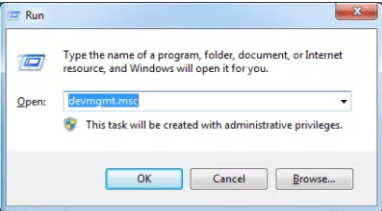
  • Type ‘devmgmt.msc’ in the run dialog box and press the Enter key

  • In the device manager window, locate your printer under ‘print queues’
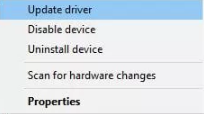
  • Now, right click the Canon printer and then click on Update Driver

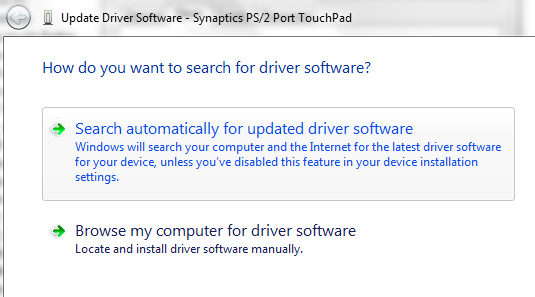
  • Select the first option of Search automatically in the next window

  • Windows will now locate and install the latest driver for your Canon printer
  • Restart your computer if prompted

Drivers from Canon’s Website

  • Browse to the Canon’s official website
  • Locate the latest driver for your printer model. Ensure you download the driver version right for your computer, meaning if you have a 32-bit Windows computer, you should download a printer driver that’s meant for 32-bit Windows.
  • Save the downloaded file on the computer
  • Double-click it to start the installation process and follow the on-screen instructions (if any)

Downloading the printer driver automatically

Outdated drivers can cause serious problems with your PC. With Driver Updater keeping your drivers up to date is very easy. With just a few clicks, you can update all your drivers. A free trial of this Driver Update Tool means you can give it a try without commitment.

Download using the link below and get your Driver problems fixed.

Start Download

Filed Under: Software Drivers

DIY Fixes for Logitech M310 Mouse Driver Errors

By Susan C on March 14, 2022

DIY Fixes for Logitech M310 Mouse Driver Errors

The M310 is a popular wireless optical mouse, which you can use right out of the box. It features a sleek, ergonomic design and side grips. Whether you are a right-handed or left-handed, you can easily and comfortably use it. The M310 is affordably priced and connects with your device through a wireless USB-receiver.

However, like any other peripheral device, the M310 may encounter some issues. Generally speaking, the M310 errors are not serious and most times the user can fix it themselves by downloading the latest drivers. All the same, we recommend you perform some basic troubleshooting steps — discussed next — before you install the newest mouse drivers.

Basic troubleshooting steps for Logitech M310 Mouse Driver Errors

The M310 Logitech Mouse boasts a solid battery life — roughly 18 months. How long since you changed the battery? If it has been much longer than this then the first thing you should do is check your device’s battery.

The top of the M310 mouse has a small light which show if the power is low and you need to replace the battery.

If that doesn’t work, check the USB port into which the M310 nano-receiver is inserted. Doing this is really simple. Just insert the M310 USB receiver into another USB slot. If the mouse then works the problem was with the other USB port.

If none of these solutions work, you should update the M310 mouse device driver. You can do so manually or automatically. While updating drivers automatically is a far easier, simpler, and faster method, this post discusses both options in depth so that you can choose the one with which you are more comfortable.

Logitech Mouse Not Working (Fixed)

Manually Update the Logitech M310 Mouse Driver

Basically, there are three ways to manually update your mouse drivers. These are:

  • Install the latest windows update
  • Update the driver through Device Manager
  • Directly download the latest M310 driver from Logitech’s website

Here are the steps for each one of them.

Install the latest windows updates

Windows update may help update your outdated device drivers in addition to the system updates.

You can run Windows updates by performing these steps:

  • Click the Start button
  • Type “windows update” in the Start Search box. A list of options will appear; select Windows Update and then click Check for updates
  • Windows will install all applicable updates. Follow onscreen instructions if any
  • Restart Windows

Check if the M310 mouse error has been resolved. It is possible that Windows Update may not have the latest driver for your mouse. In this situation, you must manually download the newest driver by using any of the next two methods or automatically download it using a reliable driver update tool.

Manually download the M310 driver using device manager

Windows computers come with a number of utilities built-in. One such utility is Device Manager, which allows you to control attached hardware.

To update the M310 mouse driver through device manager, perform these simple steps:

  • Click the Start button and then in the Start Search box type “run” and press the Enter key
  • Now type “devmgmt.msc” in the run dialog box and then press Enter
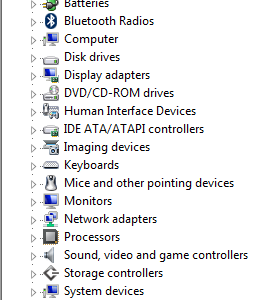
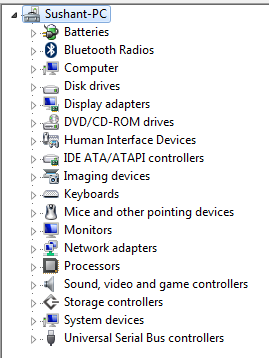
device manager
  • In the device manager window, locate and expand Mice and Other Pointing Devices option
  • Right-click on the M130 mouse and then click Properties
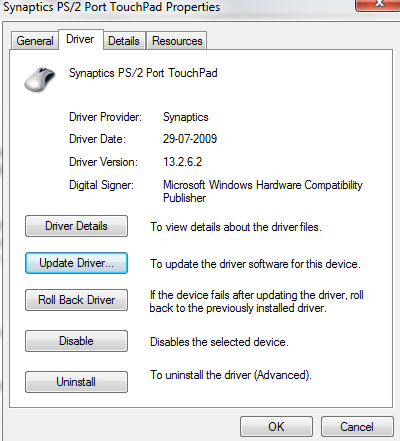
  • Click on the Driver tab and then click on the Update Driver button
click Update driver
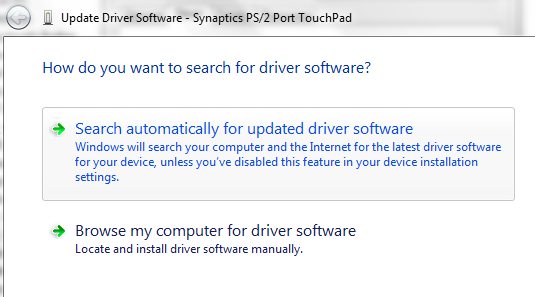
  • Click “Search automatically for updated driver software” in the next window
Search automatically
  • Now, Windows is going to search for a driver update and automatically install it

If Windows is unable to find a relevant driver update, you must download it manually from the Logitech website.

Download the M310 mouse driver from the Logitech website

Here are the steps to follow:

  • Open a web browser
  • Go to the Logitech website
  • Search for the latest driver for the M130 mouse. It’s important that you download the driver version that corresponds to your Windows PC or laptop. That means if you are using a 32-bit Windows, you must install drivers designed for 32-bit Windows, not 64-bit. And if you use a 64-bit Windows, click on the driver designed for 64-bit PCs or laptops.
  • Save the downloaded file on your computer
  • Double-click the .exe file to start the installation. Follow on-screen instructions, if any
  • Reboot windows

Note: Always download drivers from the device manufacturer’s or your laptop manufacturer’s website, and not other websites.

Downloading the M130 driver automatically

Outdated drivers can cause serious problems with your PC. With Driver Updater keeping your drivers up to date is very easy. With just a few clicks, you can update all your drivers. A free trial of this Driver Update Tool means you can give it a try without commitment.

Automatic driver update tools offer many benefits, the most important ones being:

  • You can update device drivers automatically
  • The software scans and updates all outdated or missing drivers at one go
  • The tool picks the right drivers for your device and operating system, so you won’t have to worry about installing an incorrect driver by mistake
  • Automatic driver updates are 100% safe

Driver Updater is one of the best driver update tools out there. Outbyte Driver Updater will give you access to a database of over 1 million drivers. It will regularly scan your PC, suggesting new driver versions to install. Driver Updater contains drivers for a variety of Windows devices. With just one click, you can update drivers in your system.

Step 1
Click here to Install and launch the app

Step 2
Scan all devices

Step 3
Install or update drivers automatically


Start Download


Filed Under: PC Fix Tips Tagged With: Logitech M310 driver

  • « Previous Page
  • 1
  • …
  • 58
  • 59
  • 60
  • 61
  • 62
  • …
  • 189
  • Next Page »


  • Recent Posts
  • Popular Posts
        

Read More Posts


Read More Posts

Drivers.com Sites

  • Software Drivers
  • Drivers Ed

About Us

  • Advertise
  • About Drivers
  • Drivers Support
  • Drivers.com Privacy Policy
  • Disclaimer
  • Software Drivers
  • Mac Fixes and Tips
  • PC Fix Tips
  • Security/ Backup
  • Tablets & Smartphones
  • Tech News

© Copyright 2026 PDE Publications Ltd. End User License Agreement (EULA)