Drivers.com

follow us:

facebook twitter
  • Home
  • Download Drivers
  • Drivers Help
  • PC/Mac Resources
  • Software Drivers
  • Mac Fixes and Tips
  • PC Fix Tips
  • Security/ Backup
  • Tablets & Smartphones
  • Tech News
  • Software Drivers
  • Mac Fixes and Tips
  • PC Fix Tips
  • Security/ Backup
  • Tablets & Smartphones
  • Tech News

Cannot Remember HP DeskJet 3630 Printer Password

By Susan C on June 25, 2022

Cannot Remember HP DeskJet 3630 Printer Password

The HP Deskjet 3630 All-in-One Printer is designed for home use as well as small office use. It is a popular printer in this category, owing to its modern design, small footprint, affordable price, and wireless connectivity. You can use it for small office use, but not for bulk printing. That is because its commercial ink cartridges is more expensive than that of other similar models. You can buy an Instant Ink solution from HP, in which prices are based on the amount of paper you print each month. While small offices can use this option, it must be said the subscription for Instant Ink doesn’t offer a great deal of savings. So, if you are going to have high usage month after month, this is not likely to prove a cost-effective solution.

The DeskJet 3630 Printer is a robust printer but you may sometimes encounter an issue when you use it on a WiFi network. Actually, this issue has got nothing to do with an error with the printer, but rather you having forgotten the Wi-Fi Direct password. All the same, this is a fairly easy issue to resolve.

Finding Password for HP DeskJet 3630

If you do not remember the WiFi Direct Password, you can fix the issue in two ways. You can reset your printer’s network settings to its default settings. Or, you can print the latest network information from your printer directly. When your device, a PC, a laptop, or a tablet, asks you feed in the WiFi Direct Password to complete a print job, simply generate the report on your device.

How to Print WiFi Direct Password on HP DeskJet 3630

All the network information is recorded by the HP DeskJet on the onboard device. If you want to connect it with an additional PC, you will need to feed in the password on each device that you wish to use.

  • Press Power button that is there on the your printer’s panel to switch it on
  • You can generate network diagnostic report by pressing and holding the button for WiFi Direct
  • The HP DeskJet 3630 will now generate the required report. Wait until the printer is done. You will able to find all the relevant information regarding the WiFi Direct settings on the page it has just printed. You will see the network name, status, hostname and the password. Now, check the printed information and enter WiFi Direct password on the device that you want to connect to your printer

In case the problem is not resolved, we recommend first turning off the WiFi Direct. Next, connect the printer to a network to use it.

How to connect the printer to a WiFi Network Rather Than Using WiFi Direct

In case the problem persists even after you have updated WiFi Direct password, it probably means that there is something the matter with printer’s hardware. The best solution in this situation is resetting the settings of your printer to its default settings and then trying printing pages over the WiFi network.

  • Turn the printer on and check whether it is able to establish a connection with your Wi-Fi network. You will see the status on the display panel. A blinking Connection LED indicates the printer is still trying to connect. If it connects, you will see the signal strength on the screen
  • If the blinking continues, it indicates the HP DeskJet 3630 is unable to connect. By performing a hard reset on your printer, you can reset WiFi settings
  • Power on your printer. Wait until it completes the startup process
  • Once your printer is turned on, press down and hold its power button as you perform the steps shared below
  • You will see a Copy button (Black) on the Display panel. Press it twice while still pressing down the Power button
  • Next press Cancel (the button with a red cross) three times. You must keep the Power button pressed as you do this
  • The Connection LED will start blinking as the current settings are deleted. Once this process is complete, configure your WiFi settings for HP DeskJet 3630 on the PC

How to set up WiFi Network for your Printer

After you have reset the network settings of your printer, reconnect it to your PC’s WiFi network. Before you do that, however, you must make sure you have all the latest HP drivers and software on your PC. Sometimes, a new Windows update can cause issues with your printer’s software and drivers.

  • Navigate to HP support website, locate the latest software you need and then download it
  • Wait until the download process is complete. Save the installer file in a suitable location
  • Open the folder with the installer file. Double-click this file to launch installation
  • You may receive a security prompt. If so, click the Run button to proceed
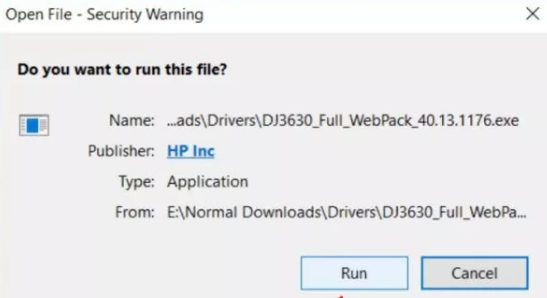
Click Run

Note: Have you earlier installed the HP software? If yes, uninstall it first. Only then proceed with the installation of the latest software version.

  • Now wait until the installer extracts the complete package
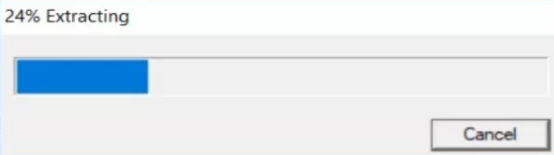
Extracting
  • Make sure your printer is turned on before you click the Continue button on your screen
  • Click the first option, Connect to a New Device, that you see on the Setup screen
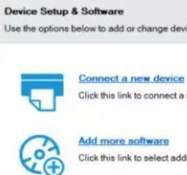
connect a new device
  • You can configure your HP DeskJet 3630 in two ways — manually or automatically. If you opt for the latter, the printer installer will collect wireless network information on its own and set up the required settings. The automatic option will discover and locate your printer on your network and then install new settings
  • In case the software is unable to add your printer to WiFi network, you will need a USB cable to connect it and upload all network settings on your PC or laptop
  • Once you have correctly set up the HP DeskJet, send it a print test job using your WiFi connection

Some more printer troubleshooting steps

In case you are still not able to connect the printer to your WiFi network or using the WiFi Direct method, probably you need to update the printer drivers.

You can update the printer drivers either manually or automatically. While the automatic method is easier and faster, we have listed both, so you can pick the one that works best for you.

Manual update printer drivers

Windows computers include a built-in utility — called the Device Manager — for managing your hardware devices and their drivers. Here’s how to use it to update your printer drivers manually.

  • Click the Window key and R key simultaneously to launch the run dialog box
  • Type devmgmt.msc and press Enter
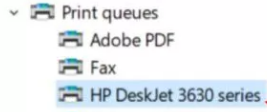
  • In the Device Manager window, expand print queues
  • Locate and select the HP DeskJet 3630 printer
HP DeskJet Printer
  • Then right-click it and select Update driver
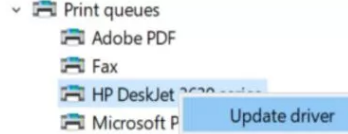
update printer driver
  • Click Search automatically for updated driver software
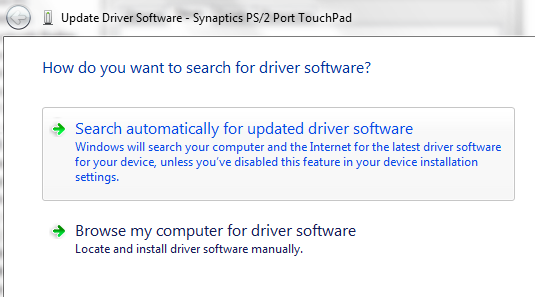
Search automatically
  • Windows will automatically connect to internet and locate the newest drivers for your printer. Once Windows have done searching, you will be prompted to install the newest driver (unless you are already using one, in which case Windows will inform you that the installed driver is the latest one)
  • Follow the on-screen prompts to update the printer driver. If prompted, restart Windows. Check whether you are able to print now or not

Automatically update printer drivers

Automatic driver update tools offer many benefits, the most important ones being:

  • You can update device drivers automatically
  • The software scans and updates all outdated or missing drivers at one go
  • The tool picks the right drivers for your device and operating system, so you won’t have to worry about installing an incorrect driver by mistake
  • Automatic driver updates are 100% safe

Driver Updater is one of the best driver update tools out there. Outbyte Driver Updater will give you access to a database of over 1 million drivers. It will regularly scan your PC, suggesting new driver versions to install. Driver Updater contains drivers for a variety of Windows devices. With just one click, you can update drivers in your system.

Step 1
Click here to Install and launch the app

Step 2
Scan all devices

Step 3
Install or update drivers automatically
 

Start Download


Filed Under: PC Fix Tips Tagged With: HP DeskJet 360

Resetting a Brother HL-L2320d Printer After Changing Toner

By Susan C on June 16, 2022

Resetting a Brother HL-L2320d Printer After Changing Toner

You have just changed the toner of your Brother printer yet the machine issues a pop-up warning that you are low on the toner or that it needs replacement.

This issue can be irritating to say the least because you have already done all that was needed to fix the problem. All the same, this is a common problem and relatively easy to fix.

In this post, we will look at how to reset a Brother HL-L2320d printer after you have changed the toner. So, let’s dig in.

Why does a Brother HL-L2320d act up after you have changed the toner?

Hardware devices, don’t always behave as hoped or expected.

This warning message in and of itself is not really a concern. But the problem is that because the printer thinks (erroneously, of course) that it is low on toner, it will likely refuse to print anything. And there is where the real problem lies. You can’t print anything until you make your printer aware that the toner has been replaced.

How can you do that? How can you turn off that irritating light?

Thankfully, there are a few ways to fix this problem, and in the next section, we will discuss each one of them in depth.

How to Reset Your Brother HL-L2320d Printer After You Have Changed Toner

Shared below are the different ways to solve this problem. We recommend you try these solutions in the order they appear below.

Check the Printer’s Connection

First thing you must do is ensure the printer is properly connected to your computer. If it is, disconnect it and reconnect it. This is similar to restarting your computer and often does the trick.

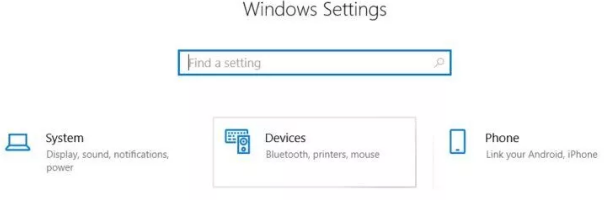
Open the Windows Settings app and then click Devices. In this section, you will see relevant information regarding your printer as well as its properties.

click devices

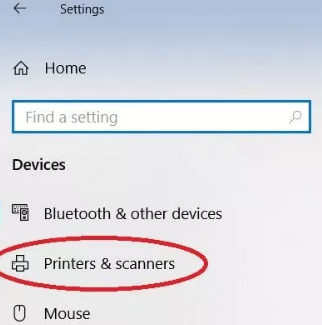
In the left part of the window, different categories will be listed. Click Printers and Scanners.

printers and scanners

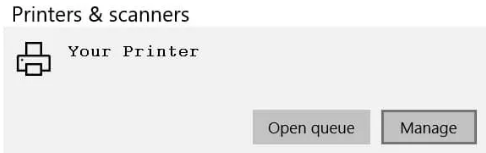
Now, click the Brother HL-L2320d printer. Two options will appear on your screen — Open queue and Manage. Opening the printer queue can prove helpful in many situations, but this is not one of them. Right now you should pick the other option, so click the Manage button.

click manage

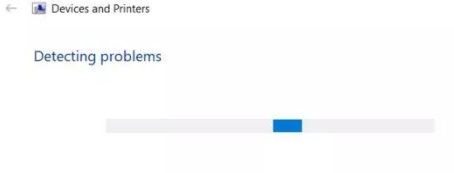
You will see Run the troubleshooter option on your screen. Click it since the in-built troubleshooting tool can detect the underlying problem that causing the titled issue and fix it.

printer troubleshooter

In case there is no connection between your computer and printer, try resetting the printer. Turn the printer off and then turn it on. At times, a printer may not be able to establish a proper connection with a computer and resetting may prove helpful.

In case this doesn’t work, don’t worry. Consider restarting Windows. This will refresh the computer and also take care of pending updates, if there are any.

Keep in mind that you should use the restart button for this purpose. A hard reset (pressing down the power button and holding it until the Windows screen turns black) is not recommended unless it is the only option. Whenever possible, go with the safer option of using the restart button to reboot Windows.

Restart the Printer Settings

It is possible that restarting Windows and attempting to set up a connection may not work. If that is the case, you should reset the printer settings.

Restoring a printer to its default factory settings is easy. Even though you are likely to lose some of the customization that you have done, you can set them again without any problem.

  • Power off the printer
  • Once the printer is shut down, press the Go button till the printer powers on
  • Wait until all panel lights pop up
  • You will have to repeatedly push down the Go button (roughly 8-10 times)
  • Once you have done that, the printer should be restored to its default settings

This action is recommended only if you are unable to get rid of the “toner low” light through any other way. Chances are once the printer has been reset and starts operating with default settings it will be able to recognize that its toner has been refilled.

However, if the problem still doesn’t go away, you will have to dig deeper.

Check the Drivers

Drivers are essential pieces of software that ensure your computer and attached devices work seamlessly. Since they run in the background, if anything is wrong with them or if an essential driver is missing, you will not know about it until some error occurs.

Windows computers come with an in-built utility called the Device Manager that lets you manage the installed drivers.

  • In the Start Search box, type run
  • In the run dialog box, type devmgmt.msc and press Enter to open the device manager window
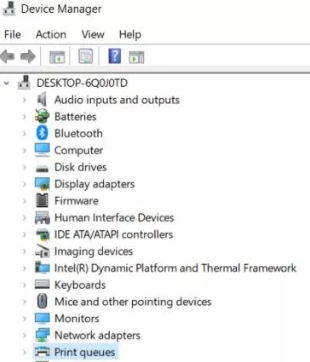
  • Click and expand Print queues and then click your printer
device manager
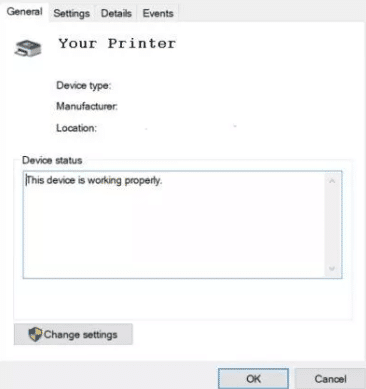
  • You will see a window like the one shown below. Here you will see relevant information regarding your Brother printer
printer general settings
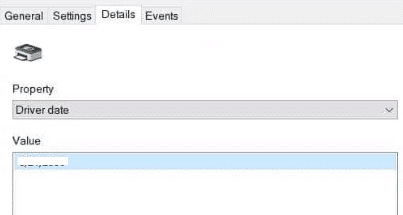
  • Click the Details tab to see if the driver needs an update
Printer details

If your driver needs an update, you can manually download the relevant updated from the Brother’s website. While this is a time-consuming process, the effort is worth it. Installing the latest driver can fix the problem you are facing and also help the printer run smoothly.

Once you have downloaded the latest driver for your Brother printer, double-click it to install the driver.

Benefits of using an automatic driver update tool

Automatic driver update tools offer many benefits, the most important ones being:

  • You can update device drivers automatically
  • The software scans and updates all outdated or missing drivers at one go
  • The tool picks the right drivers for your device and operating system, so you won’t have to worry about installing an incorrect driver by mistake
  • Automatic driver updates are 100% safe

Driver Updater is one of the best driver update tools out there. Outbyte Driver Updater will give you access to a database of over 1 million drivers. It will regularly scan your PC, suggesting new driver versions to install. Driver Updater contains drivers for a variety of Windows devices. With just one click, you can update drivers in your system.

Step 1
Click here to Install and launch the app

Step 2
Scan all devices

Step 3
Install or update drivers automatically
 

Start Download


Filed Under: PC Fix Tips Tagged With: Brother HL-L2320d Printer

Fix HP DeskJet 2652 Not Printing Via USB

By Susan C on May 23, 2022

Fix HP DeskJet 2652 Not Printing Via USB

When it comes to convenience, wireless printers have a significant advantage over their non-wireless counterparts. Nonetheless, wireless printers, like any other peripheral device, can throw up errors every now and then. In this situation, users are likely to go back to the old method of printing via USB. But what if this fails too?

If your HP DeskJet 2652 won’t print via USB, don’t panic. In most cases, the underlying issue is usually a simple one and so too is the solution. However, before you can began troubleshooting, it is necessary to find out exactly what the problem is.

Why HP DeskJet 2652 Won’t Print?

This may happen for many reasons, including not having downloaded the latest window updates or having out-of-date printer device drivers.

The first thing you should when you encounter this issue is to check the last time you updated your Windows computer. It’s possible your printer is not working as it should because it doesn’t have a necessary update. It’s also possible that your computer doesn’t have the required updates.

In order to check the last time your computer was updated click the search bar and then type “update.” The system will tell you if your PC requires an update.

If it is a while since you last updated your Windows computer, you may see a message similar to the one displayed below

Make sure all the recent updates are installed. If possible, try printing a test page. Running this simple test will confirm whether or not your system is communicating with the HP printer.

Below are the steps you need to perform for printing a test page:

  • Click the Windows icon and then click Settings
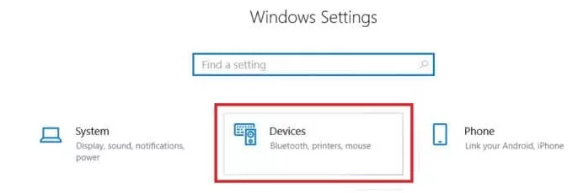
  • In the Window Settings, click “Devices”
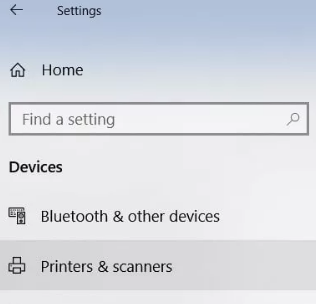
  • Next, click “Printers and scanners”
click printers and scanner
  • Select your printer and click “Manage”
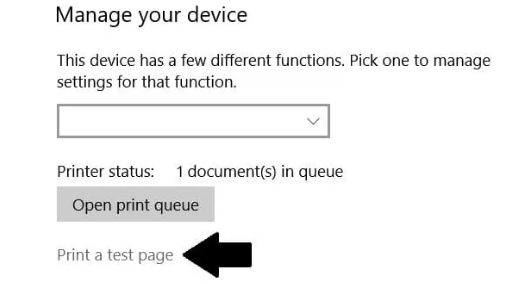
  • You will now see various options. Click the “Print a test page” option

Note that a test page looks different than a usual page. So, if the test print page looks strange, don’t worry. Generally speaking, a test page is likely to have lines and bars of various colors, along with alphanumerical characters.

If your HP printer, instead of printing the test page, adds another command to print queue, you will need to dig deeper to find out the root cause of the problem.

How to Troubleshoot HP DeskJet 2652 Issues

Your HP printer has self-diagnostic capabilities. If the printer is not working properly, it can diagnose the error and offer potential solutions. The printer troubleshooter is located in the Settings app itself. Here’s how you can find and use it:

  • In the Settings app window, click “Devices”
  • Click “Printers and Scanners”
  • Click “Manage”
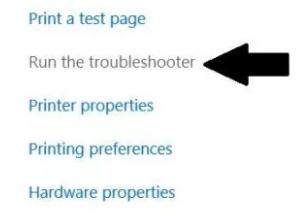
  • You’ll see various options. This time click the “Run the troubleshooter” option
run the troubleshooter

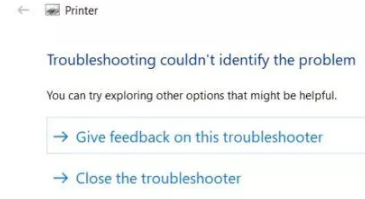
If the Printer troubleshooter is able to identify the problem, you are a step closer to resolving the issue and being able to print via USB. However, it’s possible that it fails to identify the root cause. This can happen, so don’t worry too much if you see a message on your screen similar to the one shown below.

In this situation, you can try the following two solutions in the order they appear below.

Solution #1 – Reset the Printer

You will need to uninstall the printer to fully reset it and its software. Here’s what you need to do:

  • Turn the printer off
  • Click the Start icon and then select Control Panel
  • In the Control Panel window, click “View devices and Printers” (as the image below shows)
  • Now you will see all the hardware devices that are attached to your system
  • Browse through the list to identify the HP DeskJet 2652 printer. Once you have done that, right click its thumbnail and select “Remove device”
  • Follow onscreen instructions, if any
  • Restart Windows

After Windows restarts, reinstall the printer and then check whether it is working or not.

Solution #2 – Uninstall and Reinstall Drivers

Drivers are behind-the-scene pieces software that make sure your computer and its’ accessories work efficiently. You may not notice them much while using your Windows computer on a daily basis, but you will be very likely to notice them if they are faulty, outdated, or missing.

Like any other program that suddenly stops working, drivers too may benefit from uninstalling and reinstalling. Performing this is relatively easy and painless.

Here are the steps you need to so:

  • Type “run” in the Start Search box and press Enter
  • Type “devmgmt.msc” in the Run dialog box and press Enter
  • In the Device Manager window, you will see all the installed devices and accessories
  • Locate and click “Print queue”
  • You should now see the HP DeskJet pop-up window. Click the Details tab to find all relevant information about the printer driver. Check whether the printer driver requires an update. You may also consider removing the driver and installing it again. This will likely fix the problem of your printer not printing via USB.
  • You can access the printer drivers by pressing Win + R keys. This will open the Run dialog box on your screen. Type “printmanagement.msc” and press Enter.
  • Now, locate the appropriate printer and its driver. Next, right-click it and choose “Remove Driver Package.” Windows will uninstall the printer driver
  • Next, go to the printer manufacturer’s website and download the latest driver. Make sure you pick the printer driver designed for your version of Windows. That means if you use a 32-bit Windows 10 PC, you should download the driver designed for 32-bit systems. Likewise, users who are using a 64-bit Windows need a driver designed for 64-bit systems.
  • After you have downloaded and saved the driver file, double-click it and run the executable file (the one with .exe extension). Follow onscreen instructions, if any, to complete the installation process.

Benefits of using an automatic driver update tool

Automatic driver update tools offer many benefits, the most important ones being:

  • You can update device drivers automatically
  • The software scans and updates all outdated or missing drivers at one go
  • The tool picks the right drivers for your device and operating system, so you won’t have to worry about installing an incorrect driver by mistake
  • Automatic driver updates are 100% safe

Driver Updater is one of the best driver update tools out there. Outbyte Driver Updater will give you access to a database of over 1 million drivers. It will regularly scan your PC, suggesting new driver versions to install. Driver Updater contains drivers for a variety of Windows devices. With just one click, you can update drivers in your system.

Step 1
Click here to Install and launch the app

Step 2
Scan all devices

Step 3
Install or update drivers automatically
 

Start Download


Filed Under: PC Fix Tips Tagged With: HP Printer Issue

  • « Previous Page
  • 1
  • …
  • 57
  • 58
  • 59
  • 60
  • 61
  • …
  • 189
  • Next Page »


  • Recent Posts
  • Popular Posts
        

Read More Posts


Read More Posts

Drivers.com Sites

  • Software Drivers
  • Drivers Ed

About Us

  • Advertise
  • About Drivers
  • Drivers Support
  • Drivers.com Privacy Policy
  • Disclaimer
  • Software Drivers
  • Mac Fixes and Tips
  • PC Fix Tips
  • Security/ Backup
  • Tablets & Smartphones
  • Tech News

© Copyright 2026 PDE Publications Ltd. End User License Agreement (EULA)