Drivers.com

follow us:

facebook twitter
  • Home
  • Download Drivers
  • Drivers Help
  • PC/Mac Resources
  • Software Drivers
  • Mac Fixes and Tips
  • PC Fix Tips
  • Security/ Backup
  • Tablets & Smartphones
  • Tech News
  • Software Drivers
  • Mac Fixes and Tips
  • PC Fix Tips
  • Security/ Backup
  • Tablets & Smartphones
  • Tech News

NETGEAR a6210 WiFi Adapter and Windows 10 Issues

By Susan C on November 23, 2022

NETGEAR a6210 WiFi Adapter and Windows 10 Issues

NETGEAR Adapter a6210

If onboard network radios are not available, the A6210 adapter can be an option to establish wireless connectivity.

With the latest drivers, Netgear has introduced noticeable improvements. And the device can support Beamforming+ connectivity, provided you have a Netgear router that is compatible with this technology.

But if you experience regular dropping of internet connectivity, that can frustrating to say the least. In this post, we will show you the steps you need to perform for fixing Netgear A6210 issues on Windows 10.

Netgear A6210 Disconnecting – easy fix

Issues with Netgear Genie Software

There are 2 different setup applications that Netgear provides. One application includes Genie software while the other one is a standalone version.

However, some users state that both of these versions have Genie, the only difference being that the standalone version runs a silent installation. That is, the installation runs quietly in background.

Because Genie software has had some issues in Windows 10, if you are a Windows 10 user, it would be best to use an OEM driver. OEM stands for original equipment manufacturer.

Using MediaTek driver in place of Genie Software

Genie software bundles more than one drivers into installer, which can be an issue if your internet connection keeps on dropping regularly. A good option to get rid of the problem is to use MediaTek LAN driver instead.

How to remove A6210 Genie Software

  • The first thing you must do is uninstall Genie. To do this, launch Control Panel. To access control panel, type control panel in the start search bar and press Enter
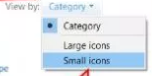
  • In the event the Category View is set by default, you must select Small Icons in the View by drop down menu. If the View by category is already set to Small Icons, move to the next step

Important: When it comes to removing or adding applications from Windows, you are recommended to use Programs and Features. Regardless of which Genie version you are using, you must uninstall the program from the Programs and Features window.

Small icons
  • You will see a list of installed software in the Control Panel window. Browse through the list until you see Programs and Features. Then click Programs and Features
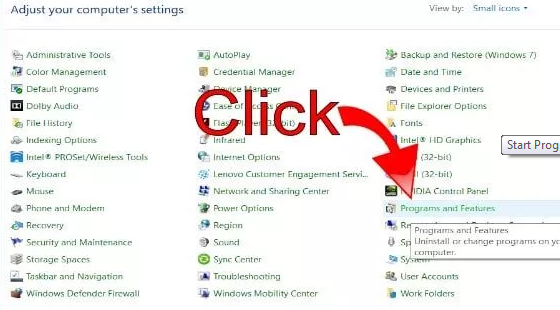
programs and features
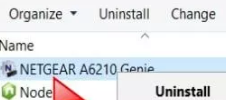
  • Now you will see all the programs installed on your computer. Browse through the list until you see Netgear A6210 Genie software
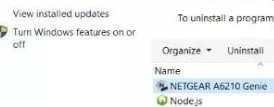
Netgear Genie
  • Right click Netgear A6210 Genie software to open the context menu
  • Click Uninstall
click Uninstall
  • The InstallShield Wizard will load now. Once it has loaded, select the Remove option and then click the Next button
  • A message asking you to confirm if you wish to uninstall the software will appear on your screen. Click the Yes button
  • Windows will now uninstall the selected software. Wait until the uninstaller has completed the process
  • Once the uninstallation is complete, a notification will appear on your screen. Click the Next button to proceed
  • Lastly, a prompt message will appear on your screen asking you to remove the USB 3.0 adapter. So disconnect the Netgear A6210 wireless dongle from the port and click the OK button
  • Restart your windows to ensure all registry entries related to Netgear Genie are removed from your computer.
  • Once Windows restarts, update the driver for your adapter by using the steps listed below

How to update Netgear Adapter using MediaTek Equivalent?

The steps discussed in this sub-section are complex. Make sure you follow these steps closely.

You need to initiate Genie software, as well as connect your adapter. However, you must not install Genie software completely. If you do that, you must restart the entire process again by first uninstalling Genie and then performing the steps discussed in this sub-section. In the event you wish to download the driver software, you can use this link.

  • Go to the download folder, locate Genie standalone installer package, and then double-click it
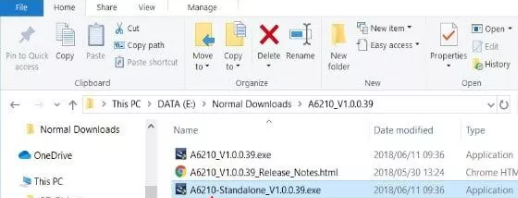
  • Accept the licensing agreement by selecting the “I agree” option. Click the Next button
  • Now Genie software is going to reinstall itself. The progress bar on your screen helps you keep a track of the installation
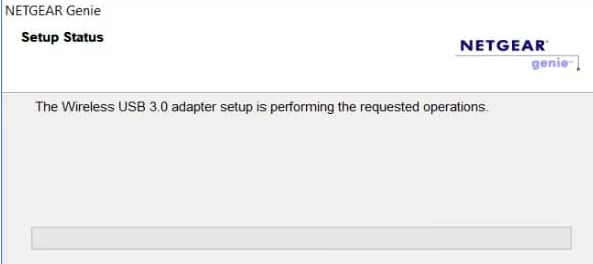
  • As part of the installation process, Netgear Genie is going to ask you to connect your wireless adapter and then click the Yes button. You must not click the Yes button. Instead, connect your adapter and leave this prompt open while you follow the steps shared ahead
  • After you connect the adapter, your system is going to install a basic or generic driver. Now open the Device Manager window by typing devmgmt.msc in the Start Search box and pressing Enter
  • The device manager window will display all hardware devices connected to your computer. Browse through the list until you find Network Adapters. Then expand this entry. One of the sub-entries will be Microsoft WLAN USB Wireless LAN Stick device. (Keep in mind that this entry may have a slightly different name as that depends on the version of Windows you are using)
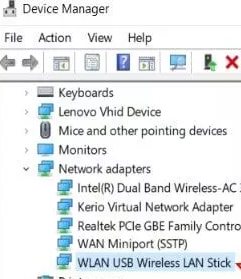
  • Right-click this device and click Update Driver
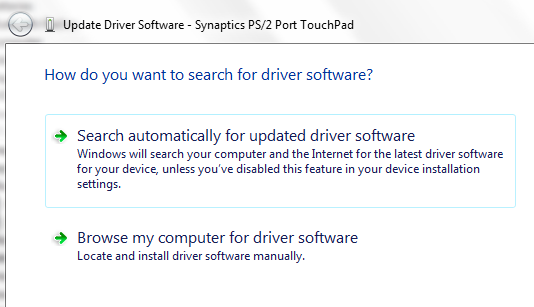
  • In the next screen, Windows will give you two options. One, you can have Windows search automatically for the latest driver on your computer and the internet. Two, you can manually browse your computer to locate the correct driver. You must use the second option “Browse my computer for driver software”
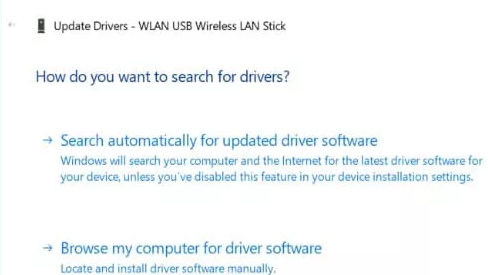
  • In the next window, choose “Let me pick from a list of available drivers on my computer”
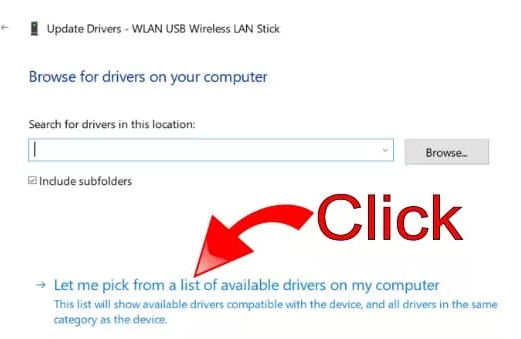
  • In the next window, first deselect “Show compatible hardware”. Next, browse through the list in the left pane until you locate MediaTek Inc. manufacturer
  • In the list that appears in the right pane, choose 11ac Wireless LAN Card Version 5.9.57.0 driver
  • Click the Next button
  • Windows may display a warning message, which can be ignored. Click the Yes button to start the installation process
  • Windows will now start the installation. Wait till it is completed
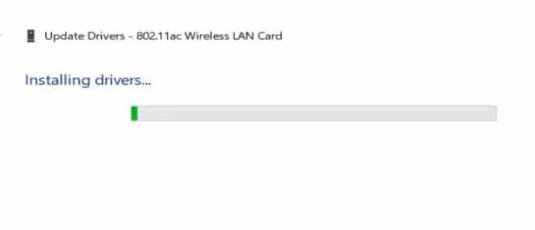
install drivers
  • After the installation process is complete, adapter is going to change in your Device Manager window. It will now be listed as 802.11ac Wireless LAN Card. Right click on it and choose Properties. Click the Advanced tab and set Selective Suspend to Disabled
  • Click the OK button
  • Click the Device Manager window and then click Yes on Genie Installer. A message will appear on your screen stating that Netgear has updated device drivers. You should no longer encounter any problems because you will now be using OEM driver from MediaTek

Netgear Adapter A6210 Driver Download

The Netgear A6210 Adapter requires a driver that doesn’t come preinstalled with Windows. You can use an automatic driver update tool to install these drivers for you.

Automatic driver update tools offer many benefits, the most important ones being:

  • You can update device drivers automatically
  • The software scans and updates all outdated or missing drivers at one go
  • The tool picks the right drivers for your device and operating system, so you won’t have to worry about installing an incorrect driver by mistake
  • Automatic driver updates are 100% safe

Driver Updater is one of the best driver update tools out there. Outbyte Driver Updater will give you access to a database of over 1 million drivers. It will regularly scan your PC, suggesting new driver versions to install. Driver Updater contains drivers for a variety of Windows devices. With just one click, you can update drivers in your system.

Step 1
Click here to Install and launch the app

Step 2
Scan all devices

Step 3
Install or update drivers automatically

 

Start Download


Filed Under: PC Fix Tips Tagged With: A6210 Wi-Fi Adapter

How to fix common Zoom video conferencing app problems

By Susan C on November 16, 2022

How to fix common Zoom video conferencing app problems

In recent times, Zoom — a video conferencing app — has seen a big surge in popularity, and understandably so. Thanks to it (and other apps like it), working from home or another remote location has become easier than ever before. However, no app is perfect — and Zoom is no different. From time to time, one may encounter an error or issue while using Zoom, but that is okay. In most cases, it doesn’t take much to fix the underlying problem.

Follow along as we explore common Zoom glitches and their fixes.

Zoom won’t connect

If you are unable to join a video meeting, you may encounter the Zoom error 1001307000.

This is a connection error and can be resolved easily. Here is what you need to do.

Fix Internet Problems

Ensure you are not connecting via a VPN. Also, check whether other websites are working ok.

Wrong Credentials

Perhaps the meeting you want to join is password protected. If that is the case, you will not be able to get in until you enter the correct password. Keep in mind clicking a link to the meeting might lead to a situation where your connection is rejected. But you can always try manually joining the Zoom ID in the Zoom app window.

Firewall or Antivirus

Sometimes, security software like an antivirus tool or firewall may block genuine software or programs. In case a security software tool has blocked Zoom, you can’t use it unless you fix the issue.

Outdated (or faulty) Network Driver

An outdated or faulty driver can cause problems with connecting to Zoom meetings.

To fix the issue, you must download and install the latest network drivers.

Network drivers can be updated manually or automatically. While the manual method is a little tedious, not to mention technical, we have shared both. That way you can pick the one that works best for you.

Updating Network Driver Manually

You can update a network driver manually via the Device Manager utility. Here is what you must do:

  • Press Windows logo key + R together to bring up the Run command
  • In Run command, type devmgmt.msc and click OK
  • In the Device Manager, go to Network Adapters category and expand it
  • Select your network adapter and right-click on it
  • Click update driver
  • You will be presented with two options in the next window. Select Search automatically for updated driver software. Now, Windows will search for the latest driver on its own and install it.
  • In case Windows fails to locate the latest driver on the internet, you will have to do a manual search. Browse to the manufacturer’s website and locate and download the latest driver. However, before you do that, note down the name of your network card. Now, visit the manufacturer’s site, search for the newest driver for the network card. Alternatively, type the name and the model number of your network card in Google search bar and locate the latest driver.
  • After you have located the latest driver, download the file and save it on your desktop or another suitable location. However, before downloading the driver file, make sure it is compatible with your PC. If you use Windows 10 64-bit, the driver file should be for 64-bit Windows 10 version. Likewise, Windows 32-bit users must get the driver file designed for 32-Windows 10 PC.
  • Double-click the driver setup file to launch the installation process
  • Restart Windows after the installation is complete

Update Network Driver Automatically

A driver update tool makes easy work of updating a driver. This software will update the outdated network and other drivers. If you would rather have a tool update all outdated drivers for you instead of spending time trying to locate relevant drivers yourself, consider using a driver update tool.

Automatic driver update tools offer many benefits, the most important ones being:

  • You can update device drivers automatically
  • The software scans and updates all outdated or missing drivers at one go
  • The tool picks the right drivers for your device and operating system, so you won’t have to worry about installing an incorrect driver by mistake
  • Automatic driver updates are 100% safe

Driver Updater is one of the best driver update tools out there. Outbyte Driver Updater will give you access to a database of over 1 million drivers. It will regularly scan your PC, suggesting new driver versions to install. Driver Updater contains drivers for a variety of Windows devices. With just one click, you can update drivers in your system.

Step 1
Click here to Install and launch the app

Step 2
Scan all devices

Step 3
Install or update drivers automatically
 

Start Download


Zoom will not share screen

The problem of sharing screen on Zoom has more to do with your computer than with the software itself. Screen sharing can be a problem on older PCs, because it is a CPU intensive task. Other situations in which sharing screen on Zoom can be a problem include, but are not limited to, outdated drivers and issues with your graphics card.

Zoom will not show video

Sometimes, Zoom may stop showing video, which can be very frustrating to say the least. However, before we move further, it is necessary to understand the exact problem.

Is Zoom not showing only your video? Or is it not displaying anyone’s video?

If it is the latter, continue reading. If the former is the case, jump to the next sub-section, Zoom webcam is not working.

In case Zoom fails to display anyone’s video, most likely there is a problem with your graphics card. More specifically speaking, your graphics card drivers are outdated or faulty or missing.

You can update graphics card drivers the same way as network drivers shown above. That is, you can update them manually via the device manager window or you can use a reliable driver update software tool (such as Driver Updater).

Zoom webcam is not working

If the webcam is unable to connect with Zoom, try the following solutions in the order they appear below.

Ensure your webcam is properly plugged in

Are you using a desktop? Then perhaps your webcam is not plugged into your PC. Laptop users, however, do not have to worry about this because camera is always connected. That said, it is possible that a hardware might disable the connection, so there’s no harm in checking if the webcam is properly connected.

Ensure you are using the latest webcam drivers.

Outdated webcam drivers can cause all sorts of issues, including preventing the webcam from working properly.  As said earlier in the post, you can update device drivers manually, via the device manager, or automatically, using a driver update software tool. The second method is more convenient, simpler, and faster.

Zoom share audio is not working

Fix for zoom audio not working

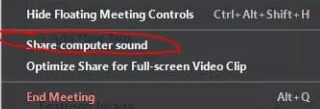
Did you know that you can share audio on Zoom as well? But keep in mind that in case you are sharing the screen, the app will not share audio by default. Instead, this feature needs to be enabled manually.

The screen grabs shared below show how you can share audio on Zoom.

click more
share computer audio

No sound in Zoom

Ever faced a situation on Zoom when all participants are not on mute, but you are still unable to hear anything? If so, chances are the audio output device is missing. Alternately, you might have selected the wrong output device. If you want to change to another device, first go into settings, and select a speaker and a microphone.

Filed Under: PC Fix Tips Tagged With: Zoom issues

How to Find Out Which Drivers Need Updating?

By Susan C on October 25, 2022

How to Find Out Which Drivers Need Updating?

As you might know, Microsoft Windows is the most popular operating system out there. Thanks to its large user base, one can find a wide range of third-party products that can enhance user experience and allows completion of various tasks. Popular third-party products that you may be using with your Windows system include the following:

  • Pointing devices like mouse
  • Scanners and printers
  • Keyboards and monitors
  • Sound cards
  • Graphic cards
  • Networking peripherals like routers, hubs, modems, etc.
  • Storage devices like external hard drives

Microsoft regularly updates its operating system to accommodate these devices and to fix any software bugs. Regular Windows updates also allow you to use the latest peripheral devices.

Nevertheless, unexpected errors can still occur at times. And when they do, dealing with them can be quite frustrating. For instance, your work can suffer if your printer is not printing properly or you are unable to establish a network connection.

One of the first things you should do when you experience problems with a peripheral device is check whether you have installed the latest driver updates. So, how can you find out which drivers need to be updated? Follow along as we answer this question in detail.

How to find out which drivers need to be updated

Many conditions could lead to a situation in which updating drivers become necessary. Two of the most common such conditions are:

Operating systems updates – Windows updates can affect your devices, so installing the latest driver updates can help keep any functional or compatibility issues at bay.

New peripherals – Are you installing a new peripheral device like a keyboard, printer, or a storage unit? If so, it is important to ensure you have the latest driver for your device. Otherwise, it might not function properly.

If a device is not working as it should, updating its drivers is often the first troubleshooting step.

What are Device Drivers and why do we need them?

How can I check for outdated drivers?

You can check for outdated drivers in different ways.

Windows Update

This is perhaps the easiest way to keep your Windows computer up-to-date. Downloading and installing the Windows updates is an important step to keep your device secure and working well.

Even when you don’t require driver updates, you should keep Windows Update active. Windows updates are divided into three categories:

  • Important – These updates are released to address reliability or security issues (and hence should not be missed).
  • Recommended – These updates help fix issues that are not critical in nature. While not as vital as the previous category, Microsoft recommends users to install these updates.
  • Optional – These include system drivers and software updates that address minor bugs and/or improve overall performance.

Follow these steps to launch Windows Update:

  • Click the Windows Start button
  • Next, click Settings
  • Click Update and Security
Update and Security
  • Now, Windows Update will launch itself
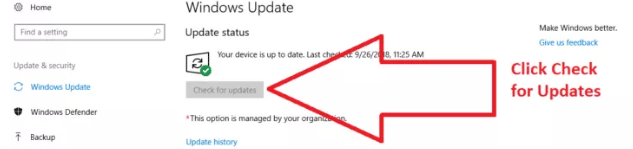
  • Click Check for Updates
click check for updates

Now, the Windows Update feature will download updates meant for your version of Windows operating system. Once the update process is complete, you will likely receive a message confirming this.

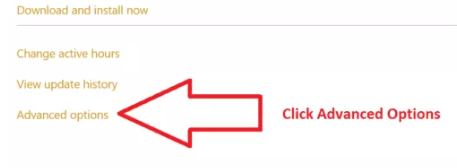
Windows Update is designed to run automatically on a regular basis. But if you want, you can customize its running as per a defined schedule. While Windows Updates runs every day, it might not install new updates daily. You can control how Windows Updates functions. To do that, first click the Advanced Options. Here you will various options for controlling Windows Updates.

click Advanced Options

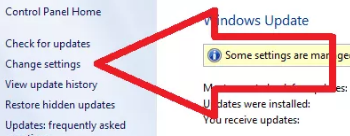
Another way to control how Windows Updates work is by clicking Change Settings in the Windows Update section.

click change settings

Here you will different options, including:

  • Who can install updates
  • Never check for Windows updates
  • How you will be notified when Windows finds new updates

Keep in mind that you may need to restart your computer after Windows downloads and installs new system and software updates.

Also, remember that not every peripheral manufacturer registers its driver and software updates with Windows immediately after releasing them. Some might not even register them at all. So, when it comes to updating drivers for peripheral devices, you cannot solely depend on Windows Updates. That is why the next step is an important one.

Device Manager

Windows computers come with a utility called device manager that allows you to manage various devices installed on your computer and their drivers.

Keep in mind that this method is an option only when you are sure which device needs a driver update. Also, if you want to update device drivers of more than one device, you will have to update them one by one.

Using device manager for updating drivers requires a certain level of technical proficiency. If that doesn’t suit you, it would be best to use a driver update tool, which automatically updates all outdated drivers with a click of the mouse.

Here is how you can use device manager to update drivers:

  • In the Start Search box, type run and press enter
  • In the run dialog box, type devmgmt.msc and press enter
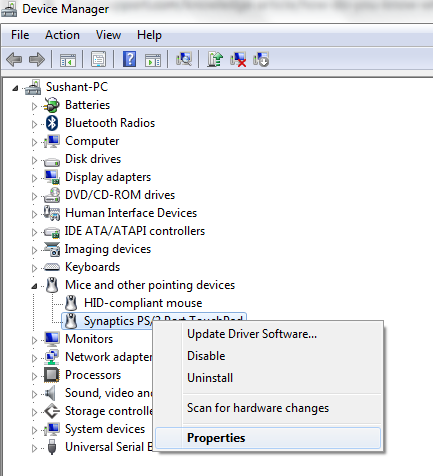
  • In the Device Manager window, you will see all the installed devices. Go through the list to locate the device that requires a driver update.
  • Once you have found the right device, right-click it and click Properties
click Properties
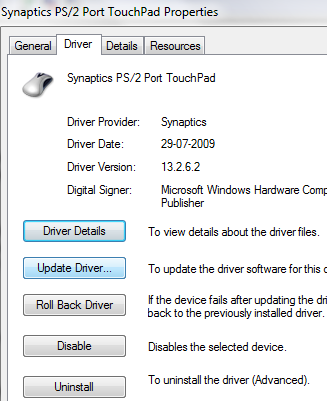
  • Click the Update Driver option to install the latest driver update
click Update Driver
  • Windows will give you two options: You can either install the driver from a driver file stored on your computer or you can let Windows search for the latest driver on the Internet
Update Driver Software

Download the latest driver from the device manufacturer’s website

Another option is to download the latest driver directly from the manufacturer’s website. Of course, to be able to do the same, you will need the following information:

  • Your Windows Version
  • Product type
  • Model and version of the device

Once you have all the necessary details, go to the device manufacturer’s website and search for the latest driver. Make sure you download the driver that is meant for your version of Windows. For instance, if you use 32-bit Windows 7, you should only download the driver for 32-bit Windows 7 computers.

Once you have located the right driver, download it and save the file on a suitable location (your desktop). Next, open the driver file and run the executable file. Follow on-screen instructions (if any). Once the installation is complete, you may be prompted to restart Windows.

Driver Update Software

Automatic driver update tools offer many benefits, the most important ones being:

  • You can update device drivers automatically
  • The software scans and updates all outdated or missing drivers at one go
  • The tool picks the right drivers for your device and operating system, so you won’t have to worry about installing an incorrect driver by mistake
  • Automatic driver updates are 100% safe

Driver Updater is one of the best driver update tools out there. Outbyte Driver Updater will give you access to a database of over 1 million drivers. It will regularly scan your PC, suggesting new driver versions to install. Driver Updater contains drivers for a variety of Windows devices. With just one click, you can update drivers in your system.

Step 1
Click here to Install and launch the app

Step 2
Scan all devices

Step 3
Install or update drivers automatically

 

Start Download


Filed Under: PC Fix Tips Tagged With: device drivers

  • « Previous Page
  • 1
  • …
  • 55
  • 56
  • 57
  • 58
  • 59
  • …
  • 189
  • Next Page »


  • Recent Posts
  • Popular Posts
        

Read More Posts


Read More Posts

Drivers.com Sites

  • Software Drivers
  • Drivers Ed

About Us

  • Advertise
  • About Drivers
  • Drivers Support
  • Drivers.com Privacy Policy
  • Disclaimer
  • Software Drivers
  • Mac Fixes and Tips
  • PC Fix Tips
  • Security/ Backup
  • Tablets & Smartphones
  • Tech News

© Copyright 2026 PDE Publications Ltd. End User License Agreement (EULA)